
Use a booking form in Bitrix24 to let customers choose a time and book services. This helps you:
- Reduce manager workload. Customers book without calls or messages.
- Increase bookings. The form is available 24/7.
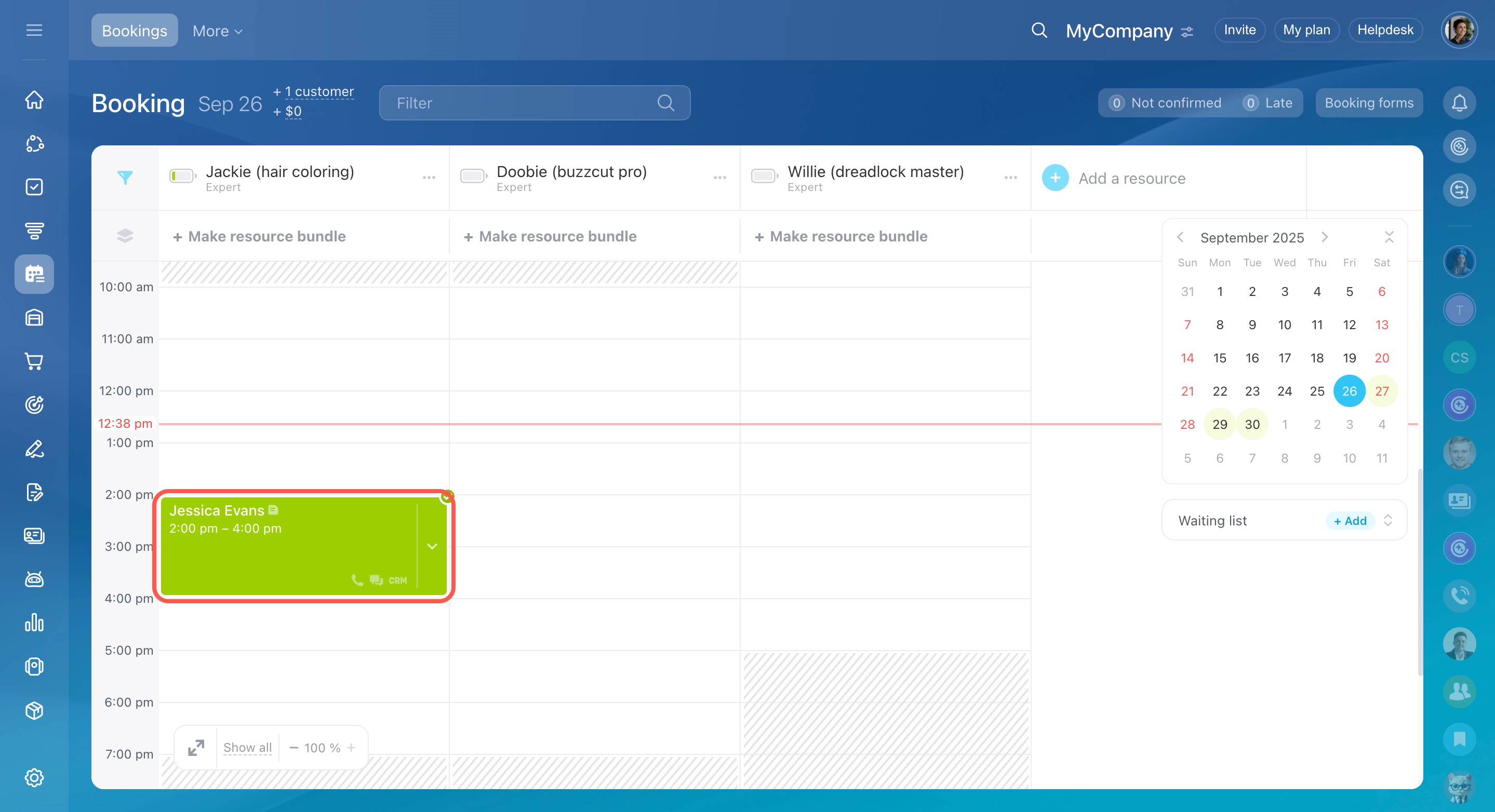
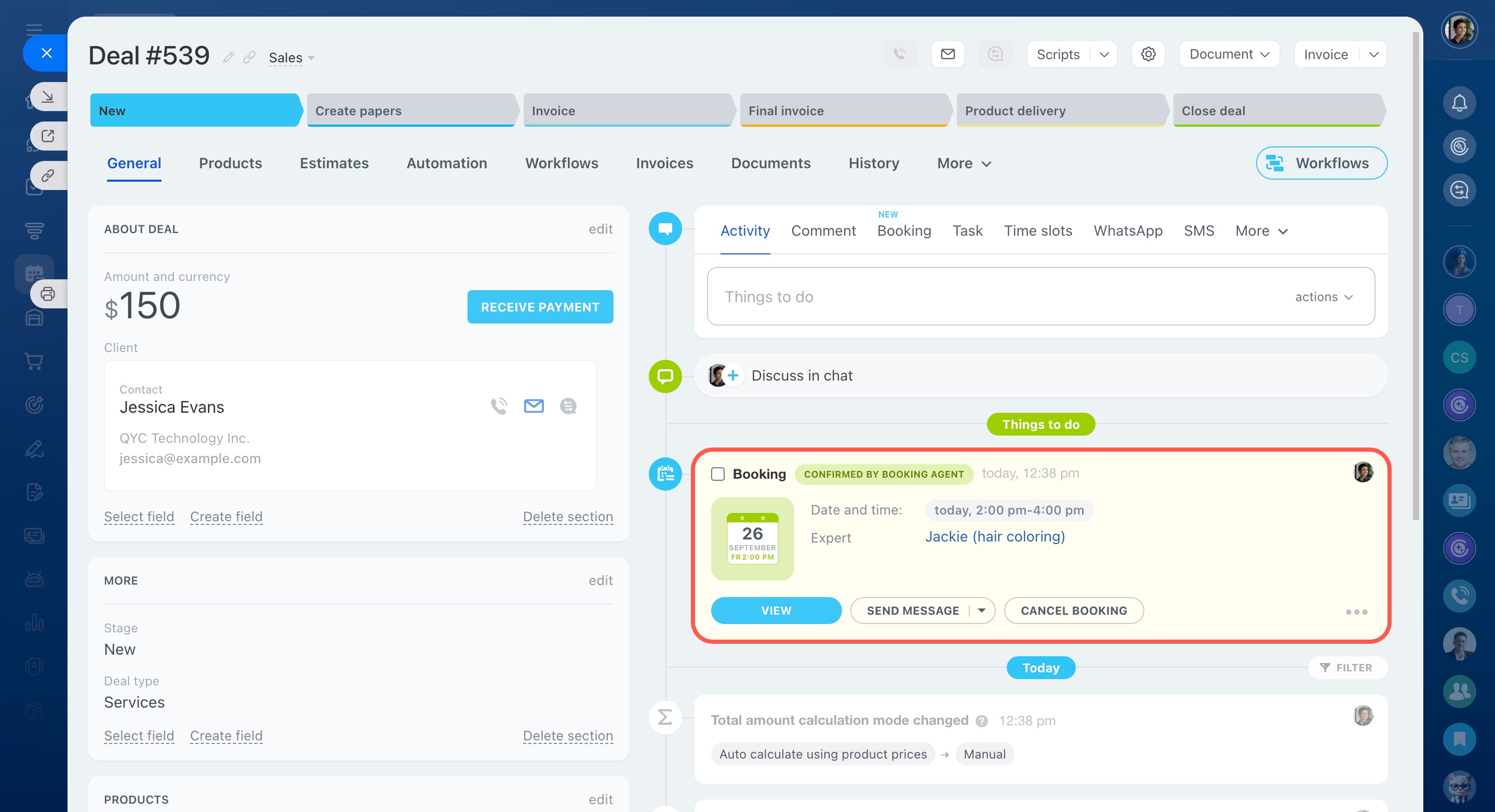
- Avoid errors. Data is saved automatically in CRM and the Booking section.
- Collect complete details. Customers fill in all required information.
In this article:
Create a form
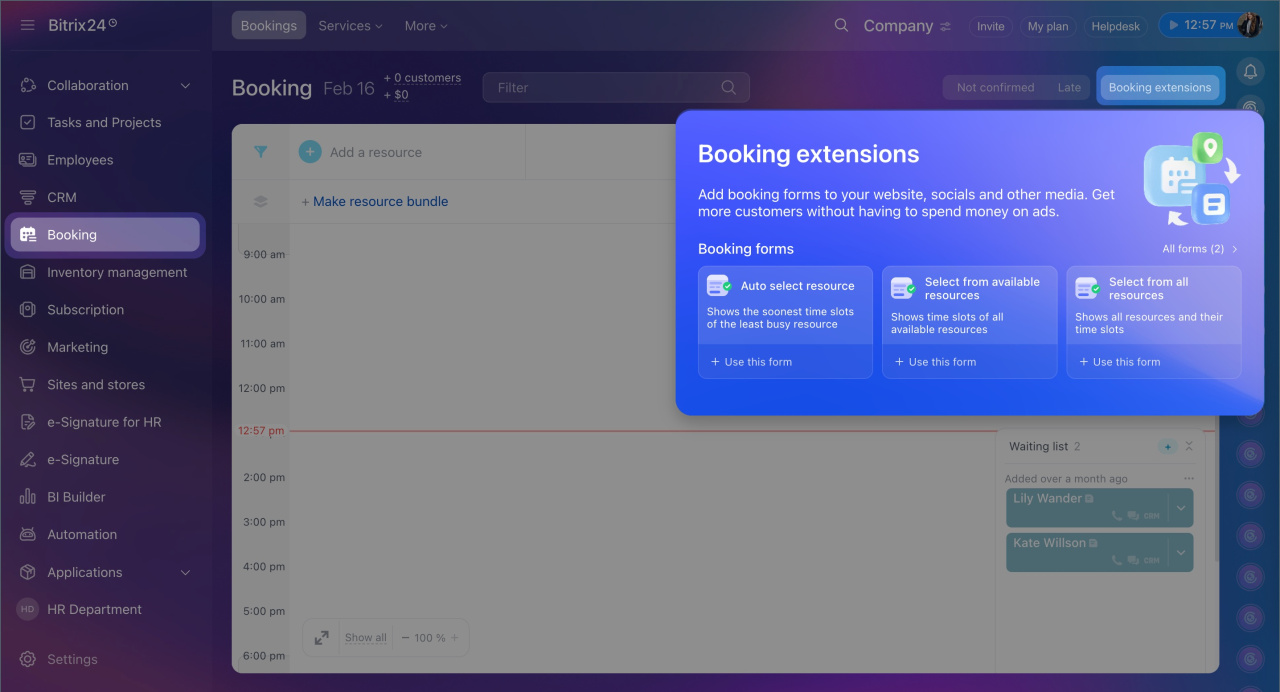
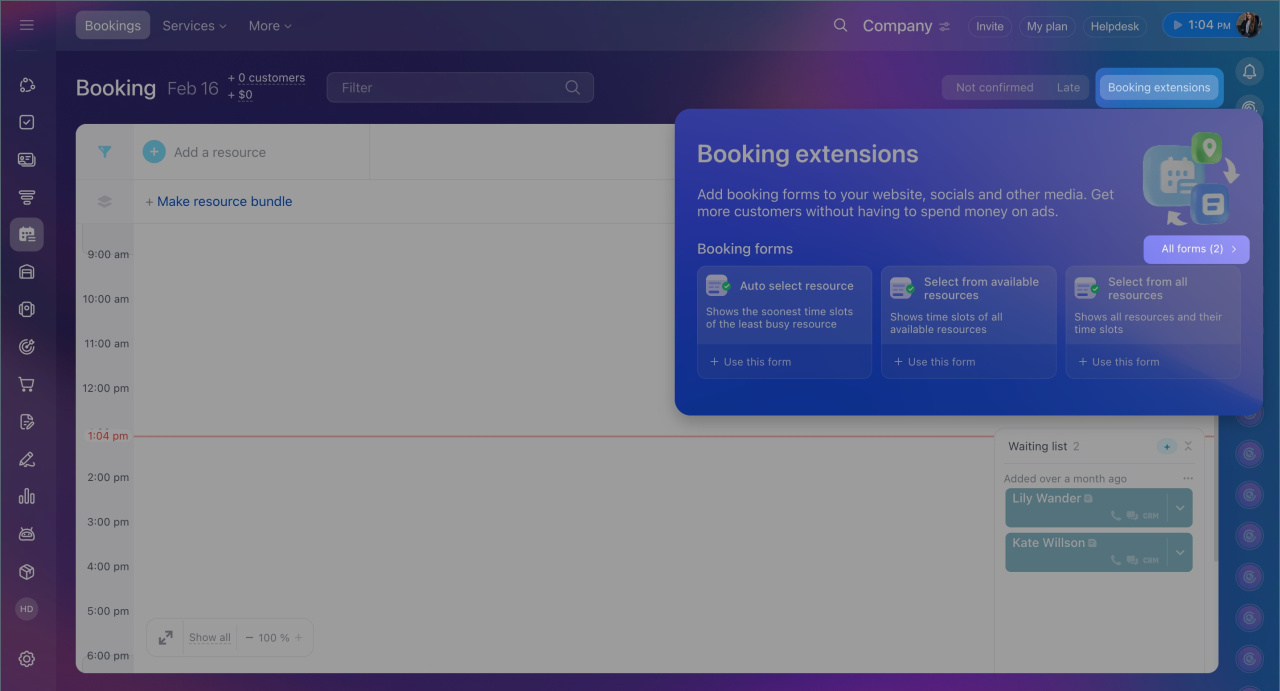
- Go to Booking.
- Click Booking extensions.
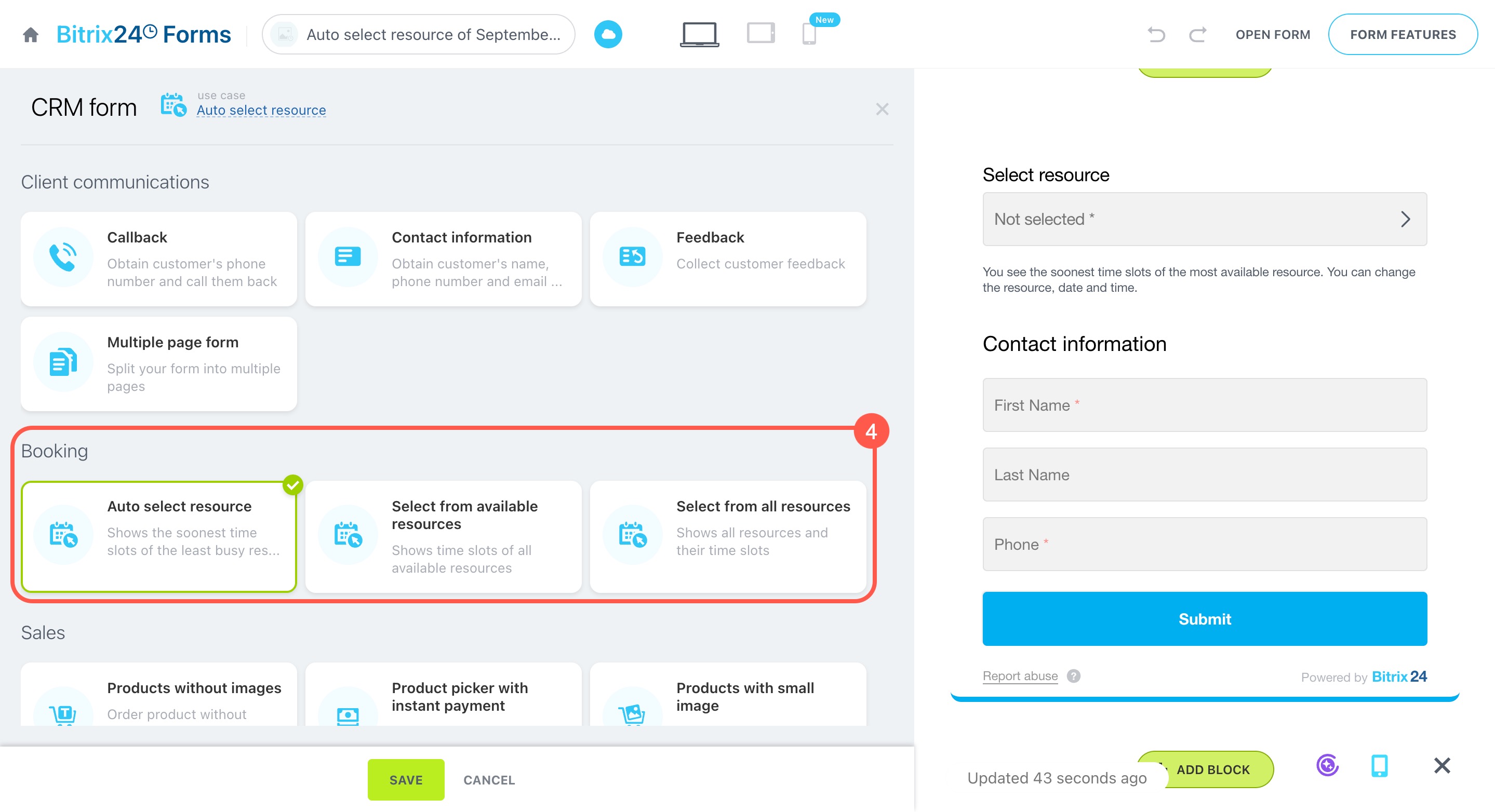
- Select a form type:
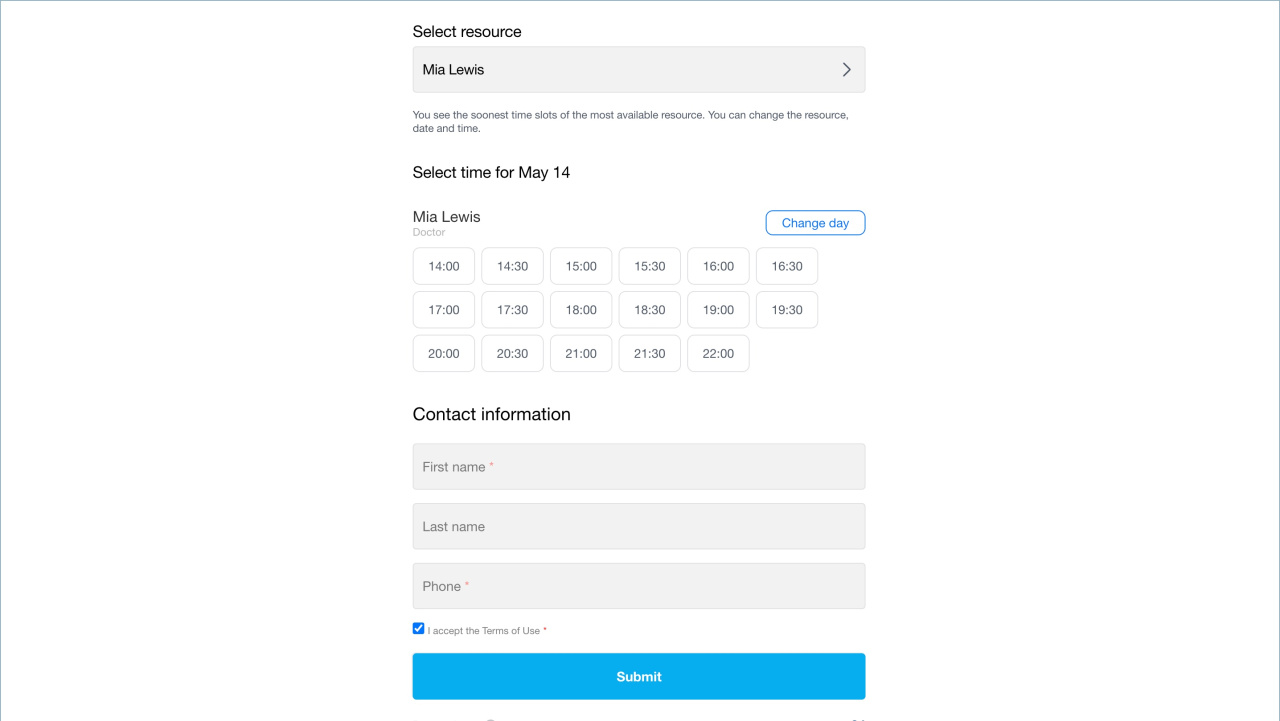
- Auto select resource
The form suggests available times and specialists. Customers can change the date or time if needed. - Select from available resources
Customers see all open time slots for a selected date and choose one. Use this when time matters more than the specialist. - Select from all resources
Customers choose a specialist, date, and time. Use this when a specific specialist is important.
Configure the form
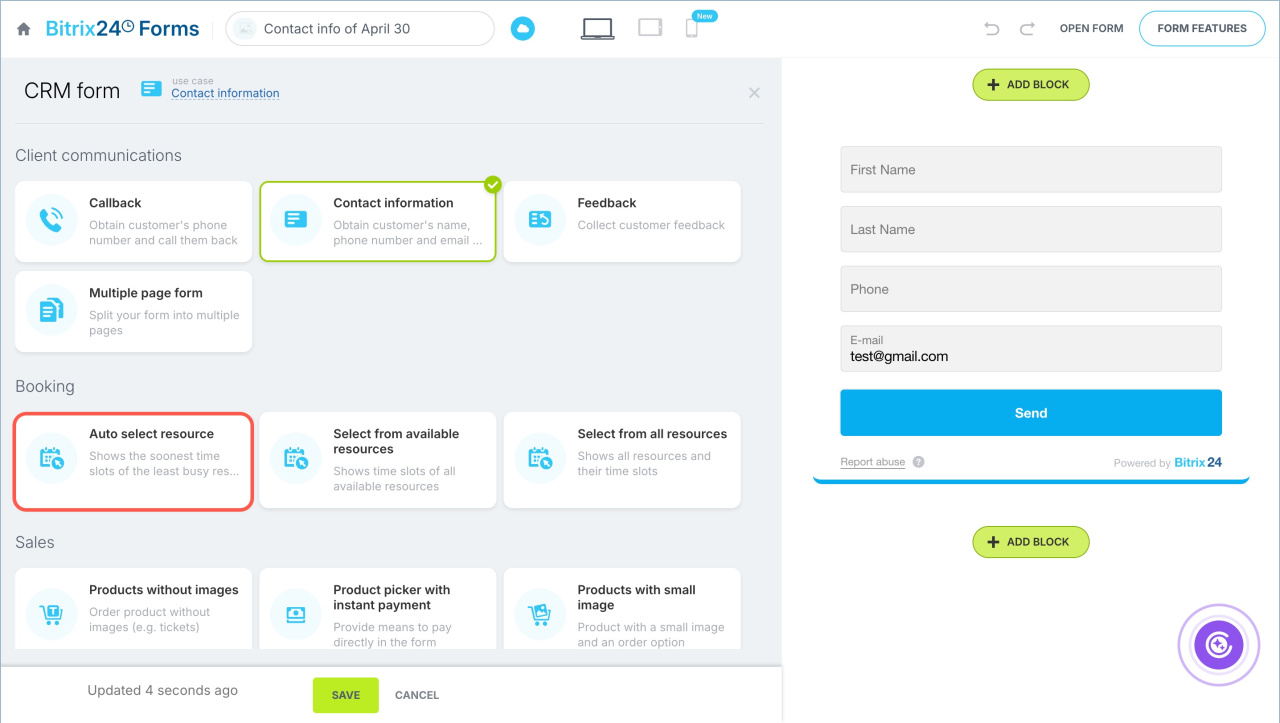
After you select a form type, set it up:
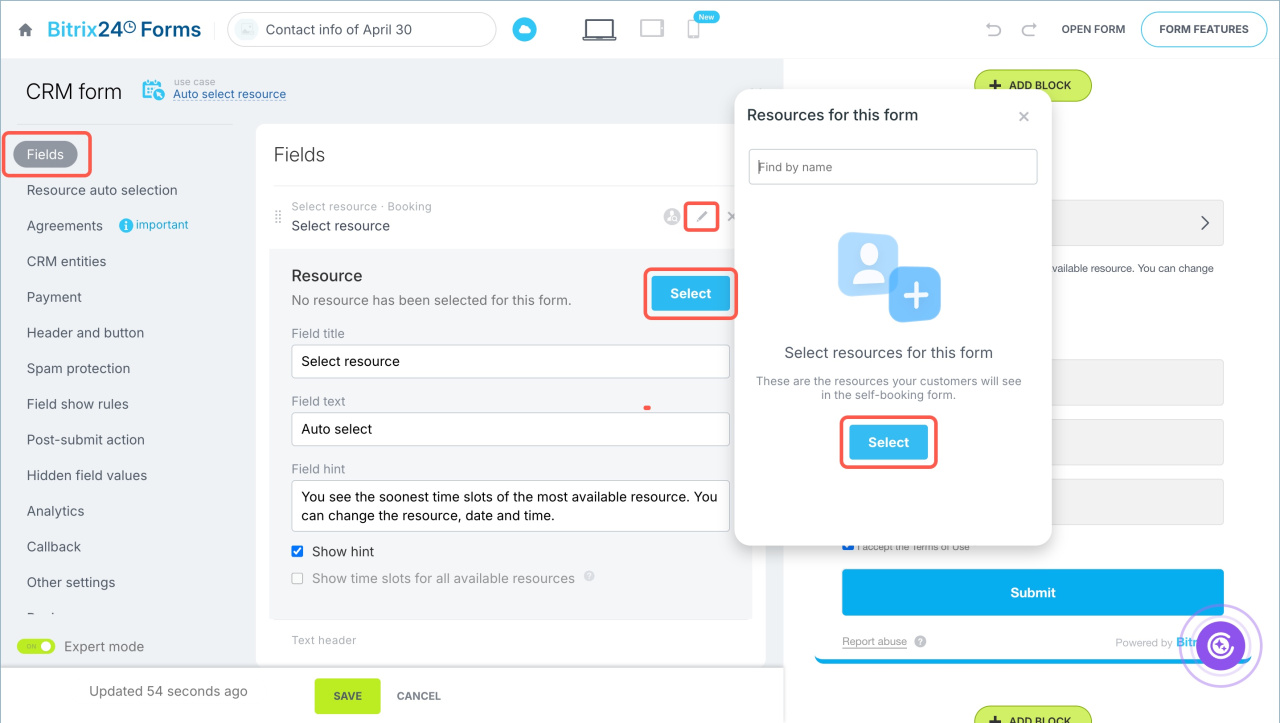
- Open the form settings.
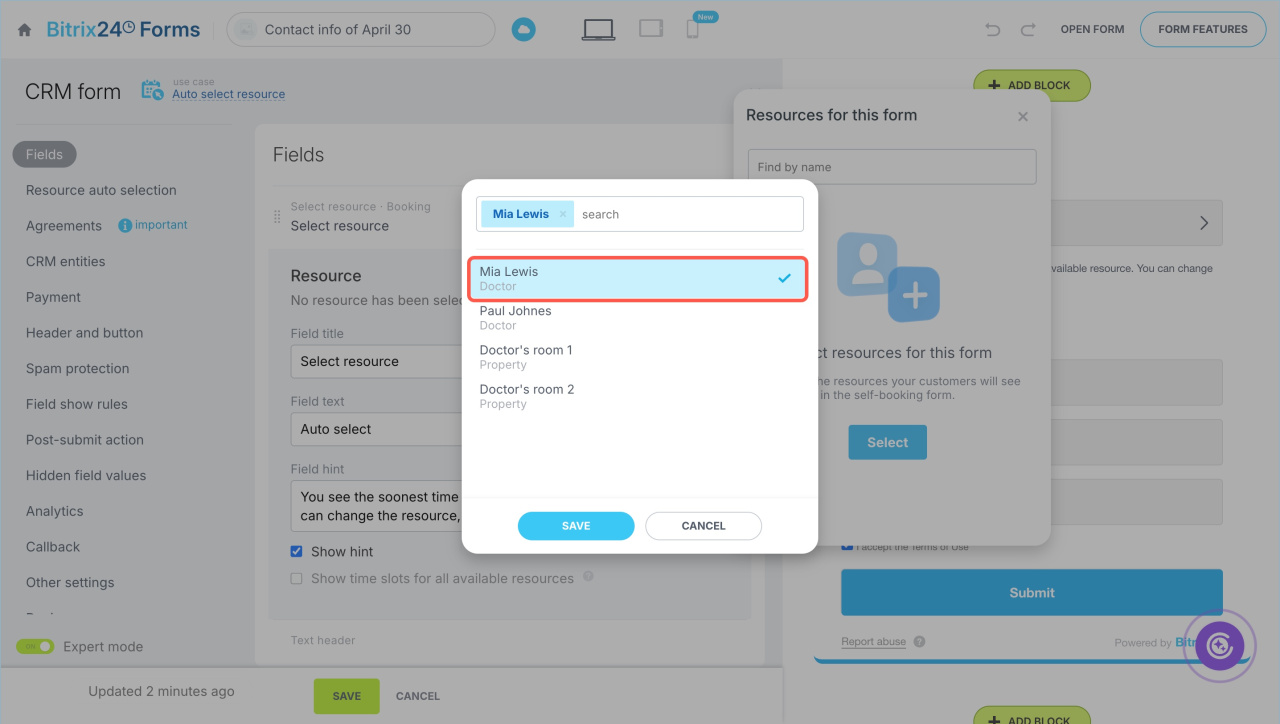
- In the Fields tab, click the pencil icon next to Select resource.
- Click Select.
- Choose a resource.
- Click Save.
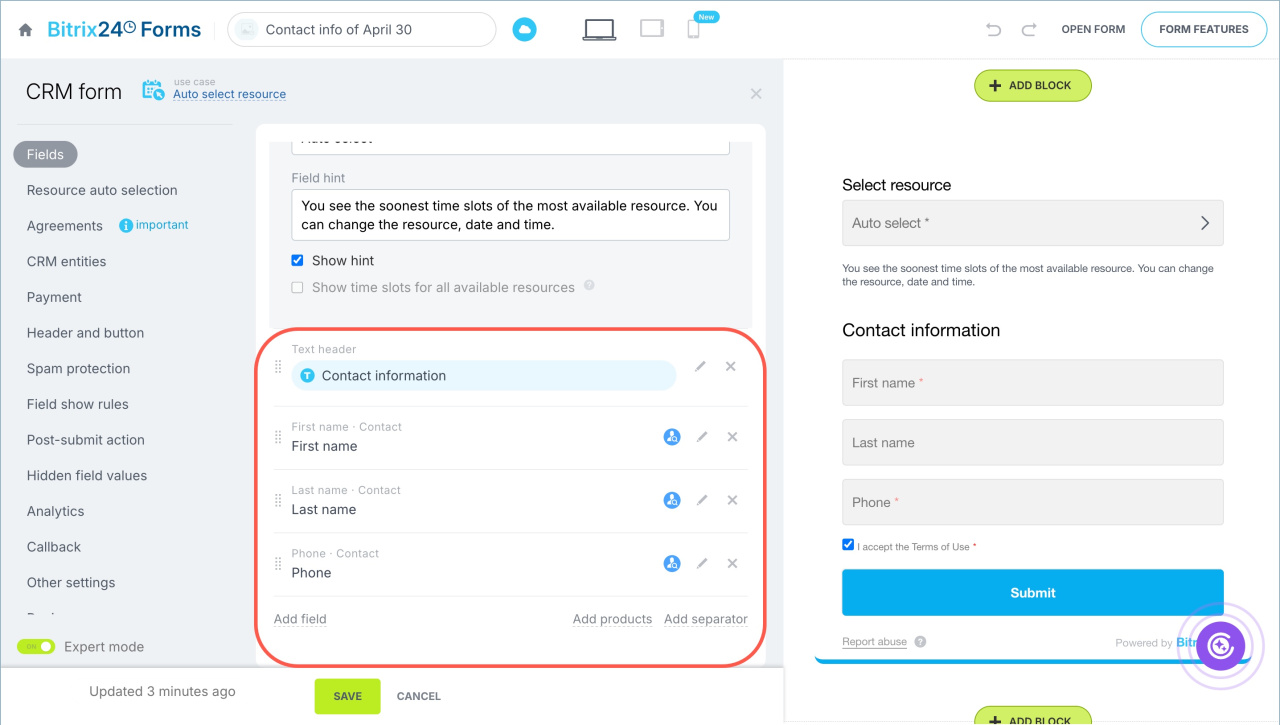
- Add the fields customers need to complete.
Work with the form
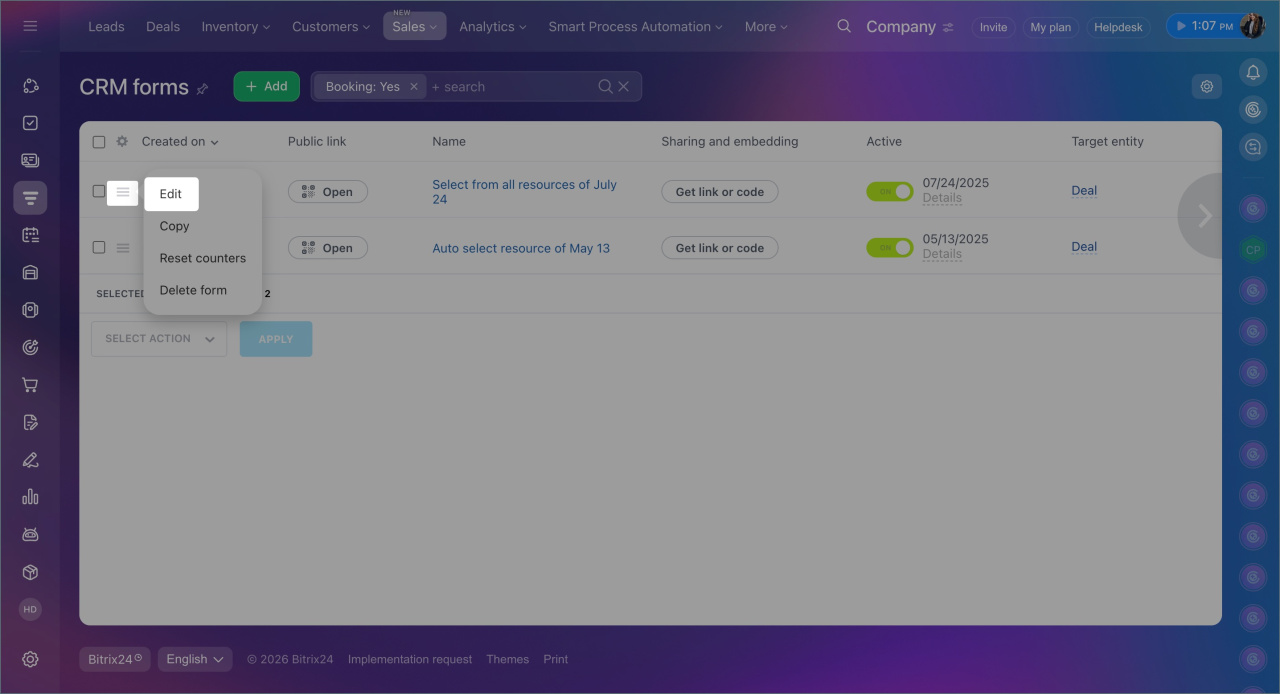
- Go to Booking > Booking extensions > All forms.
- Click the menu (≡) and select Edit.
You can share the form in several ways:
- Add it to your website
- Post it on social media
- Send it to customers via messenger
Place CRM form on Bitrix24 website
Place CRM form on site created not in Bitrix24
In brief
- Use booking forms to let customers choose a time and book services.
- Choose from three form types based on your workflow.
- Create a form in Booking > Booking extensions.
- Share the form on a website, social media, or via messenger.
- Submitted data is saved in CRM and the Booking section.
