
CRM forms help you collect customer contact details on your website. Visitors can also use them to register for events, place orders, or book services. These forms play a key role in attracting new customers.
You can only place active CRM forms on a site. To edit a site, you need content editing permissions.
Place CRM form on a website created outside Bitrix24
In this article:
Add a CRM form to a page block
Use this option when the form is part of the page content. For example, add a ticket form on an event page or a booking form on a service page.
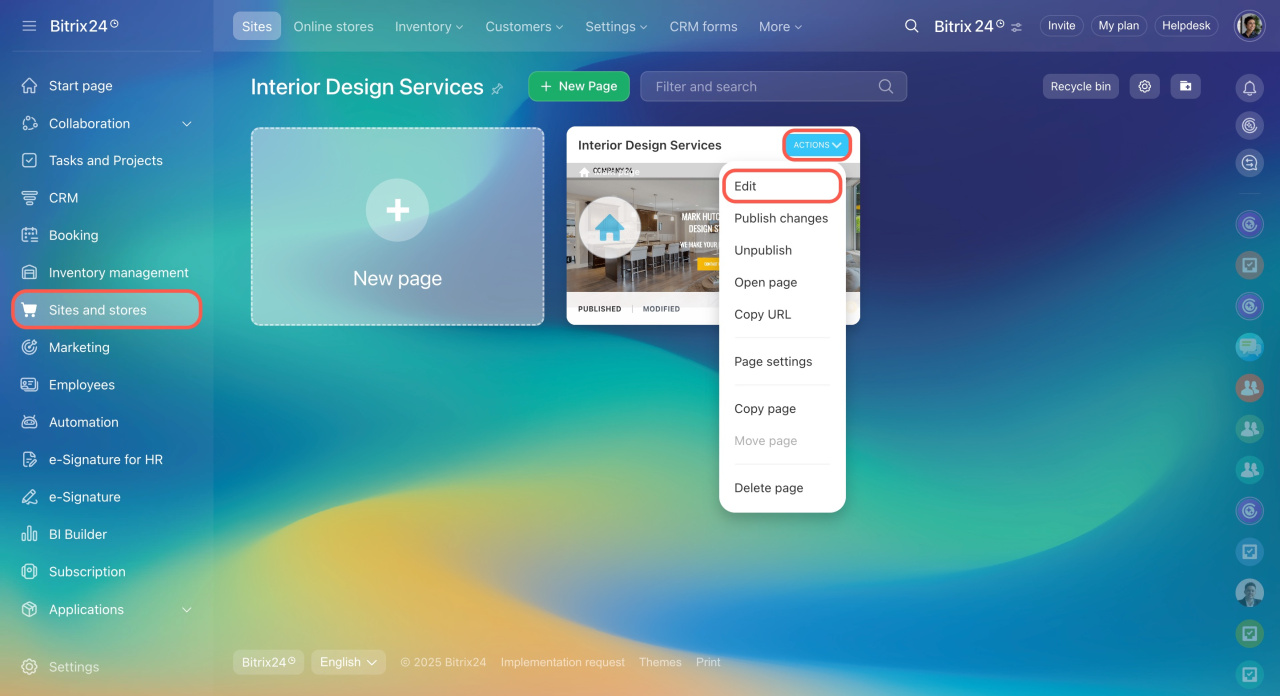
- Go to Sites and stores and select a site.
- Open the page in edit mode.
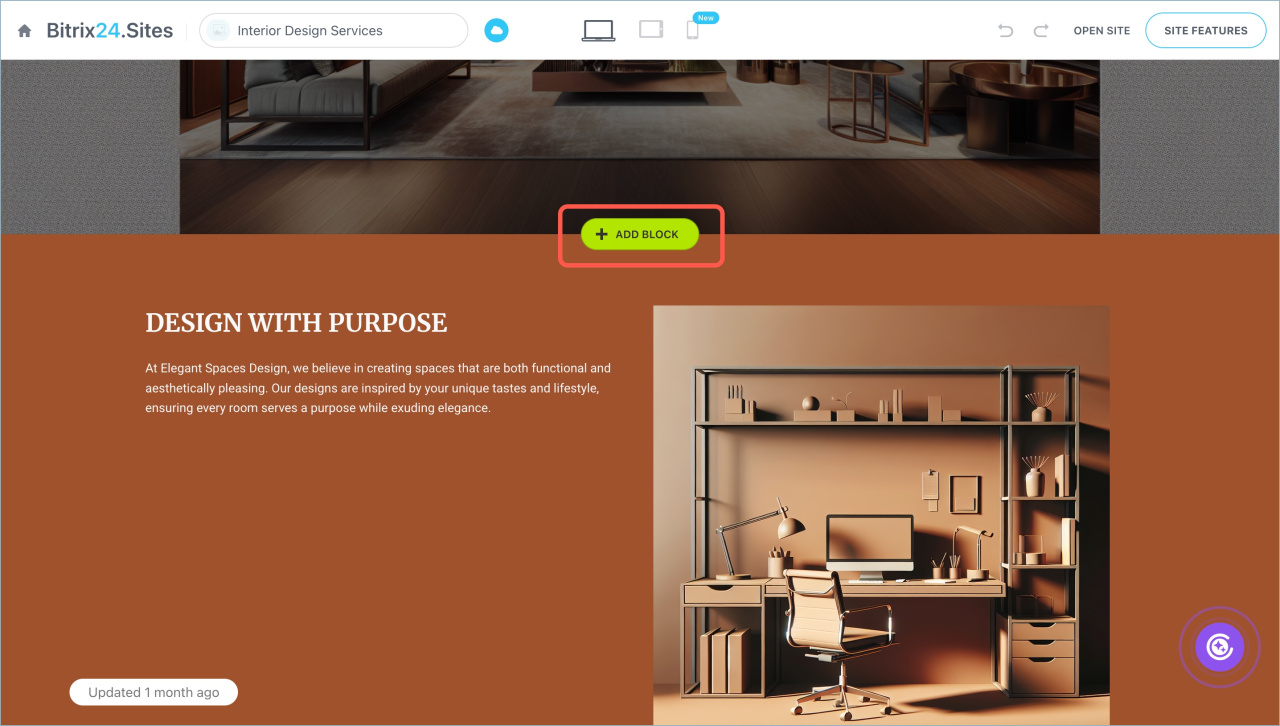
- Choose where to place the form and click Add block.
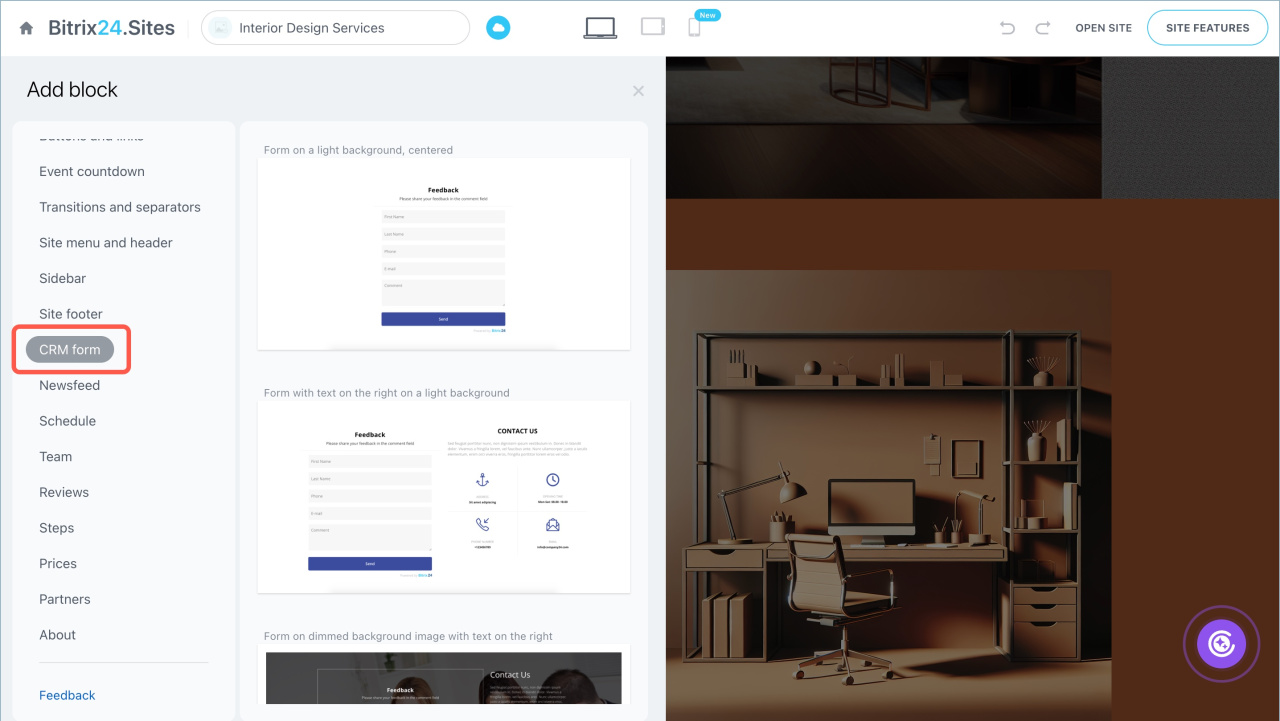
- Find the CRM form block and select a template.
Next, configure the form.
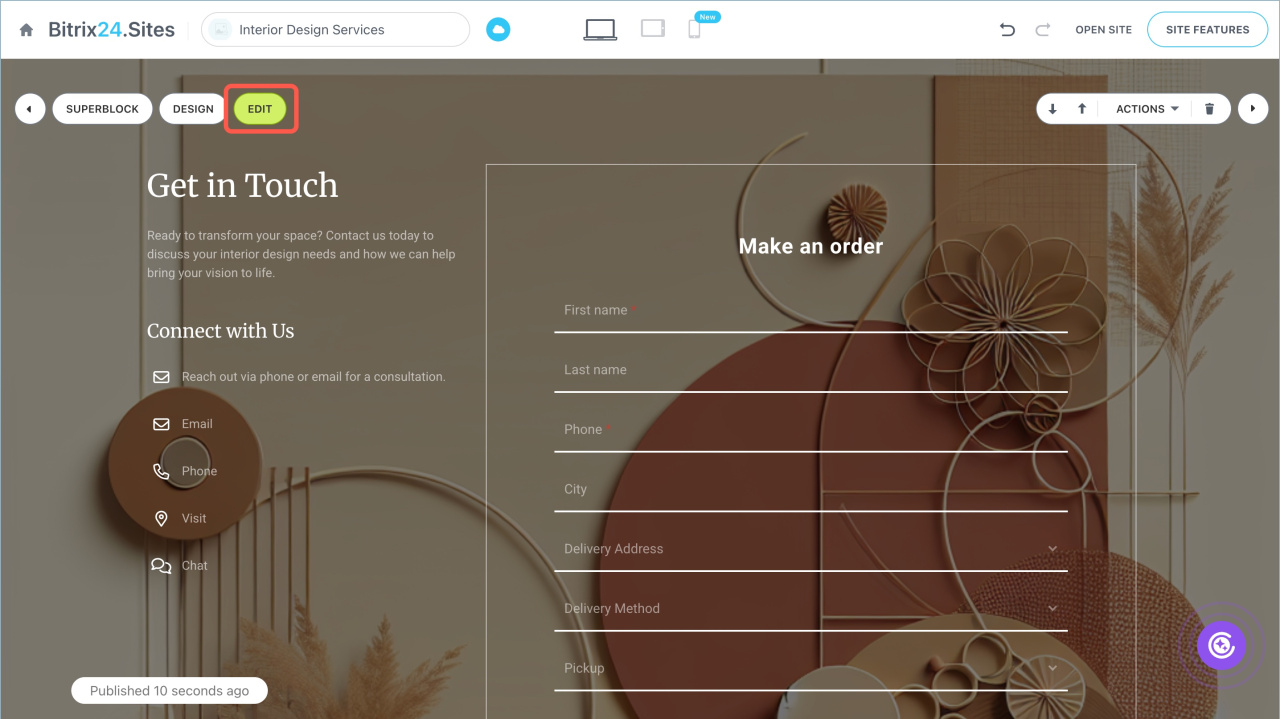
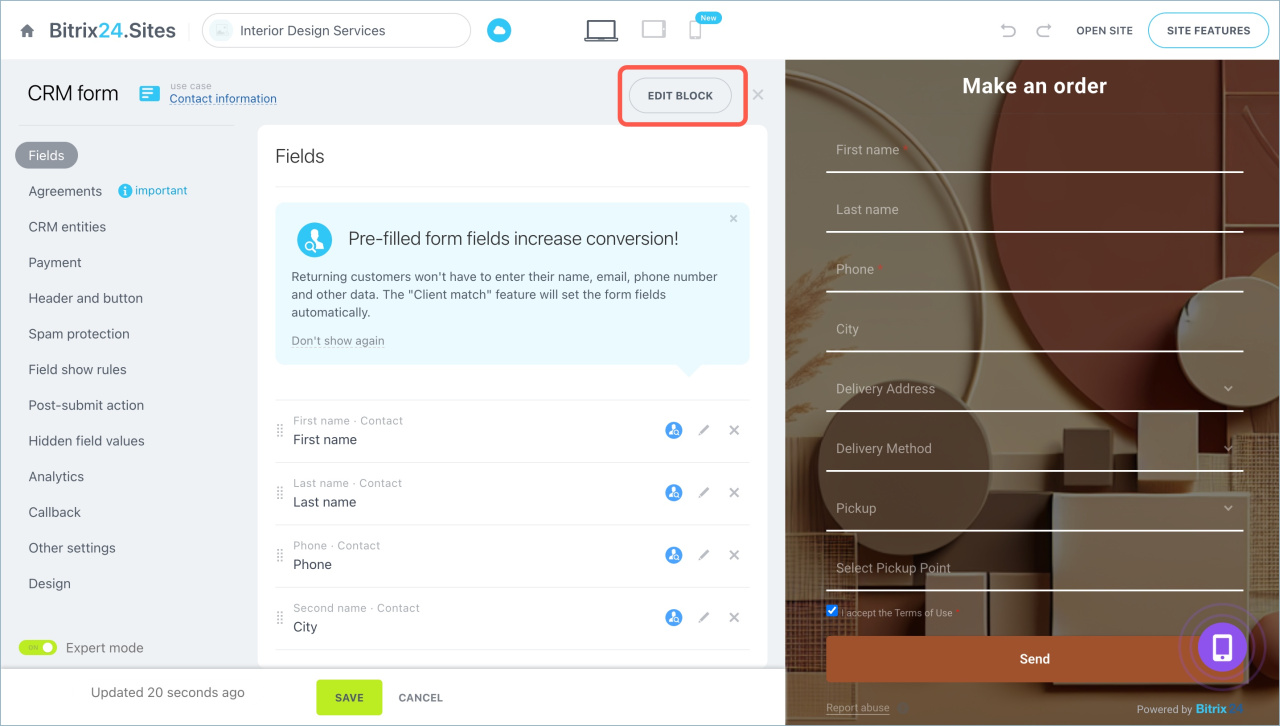
- Click Edit > Edit block.
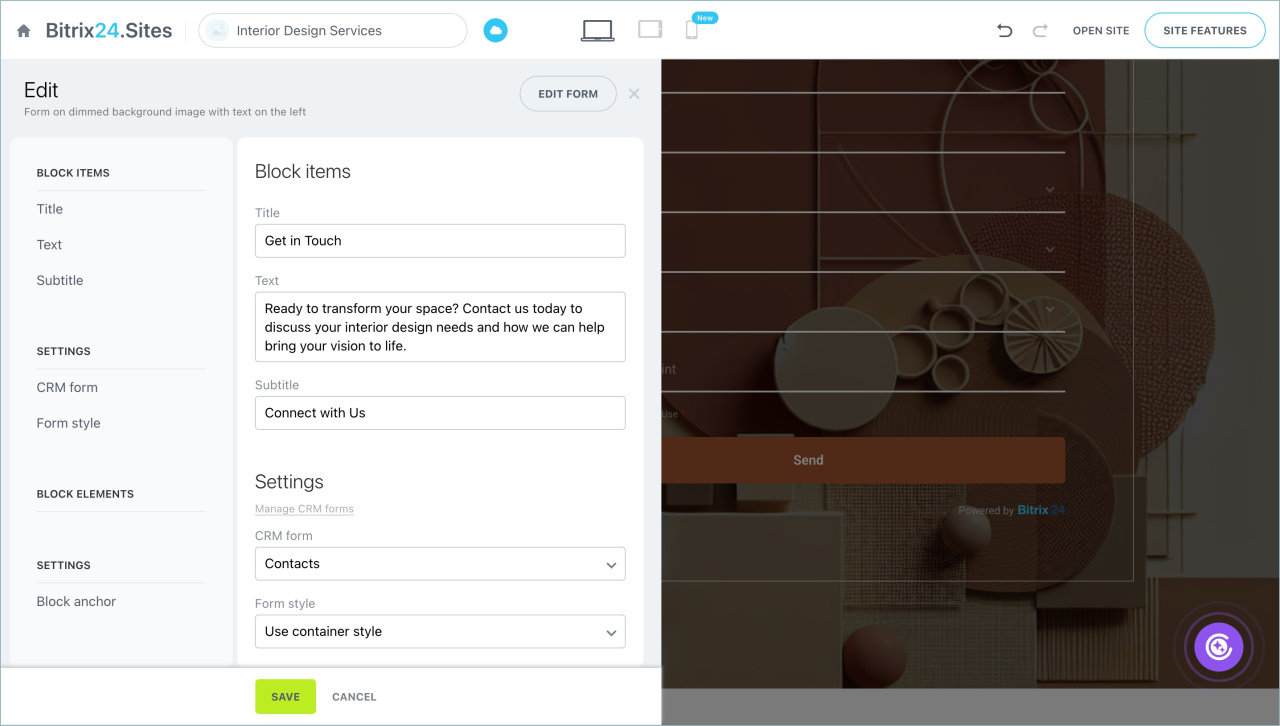
- Open block settings.
- Select a form and its design, or choose a pre-created form.
CRM form design - Save your changes.
Connect a form using a widget
A widget lets visitors contact your company. You can add messengers, live chat, and CRM forms.
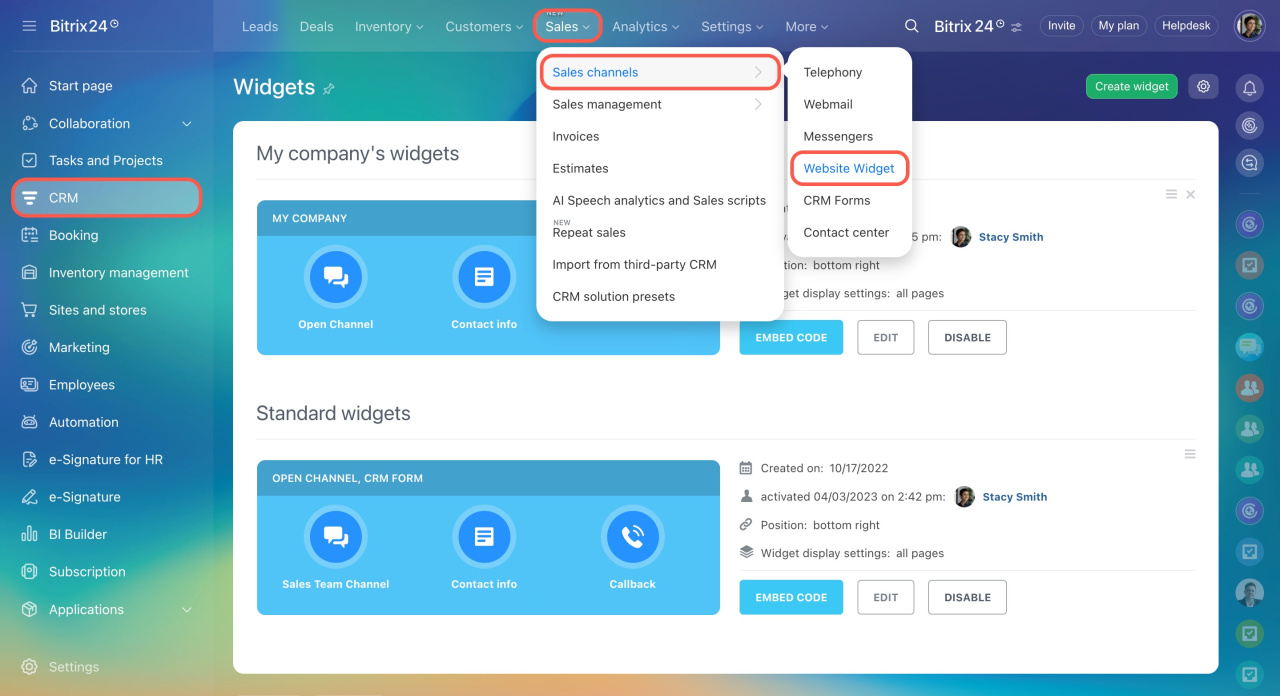
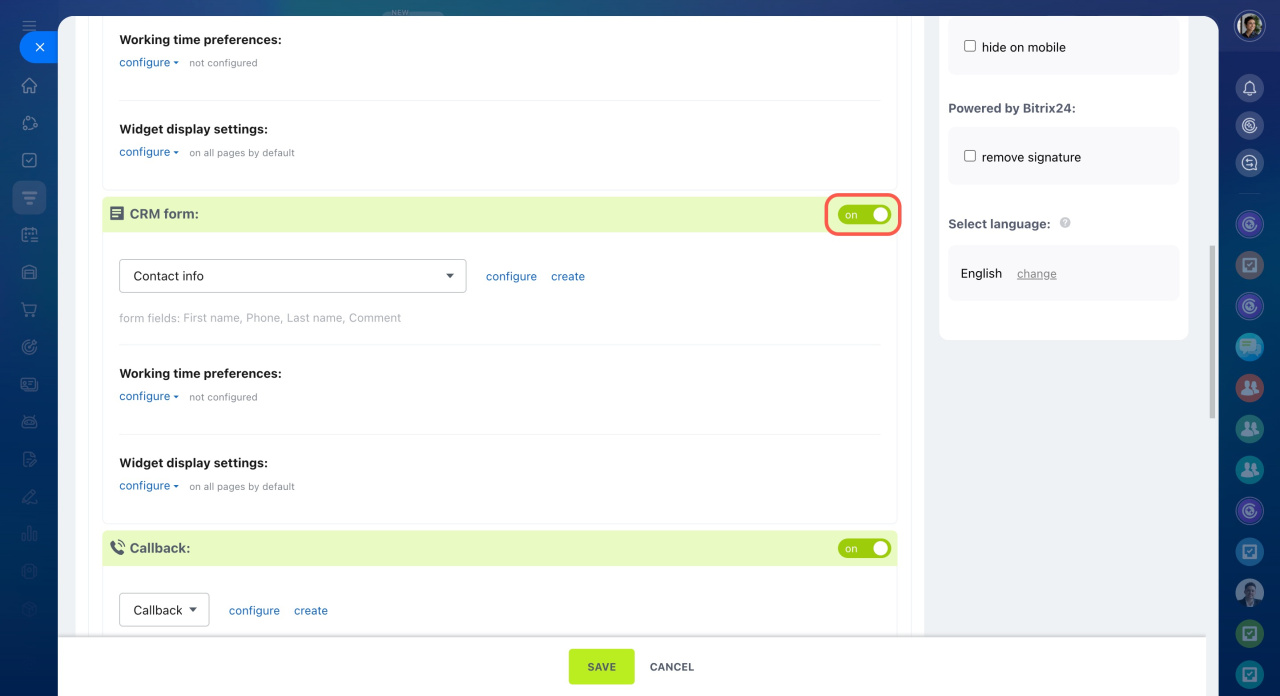
- Go to CRM > Sales > Sales channels > Website widget.
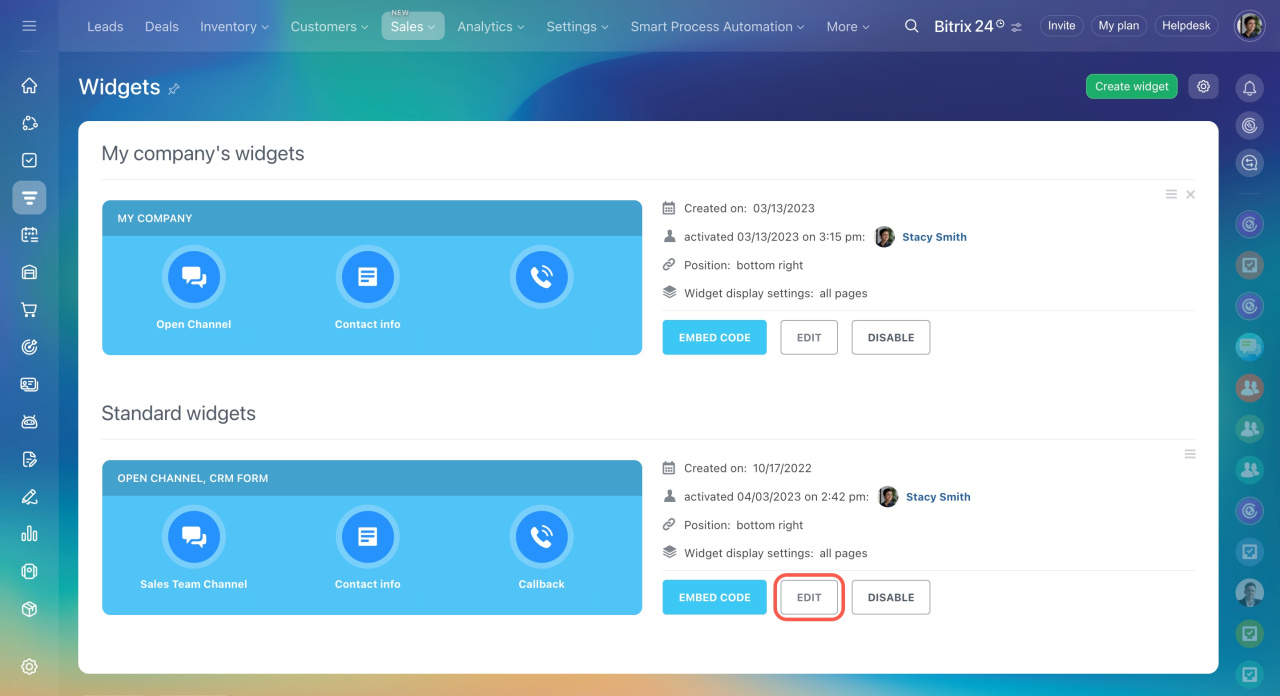
- Select a CRM form and click Edit.
- Enable the CRM form.
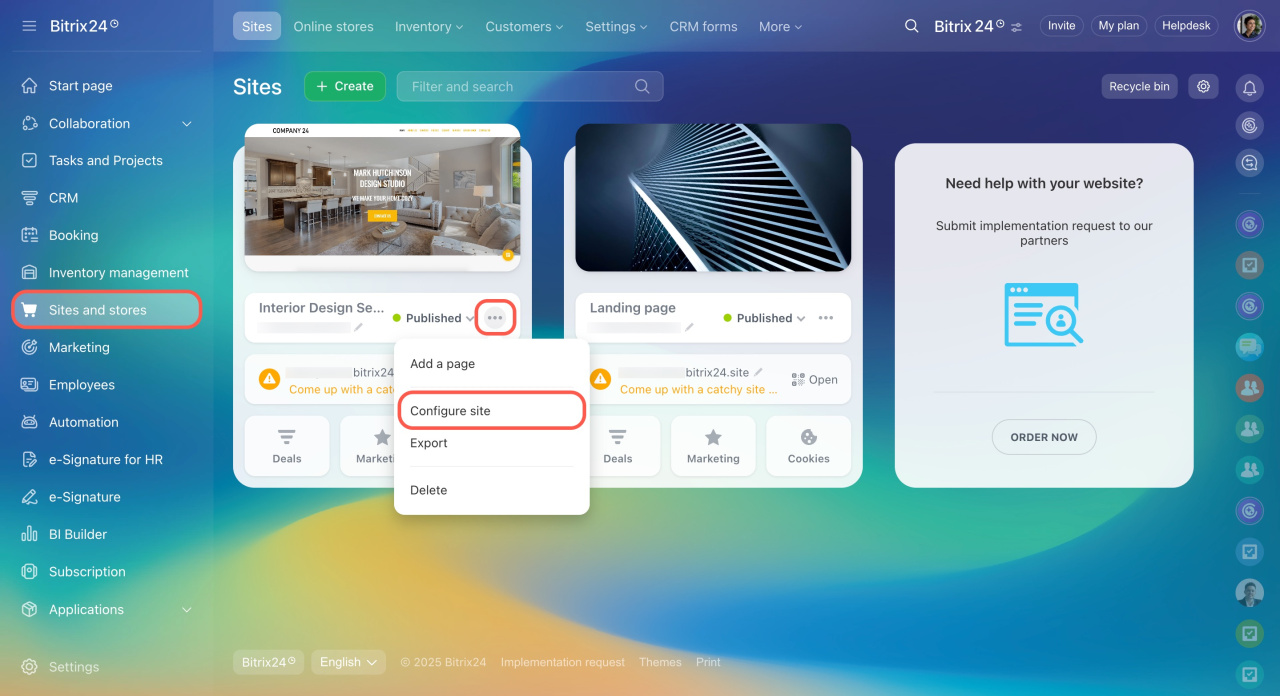
- Go back to Sites and stores and click Configure site.
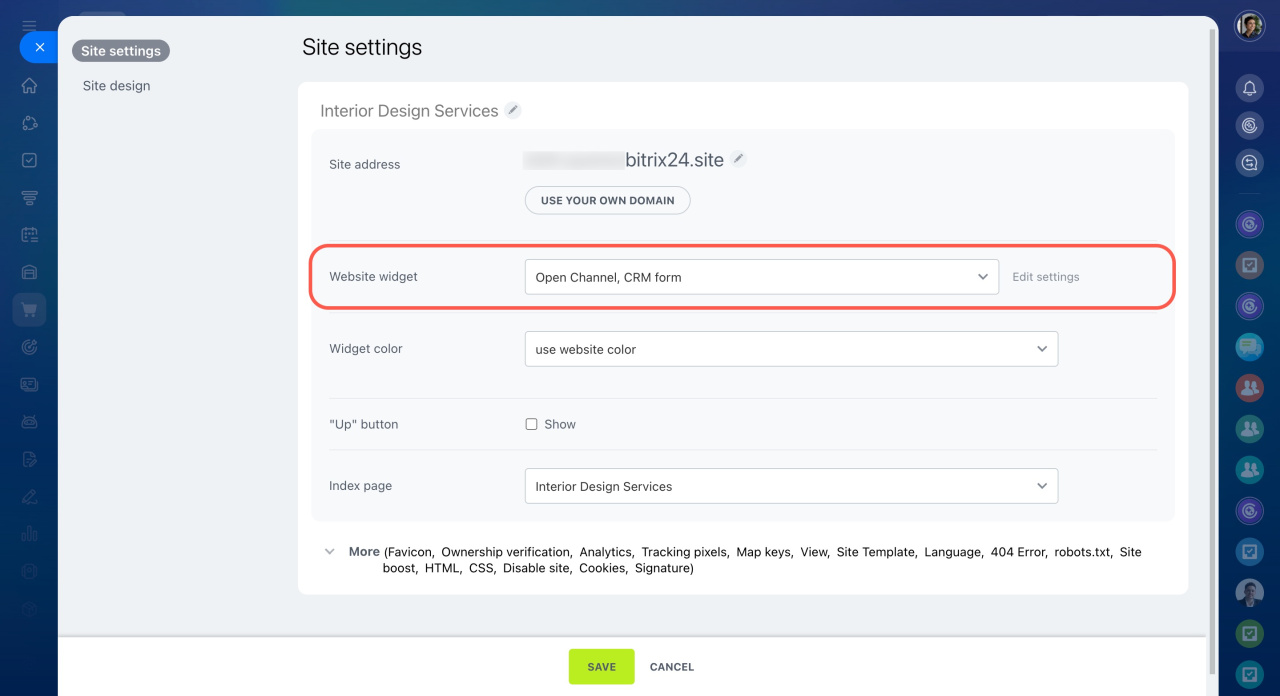
- Enable the CRM form widget in the settings.
In brief
- Use CRM forms to collect customer information on your website.
- Go to Sites and stores and open a site.
- Edit the page and click Add block.
- Select a CRM form block and choose a template.