
In Bitrix24, you can invite customers to continue a conversation on Telegram or WhatsApp directly from a CRM entity form. This makes it easier to communicate in the customer’s preferred messenger. Bitrix24 saves the full chat history in the CRM entity.
Before you start, connect Telegram and WhatsApp in Contact Center:
Connect Telegram bot
Contact Center: Instant WhatsApp
Invite a customer to chat
-
Open a CRM entity form.
-
In the timeline on the right, click Invite to chat.
-
If the CRM entity includes multiple contacts, select the contact you want.
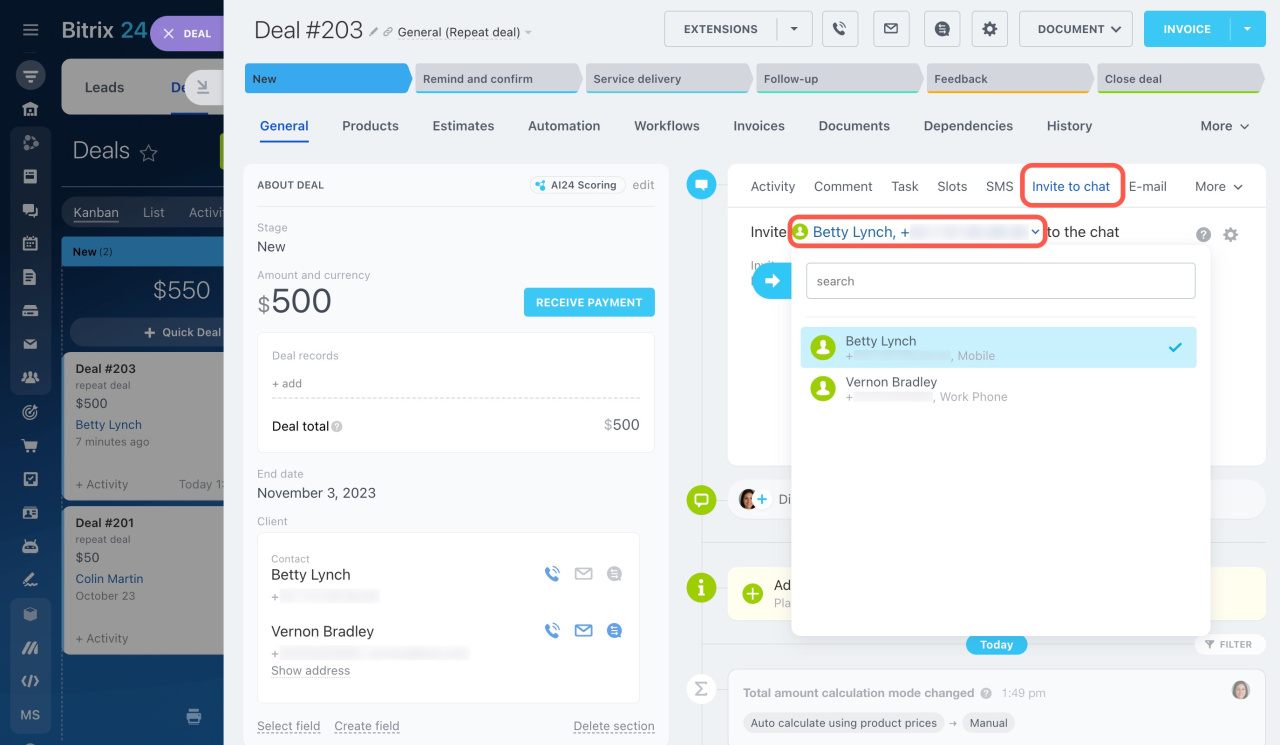
-
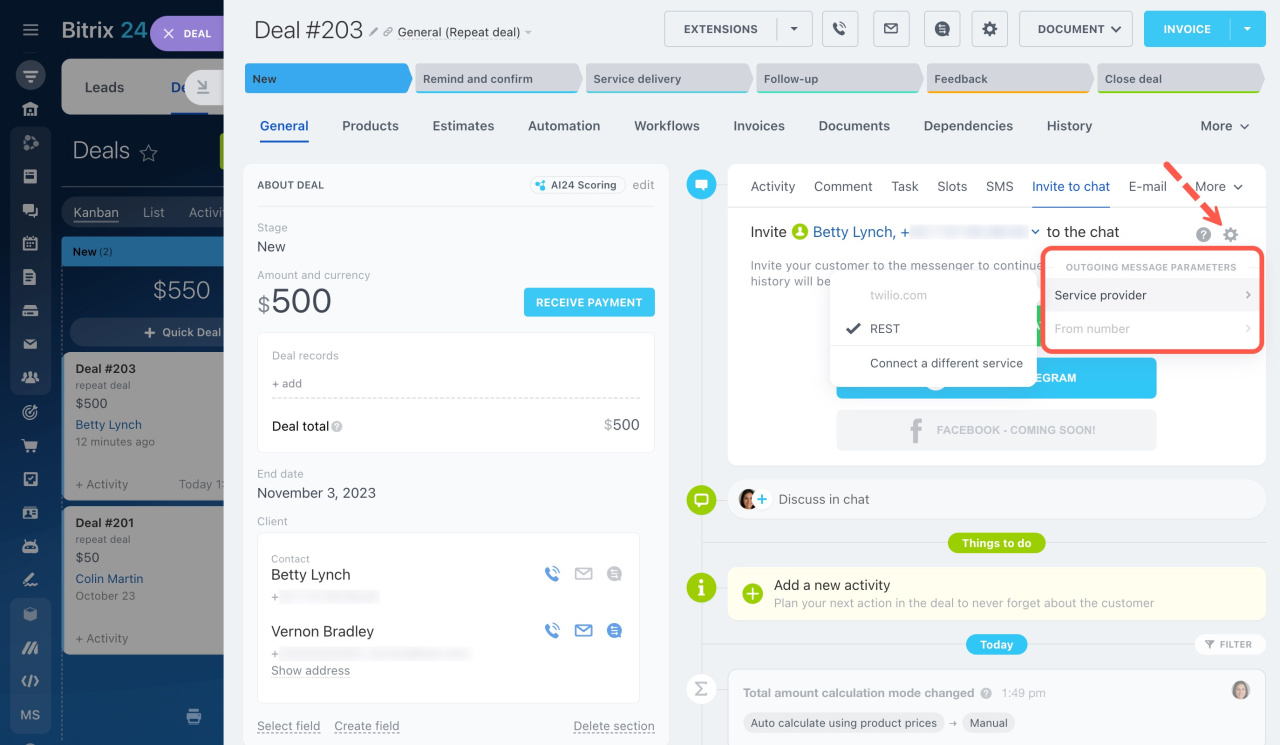
Click the gear icon (⚙️) in the top right corner.
-
Select an SMS provider.
To send SMS invitations, you need to connect an SMS service. You can use the built-in Twilio integration or choose another solution in the Bitrix24 Market.
-
Complete the setup.
-
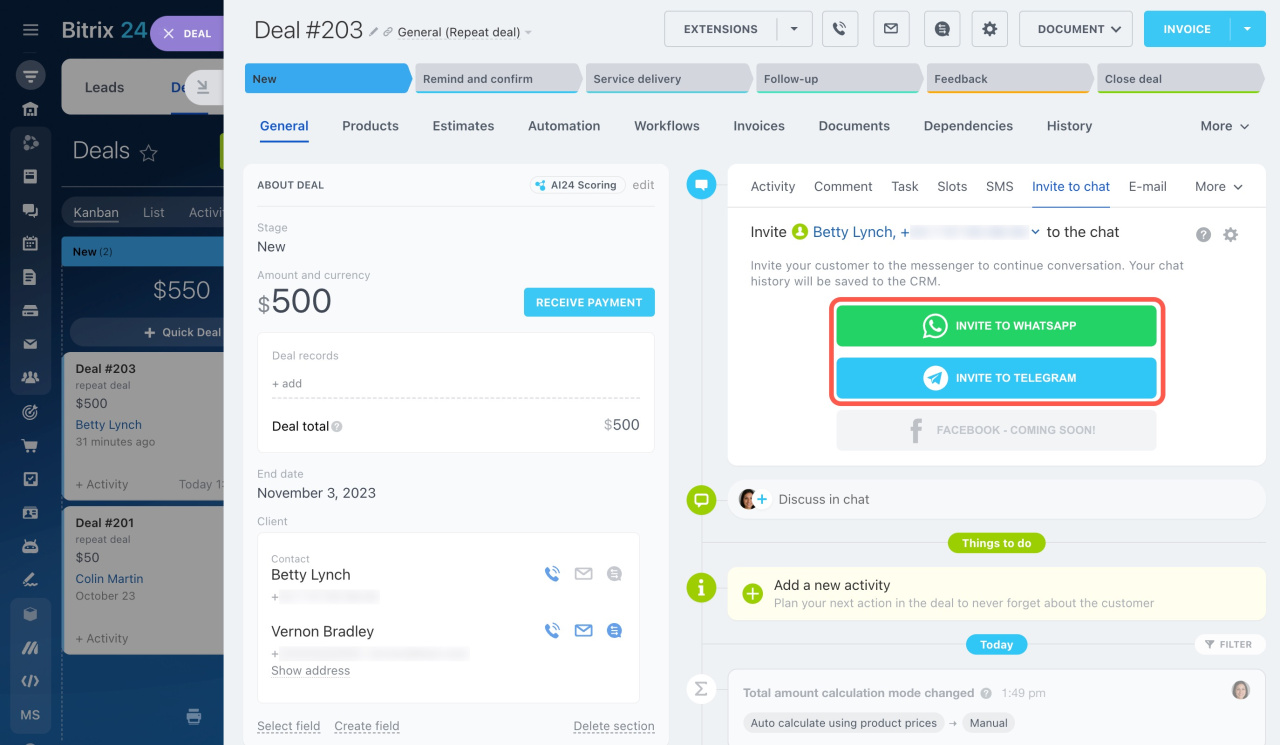
Click Invite to WhatsApp or Invite to Telegram.
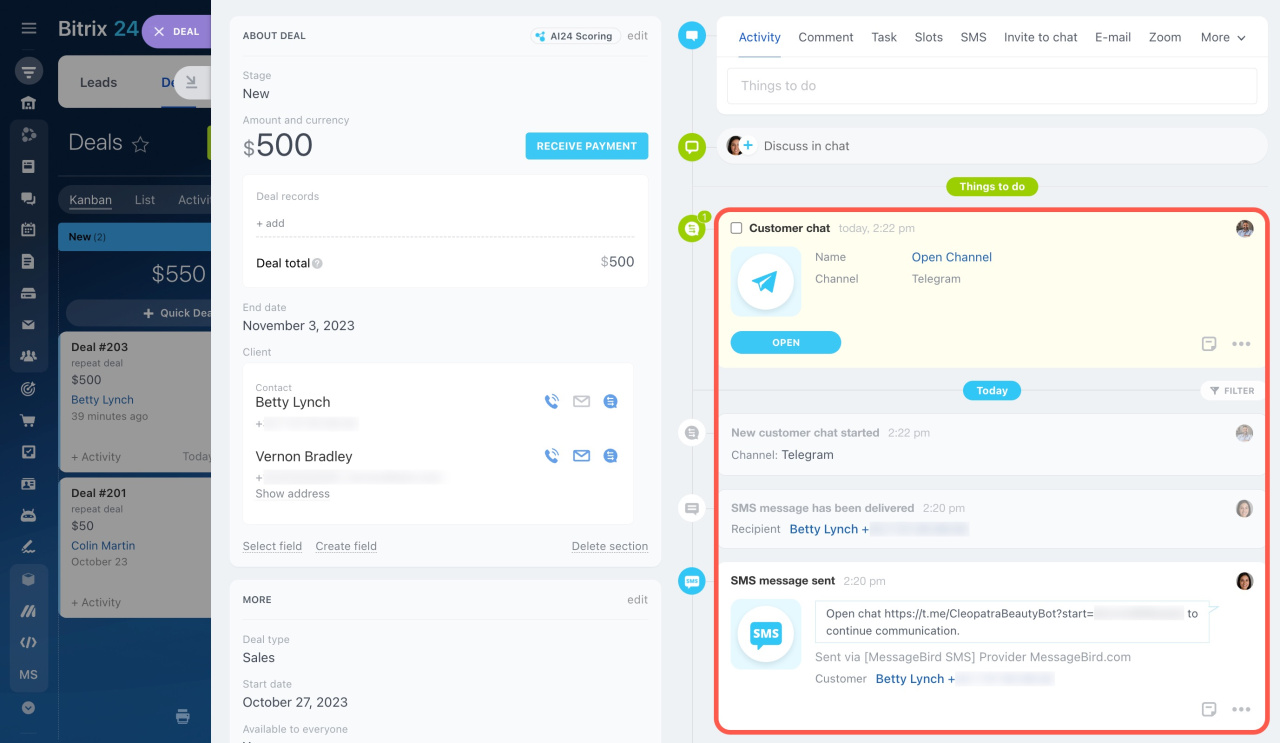
You can track the invitation status in the timeline.
How chats work
Telegram
When the customer clicks the link in the SMS, the Telegram chat opens automatically.
To start a WhatsApp chat, the customer must:
-
Click the link in the SMS.
-
Send the pre-written message without changing it.
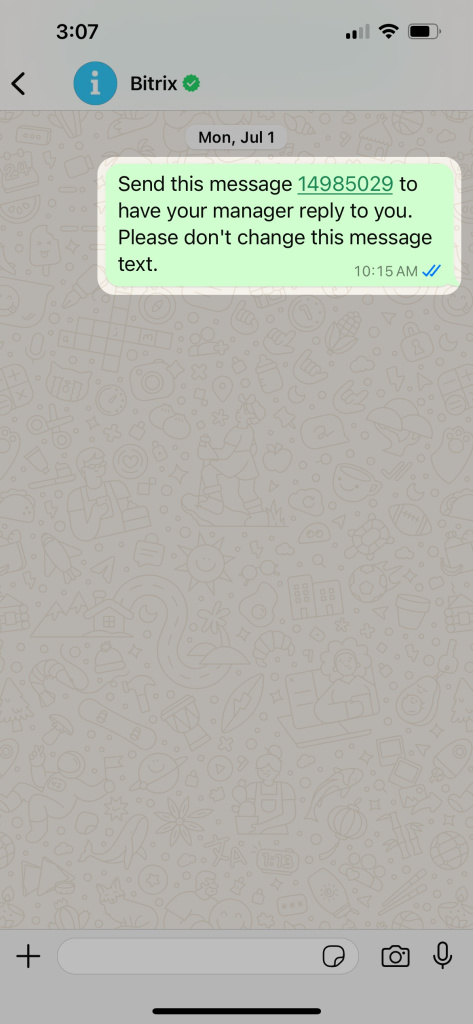
After the customer sends a message, Bitrix24 shows a notification.
You can open the chat directly from the CRM entity form or find it in the conversation list in Contact Center.
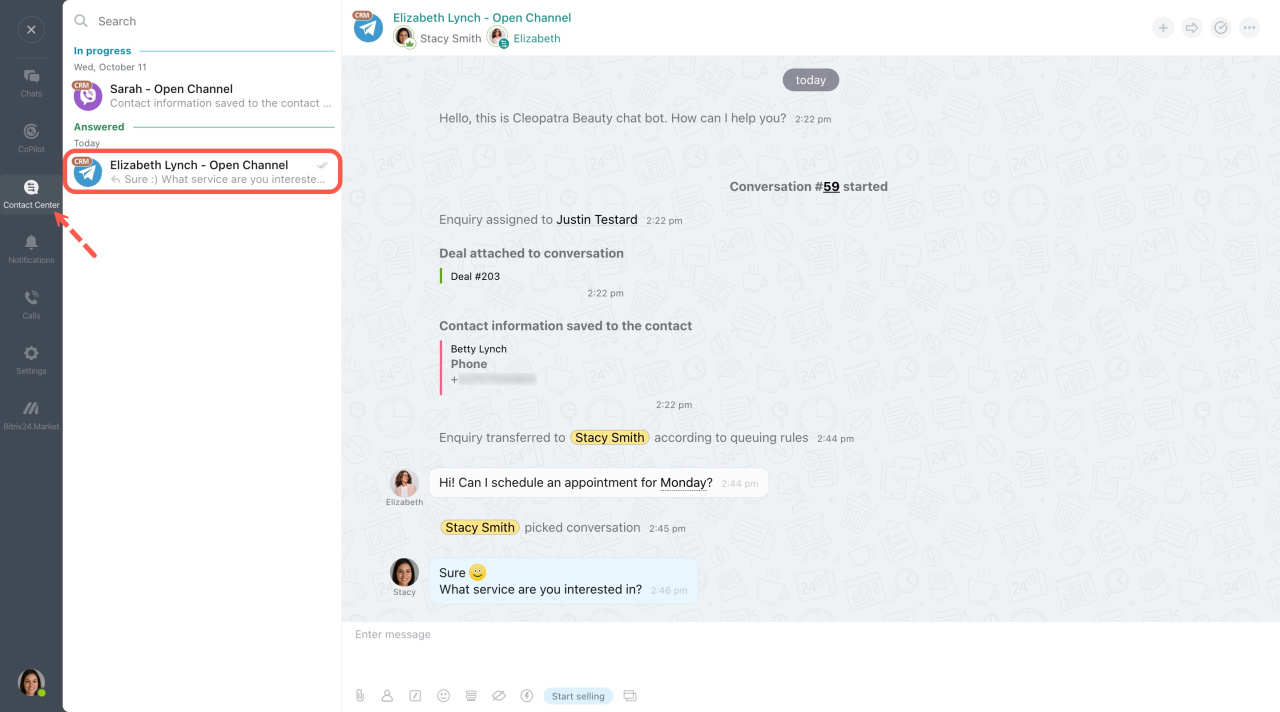
In brief
-
Invite customers to WhatsApp or Telegram directly from a CRM entity form.
-
To use Telegram chats, connect a Telegram bot in Contact Center.
-
To use WhatsApp chats, connect Instant WhatsApp in Contact Center.
-
Send invitation links by SMS.
-
Bitrix24 saves the chat history in the CRM entity form.