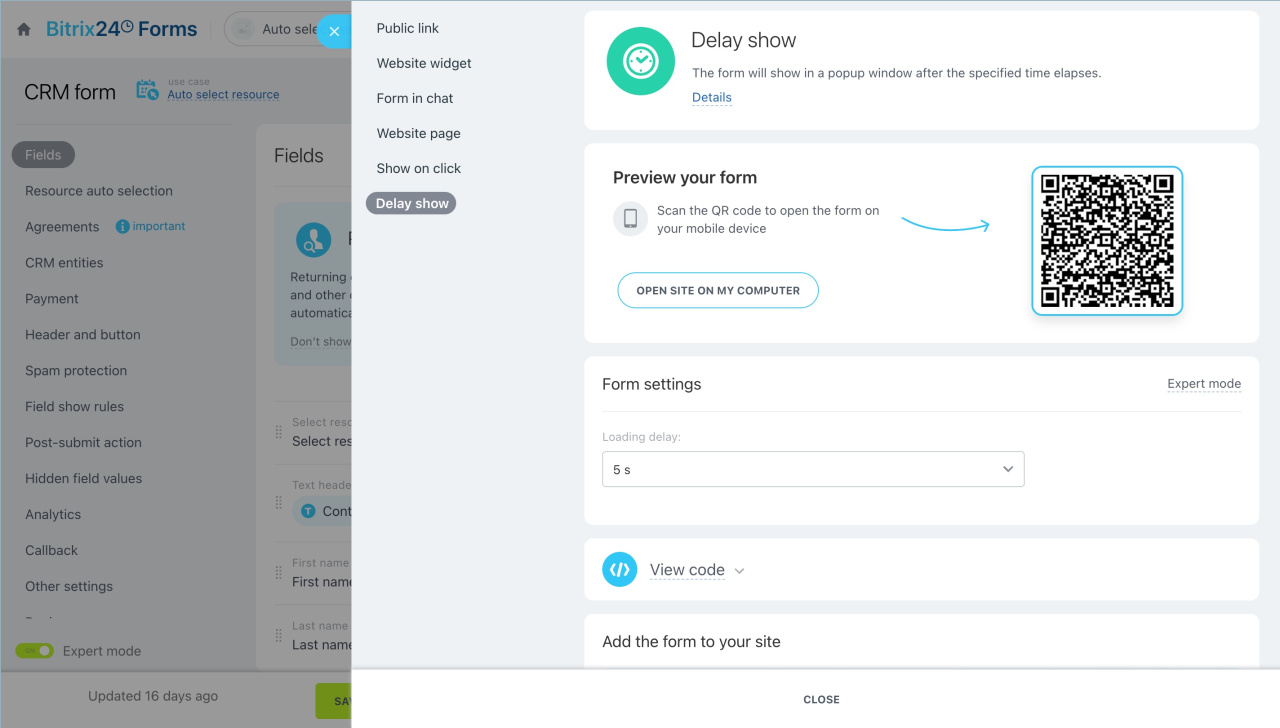
If your website is built in another CMS, you can still add a Bitrix24 CRM form. Choose one of the following options:
- Add the form as a block on the page
- Show the form in a pop-up when the page loads
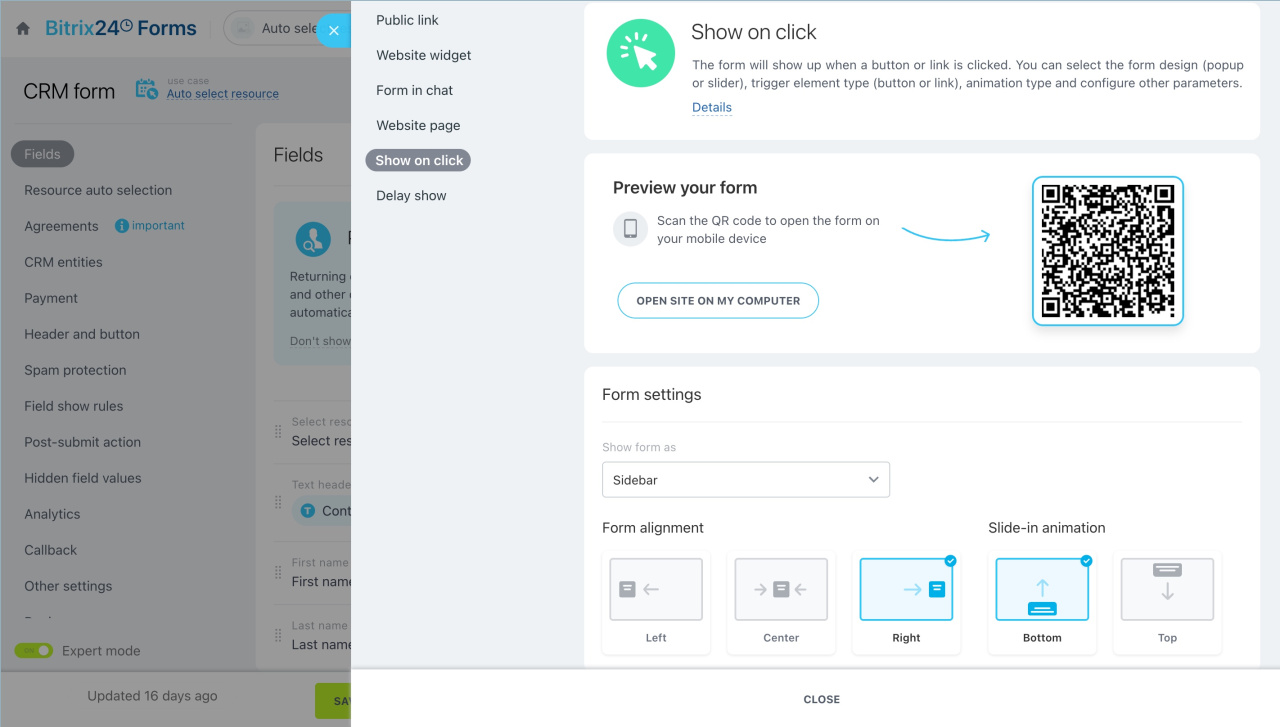
- Show the form in a pop-up after a button click
If you’re not familiar with web development, ask a developer to help.
If your site is built in Bitrix24, see How to place a CRM form on the Bitrix24 site.
Add the form as a block
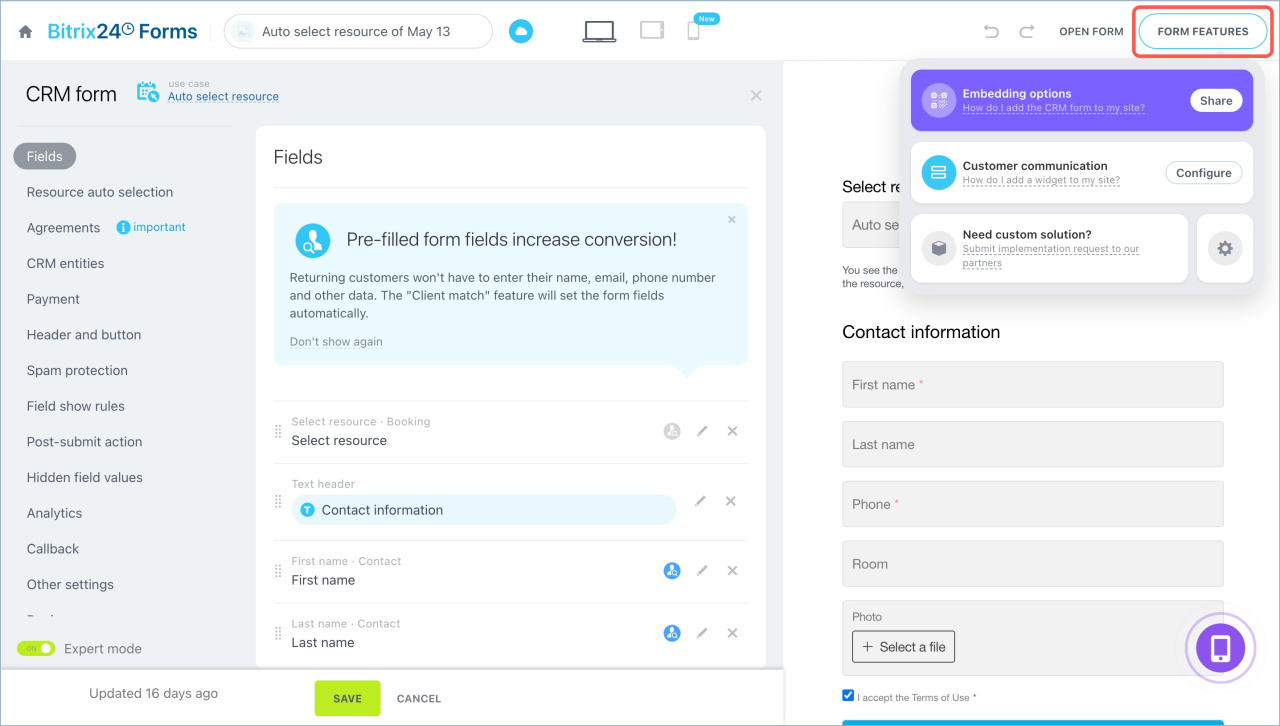
- Open the form settings in Bitrix24.
- Click Embedding options.
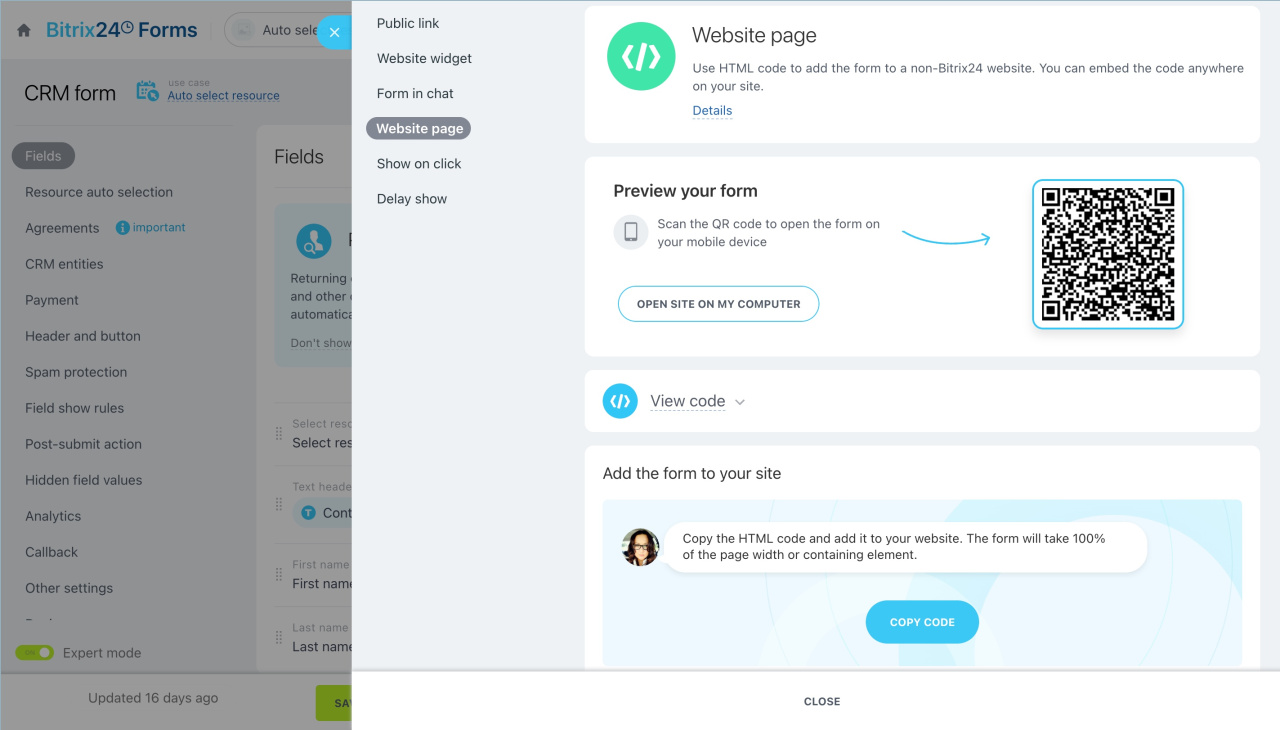
- Go to the Website page tab.
- Copy the code.
- Paste the code into your site where you want the form to appear.
Show the form after a button click
- Open the form settings.
- Go to the Show on click tab.
- Copy the code.
- Paste the code before the button that will trigger the form.
Show the form when the page loads
- Open the form settings.
- Go to the Delay show tab.
- Copy the code.
- Paste the code into your site where the form script should load.