
The CRM history logs key changes to CRM items, such as exporting contacts or updating field values. Use it to track activity related to clients and deals.
The Bitrix24 administrator can view all changes in CRM history. Other users can only see changes for items they have access to.
Access Permissions in CRM
Pricing page
In this article:
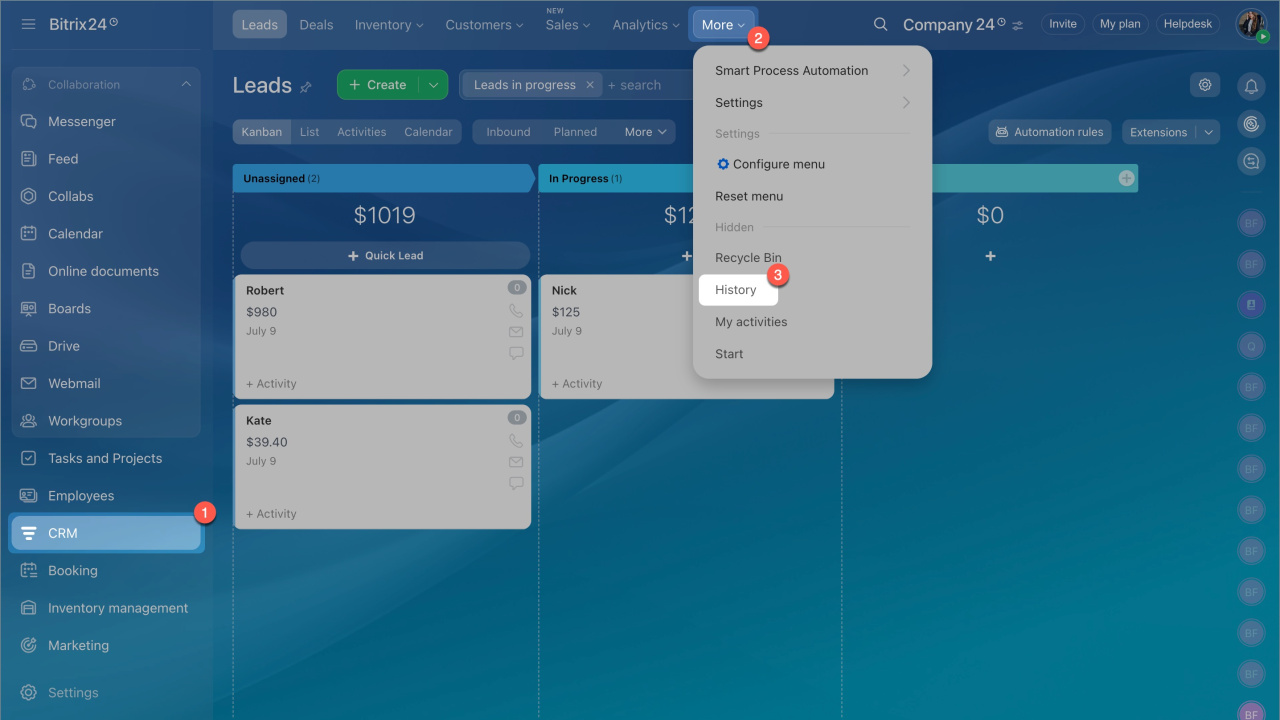
Go to the CRM section > More > History.
What changes appear in history
By default, the history includes the following changes.
- Actions with CRM items.
- Viewing a CRM item form.
- Exporting a CRM item form.
- Changes to fields such as name, deal stage, responsible person, comment, status, phone, work email, type, source, and completion date.
- Adding or removing links to other CRM items: contact, company, lead, deal, invoice, estimate, or SPA.
Actions in the timeline
- Creatу activities such as tasks, calls, emails, or documents.
- Send emails.
- Delete emails from the timeline.
Actions with products
- Add a product.
- Change product amount or quantity.
- Change the calculation mode of the Amount field.
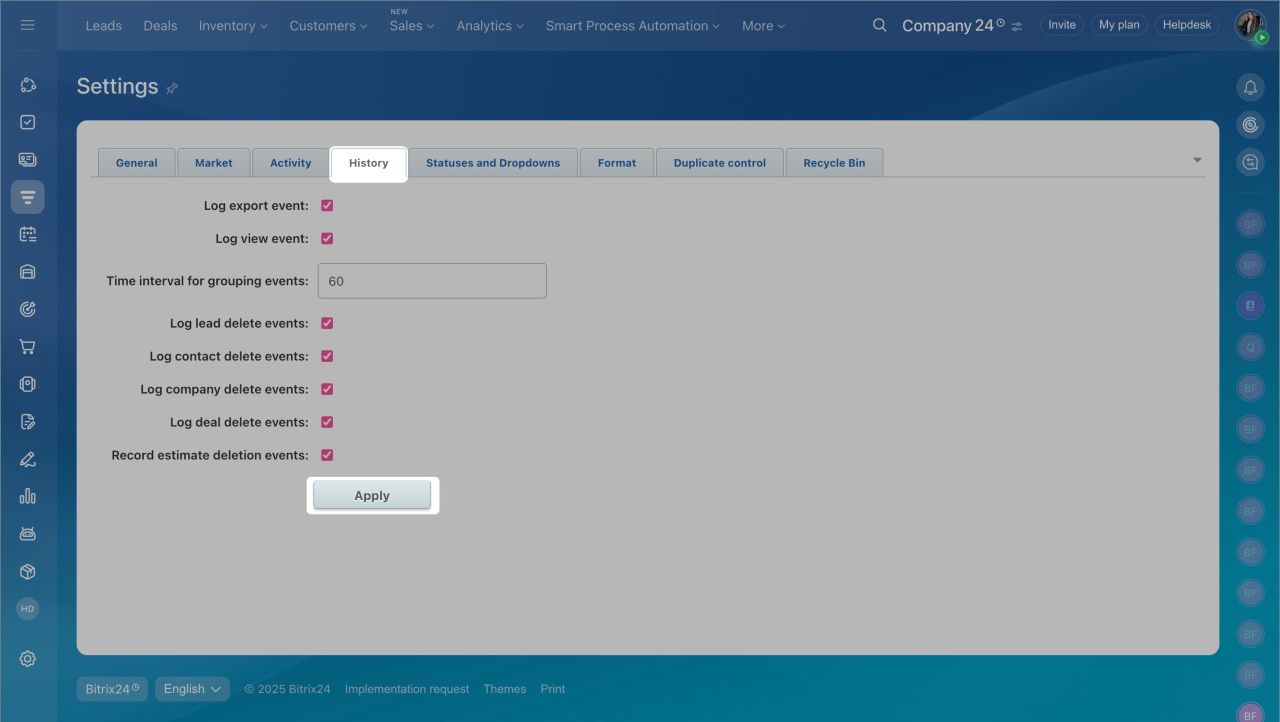
You can disable specific history events if needed:
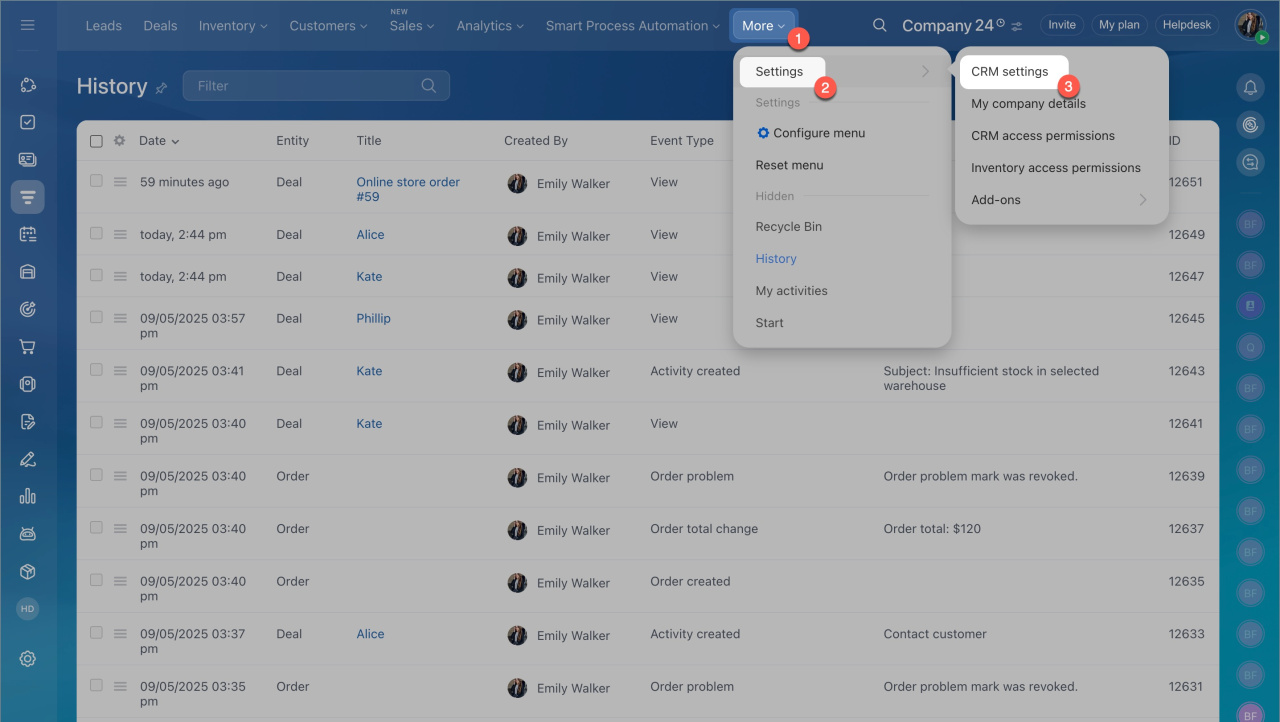
- Go to Settings > CRM Settings.
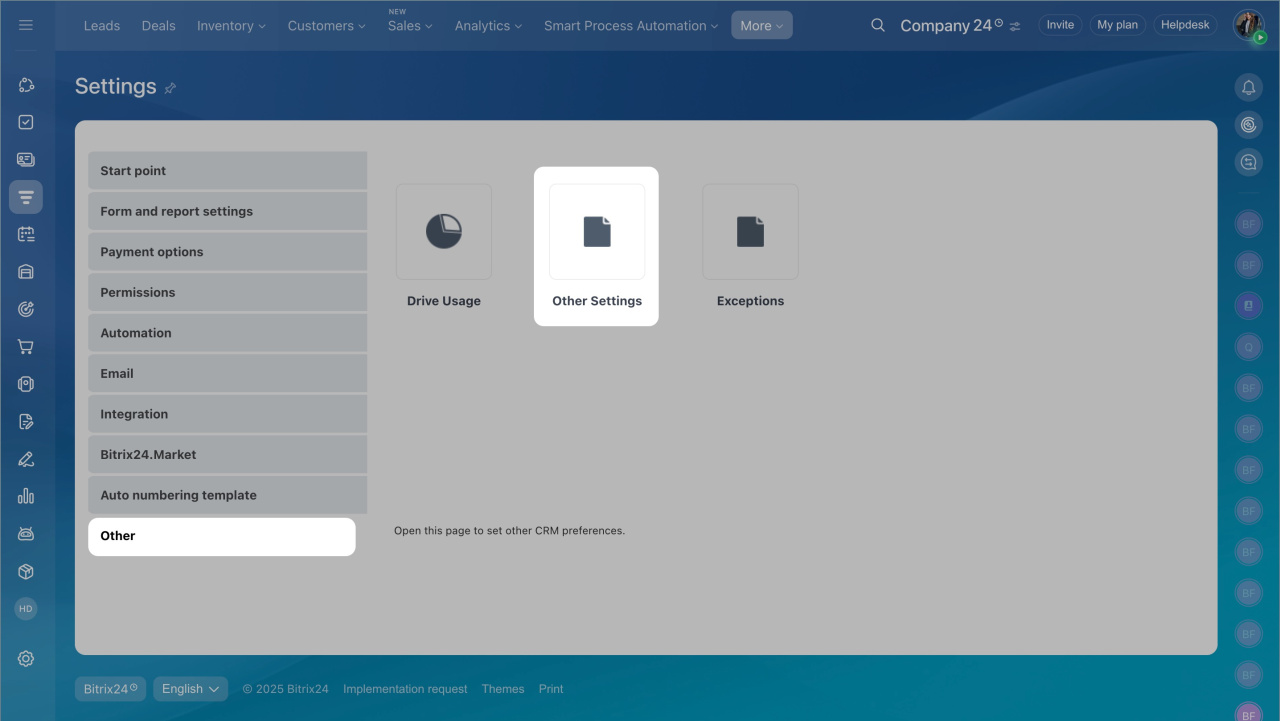
- Select Other > Other Settings.
- Open the History tab, choose the events to track, and click Apply.
Find a record in history
Use list settings and filters to find records faster.
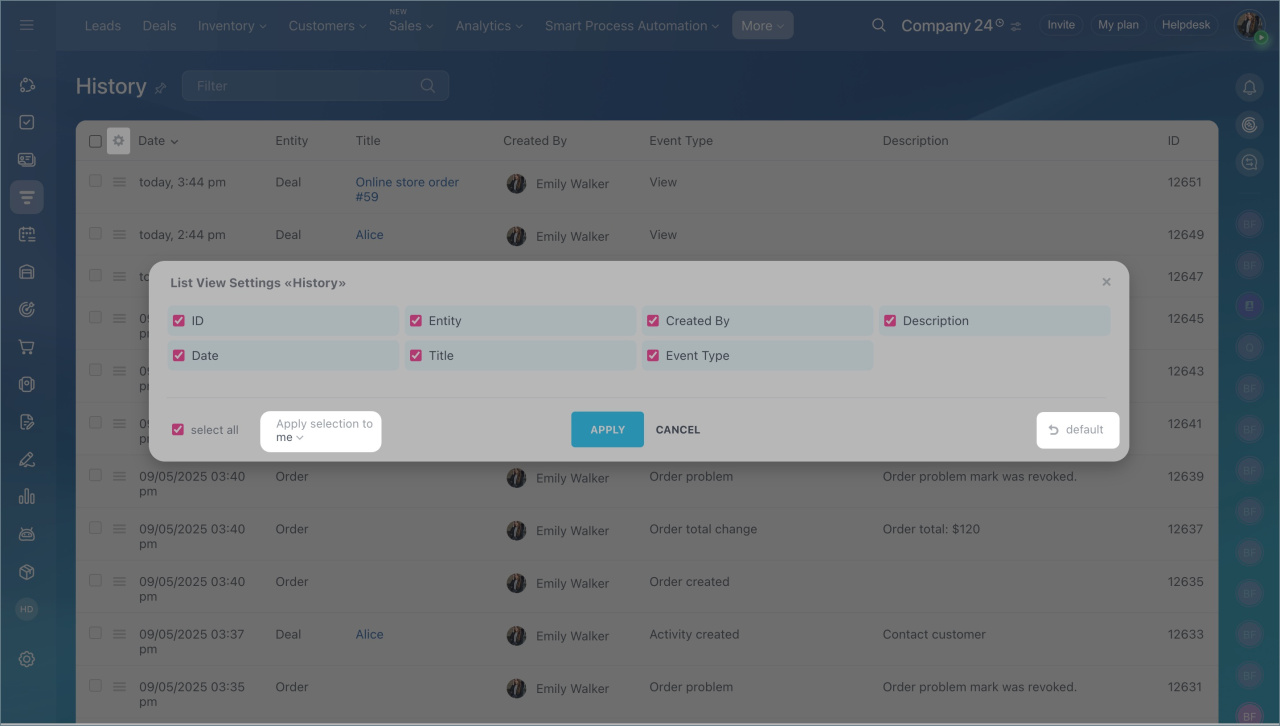
Configure the list
- Open Settings (⚙️) in the top-left corner.
- Select the fields you want to display.
- If you are an administrator, choose:
- Apply selection to me — only you see the changes.
- Apply selection to everyone — all employees see the changes.
- Click Apply.
Click Default to reset the view. All fields except ID will be visible.
Configure filters
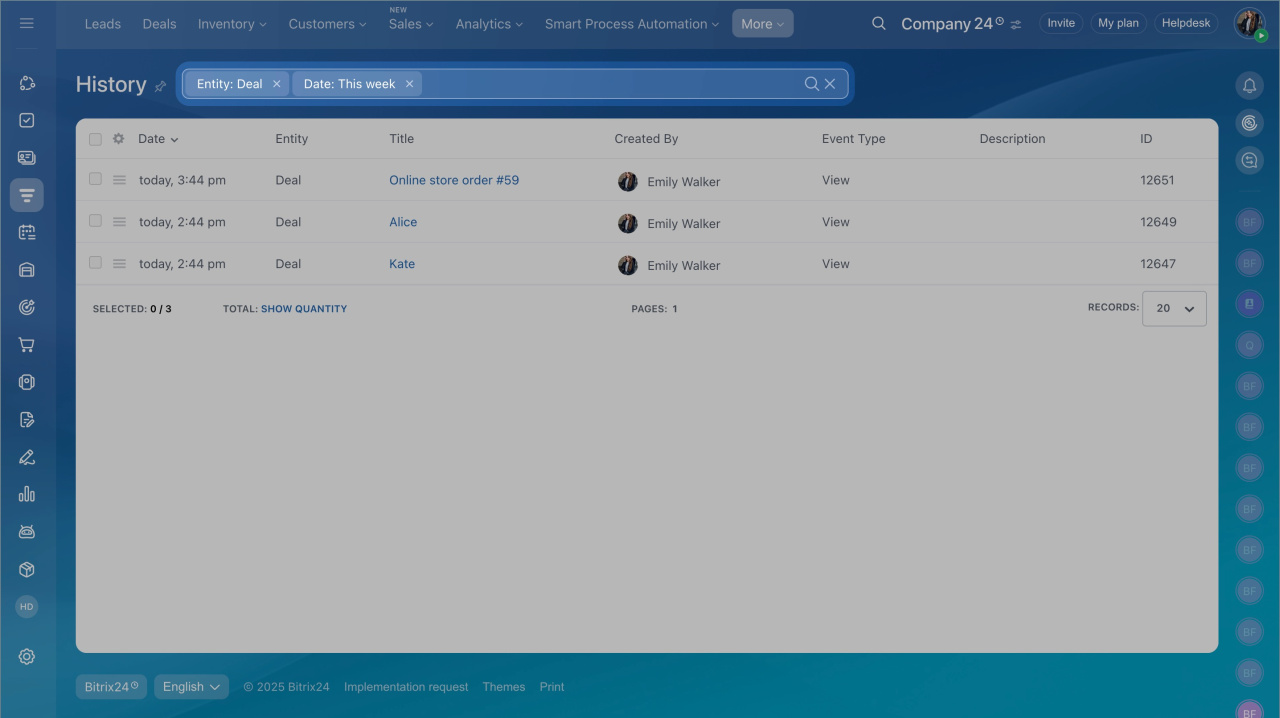
Use filters to narrow down results.
- ID — Enter the item ID to see its history.
- To find the ID, open the item (for example, a deal) and check the URL. Example:
https://b24-abc.bitrix24.com/crm/deal/details/123/ — here, 123 is the ID. - CRM item — Select an item from the list if you don’t know the ID.
- Entity — Filter by item type: lead, contact, company, deal, estimate.
- Type — Choose the type of change: custom, changes, email, view, export, delete, linked entities.
- Event type — Select events such as information, phone call, or email sent.
- Description — Search by keyword or phrase.
- Created by — Filter by the employee who made the change.
- Date — Select a specific date or range.
Delete a record from the CRM history
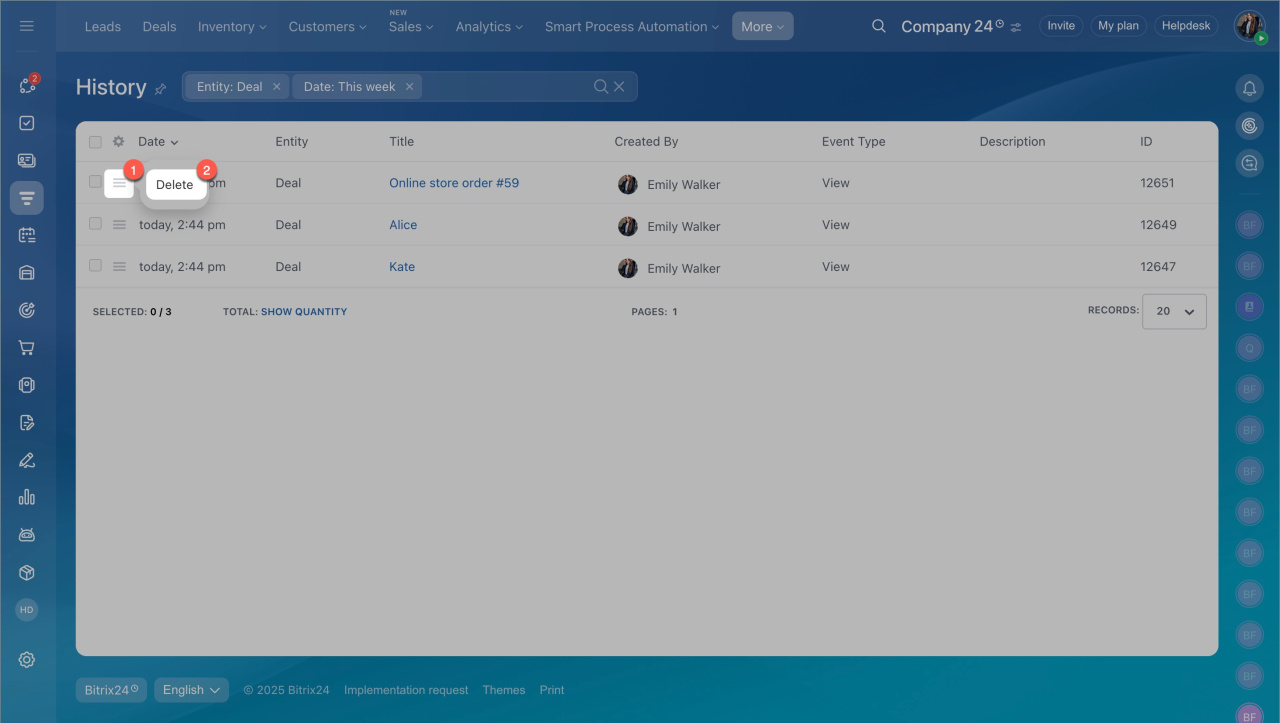
Only an administrator can delete history records.
- Click Menu (≡) > Delete.
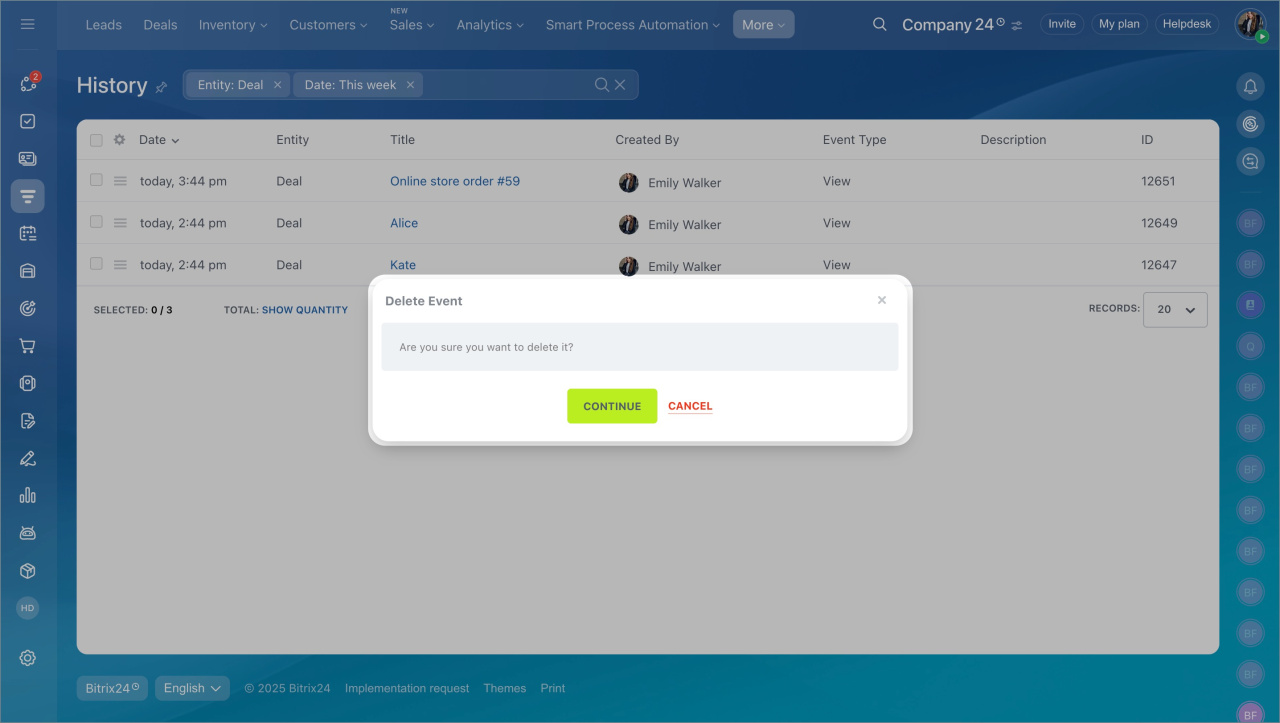
- Click Continue.
In brief:
- CRM history tracks major changes to CRM items.
- Administrators can see all changes. Other users only see changes they have access to.
- By default, history includes actions with CRM items, products, and timeline events. You can change this in CRM settings.
- Use list settings and filters to find records quickly.
- Only administrators can delete history records.