Send emails to customers directly from the CRM item form in Bitrix24. All emails are saved in the timeline, so you always see the full communication history and can track when a recipient opens your message.
Connect a mailbox first to send and receive emails in CRM.
Connect mailboxes to Bitrix24
Bitrix24 plans and pricing
In this article:
Send an email from the list
Use this option to quickly contact a customer without opening the item form.
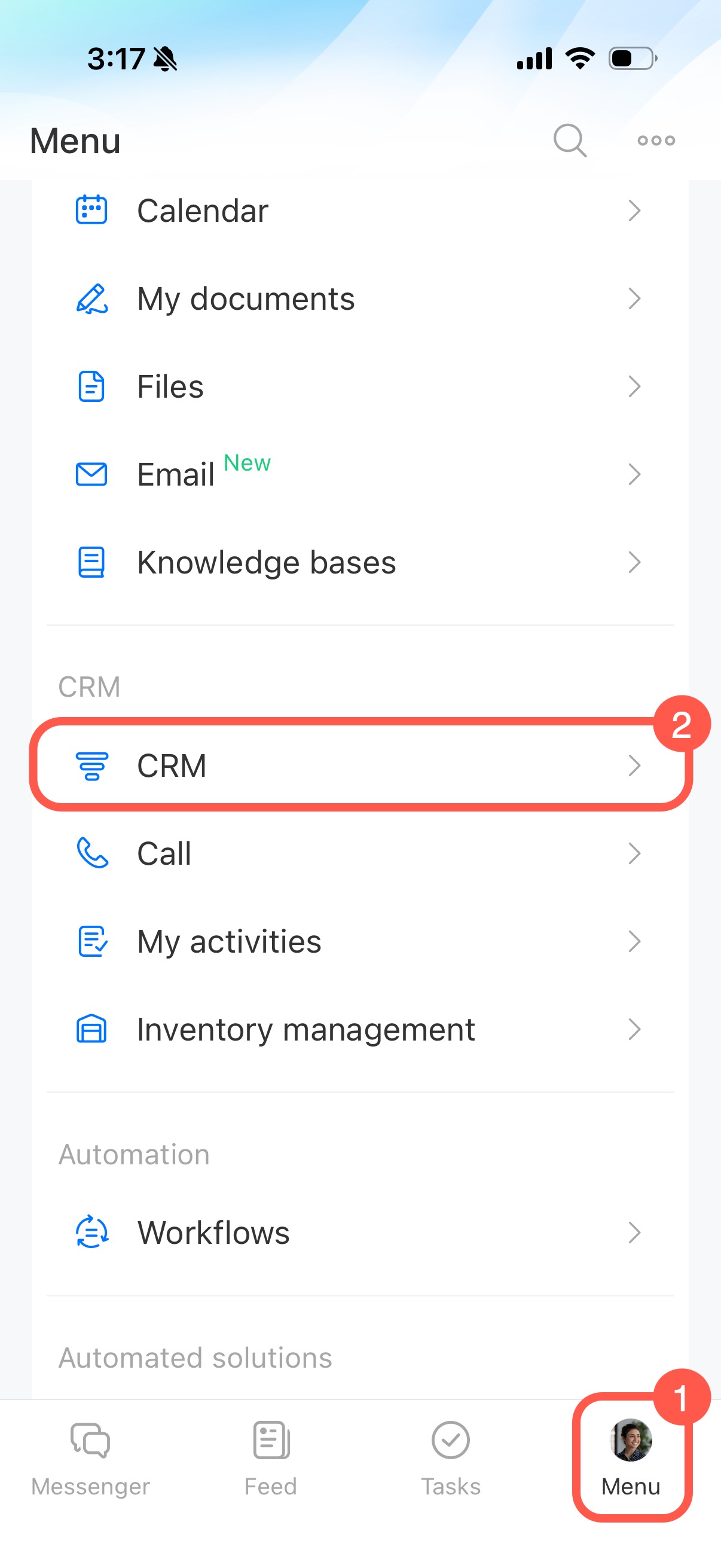
1. Go to Menu.
2. Open CRM.
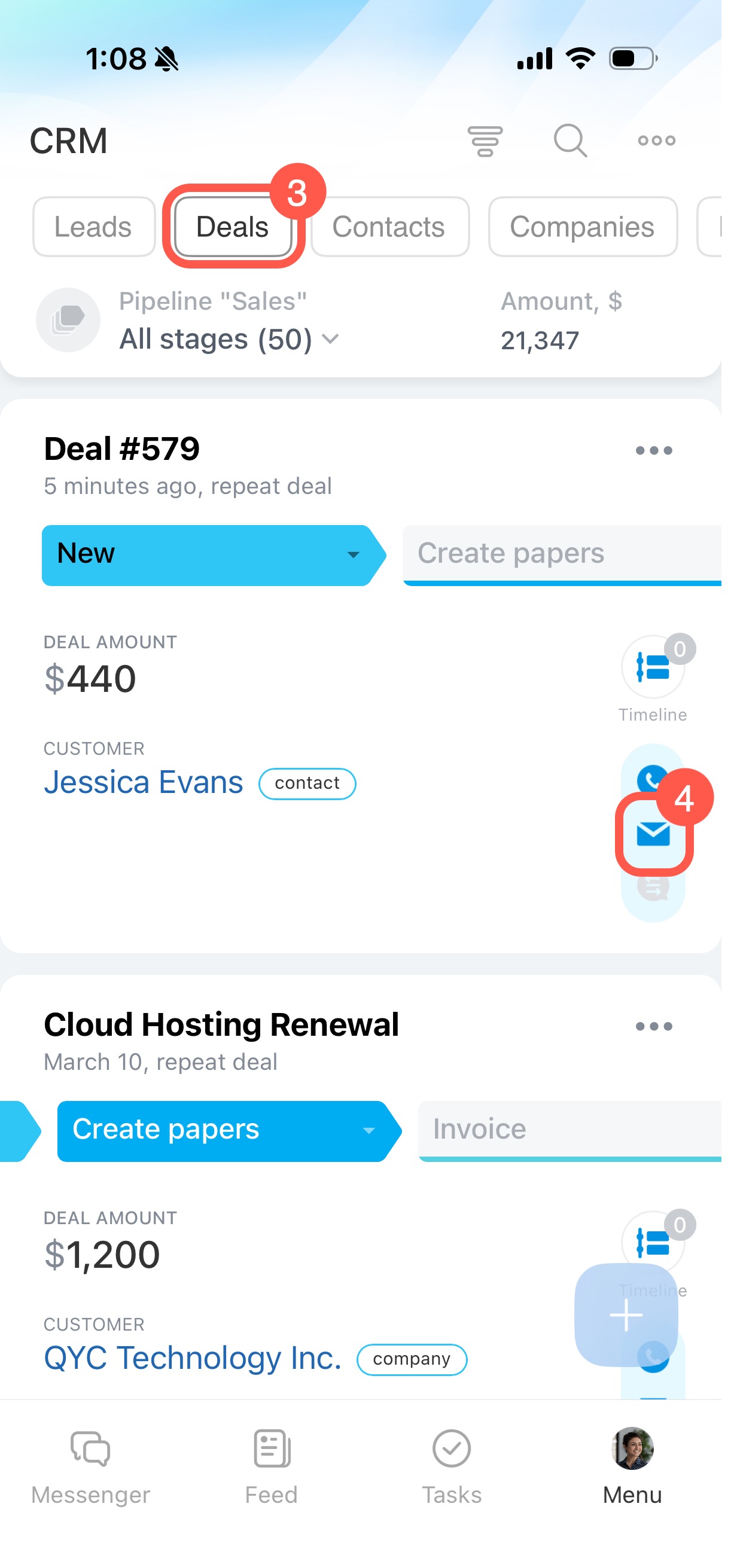
3. Open the section you need, for example Deals.
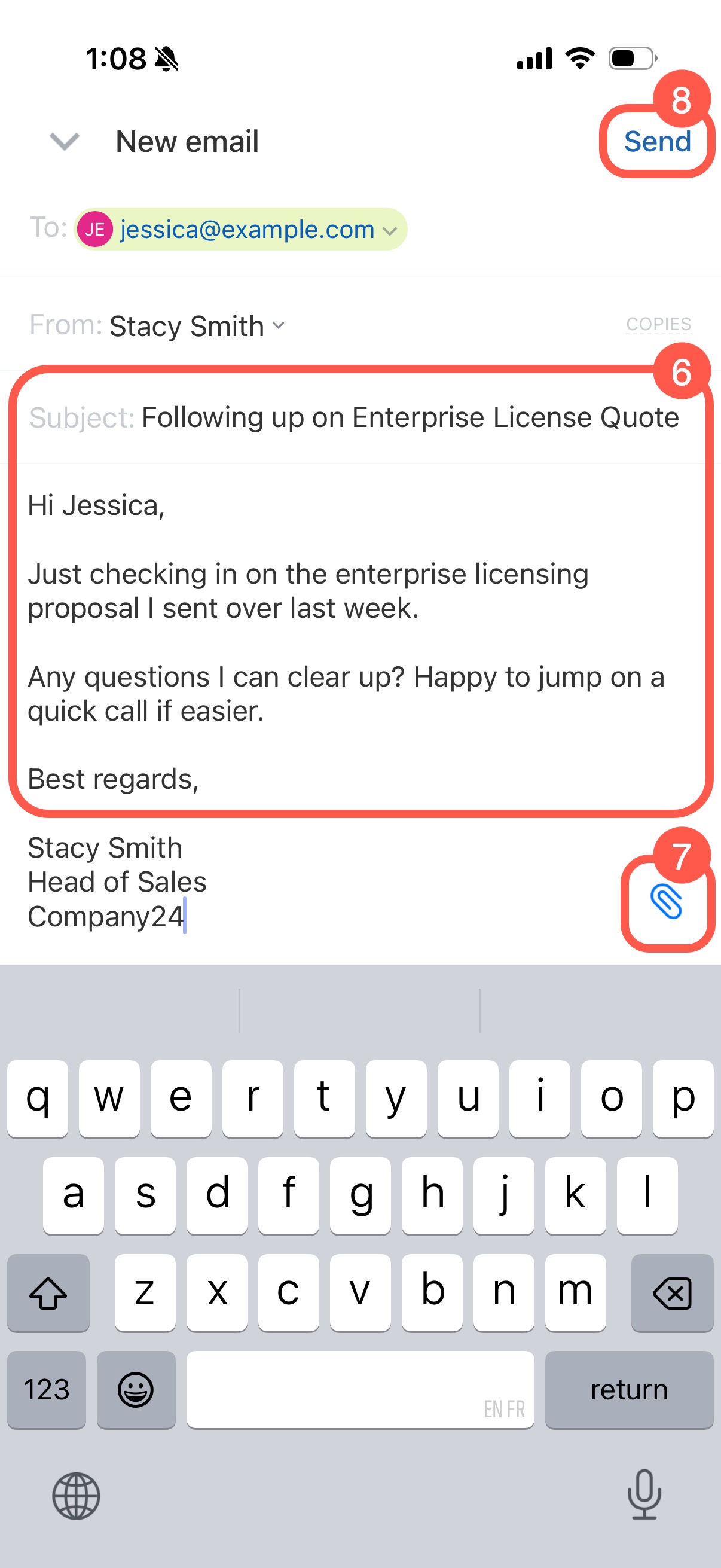
4. Tap the envelope icon next to the deal.
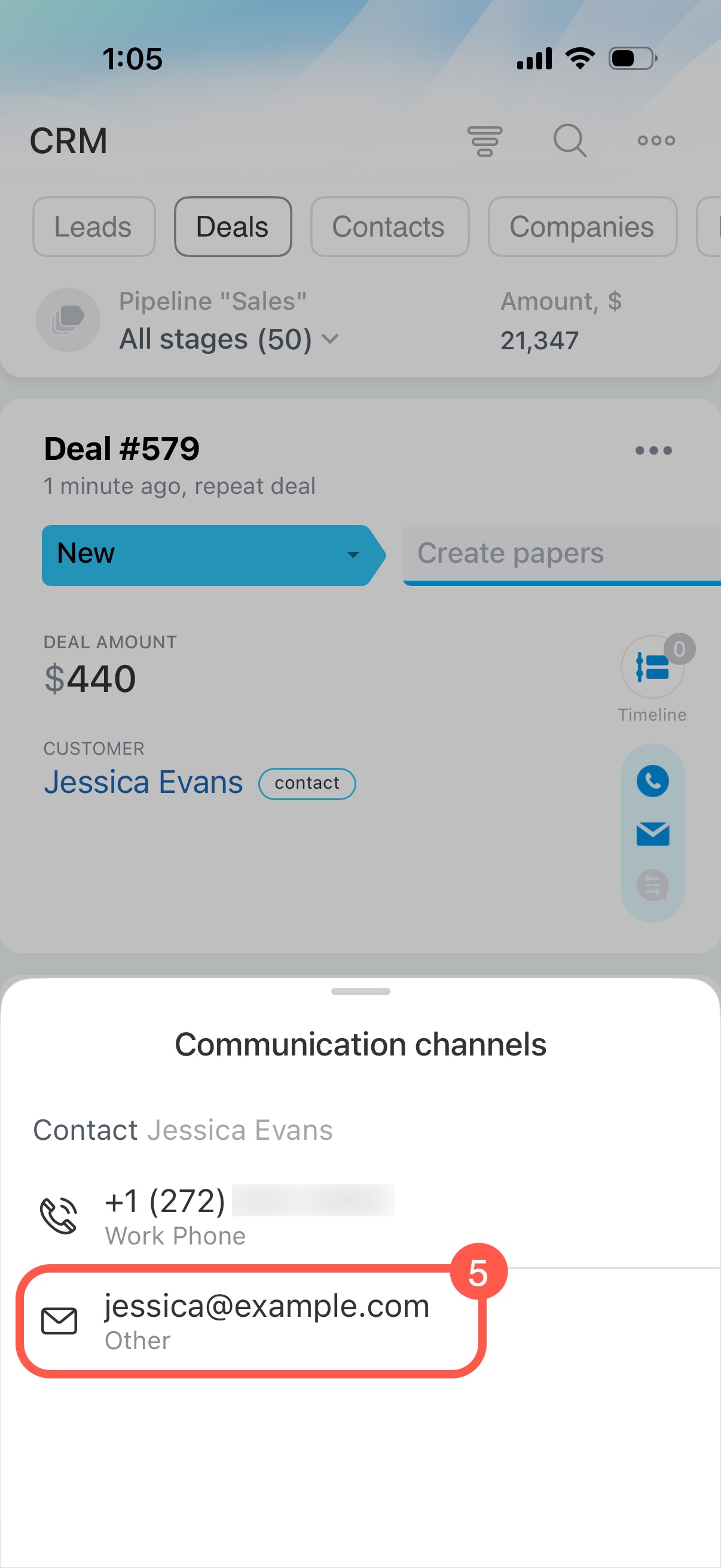
5. Select the client’s email address.
6. Enter the subject and message.
7. To attach a file, tap the paperclip icon.
8. Tap Send.
Send an email from the CRM item form
Use this option when you need the full communication history while working in the form.
1. Open the required item form, for example a deal form.
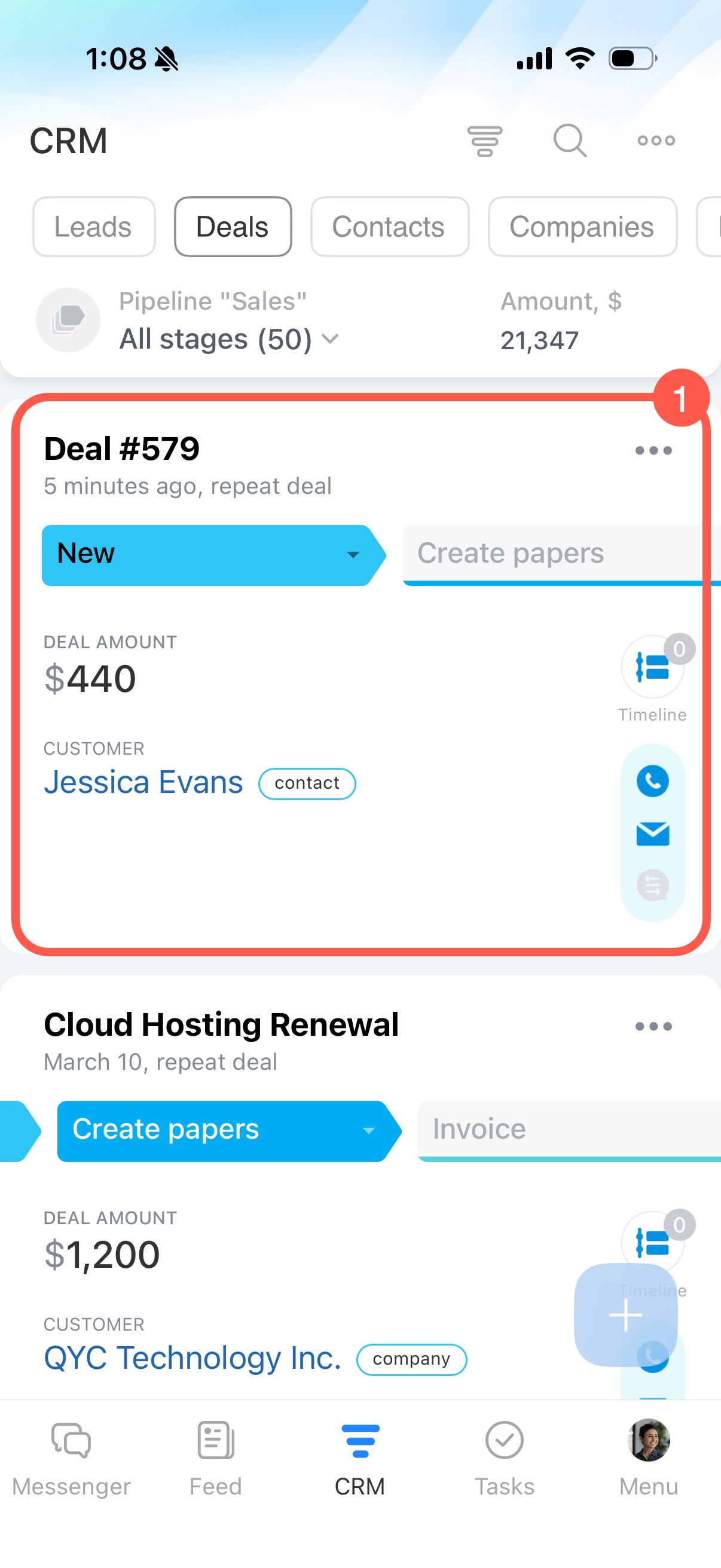
2. Tap Plus (+) in the bottom-right corner.
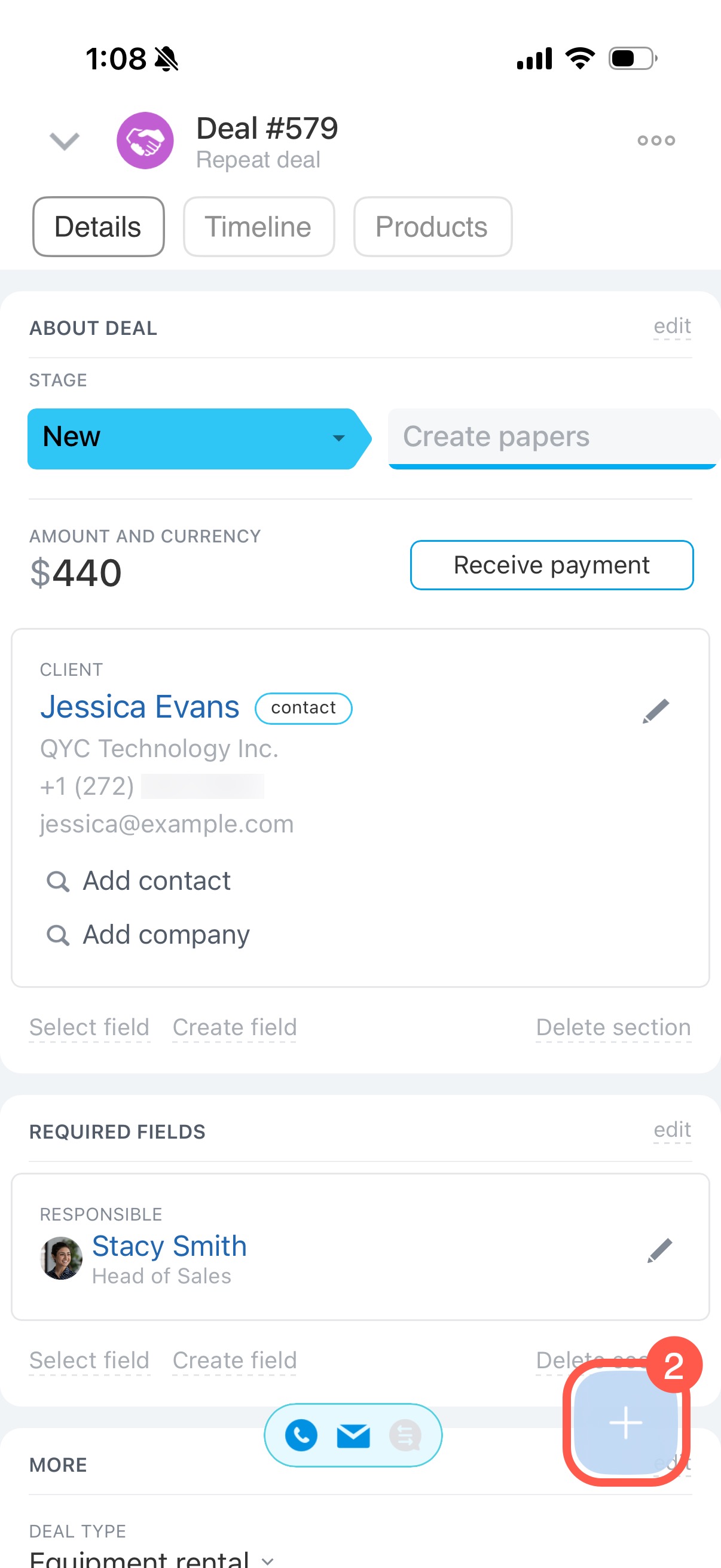
3. Select Email from the menu.
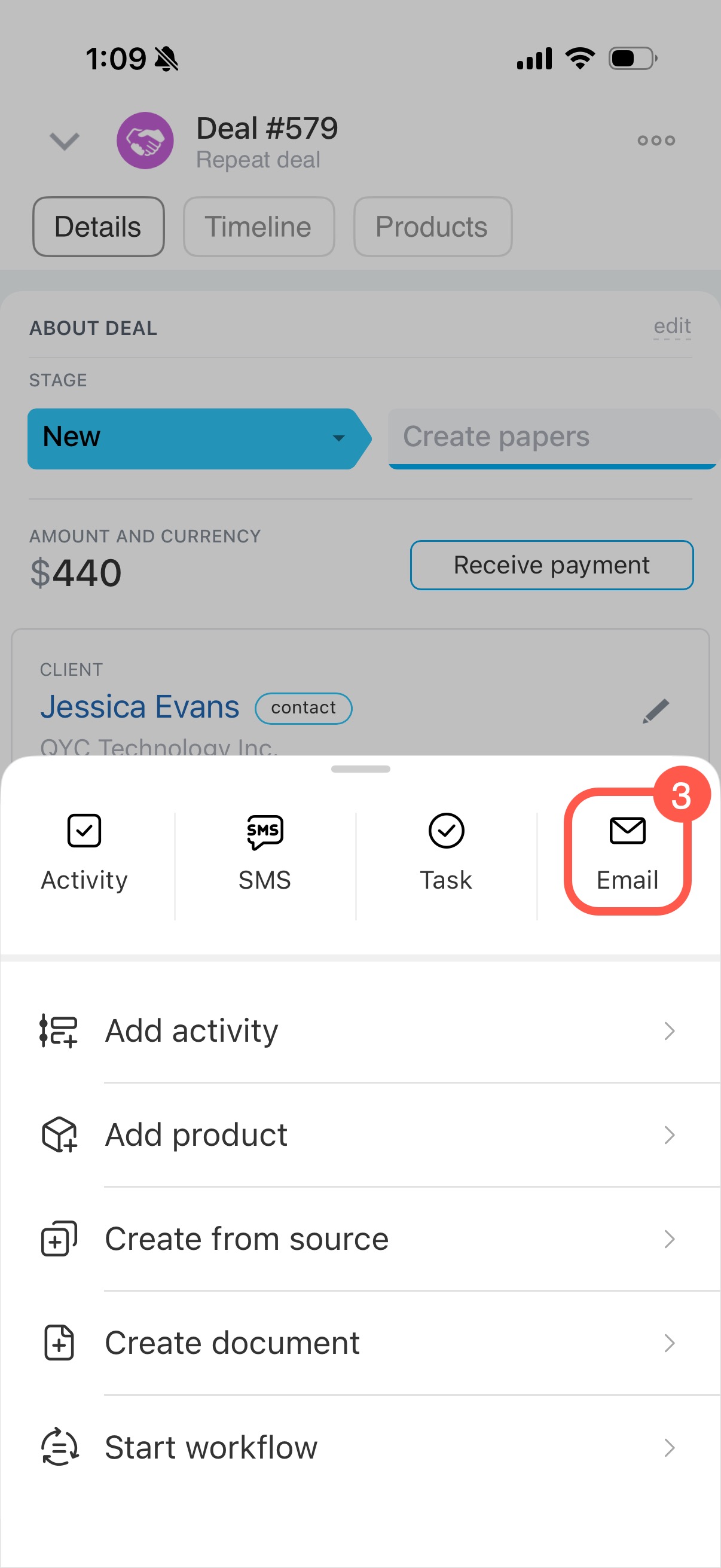
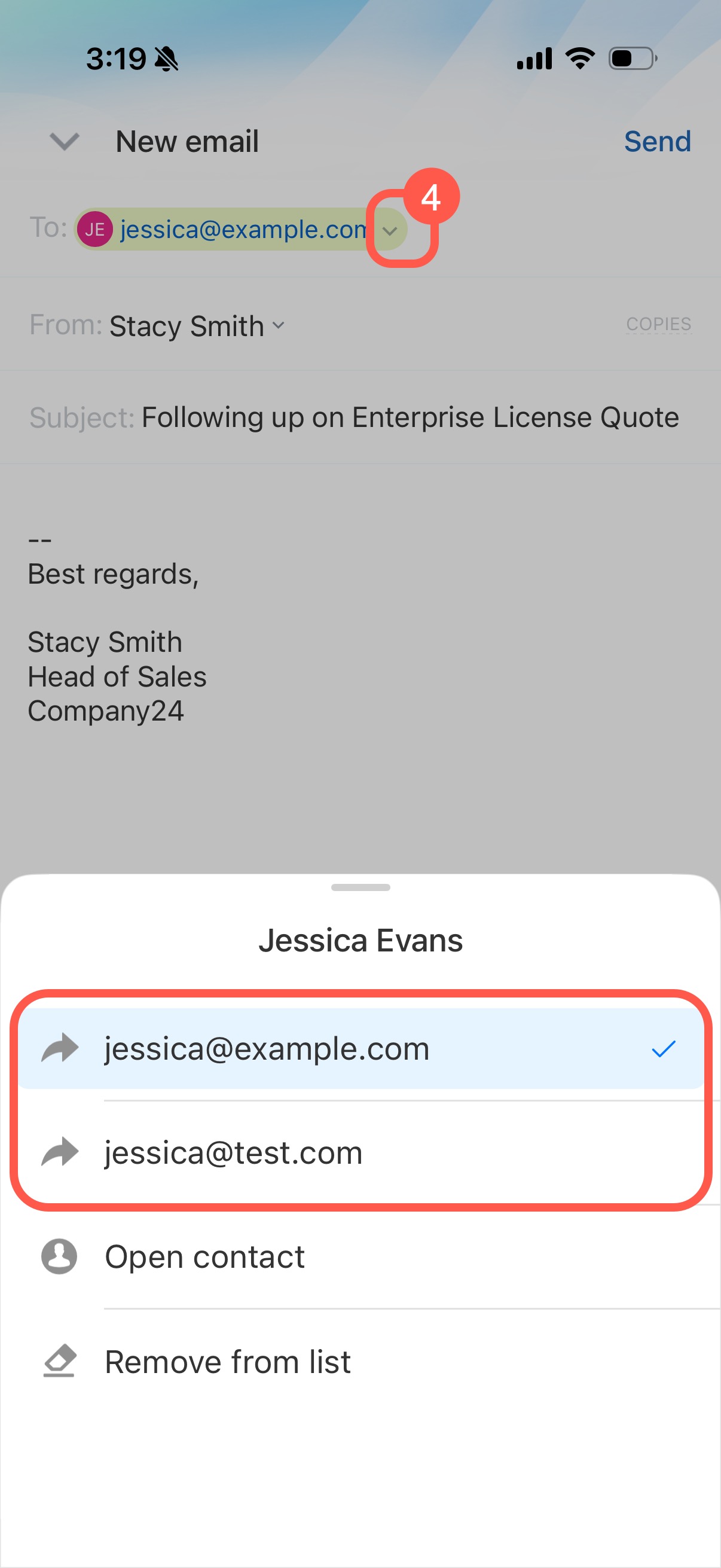
4. If the customer has multiple email addresses, the first one is added automatically in the To field. To choose another address, tap the arrow.
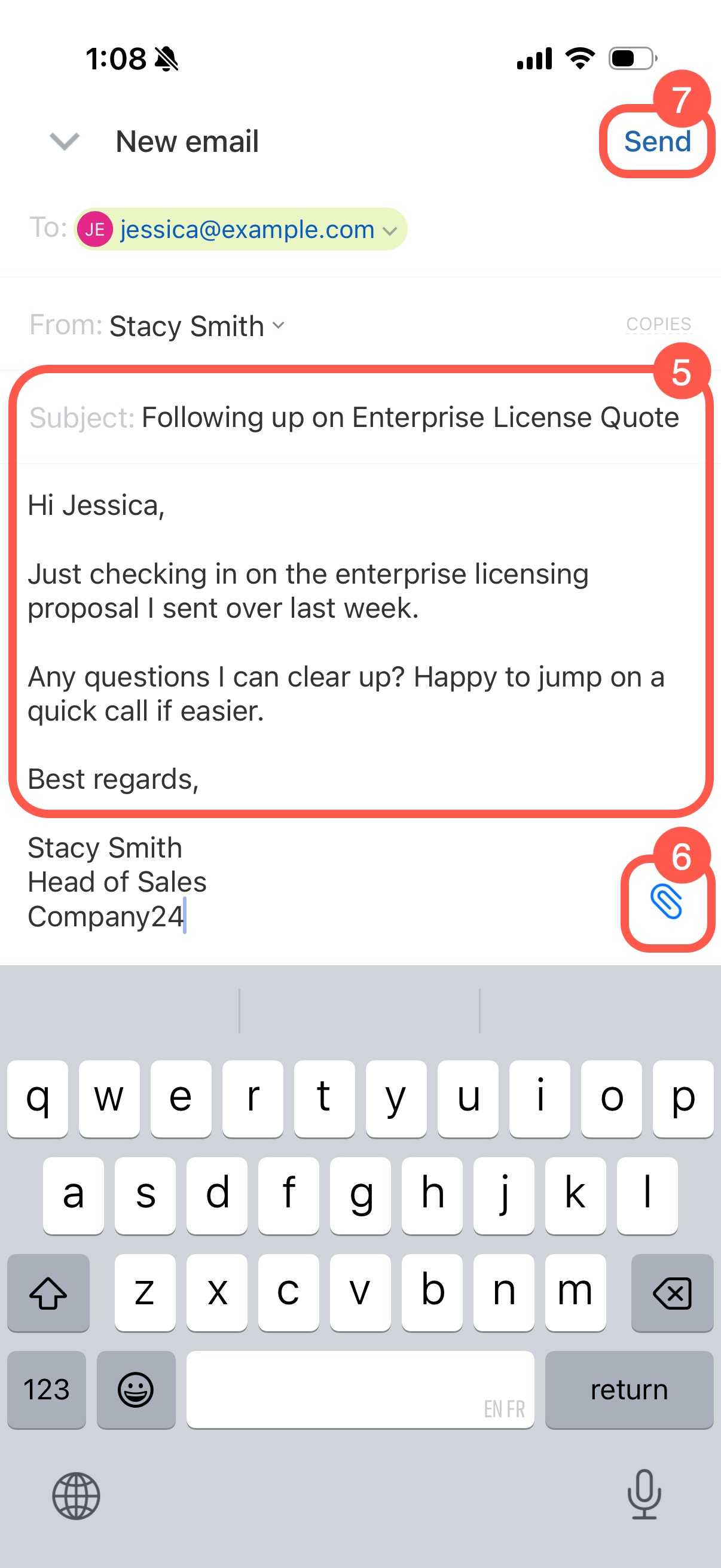
5. Enter the subject and message.
6. To attach a file, tap the paperclip icon.
7. Tap Send.
Manage emails in the timeline
In the CRM item form, you can pin incoming and outgoing emails, add notes, or create activities. For example, after sending an estimate, schedule a call to confirm the customer’s decision.
Add a note to an email
1. In the timeline, tap the note icon in the email record.
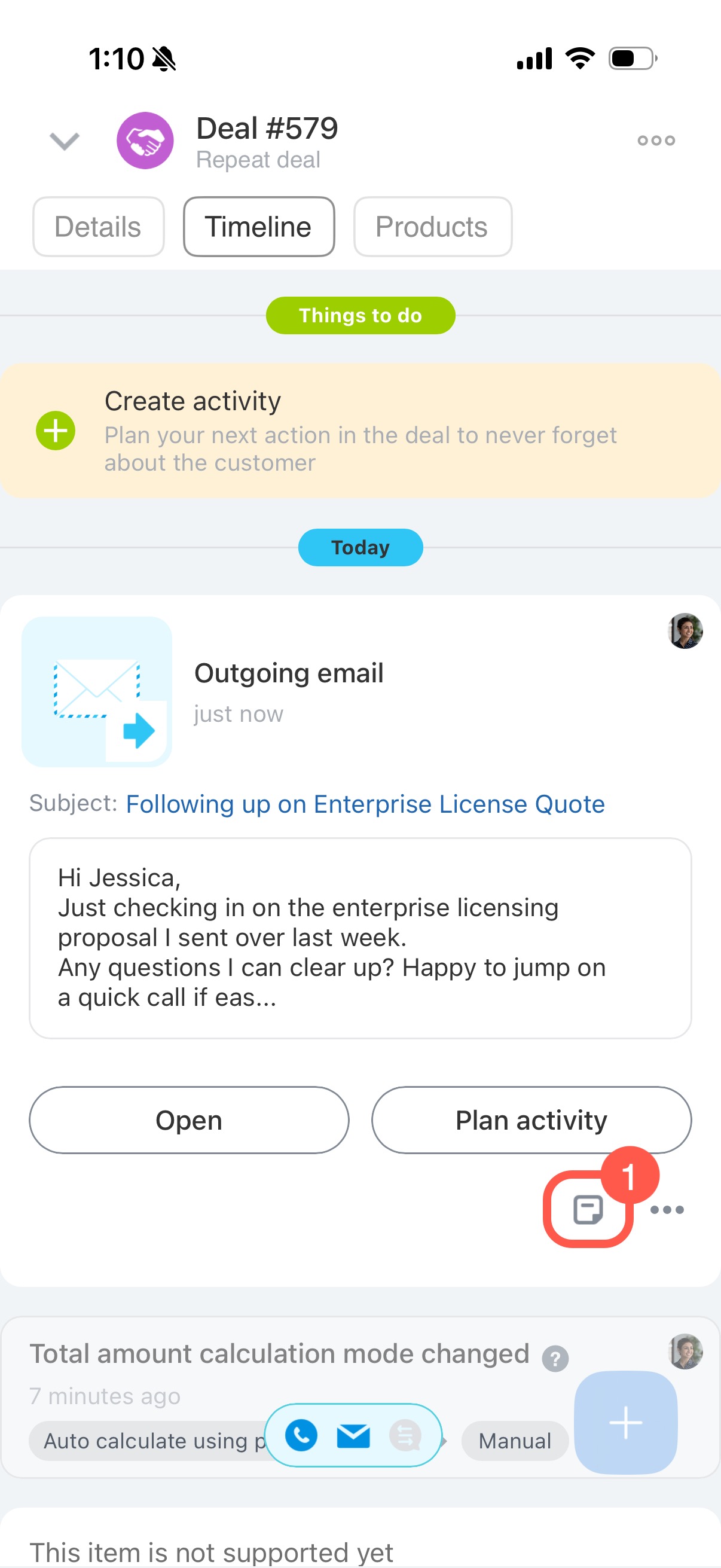
2. Enter the text.
3. Tap Save.
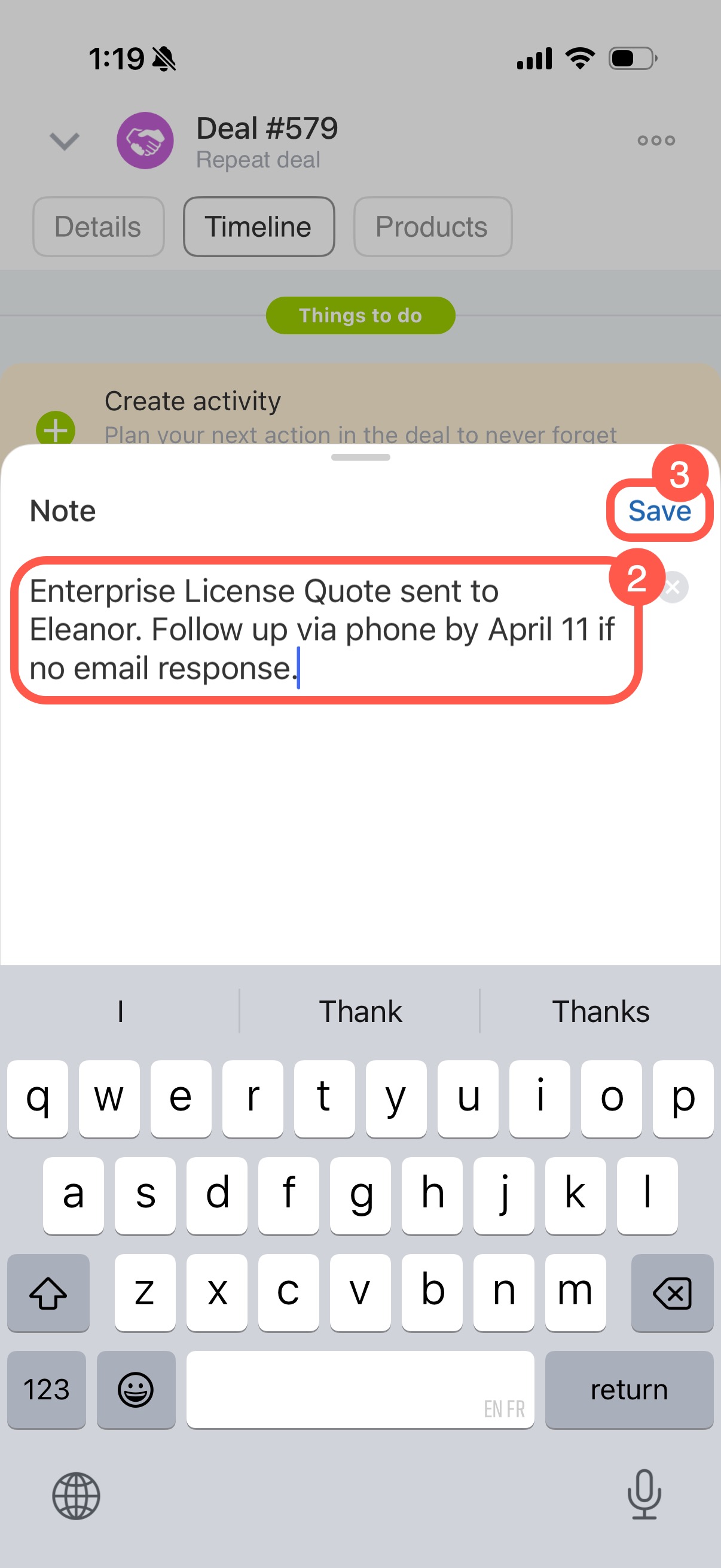
The note appears in the email record in the timeline.
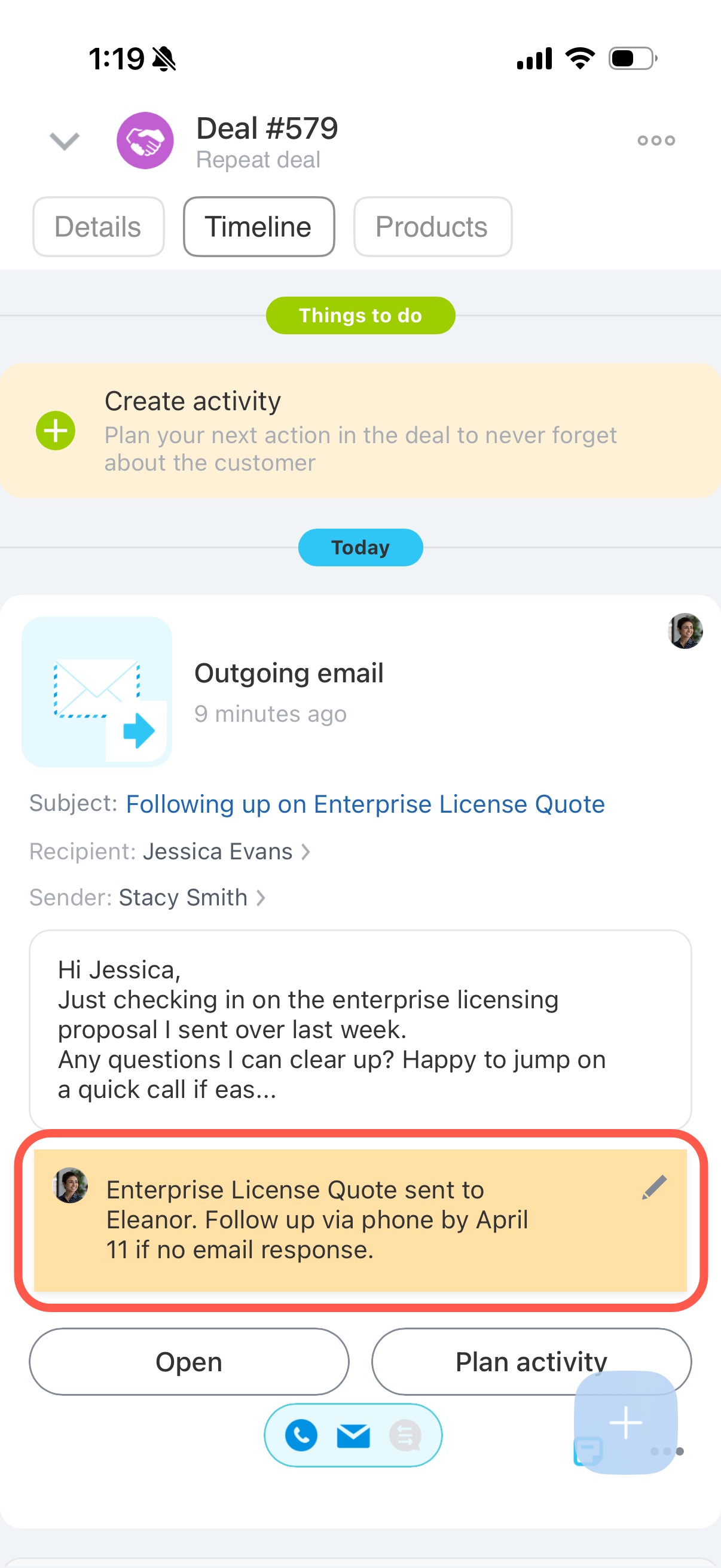
Plan an activity from an email
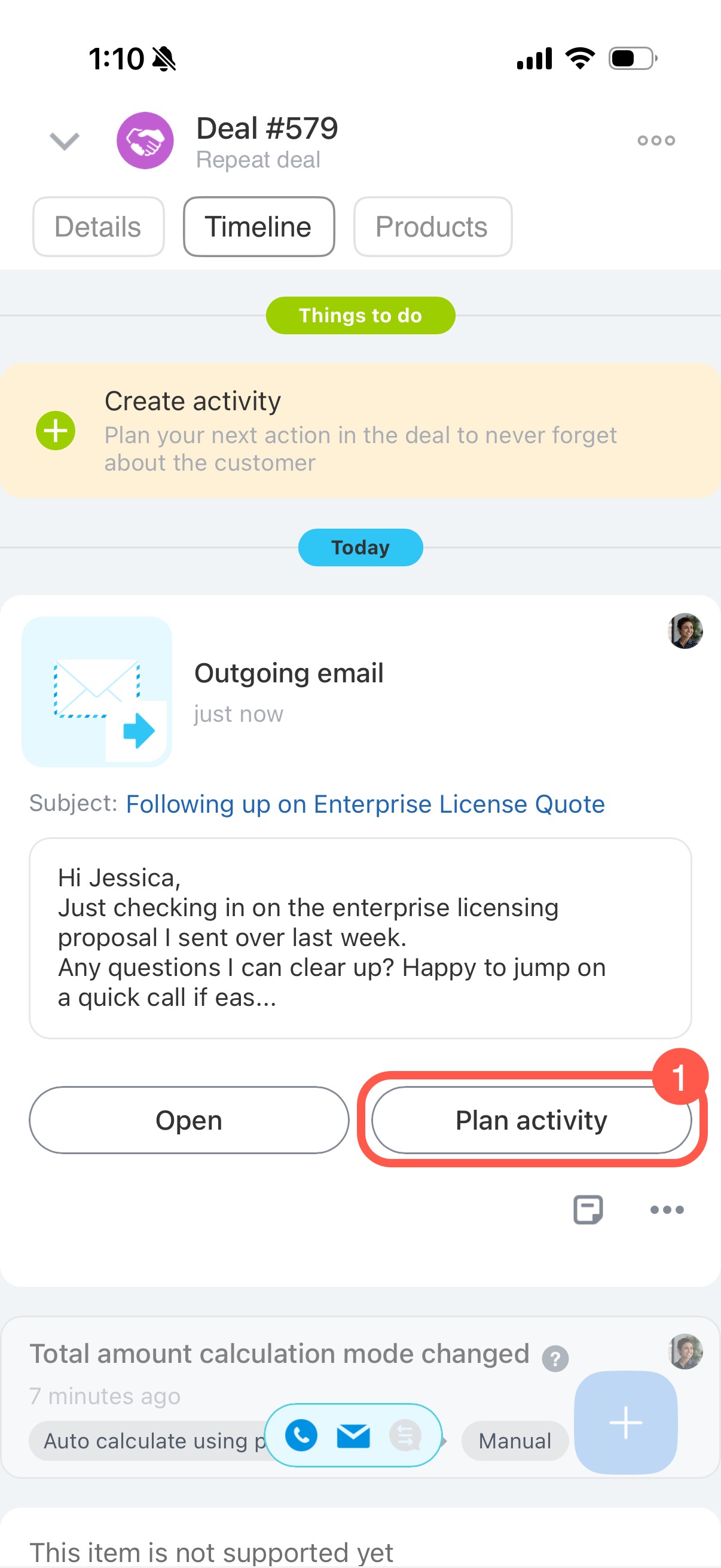
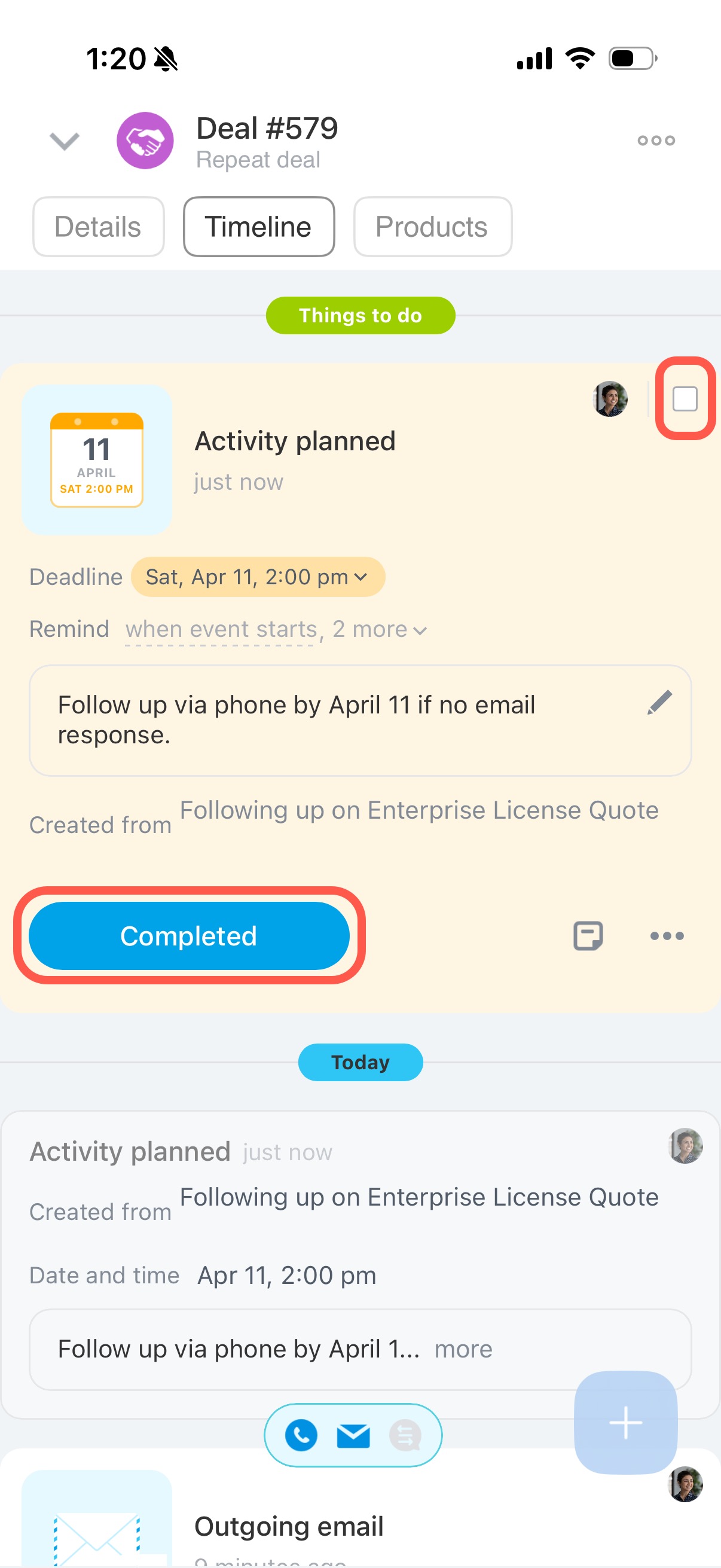
1. In the timeline, tap Plan activity in the email record.
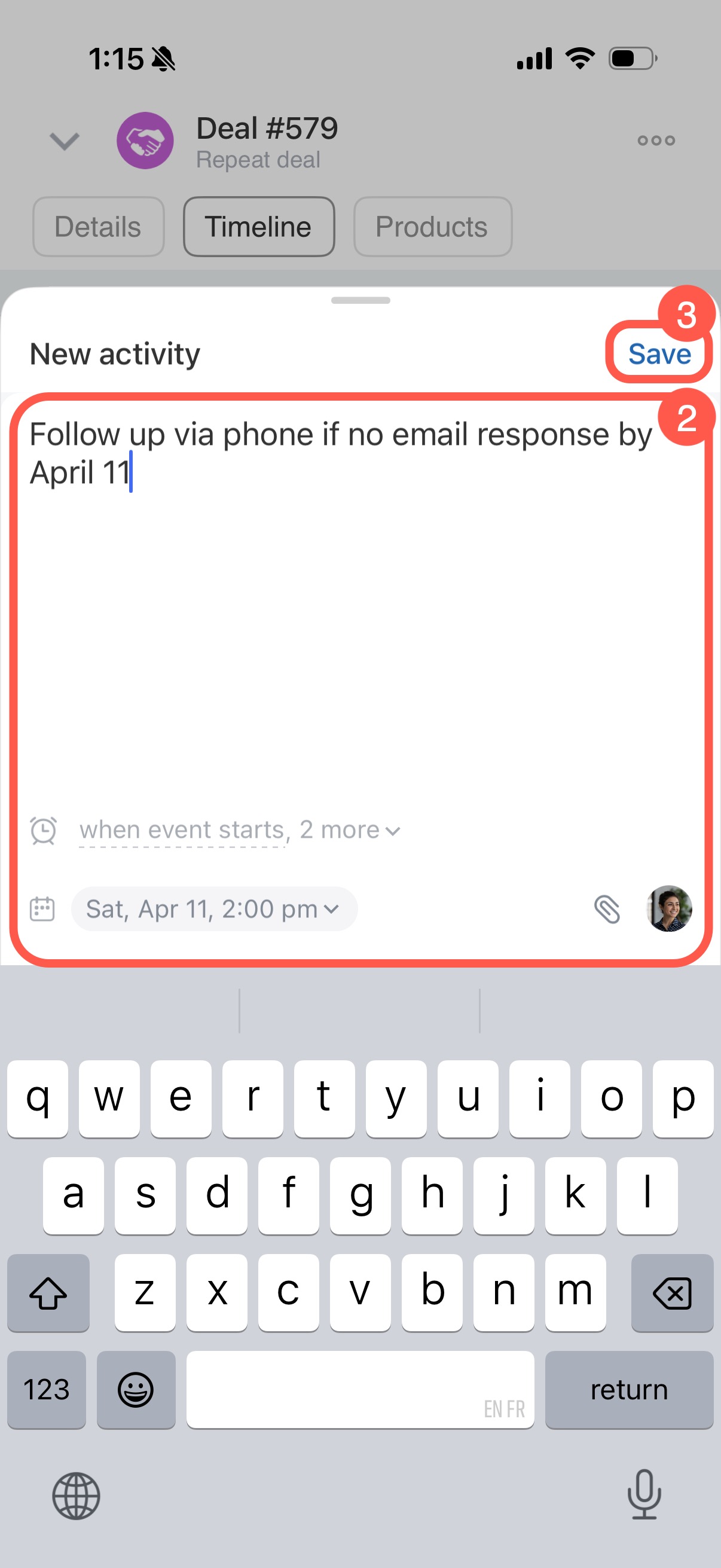
2. Add details and set a deadline.
3. Tap Save.
The activity appears in the timeline.
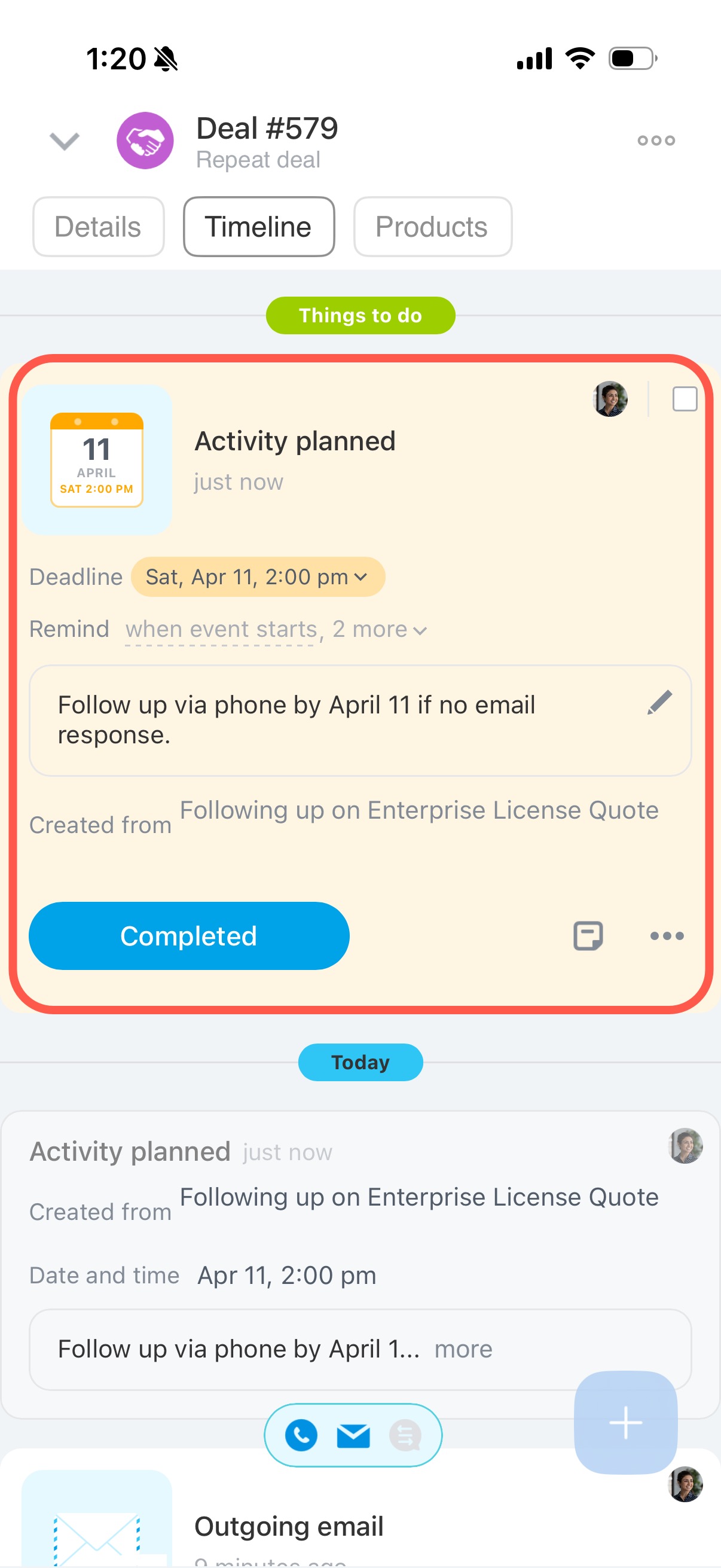
To complete the activity, select the checkbox next to your avatar or tap Completed.
Pin an email in the form
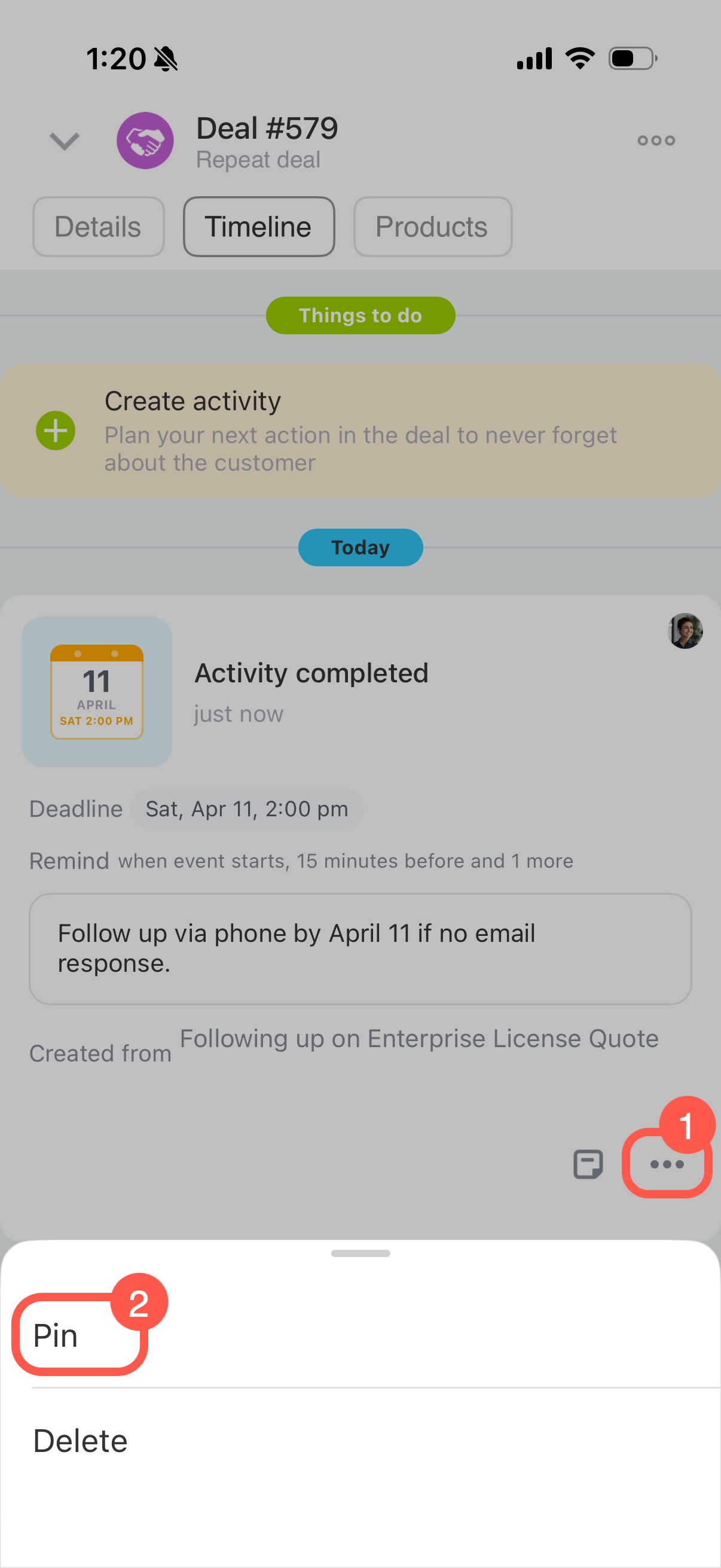
1. In the email record, tap Three dots (...).
2. Select Pin.
Reply to or delete an incoming email
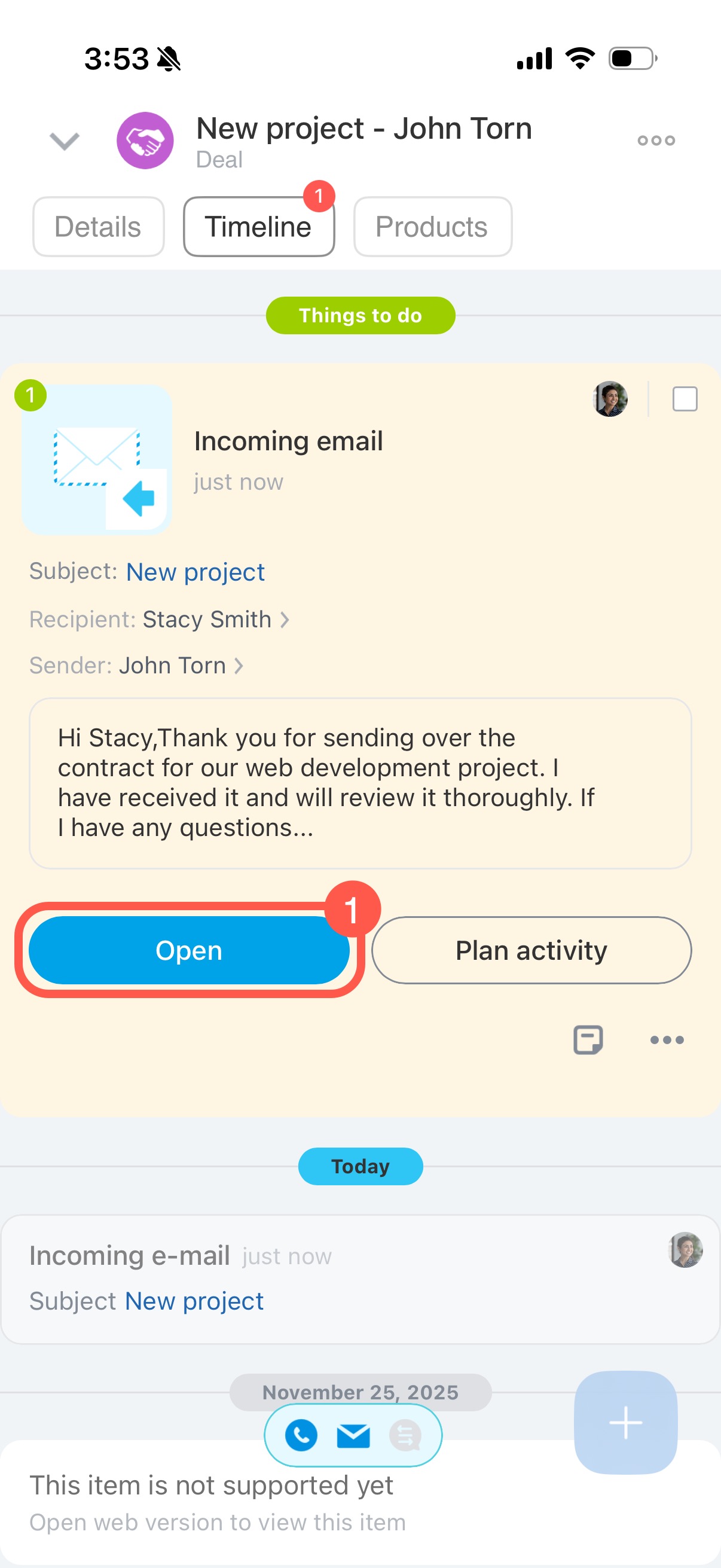
1. Open the incoming email from the timeline.
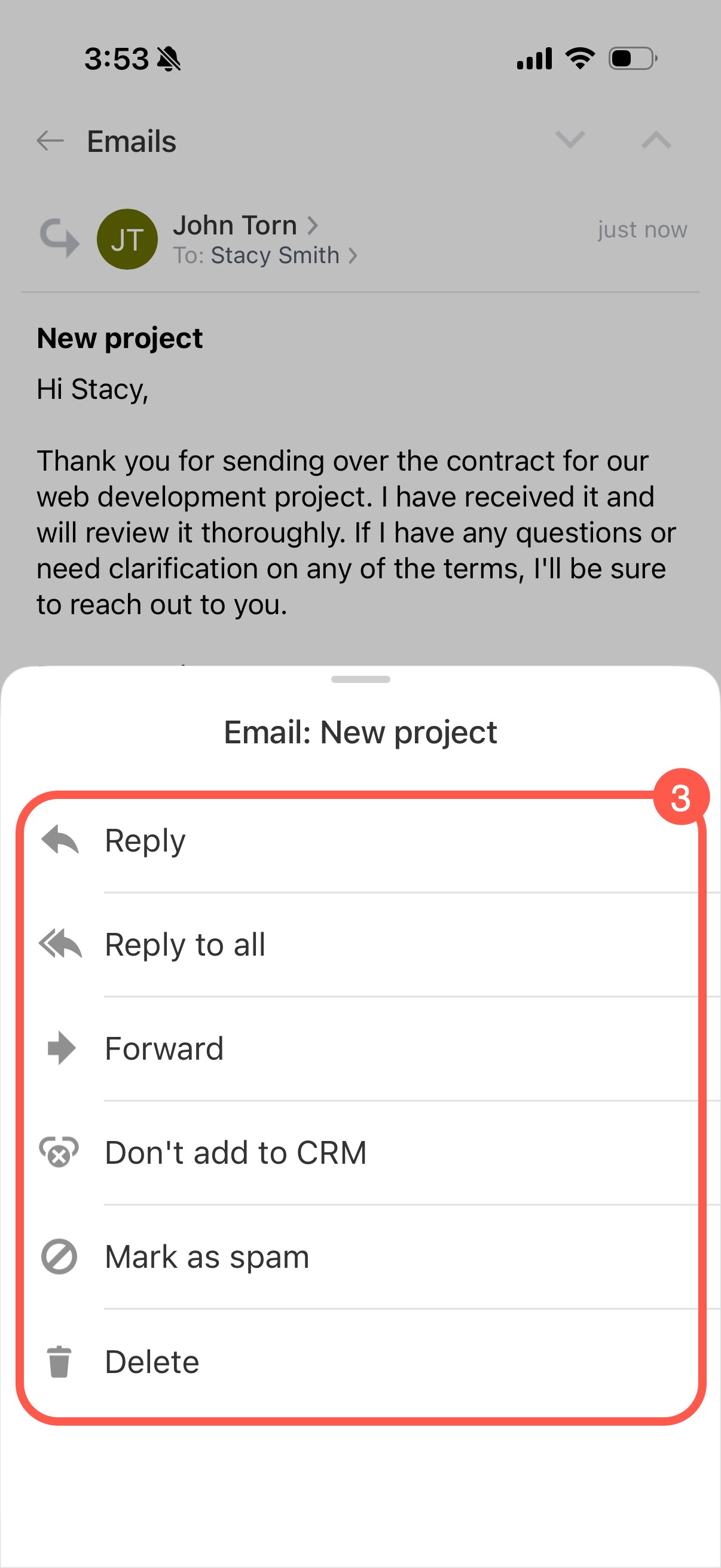
2. Tap Three dots (...) to open the action menu.
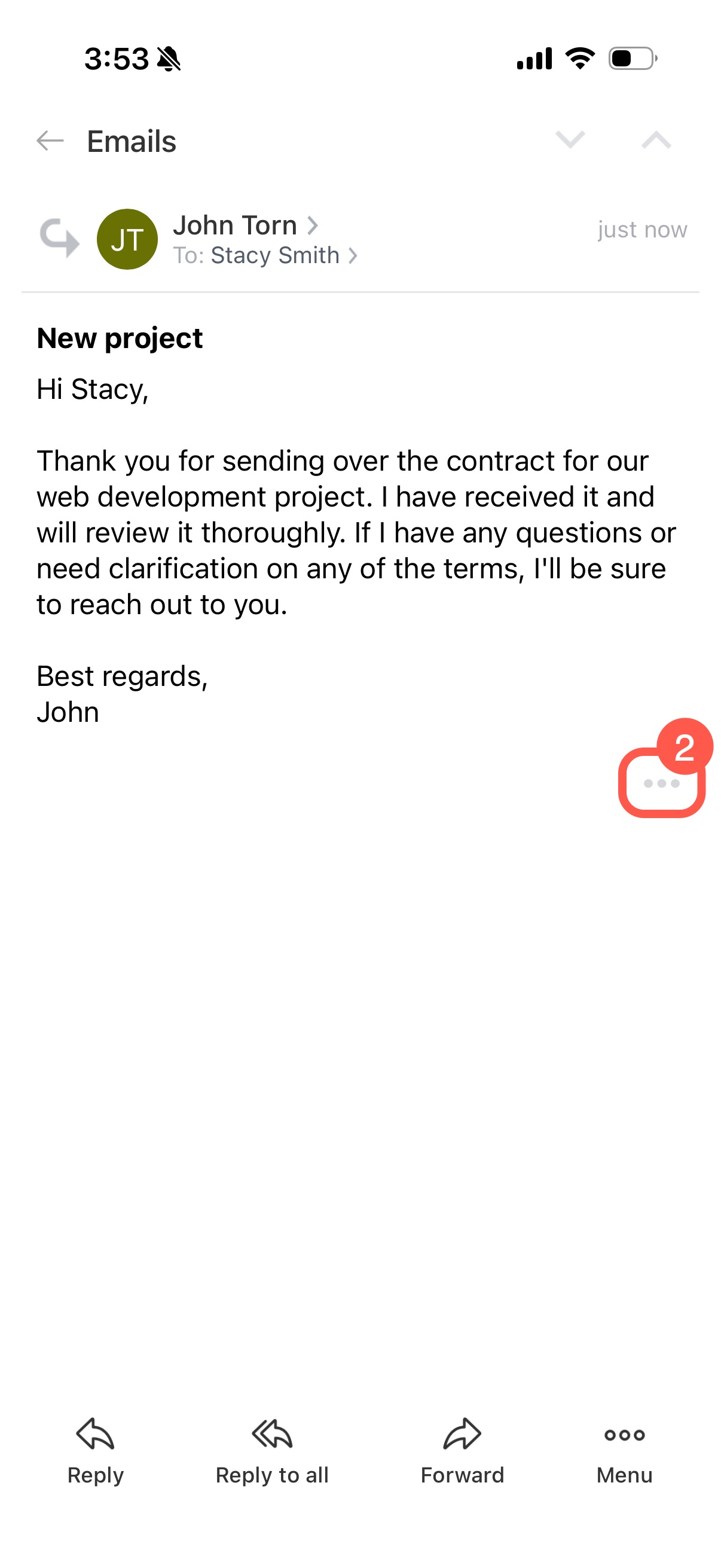
3. Available actions:
- Reply: send a response to the sender.
- Reply to all: respond to all recipients.
- Forward: send the email to another recipient.
- Don't add to CRM: if the email is not related to your work with the customer, add the sender’s address to exceptions. Future emails from this address will no longer appear in CRM automatically, but you can still read them in your mailbox.
Exceptions in CRM - Mark as spam: move the email to your spam folder.
- Delete: remove the email from the item form.