Webmail in the Bitrix24 mobile app works the same way as on a computer. You can read and send emails, forward them to colleagues, create tasks, and link email threads to CRM. This is useful when you need to quickly reply to a customer or colleague while away from the office.
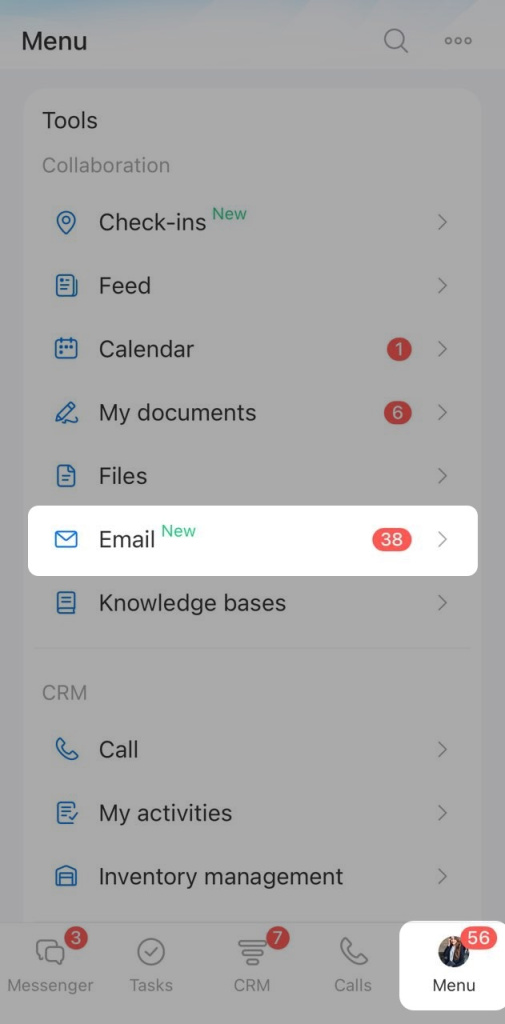
To open webmail, tap Menu > Email. The list of emails will open.
Work with emails
Select multiple emails. If you have many emails, it is easier to process them at once. You can delete them, move them to a folder, or mark them as read.
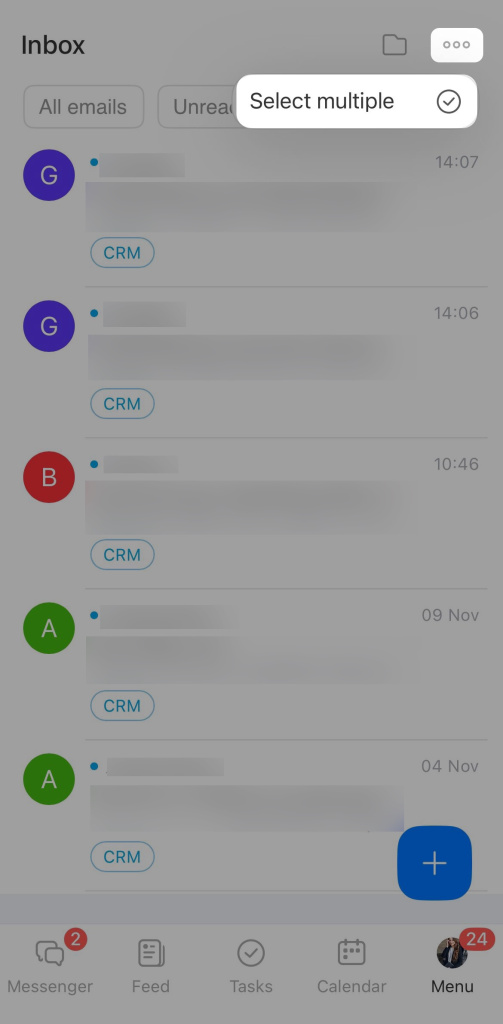
Tap Three dots (...) > Select multiple.
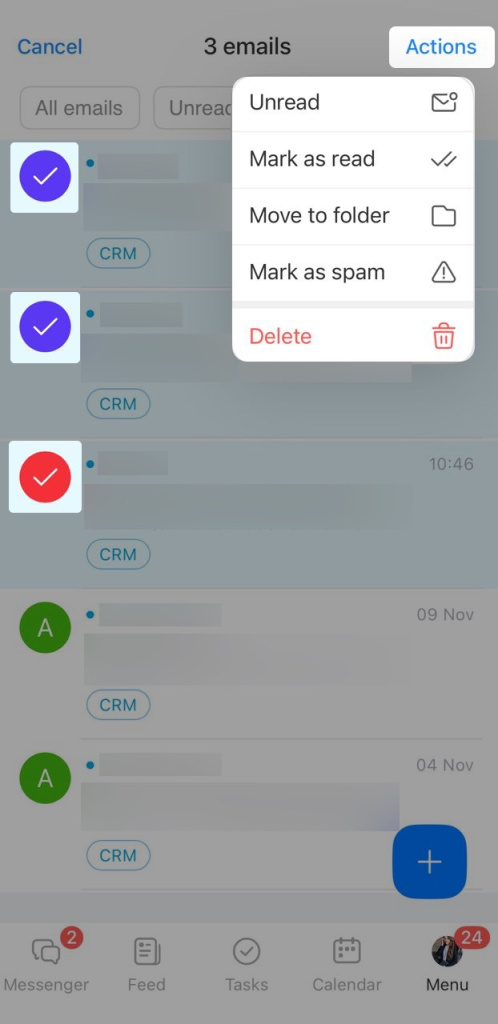
Select the checkboxes next to the required emails and choose an action:
- Mark as read
- Move to folder
- Mark as spam
- Delete
Send an email. You can quickly reply to a customer from the mobile app. Tap Plus (+) in the lower-right corner.
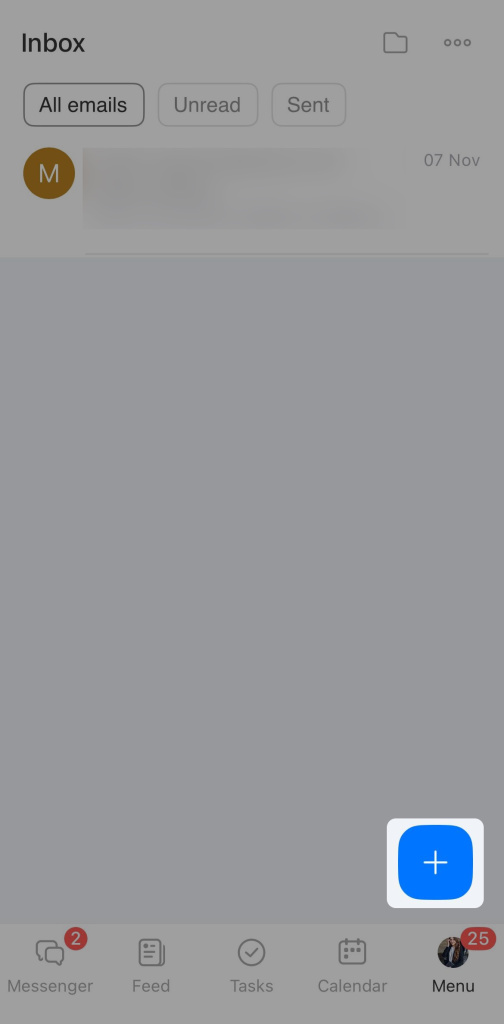
1. Select the recipient. This can be a contact from Contacts, CRM, or an employee.
2. Specify the sender and the email subject.
3. Enter the message text.
You can attach photos or documents from your phone. Tap the paperclip in the lower-right corner of the email.
To send the email, tap the corresponding button in the upper-right corner.
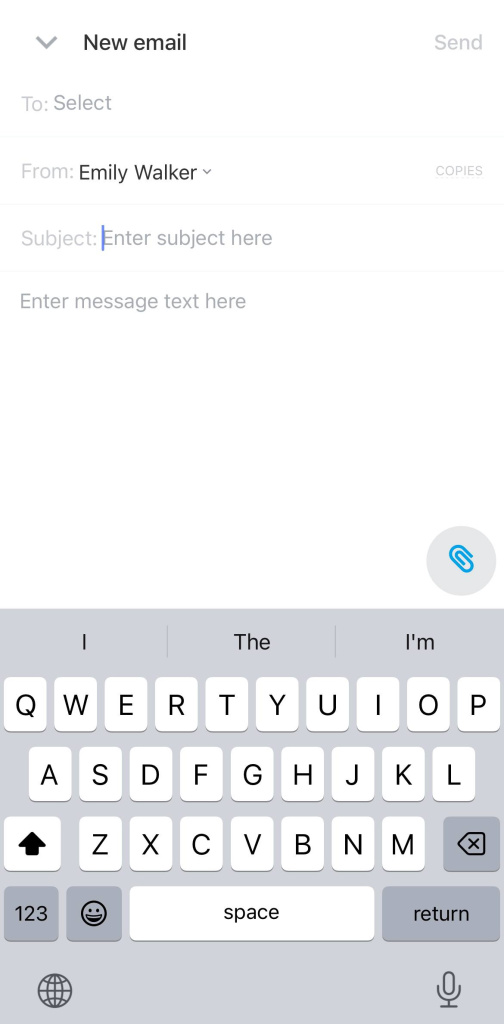
Email actions. You can create a task or chat directly from an email, or save the email thread to CRM.
Open the required email and tap Three dots (...). Select the action you want to perform, for example, Create chat.
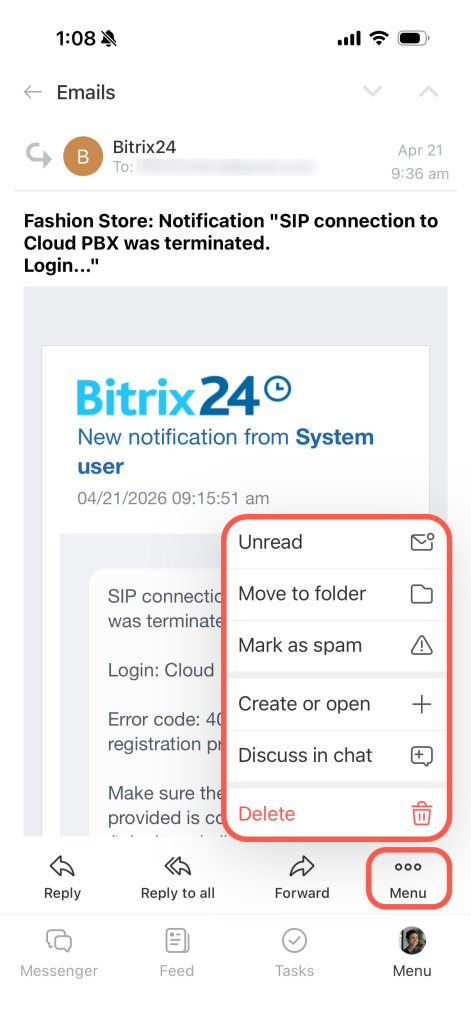
You can add the email to any chat with a colleague or create a new one.
Switch between folders and mailboxes
Folders help organize emails by type. You can keep incoming emails, important emails, sent messages, and personal correspondence separate. This makes it easier to find emails and keep your webmail organized.
To open folders, tap the icon in the upper-right corner.
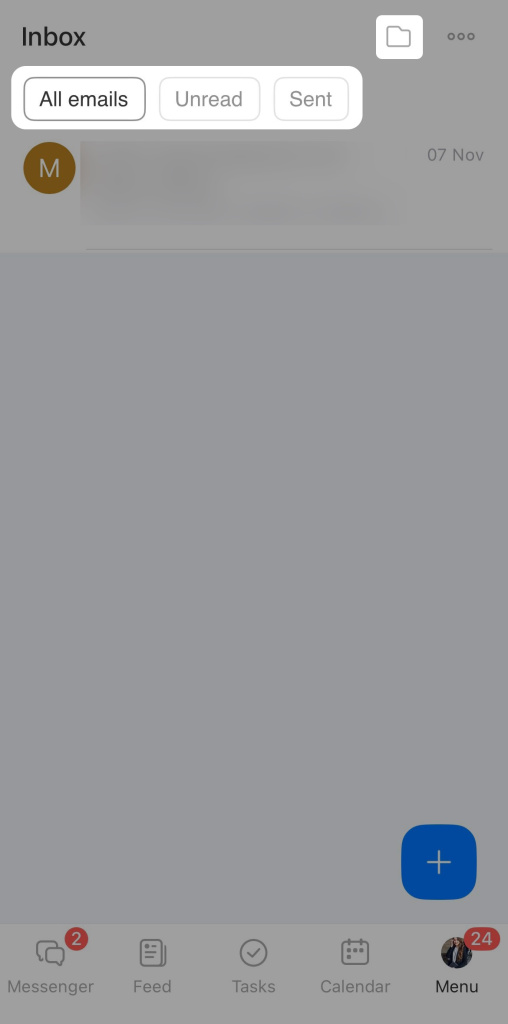
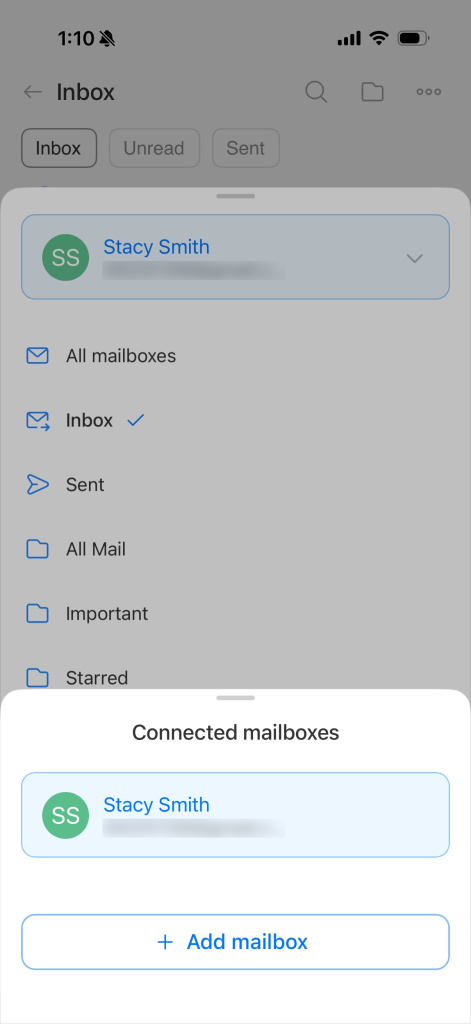
If you work with multiple email addresses, you can check folders in all mailboxes. To switch mailboxes, tap the arrow. You can also add a new mailbox here.