
If you need to discuss a task with a client, contractor, or partner, invite them to a Bitrix24 chat. Guests can join without registering, send messages, and share files.
Guests cannot access other Bitrix24 sections. They can only see the chat they were invited to.
In this article:
Who can invite a guest to a chat
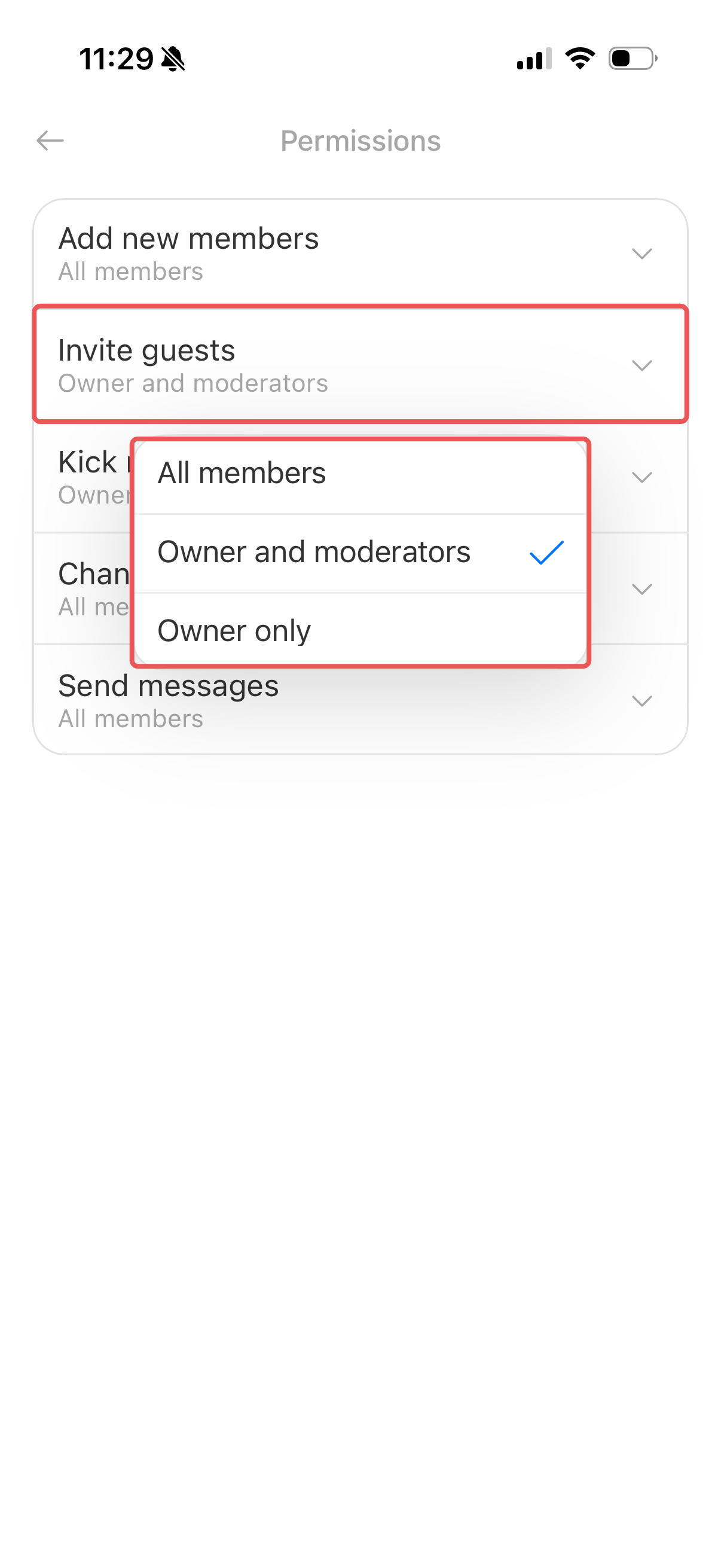
By default, the chat owner and moderators can invite guests. You can allow all chat members to send invitations or let only the chat owner do so.
Go to Messenger and open the chat.
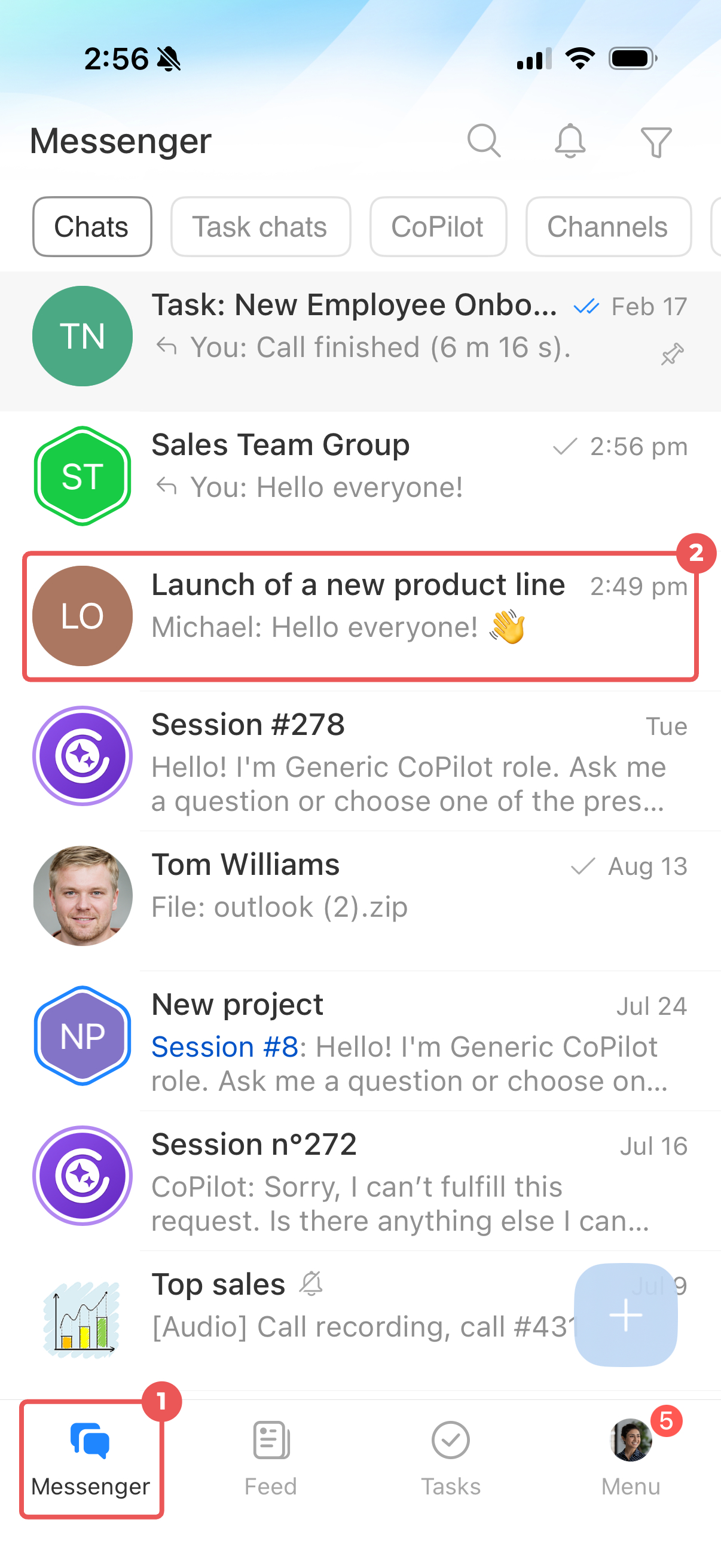
Tap the chat name at the top of the screen to open the sidebar.
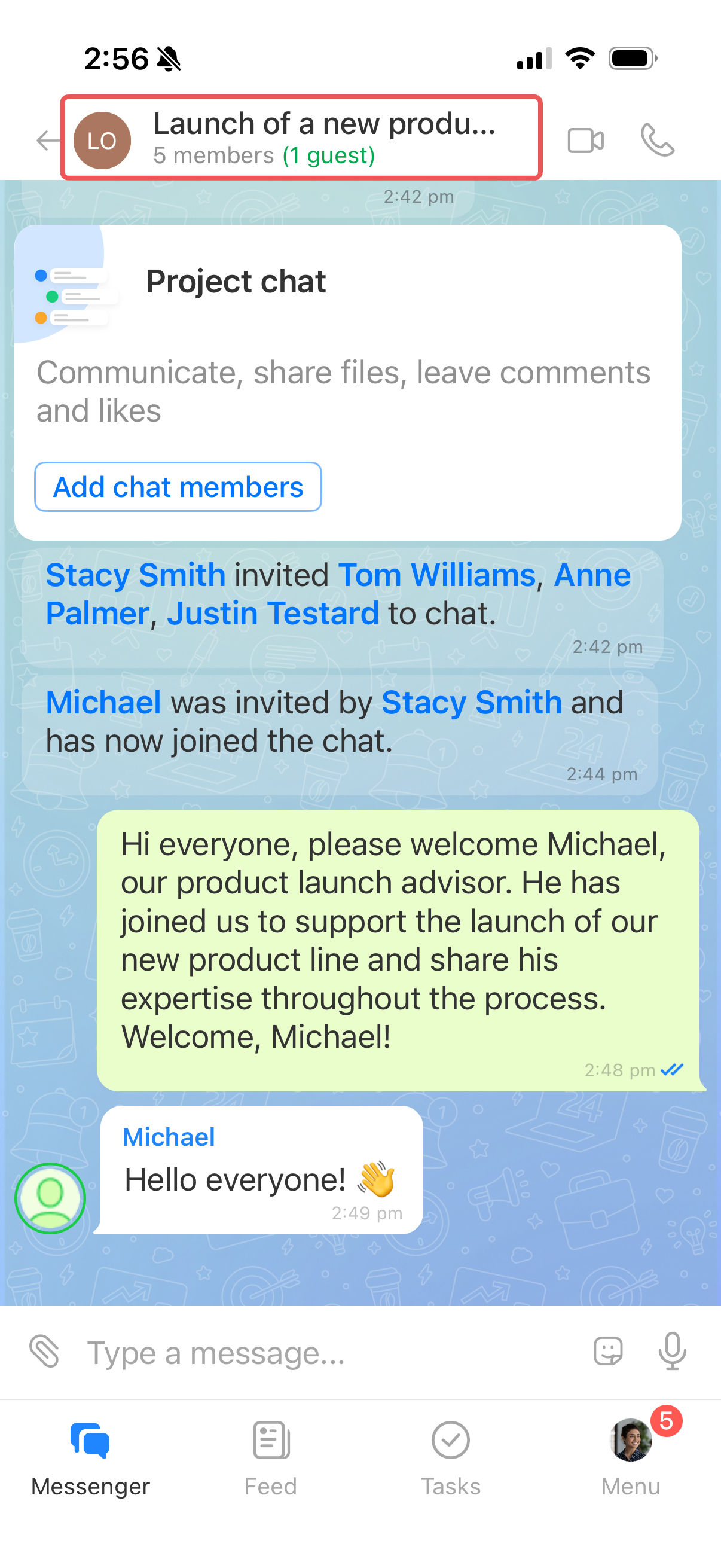
Tap Three dots (…) in the top-right corner and select Edit.
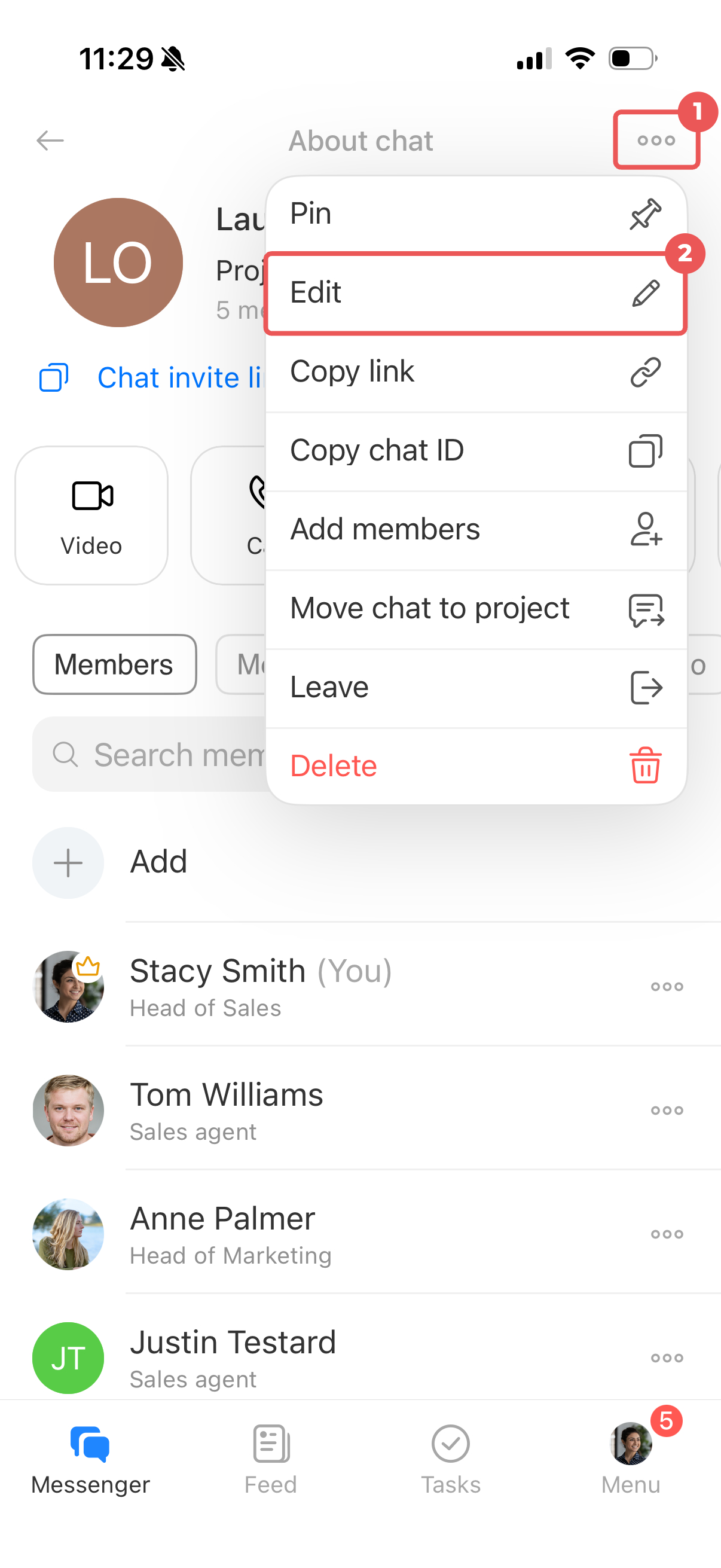
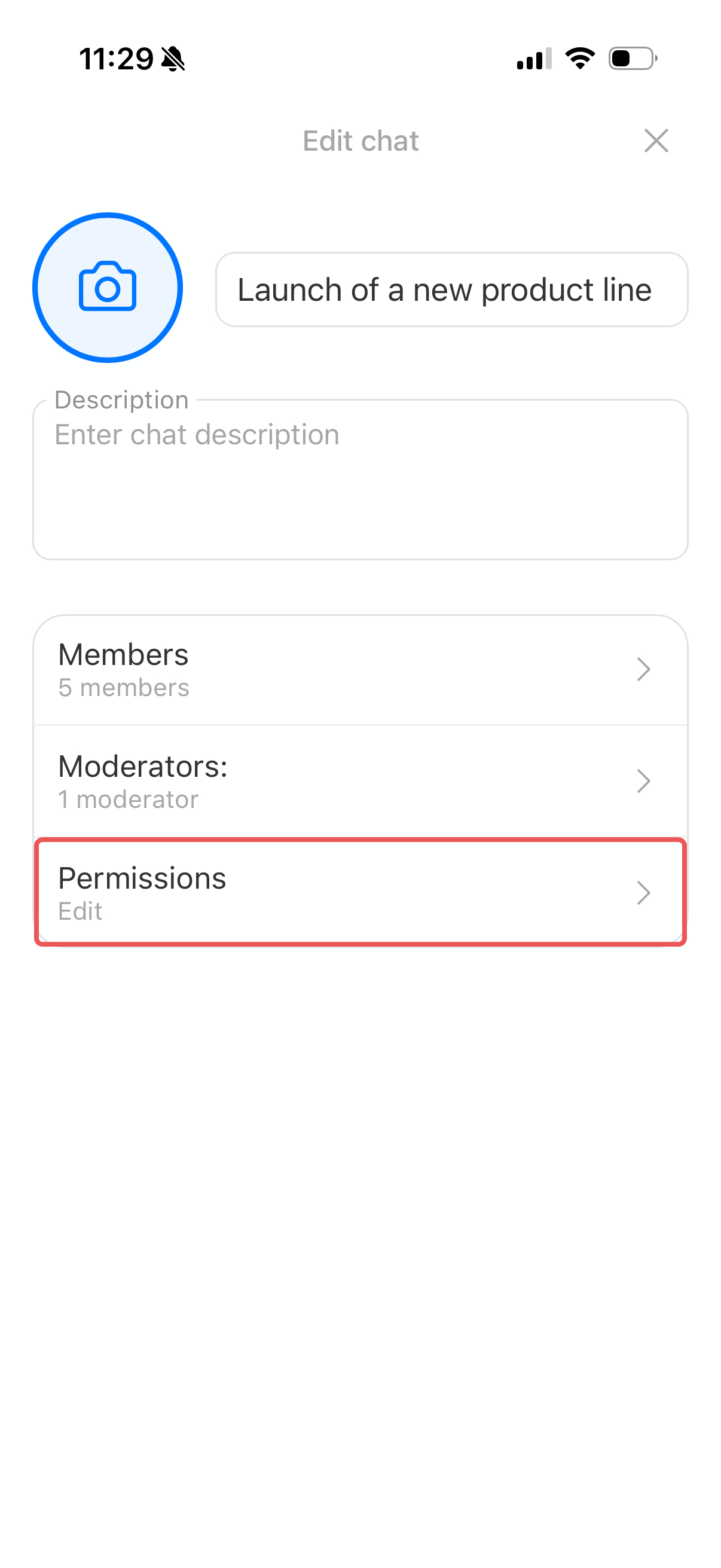
Open Permissions. Only the chat owner or moderators can change these settings.
Tap Invite guests and select one of these options:
- All members
- Owner and moderators
- Owner only
Invite a guest to a chat
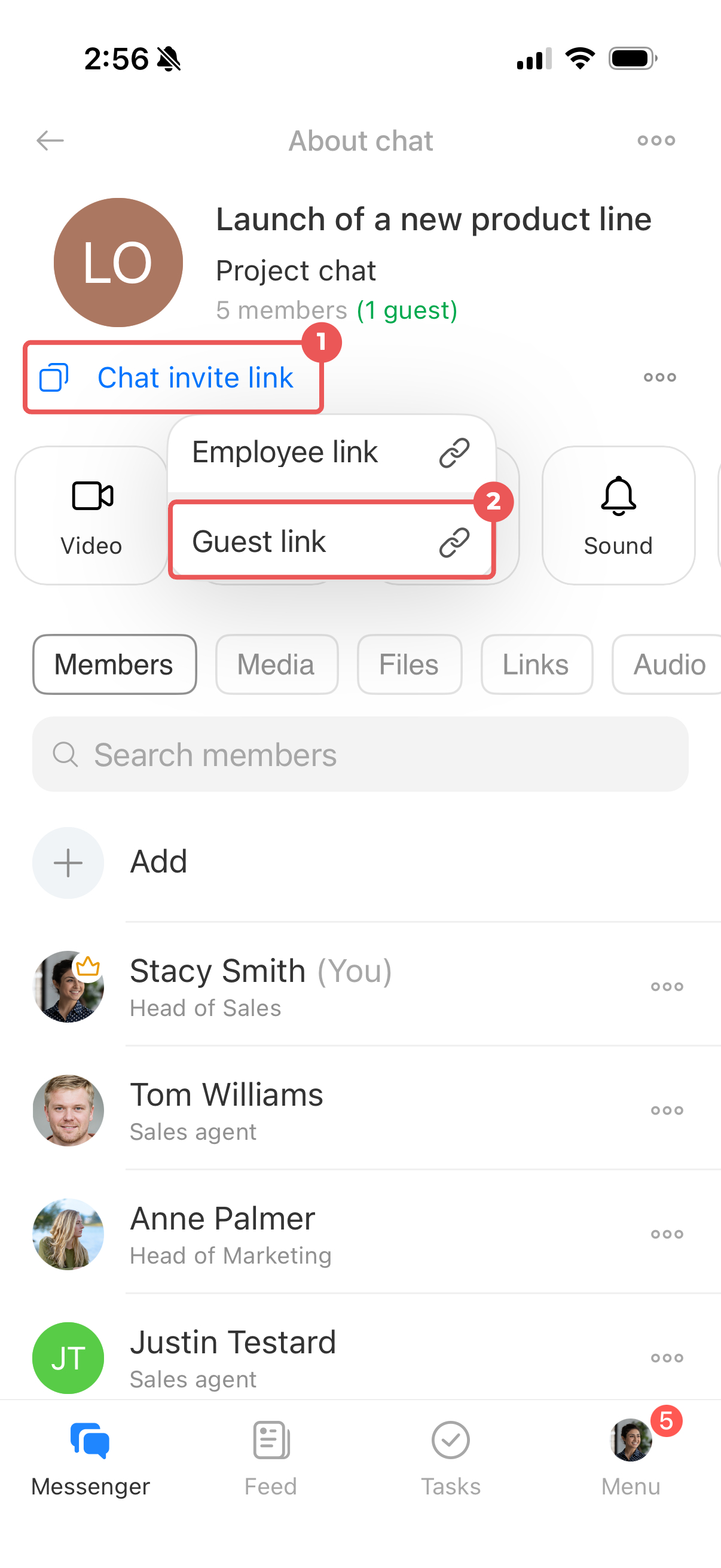
In Messenger, open the chat and tap the chat name at the top to open the sidebar. You can copy an invitation link or invite a guest by SMS, email, or QR code.
Copy the invitation link. In the chat sidebar, tap Chat invite link and select Guest link. The link is copied to your clipboard. Share it with the guest using any app.
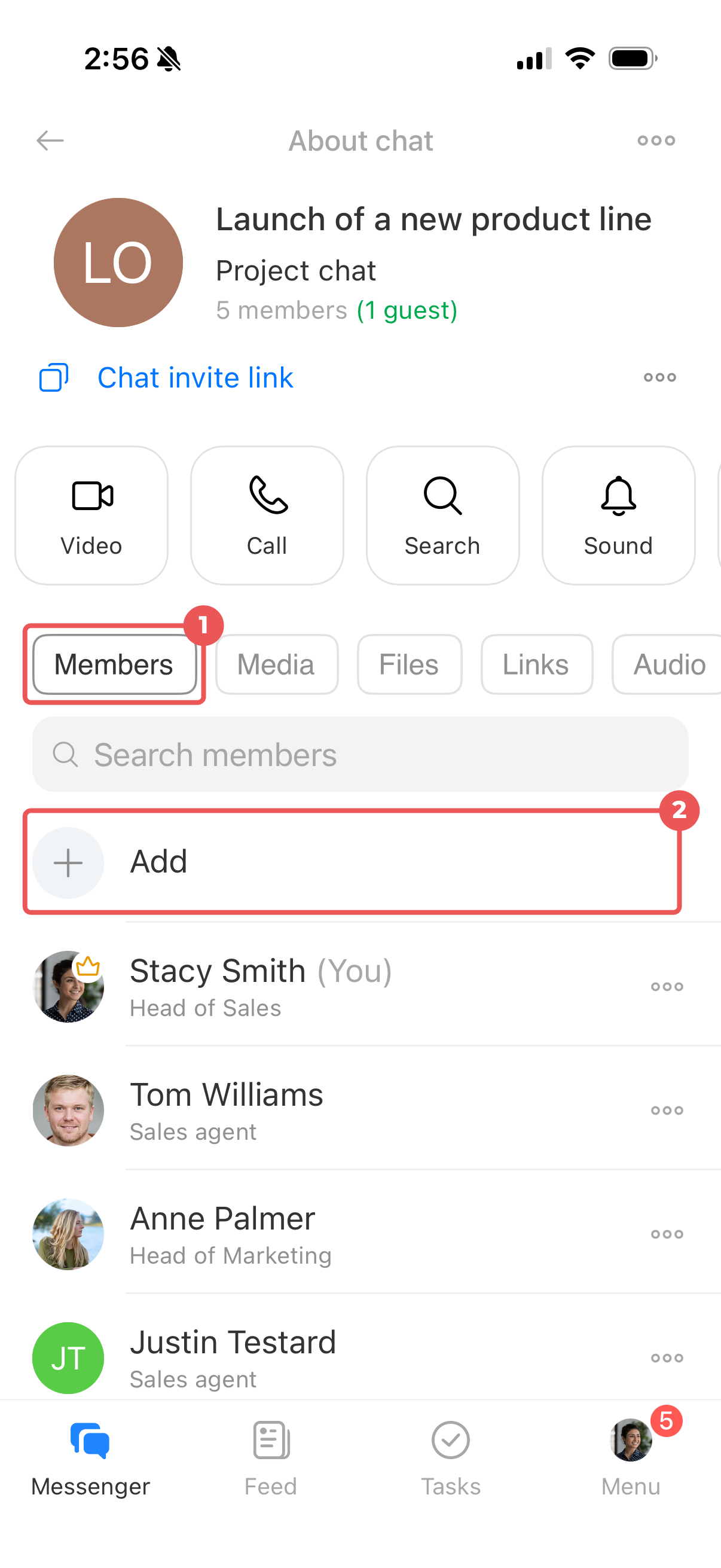
Choose an invitation method. In the chat sidebar, open the Members tab and tap Add.
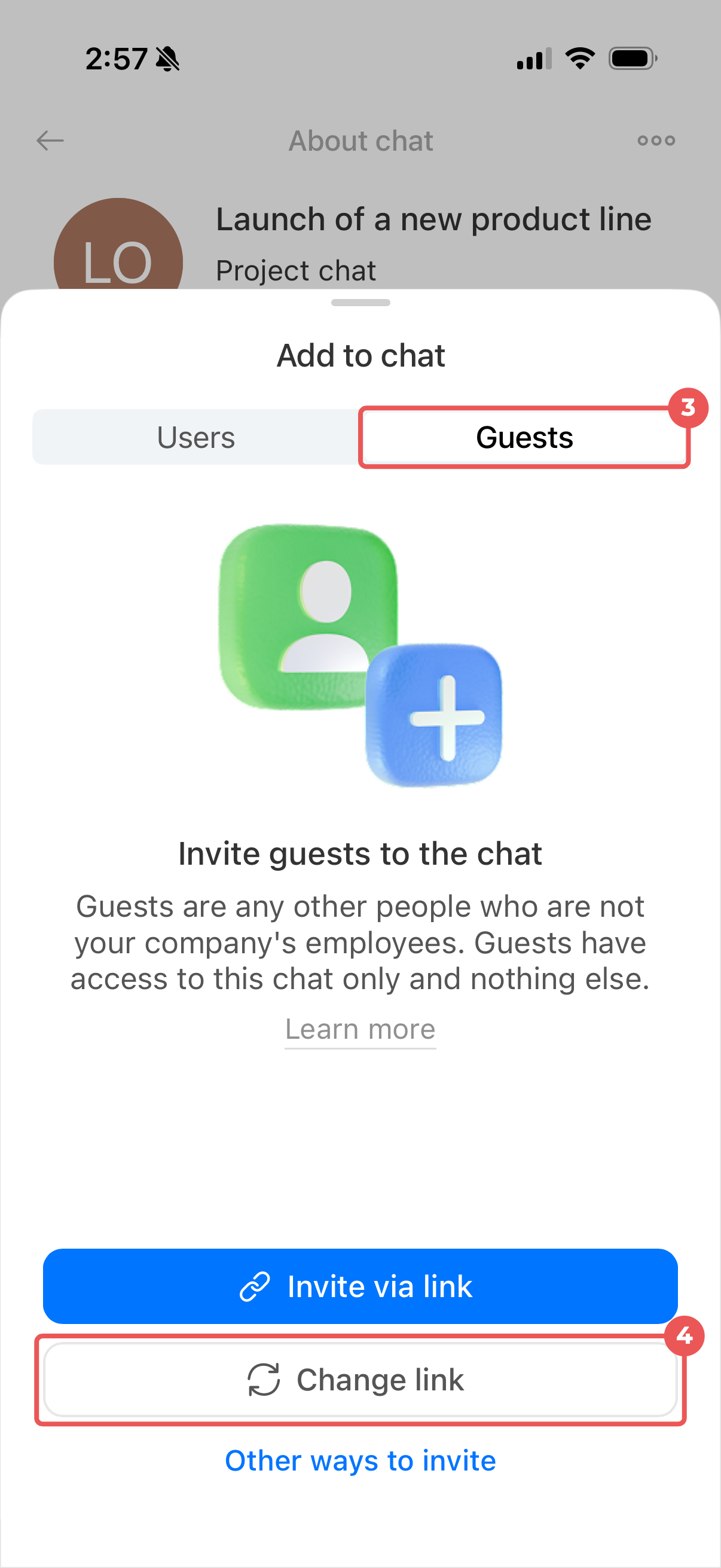
Open the Guests tab. To copy the invitation link and share it through another app, tap Invite via link.
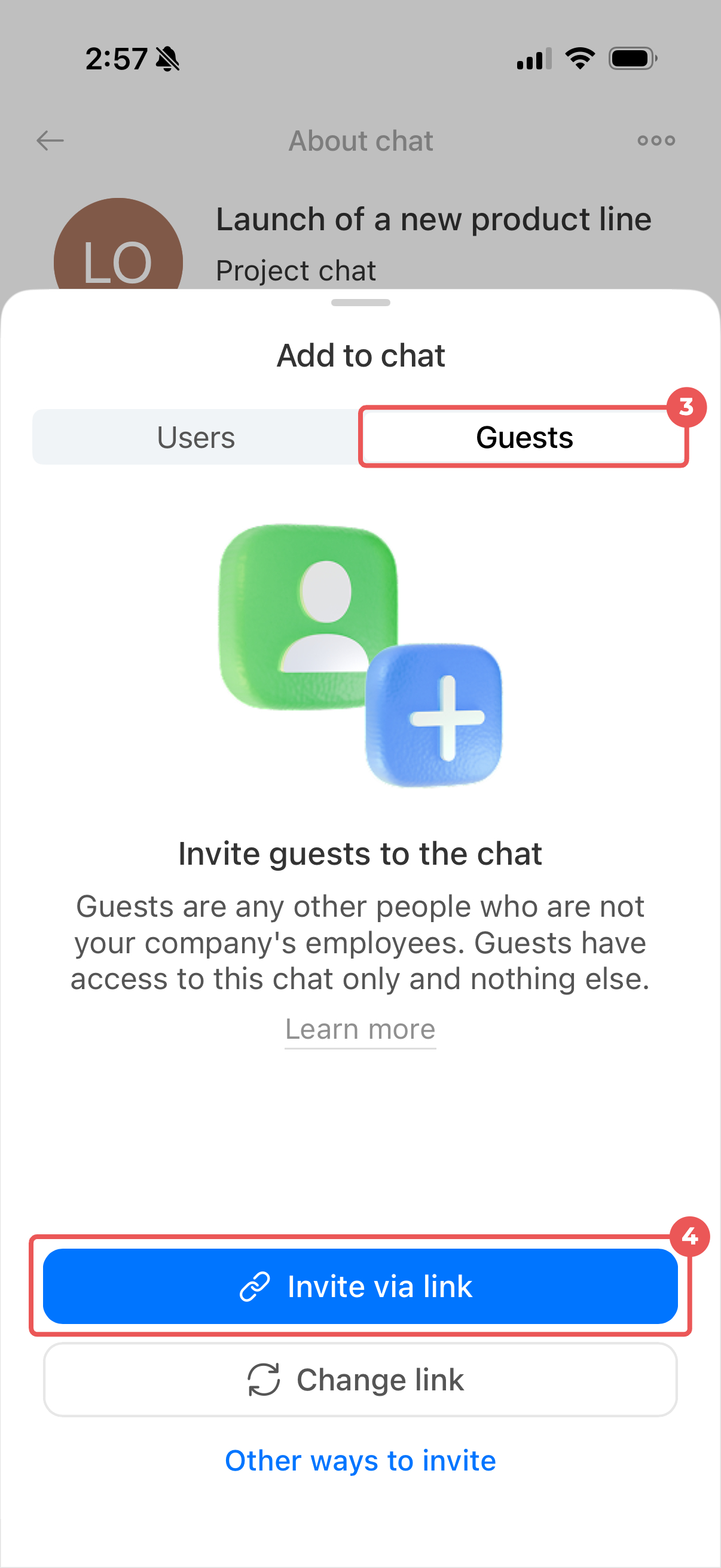
To invite a guest by SMS, email, or QR code, tap Other ways to invite and choose an option.
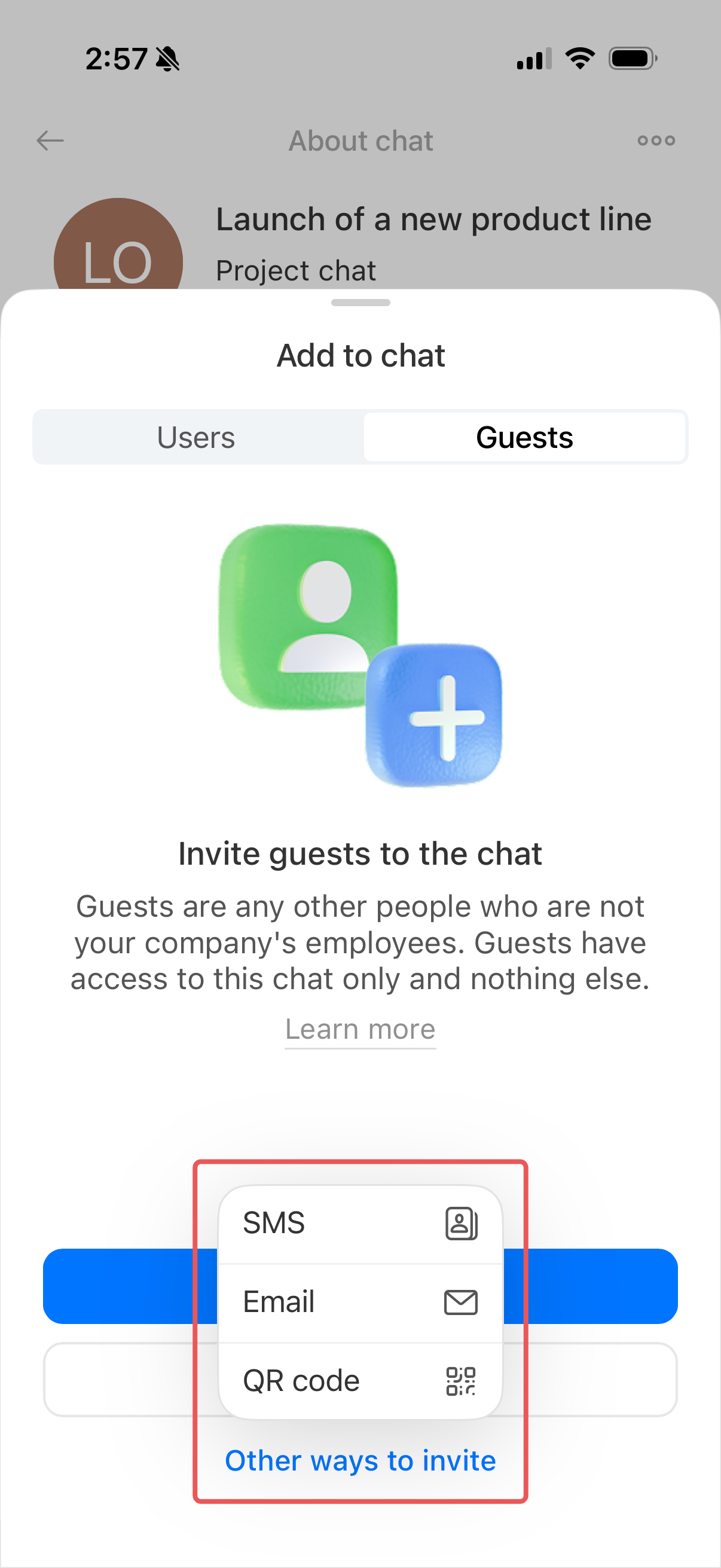
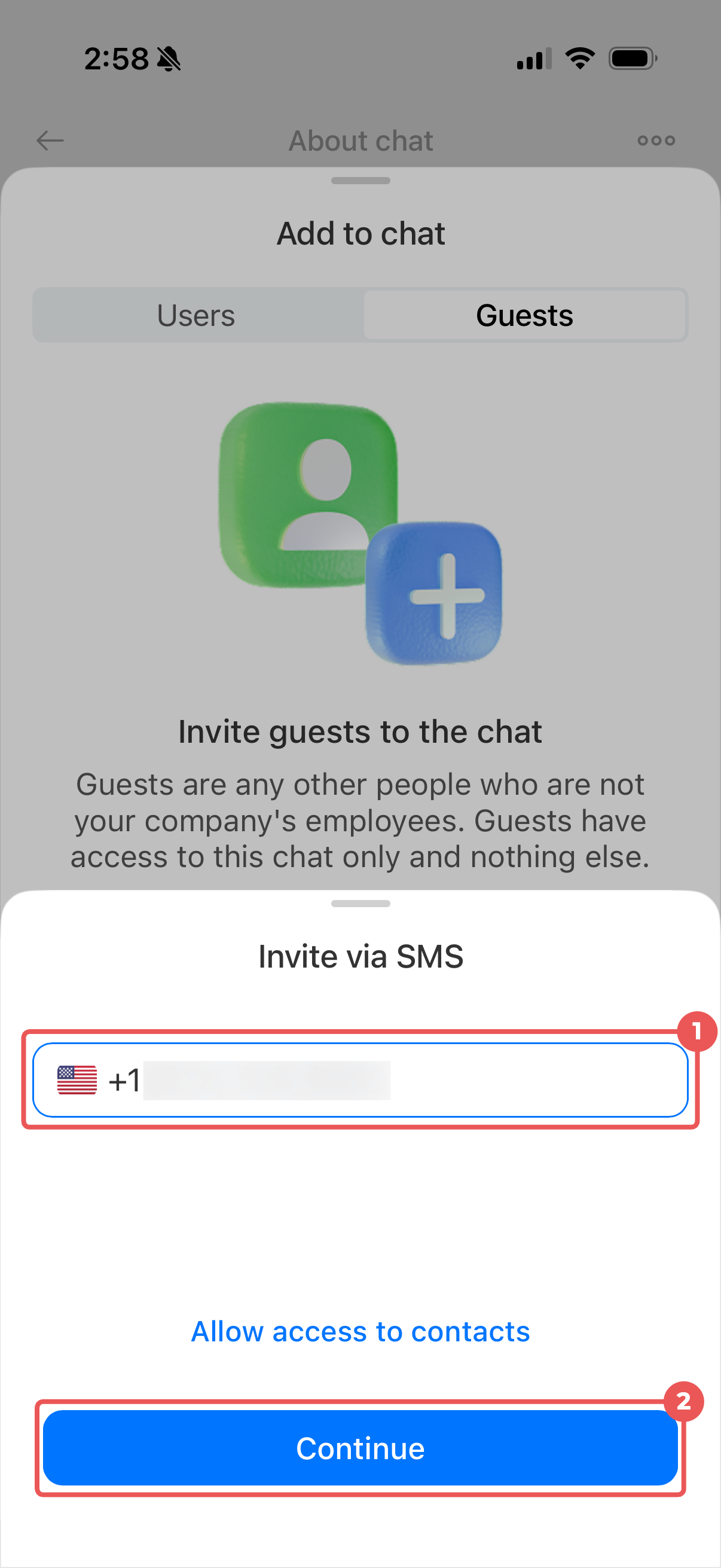
By SMS. Enter the guest's phone number and tap Continue.
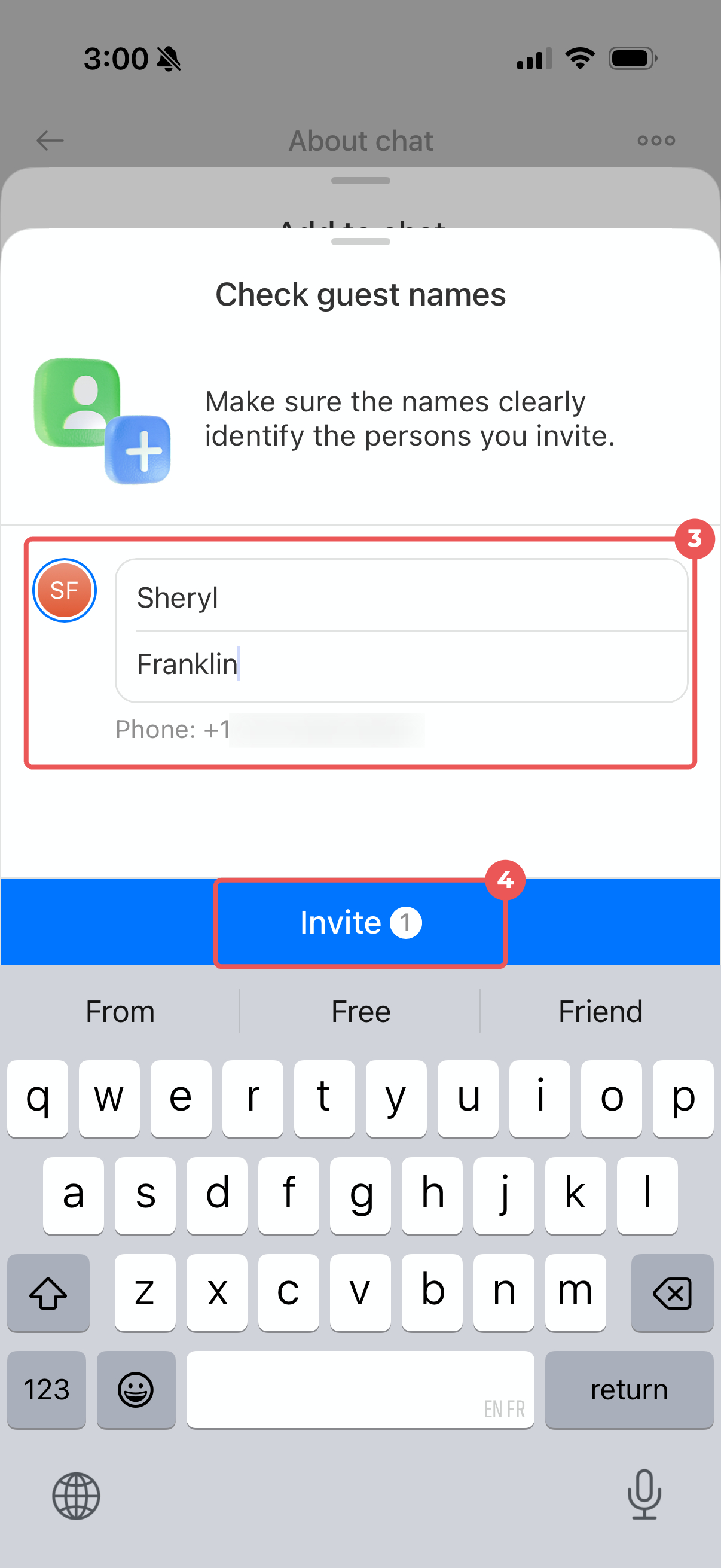
Enter the name the guest will use in the chat and tap Invite. The guest receives an SMS with a link to the chat.
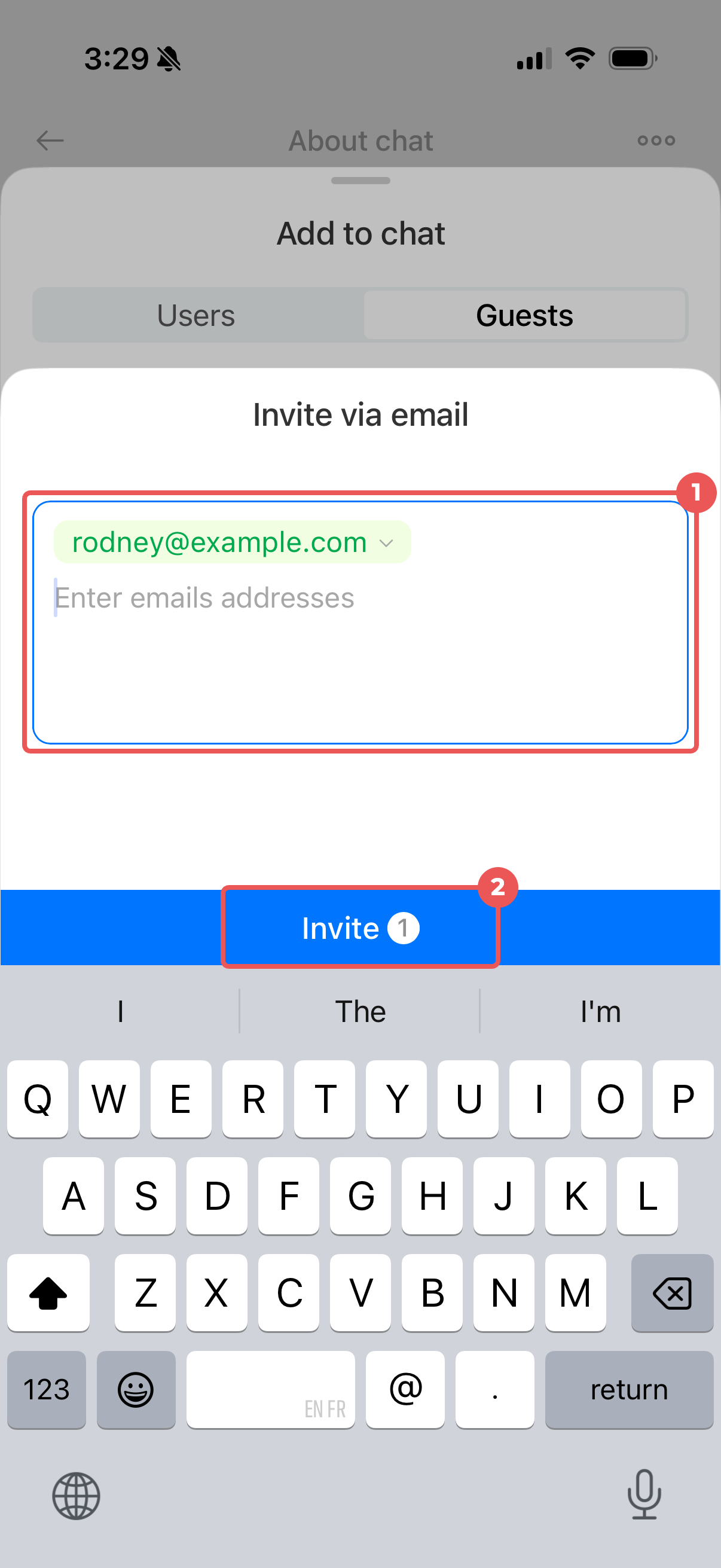
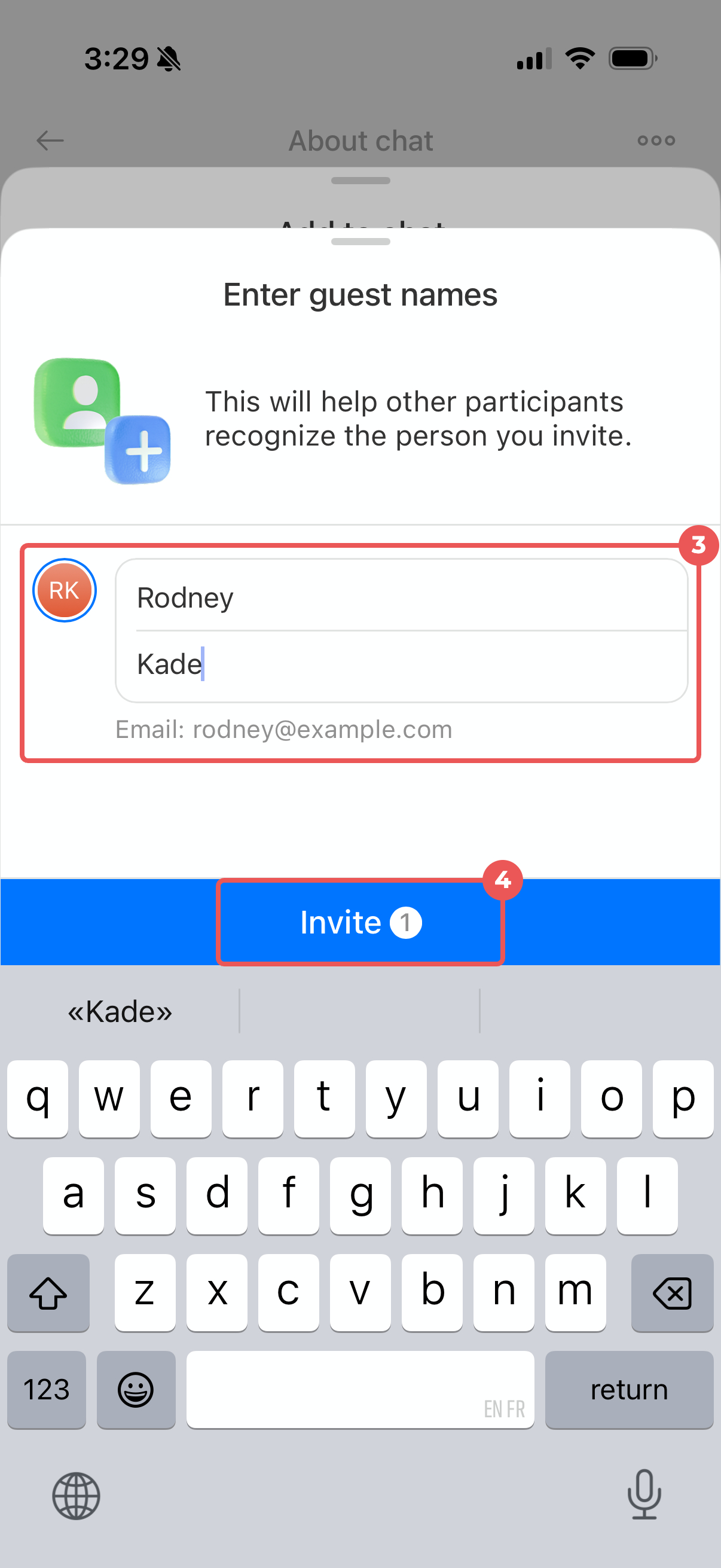
By email. Enter the guest's email address and tap Invite. To invite multiple guests, separate their email addresses with spaces.
Enter the name that will appear in the chat for each guest and confirm. Each guest receives an email with a link to the chat.
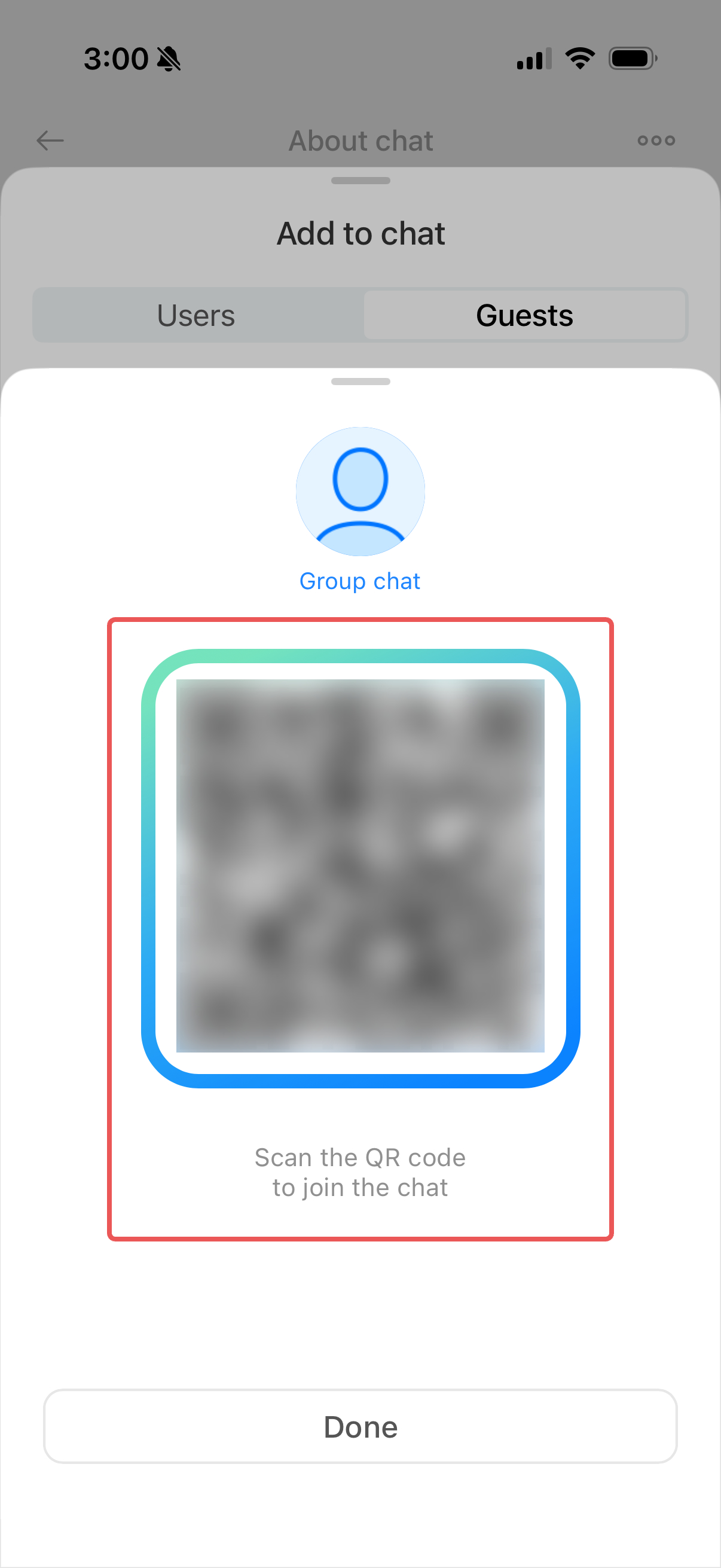
By QR code. Show the QR code to the guest, for example, during an in-person meeting. They can scan it with their phone camera to open the chat invitation.
What guests see in the chat
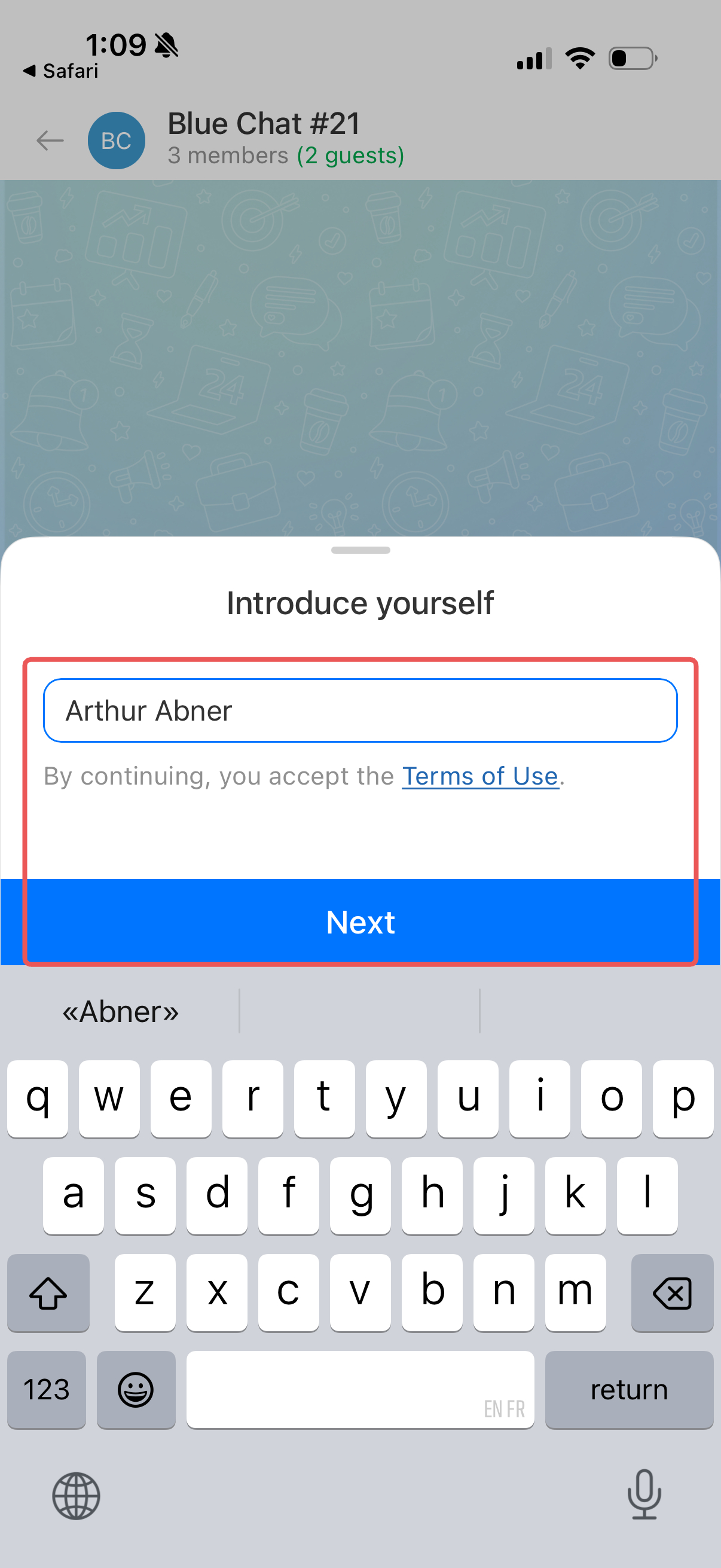
When a guest opens the invitation link, the Bitrix24 mobile app opens. Before joining, they can enter a name or skip this step. The chat then opens.
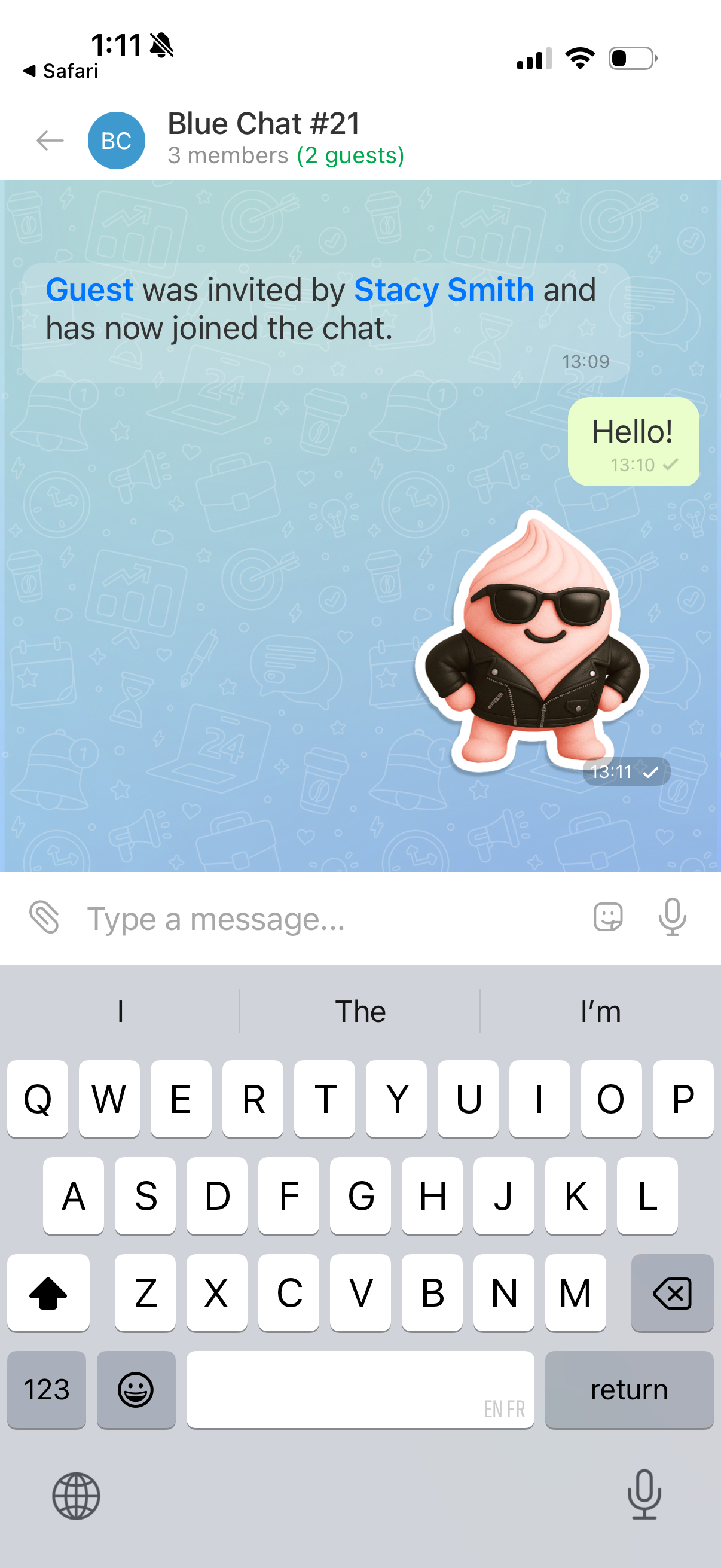
Guests can send messages in the group chat and message chat members directly. They can only see messages sent after they join the chat.
Disable guest access to a chat
When the discussion ends, you can remove a specific guest or revoke access for all guests at once. Anyone with permission to invite guests can do this.
Reset the invitation link. Use this option to revoke access for all guests who joined with the current link. For example, reset the link when a project ends or external participants no longer need access.
In the chat sidebar, open the Members tab and tap Add.
Open the Guests tab, tap Change link, and confirm. All guests who joined with the current link are removed, and the old link stops working.
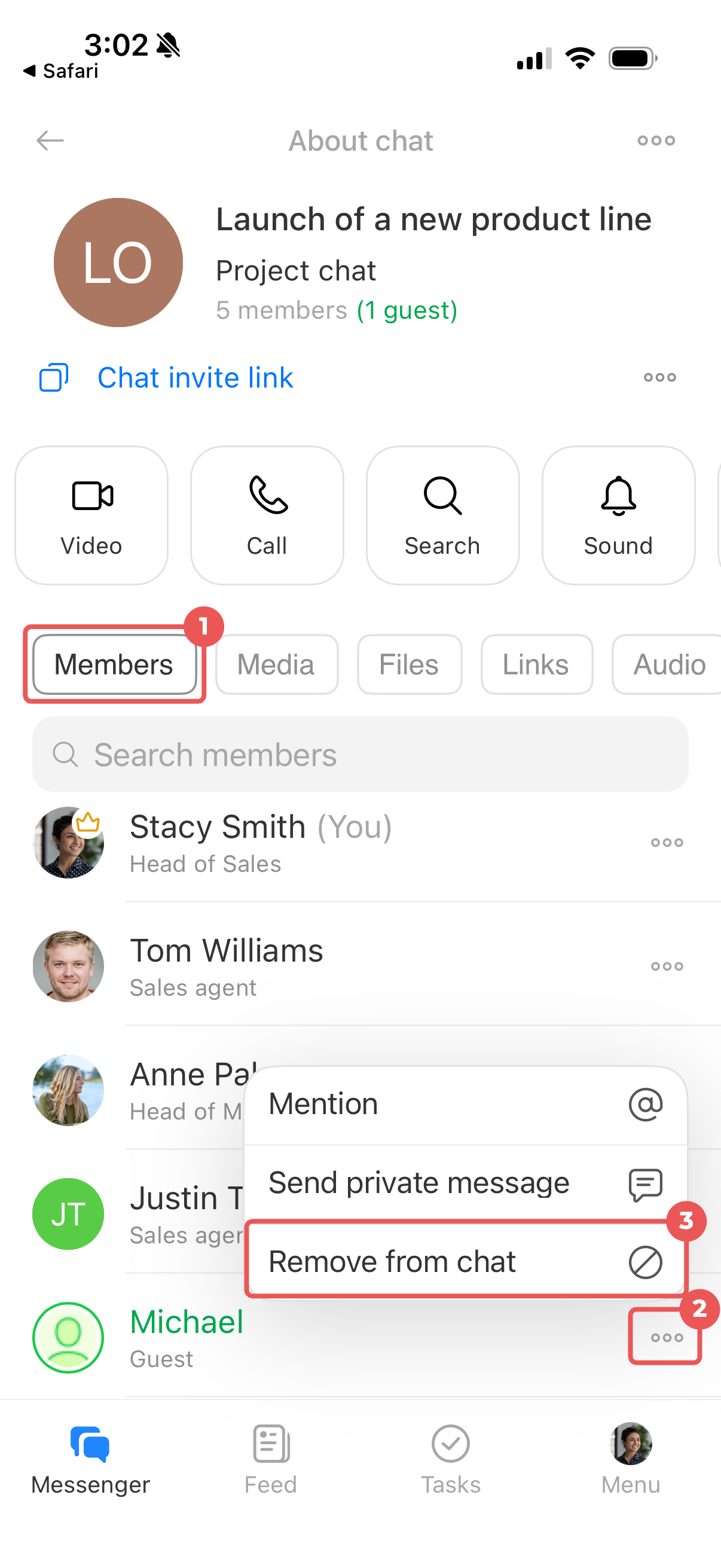
Remove a specific guest. Use this option to remove one guest without affecting the others. For example, you can remove a contractor who has finished their work while keeping the client in the chat.
In the chat sidebar, open the Members tab. Tap Three dots (...) next to the guest's name, select Remove from chat, and confirm.
After you remove a guest, they lose access to the chat. If the invitation link is still active, they can use it to join again. To block their access, reset the link after removing them.