
The CoPilot Agent is an AI-powered personal assistant that works with Bitrix24 tools. When you send a request, the agent can create tasks, reschedule meetings, add CRM fields, search emails, and perform other actions.
With the CoPilot Agent, you do not need to navigate through sections or look for the right buttons. Just describe what you need, and the agent will build a plan and complete the task.
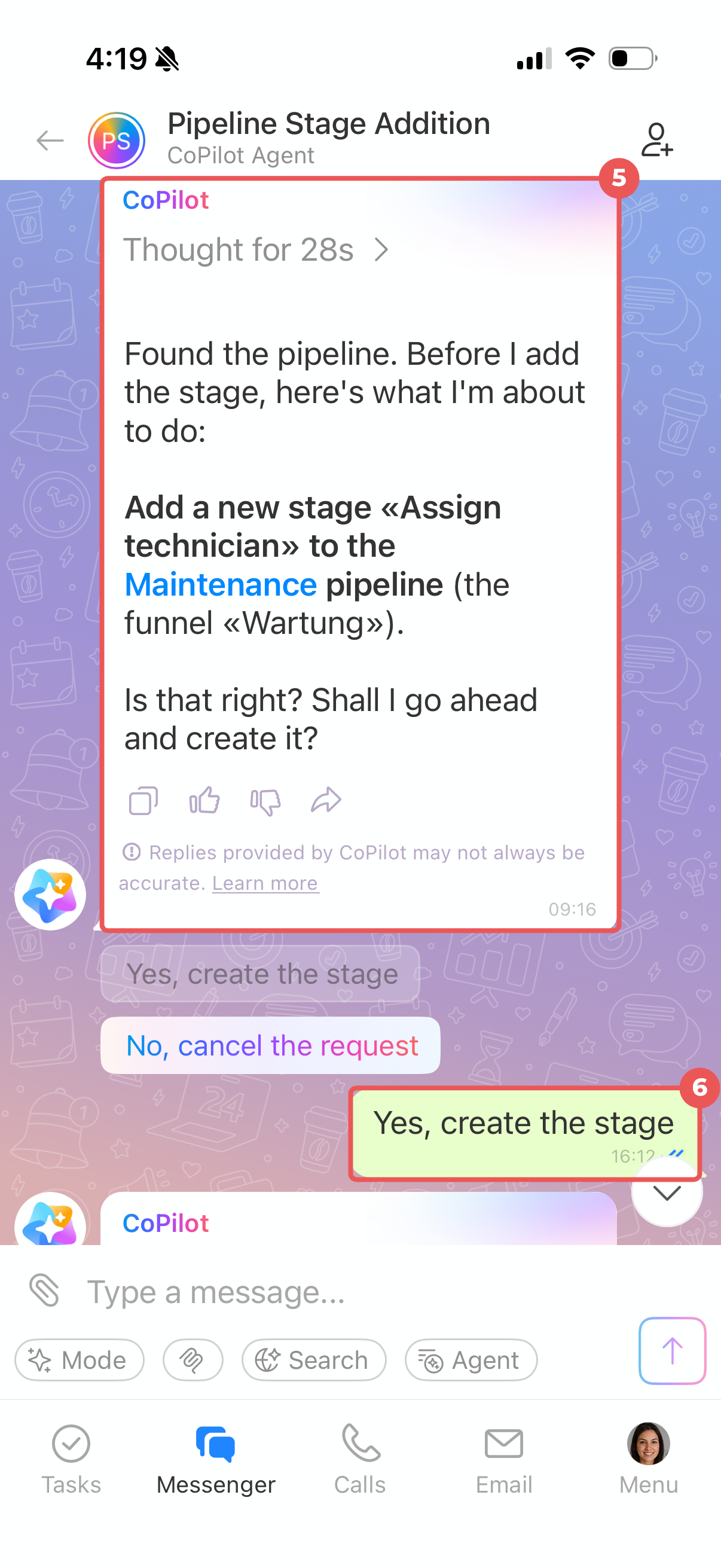
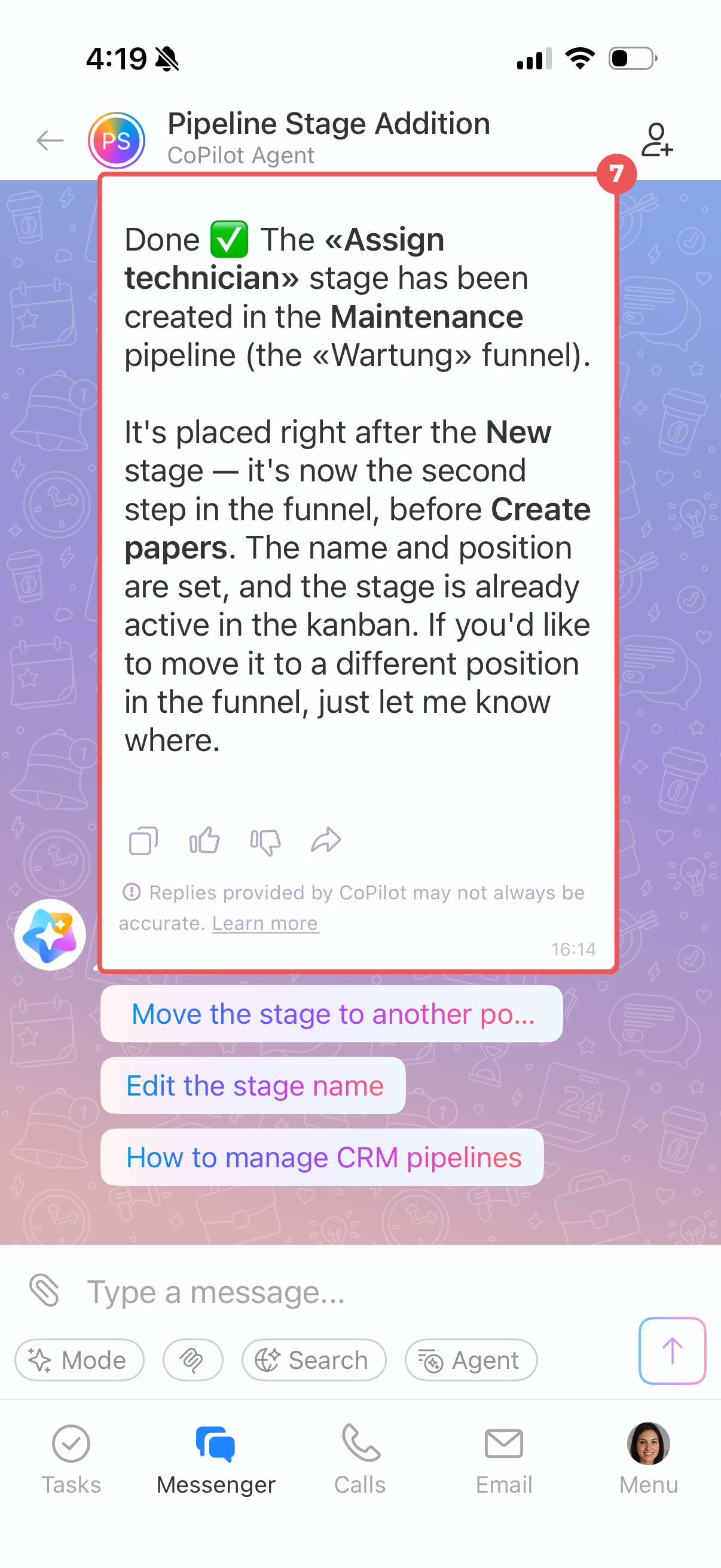
For example, if your team decides to add a sales pipeline for a new line of business, you can ask the CoPilot Agent to do it. The agent will confirm the pipeline name and stages, add the new pipeline to CRM, and let you review the result right away.
Send a request to the CoPilot Agent
1. Open the chat with the CoPilot Agent, or mention it in a chat with colleagues.
2. Describe what needs to be done. For example: "Add the stage Contract review to the Enterprise sales pipeline."
3. The CoPilot Agent will ask follow-up questions and wait for your confirmation before taking the action.
4. If needed, add more details. For example, specify where to place the new stage or ask to rename it.
5. After you confirm the details, the agent will complete the action.
Start a conversation with the CoPilot Agent
Why CoPilot Agent responses might be inaccurate
In a group chat, all members can see the agent's replies. The agent generates a reply based on the permissions of the person who sent the request. As a result, the reply may include restricted data, such as a task that other chat members cannot open.
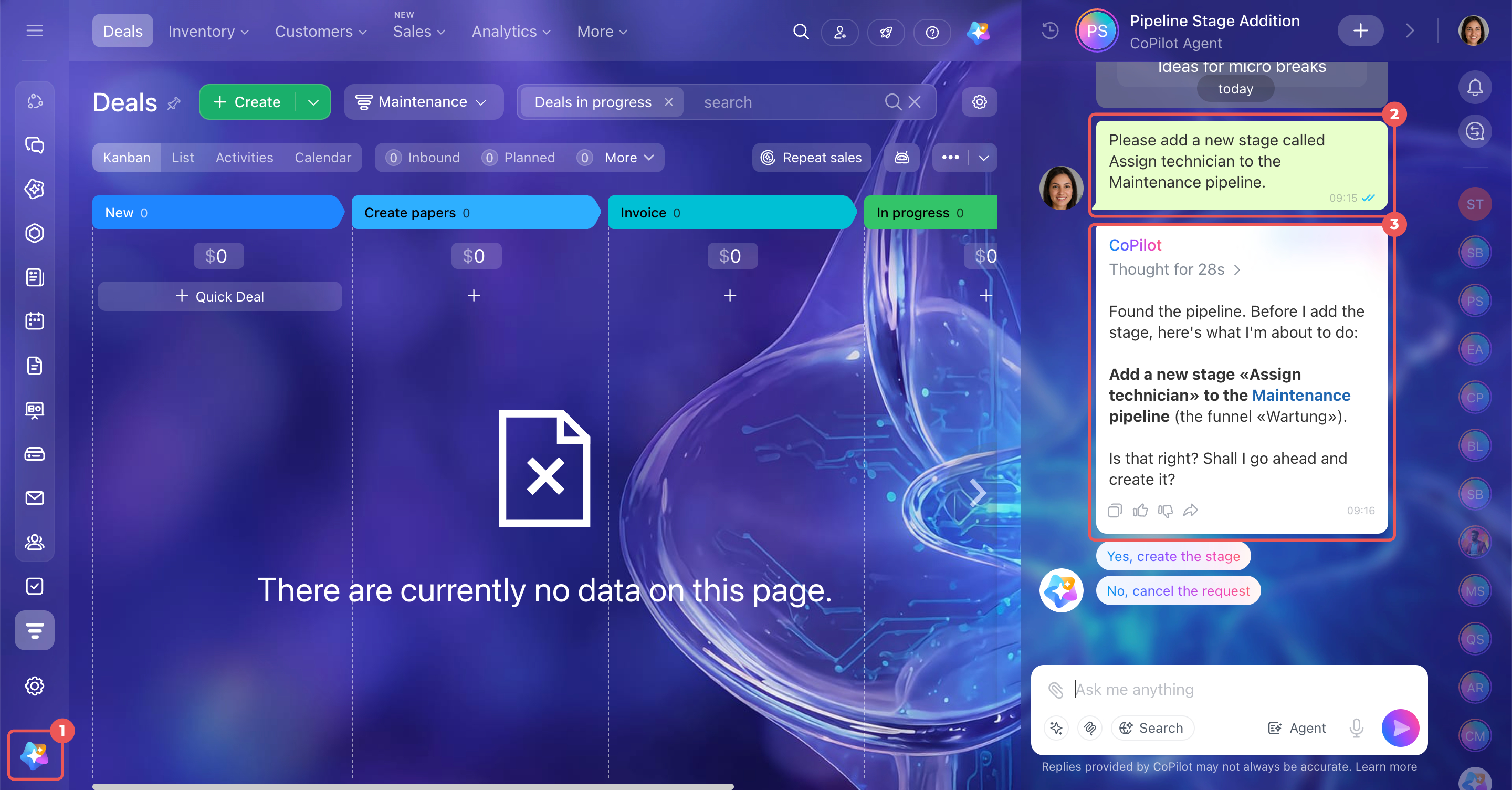
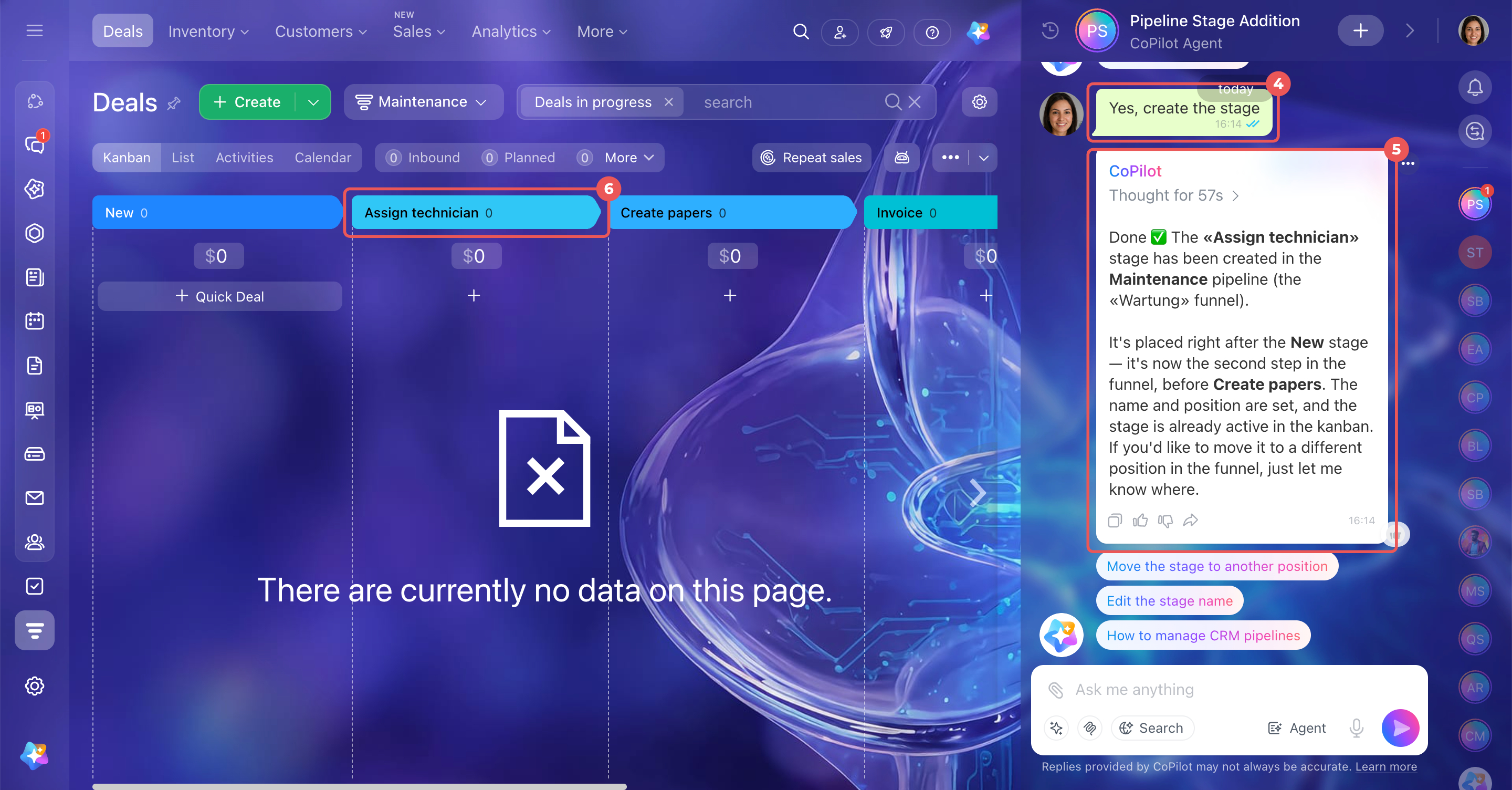
To ask the CoPilot Agent to complete an action, open a chat with the agent and describe what you want it to do. Answer the agent's questions and confirm the actions. The agent will complete the action after you approve it.
In a group chat, all members can see the agent's replies. The agent generates a reply based on the permissions of the person who sent the request. As a result, the reply may include restricted data, such as a task that other chat members cannot open.
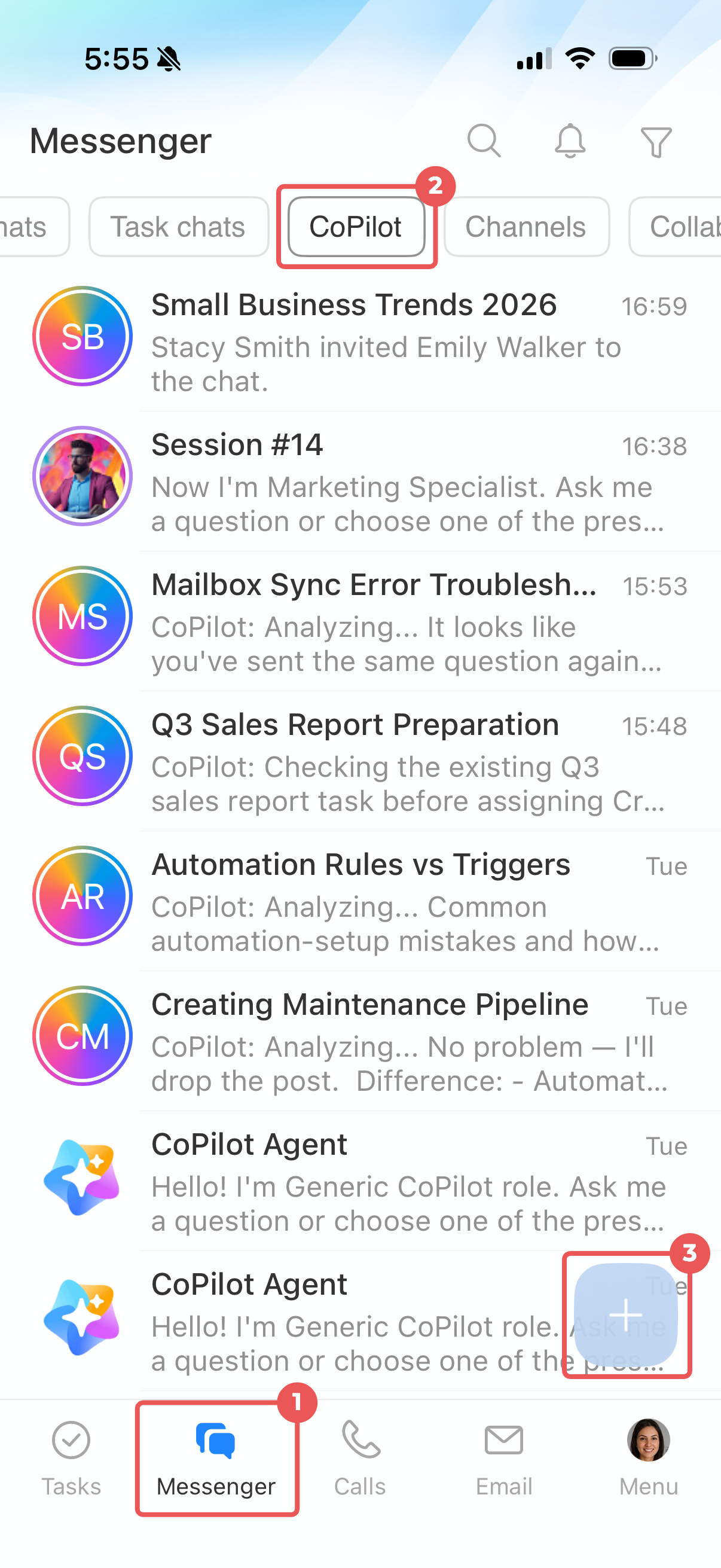
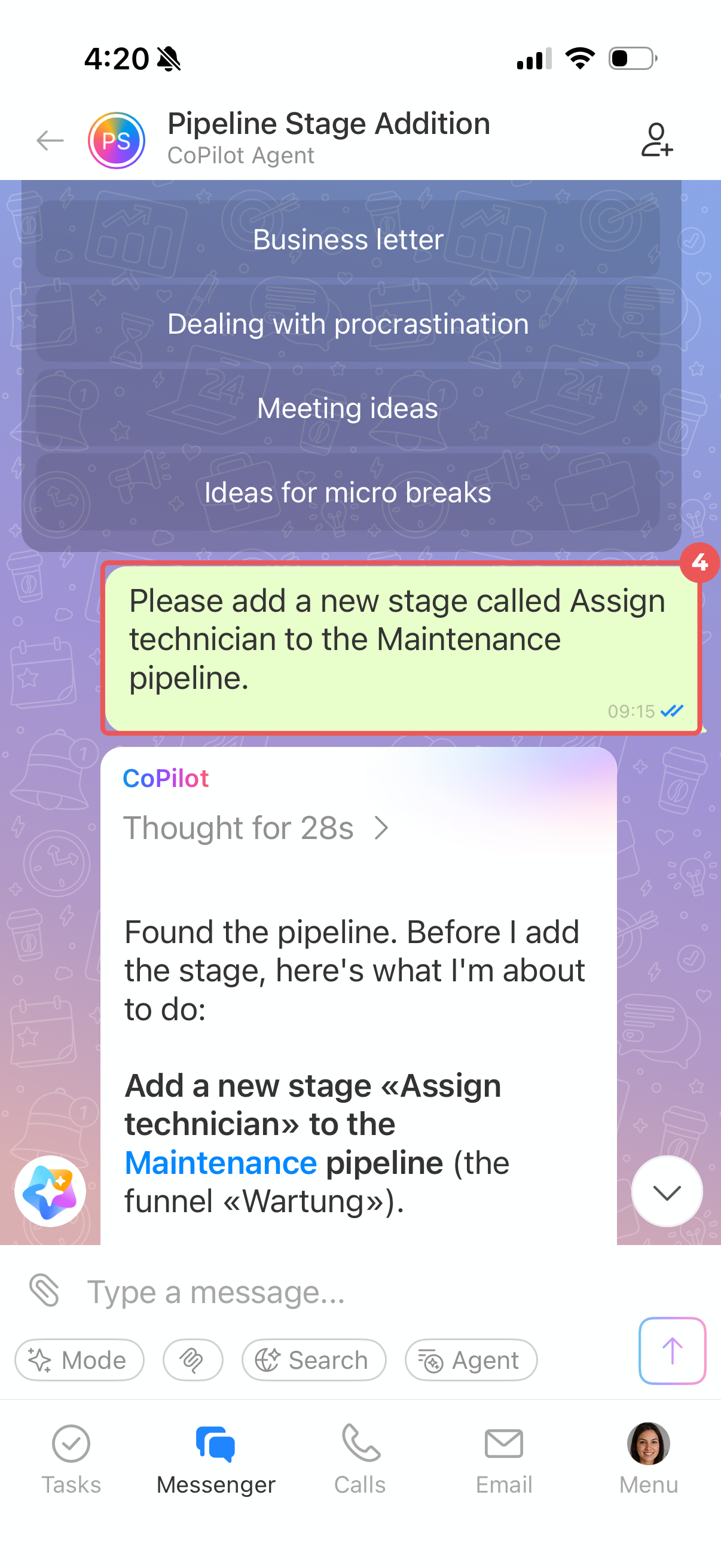
Manage Bitrix24 tools with the CoPilot Agent
The CoPilot Agent lets you work with Bitrix24 tools right from chat. You do not need to switch between sections or search for buttons. The list of available actions keeps growing.
Worktime tracking
The CoPilot Agent helps you track work time and check your colleagues' schedules. For example, you can:
- Clock in, pause, or clock out: Clock me in.
- Check your current workday status: How many hours have I worked today?
- View worktime tracking settings: What time is Christina Parker scheduled to start work?
- Check an employee's schedule: Show me James Miller's work schedule.
Tasks
The personal assistant helps you stay organized. You can create tasks, find them quickly, and hand them off to colleagues.
For example, the CoPilot Agent can:
- Create a task with an assignee, deadline, and project: Create a task "Prepare price list" for tomorrow and assign it to Kevin Harris.
- Find tasks by name, deadline, tag, or keyword: Find all my priority tasks.
- Update task details such as the name, description, status, or deadline: Move the deadline for the task "Prepare price list" to Friday.
- Delegate a task to another employee: Reassign the task "Prepare layout" to Emily Brooks.
- Add a comment to the task chat: Add a comment to the task "Send estimates to clients": "Waiting for client feedback."
Projects
The personal assistant helps supervisors track progress and helps teams stay organized. For example, the CoPilot Agent can:
- Show a project status overview, including what changed this week and which tasks were added: What changed in the "Launch" project this week?
- Find issues and risks such as overdue tasks, stalled tasks, or tasks without a deadline: Are there any stalled tasks?
- Check the status of a specific task: Any updates on the task "Approve the showroom"?
- Show which of your tasks need attention: Which of my tasks would you call problematic?
The CoPilot Agent may mark a task as problematic based on factors such as:
- The task is a priority and already overdue.
- The task is overdue and has had no recent activity.
- The deadline is less than three days away, but there is still no progress. For example, checklist items are incomplete or no result is attached.
- The task is a priority but has no deadline, so it may be forgotten.
To help the CoPilot Agent find the right project, include its name in your request.
Calendar
The CoPilot Agent helps you manage meetings and plan your work time. For example, it can:
- Check participant availability and create a meeting: Schedule a meeting with the sales team on Friday at 11:00 AM.
- Reschedule a meeting or change participants: Move the "Year-end results" meeting to next Friday.
- Show your schedule for a day or week, or find a specific event: What do I have planned for tomorrow?
- Cancel or accept a meeting invitation: Accept the invitation to the "Product demo" meeting.
- Find a time when all participants are available: Find a time for a team meeting tomorrow between 2:00 PM and 5:00 PM.
- Book a meeting room and check its availability: Book a meeting room for tomorrow from 3:00 PM to 4:00 PM.
Messenger
The CoPilot Agent helps you quickly find messages or chats and reply without scrolling through the chat history. For example, it can:
- Find a chat by name or its last message: Find the last message from David Wilson.
- Read a conversation or a specific message: Show the last 20 messages in the "Project Alpha" chat.
- Mark chats as read: Mark all chats as read.
- Send, edit, or delete a message: Write to Michael Johnson: "I need the documents by Friday."
- Create a group chat and add members: Create a group chat with the marketing department.
- Upload a file to a chat or view files in it: Show files in the "Project Alpha" chat.
Feed
The CoPilot Agent helps you publish posts and manage them. For example, it can:
- Show recent posts and open a specific one: Show the latest posts in the Feed.
- Publish a post and specify the recipients: Publish the post "Weekly results" for the sales department.
- Update or delete a published post: Delete the post about the August conference from the Feed.
- Forward a post to additional recipients: Forward the post "Weekly results" to the marketing department.
- Add or remove a comment on a post: Comment on the post "We made it to the regional competition finals" with the message "Great work!"
CRM: sales
The CoPilot Agent makes it easy to manage sales. For example, it can:
- Find leads, deals, contacts, and companies using filters: Show active deals at the negotiation stage.
- Create a lead, contact, company, or deal: Create a lead for Sunrise LLC assigned to Michael Johnson.
- Convert a lead into a deal: Convert the lead for Alex Peterson into a deal.
- Move a deal to another stage or pipeline: Move deal #547 to the "Won" stage.
- Change the responsible person or update the deal amount: Make Emily Brooks responsible for deal #547.
- Find duplicate items with the same phone number or email: Do we have a contact with the phone number +1 555 123-4567?
- Edit or update products in deals and leads: Add the product "Moisturizing cream, 30 ml" to deal #555.
- Show the history of deal stage changes: Show the stage history for the deal "Grand Canyon tour" with contact Olivia Evans.
- Calculate revenue and create a pipeline summary: What is the total value of closed deals in the B2B pipeline for May?
CRM: activities and timeline
The CoPilot Agent helps you keep track of customer agreements and activities while working on a deal or contact. For example, ask the personal assistant to:
- Show open, overdue, and completed activities: Show my overdue activities.
- Create a reminder activity with a deadline and responsible person: Add an activity "Call the client back" for tomorrow on the deal "Sarah Miller — equipment rental."
- Change the responsible person, reschedule, or close an activity: Close the activity "Send documents" in deal #607.
- Add a comment to the timeline: Add a comment to the deal "Downtown Auto — Kia service": client is waiting for the invoice.
- Create a note or pin a record in the timeline: Pin the note "VIP client" in the contact form of Jessica Coleman.
- Get analytics by responsible person, type, and CRM item: How many open activities does Michael Johnson have?
CRM: pipelines, statuses, and custom fields
The CoPilot Agent helps you work with CRM pipelines and statuses. It can show stages, decode a status code, or add a custom field without opening the settings. For example, the personal assistant can:
- Show deal stages, lead statuses, and sources: Show all stages of the "B2B" pipeline.
- Identify a status or stage ID: What does the status ID C2:WON mean?
- Create or configure a deal pipeline: Create a new pipeline called "Tenders."
- Create, update, or delete a custom field: Add a "Budget" field to deals.
- Show custom fields: Show all custom fields for deals.
CRM: product catalog
The CoPilot Agent helps you update prices, find items, and move products between sections. For example, ask the personal assistant to:
- Find a product and open its form: Show active products in the "Boxes" section.
- View and update prices, currencies, and exchange rates: Set the price of "Massage chair" to $799.
- Create, update, or delete a product, section, or price: Create a product "Desk lamp" in the "Lighting" section.
- Move products between sections: Move "Scotch tape" to the "Stationery" section.
- Get analytics on active products: How many active products do we have?
CRM: invoices, estimates, and company details
The CoPilot Agent helps you work with clients faster. For example, it can:
- Find invoices and estimates by amount, stage, or payer: Show invoices at the "Awaiting payment" stage.
- View or update company and contact details: Show company details for Sunrise LLC.
- Change the CRM currency and exchange rate: Update the EUR exchange rate to 1.08.
- Create or update an invoice or estimate and add products to it: Create an invoice for the "Three-seat sofa" deal for $1,200.
- Add or update bank details such as a routing number, account number, and SWIFT code: Add a bank account to the company details for Midwest Supply Co.
- Get analytics by stage, responsible person, client, or currency: What is the total amount of invoices issued in May?
Smart Process Automation (SPA)
The CoPilot Agent helps you manage SPAs. It can find, create, and move items through stages. For example, it can:
- Show a list of SPAs: Show all SPAs.
- Find SPA items with filters: Find items in the "Requests" SPA with the status "In progress."
- Create, update, or delete an item: Move the item "Victor Bennett" in the "Hiring" SPA to the "Interview" stage.
- Update SPA stages: Add the "Approval" stage to the "Tenders" SPA.
- Manage products in SPA items: Add the product "Laptop" to the "Equipment repair" item in the "Requests" SPA.
- Get analytics and inventory data for an SPA: How many items are at in-progress stages in the "Tenders" SPA?
Orders
The CoPilot Agent helps you check order statuses, contents, and payments. This is useful when you need to reply to a client quickly. For example, it can:
- Find orders by client, date, or status: Show unpaid orders from the last month.
- View order contents, including products, quantities, and discounts: Show the contents of order #12345.
- View payments for an order, including the amount, status, and payment method: What payments were processed for order 12345?
- Create, update, or delete an order, payment, or line item: Mark order #12345 as paid.
- Manage the order status list: Show all order statuses.
- Get analytics, such as totals for unpaid and canceled orders: What is the total amount of unpaid orders?
Warehouses
The CoPilot Agent helps you check stock levels and find the right warehouse. For example, it can:
- Show a list of warehouses: Show all our warehouses.
- Find a warehouse by ID: Show warehouse 3.
- View stock levels for a specific warehouse: Show current stock at the Chicago warehouse.
- Check total stock across all warehouses: How much "Moisturizing cream" is in stock across all warehouses?
The CoPilot Agent helps you manage your inbox. It can find emails, summarize conversations, and draft replies. You can review the text and send the email without leaving the chat. For example, it can:
- Find emails by client, deal, or keywords: Find all emails from Michael Johnson.
- Check whether emails have open tasks or overdue activities: Find unanswered emails and check whether they have any related open tasks or overdue activities.
- Summarize an email or a long conversation: Give me a brief summary of this email.
- Create a task from an email with an assignee and deadline: Create a task from this email, assign it to me, and set the deadline for tomorrow.
- Write or forward an email: Write an email to Michael Johnson in a professional tone about a partnership inquiry.
Notifications
The CoPilot Agent helps you send notifications to colleagues and manage existing ones. For example, it can:
- Send a personal notification to an employee: Send Michael Johnson a notification: "I need the report by Friday."
- Send a system notification to the team: Send a system notification to the team about the update rollout to clients.
- Mark notifications as read: Mark all notifications as read.
- Delete one notification or multiple notifications by tag: Delete all notifications tagged "Digest."
Telephony
The CoPilot Agent helps you start automatic dialers, check lines, and view call statistics. For example, it can:
- Show external and available SIP lines: Show available lines for outbound calls.
- Register a call, show or hide the call form, end a call, or attach a transcription: Register an incoming call from +1 555 111-2233 for me.
- Start an automatic dialer with a text message or audio file: Launch an automatic dialer for the client list with a webinar invitation.
- Request a callback: Request a call back for +1 555 111-2233.
- Get call statistics or show a list of TTS voices: Show call statistics for the week.
Drive
The CoPilot Agent helps you quickly find files, check edit history, or manage folder access. For example, it can:
- Find files by name, size, date, or public links: Find the file "Q4 Presentation."
- Show file contents or download a file: Read the file "NDA draft.md."
- Manage folder access: Grant the marketing department access to the "Banner mockups" folder.
- Upload a file, create a folder, or save generated content: Save this report to Drive in the "Reports" folder.
- Move files to the Recycle Bin or delete them permanently: Permanently delete files older than five years.
Document templates
The CoPilot Agent can work with document templates. For example, you can ask it to:
- Show active templates or filter them by region or provider: Show all active contract templates.
- Generate a document from a template: Create a contract for deal #555 using the "Standard" template.
- Show generated documents: Show documents generated this week.
- View fields and hints for a template: What hints are available in the "Invoice" template?
- Delete outdated documents or templates: Delete document drafts older than one year.
Knowledge base
The CoPilot Agent searches by meaning rather than exact keywords, so it can find the right document even if you don't remember its title or use different words in your request. For example, you can ask it to:
- Find an article or document using semantic search: Find an article about Scrum teams.
- Get a direct link to a document with the information you need: Give me a link to the article with instructions on duplicate contacts.
- Search all knowledge bases you have access to at once: How do I arrange a vacation for a remote employee?
- Get results based on access permissions: Where can I find the test server credentials?
Workflows
The CoPilot Agent helps you track active workflows, send events, and save messages to the log. For example, it can:
- Show a list of running workflows: Show all active workflows.
- Start a workflow from a template for a CRM item: Start the approval workflow for deal #567.
- Send an event to a paused workflow: Send the "Approved" event to the "Johnson PTO request" workflow.
- Add a message to the workflow log: Add "Approved by director" to the log of the "Wilson application" workflow.
- Complete or stop a workflow: Stop the stuck workflow "Check hardware."
Company structure
The CoPilot Agent helps you quickly find an employee, view department members, or make changes to the structure. The agent only applies changes after you confirm them because they can affect access permissions, roles, and approval processes. For example, it can:
- Find an employee and see which department they are in: Which department does Anna Sullivan work in?
- Show department or team members and their supervisor: Show the marketing department members and their supervisor.
- Show who an employee reports to and which teams they belong to: Which teams does Michael Johnson belong to?
- Show related chats and channels for a department: Which chats are linked to the sales department?
- Move an employee to another department: Move Michael Johnson to the marketing department.
- Create or rename a department or team: Create a team called "AI integrations."
- Assign a supervisor or add team members: Assign David Wilson as the supervisor of the "AI integrations" team.
- Link chats and channels to a department: Link the "Sales New York" chat to the sales department.
Invitations
The CoPilot Agent helps you invite new employees and track invitation statuses. For example, it can:
- Invite an employee by email or phone: Invite john@example.com to Bitrix24.
- Send bulk invitations to a list of contacts: Invite all contacts from the sales department to Bitrix24.
- Create or revoke a shared invitation link: Create an invitation link for new employee registration.
- Show invitation statuses and see who has or hasn't accepted: Show who hasn't accepted the invitation yet.
- Resend an invitation that hasn't been accepted: Resend the invitation to Maria at maria98@example.com.
- Check how many more employees you can invite under your plan: How many more employees can be invited under the current plan?
Follow Up
The CoPilot Agent analyzes a meeting or call recording and provides a structured summary, so you don't need to listen to the entire recording. For example, you can ask it to:
- Show outcomes, agreements, and tasks from a specific call or meeting: Show the outcomes of the project meeting from June 18.
- Summarize a meeting you missed: Summarize what was discussed at Friday's meeting.
- Evaluate meeting effectiveness, including who spoke the most and how closely the discussion stayed on topic: Evaluate the meeting's effectiveness.
In brief
- The CoPilot Agent is an AI-powered personal assistant in Bitrix24. Thanks to MCP, it can perform actions across Bitrix24 tools.
- With the CoPilot Agent, you can manage all Bitrix24 tools through chat. Just describe what you need — the assistant will clarify details, ask for confirmation, and complete the action.
- The CoPilot Agent uses the conversation context, employee profile data, user access permissions, and general information about your Bitrix24 account.
- In a group chat, all members can see the agent's replies. The agent generates a reply based on the permissions of the person who sent the request. As a result, the reply may include restricted data, such as a task that other chat members cannot open.