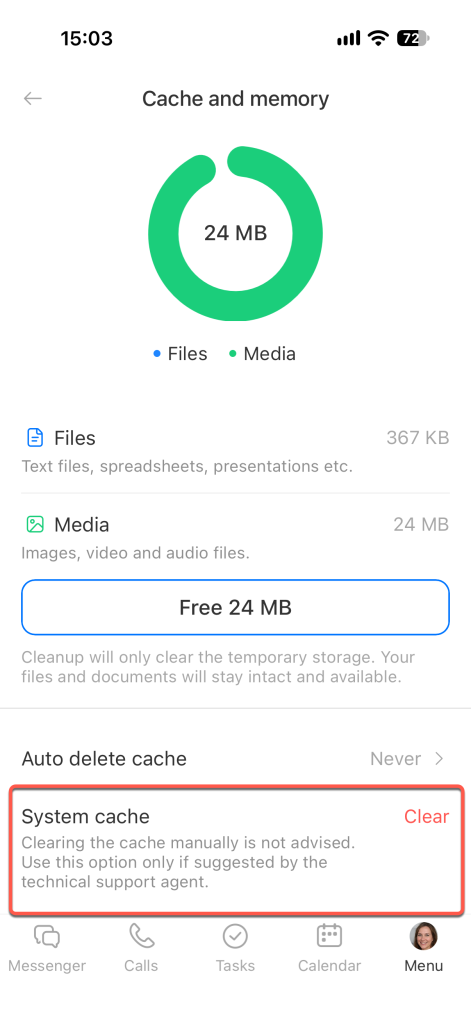
The cache stores data on your device to help the Bitrix24 mobile app run faster. This includes photos, videos, spreadsheets, and other files you’ve opened in the app. Over time, the cache can accumulate and occupy significant storage space.
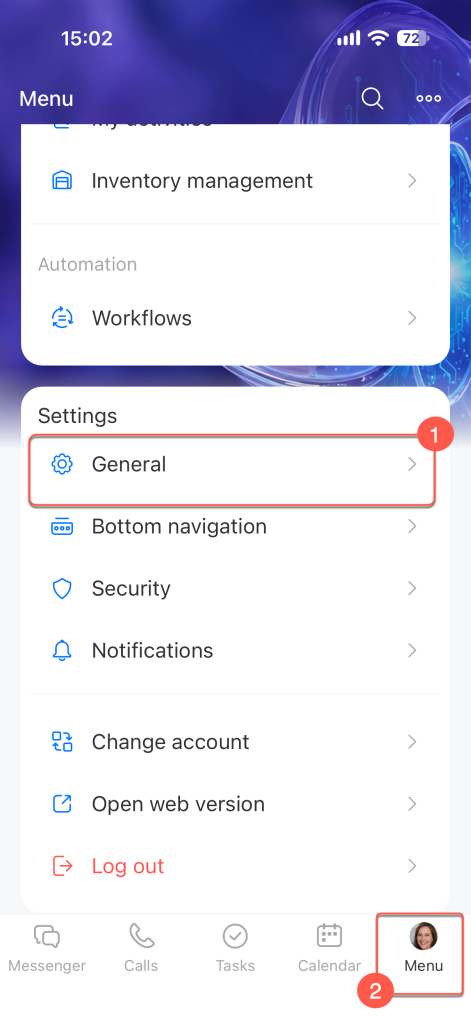
To clear the cache and free up space, open the Menu tab in the bottom-right corner and select General Settings.
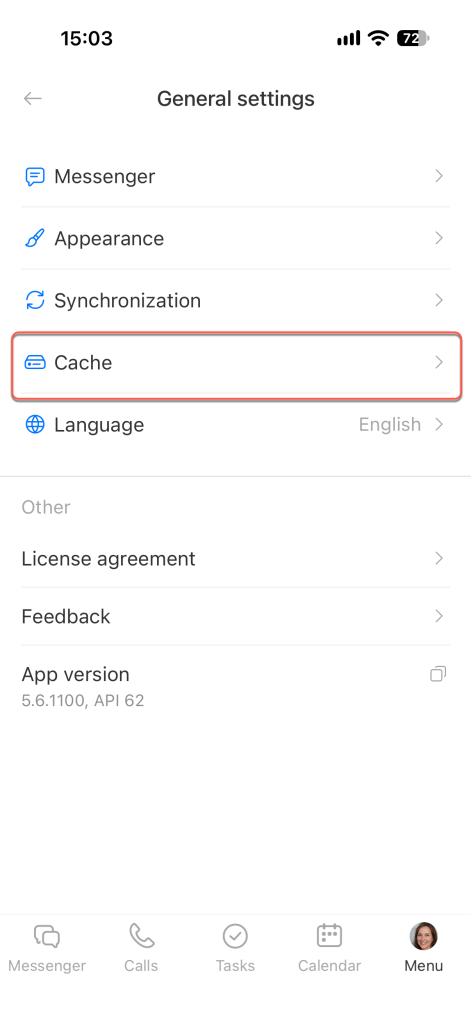
Tap Cache. In this section, you can manually delete temporary data, enable automatic cleanup, and clear the system cache.
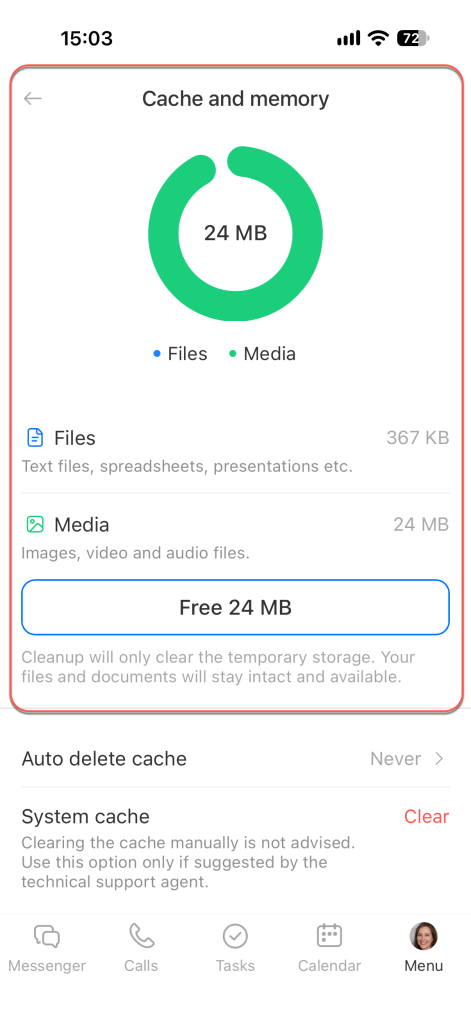
Delete temporary data manually. See how much storage temporary data occupies on your device:
- Files — dashboards, spreadsheets, presentations, and other files
- Media — photos, videos, screenshots, and audio
Tap Clear to delete temporary data. Once confirmed, the space will be freed on your device. Your files and documents will remain in Bitrix24; the app will simply reload them the next time you open them.
Turn on automatic cleanup. Choose how often to delete temporary data: never, weekly, or monthly.
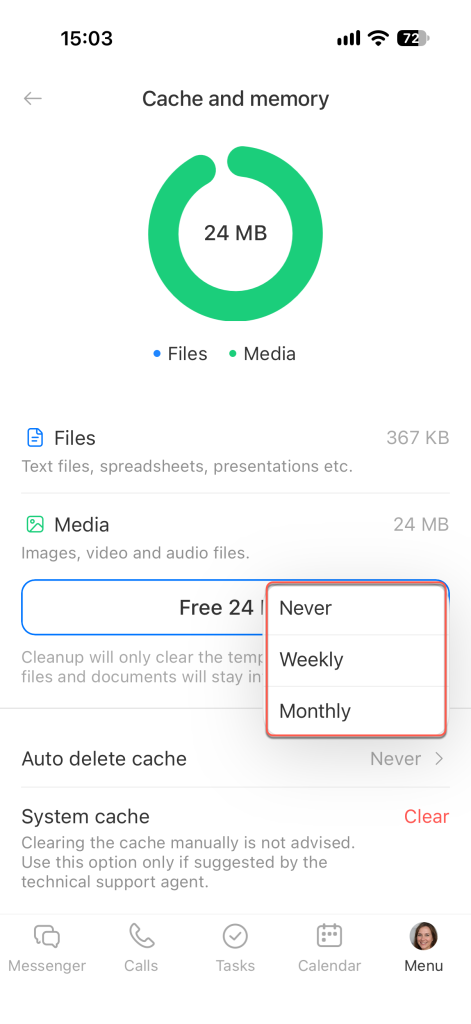
Clear the system cache. This technical data helps the app function correctly. Clear the system cache only at the request of Support to resolve a specific issue. Tap Clear. The action takes effect immediately, and a confirmation will appear on the screen.