
CRM activities help you plan and track client-related tasks, such as calls, meetings, and document preparation. Activities appear in the CRM item timeline, sorted by deadline, with the nearest deadlines first. This helps you plan your work and avoid missing important commitments.
In this article:
Create an activity
Open CRM and select a section, such as Deals. Open the CRM item form you need.
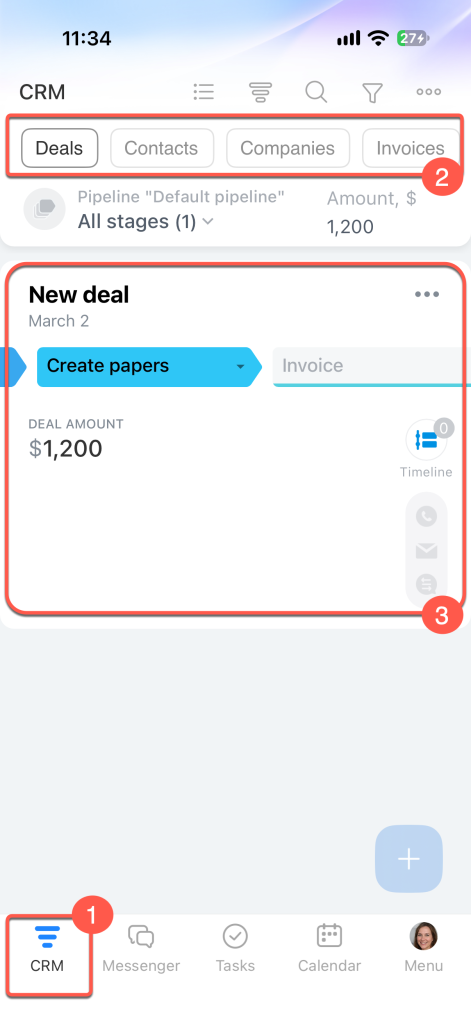
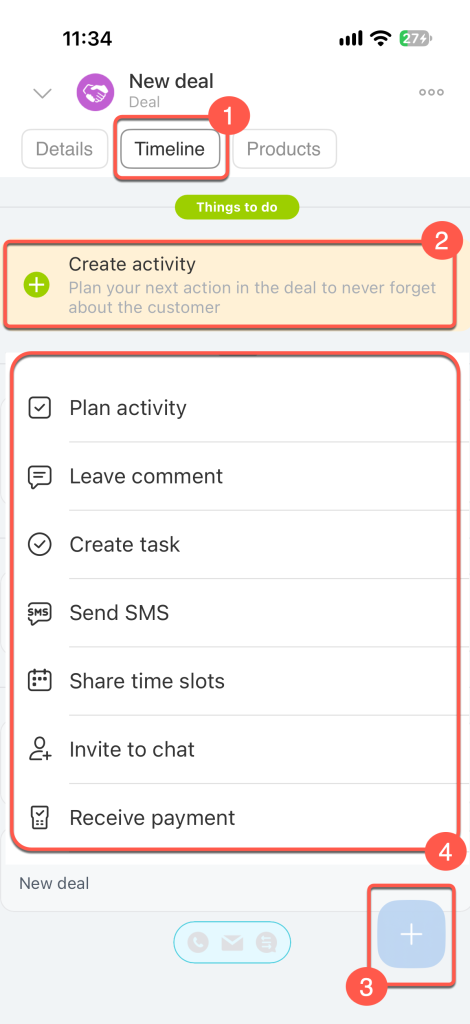
1. Open the Timeline tab.
2. If there are no active activities or tasks in the CRM item form, tap the Create activity prompt to add an activity.
3–4. Alternatively, tap Plus (+) > Plan activity.
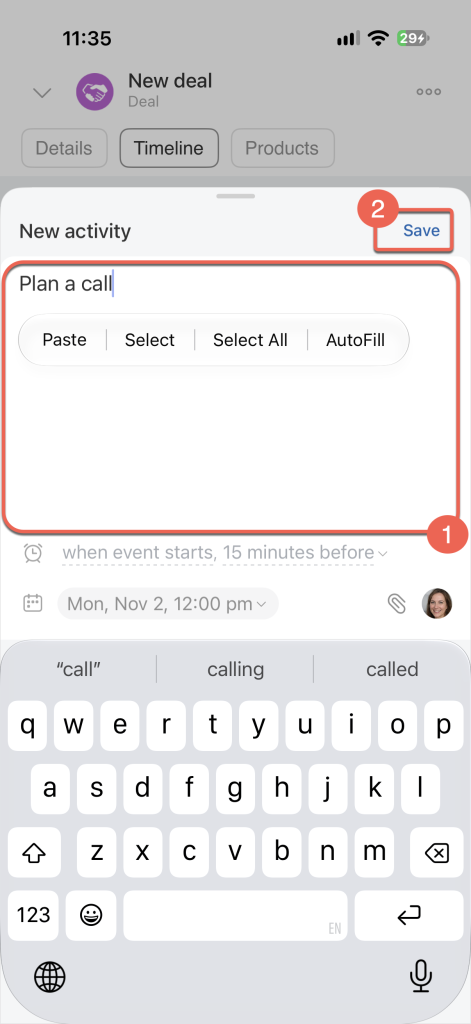
Add a description, set a deadline, configure a reminder, and attach a file. Change the Responsible Person if needed. By default, this is the employee assigned to the CRM item.
Save your changes.
Edit and manage an activity
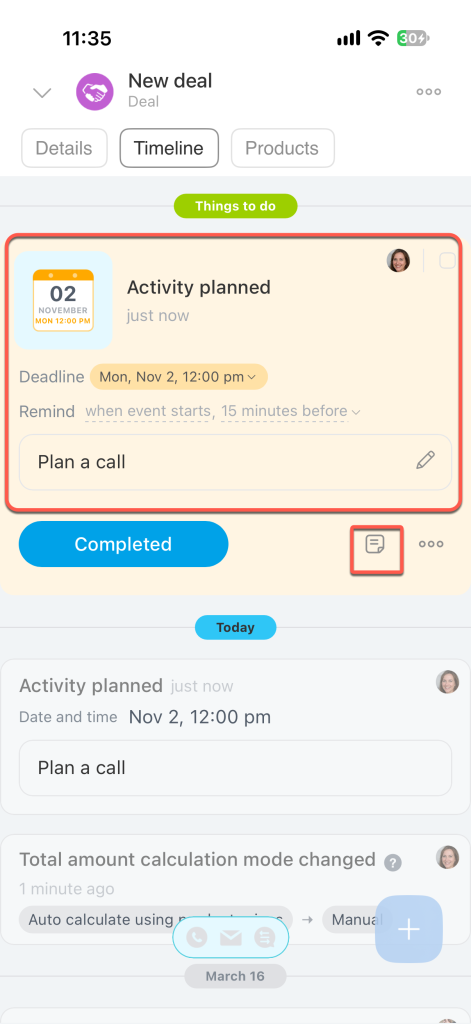
To change the deadline, reminder, or description, tap the corresponding field in the activity form.
To add a note, tap the sticker icon.
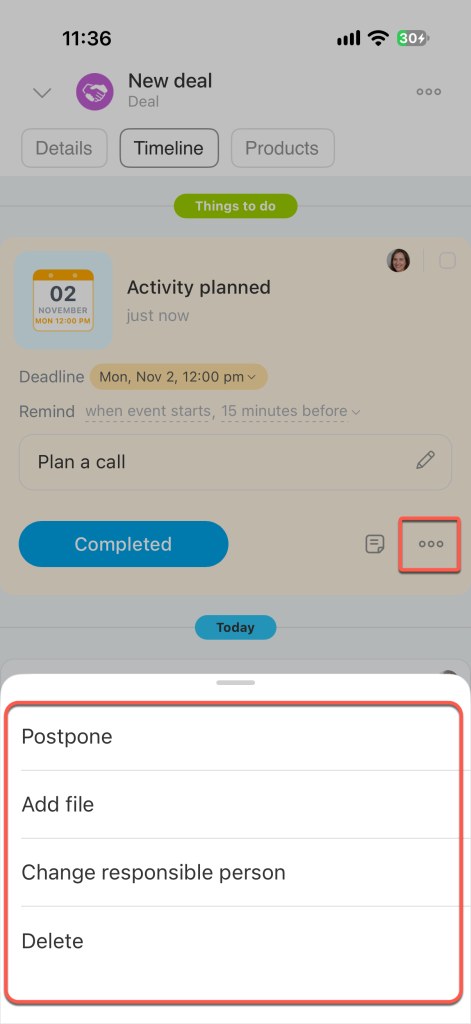
Tap Three dots (...) and choose an option:
- Postpone — Move the deadline by 1–3 hours or 1–3 days.
- Add file
- Change responsible Person — Reassign the activity to another employee.
- Delete
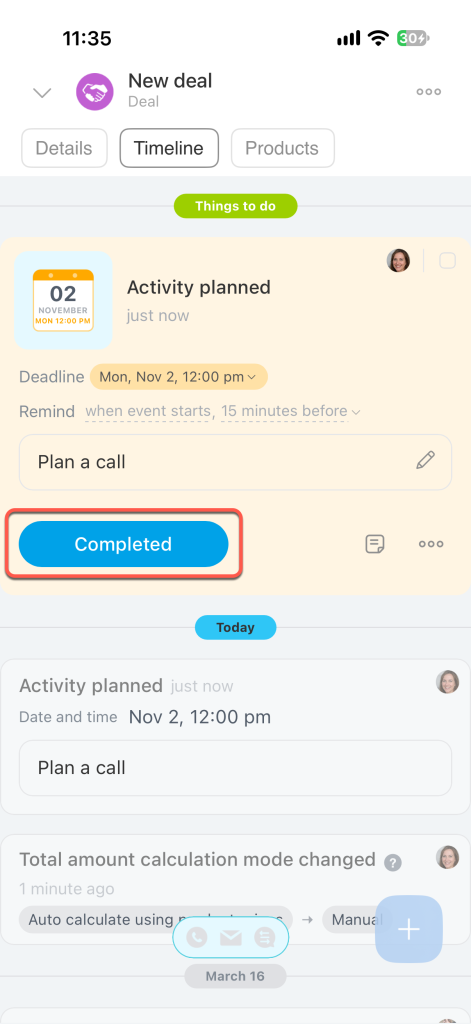
When you've finished the activity, tap Completed. The activity remains in the timeline, preserving the history of client interactions.
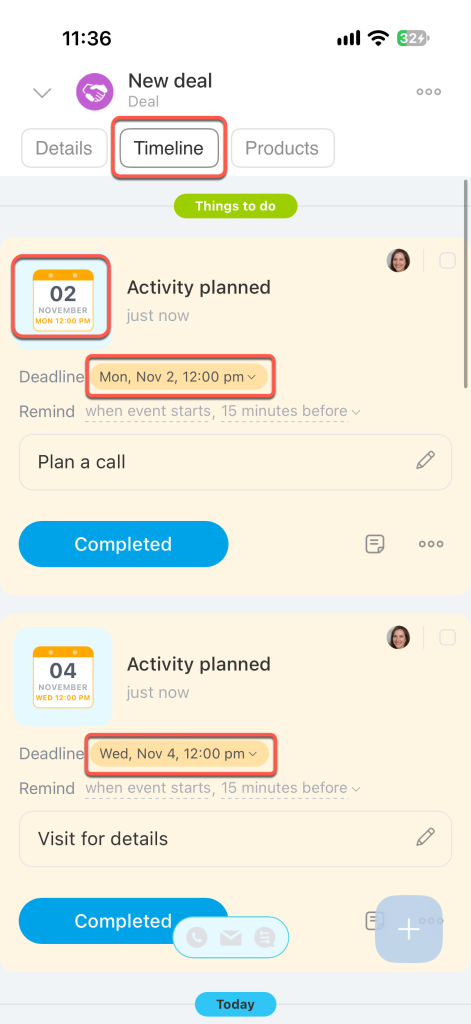
How activities appear in the timeline
Activities in progress are sorted by deadline in the timeline, with the nearest deadlines first. If an activity is overdue, a red counter appears on its icon and on the Timeline tab.
Work with Smart activities
Smart activities are activities that the CRM prompts you to create when you close a deal or lead form. If the CRM item already has scheduled or incoming activities, the suggestion doesn't appear.
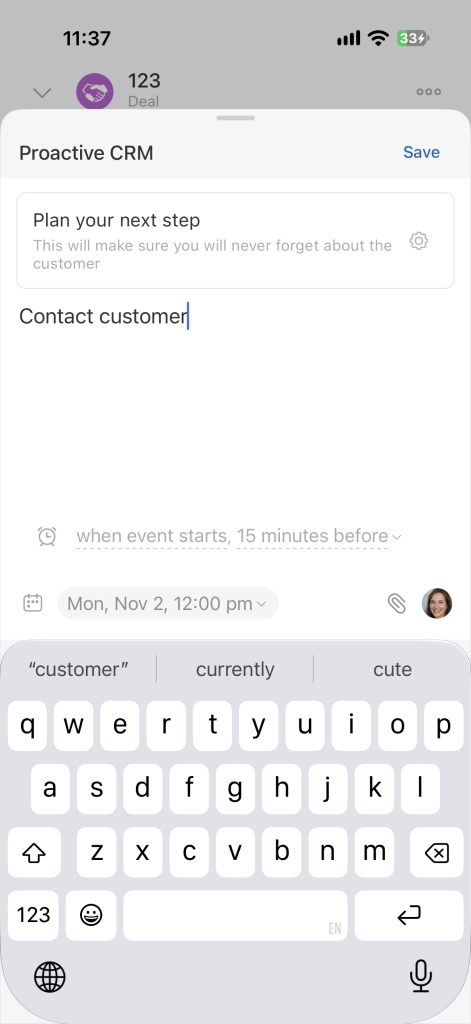
Proactive CRM
When you create a Smart activity, some fields are filled in automatically: the description is set to “Contact customer,” a deadline is set, and a Responsible Person is selected. You can change these details. Review the information and tap Save.
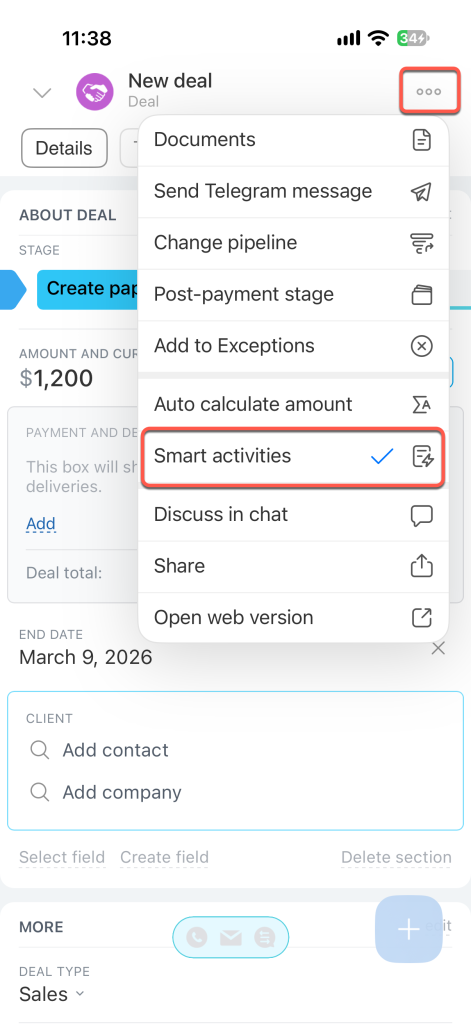
Smart activities are enabled by default, but you can turn off suggestions temporarily or permanently. In the top-right corner of the deal or lead form, tap Three dots (...) > Smart activities.
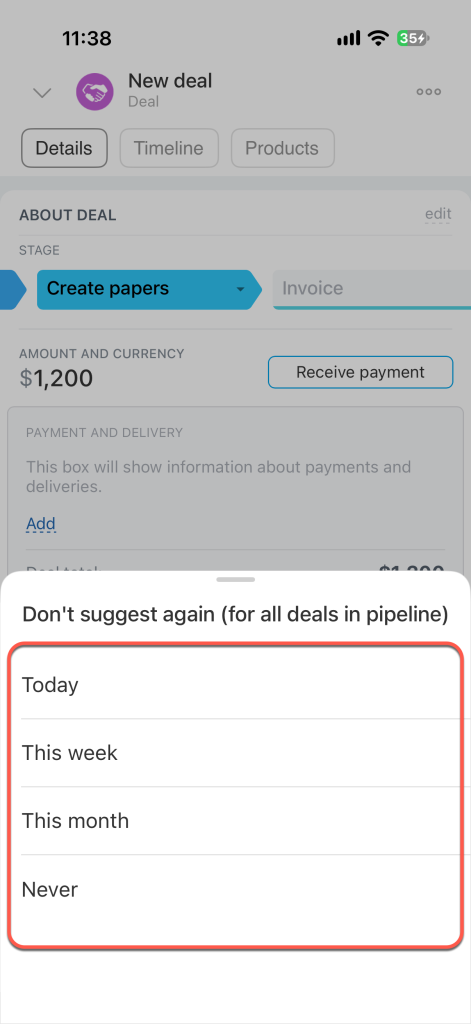
Choose how long to pause Smart activity suggestions: Today, This week, This month, or Never. This setting applies to all CRM items in the current pipeline.
CRM activities help you plan your work with clients, while the timeline helps you track deadlines and complete tasks on time.