
A contact in Bitrix24 is a CRM item that contains information about an individual, such as a customer, partner, supplier, or other business contact. The contact form stores contact details, interaction history, related tasks, and other information.
In the mobile CRM, you can quickly contact someone, record the result, and schedule the next call or meeting.
In this article:
Create a contact
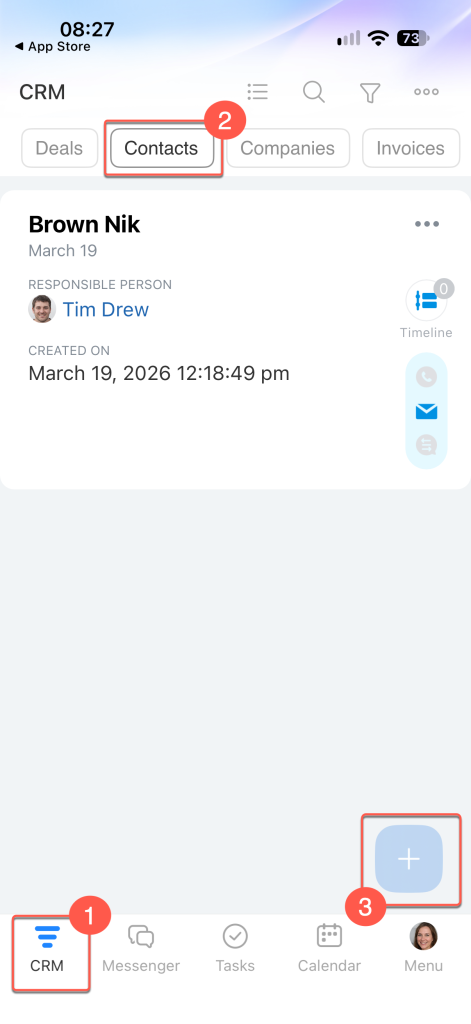
Contacts can be created automatically, for example, when someone fills out a CRM form. You can also create them manually. To add a contact, go to CRM > Contacts and tap Plus (+).
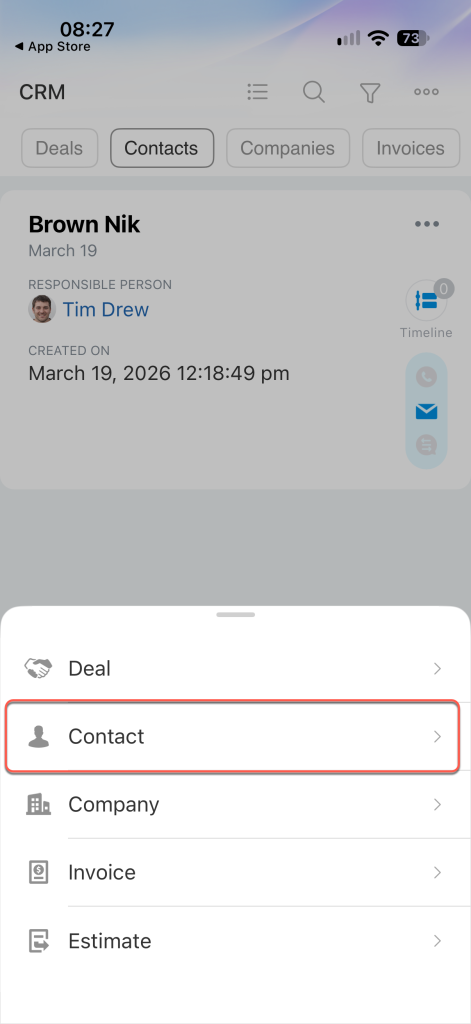
Select Contact.
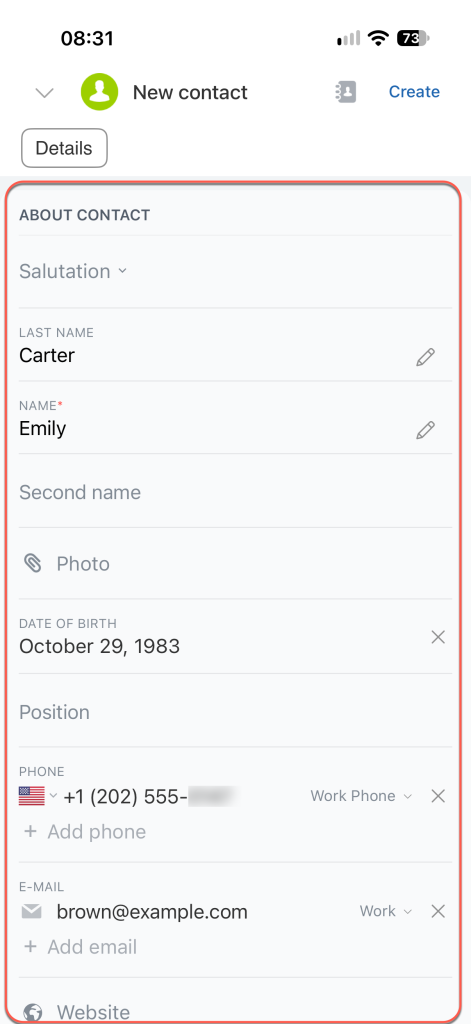
Fill in the contact details, for example:
- Full name and photo.
- Job title and date of birth.
- Contact information, such as a phone number, email address, or messenger account.
- Company — select a company from the list to link it to the contact.
- Responsible Person — select the employee who will work with the contact.
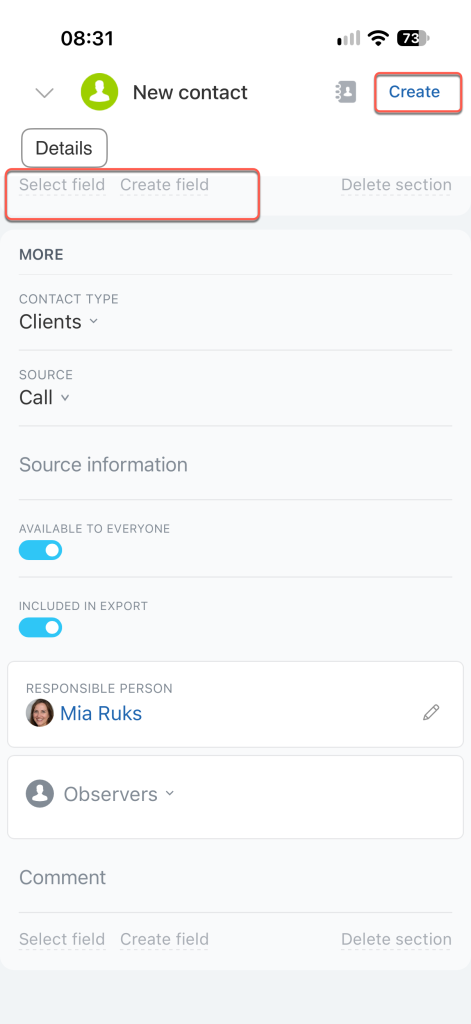
If the contact form doesn't have the field you need, you can add it in Bitrix24 on your computer. Tap Select field or Create field to open the full setup page.
Once you've filled in the form, tap Create.
Work with the contact form
The contact form has two tabs, Details and Timeline, and a menu with additional actions.
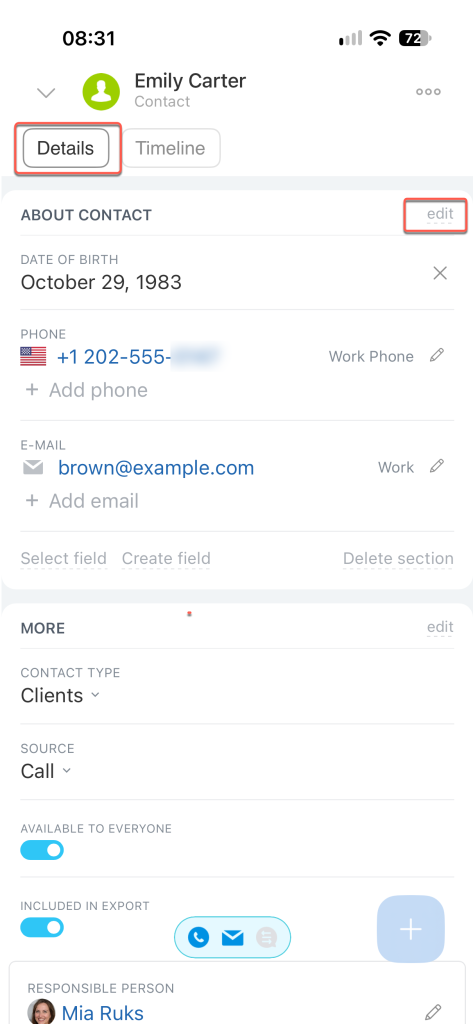
Details. View the contact's basic information and edit its fields.
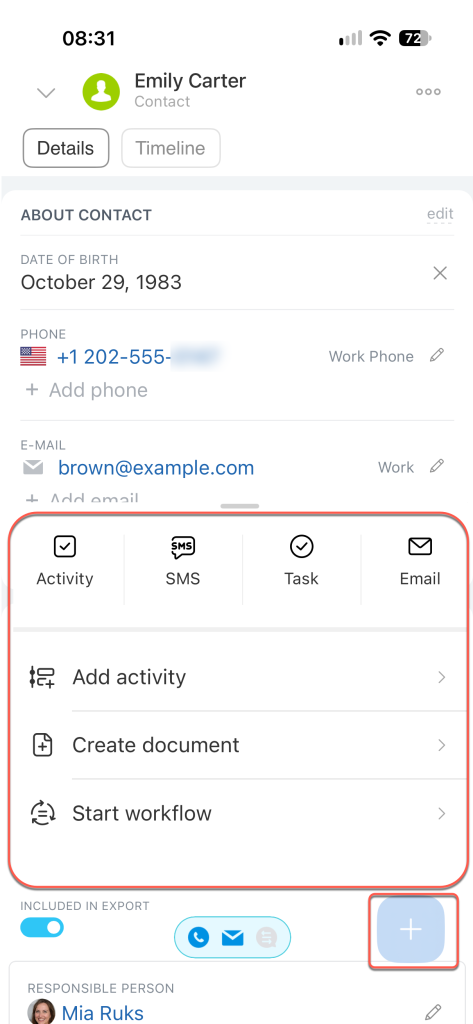
Tap Plus (+) to:
- Add an activity or comment.
- Create a task.
- Prepare a document.
- Launch a workflow.
- Send an SMS or email to the client.
- Invite the client to a Telegram chat.
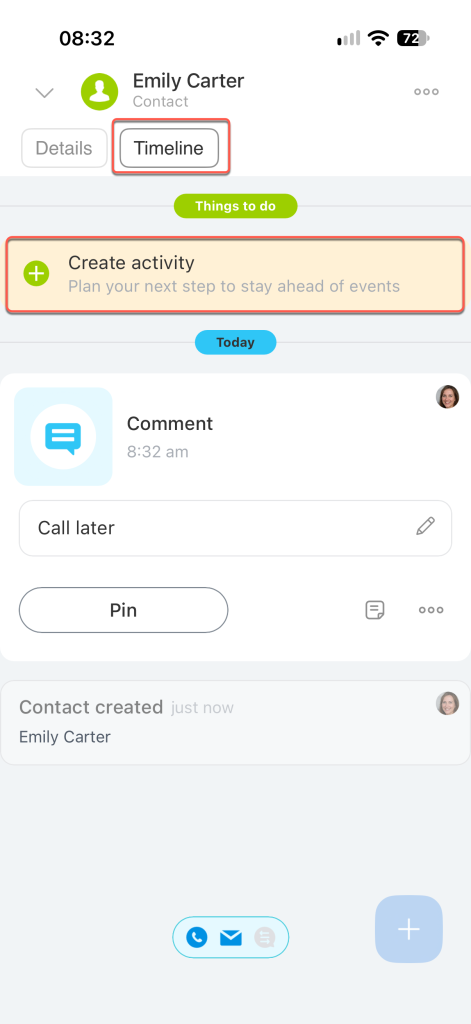
Timeline. View the contact's interaction history, leave comments for colleagues, track workflow status changes, and more.
Tap Create activity to plan your next interaction with the contact, such as a call or meeting.
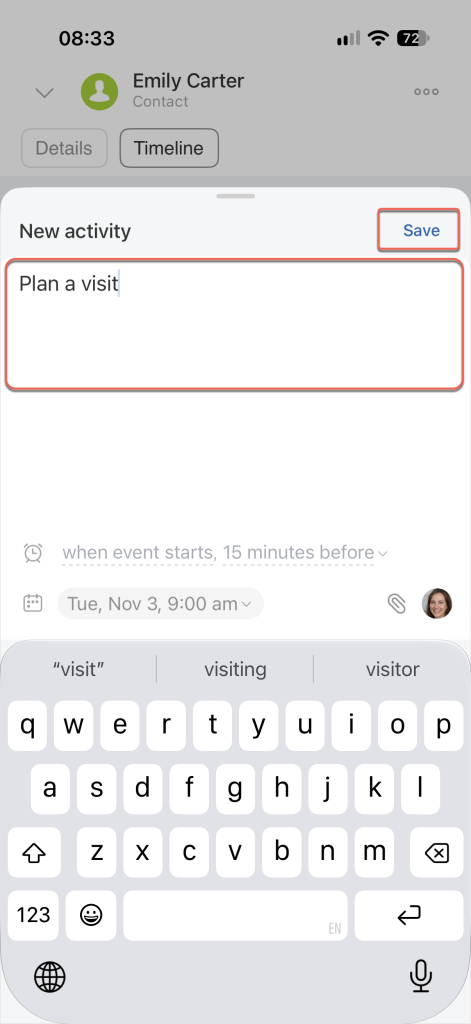
Describe what needs to be done and when, set a reminder, add an attachment, and specify the Responsible Person. Save the activity.
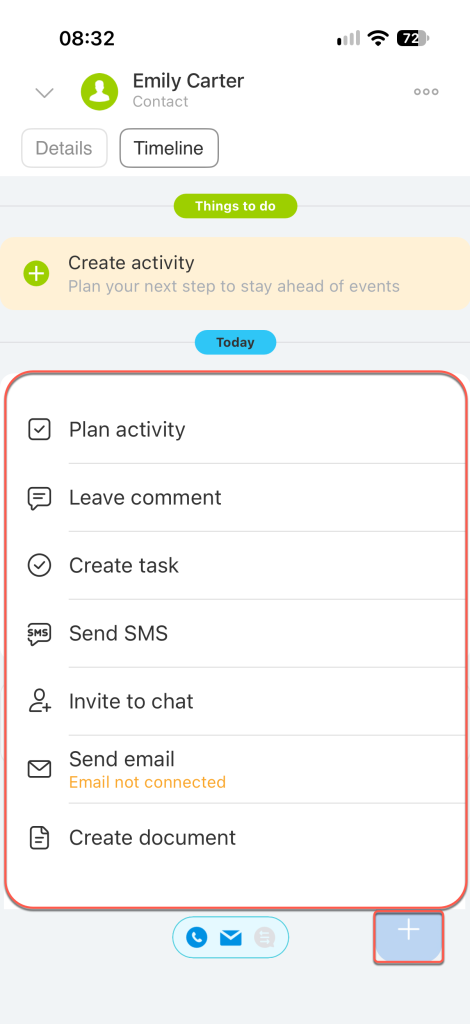
Tap Plus (+) to:
- Schedule an activity or create a task.
- Leave a comment.
- Send an SMS or email.
- Invite the client to a Telegram chat.
- Prepare a document.
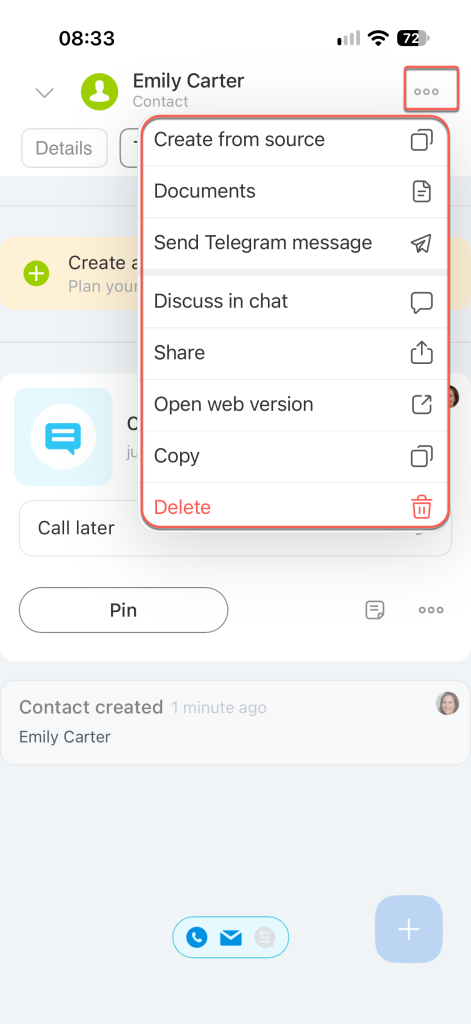
Form menu. Tap Three dots (...) in the top-right corner to:
- Create a deal, company, invoice, or estimate for this contact.
- Create a document or upload a template.
- Send a message via Telegram or share a link to the contact form.
- Discuss in chat — create a chat with the responsible employee and observers.
- Continue working with the contact on your computer.
- Copy or delete the contact form.
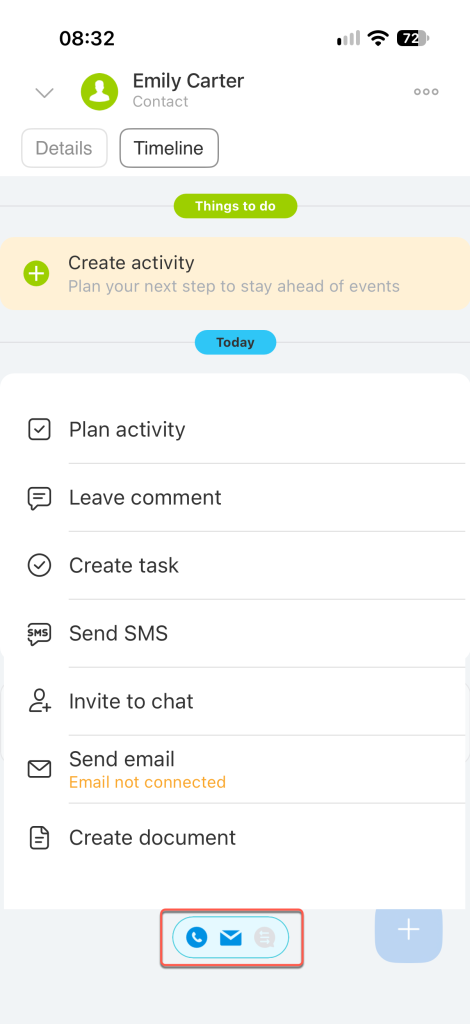
Contact someone from the form
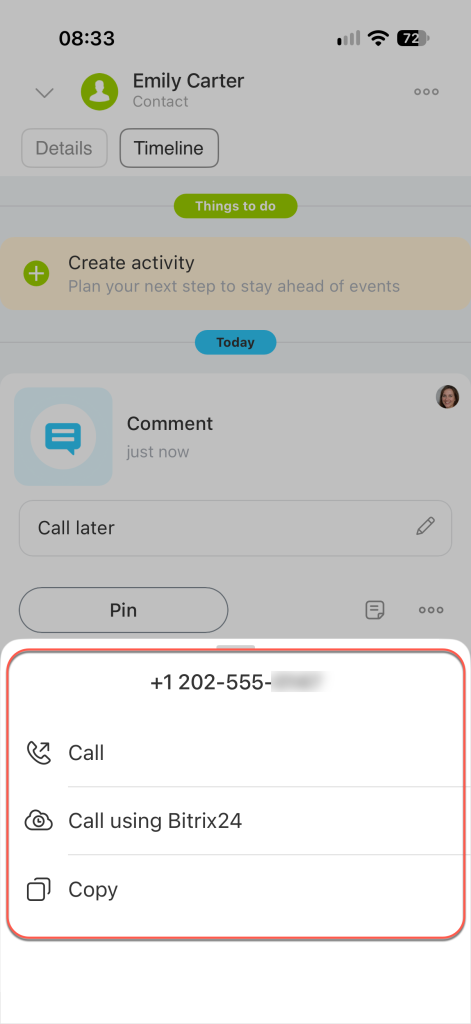
From the form, you can quickly contact someone, for example, by calling or sending an email. To choose a communication channel, tap the panel at the bottom of the screen.
Select a communication method, such as a phone call.
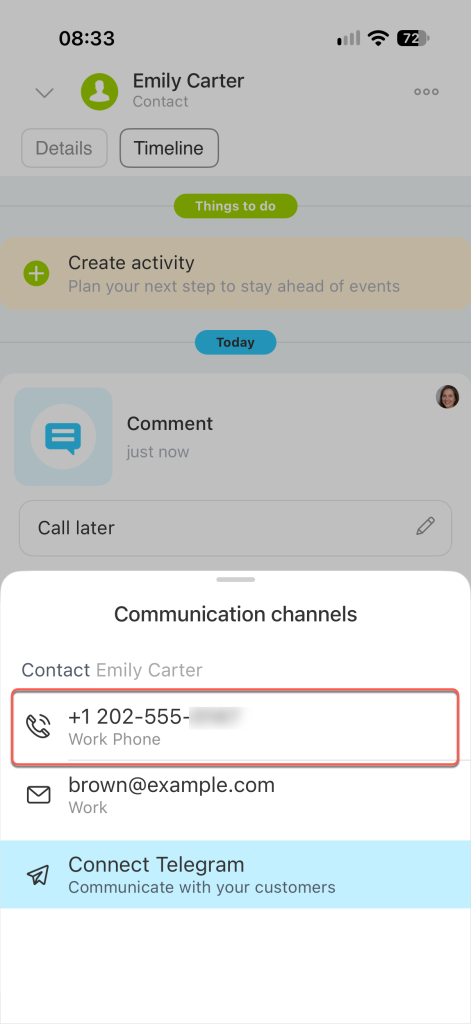
Choose an option:
- Call using your mobile carrier.
- Call through Bitrix24 — Bitrix24 Telephony must be configured.
With the mobile CRM, you can call contacts, create documents, schedule activities, and track communication history, even when you're away from the office.