The Feed in Bitrix24 lets you share news, announcements, and important information with colleagues. In the mobile app, you can create and publish posts directly from your phone.
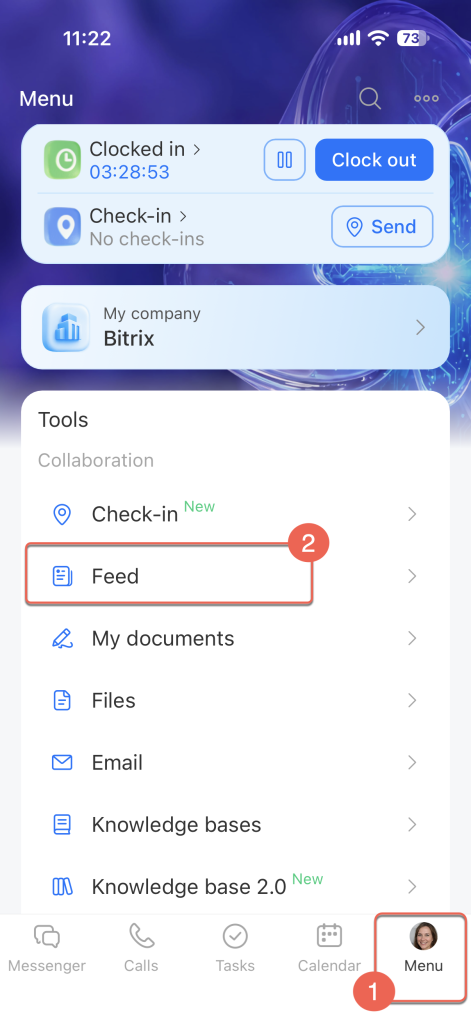
Go to Menu > Feed.
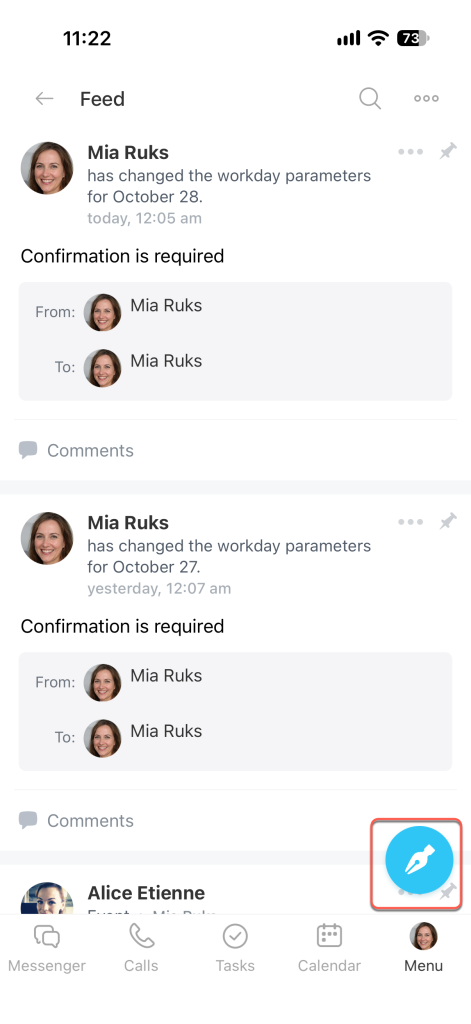
Tap the pencil icon in the bottom-right corner of the screen.
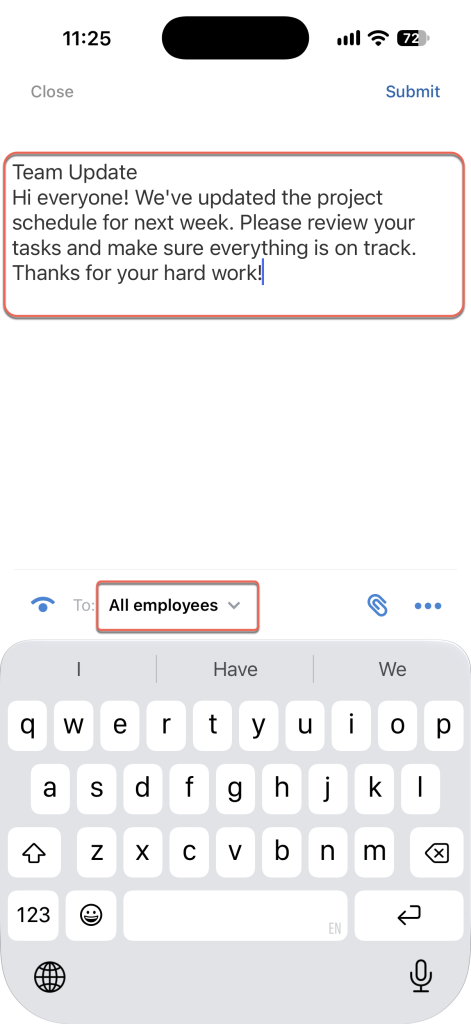
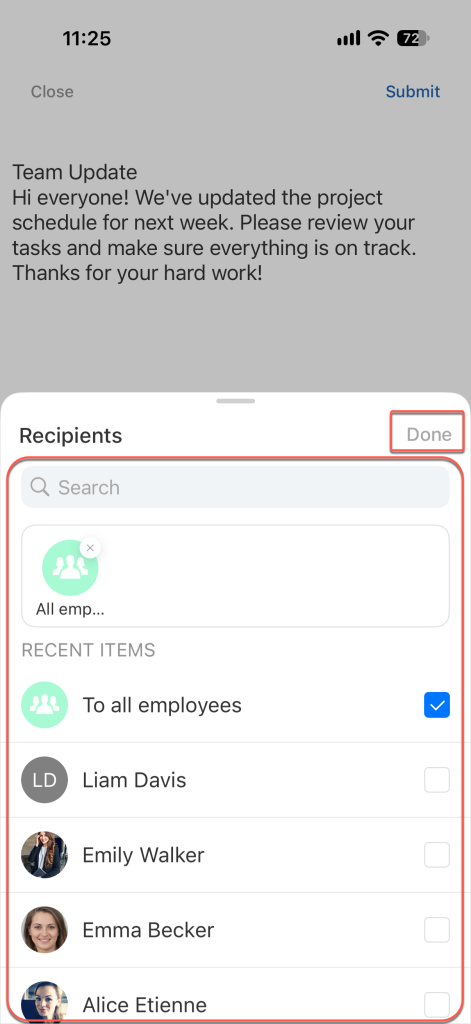
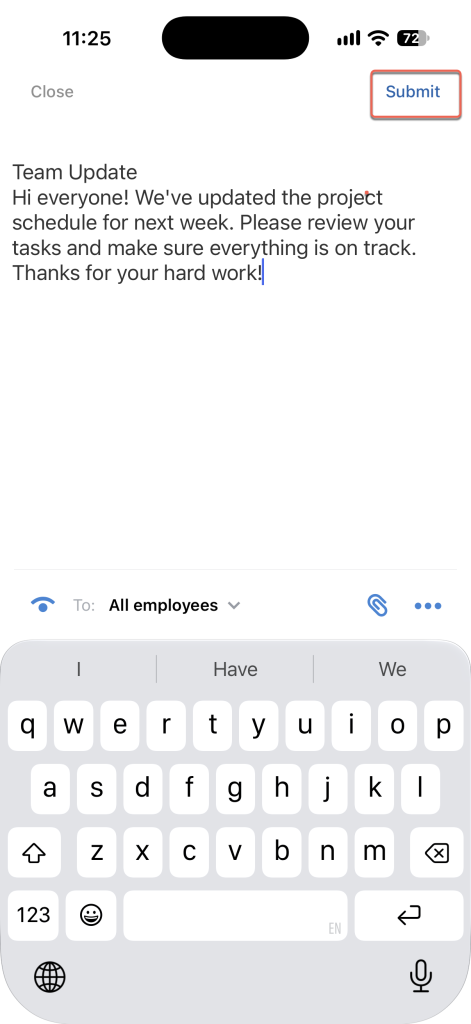
Write your post in the input field. To choose who can see your post, tap the To field at the bottom of the screen. By default, it's set to All employees.
In the Recipients window, select the employees you want to share the post with. Use search to find specific employees. Tap Done.
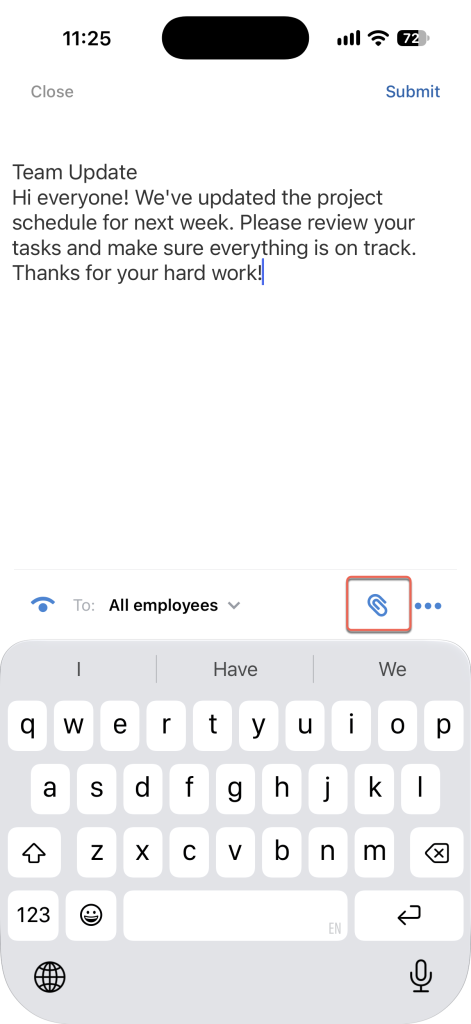
Tap the paperclip icon to attach files to your post.
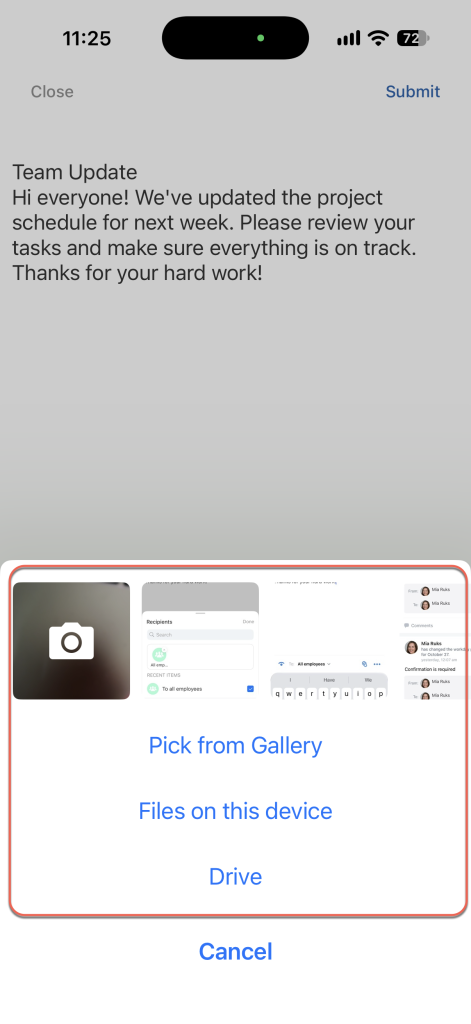
You can select files from your phone or Bitrix24 Drive.
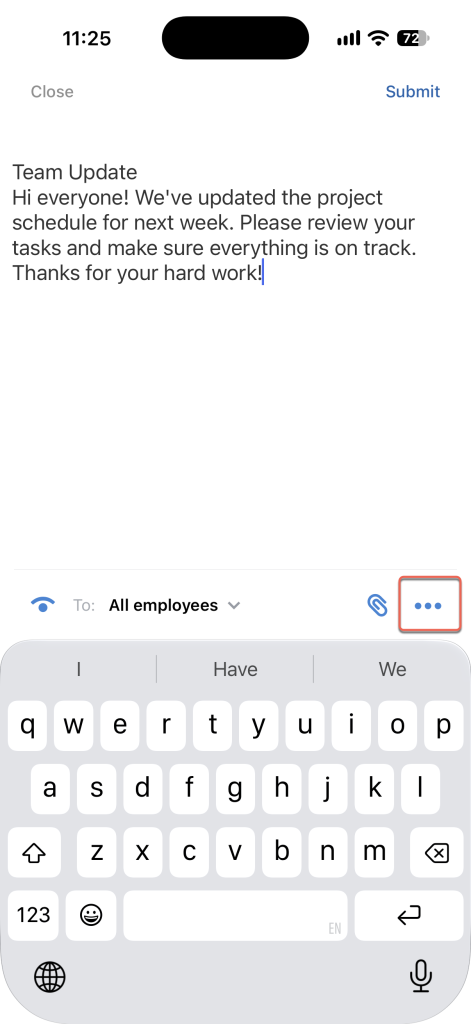
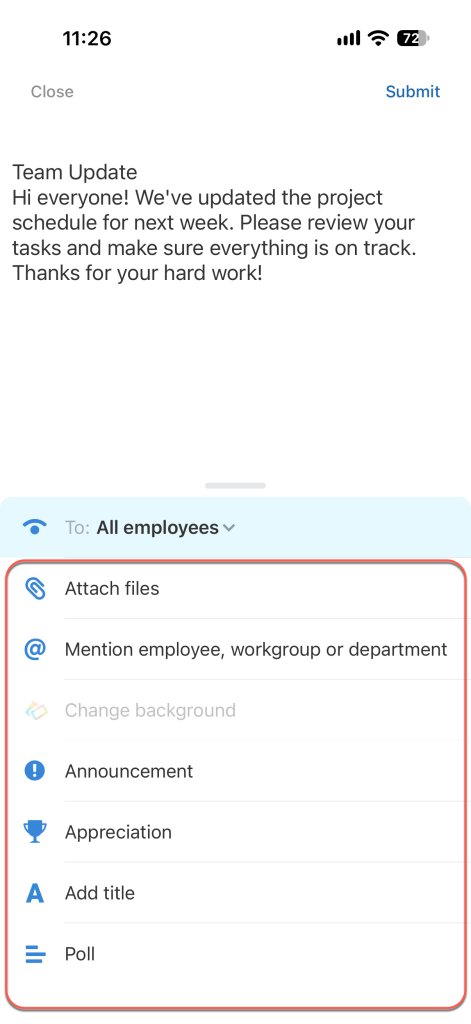
Tap Three dots (...) on the bottom panel to add more elements to your post:
- Attach files — Add images or documents.
- Mention an employee, project, or department — Mentioned employees receive a notification.
- Change background — Choose a background image for your post.
- Add title — Add a title so colleagues can quickly see what your post is about.
- Announcement — Highlight your post and ask recipients to confirm they've read it.
- Appreciation badge — Select the employees you want to thank.
- Poll — Add a poll to your post.
To publish the post, tap Submit.
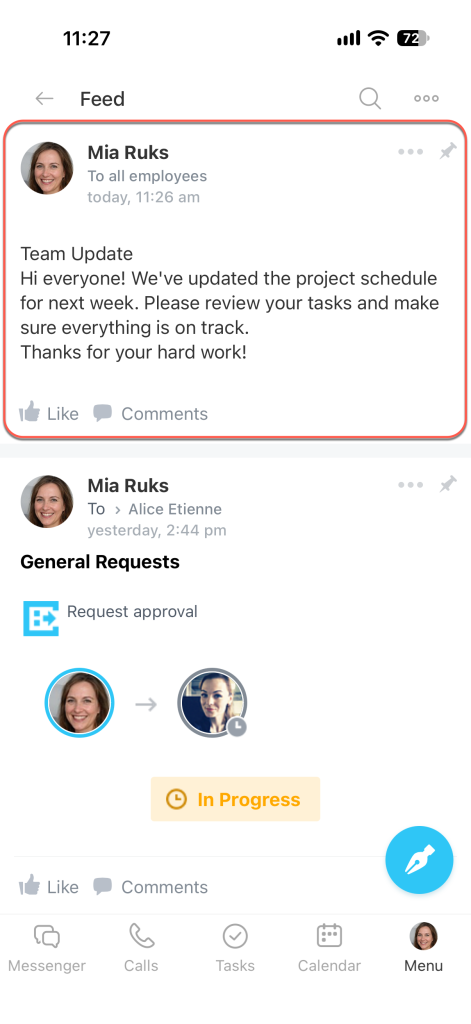
The post will appear in the Feed, where the selected recipients can see it.
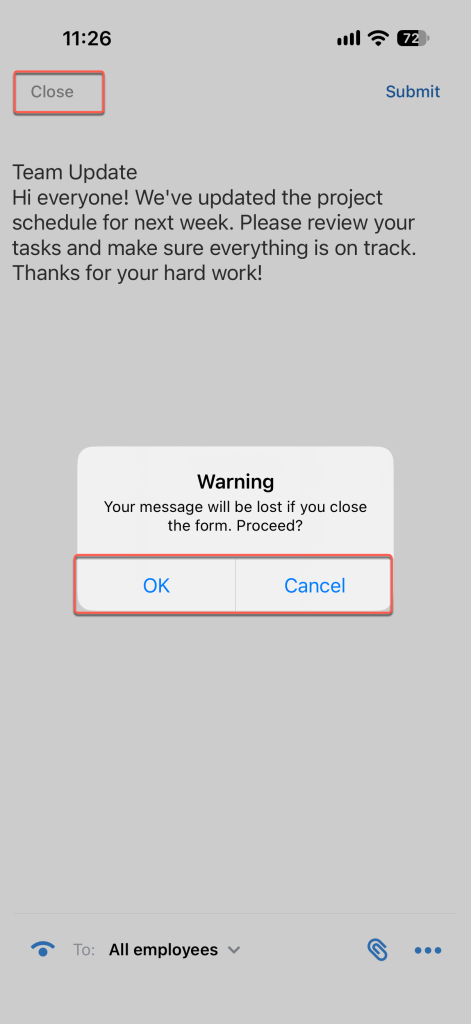
If you decide not to publish the post, tap Close on the editing screen. A warning will appear stating that your post won't be saved. Tap:
- OK to close the post without saving it.
- Cancel to continue editing the post.