
Use chats to discuss work, share files, coordinate tasks, and brainstorm ideas with AI.
Bitrix24 offers several ways to communicate, including personal chats, group chats, chats with CoPilot, channels, and project chats. Choose the option that best fits your needs.
In this article:
Types of chats
All chats are available in the Messenger section.
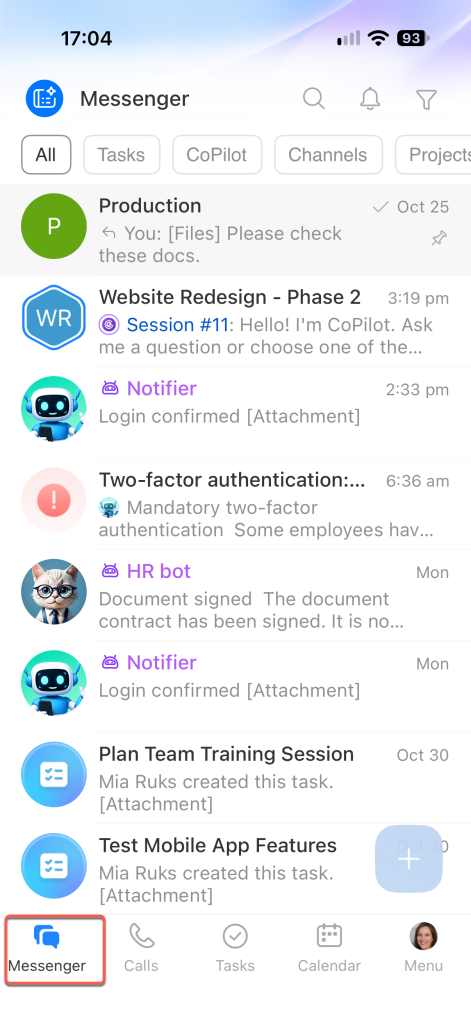
Personal chat lets you exchange messages with an individual employee. These chats are private: account administrators can't access them.
Group chat is for team discussions. All members can send messages and reply to others. Use it for work-related or casual conversations.
Channel helps you keep your team informed. Share news, dashboards, congratulations, training materials, and more. Each post has its own comment thread, so discussions stay organized.
Project helps you collaborate with colleagues and external members, such as contractors, clients, or partners. Unlike a group chat, a project lets you invite people who don't have a Bitrix24 account by email, phone number, or link.
Chat with CoPilot helps you complete tasks with AI. CoPilot offers more than 30 roles, including lawyer, HR specialist, and marketer. You can chat with CoPilot on your own or invite coworkers. All chat participants can see CoPilot's responses and ask questions.
Open Channel chat is created automatically when a client contacts your company through an Open Channel, such as a messenger, social network, or website widget.
Task chat is created automatically when you create a task. Your team can discuss details, share files, make calls, and view task updates, including deadline and status changes.
Create a personal chat
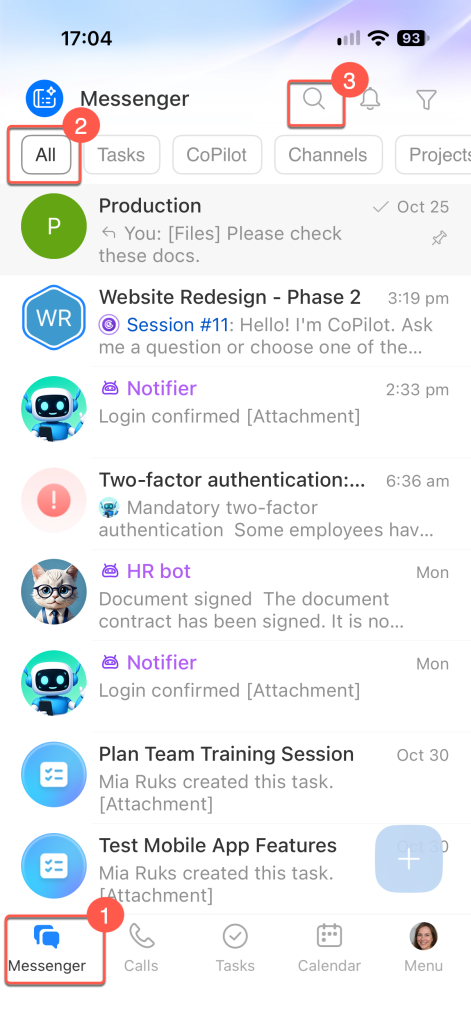
Open Messenger > All and tap the search icon in the top-right corner.
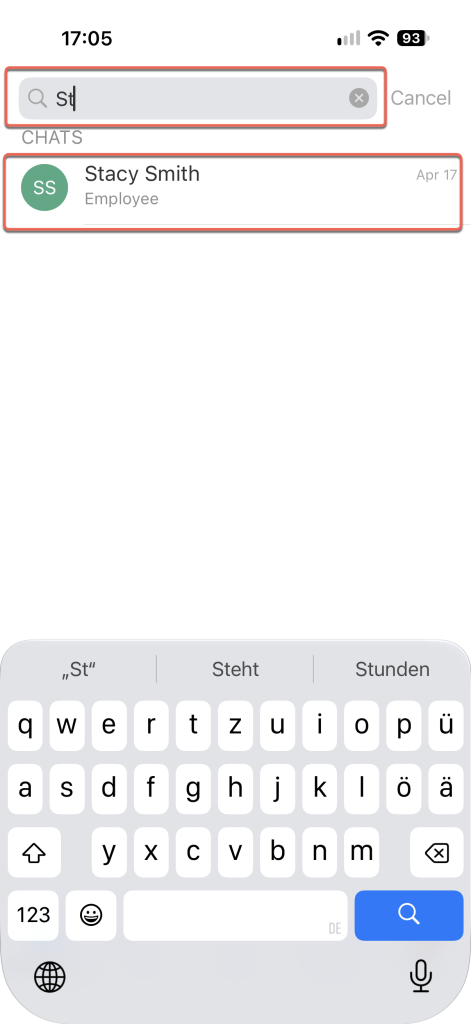
Enter the employee's name in the search field and select them from the list. A one-on-one chat opens, where you can message your coworker.
Create a chat with participants
Open Messenger > All and tap Plus (+).
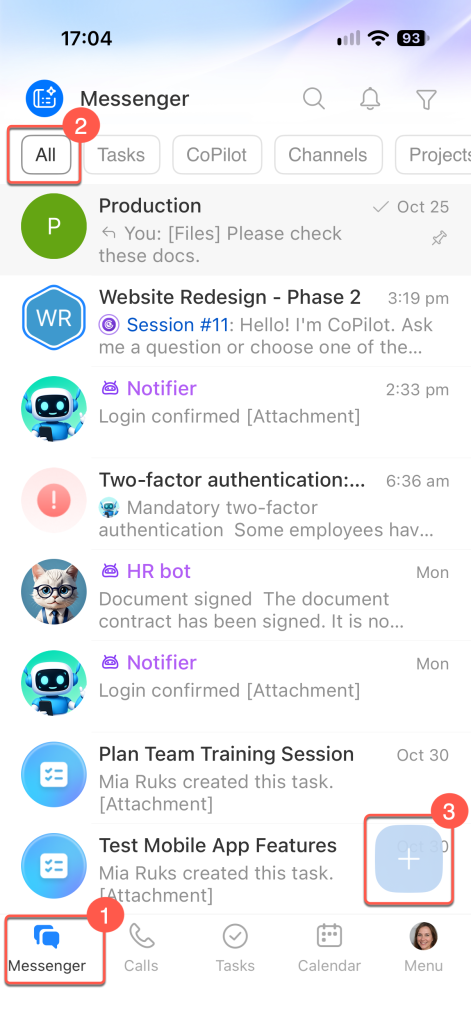
Choose the type of chat you want to create. The next steps depend on your selection.
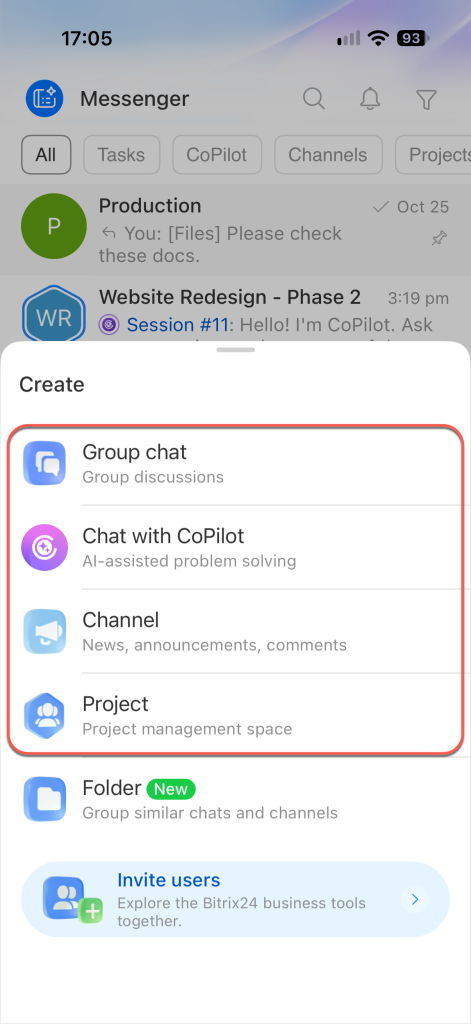
Group chat
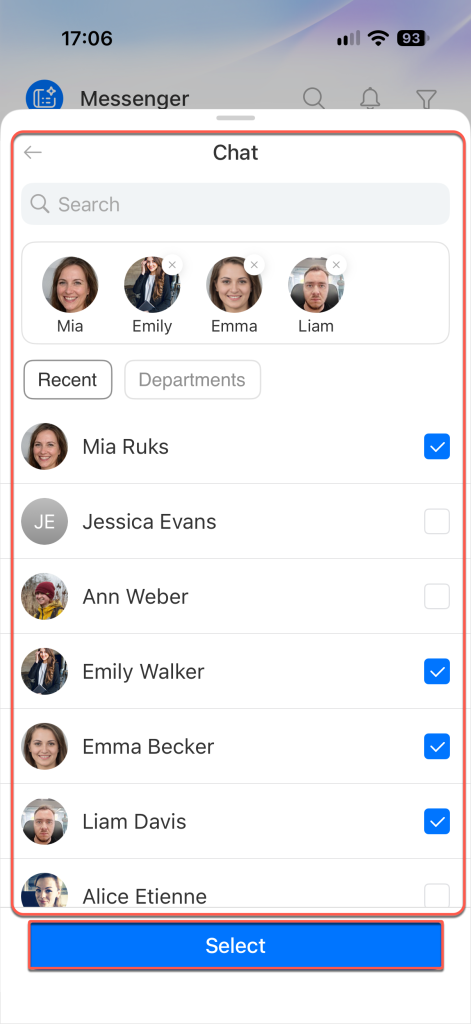
Add chat members. To add a specific employee, enter their name in the search field and select the checkbox next to their name. To add an entire department, open the Departments tab. New employees joining the department are automatically added to the chat, while those who leave the department are automatically removed.
Tap Select.
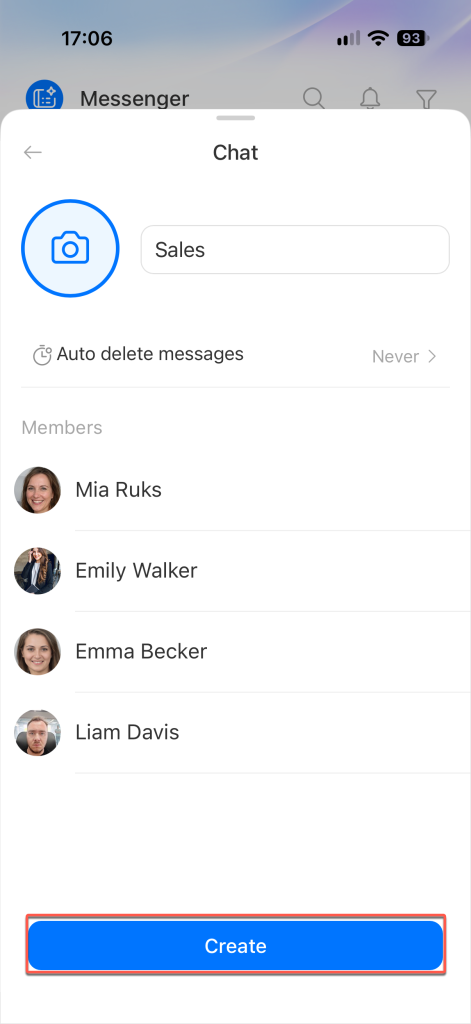
Add a chat icon and enter a name. If needed, set messages to be deleted automatically after an hour, a day, a week, or a month. Tap Create.
After creating the chat, you can configure privacy and access permissions in the chat sidebar.
Chat with CoPilot
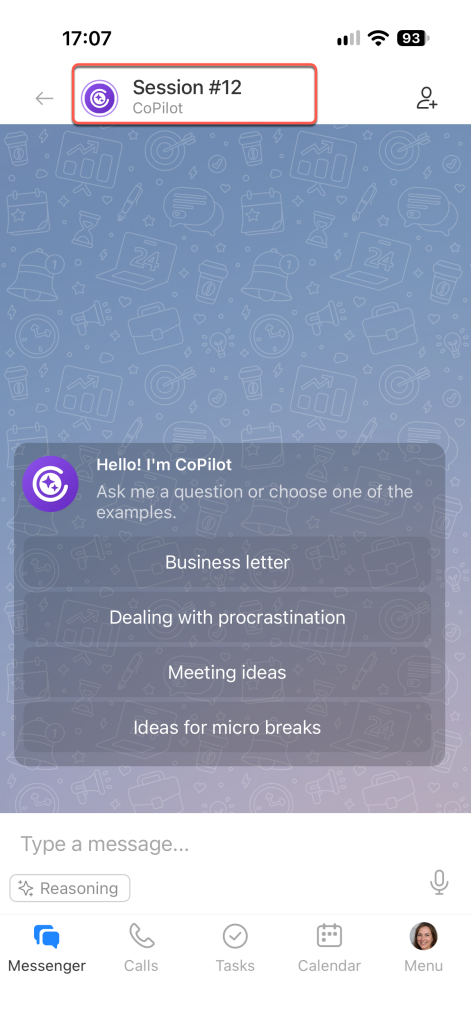
The chat is created as soon as you select this chat type.
Start chatting with AI right away or set up the chat first. For example, choose a role, change the model, or add participants. To change the chat settings, tap the chat name in the header.
Channel
Add a chat icon, enter a name, and fill in the description so employees understand the channel's purpose.
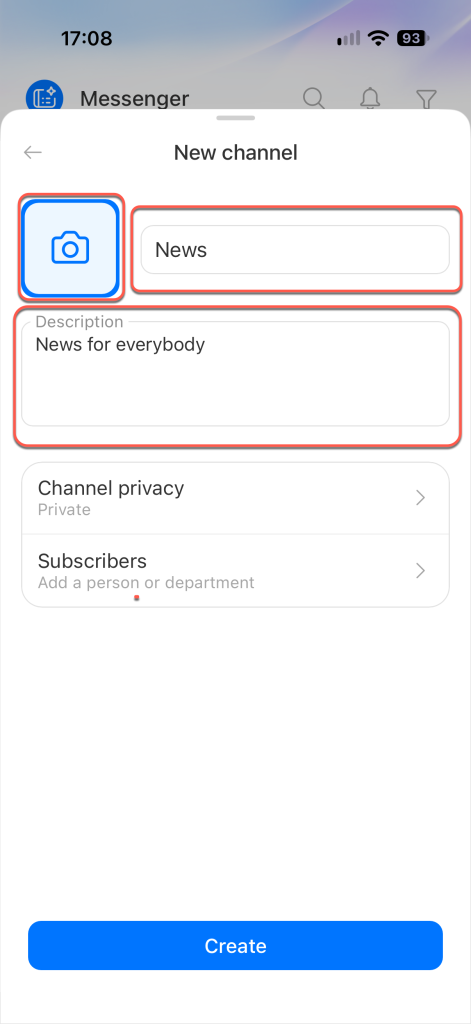
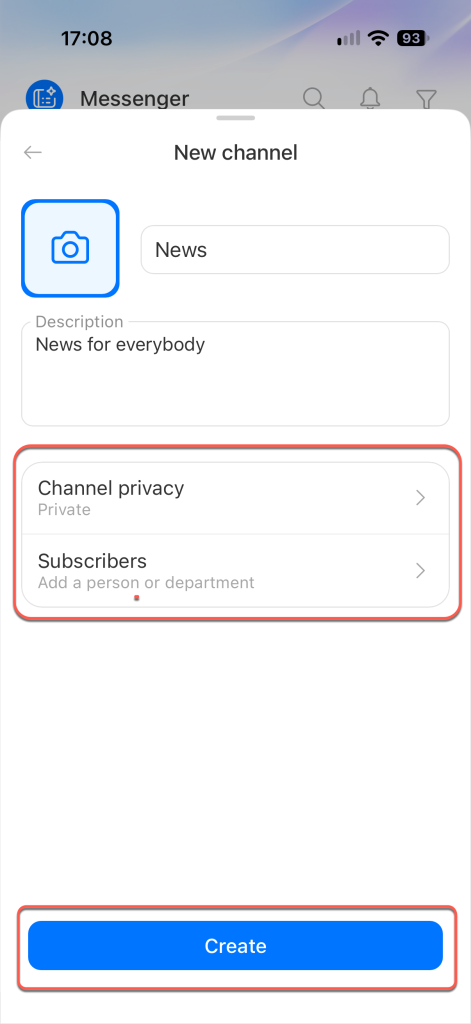
Choose the channel type:
- Public — All employees can see the channel in the general list and join it. Use this option for general announcements and congratulations.
- Private — Only the owner and participants can see the channel. Users can join by invitation only. For example, a director can use this channel type to share next quarter's plans with supervisors.
Add subscribers and tap Create.
Project
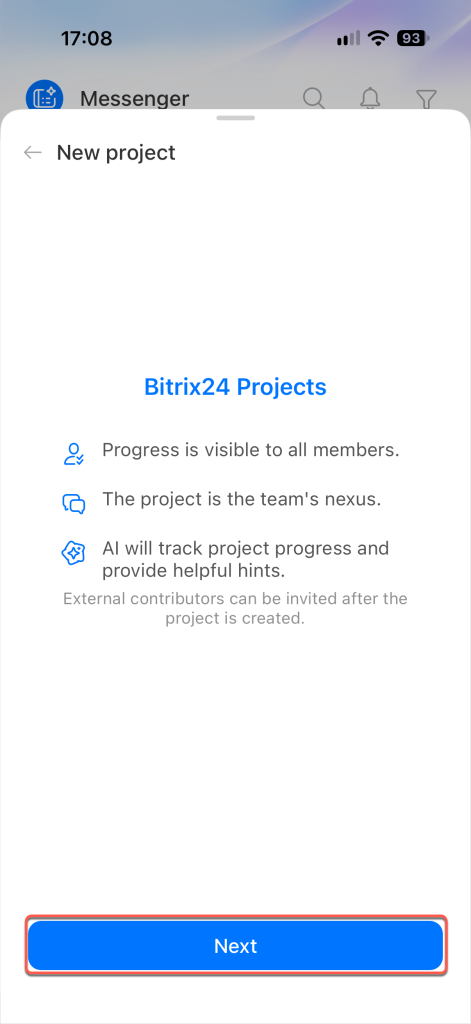
Review the information about projects, then tap Next.
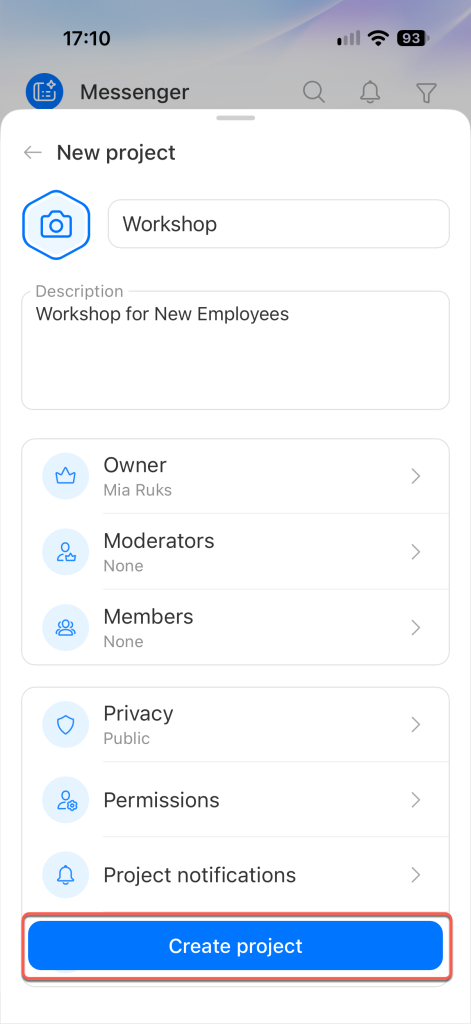
Add a project icon, enter a name, and add a description so employees understand its purpose. Invite members and choose the project type.
Set access permissions for the project and its tasks. Choose who can invite members, post messages in the chat, view and assign tasks, and manage other settings.
Tap Create project.
In the Bitrix24 mobile app, you can create different types of chats for personal conversations, teamwork, or working with AI. Choose the type that best fits your needs.