
In the Bitrix24 mobile app, you can view BI Builder dashboards and track key metrics even when you don't have a computer nearby. For example, before a meeting you can quickly review key deal data, compare sales results while traveling, or answer a question about performance during a conversation. You don't need to ask colleagues to send the data or wait until you're back at a computer.
In this article:
Open a dashboard in BI Builder
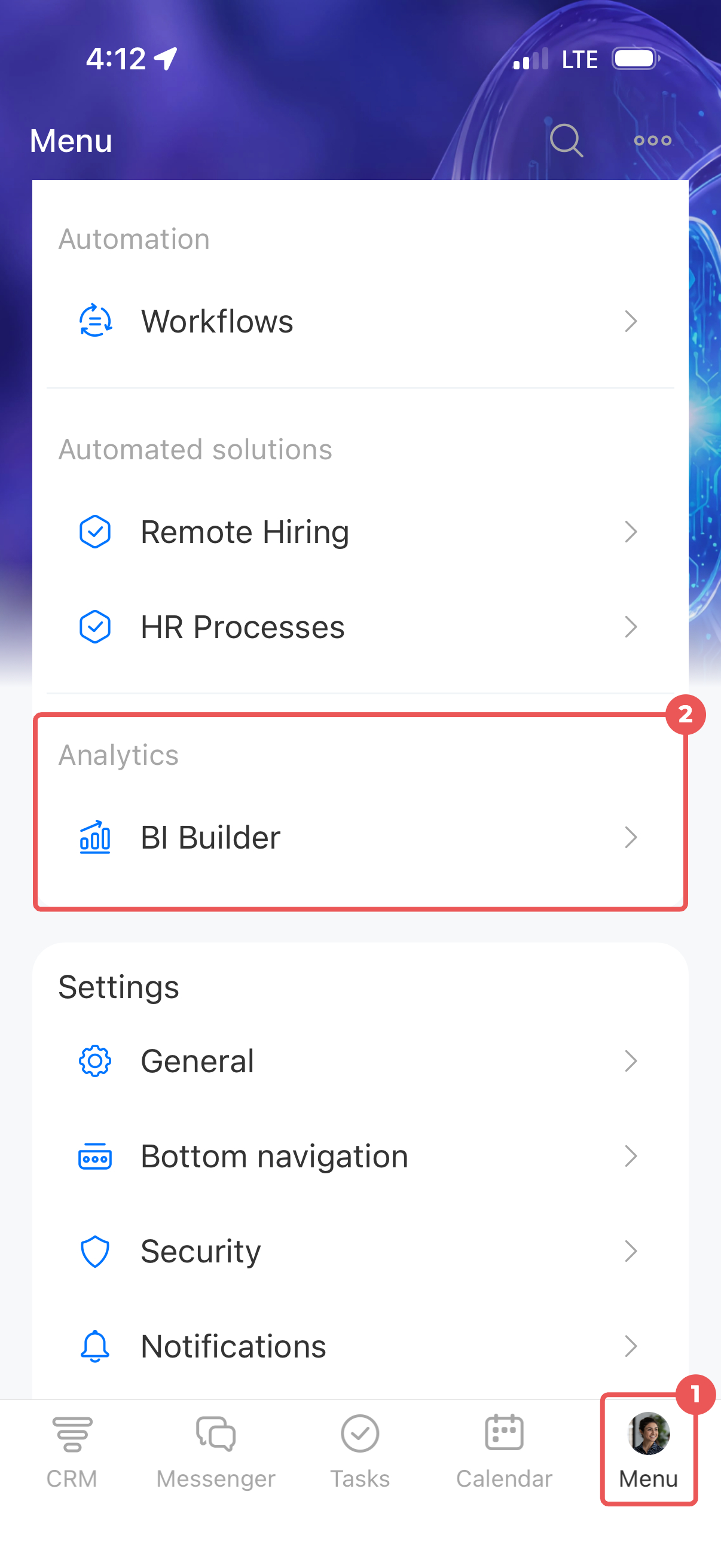
All available dashboards are in the BI Builder section.
1–2. Open Menu and select BI Builder under Analytics.
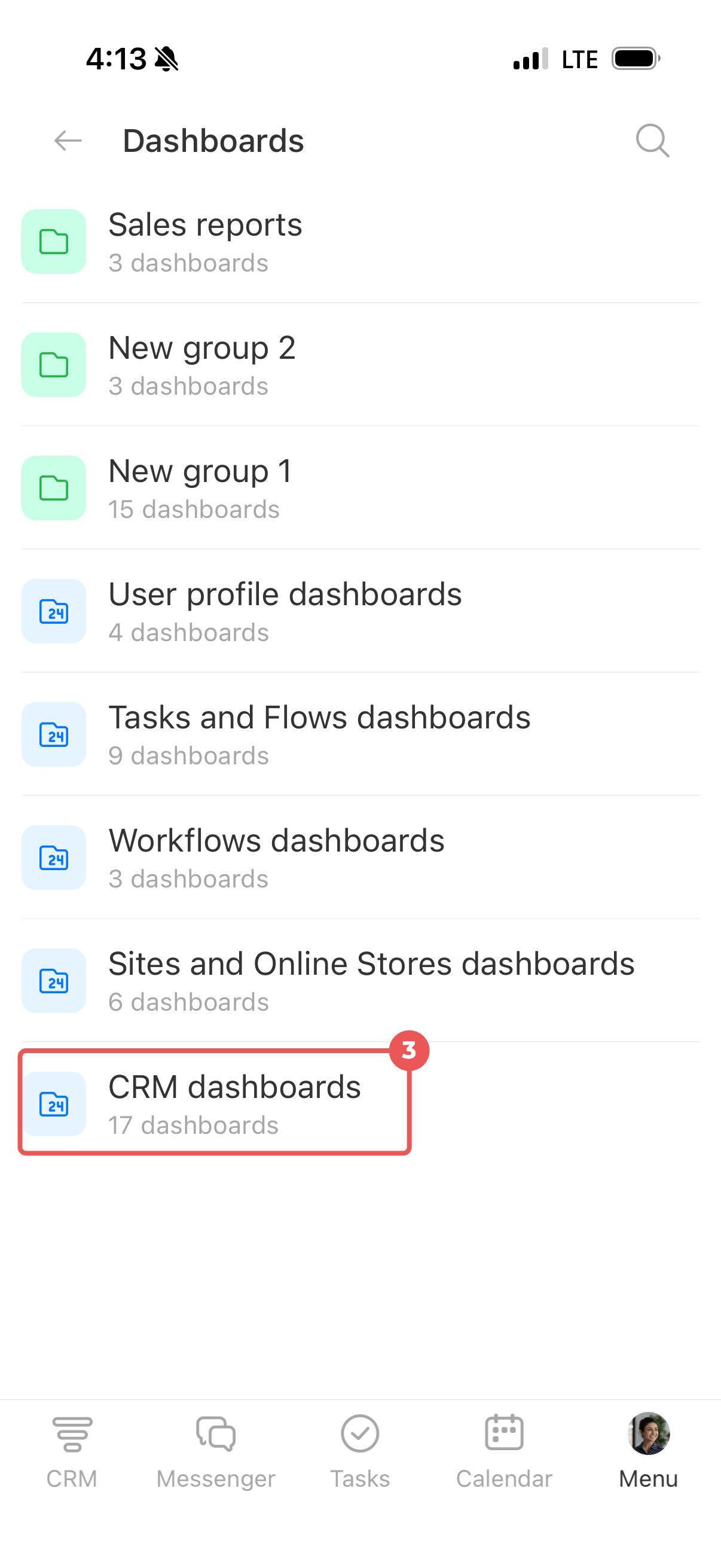
3. Select a dashboard group, such as CRM dashboards.
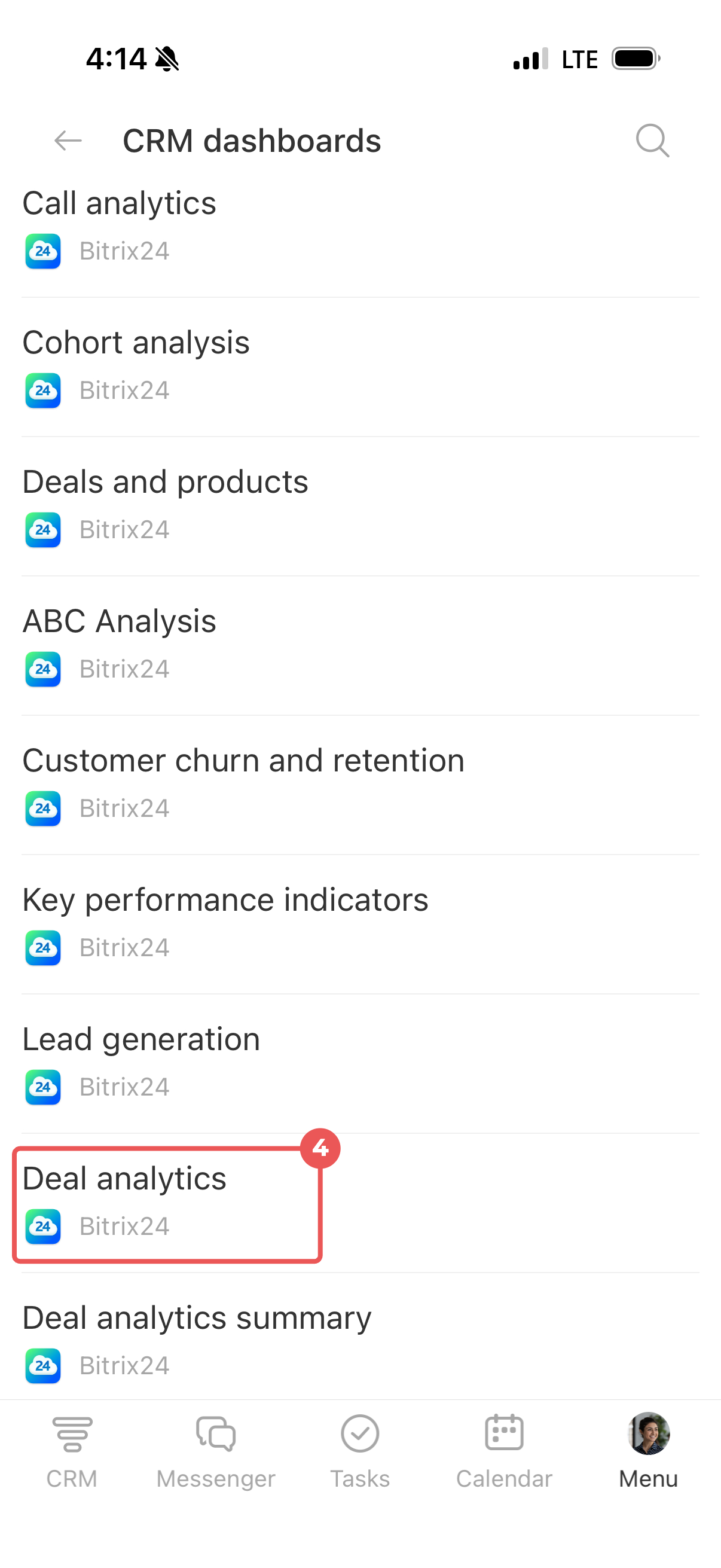
4. Tap the dashboard you want to view.
View a dashboard
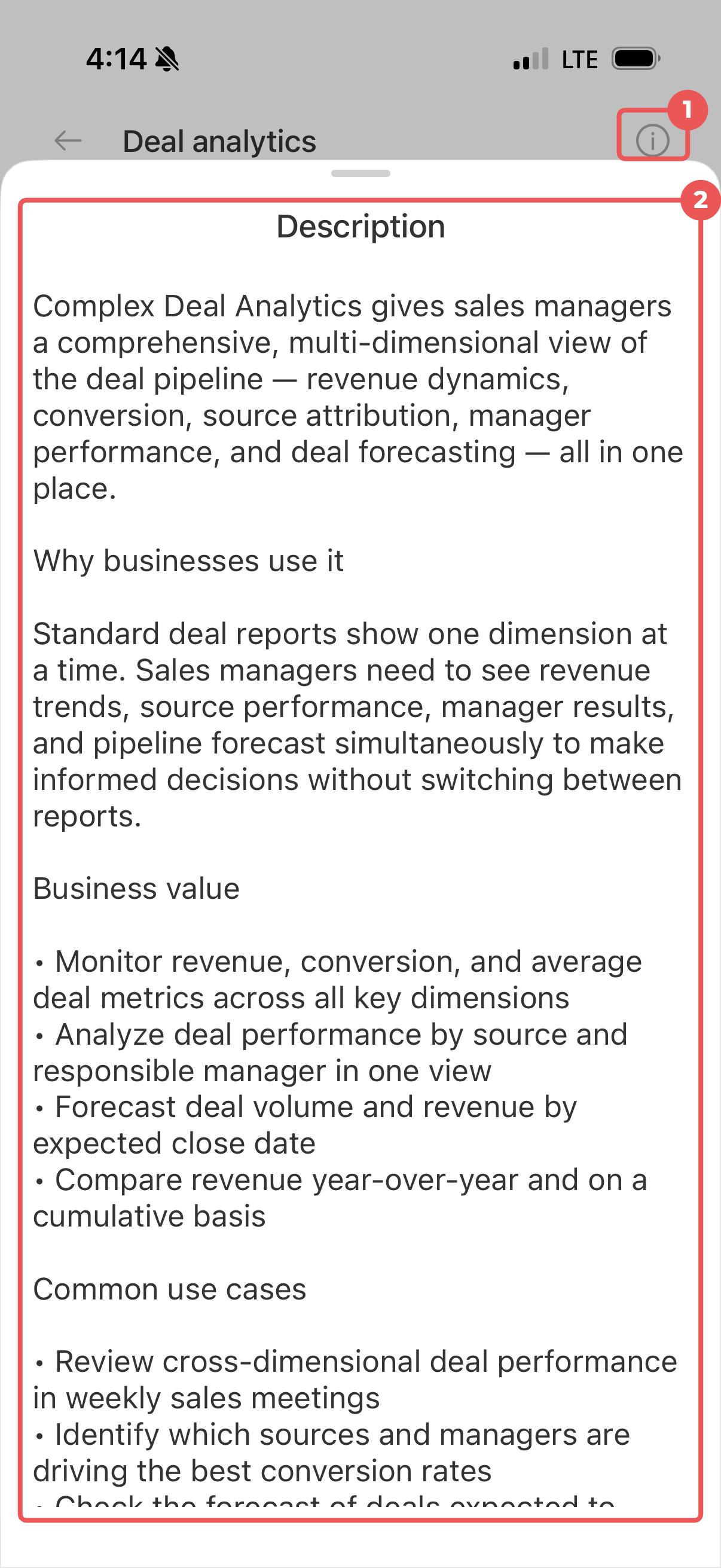
You can read the dashboard description, explore its data, and view individual charts in full screen.
To view the dashboard description, tap the info icon in the upper-right corner.
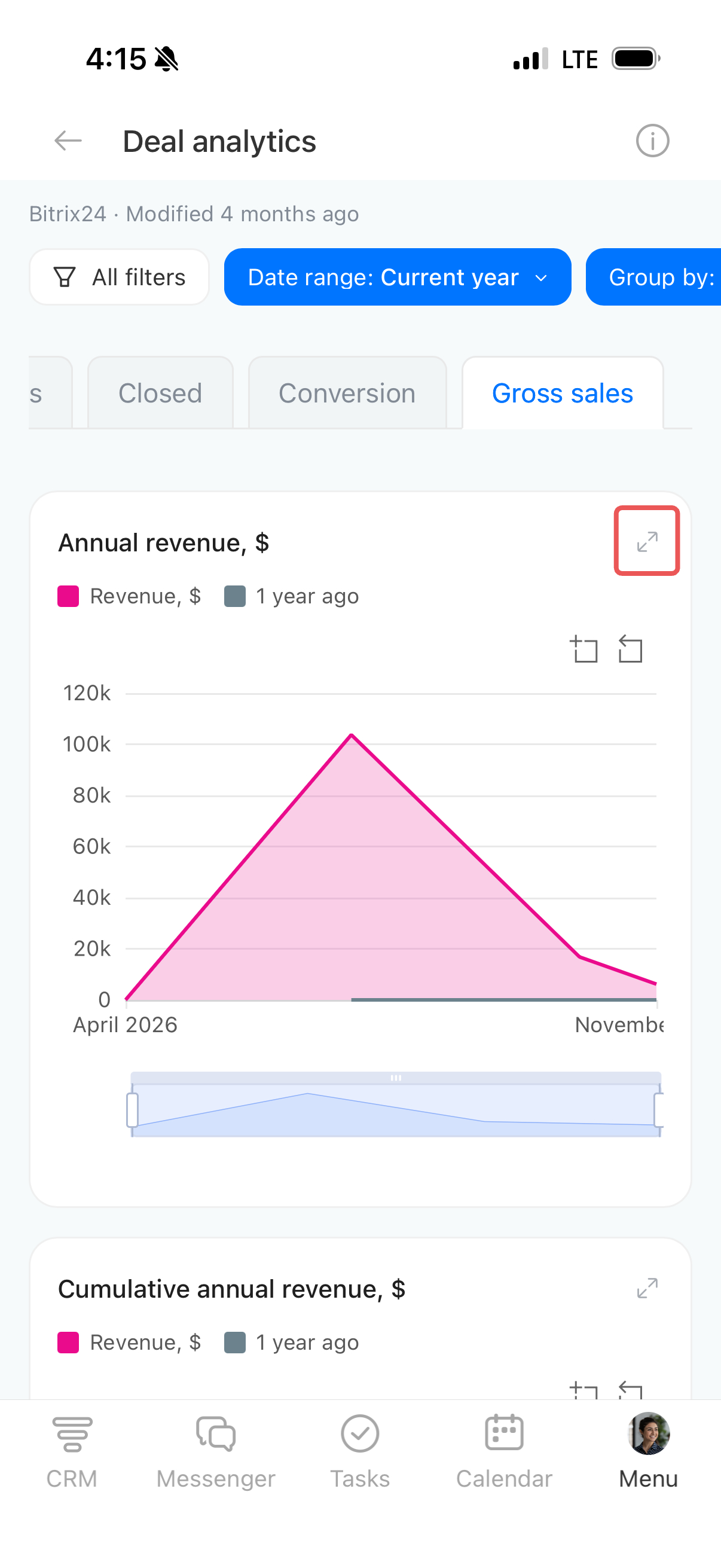
To expand a chart to full screen, tap the diagonal arrows icon in the chart's upper-right corner.
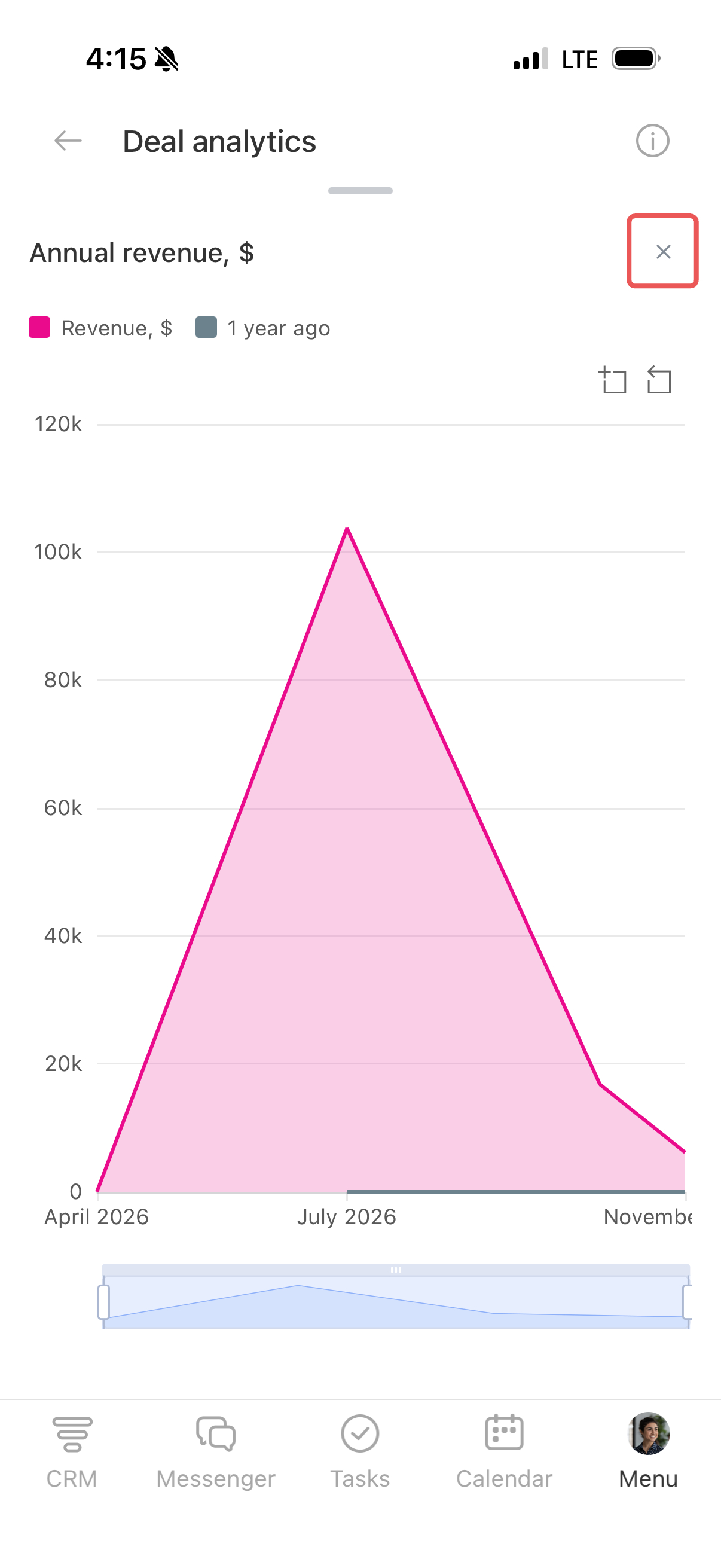
To return to the dashboard, tap the X in the chart's upper-right corner.
Set up filters and presets
Filters and presets help you view metrics from the right angle.
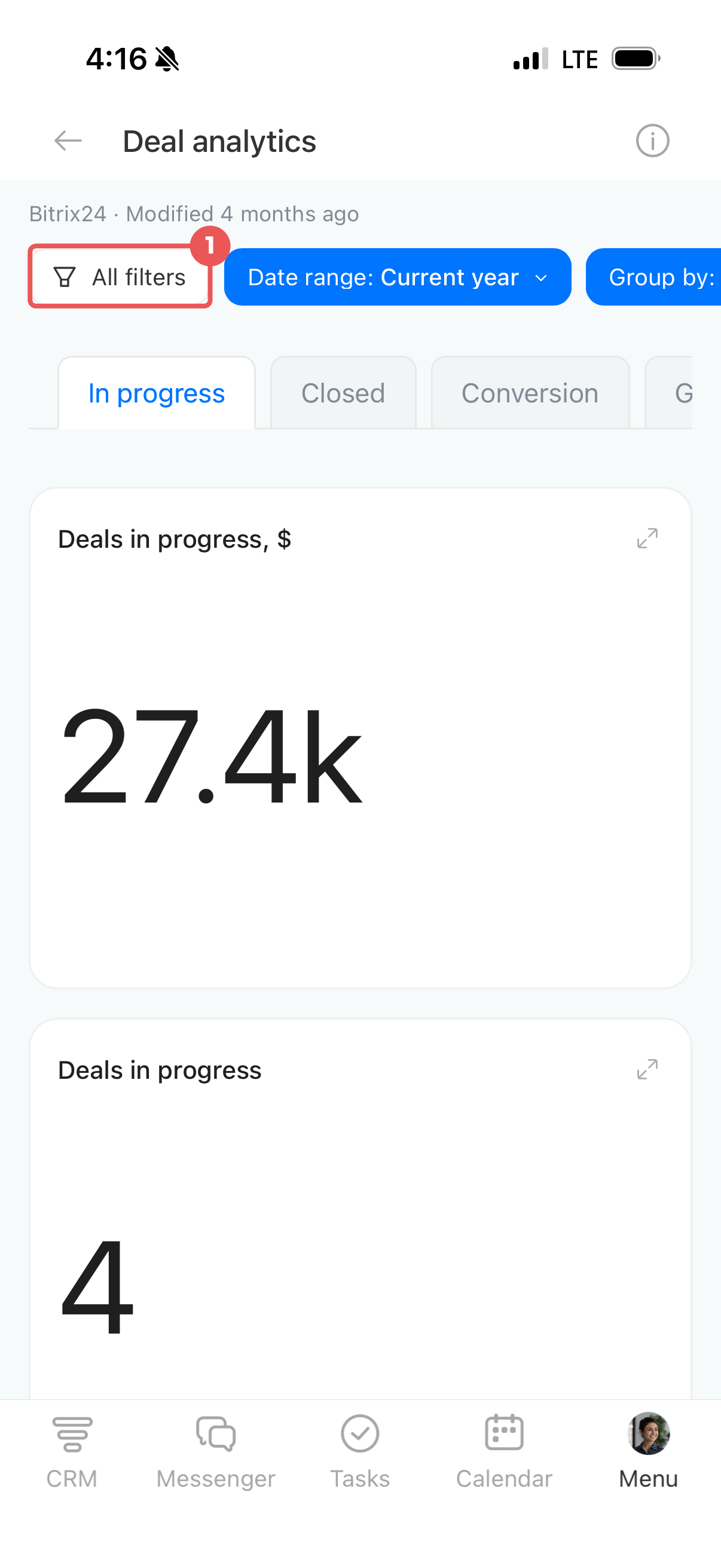
Filters. For example, a sales supervisor can select the current month, a specific deal pipeline, and their department to review team performance.
1. Tap All filters below the dashboard name at the top of the screen.
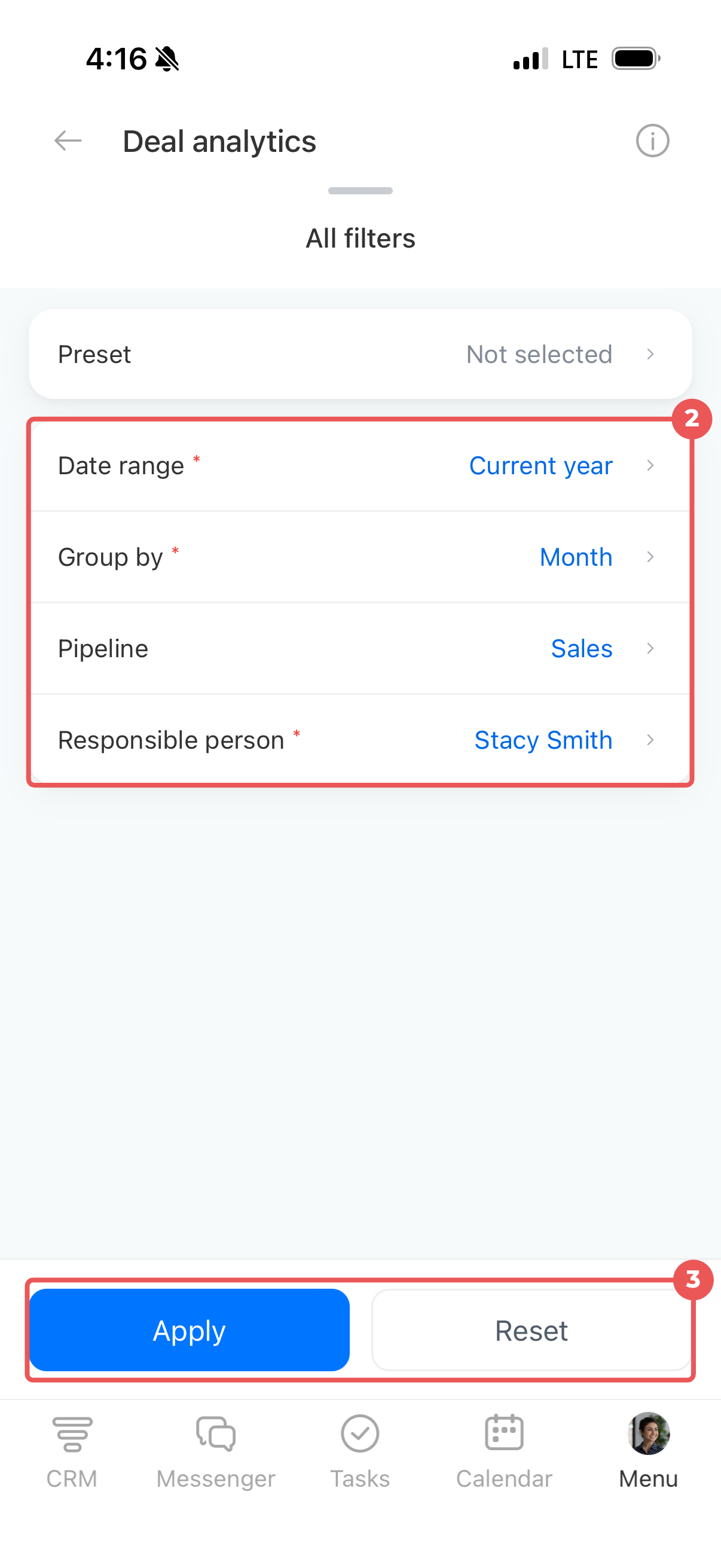
2–3. Select the filter values you need. Available filters depend on the dashboard. For example, in Deal analytics, you can select a date range, grouping, pipeline, and responsible person.
Tap Apply to update the dashboard. To restore the original filter values, tap Reset.
Presets. These are saved sets of filters. They help you avoid setting the same filter values every time and quickly view the metrics you need — for example, deals with major clients only.
1. Open All filters and tap Preset.
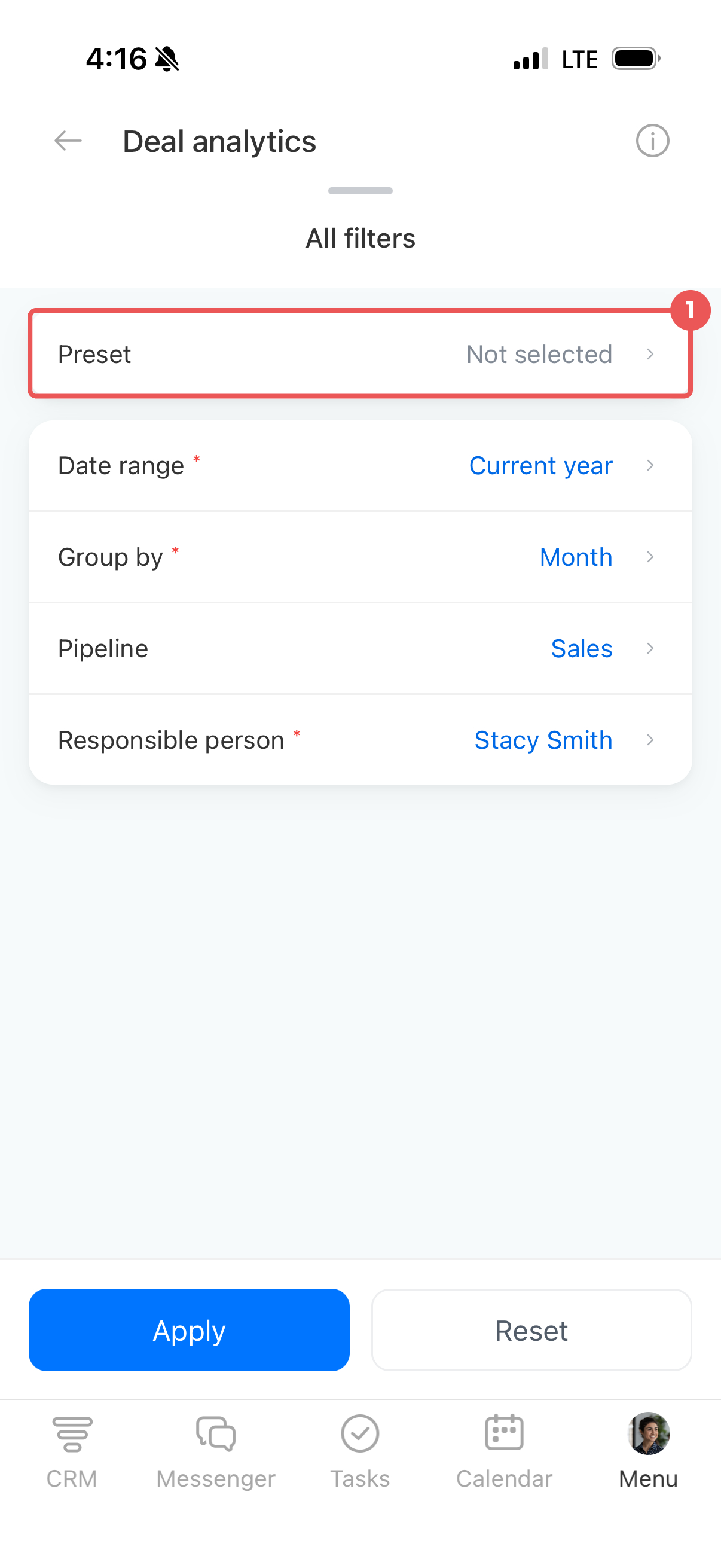
2–3. Select a preset from the list, create a new one, or edit the preset list.
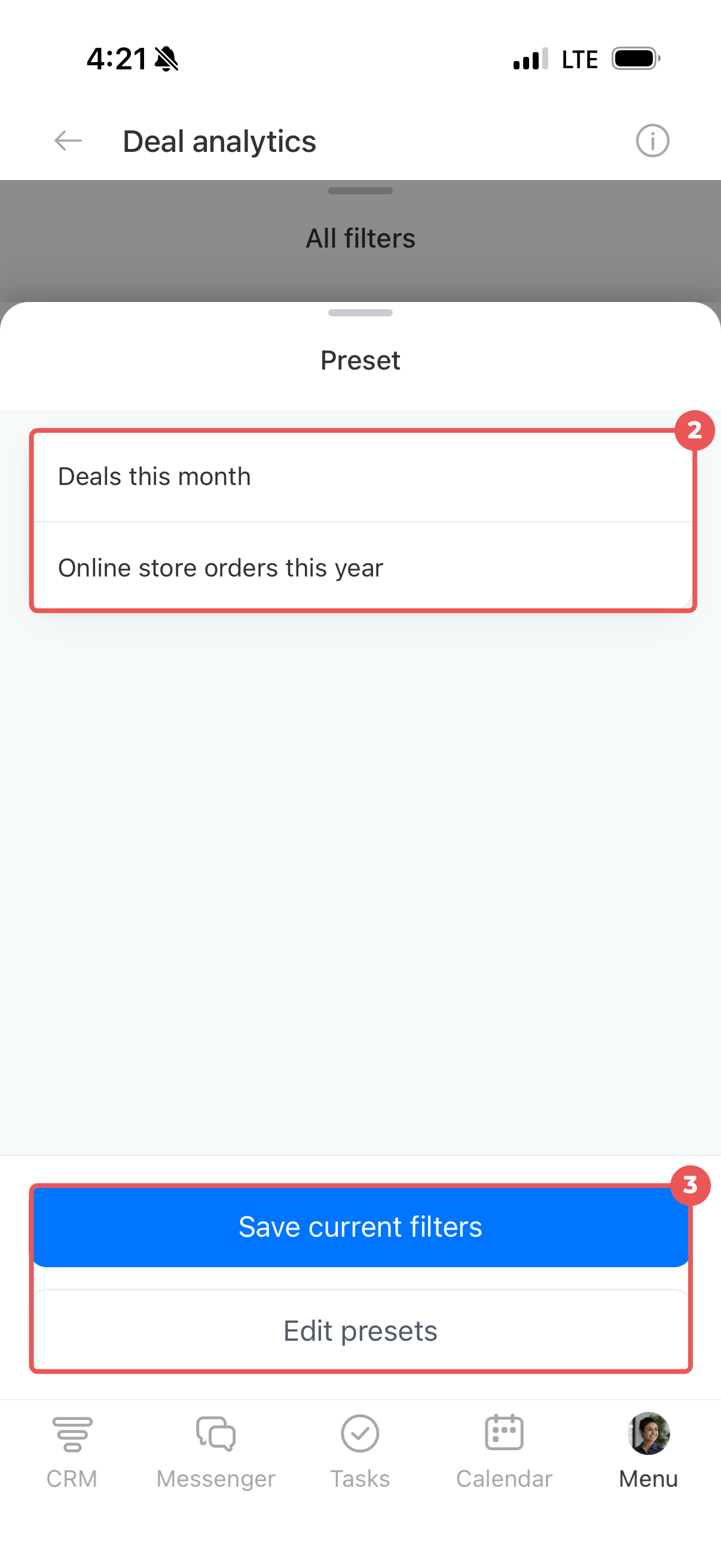
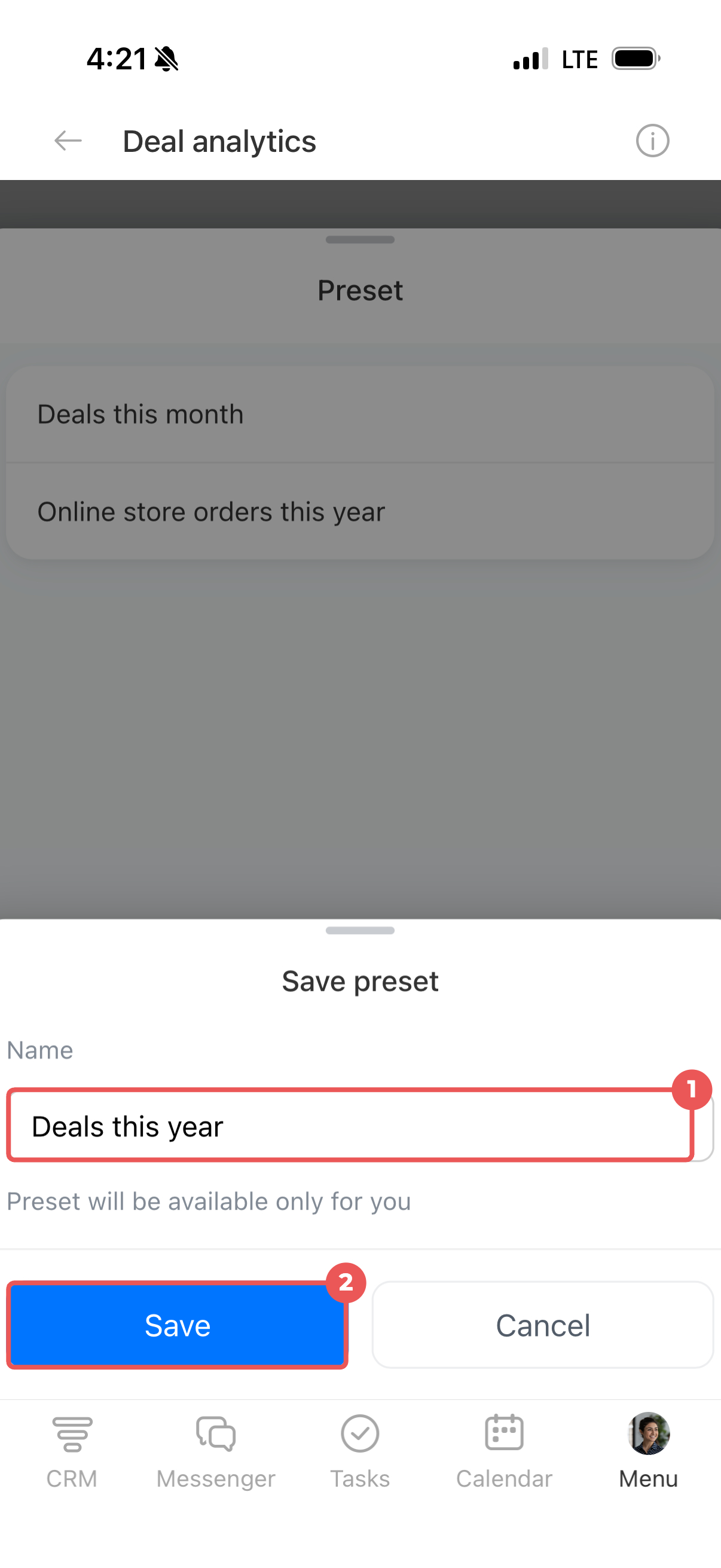
To create a new preset, tap Save current filters. Enter a name and tap Save.
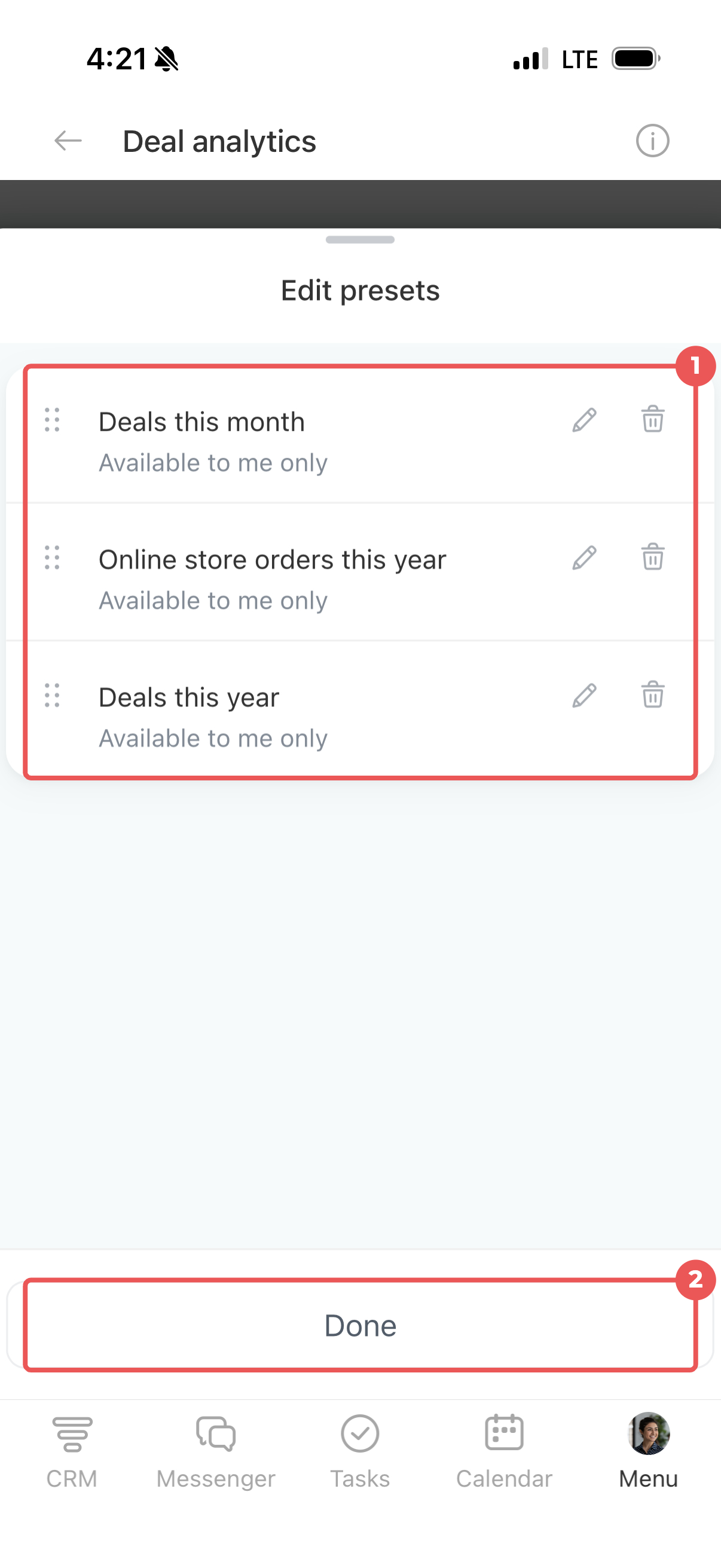
To edit the preset list, tap Preset settings. Here you can:
- Rename a preset: tap the pencil icon
- Reorder presets: touch and hold a preset, then drag it
- Delete a preset: tap the trash can icon and confirm
Presets in mobile BI Builder are only available to the employee who created them.
Open dashboards from other sections
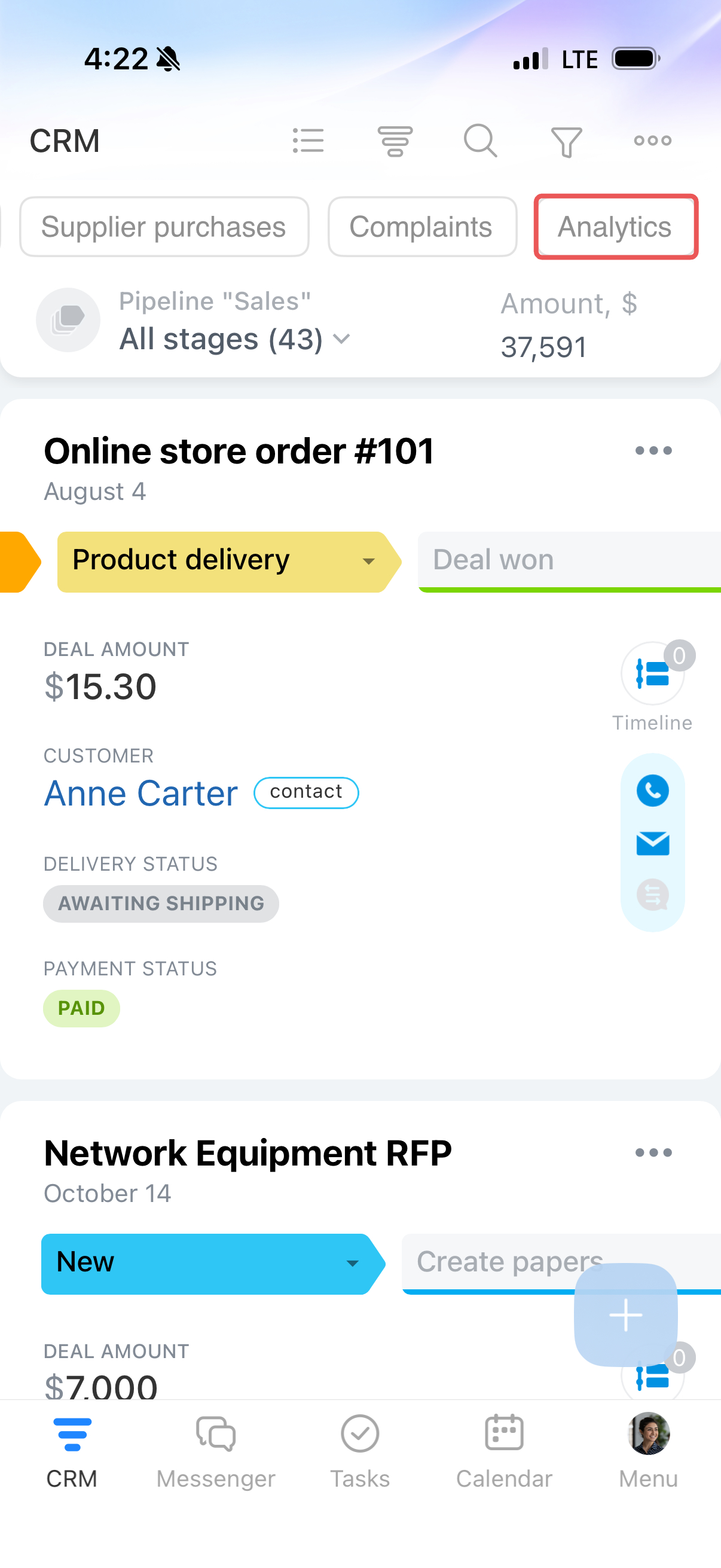
You can also open dashboards from these sections of the mobile app: CRM, Tasks and Flows, Employee profile, and Inventory management.
Open the section you need. Swipe through the tabs at the top of the screen until you reach Analytics. Tap it to open the list of dashboards for that section.
In brief
- View BI Builder dashboards and track key metrics from your phone. You can only access dashboards you have permission to view.
- To open a dashboard, go to Menu > BI Builder.
- Read dashboard descriptions, explore data, and expand charts to full screen.
- Apply filters to focus on specific data. Save frequently used filters as presets.
- Access BI dashboards from CRM, Tasks and Flows, Employee profile, and Inventory management.