
Add list item
Creates a new item in a selected list.
Entity type: SChoose the list where you want to add the item. Then fill in the required fields.
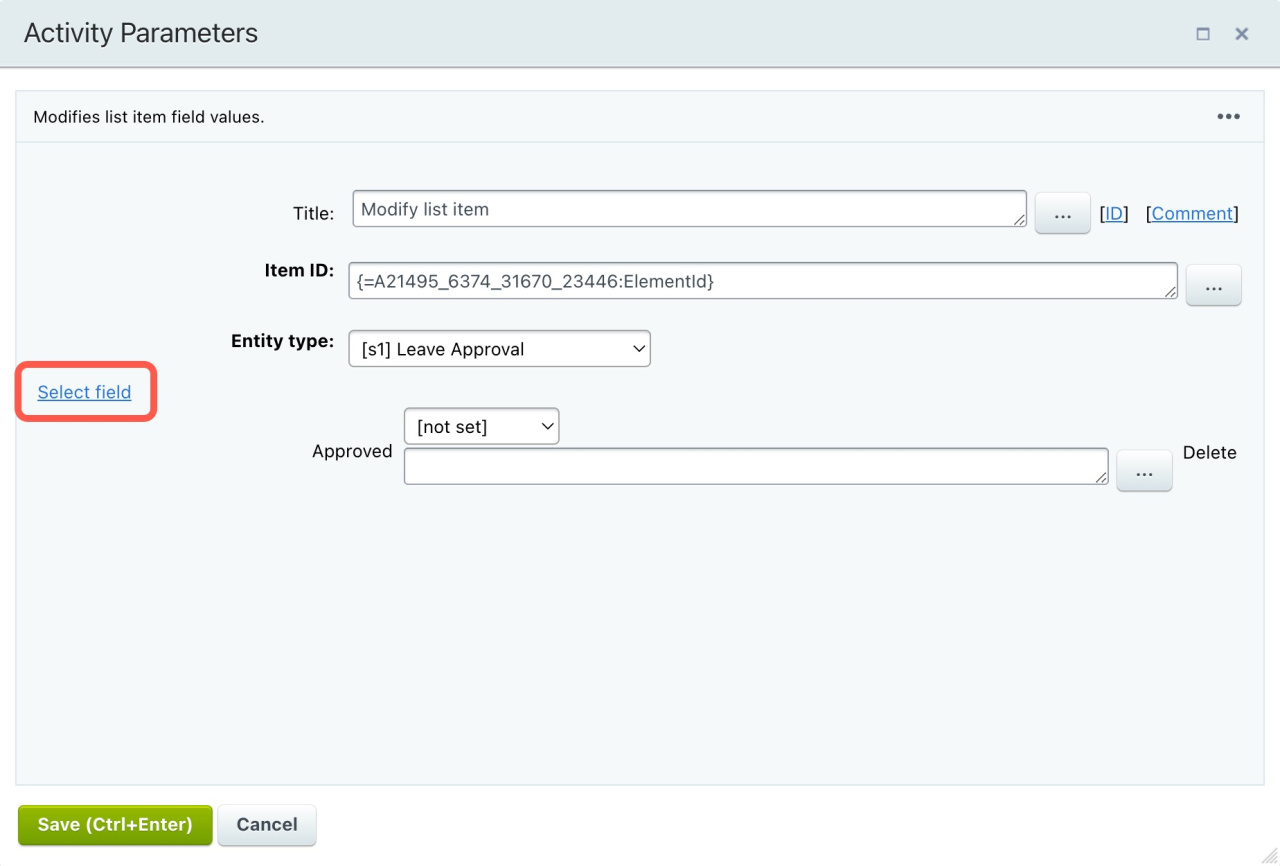
Modify list item
Updates an existing item in a selected list.
Item ID: Specify the item you want to update.
Entity type: Choose the list that contains the item. Then fill in the required fields.
Get list item information
Retrieves field values from a list item and passes them to other automation rules.
After the activity runs, you can access the selected field values in the Additional results section of the Insert Value form.
Insert Value form
Item ID: Specify the item you want to read.
Entity type: Choose the list that contains the item.
Select fields: Choose which fields to retrieve.
Get task information
Sends task field values to other automation rules.
After the activity runs, you can access the selected field values in the Additional results section of the Insert Value form.
Insert Value form
Lock element
Locks an element from being changed by other workflows.
This lock applies only to workflows. Users with permission can still edit the element.
Availability of this feature depends on the element type.
Unlock element
Removes the lock and allows other workflows to modify the element again.
Modify element
Updates one or more fields in an element.
- Select the field you want to update and enter a new value.
- To update multiple fields, click Add Condition.
- Click Add Field to include additional fields.
New element
Creates a new element.
Available parameters depend on the element type.
Publish element (Bitrix24 On-Premise)
Publishes the element and sets its status to Published.
Revoke element (Bitrix24 On-Premise)
Unpublishes the element. This is the opposite of the Publish element activity.
Run workflow
Starts another workflow template.
Element ID: Specify the element the workflow will run on.
-
Company:
COMPANY_{=Document: ID}runs the workflow for the company.
LEAD_{=Document: LEAD_ID}runs the workflow for the linked lead. -
Contact:
CONTACT_{=Document: ID}runs the workflow for the contact.
LEAD_{=Document: LEAD_ID}runs the workflow for the linked lead. -
Deal:
DEAL_{=Document: ID}runs the workflow for the deal.
LEAD_{=Document: LEAD_ID}runs the workflow for the linked lead.
CONTACT_{=Document: CONTACT_ID}runs the workflow for the linked contact.
COMPANY_{=Document: COMPANY_ID}runs the workflow for the linked company. -
Lead:
LEAD_{=Document: ID}runs the workflow for the lead.
Entity: Choose the entity that triggers the workflow.
Element type: Select the element type.
Template: Choose a workflow template.
Wait for workflow to finish: Enable this option to pause the current workflow until the launched workflow completes.
Start Smart Script
Runs a smart script automatically during workflow execution. You don’t need to start it manually.
Add a smart script to a business process
Delete element
Deletes the element that triggered the workflow.