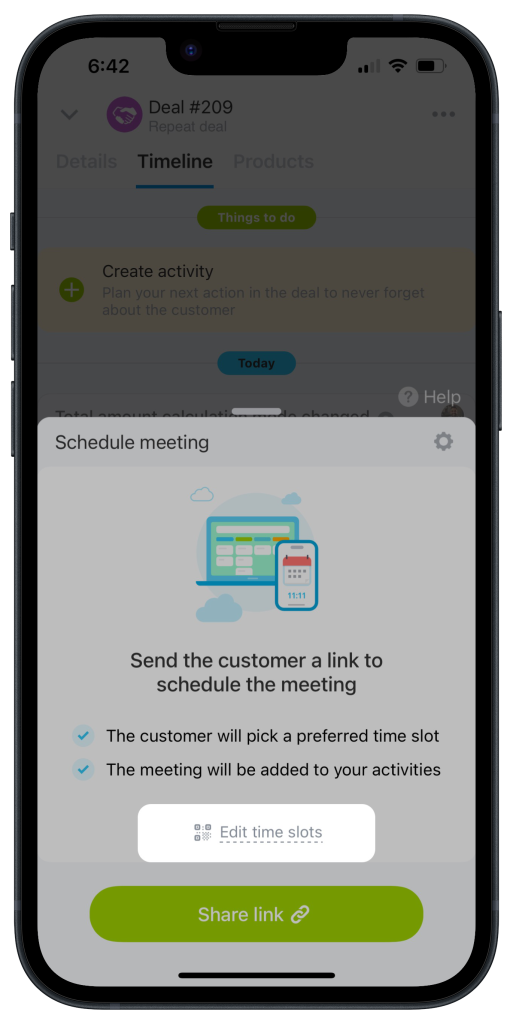
Schedule meetings with external guests using open slots. Share a link so contacts can choose a date and time from your available slots.
Share open slots with clients
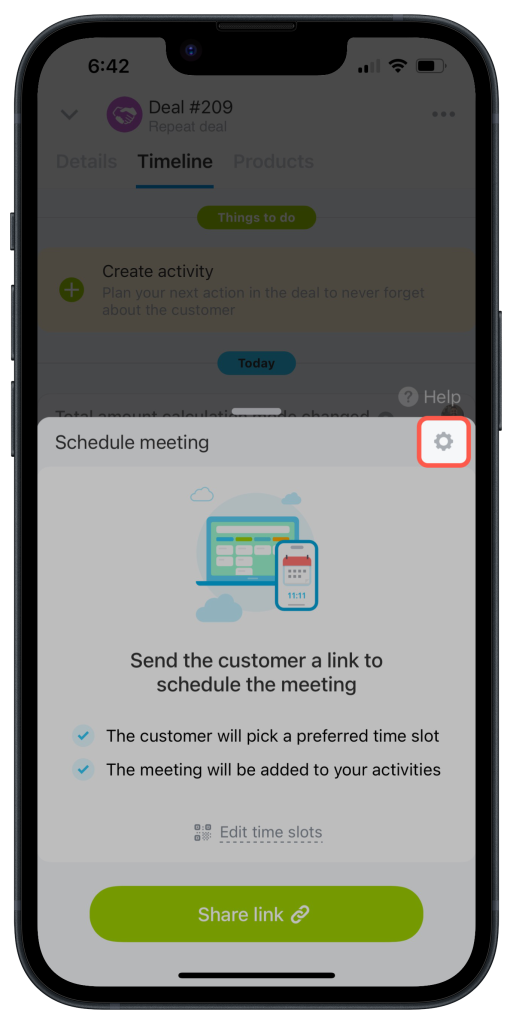
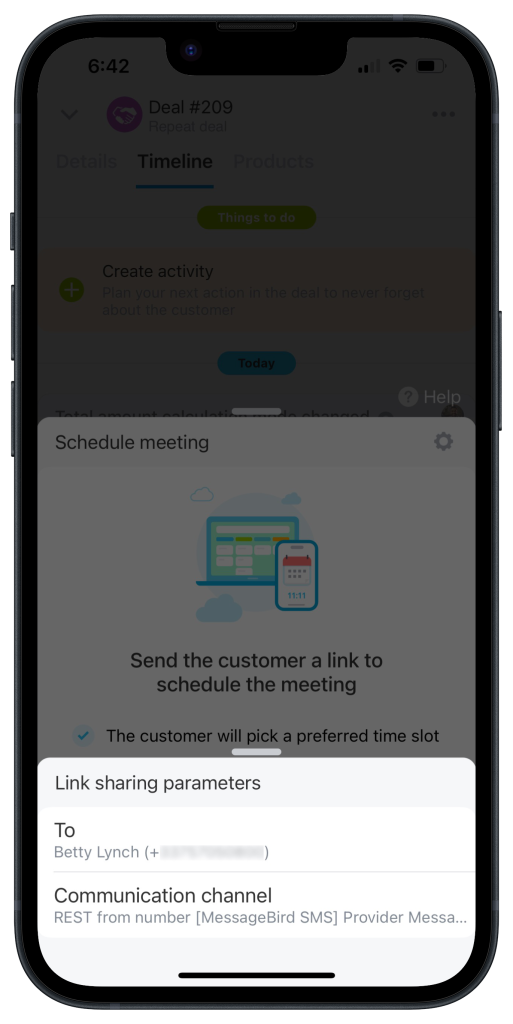
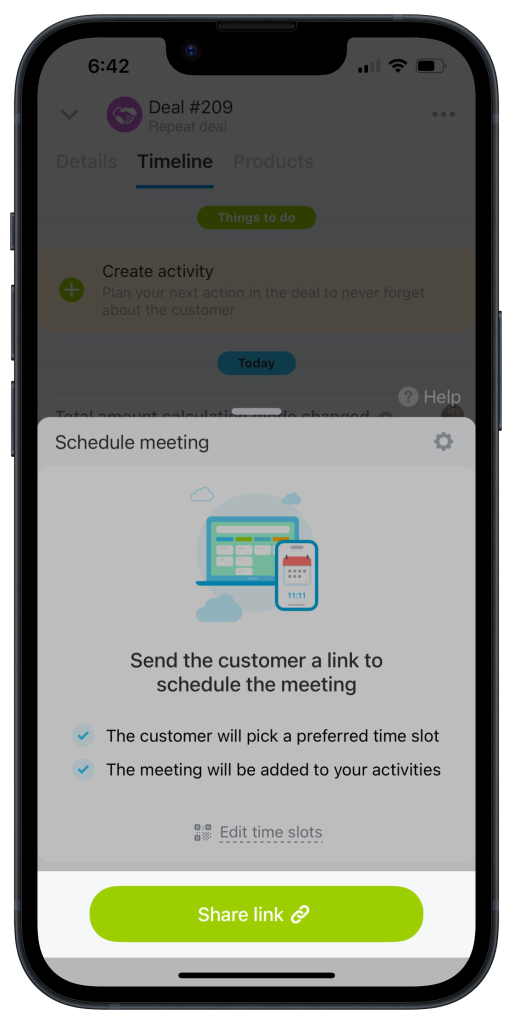
Tap the gear icon (⚙️) to choose the recipient and messaging service.
Go back to the slots page and tap Share link.
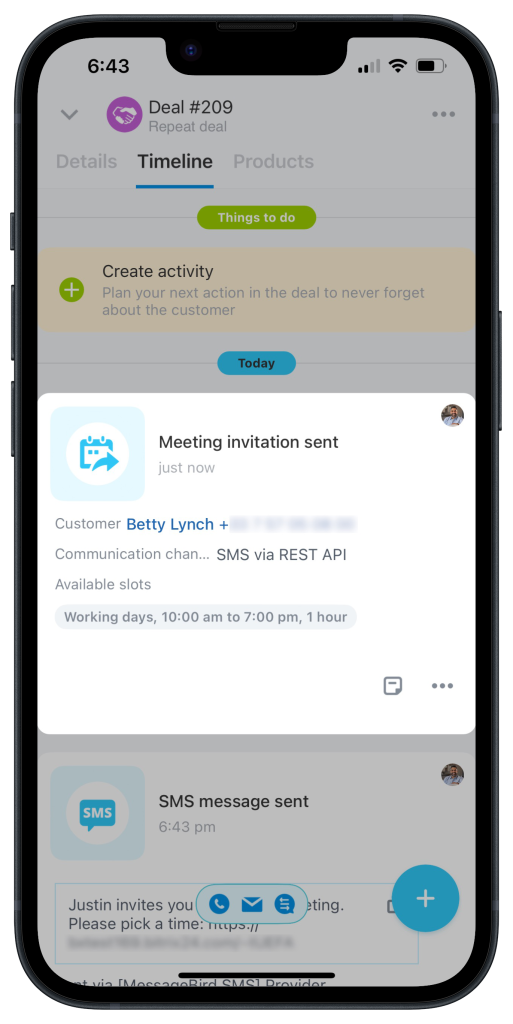
All contact actions are saved to the deal timeline.
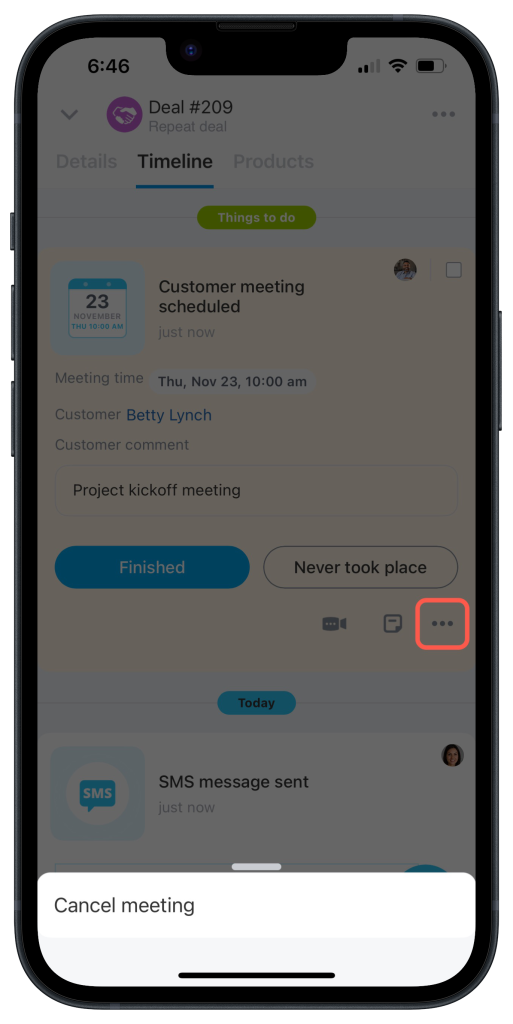
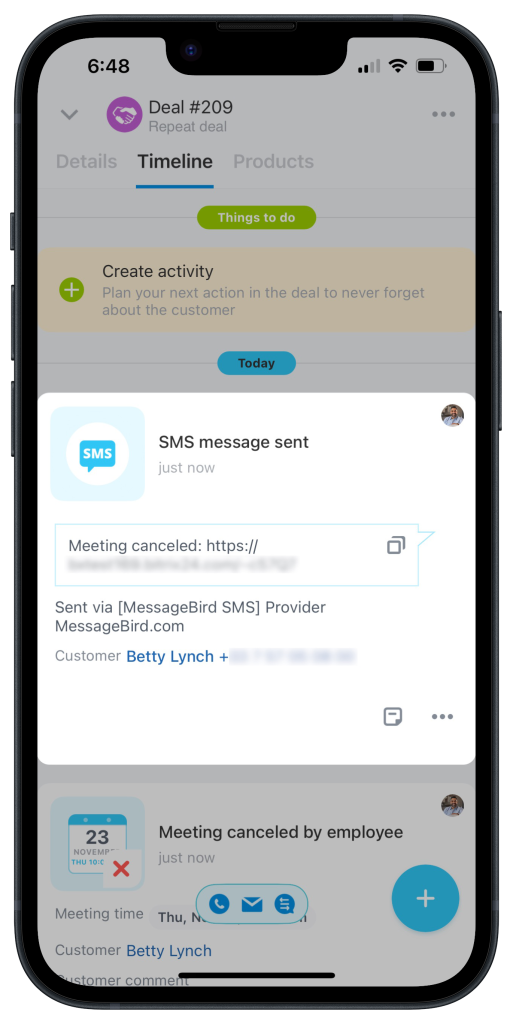
Scheduled meetings also appear in the deal timeline. You cannot change the meeting date and time, but you can decline the meeting.
The contact will receive an SMS notification.
Tap the gear button (⚙️) to select the recipient and the messaging service.
What contacts see
Your client receives a message with a link to schedule a meeting. After they open the link, they can choose a date and time and enter the meeting topic.
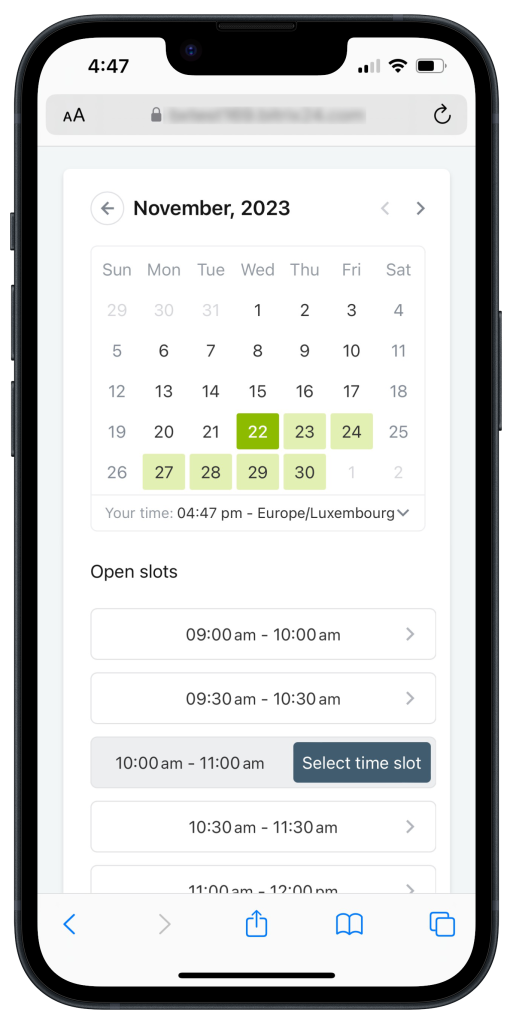
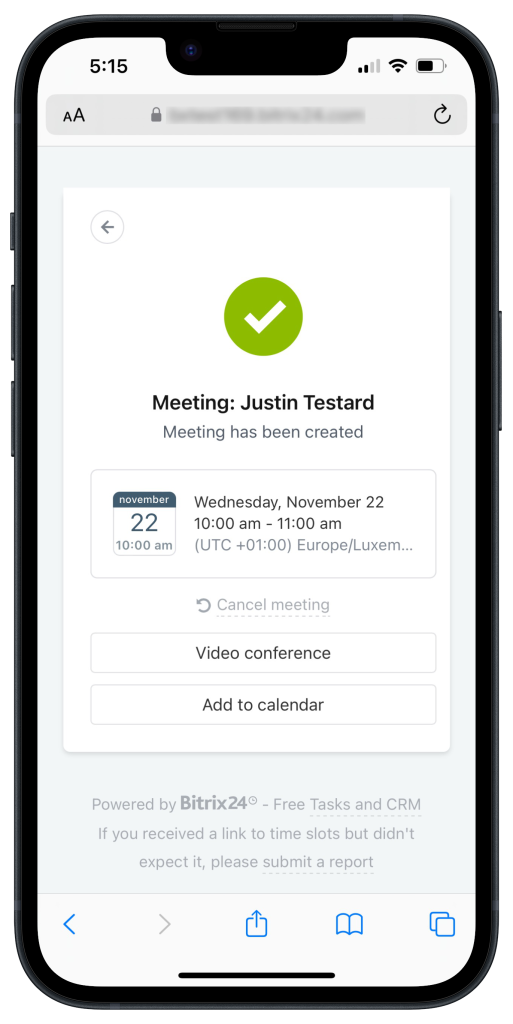
Your client can also add the meeting to their calendar or cancel it if their plans change. For online meetings, we recommend using Video Conferencing.
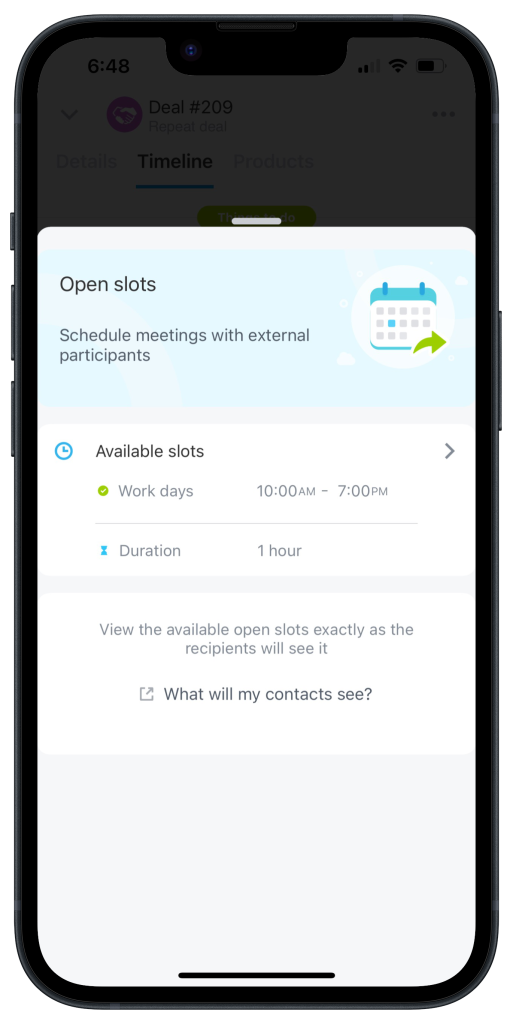
Configure available slots
Tap Edit time slots to open additional settings.
Set your available time slots by choosing the days and hours that work for you. For example, you can use your company’s business hours: Monday through Friday, 10 a.m. to 7 p.m. You can also set the length of each customer meeting slot.
Tap Edit time slots to access additional settings.