
A collab is a workspace for working with clients and external teams. You can chat, share files, create tasks, and schedule meetings in one place.
Set up access permissions to control which employees can invite users to a collab.
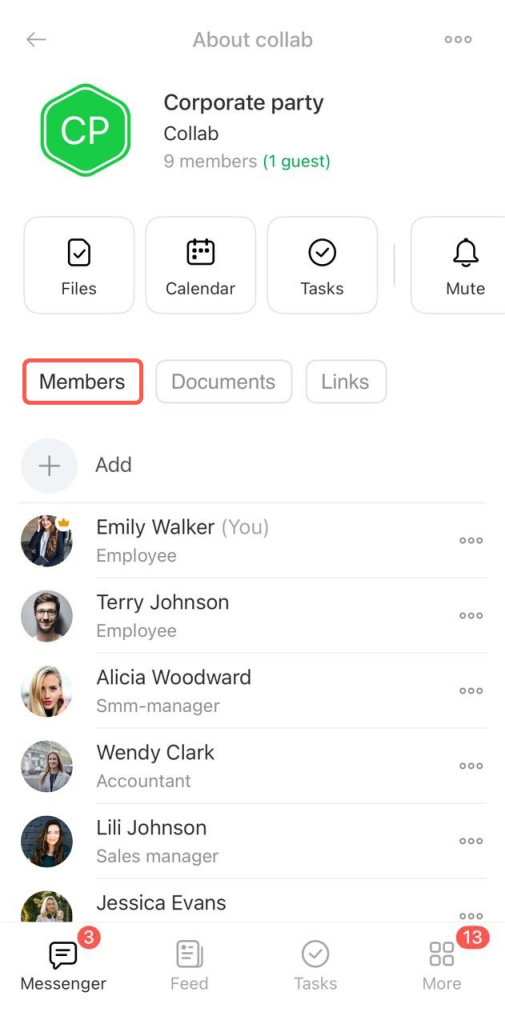
Open the collab chat and tap its name. Then go to Members > Add.
Invite employees
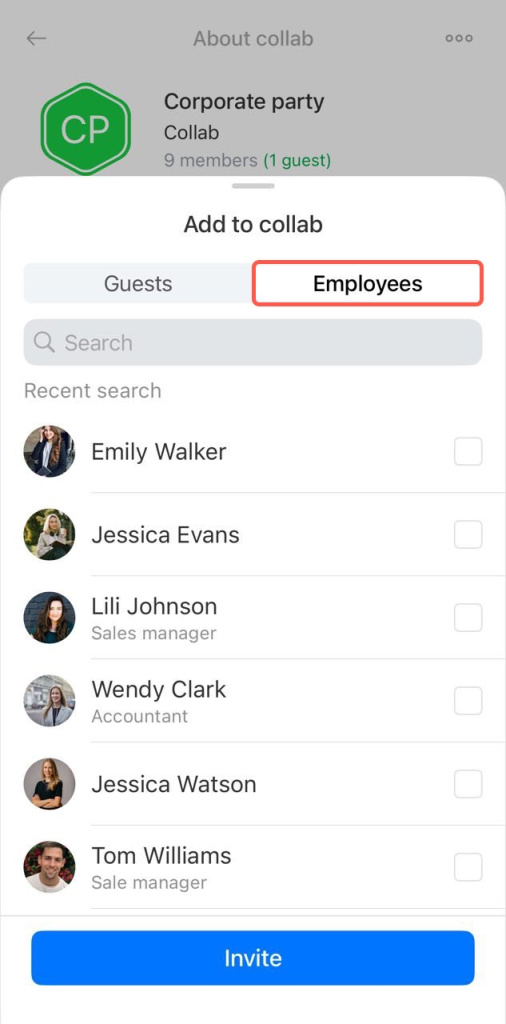
Enter a name in the search bar or select a colleague from the Employees tab. Tap Invite. The user is added to the collab chat automatically.
Invite guests
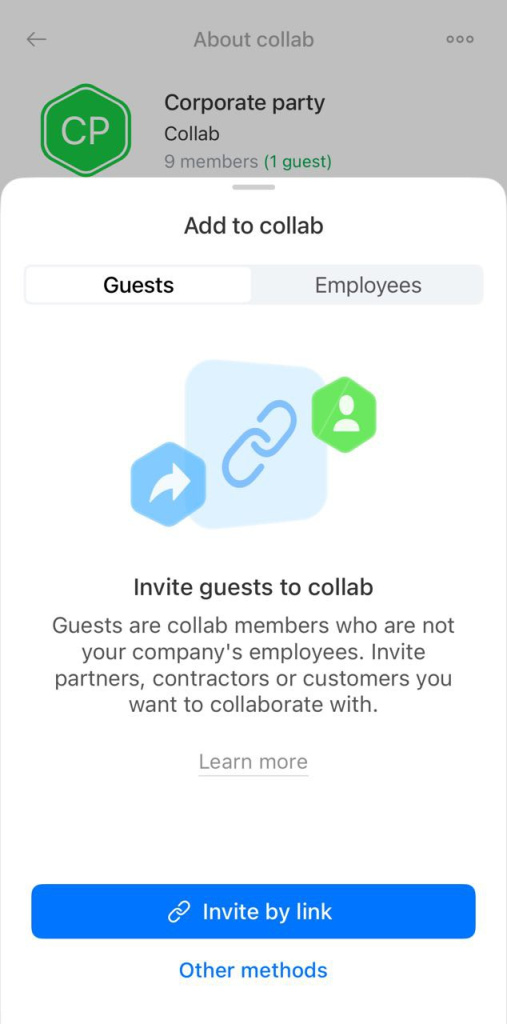
You can invite clients or contractors from the Guests tab. There are four ways to invite them.
By link. Tap Invite by link. Copy the link or send it using another app, such as email or a messenger.
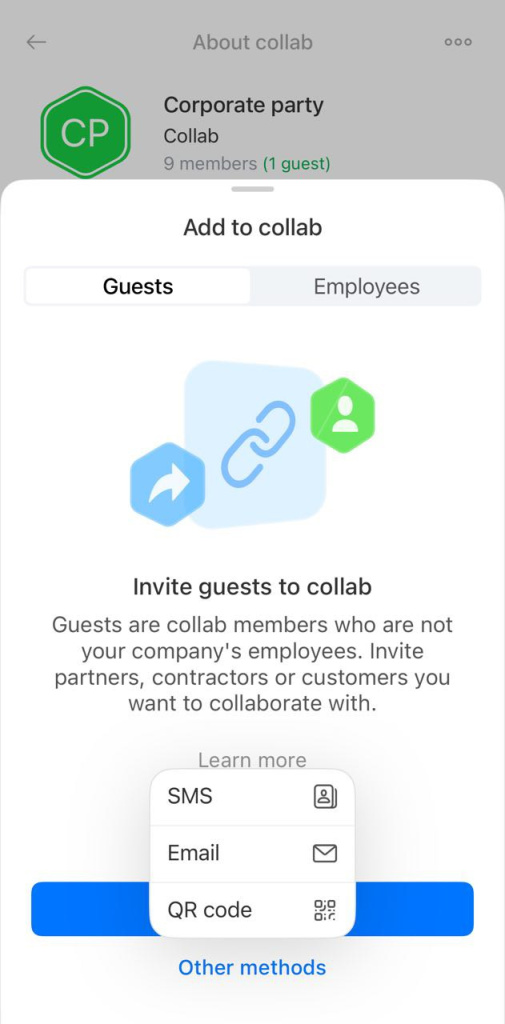
You can also send the link by SMS, email, or QR code.
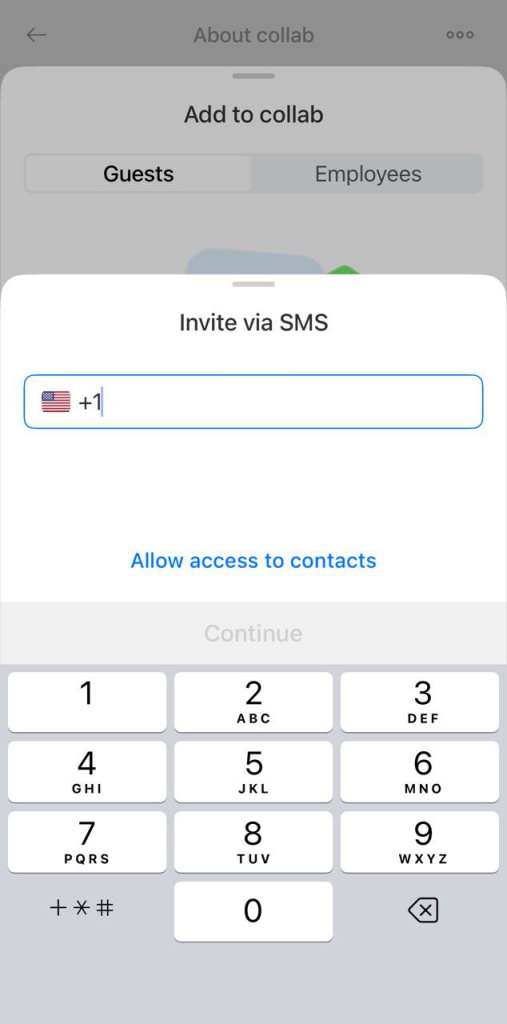
By SMS. Enter a phone number or select a contact. Tap Invite. The guest receives an SMS with a link to join the collab.
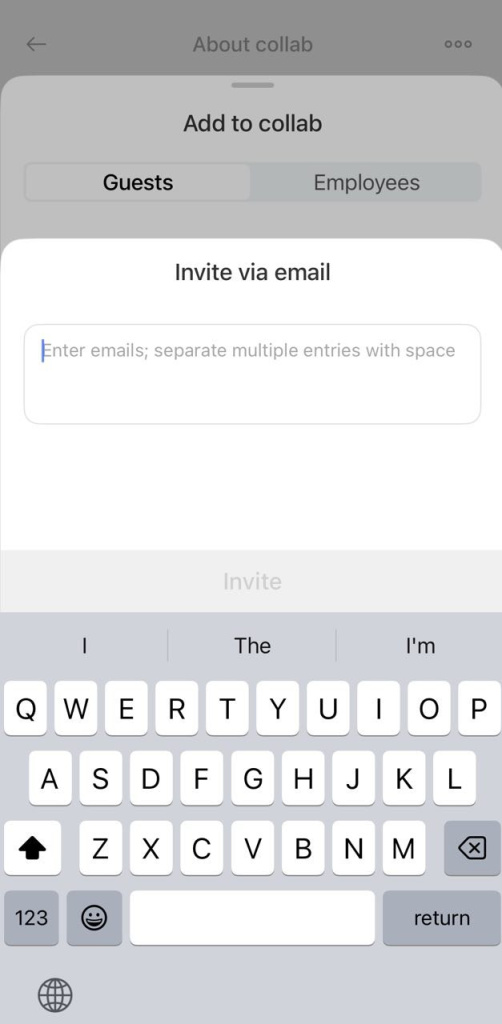
By email. Enter an email address and tap Invite. The guest receives an email invitation.
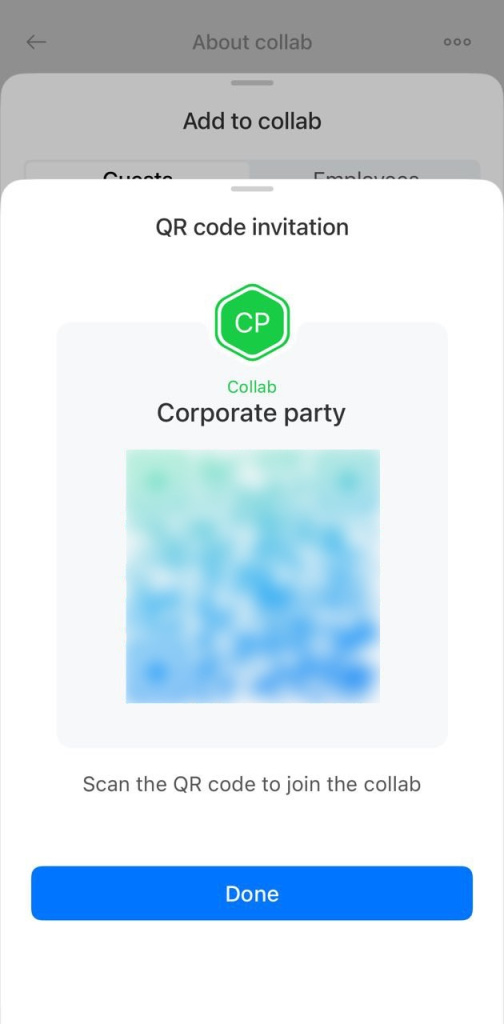
By QR code. Show the QR code to a guest. They can scan it with their phone camera and join the collab.
You can see who invited each guest and how the invitation was sent. When a guest joins, you will see a notification in the chat.