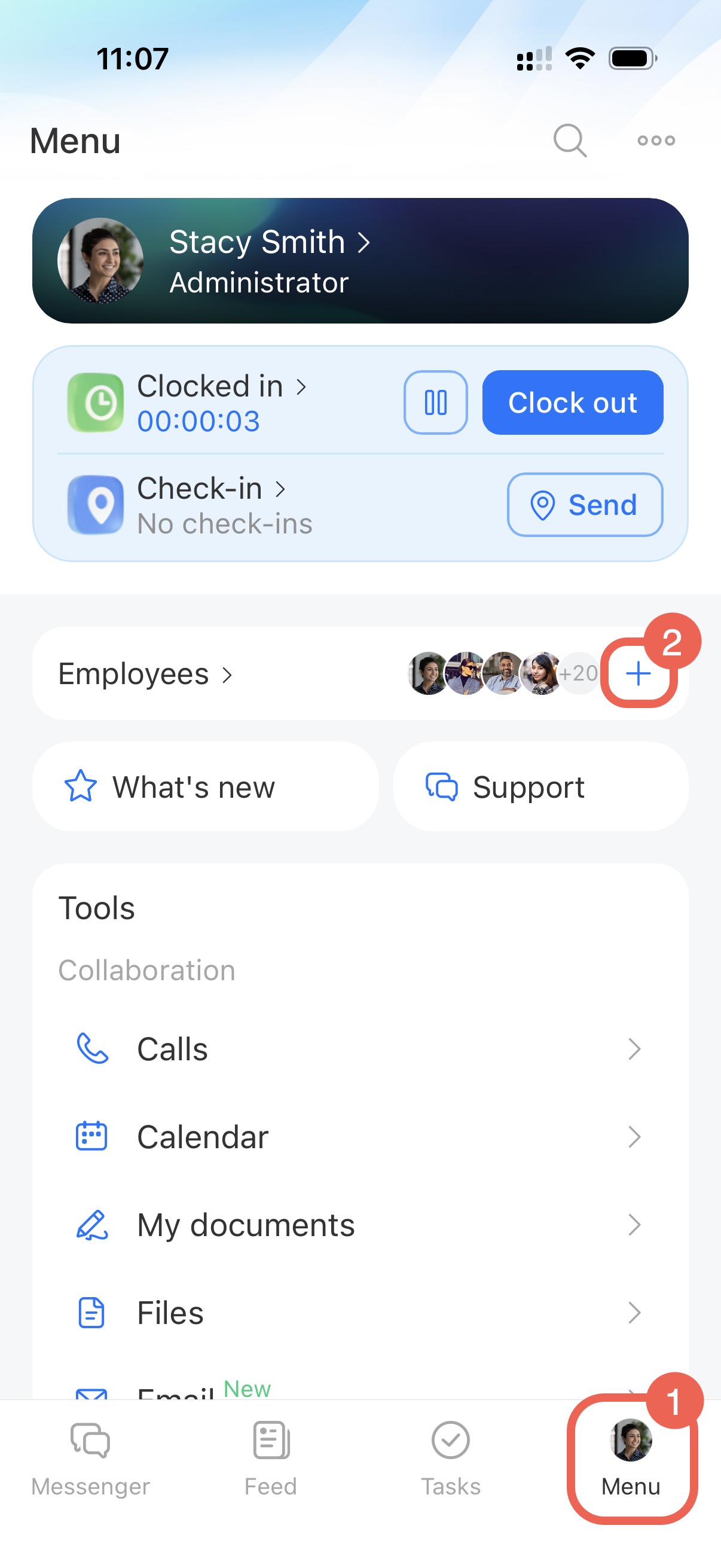
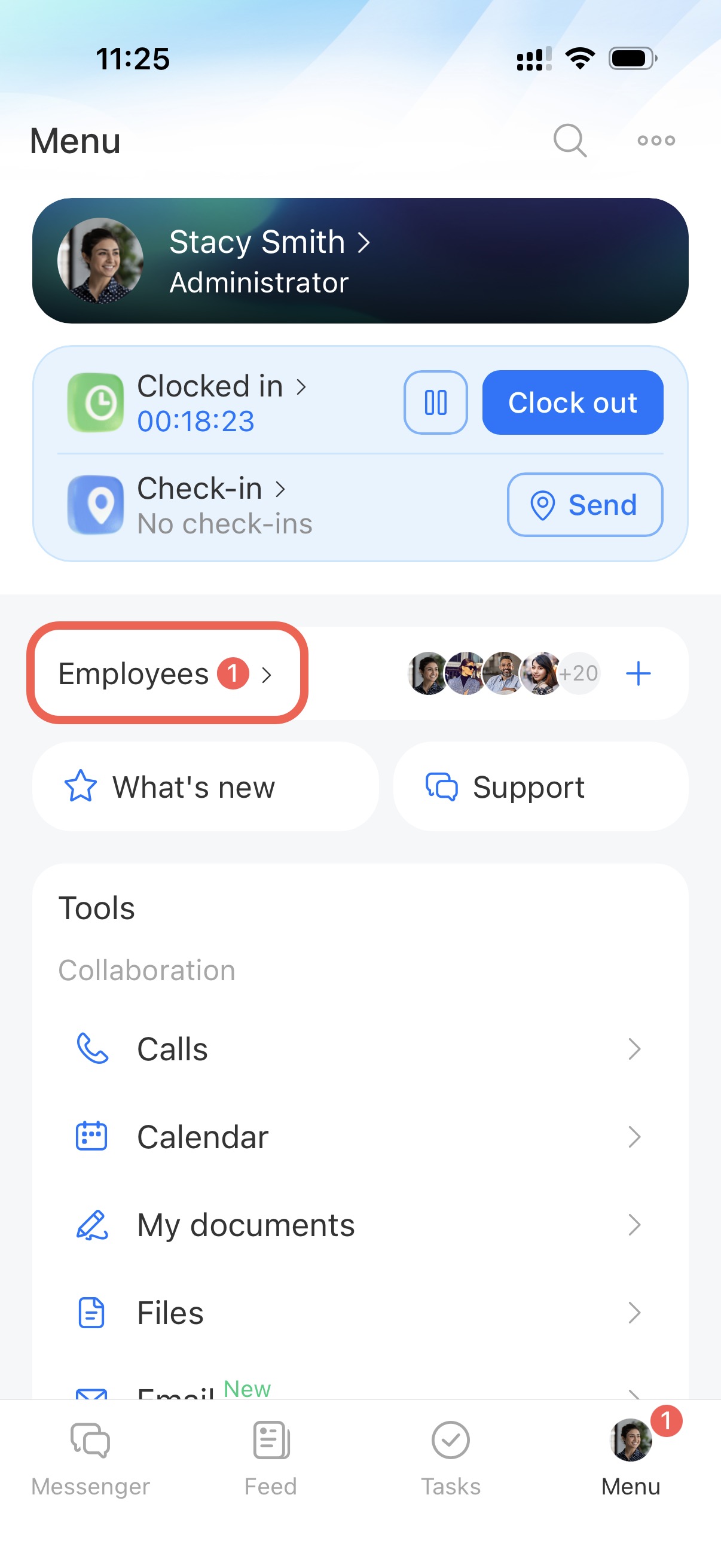
Invite employees to Bitrix24 to start collaborating. Tap Menu in the bottom panel. In the Employees section, tap Plus (+).
Ways to invite employees
Use any of these methods in the mobile app:
- Invite via link
- Invite via SMS
- Invite via email app
- Invite via Bitrix24 email service
- Invite by QR code
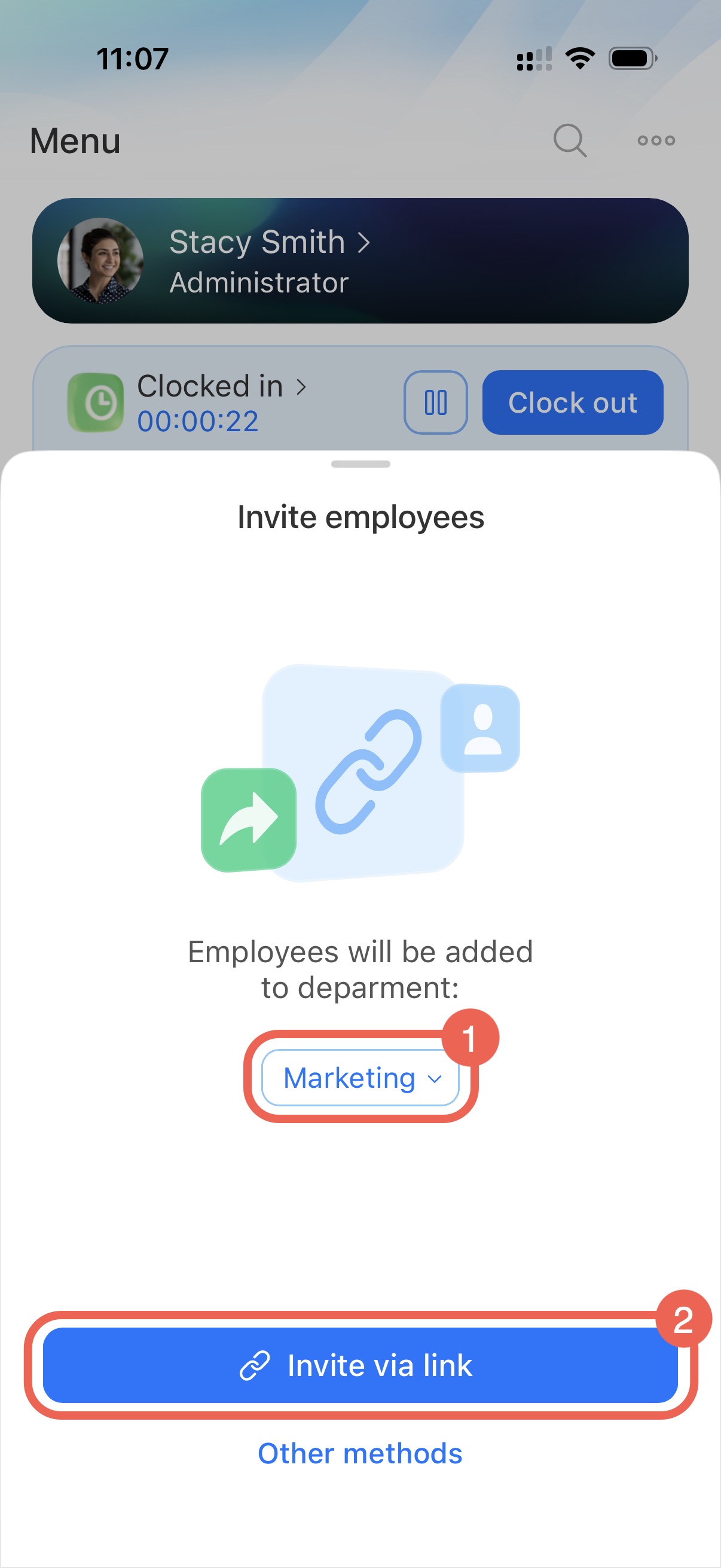
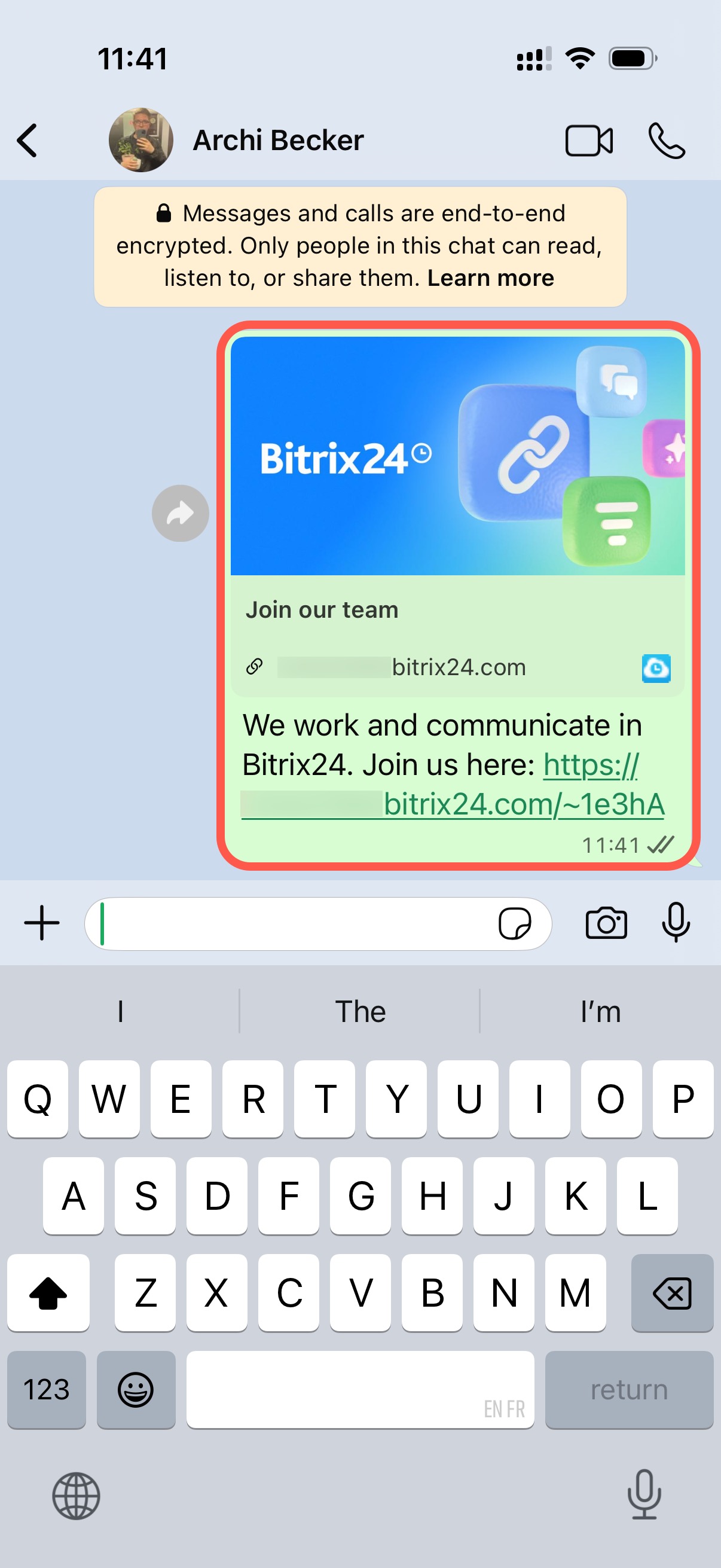
Invite via link. Select the department and tap Invite via link.
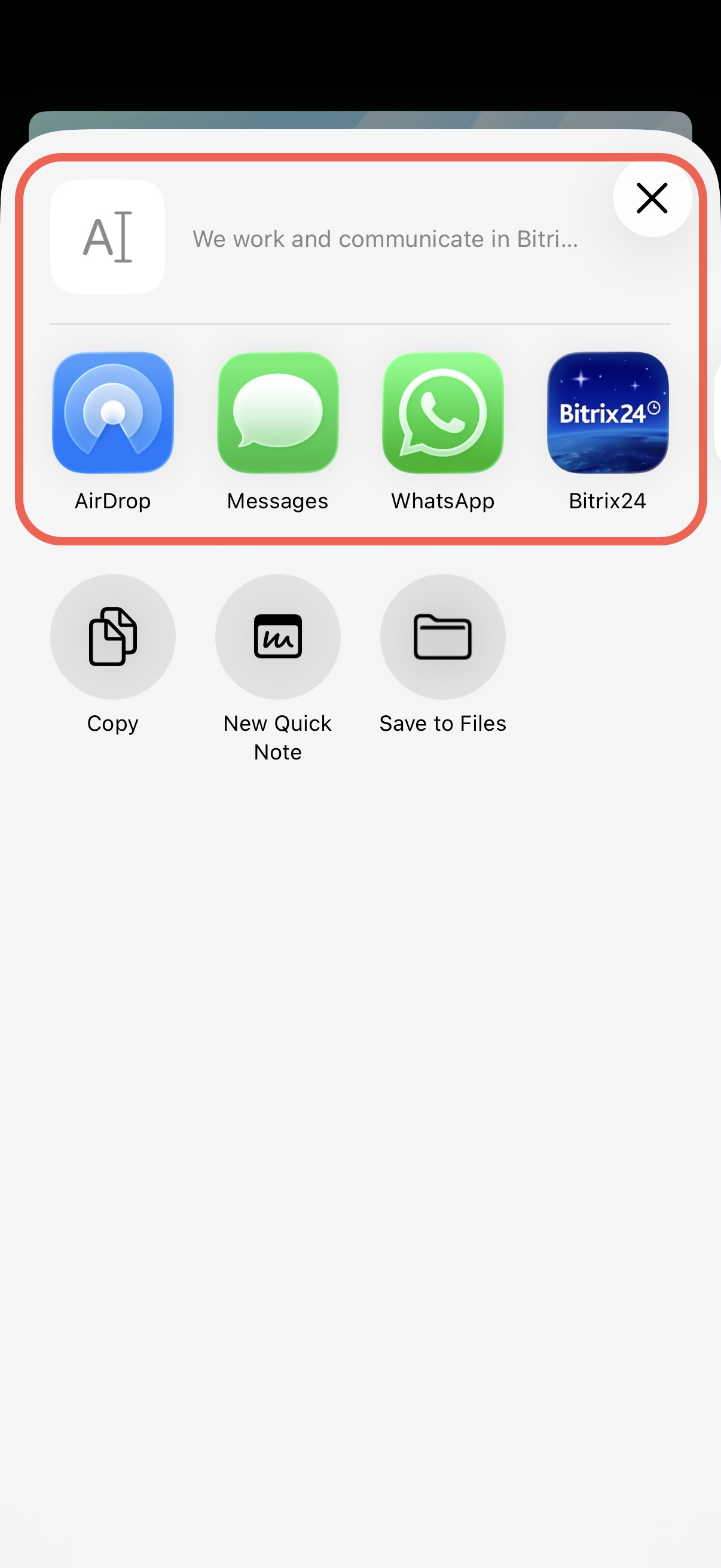
Choose how to send the link: email, messenger, SMS, and more.
Invite via SMS.
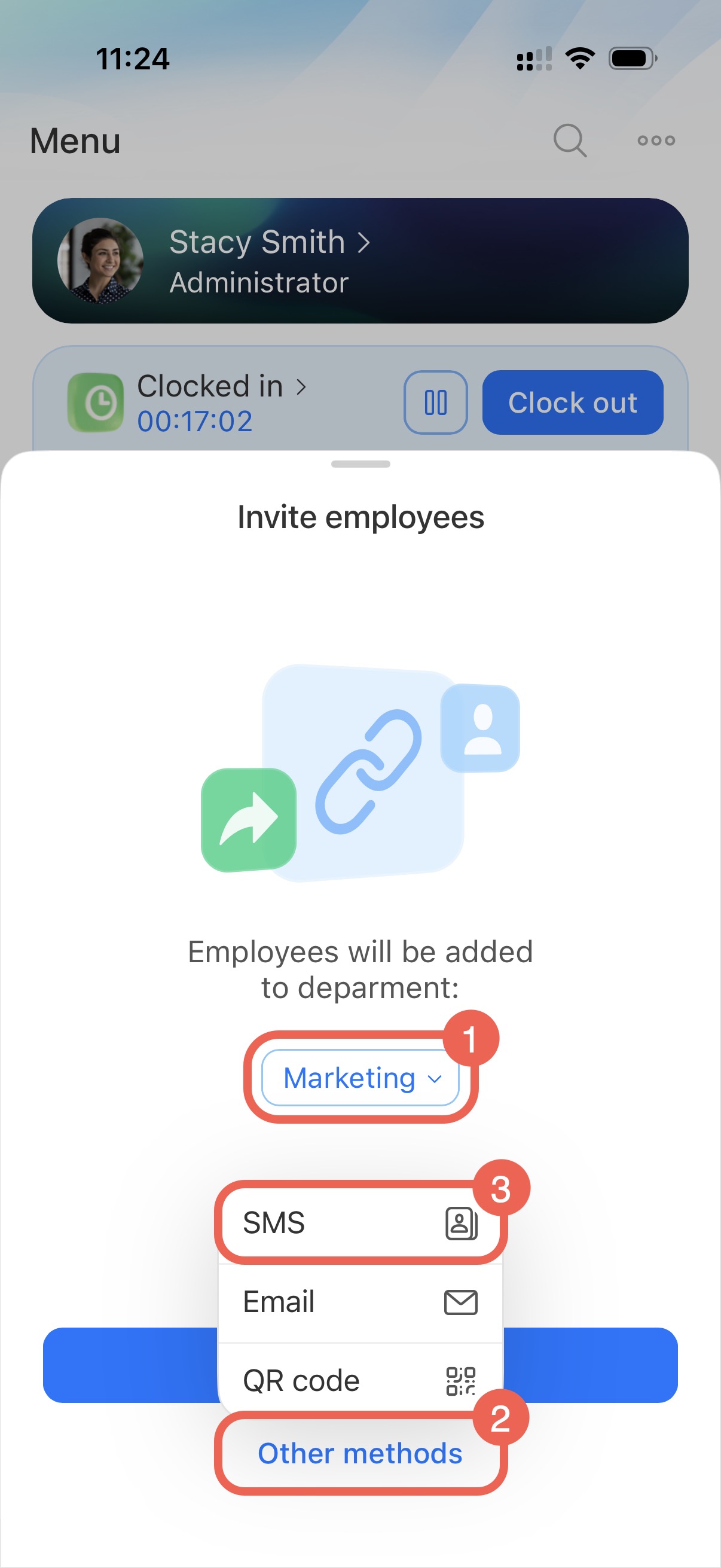
1. Select the department.
2–3. Tap Other methods > SMS. Bitrix24 will open your contacts.
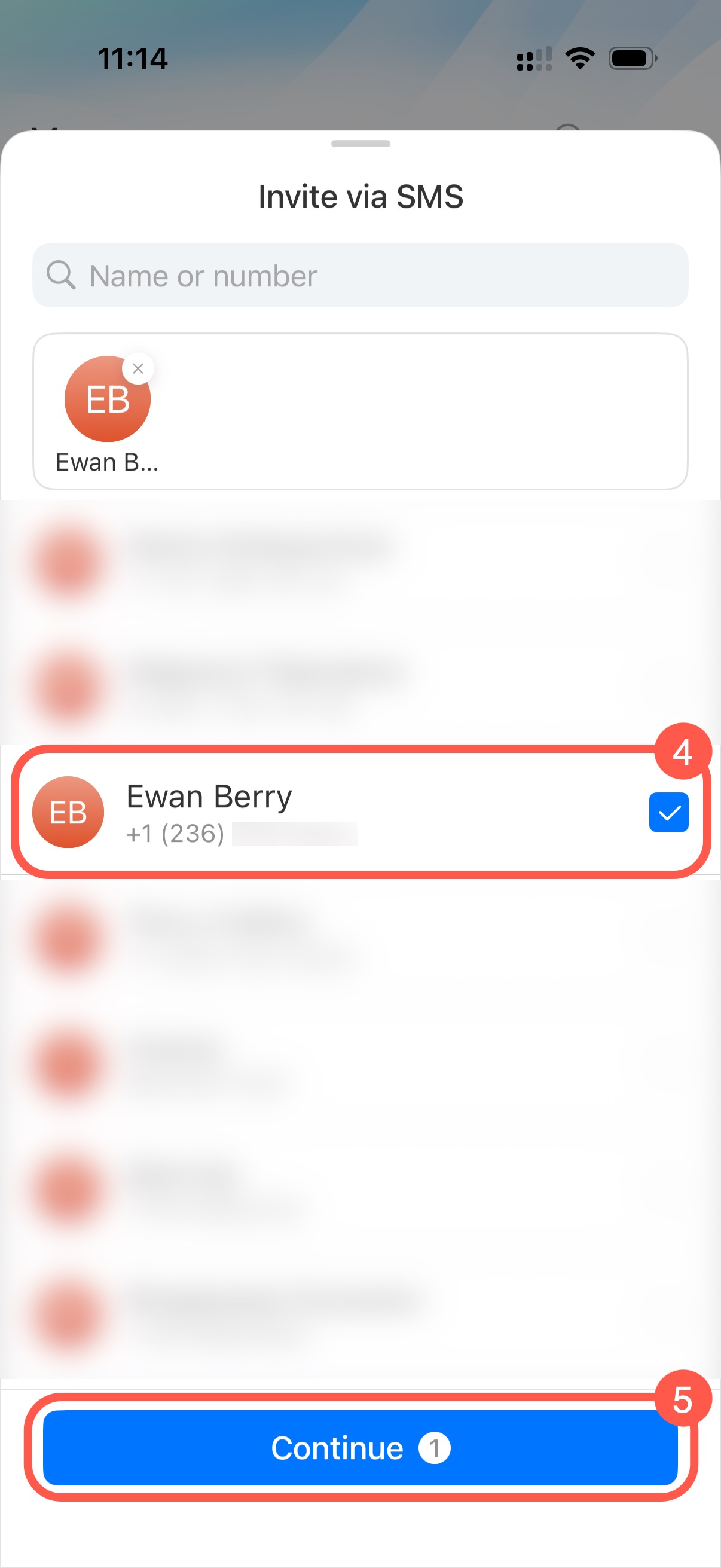
4–5. Select contacts or enter phone numbers. Check the box next to the employee’s name. Tap Continue.
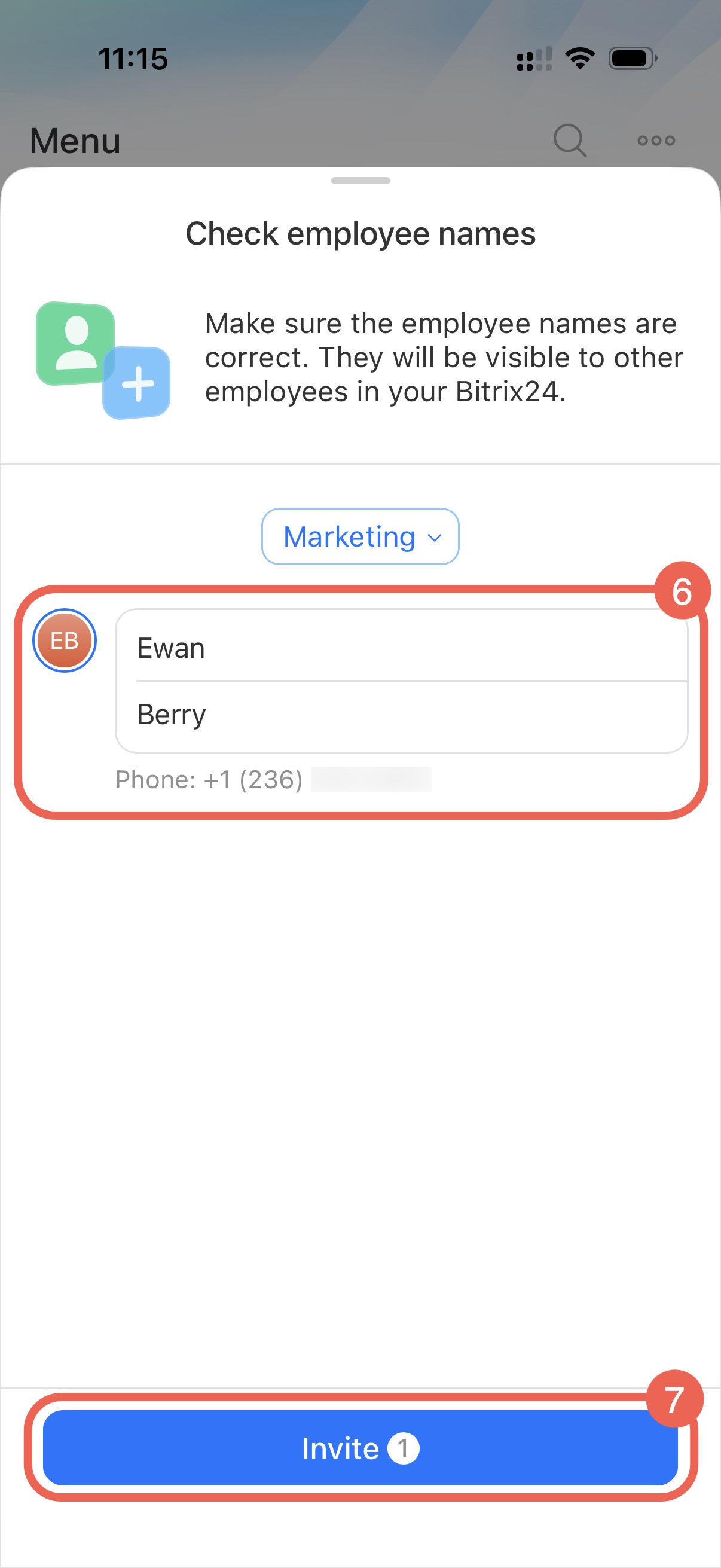
6–7. Check that the employee’s name is correct. Colleagues will see this name in Bitrix24. Tap Invite.
Invite via email app. Use this option if an email app such as Outlook or Apple Mail is installed. The invitation is sent from your work email, which increases trust.
1. Select the department.
2–3. Tap Other methods > Email.
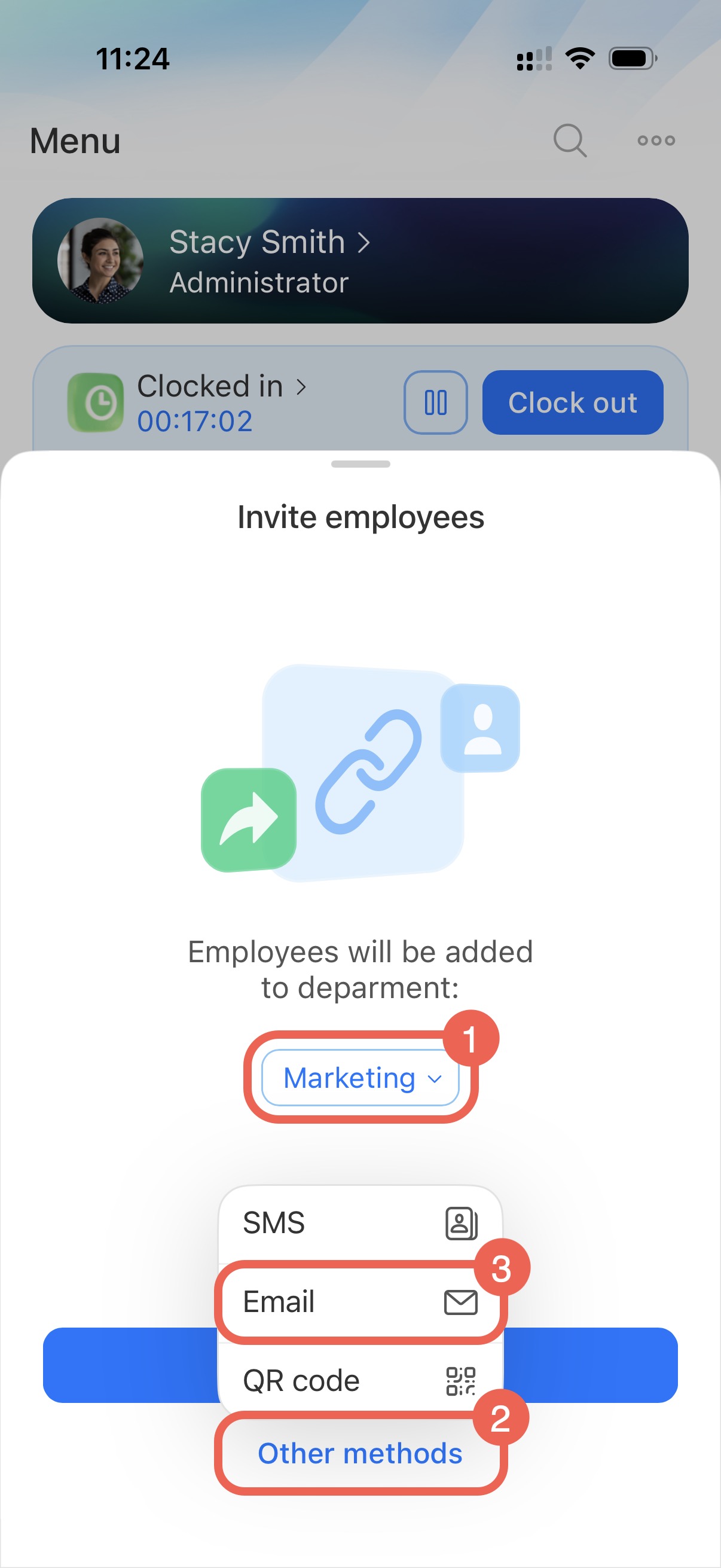
4. Tap Invite. The email app will open.
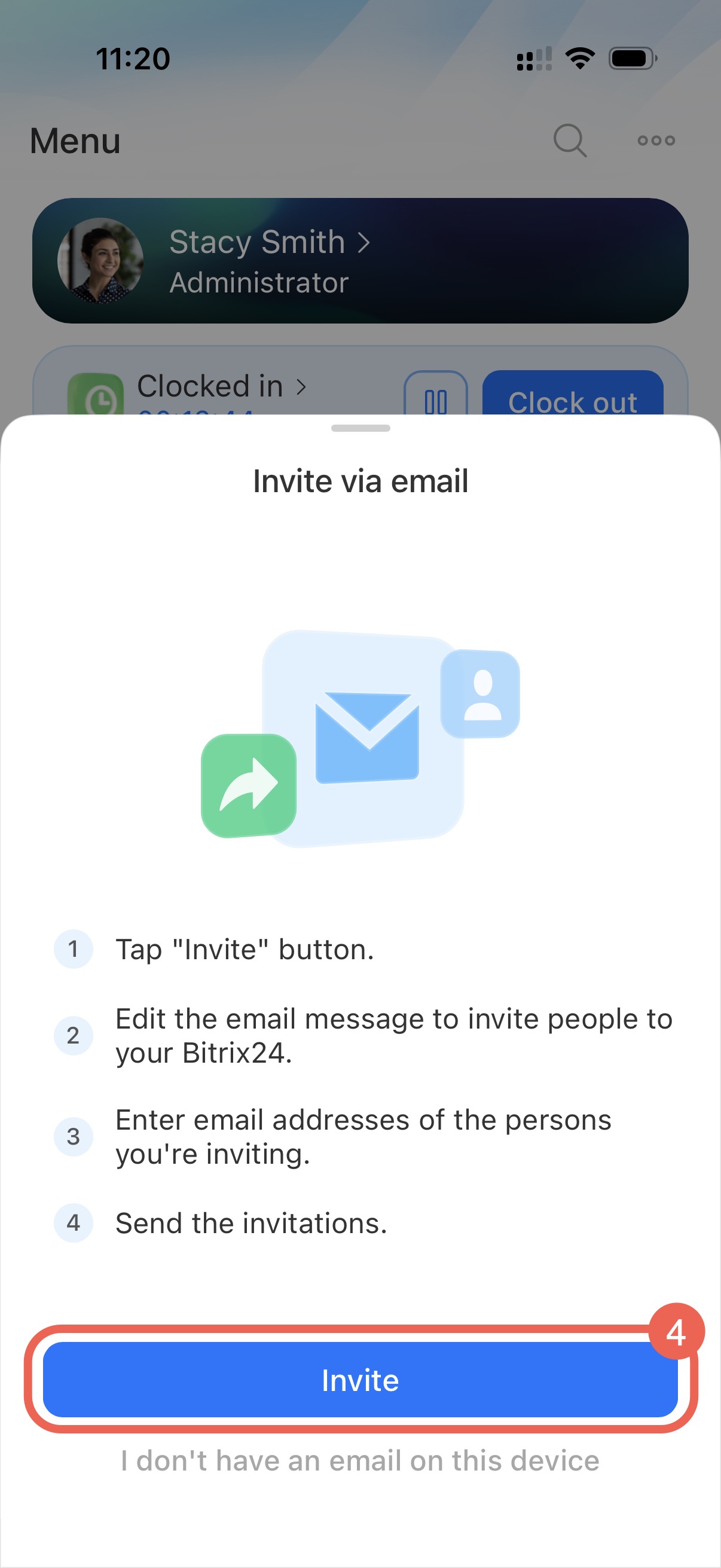
5–6. Enter employee email addresses and send the message. Use the default invitation template or edit it.
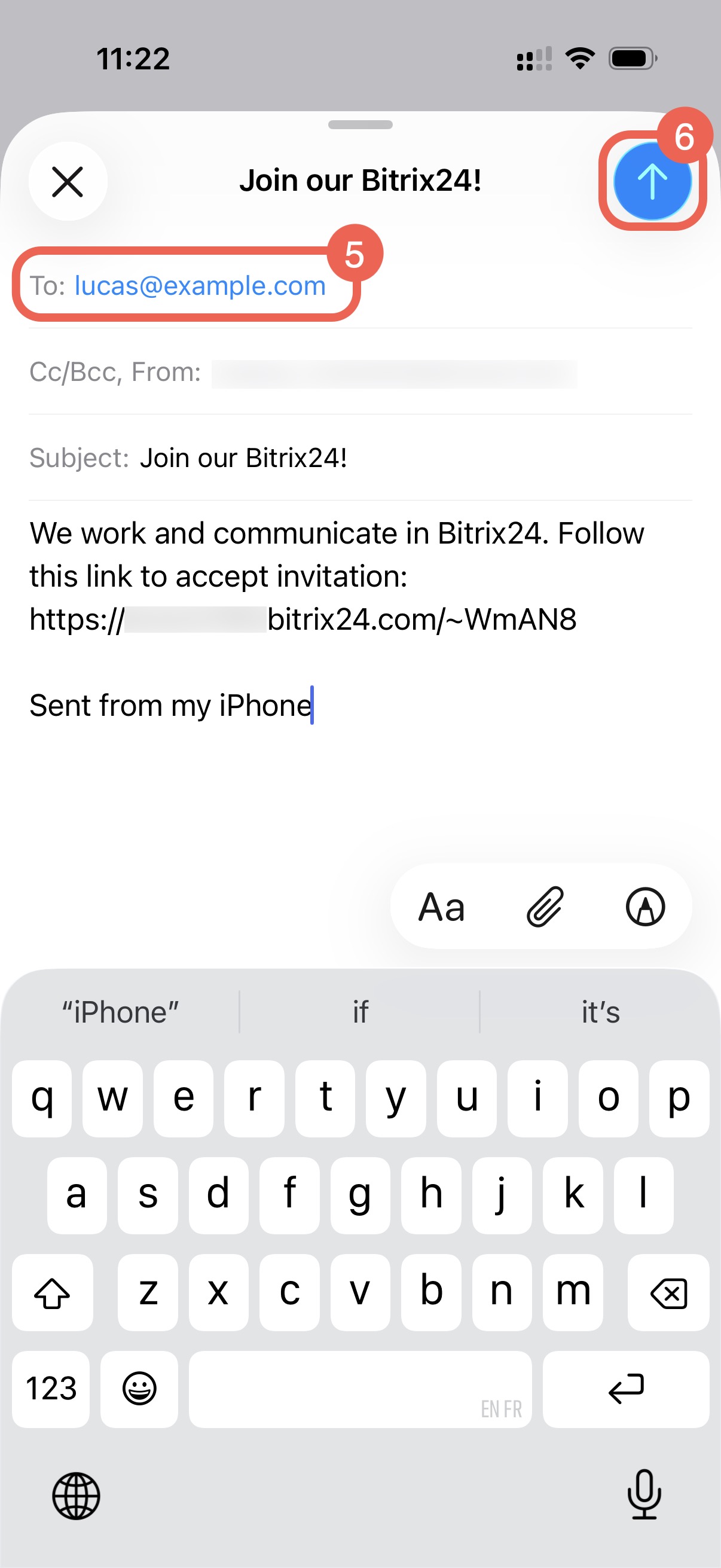
Invite via Bitrix24 email service. Use this option if no email app is configured on your smartphone.
1–3. Select the department. Tap Other methods > Email.
4. To send the invitation via Bitrix24 email service, tap I don’t have an email on this device.
5–6. Enter email addresses. If there are several, separate them with spaces. Tap Continue.
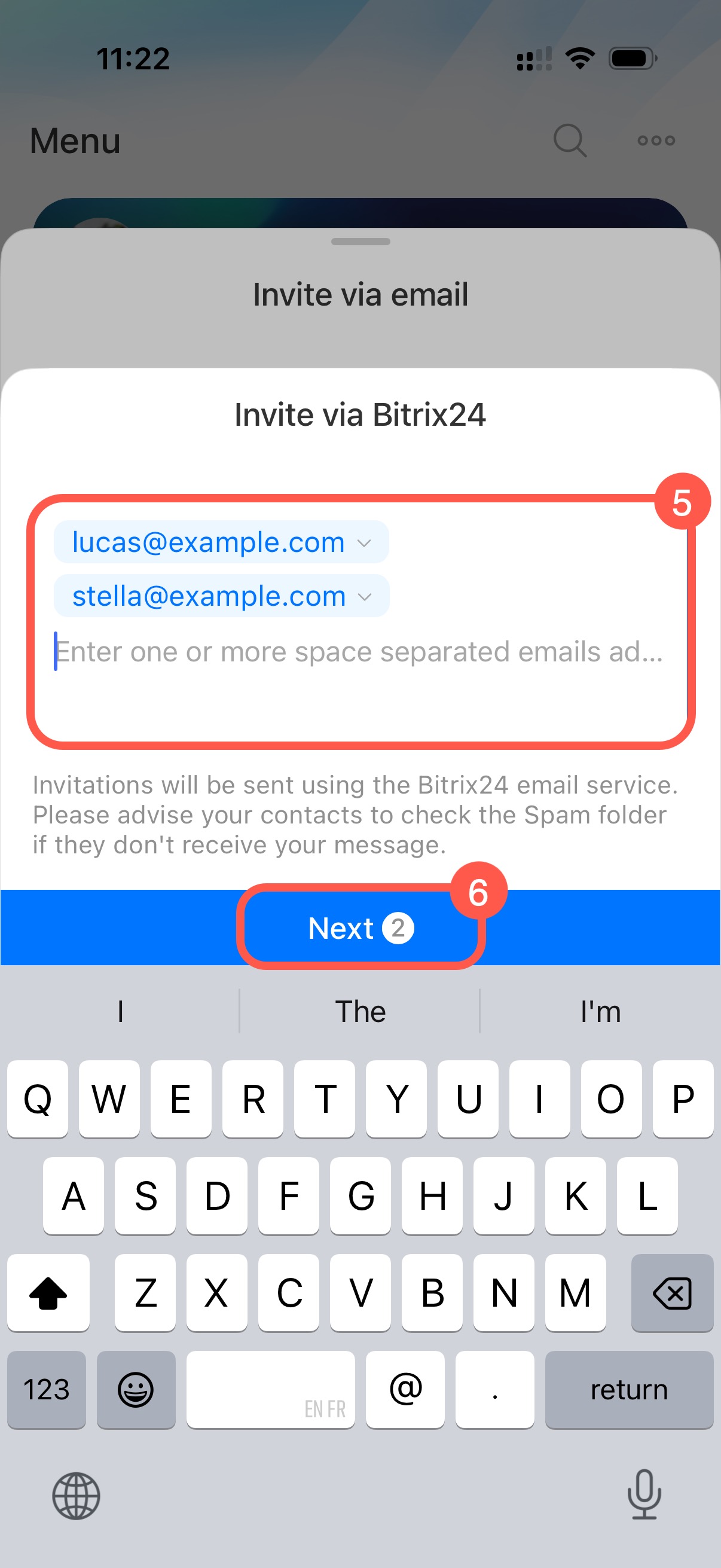
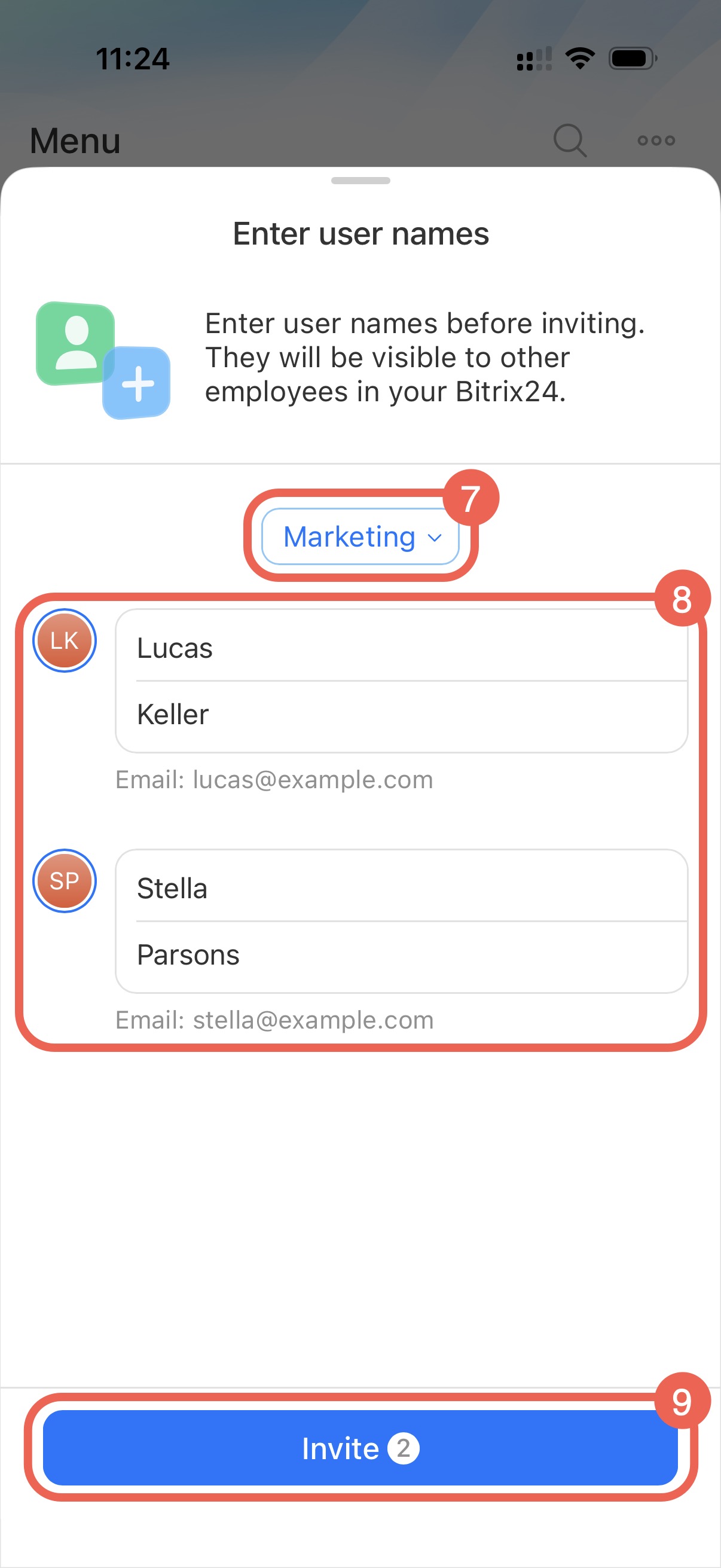
7. Check the selected department.
8–9. Enter the employee’s name. Other Bitrix24 users will see this name. Tap Invite.
Invite by QR code. Best for inviting employees in person.
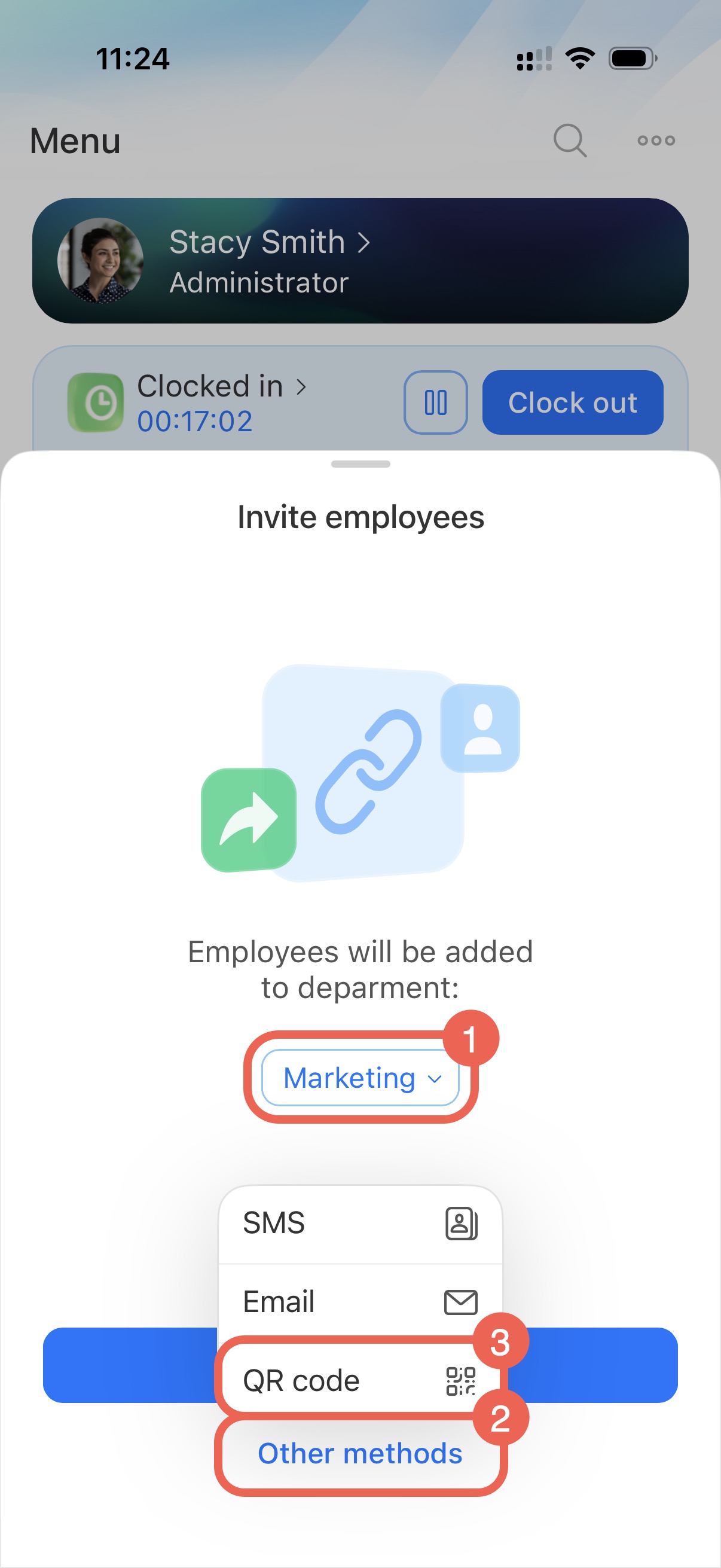
1. Select the department.
2–3. Tap Other methods > QR code.
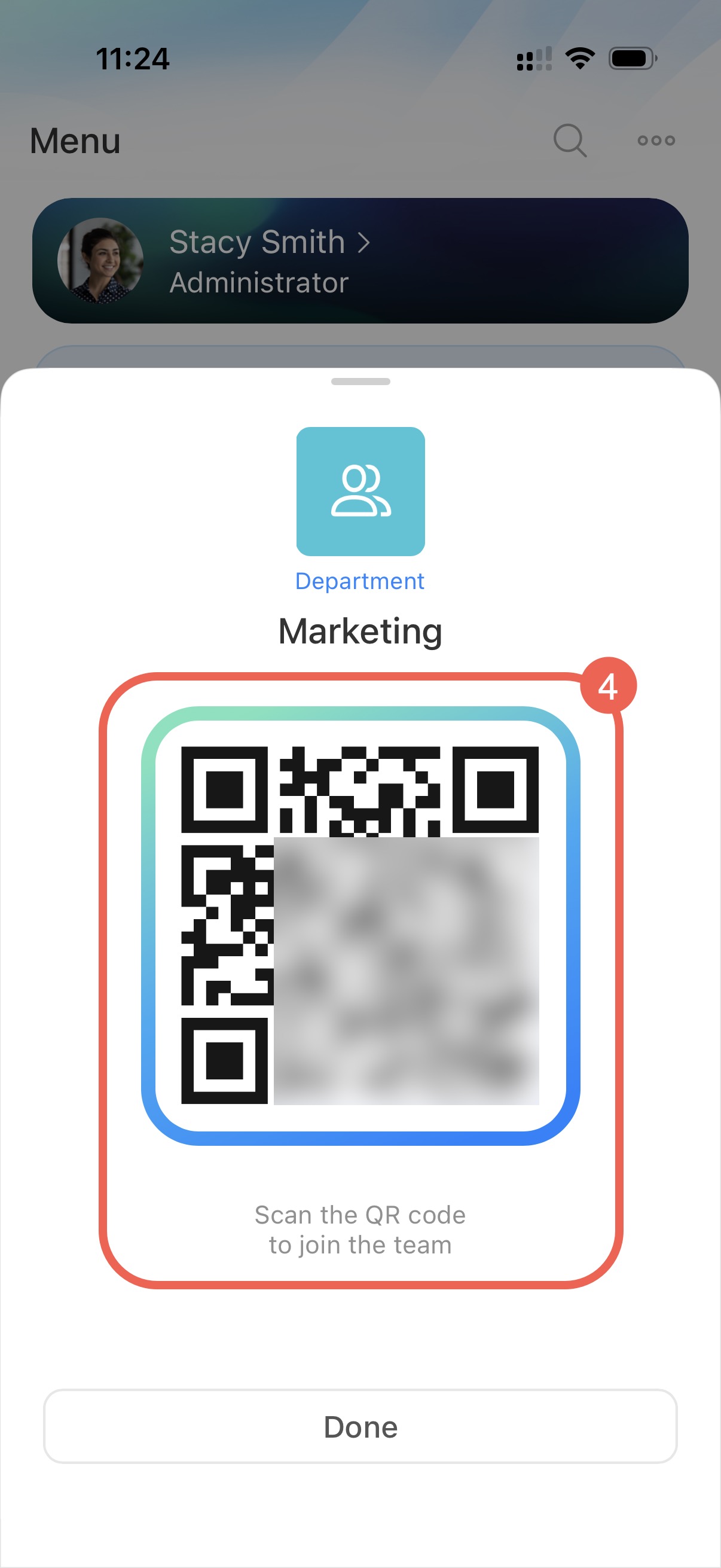
4. Show the QR code so the employee can scan it on their phone.
Invitation counters
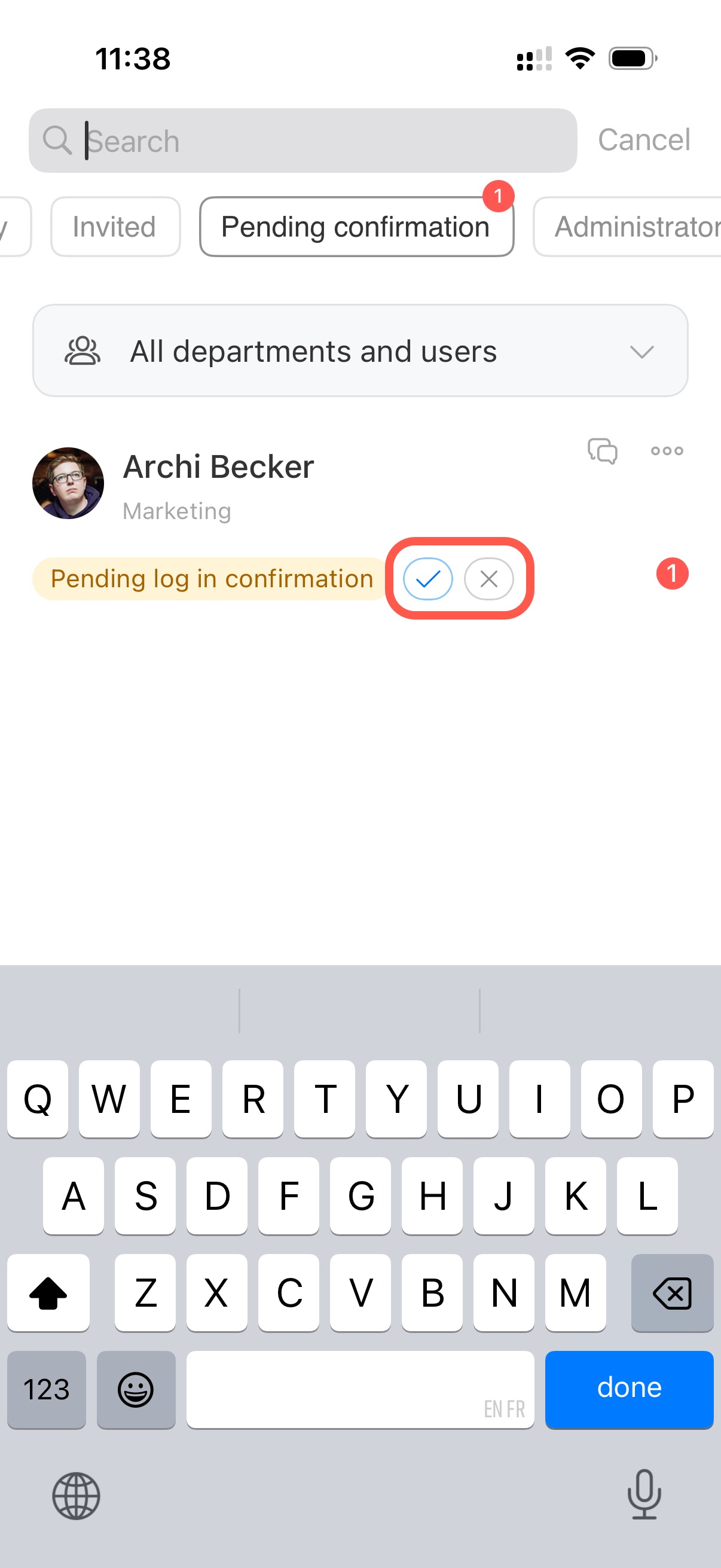
The Employees section includes counters in the Invited and Pending confirmation tabs. Use them to track who has not accepted the invitation and quickly approve new users in Bitrix24.
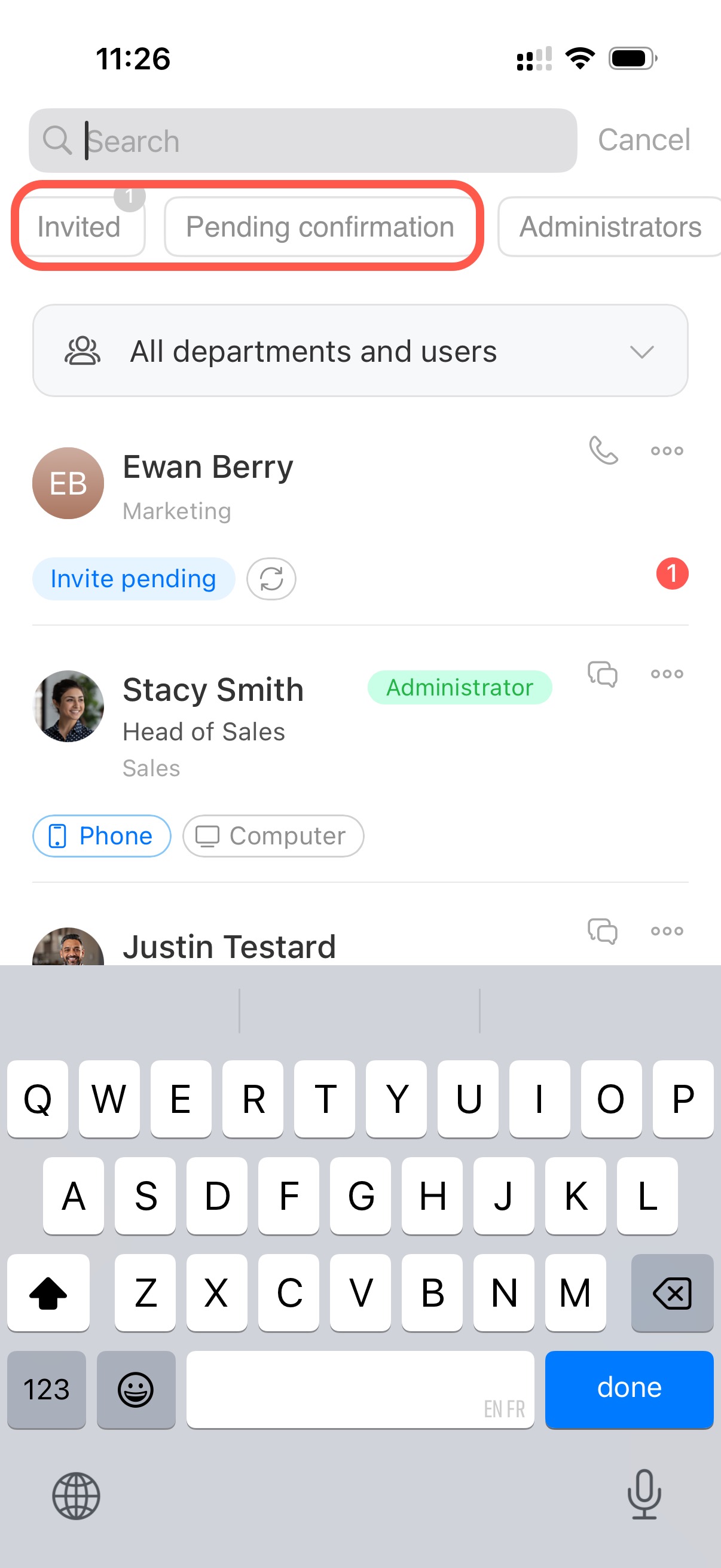
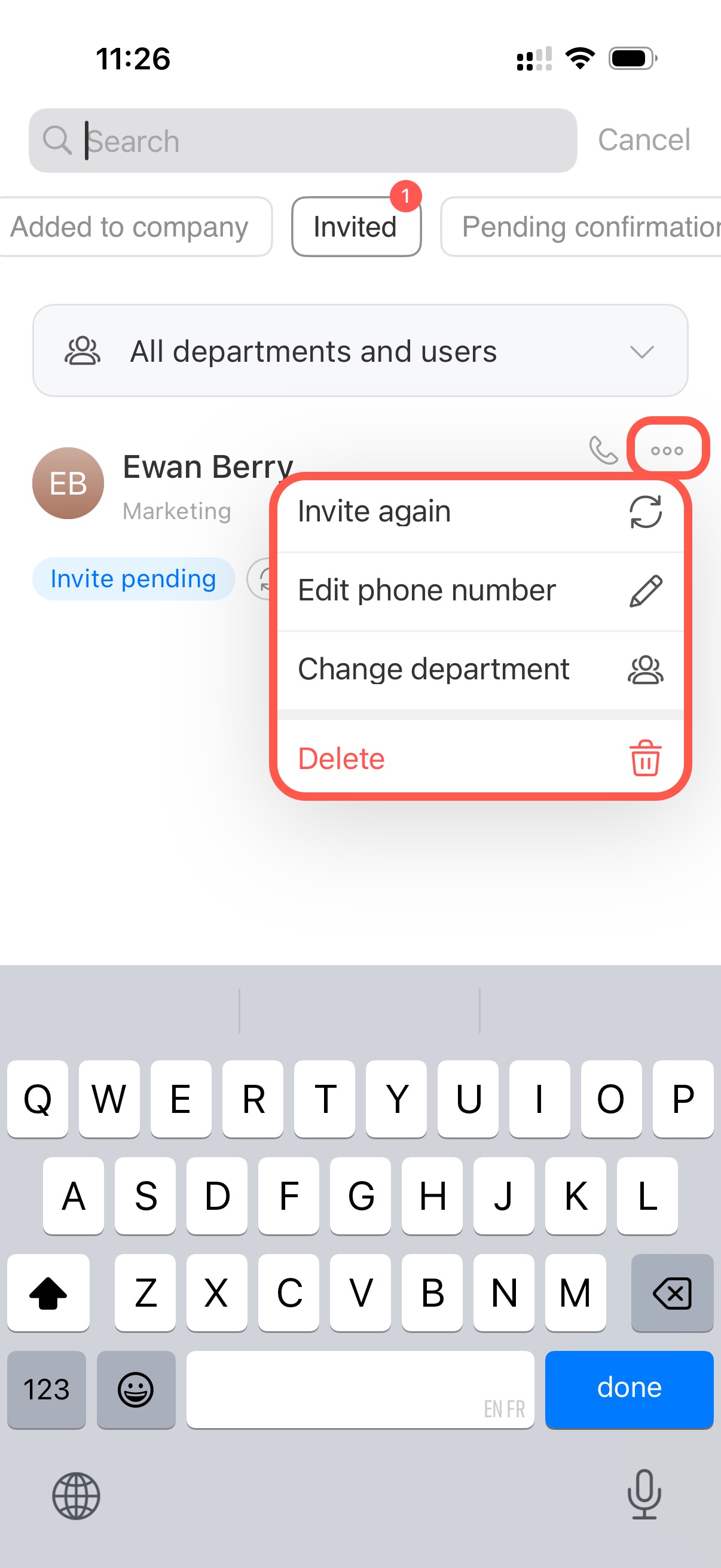
Invited. Shows the number of users who have not accepted the invitation. Resend the invitation, change the email, update the department, or delete the employee. Tap Three dots (...) and choose an action.
Pending confirmation. Shows the number of new users waiting for administrator approval. Tap the check mark to approve access or the cross icon to decline.