
If two-factor authentication is enabled, you need to confirm your login after you enter your username and password. Use a trusted device, such as a phone or tablet with the Bitrix24 mobile app installed.
If you log in on another device, open the Bitrix24 mobile app on your trusted device and tap Yes, it’s me.
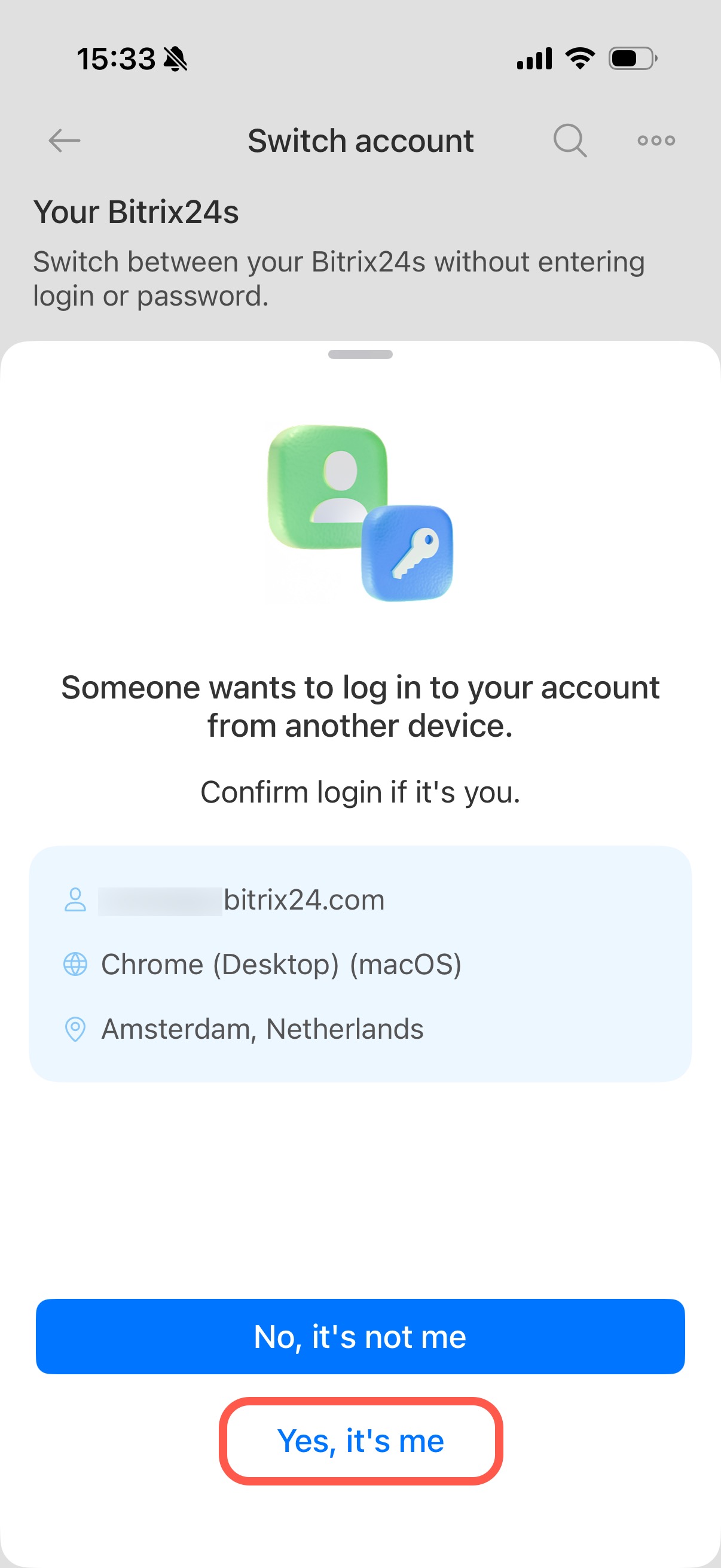
If you lost your phone or cannot open the mobile app, use one of these options:
- By email
- Log in with an SMS code
- Log in with a recovery code
- Using a code from the app
- Ask your Bitrix24 administrator to temporarily disable two-factor authentication
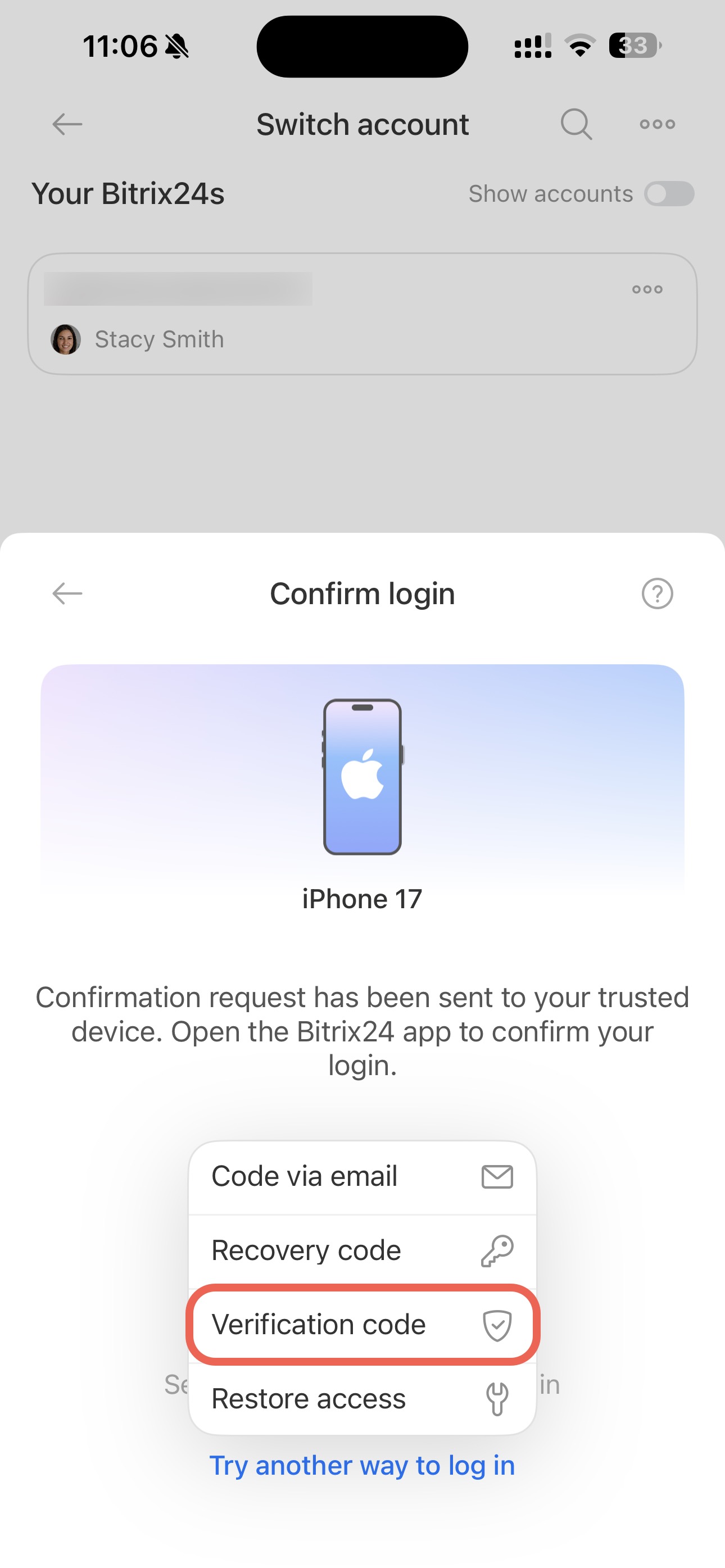
Select Try another way to log in.
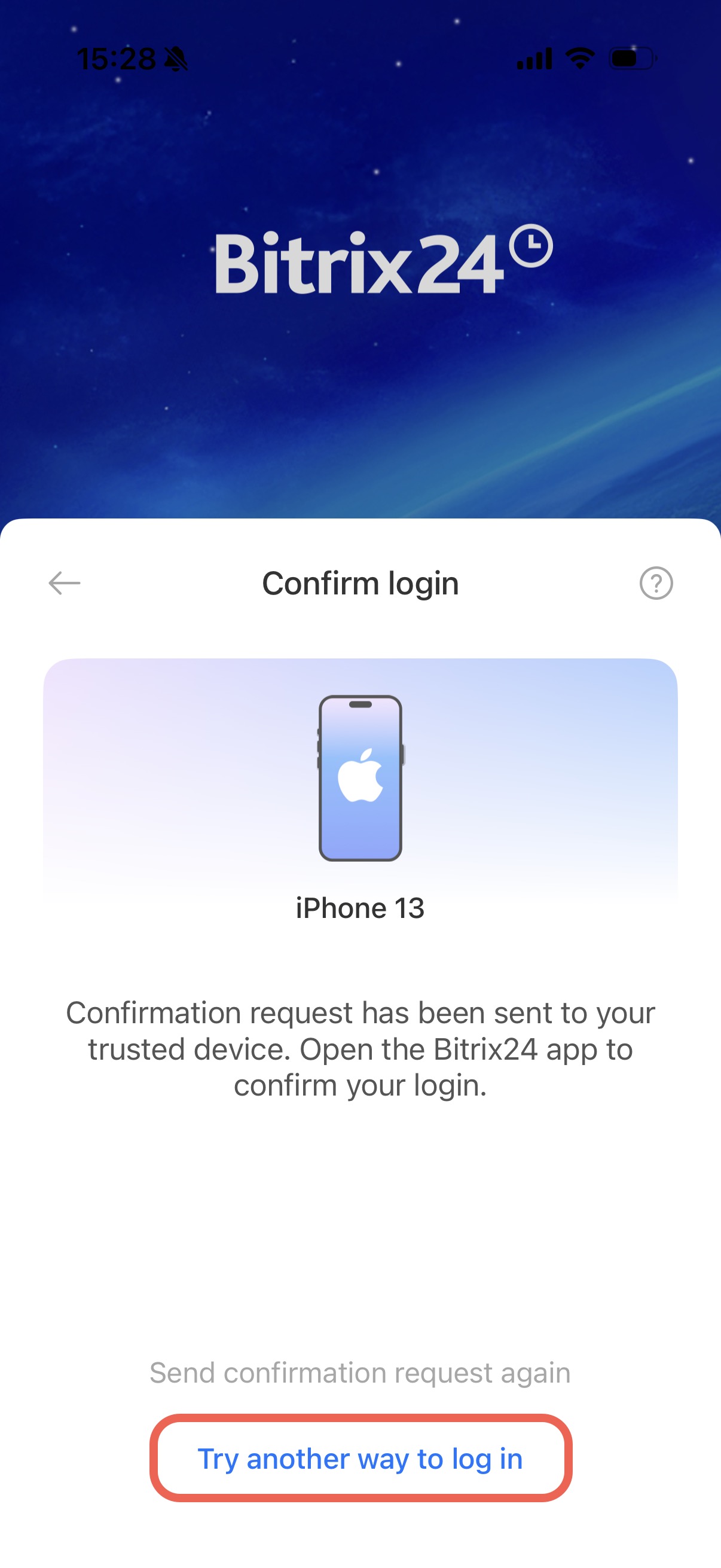
Log in with an email code
This method is suitable if you don't have access to your phone number but can access the email address you provided when setting up two-factor authentication.
Tap Code via email.
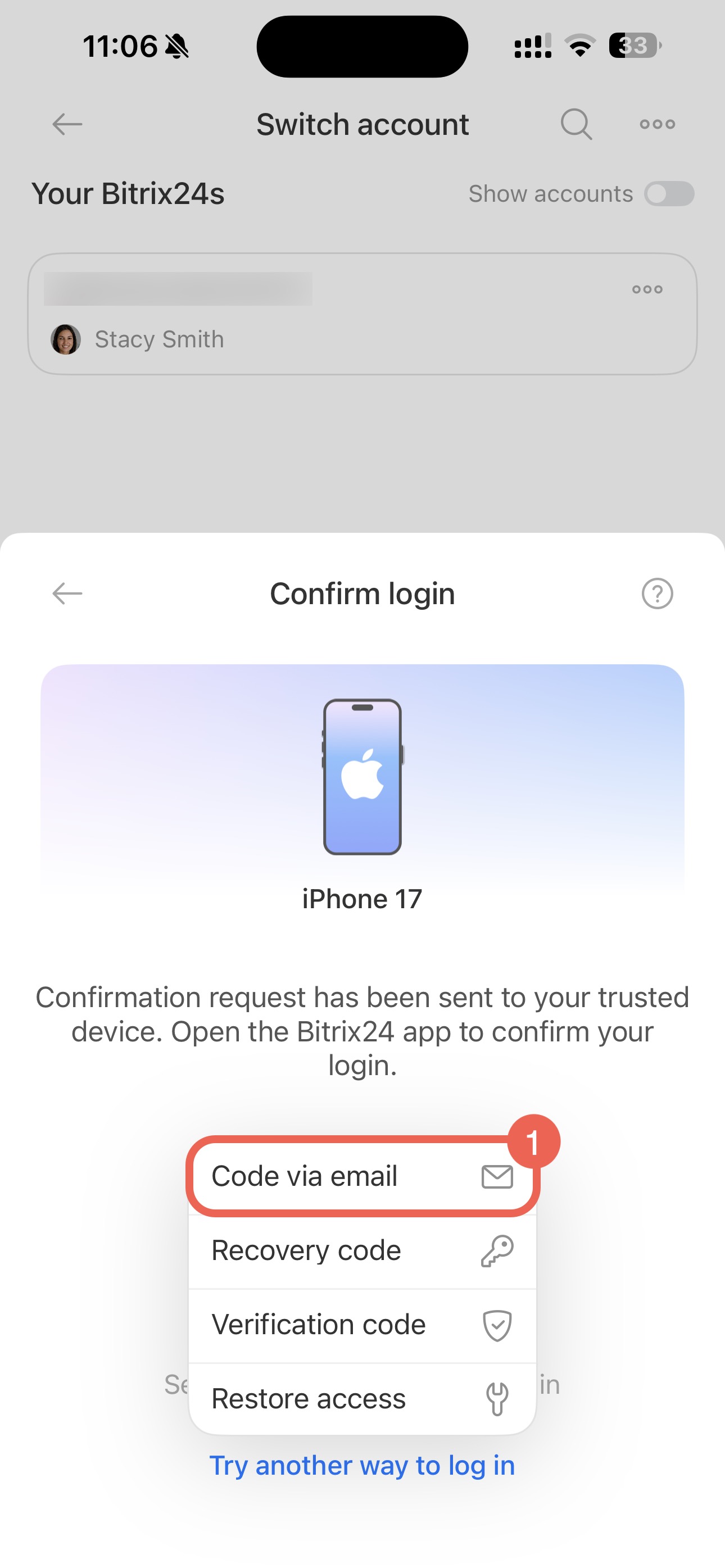
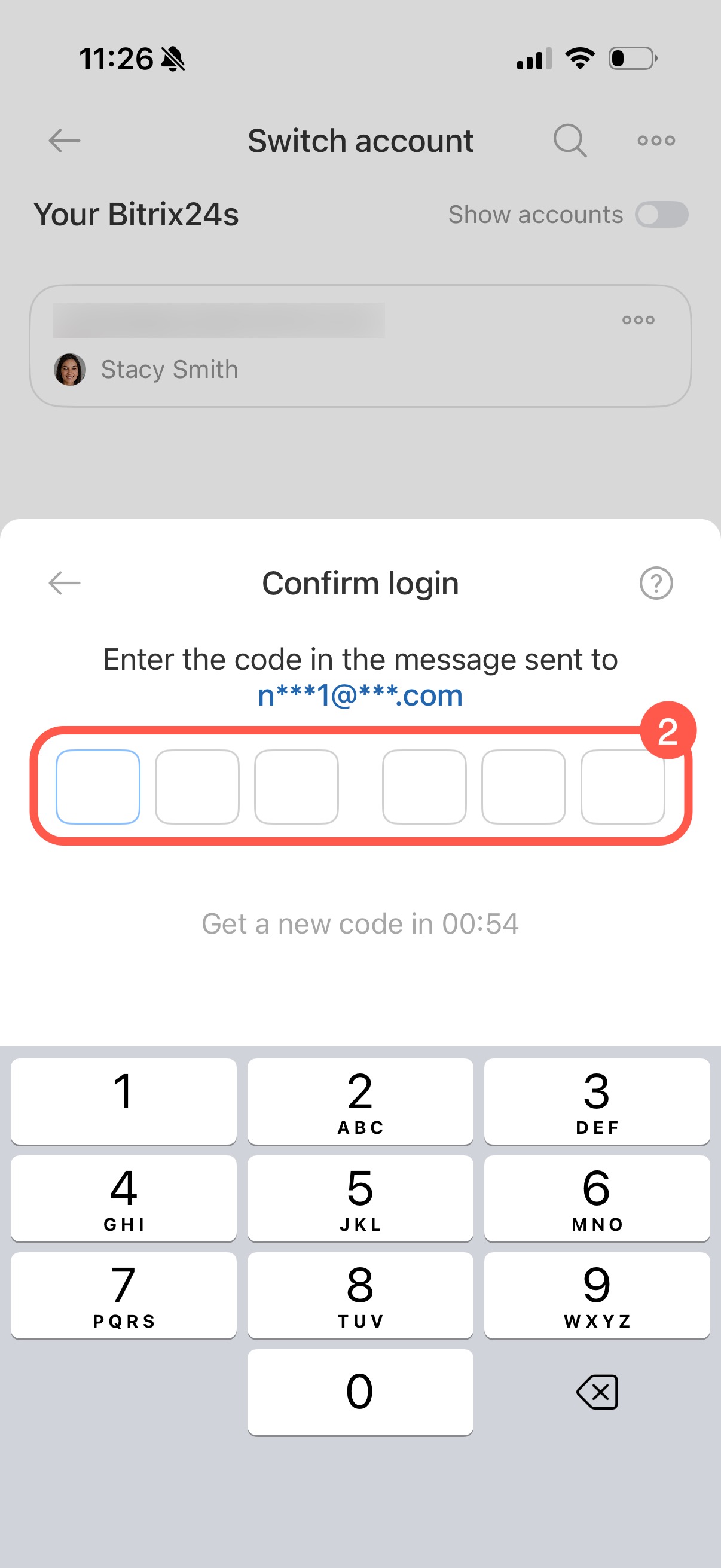
Enter the code you received by email.
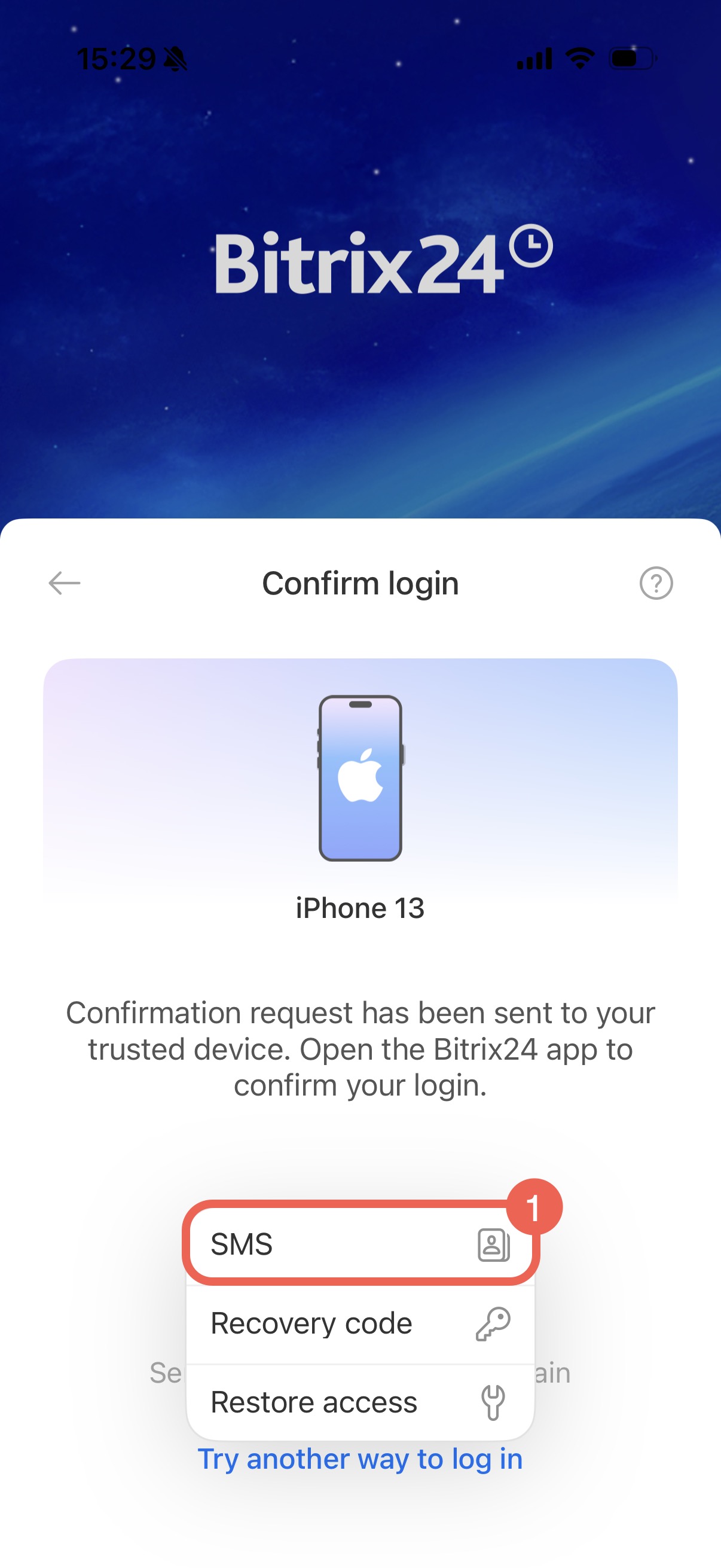
Log in with an SMS code
Use this option if you still have access to the phone number linked to your account.
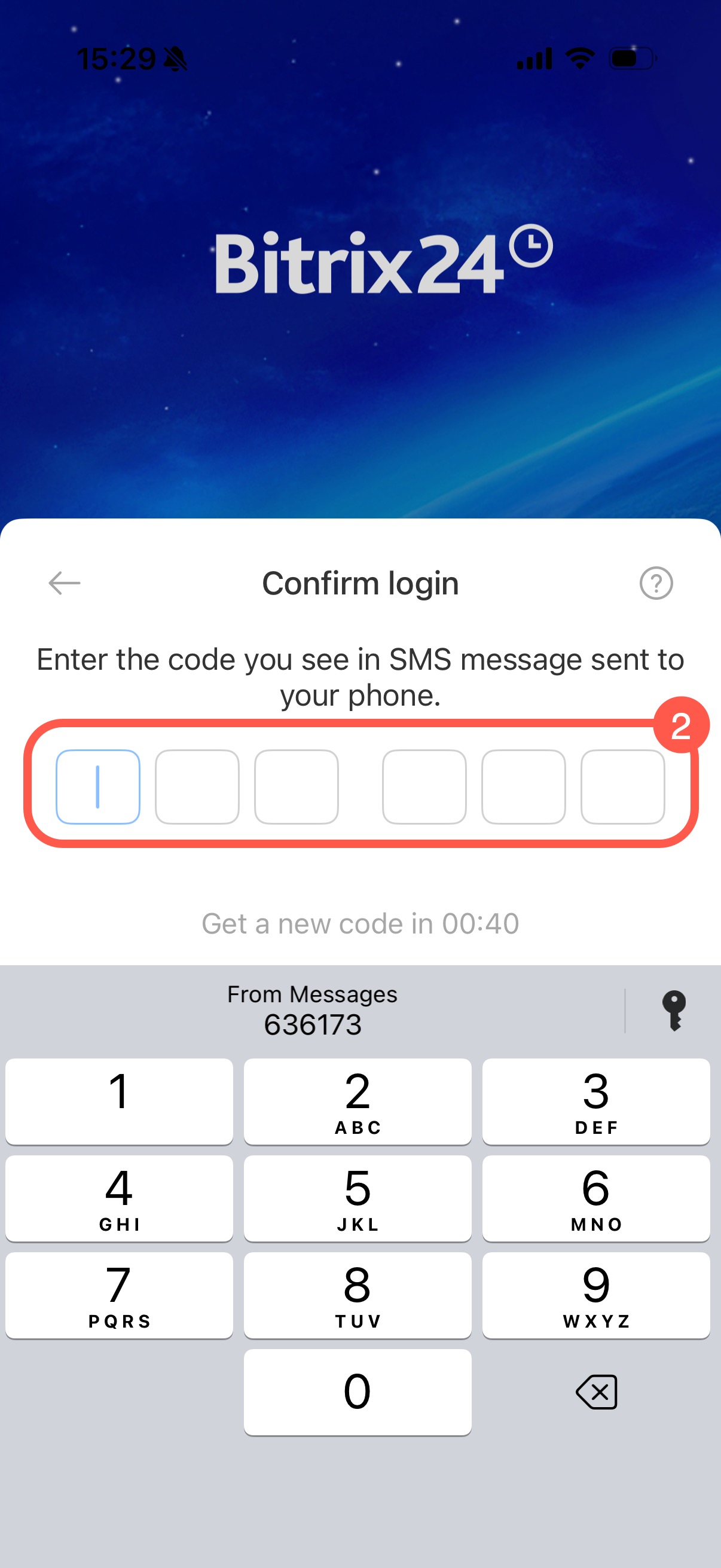
- Tap SMS. Bitrix24 sends a text message to your phone.
- Enter the code from the message. You will be logged in automatically.
Log in with a recovery code
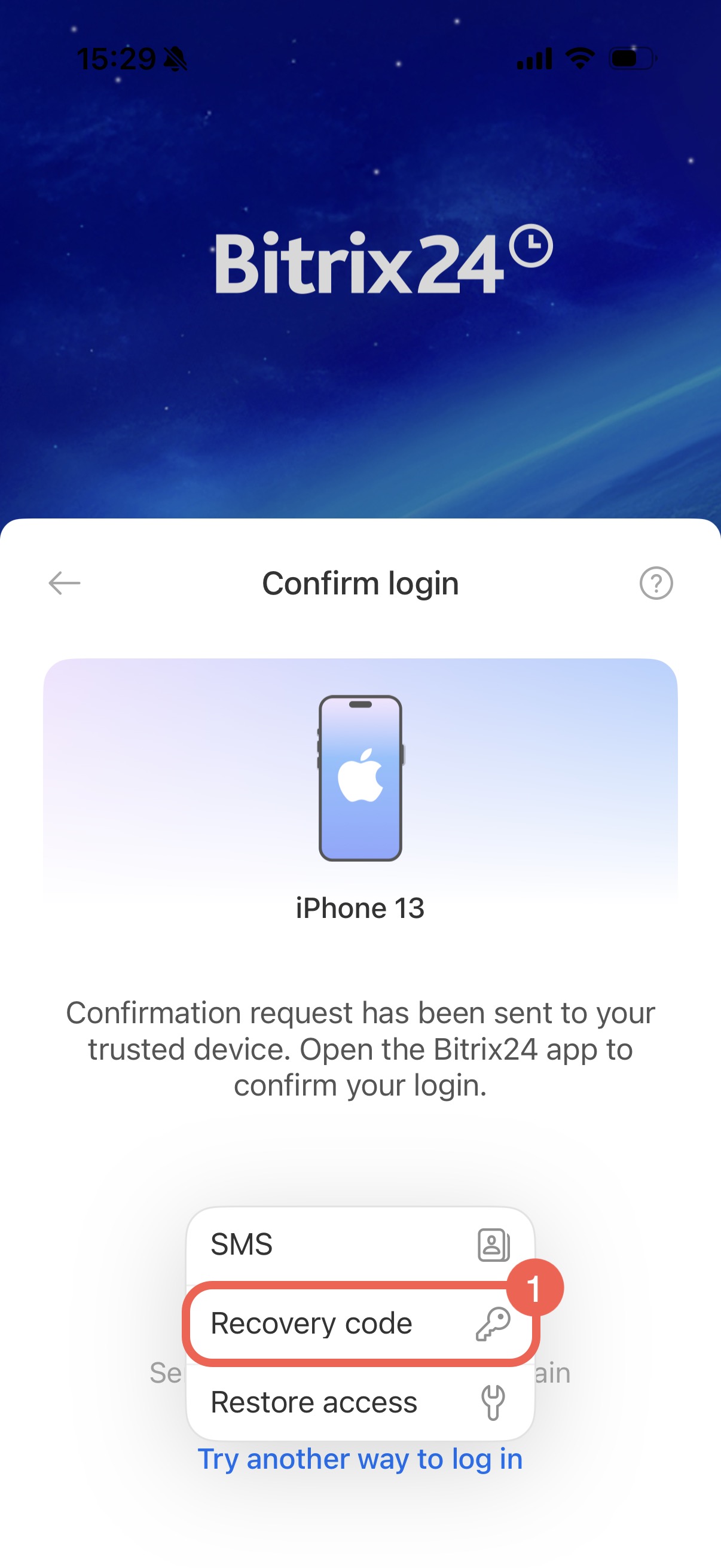
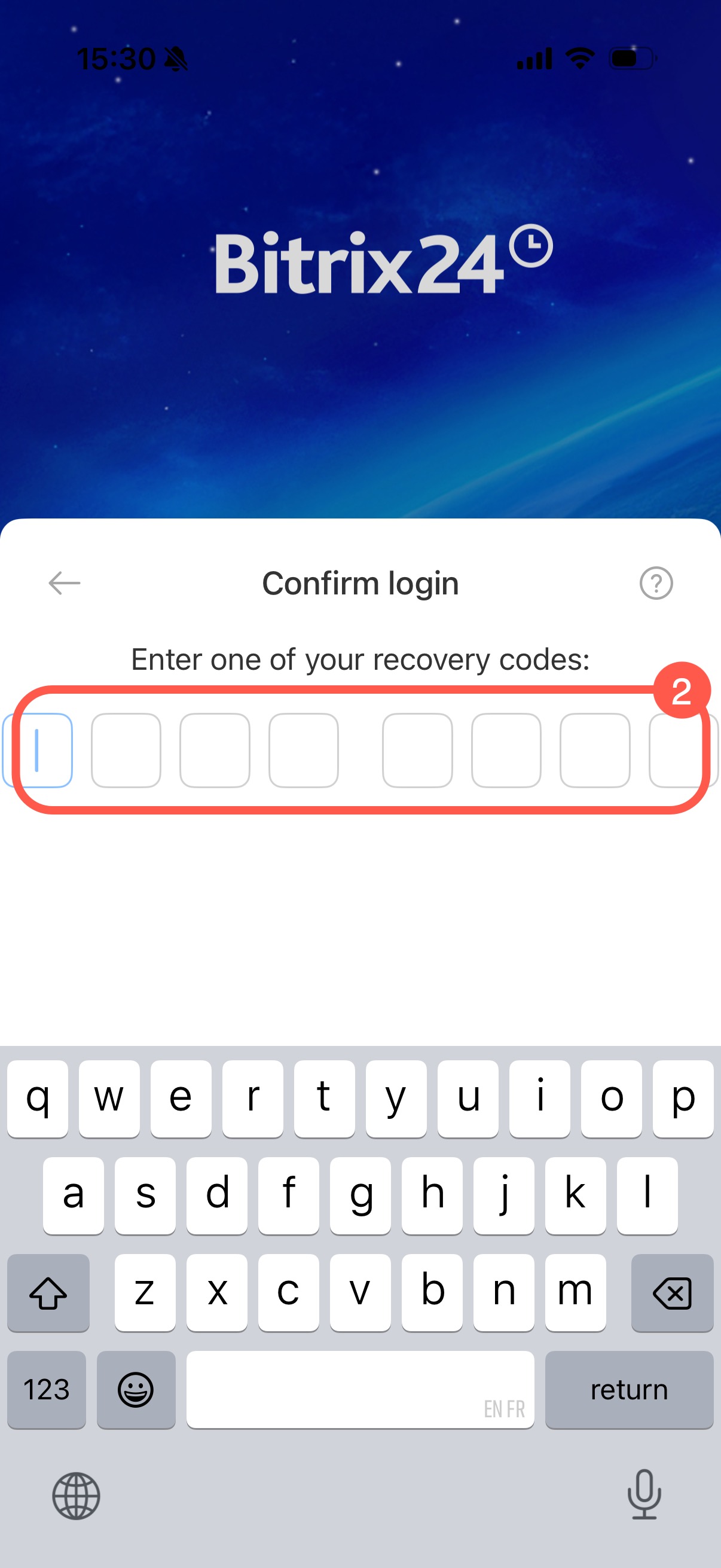
Recovery codes are generated when you set up two-factor authentication. If you saved the codes earlier, enter one of them to log in. Each code works only once.
- Tap Recovery code.
- Enter one of the saved codes. If the code is correct, you will be logged in.
Log in with a verification code
This is an alternative way to confirm your login using a trusted device.
Tap Verification code on the new device.
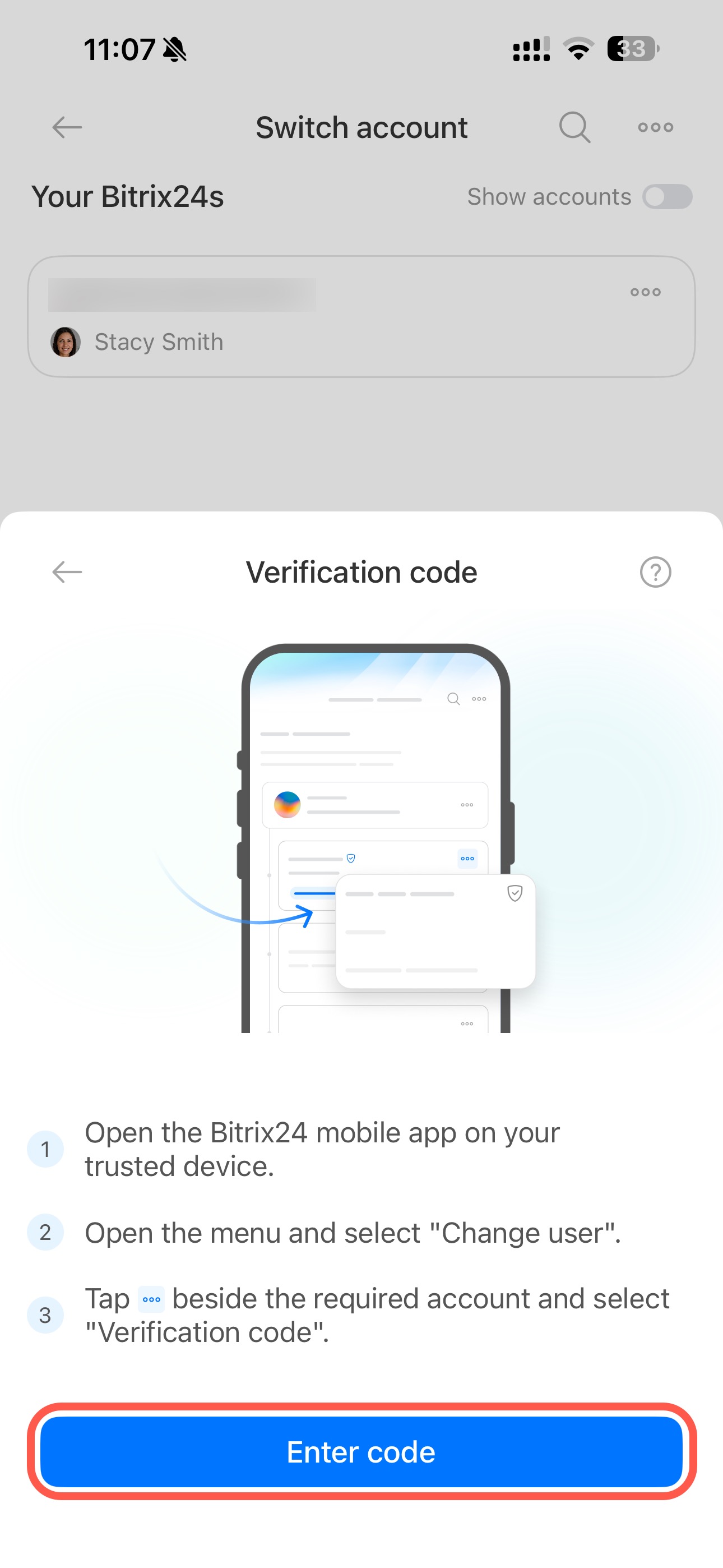
Then tap Enter code.
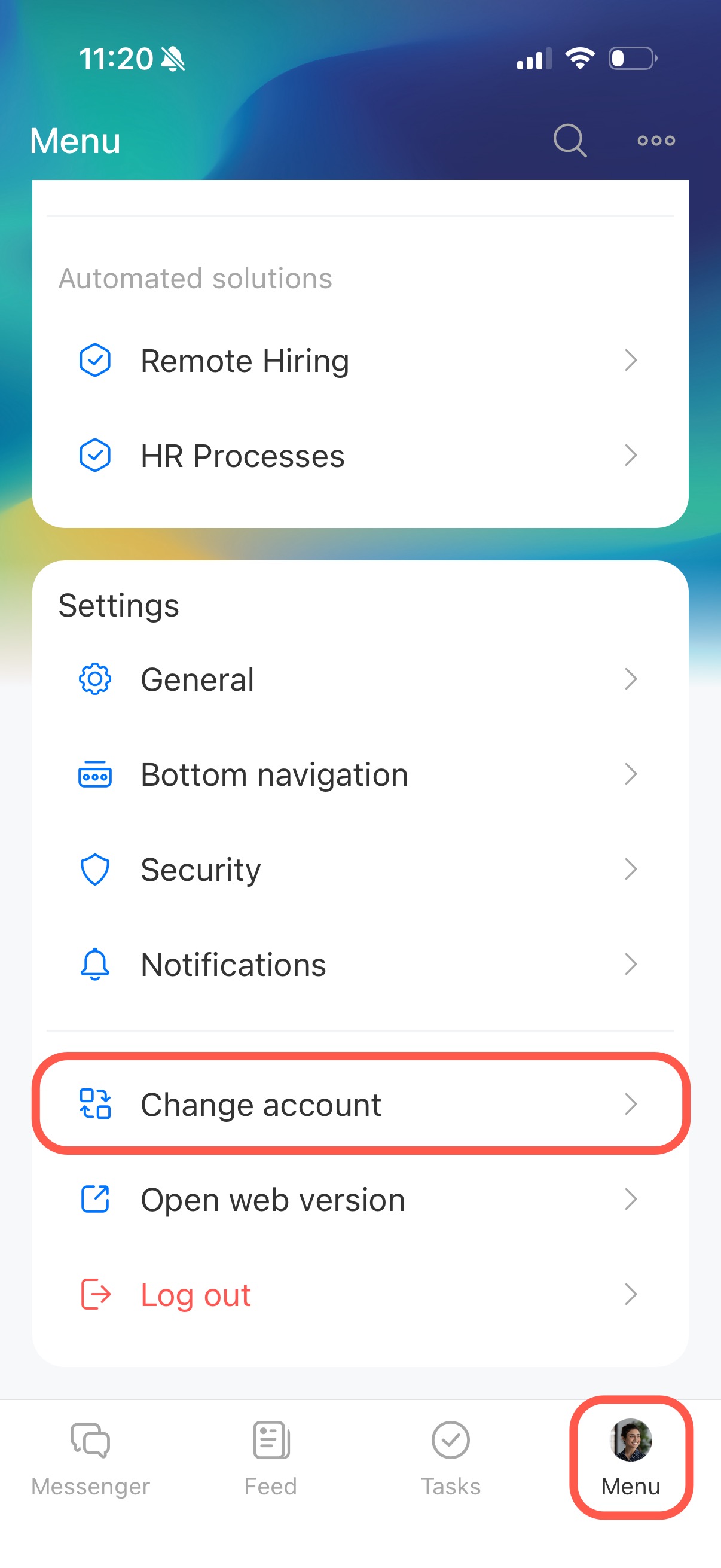
Open the Bitrix24 mobile app on the trusted device. Tap Menu > Change account.
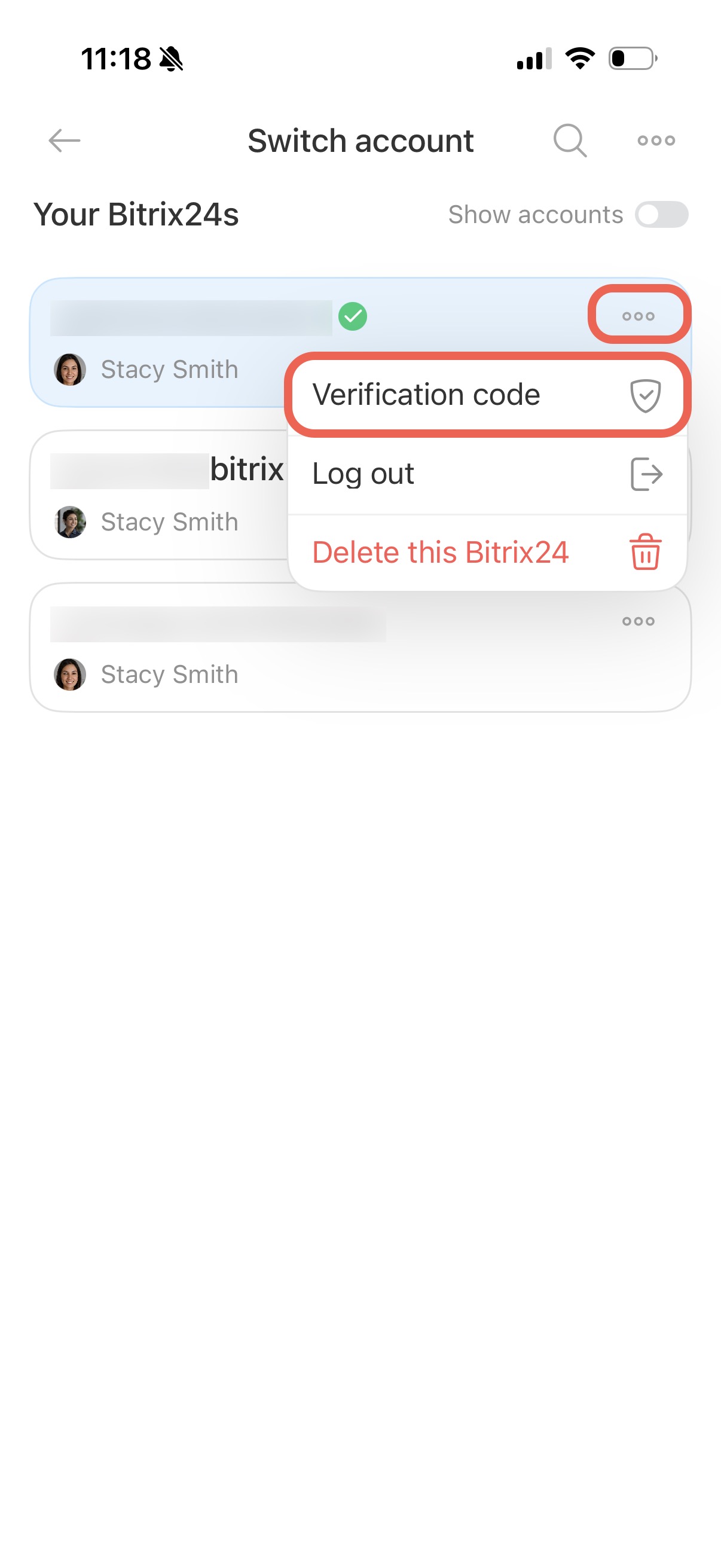
Tap the Three dots (...) > Verification code next to the account you want to use.
Copy or memorize the code that appears on the screen.
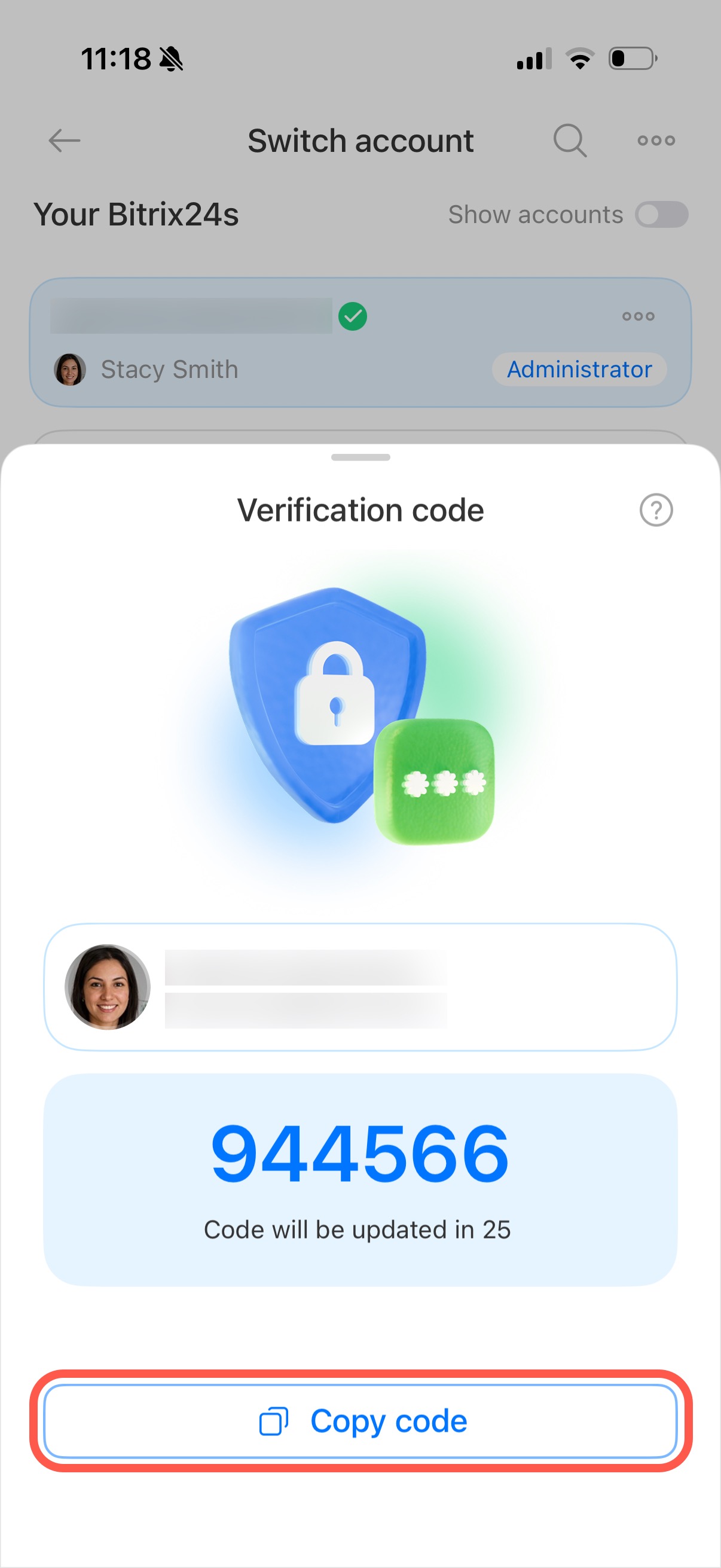
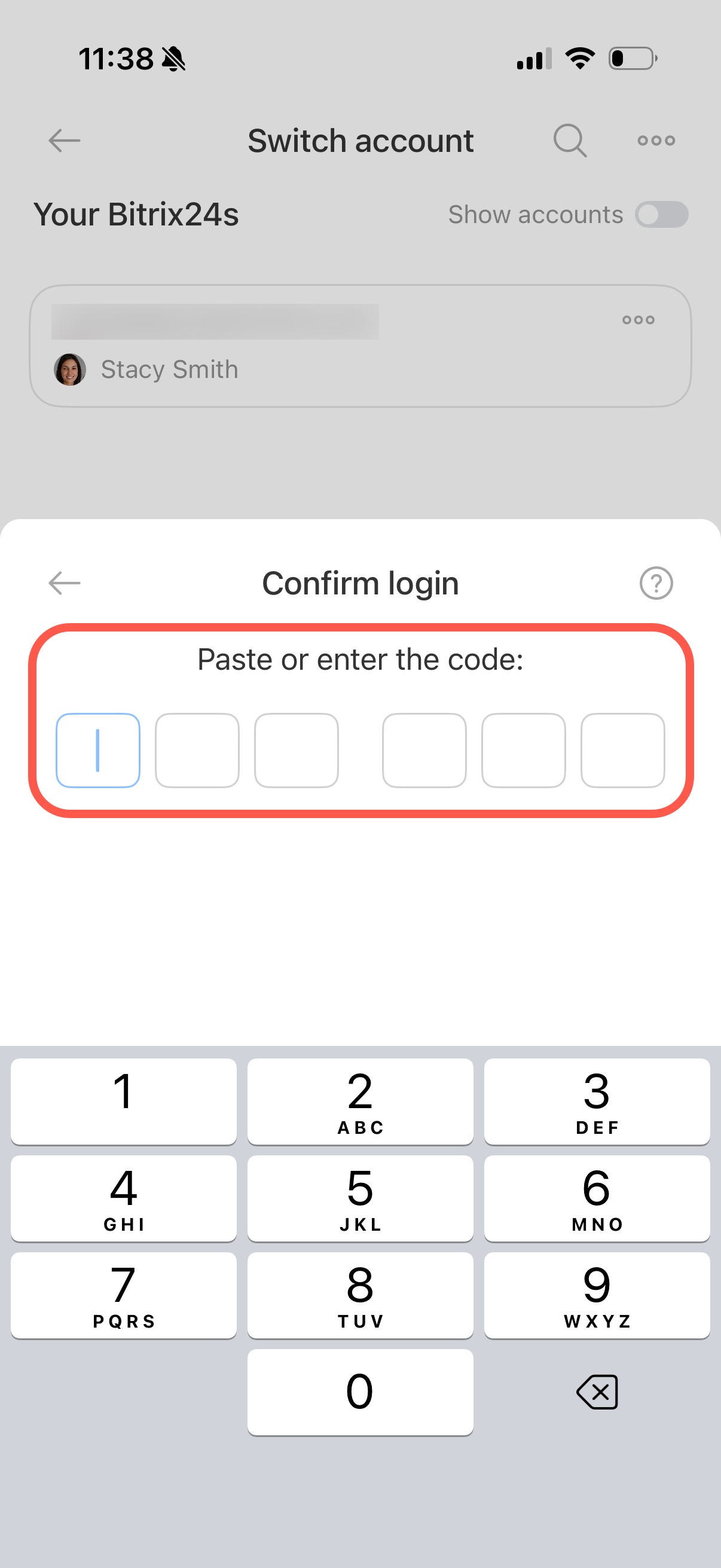
Enter the code in the field on your new device. You will then be logged into Bitrix24.
Ask your Bitrix24 administrator to temporarily disable two-factor authentication
If you cannot confirm your login with an SMS code or a recovery code, contact your Bitrix24 administrator and ask them to temporarily disable two-factor authentication for your account.