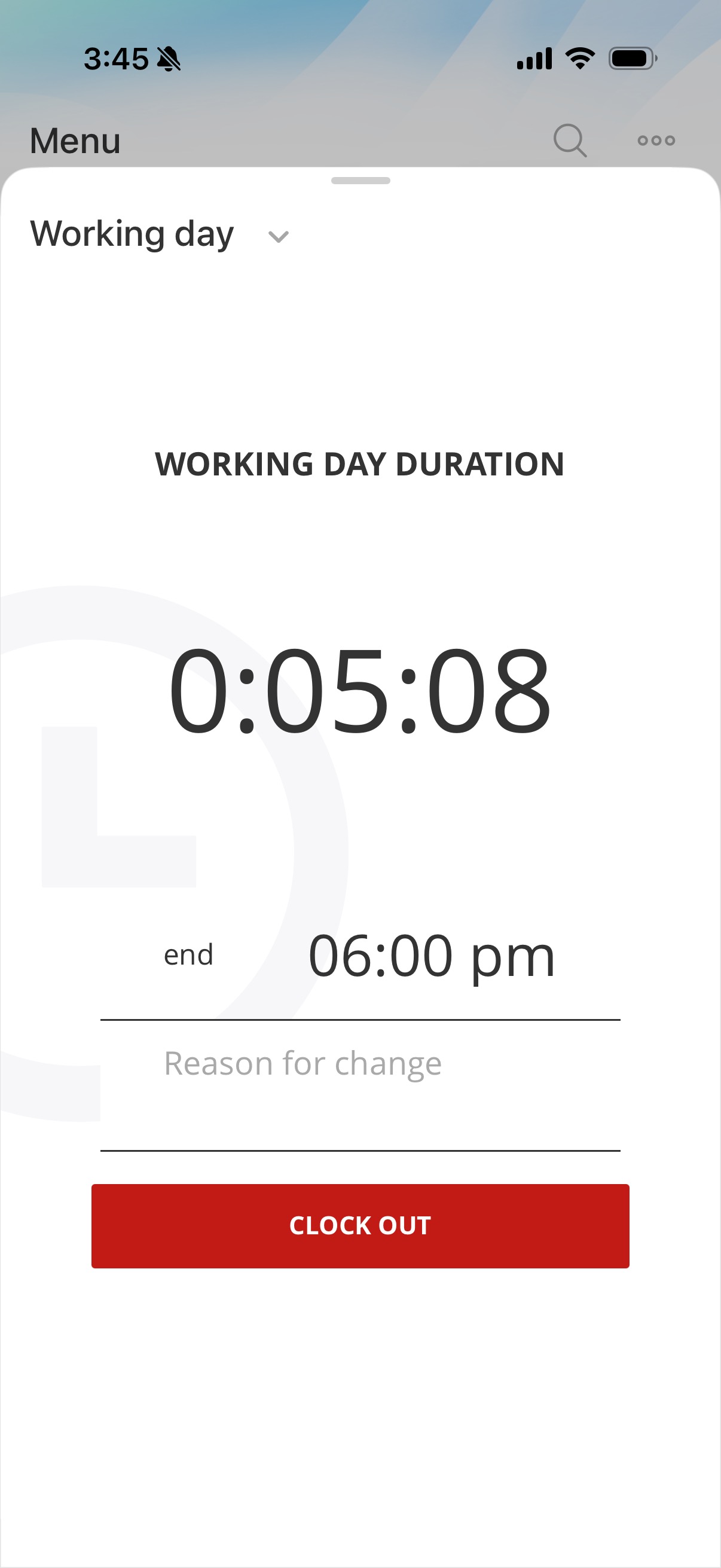
Use the Bitrix24 mobile app to clock in, take a break, and clock out. This helps you track your work hours and see your daily total.
In this article:
Start your workday
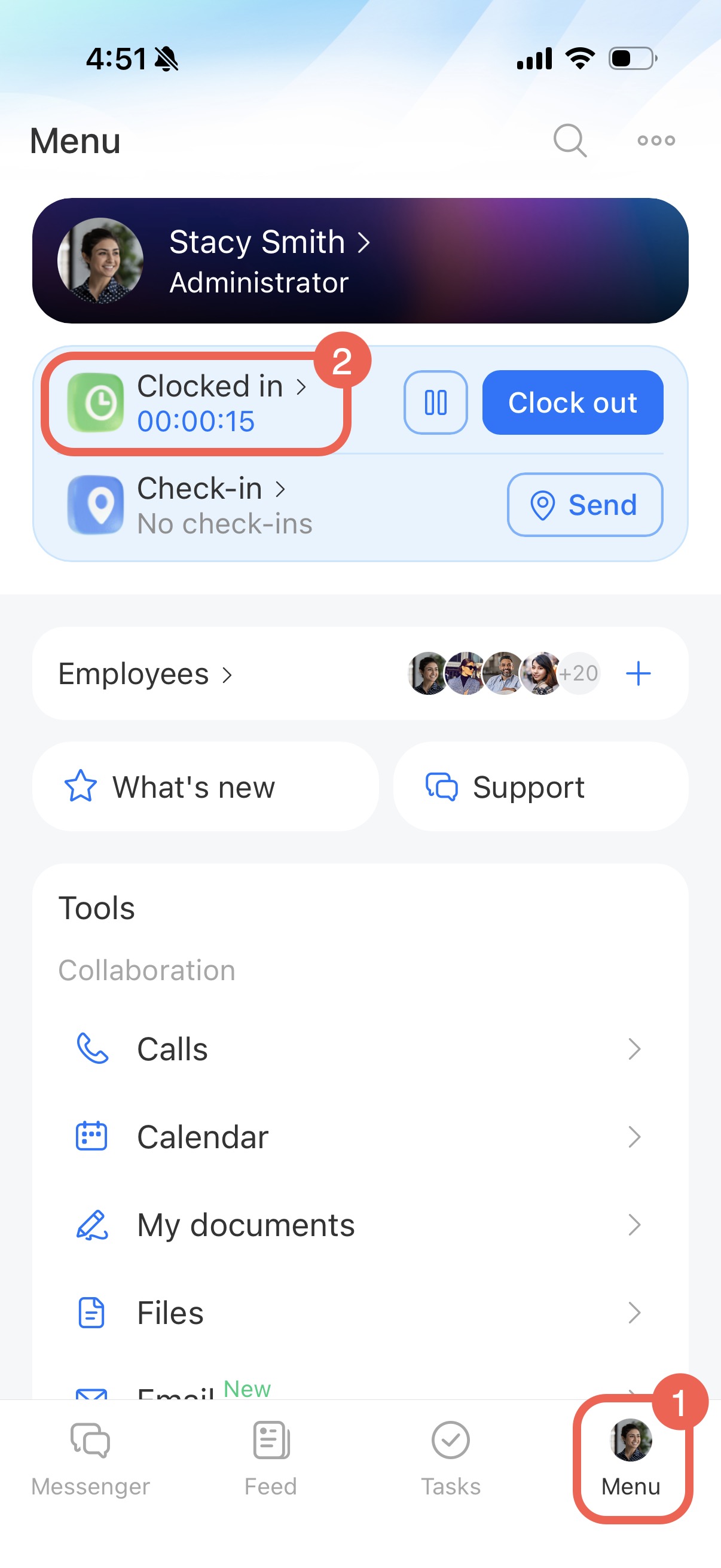
- At the bottom of the screen, open Menu.
- In the Working day widget, tap Clock in.
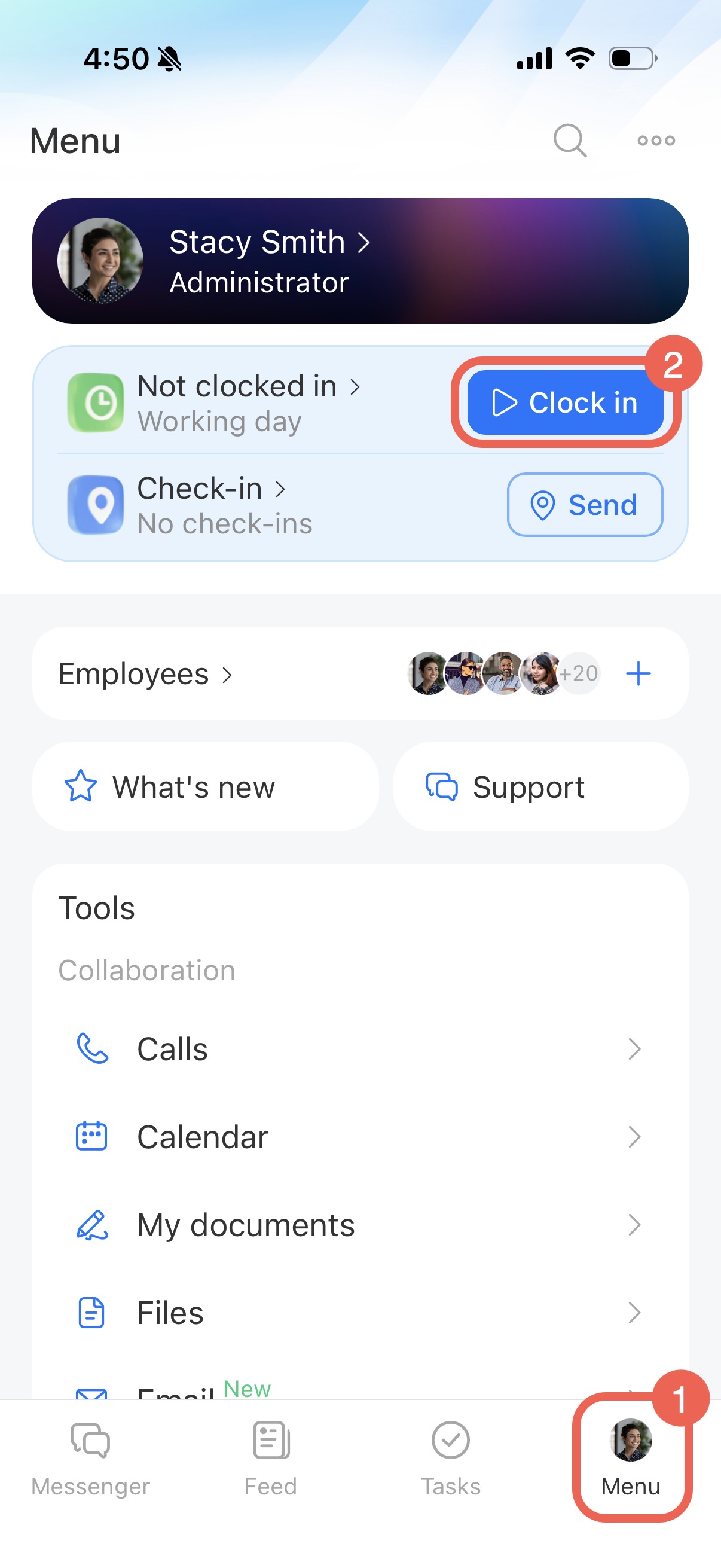
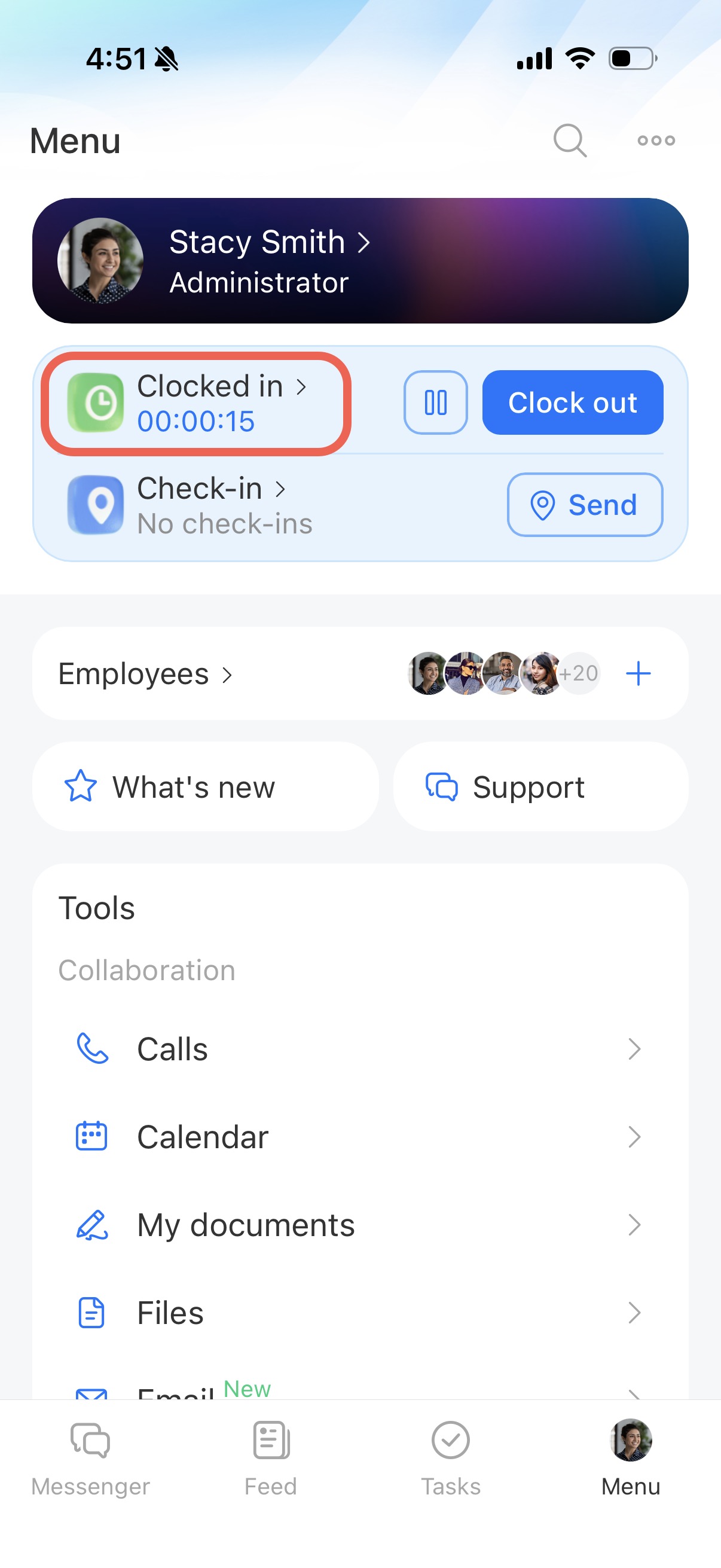
Your status changes to Clocked in, and the timer starts.
Pause your workday
- At the bottom of the screen, open Menu.
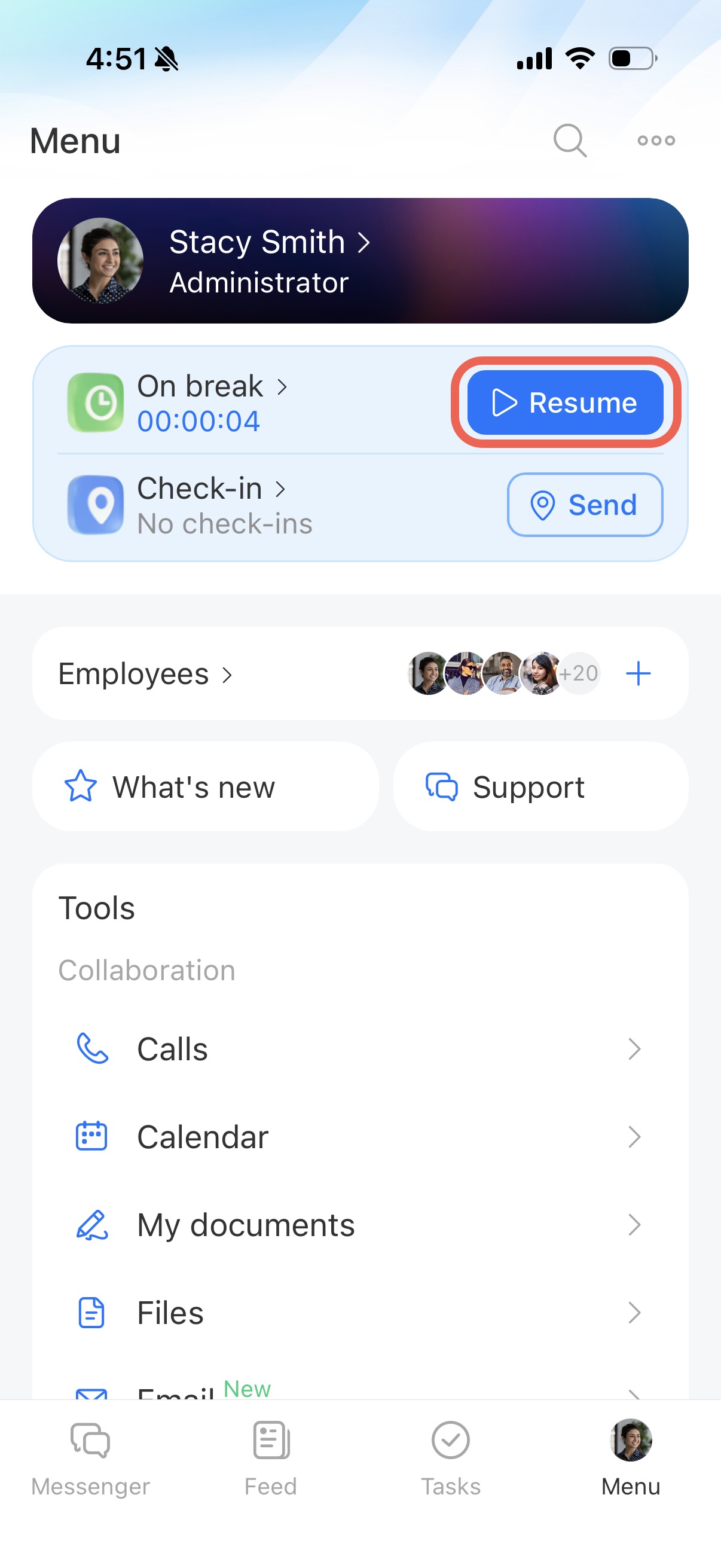
- In the Working day widget, tap Pause.
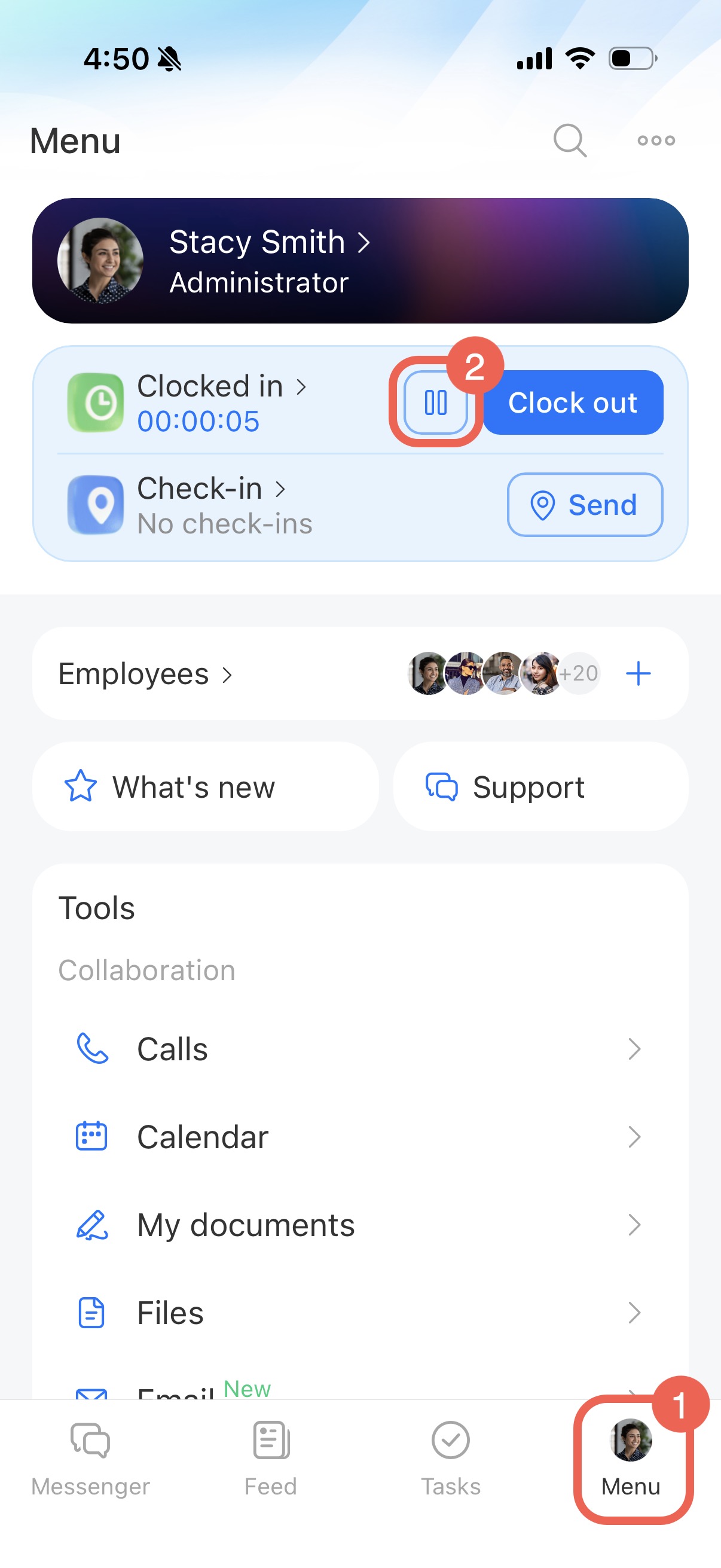
Your status changes to On break, and the timer stops. To go back to work, tap Resume.
Finish your workday
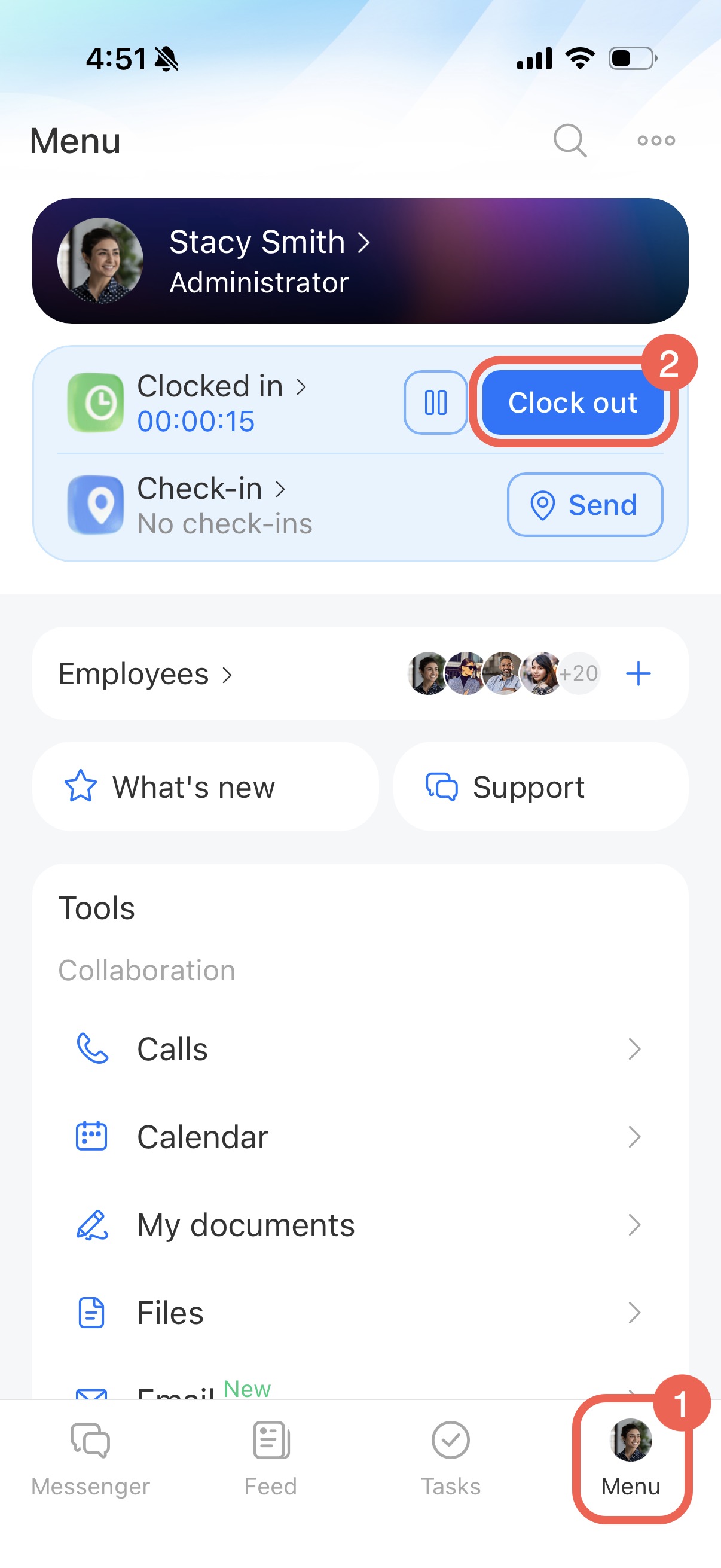
- At the bottom of the screen, open Menu.
- In the Working day widget, tap Clock out.
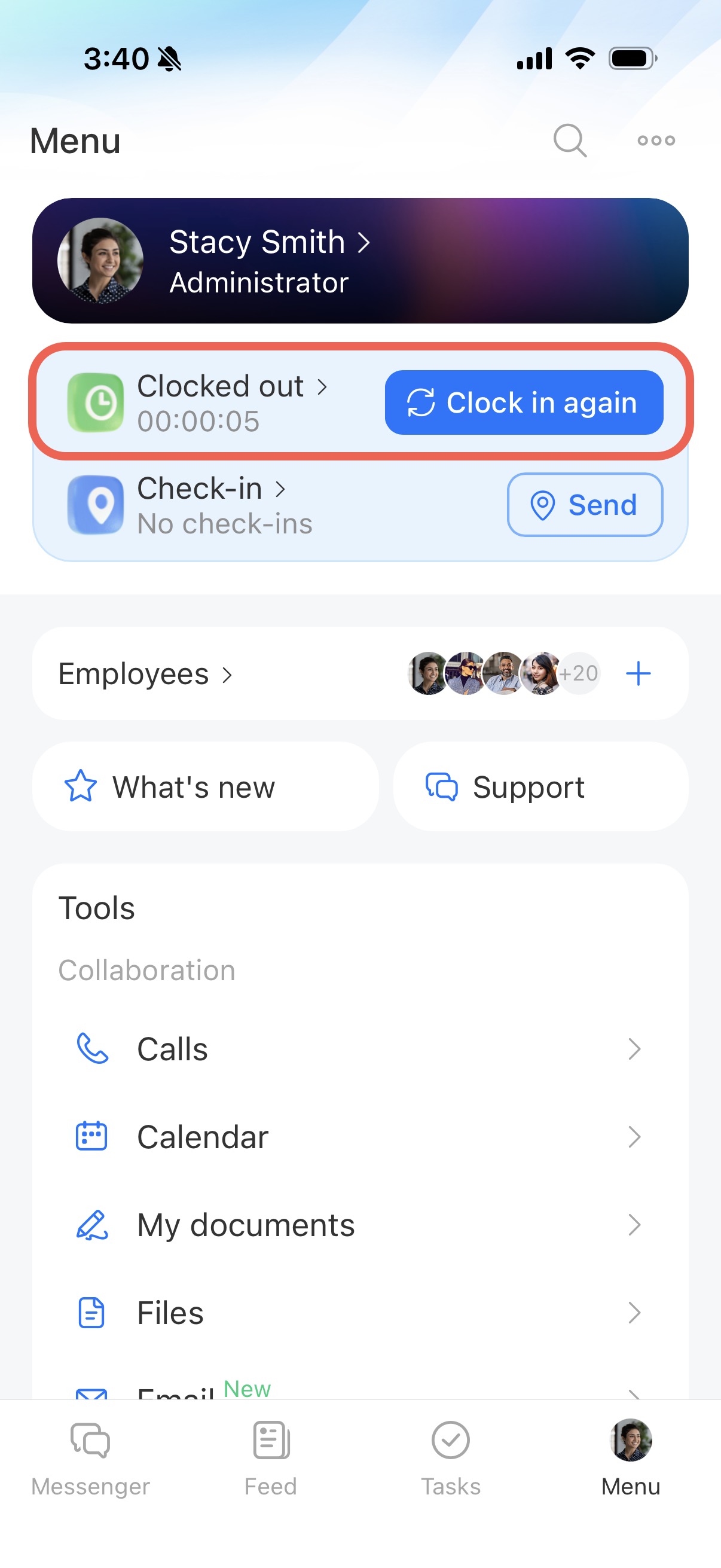
If you need to go back to work or you ended the day by mistake, tap Clock in again.
Edit work time and add completed tasks
If you did not start, pause, or finish your workday on time, you can update the time later.
- Go to Menu > Working day.
- Tap the arrow next to Working day and choose an option you need.
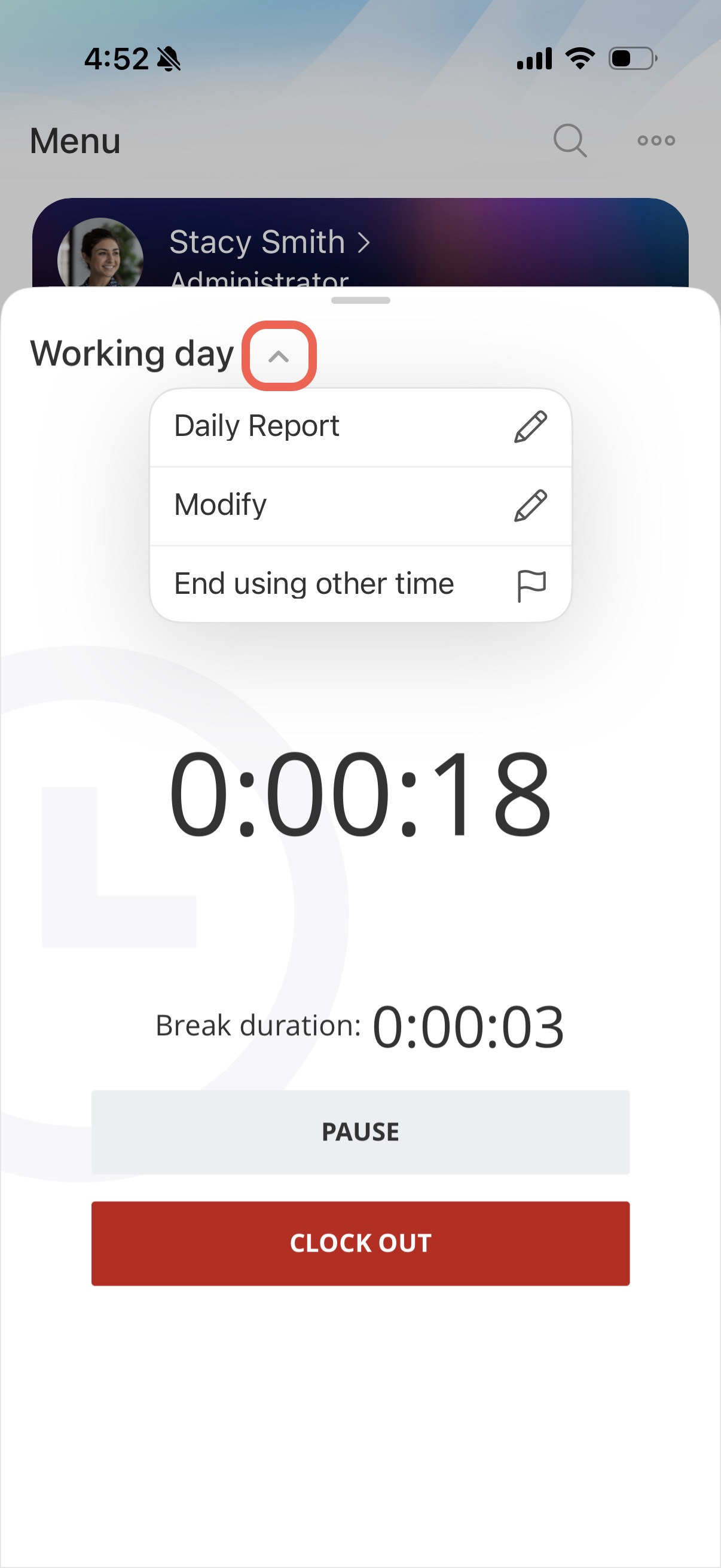
Daily report
Add the tasks and activities you completed. Bitrix24 saves this information in Work reports.
Work reports
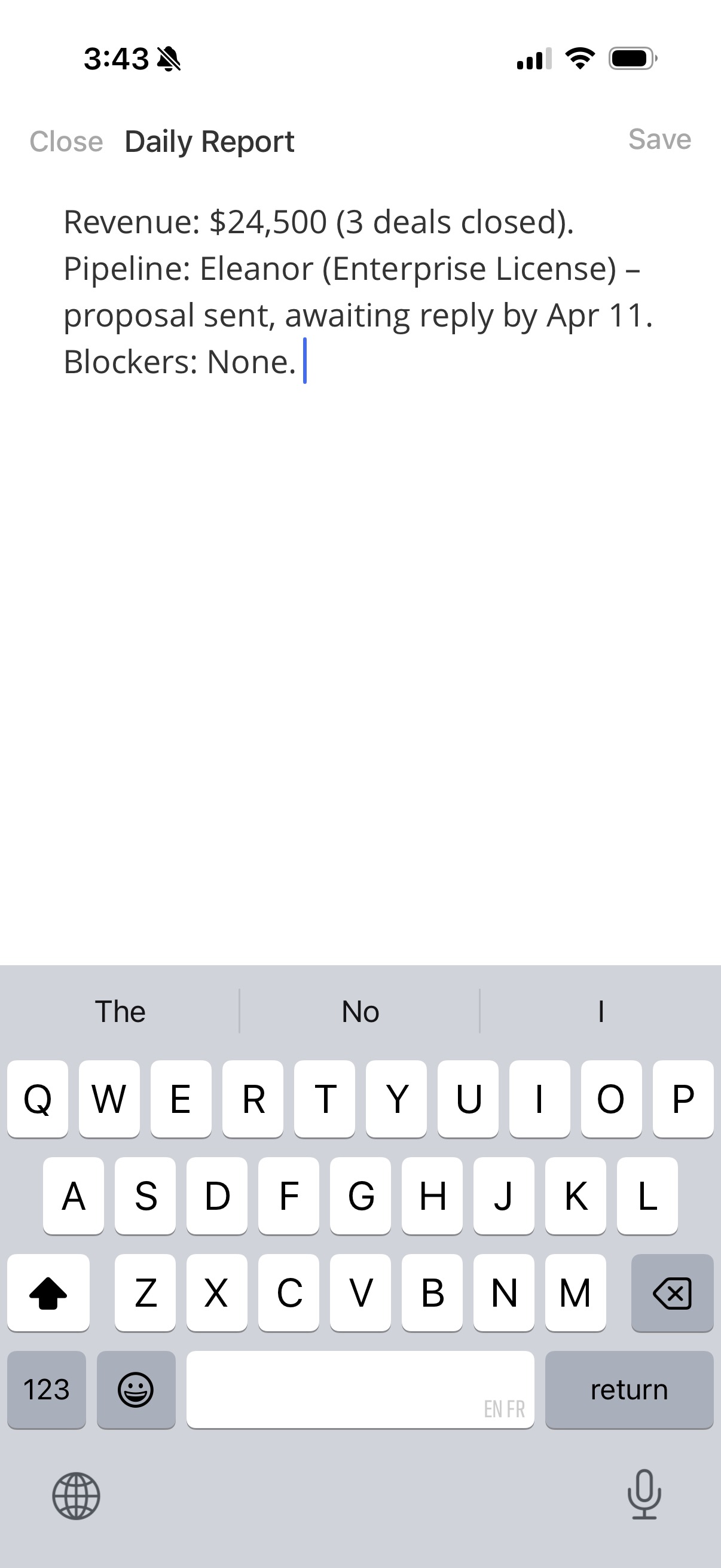
Modify workday
Change the start time, break time, or end time. Use this option to make multiple changes or update a completed workday. Bitrix24 sends the changes to your supervisor for approval.
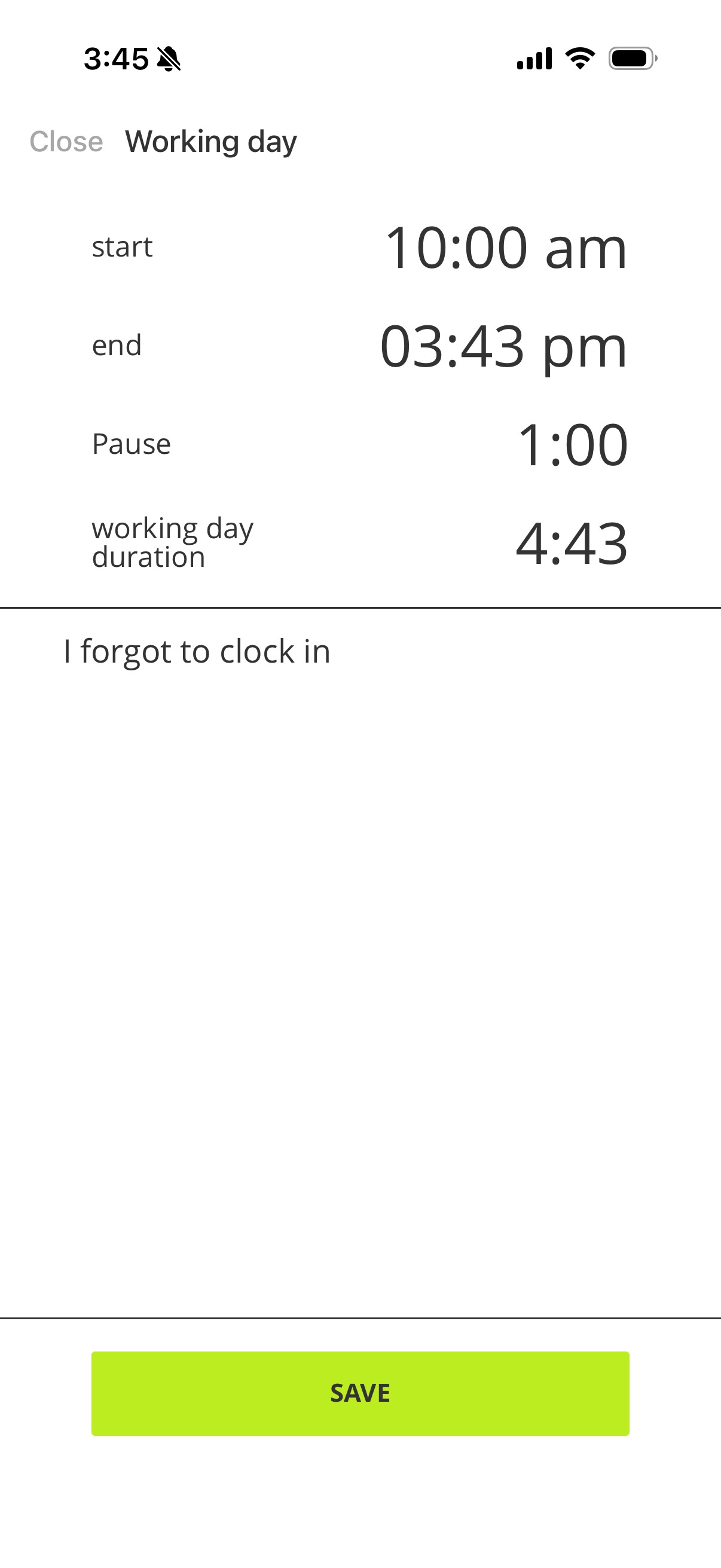
End using other time
End the current workday and enter a different end time. Use this option if you have not clocked out yet. Your supervisor will receive the changes for approval.