
Push notifications alert you about new tasks, messages, CRM updates, and other events, even when the app is closed. To receive notifications, enable them in the app and in your iPhone settings.
In this article:
Enable push notifications in the app
1–2. Go to Menu > Notifications.
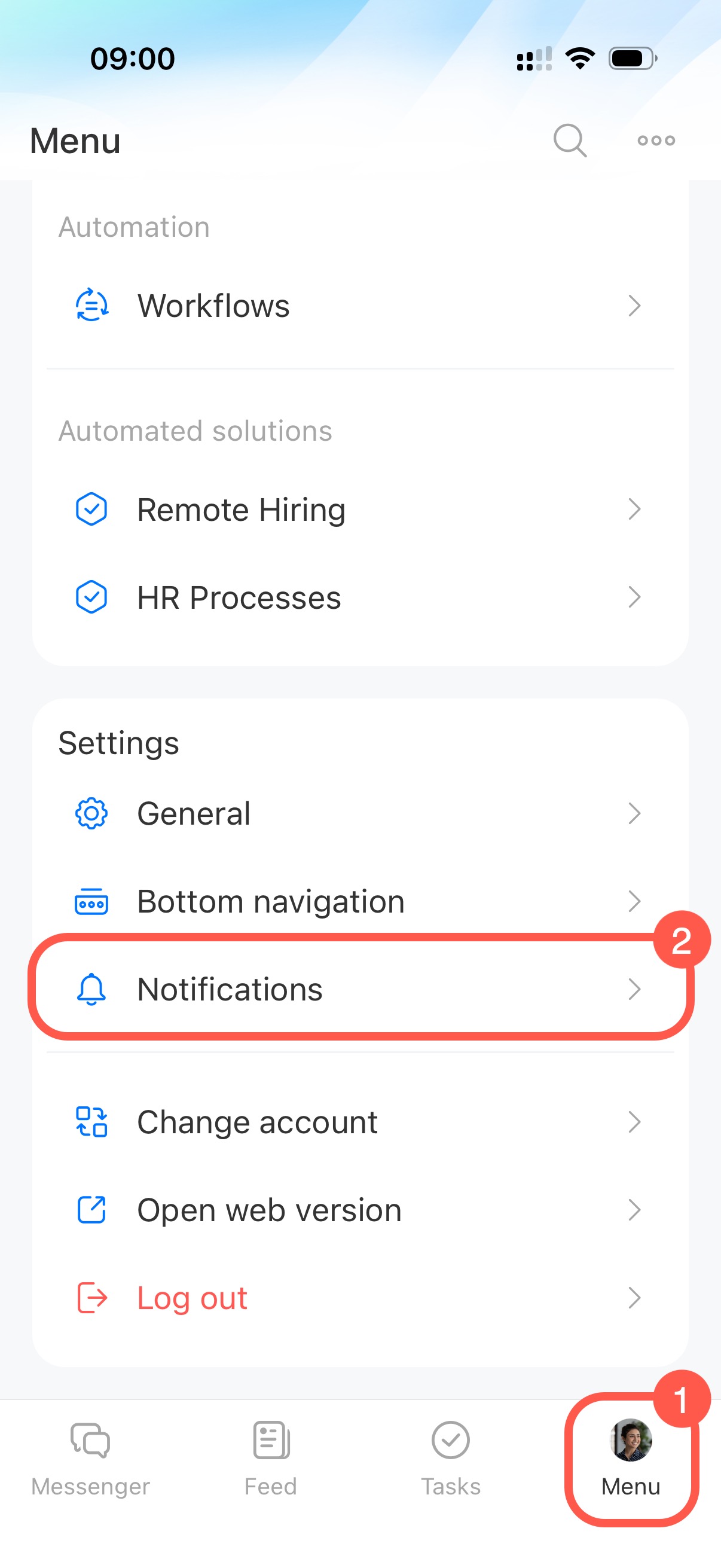
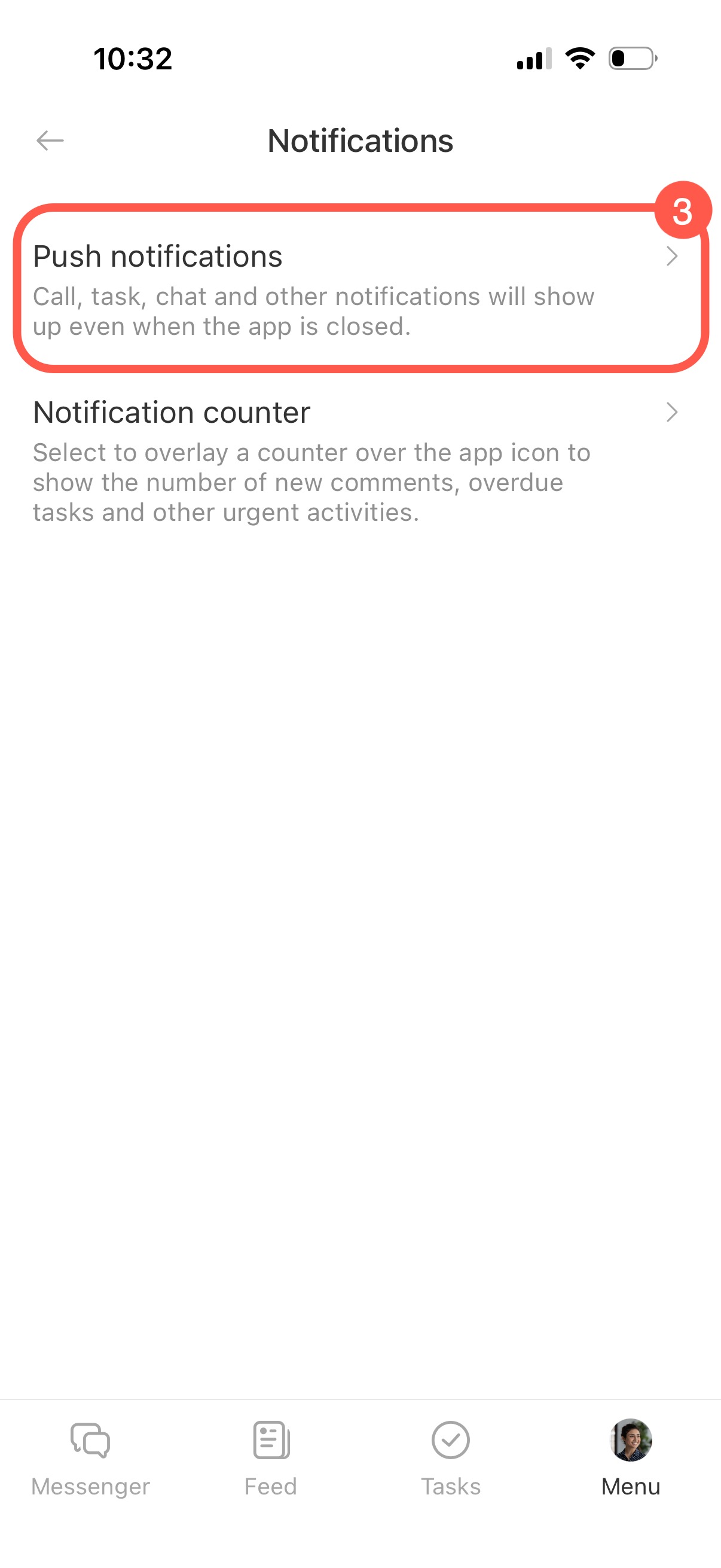
3. Tap Push notifications.
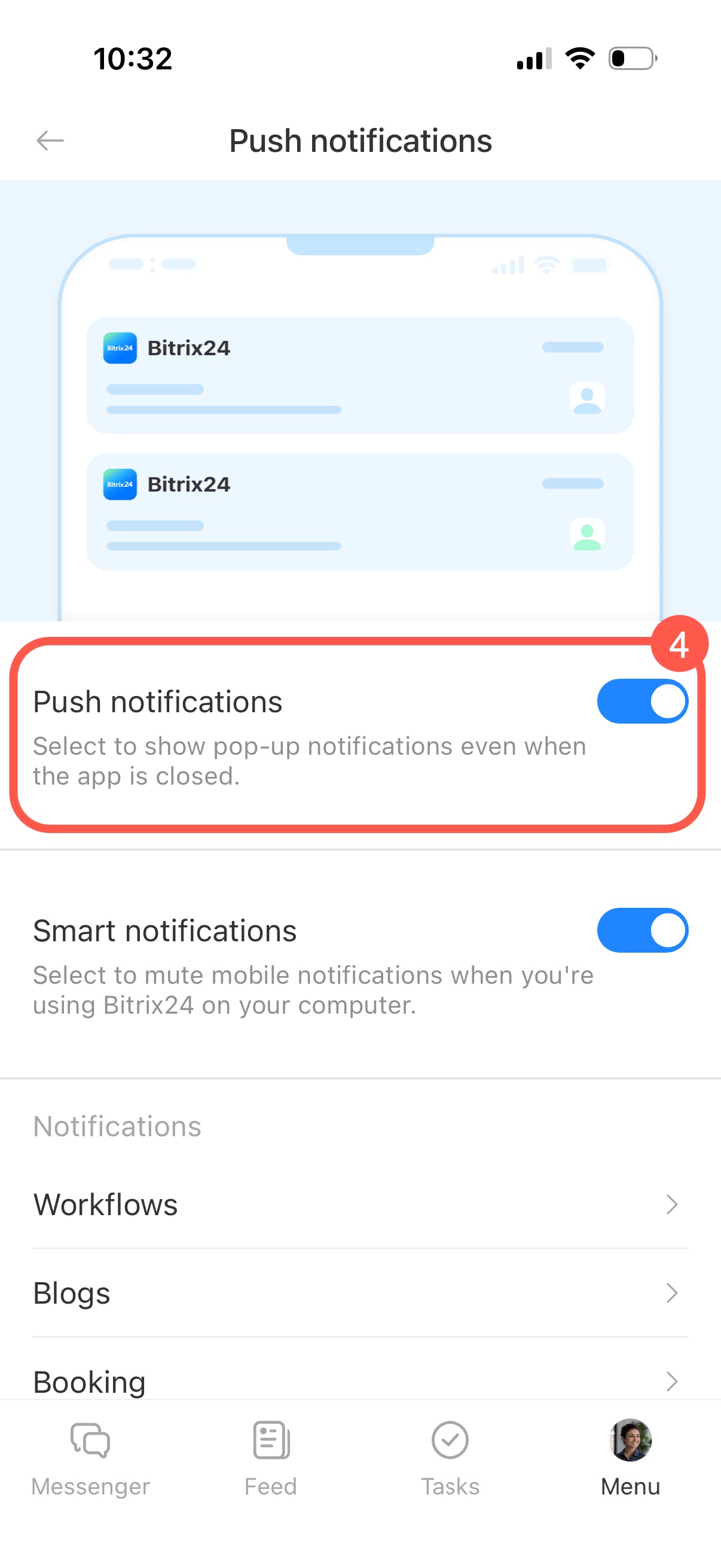
4. Turn on the Push notifications toggle. After that, notifications will appear on your iPhone screen even when the app is closed.
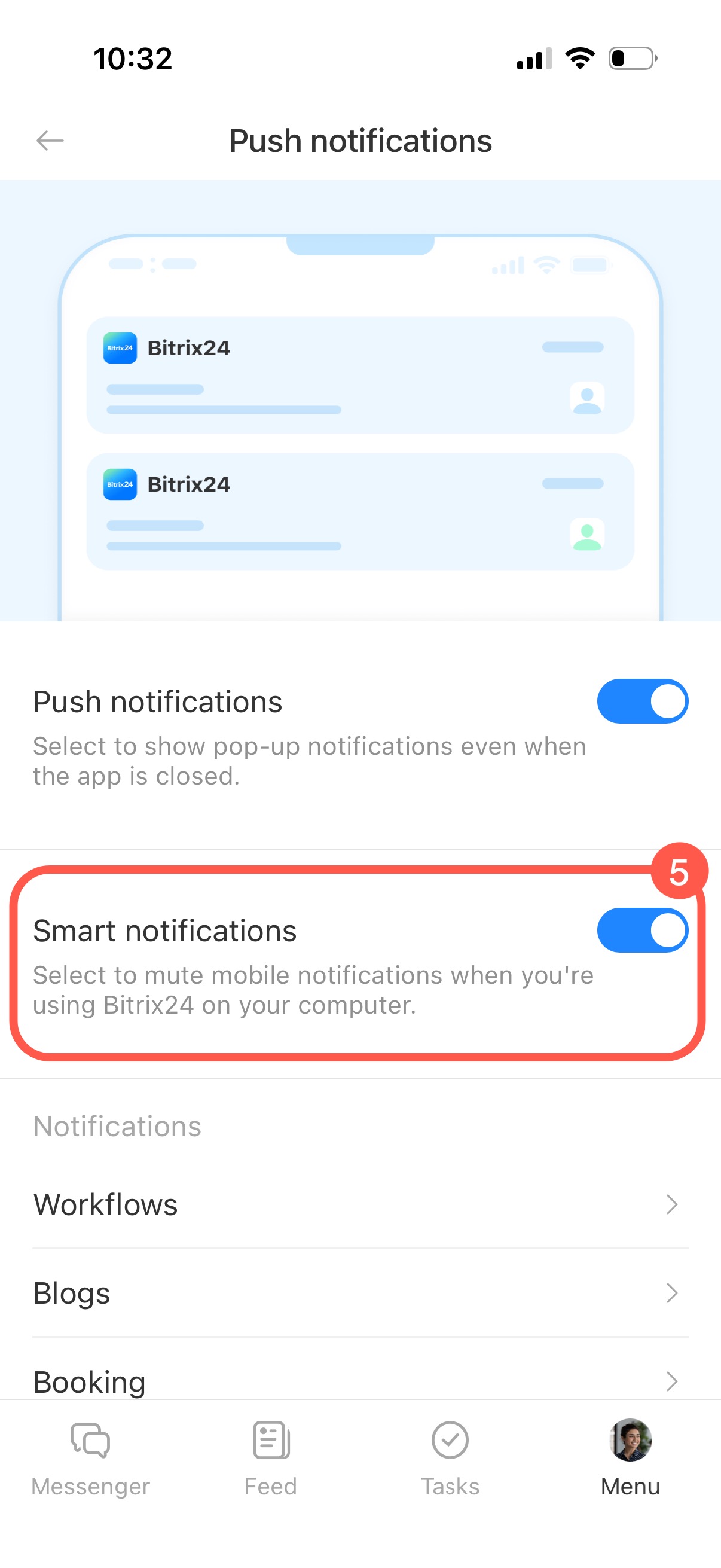
5. If needed, enable Smart notifications. In this mode, notifications pause when you are using Bitrix24 on your computer. This helps avoid duplicate alerts.
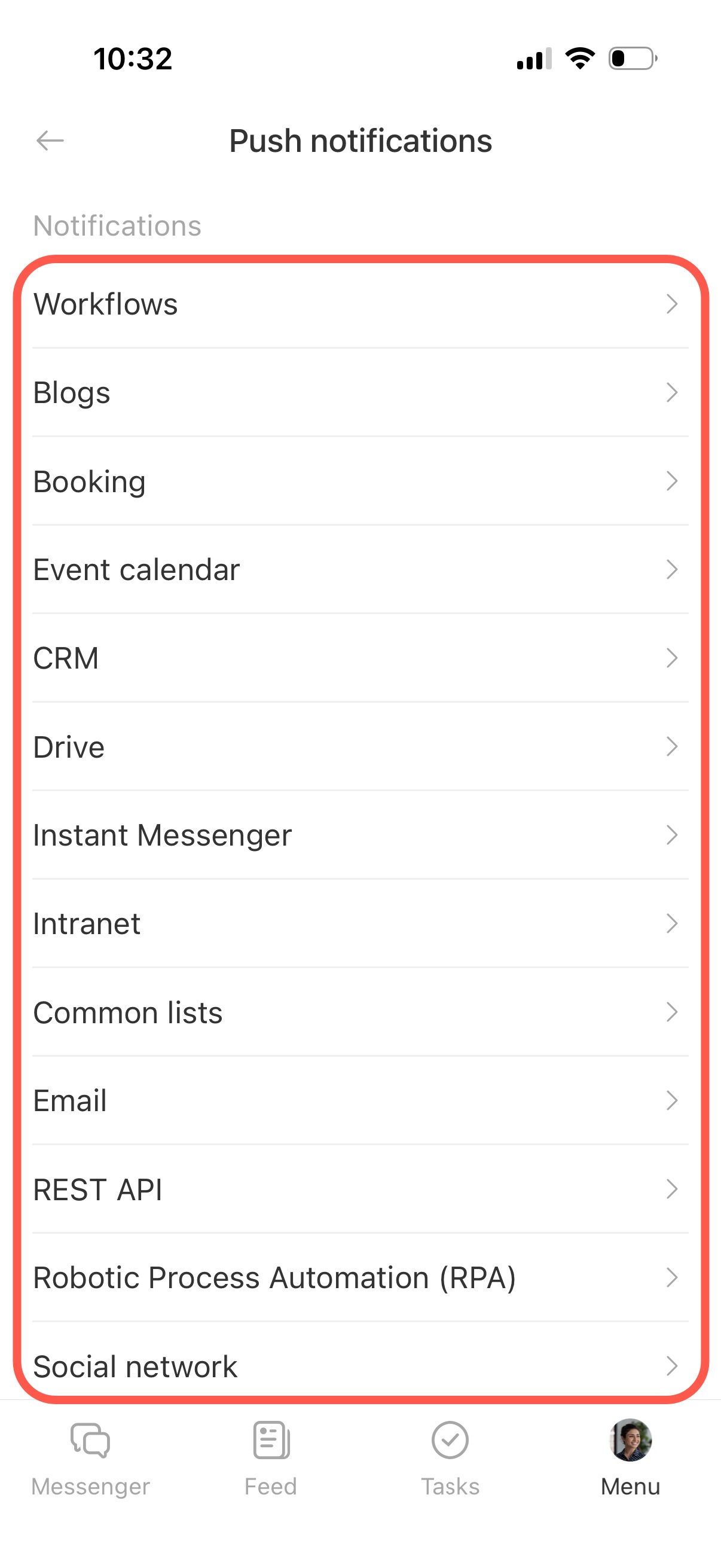
Customize notifications by section. On the same page, scroll down to see sections like CRM, Tasks, Blogs, and more. Open the section you want and turn on only the events you want to track.
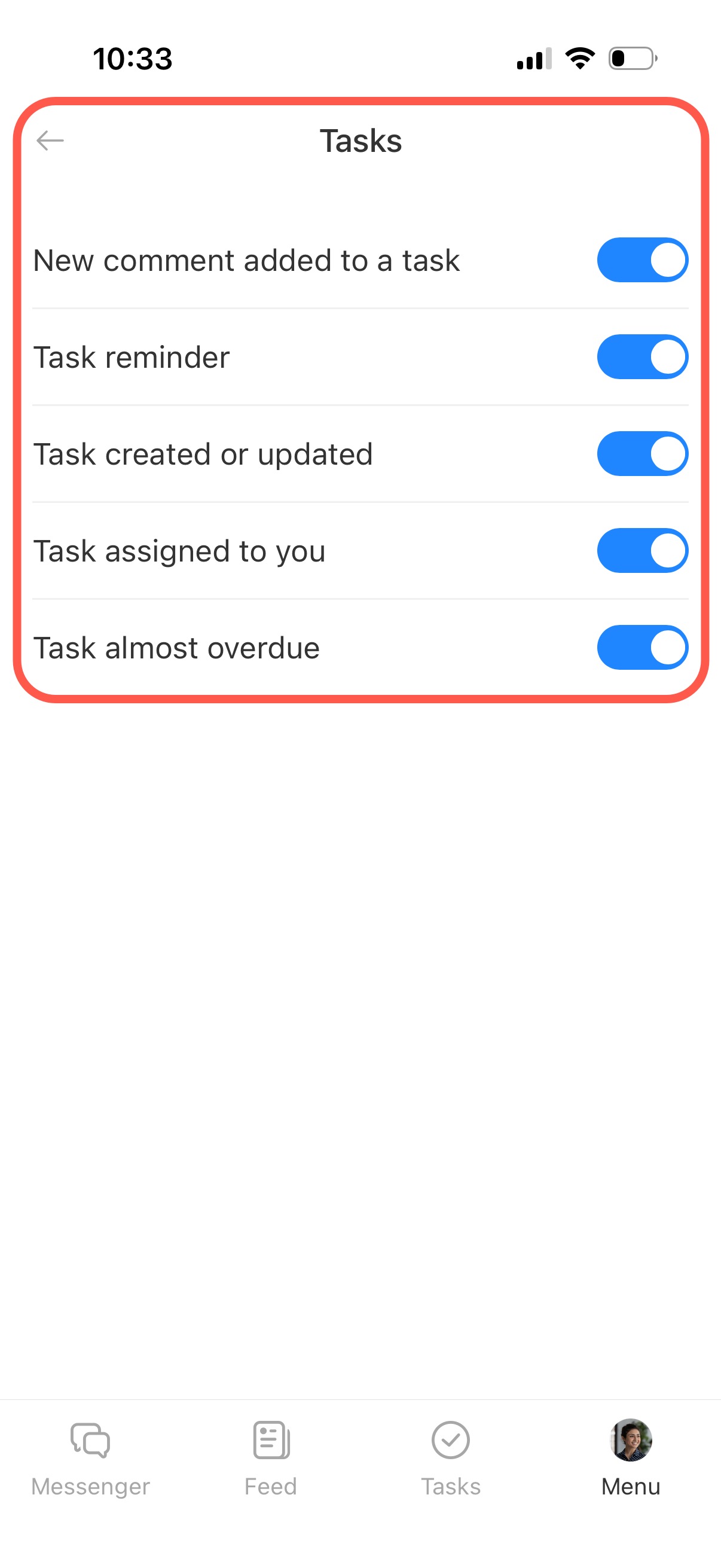
For example, in the Tasks section, you can choose separate notifications for new comments, reminders, task assignments, and upcoming deadlines.
Set up the notification counters
The notification counter is the red badge on the app icon. It shows the number of unread messages, overdue tasks, and other alerts.
The counter and push notifications work separately. For example, you can show the counter without receiving push notifications or receive push notifications without showing the counter.
1–2. Open Menu > Notifications.
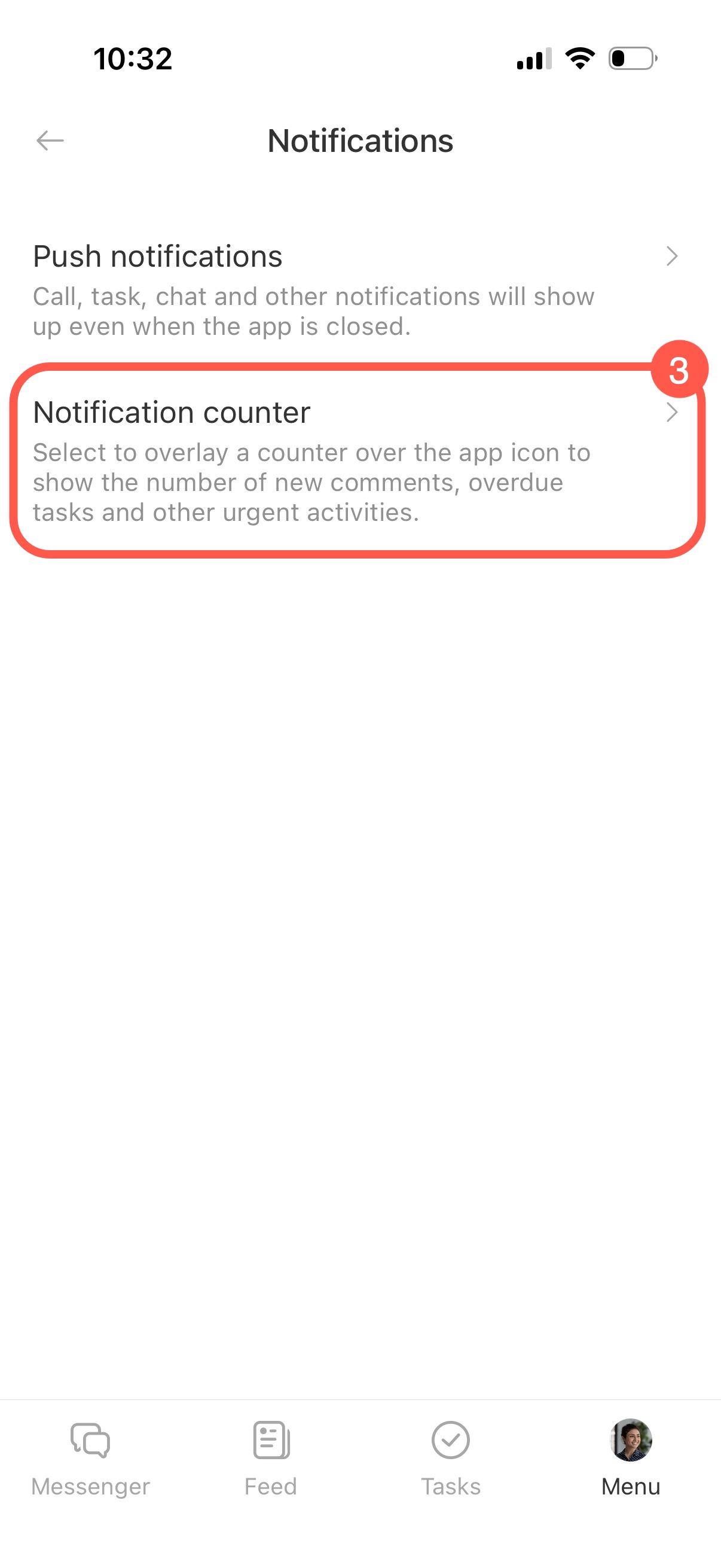
3. Tap Notification counter.
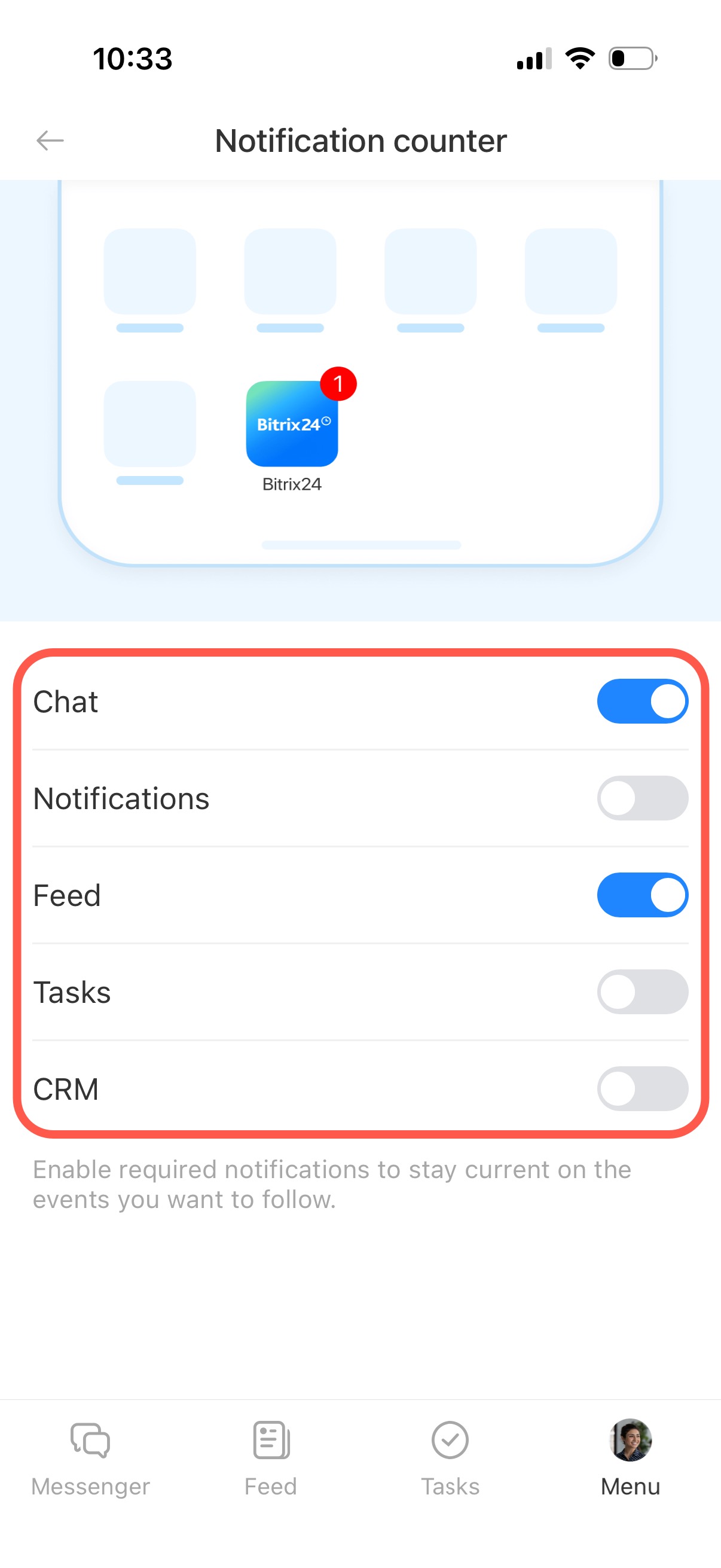
4. Turn on the toggles for the sections you want, such as CRM, Chat, Tasks, and others.
Allow notifications in iPhone settings
If push notifications are enabled in the app but you still do not receive them, check your iPhone settings.
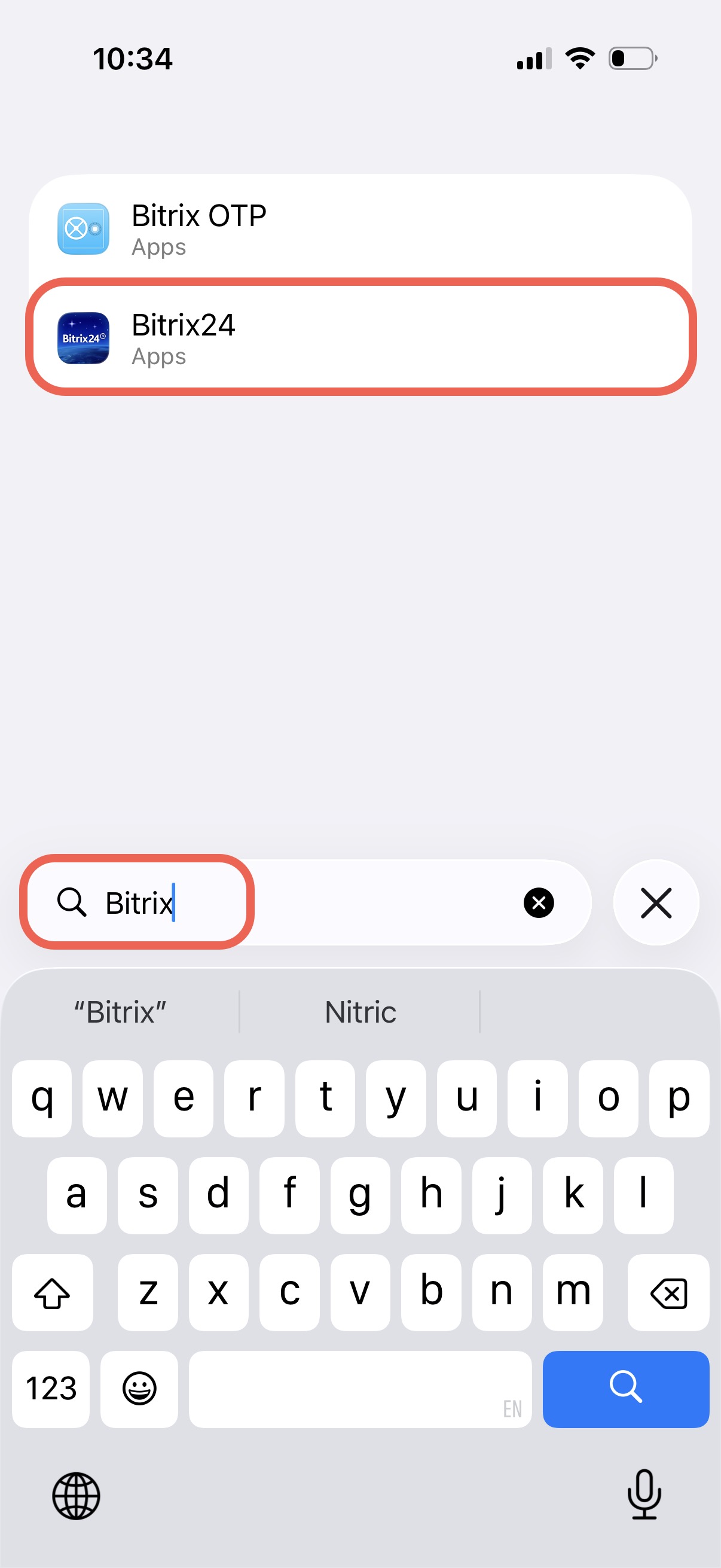
Open Settings on your iPhone and enter Bitrix24 in the search bar. Select the app from the list.
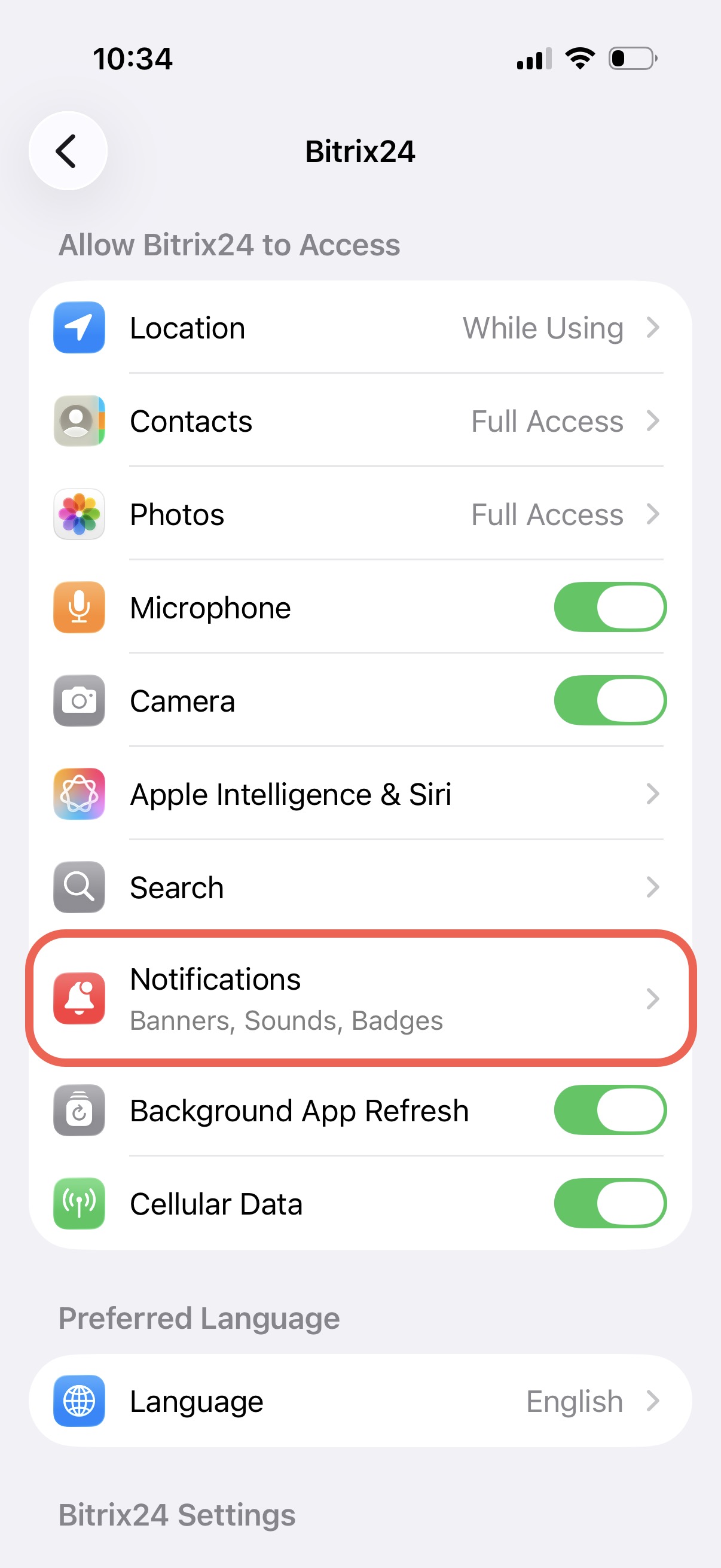
Tap Notifications.
Make sure Allow Notifications is turned on. Choose how they appear: on the Lock Screen, in Notification Center, or as banners.
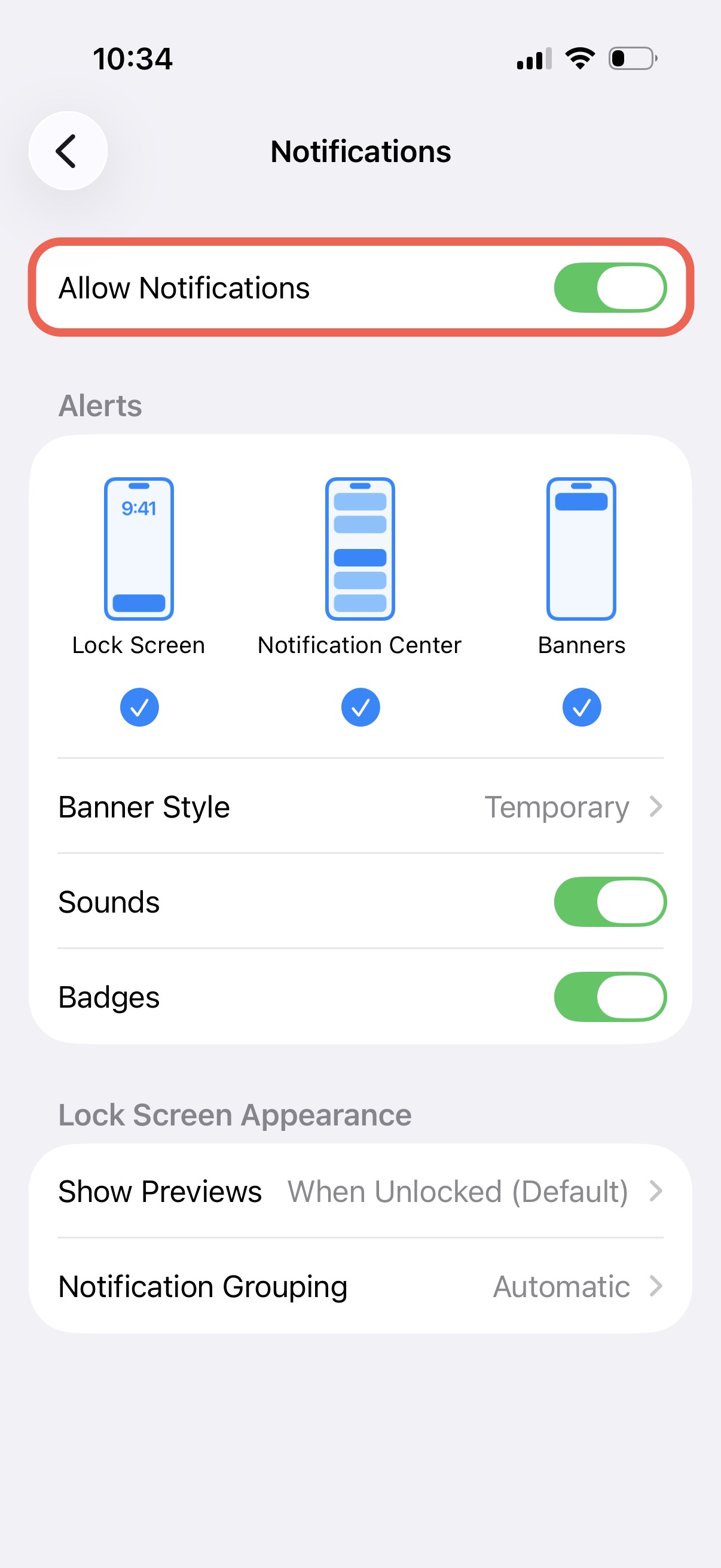
After that, Bitrix24 notifications will appear on your iPhone in the format you selected.