In the Bitrix24 mobile app, you can message a coworker, start a call, create a task, or schedule a meeting right from a chat. You do not need to switch between sections.
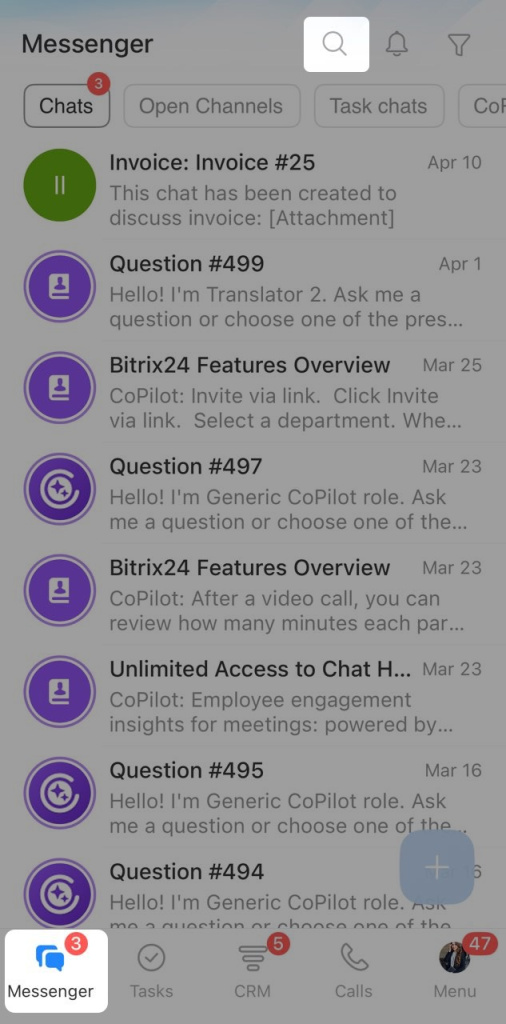
Find a coworker. Open the Messenger tab in the bottom-left corner. To find an employee, tap the search icon.
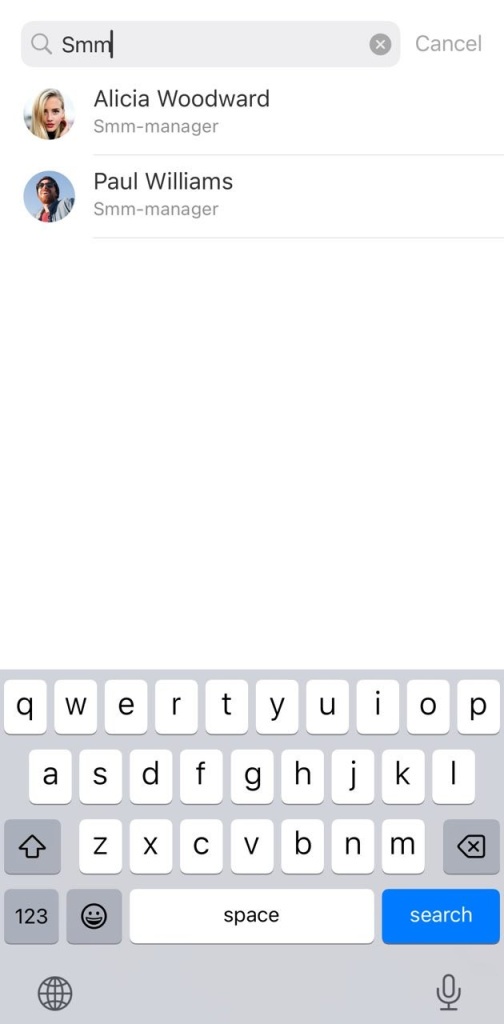
Enter a name or job title, then select the employee from the list.
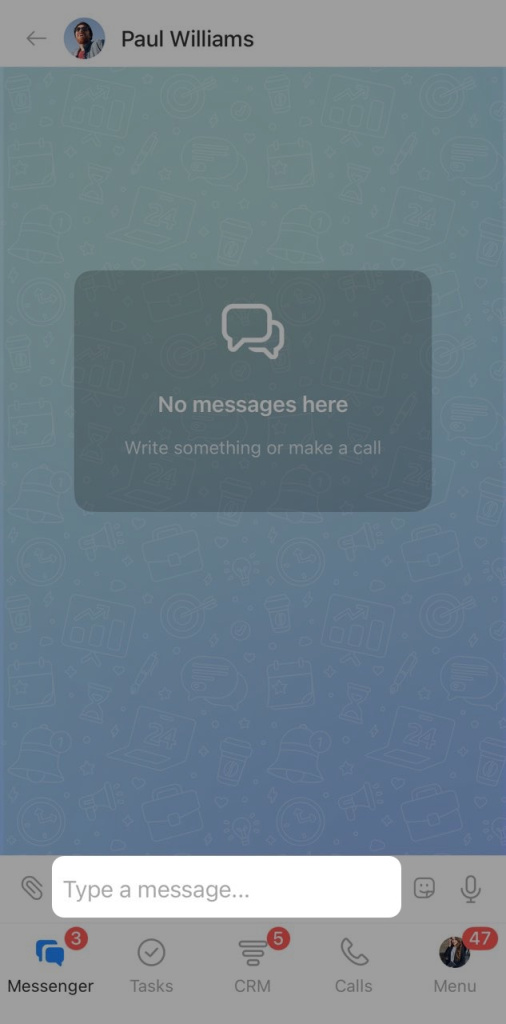
Send a message. Open the chat with the employee and send a message. You can send text, stickers, and voice messages.
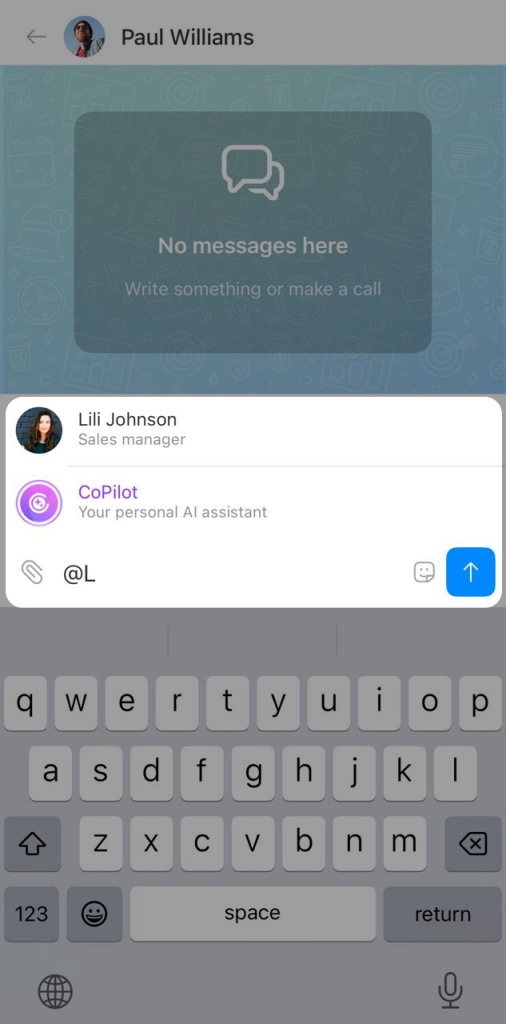
Mention a coworker in a chat. Type @ or + and select an employee. Bitrix24 will insert a link to their profile into the chat. This helps when you need to show who to contact about a task.
You can also mention CoPilot and ask it a question right in the conversation.
CoPilot in a chat
Send a file, create a task, or schedule a meeting. From the chat, you can share files and other materials or assign a task to a coworker.
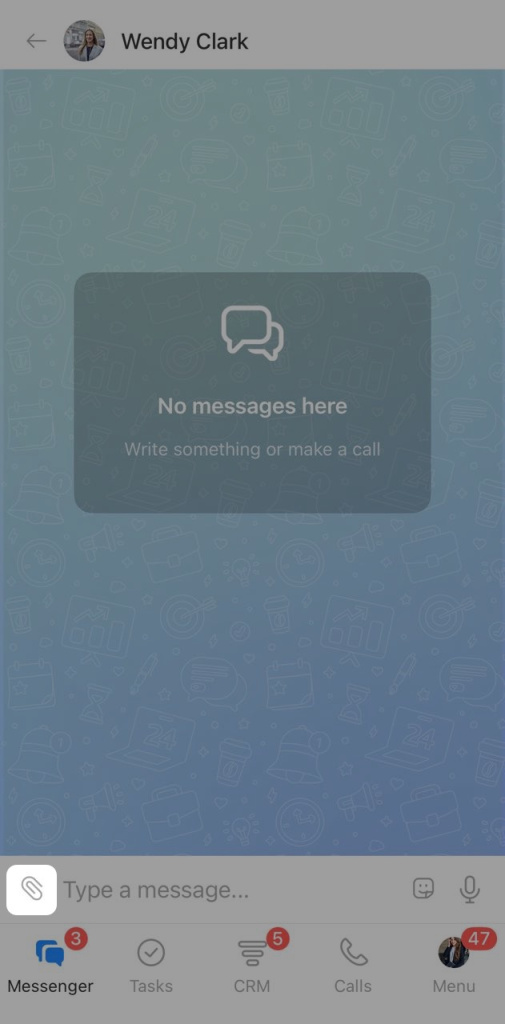
Tap the paperclip icon.
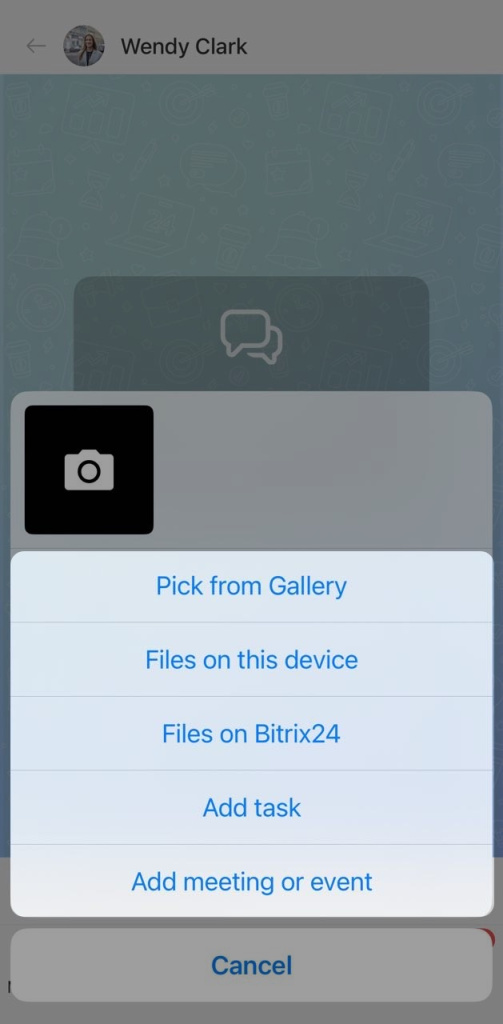
Choose what you want to do:
- Attach a photo or file
- Create a task
- Schedule a meeting
Create a task in the Bitrix24 mobile app
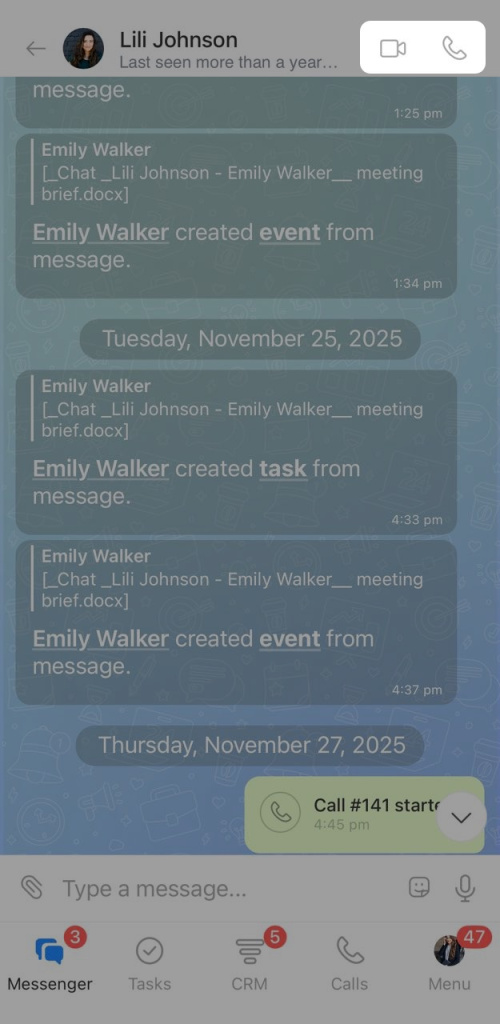
Call a coworker. If you need a quick response, call the employee right from the chat.
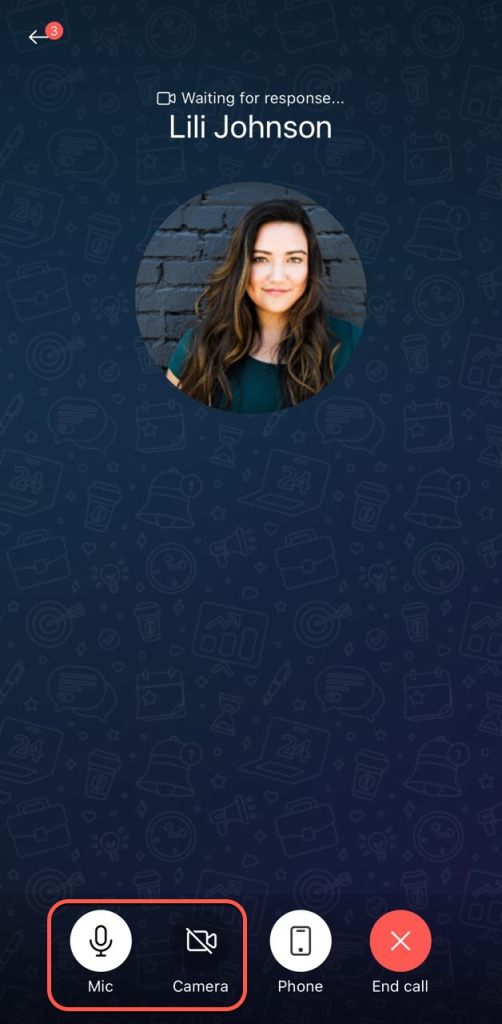
Tap the call or video call icon.
During the call, you can turn the camera and microphone on or off.
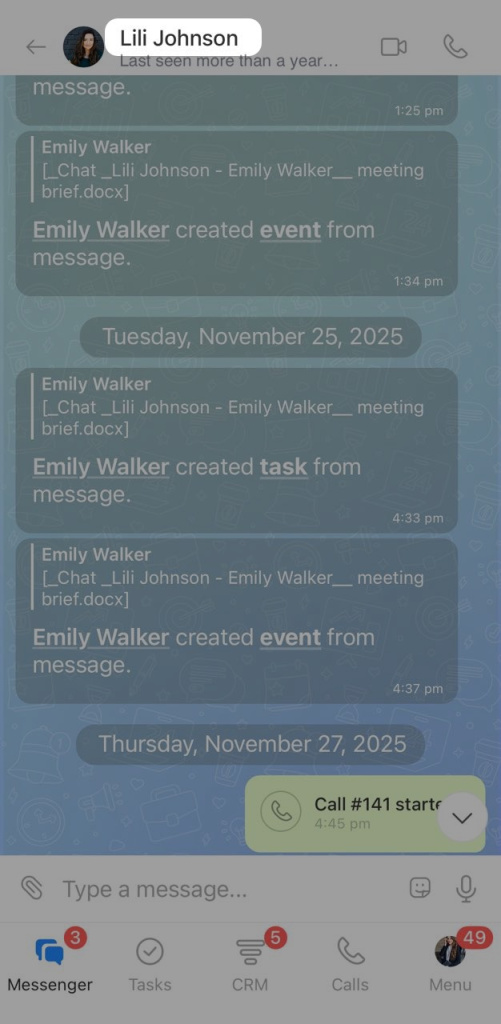
Manage chat settings. Tap the employee's name at the top of the conversation.
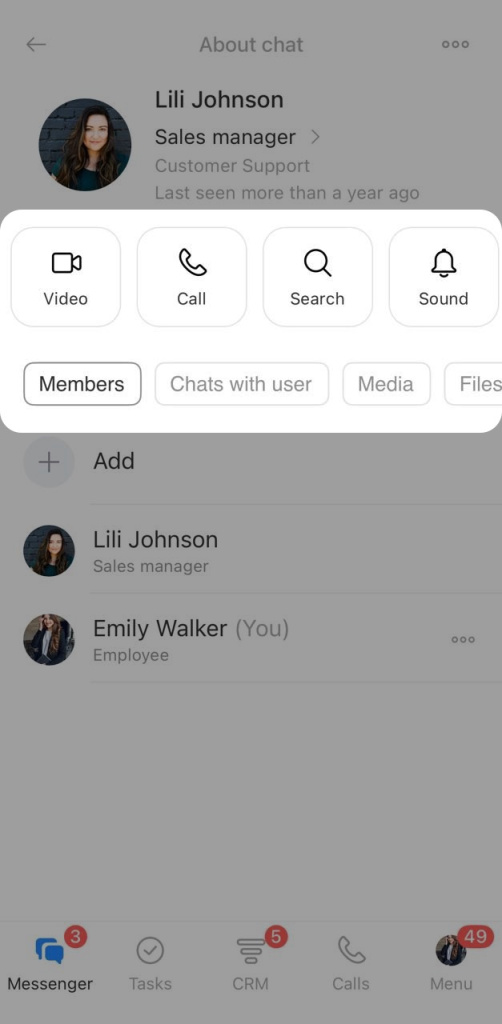
This opens the chat settings page. Here you can:
- Search for a specific message
- View shared files and media
- Mute notifications
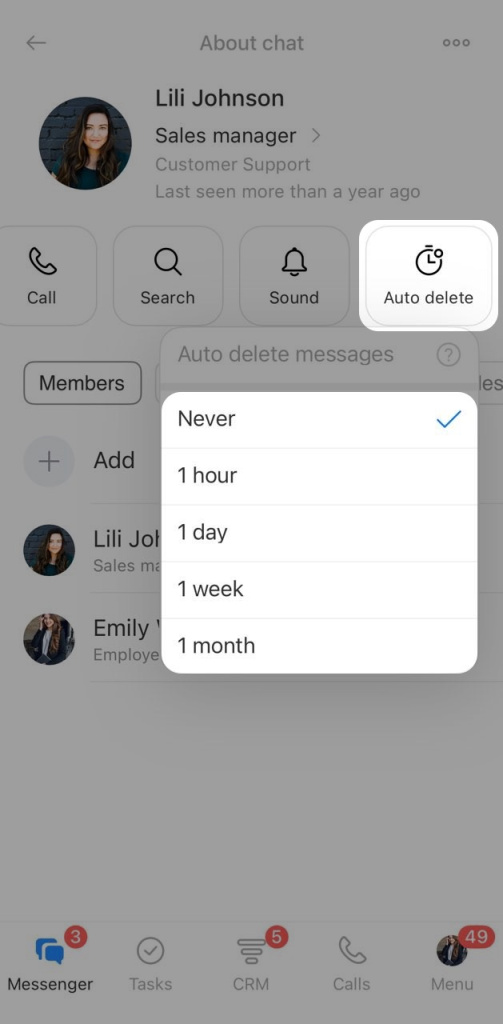
- Set up auto-delete for messages
Auto delete is useful if the chat includes personal or confidential information. Сhoose when messages should be deleted, such as after one hour or one month.