Bitrix24 Messenger brings your chats with coworkers, clients, and CoPilot into one place. From the chat list, you can open conversations, pin important chats, create new chats, and more.
In this article:
Open the chat list
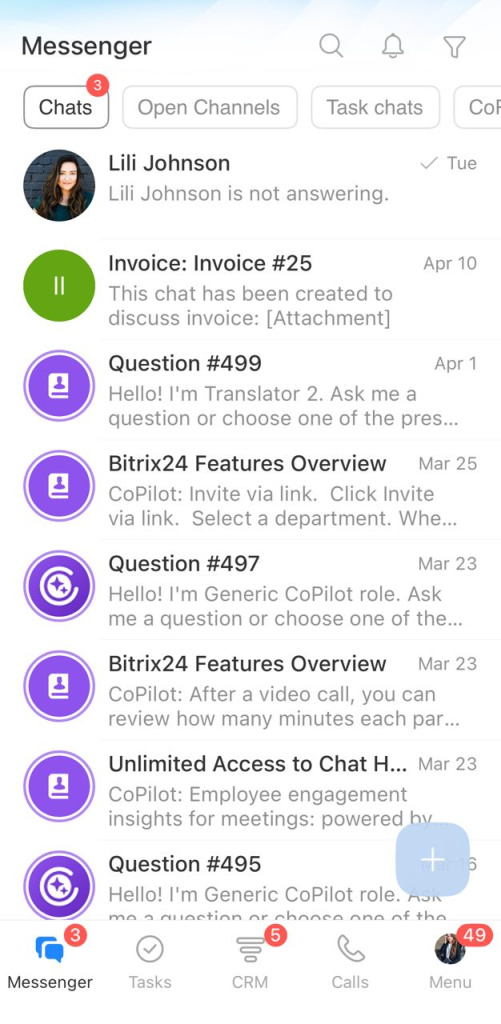
Go to Messenger. All chats are organized into tabs:
- Open Channels
- Chats — all conversations except open channel chats and task chats
- Task chats
- CoPilot — conversations with the virtual assistant
- Channels
- Projects
Find a chat
Chats are sorted by the date of the last message. If you have a lot of conversations, use search to find the chat you need.
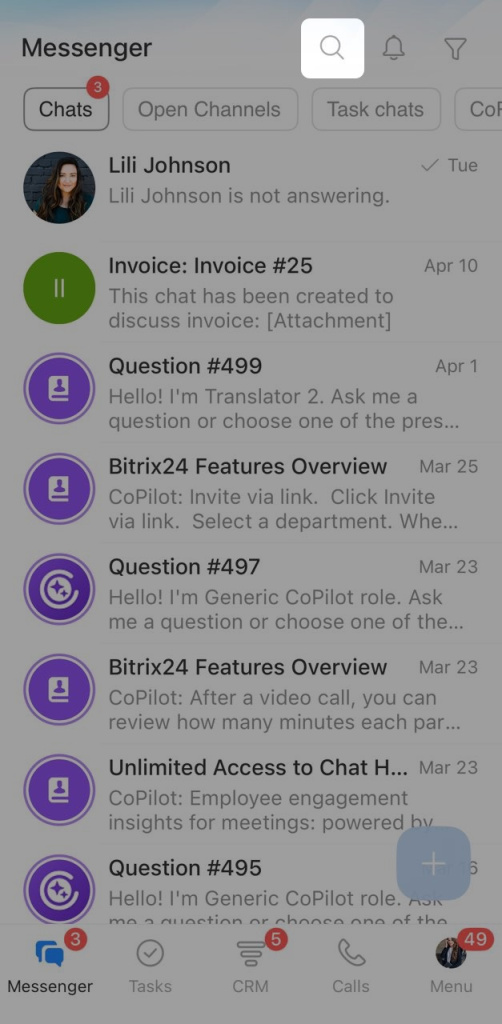
Open a tab, such as Chats, and tap the search icon in the top right corner.
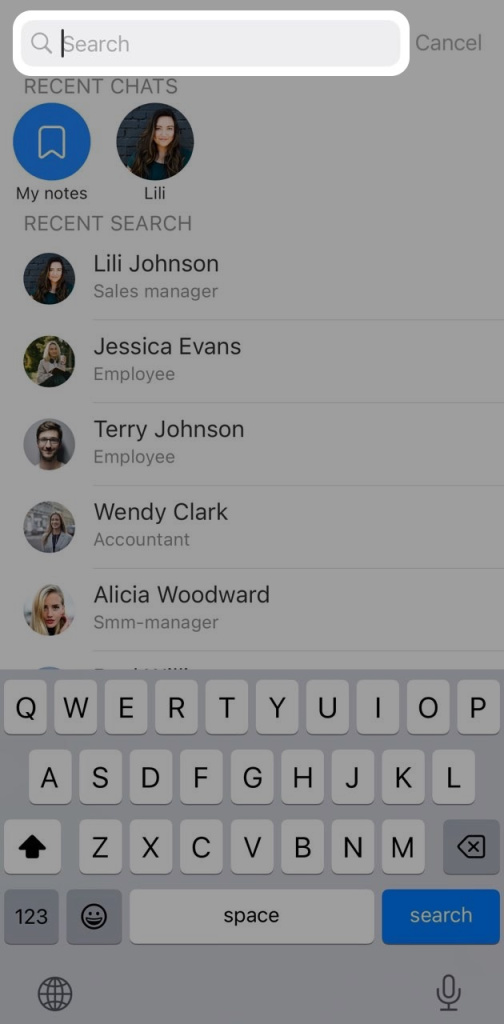
Enter an employee name or chat name in the search bar. For faster access, you can also use the recent chats list or your search history. Tap a chat to open it.
Mark all messages as read
If you have many unread chats, you might miss an important message. You can mark all messages as read without opening each chat one by one.
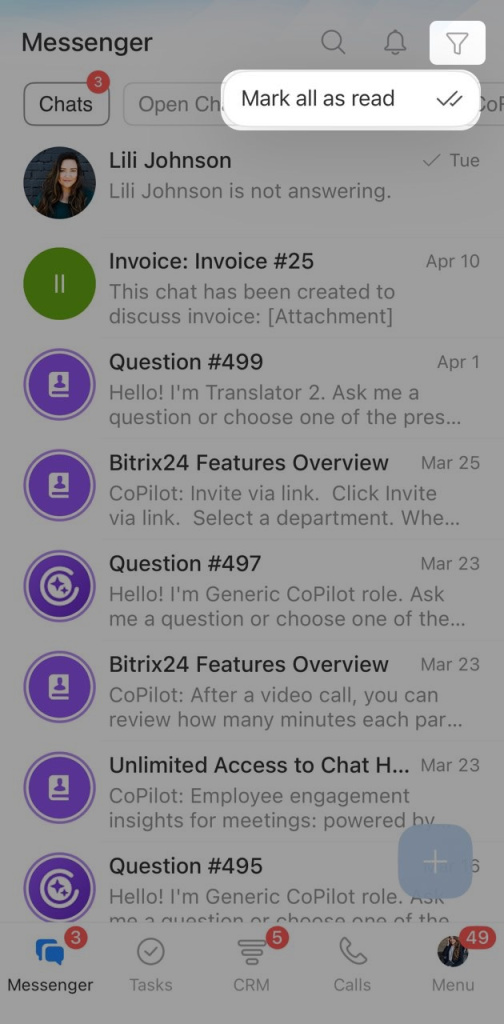
Tap the filter icon in the top right corner and select Mark all as read.
Manage chats in the list
Open the menu. The steps depend on your device.
On Android: press and hold the chat name.
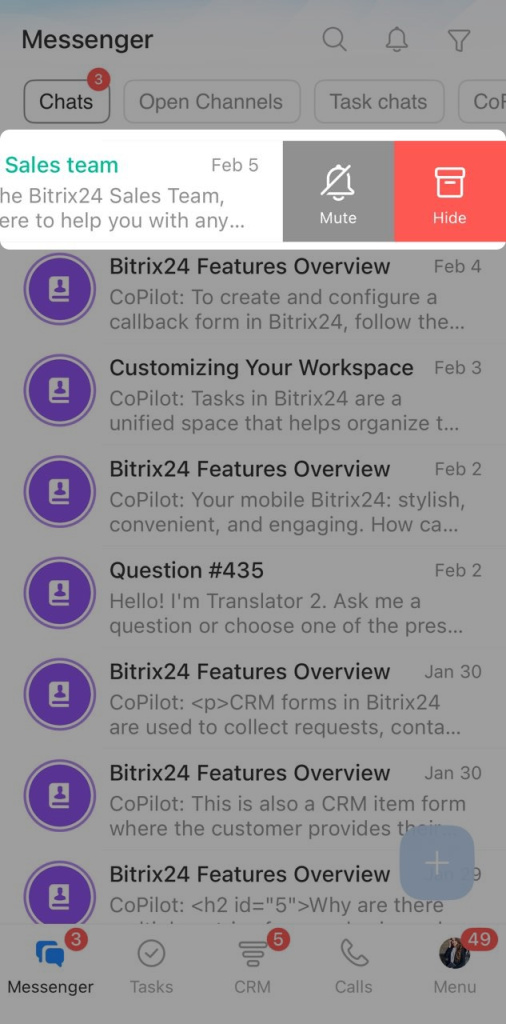
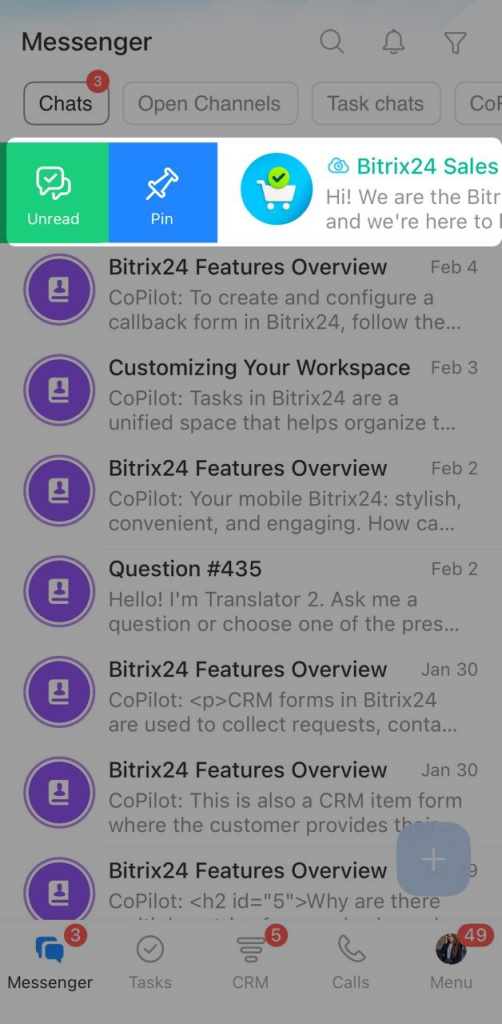
On iOS: swipe the chat left or right. Then choose an action.
Mute. Turn off notifications for new messages when the chat does not need an immediate reply.
Hide. Remove the chat from the list if you do not use it often. The chat will appear again when a new message arrives. You can also find a hidden chat by name in search.
Pin. Keep the chat at the top of the list so it stays easy to find.
Unread. Mark the chat as unread so you can come back to it later.
Create a chat
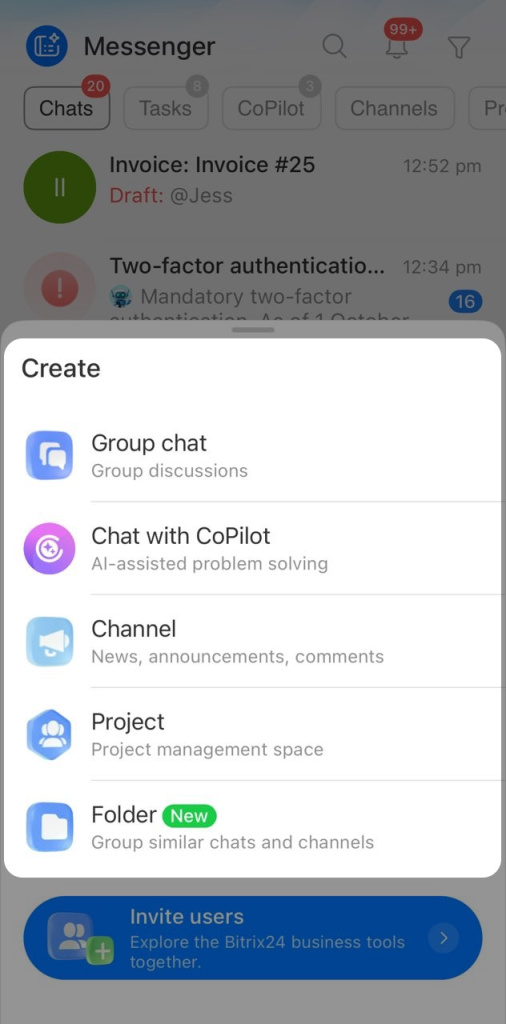
To add a new chat to the list, open the Chats tab and tap Plus (+) in the bottom right corner.
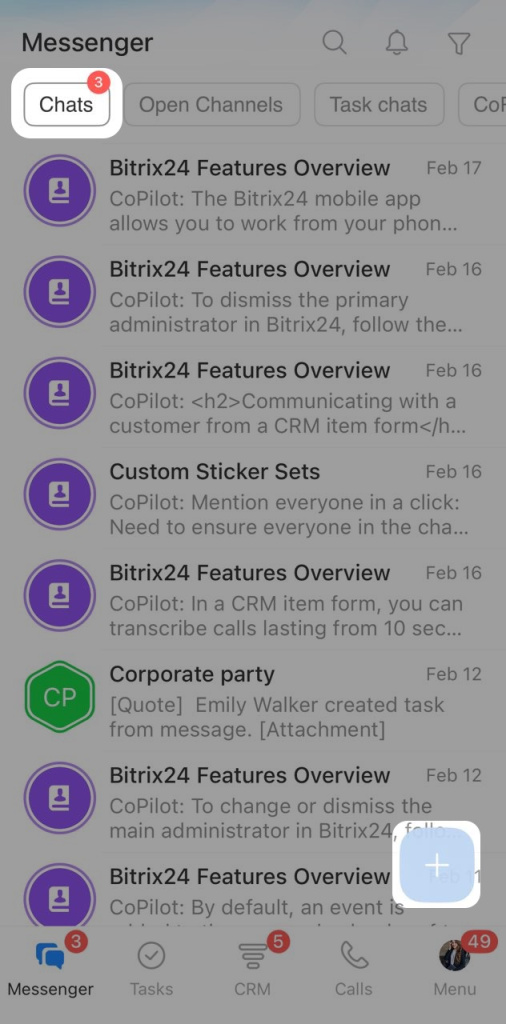
Choose what you want to create: a group chat, a chat with CoPilot, a channel, or a project. Then set up the chat. The available settings depend on the chat type.