Bitrix24 Calendar helps you plan meetings and events. You can manage your own schedule and check when your coworkers are available.
In this article:
Create an event
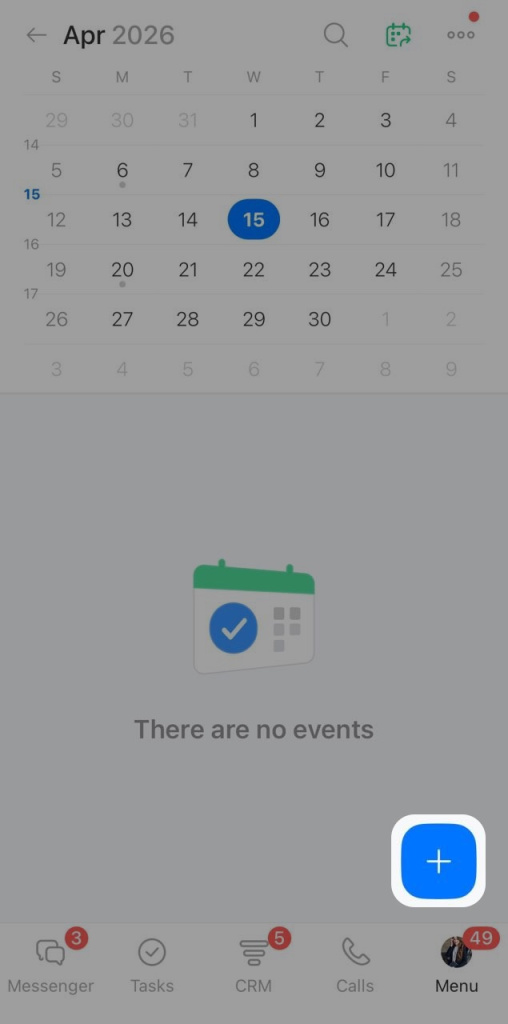
1. Open the Calendar section and tap Plus (+).
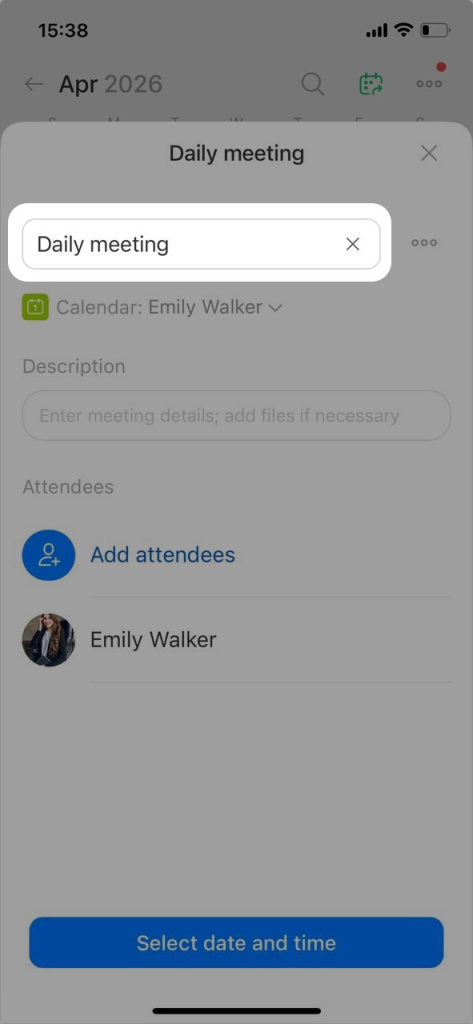
2. Enter an event name.
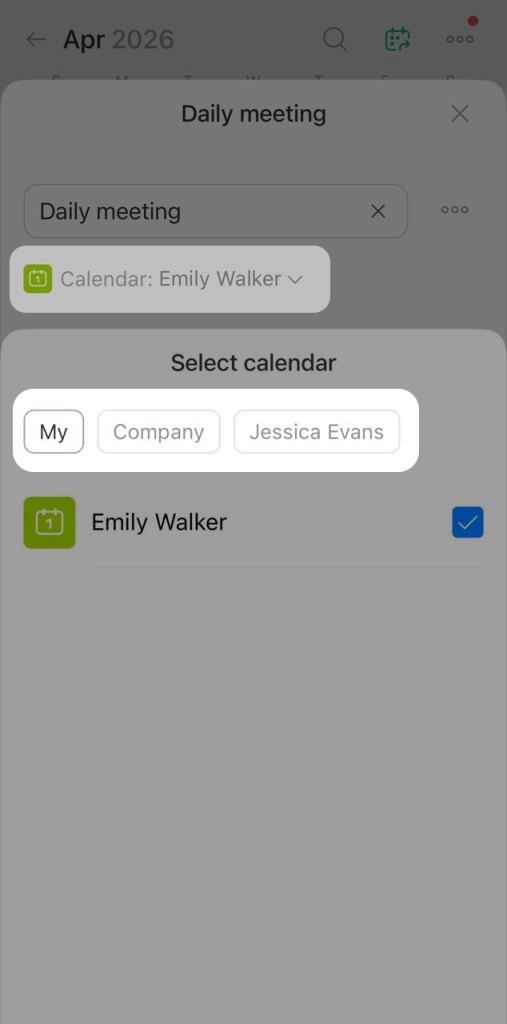
3. Tap the Calendar field to choose where to add the event — your personal calendar, the company calendar, or another employee's calendar. The company calendar and other employees' calendars are available only if you have the access permissions.
Configure access permissions for calendars
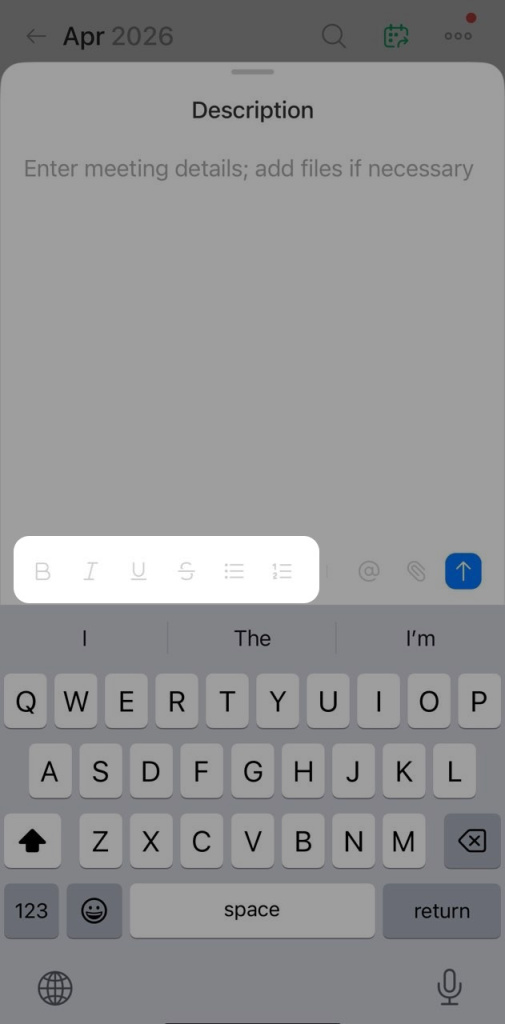
4. Tap the Description field to add details:
- Format text with the toolbar at the bottom of the editor: bold, italic, lists, and other tools are available.
- Attach a file from your gallery, phone storage, or Bitrix24 Drive. Tap the paperclip icon.
- Type @ in the description to mention a coworker. A clickable link to their profile will appear in the text. This is useful when you want to indicate who to contact with questions.
Add attendees
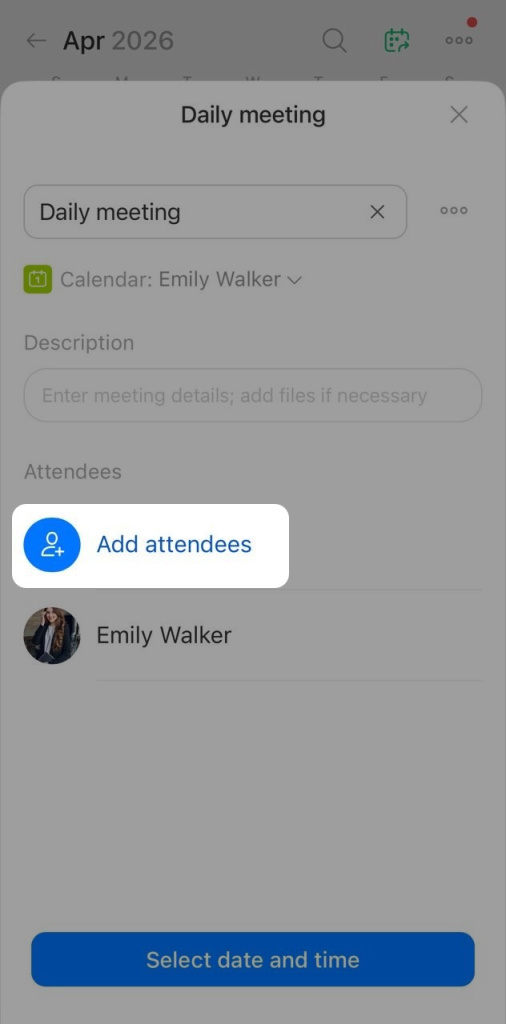
Add attendees so the event appears in their calendars and they get a notification about the meeting.
1. Tap Add attendees.
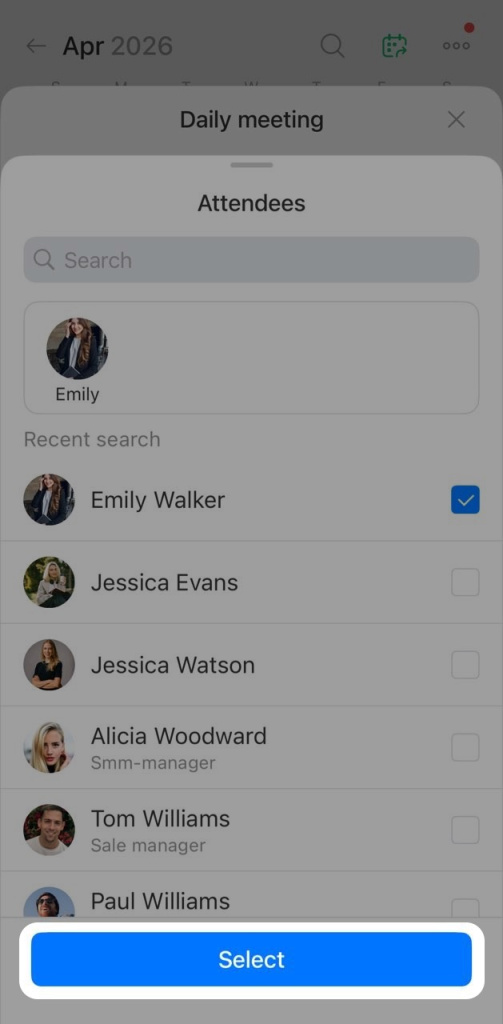
2. Find coworkers by name or choose them from the list, select the checkboxes next to their names. Tap Select.
Change event settings
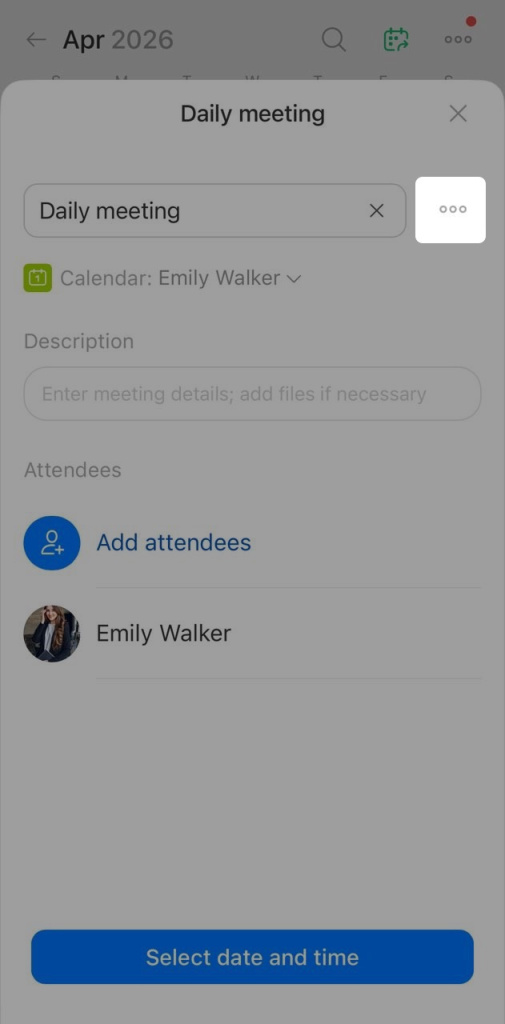
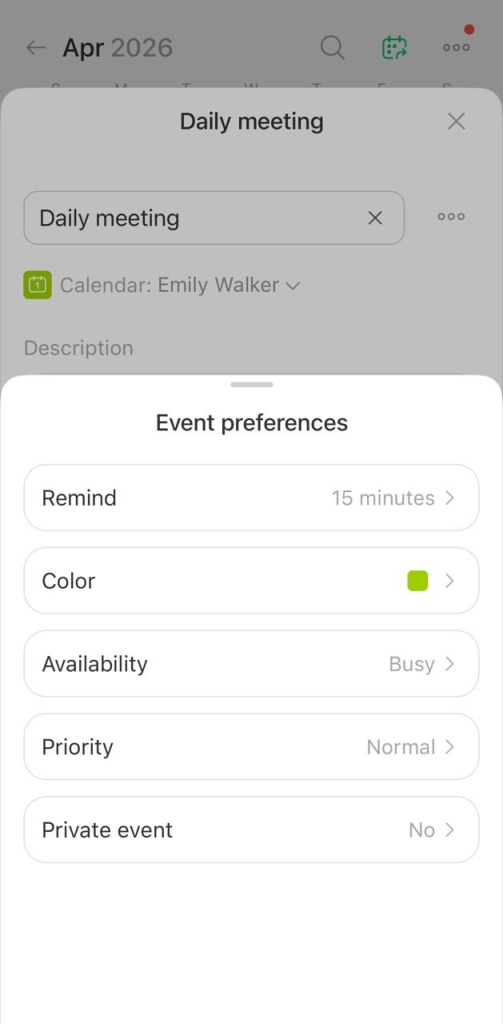
In event settings, you can set a reminder, choose a color for the label, or hide event details from others.
1. Tap Three dots (...) next to the event name.
2. The Event settings panel will open. Here, you can change:
- Remind — choose how many minutes or hours before the event you get a notification.
- Color — the color label for the event in the calendar.
- Availability — set your status to Busy or Free during the event.
- Priority — Normal or High.
- Private event — hide event details from other attendees.
Choose a time and reserve a meeting room
When you create an event, you can reserve a meeting room in the office.
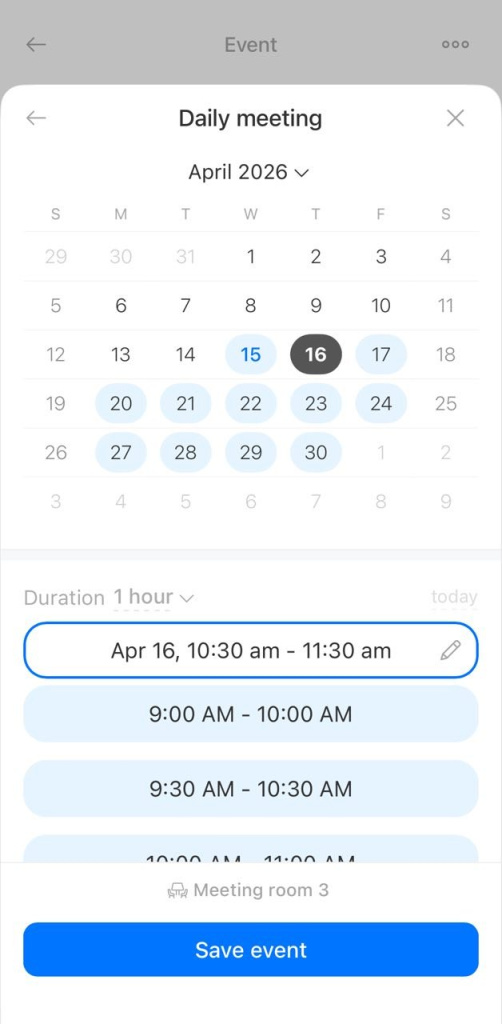
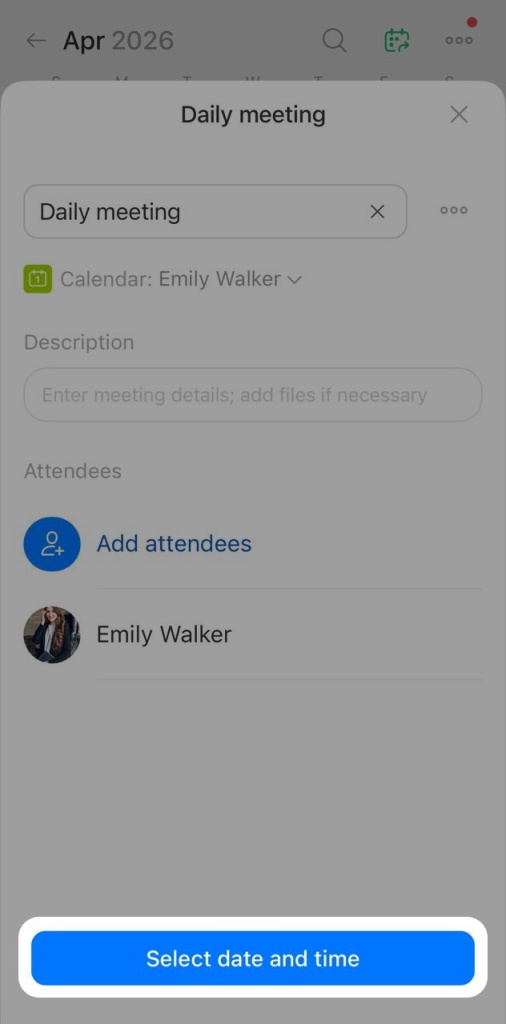
1. Tap Select date and time.
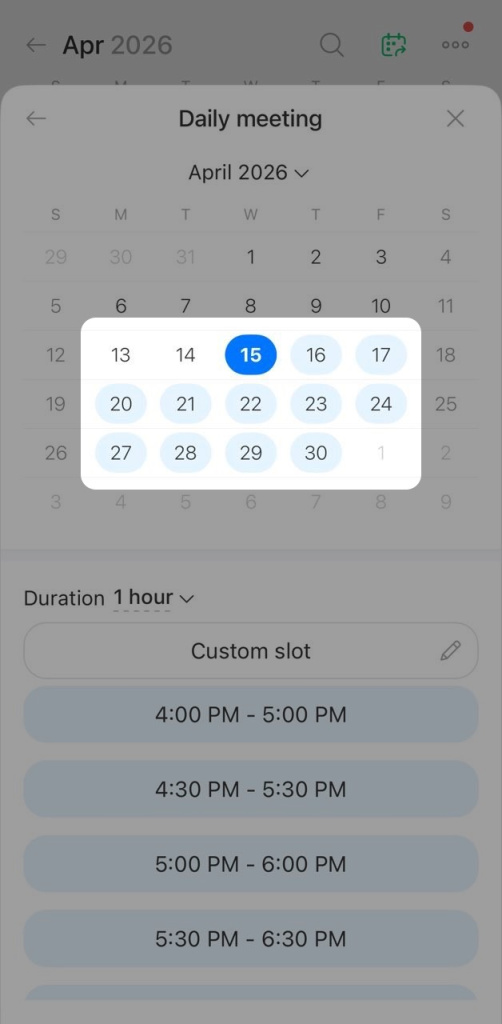
2. Choose a date in the calendar.
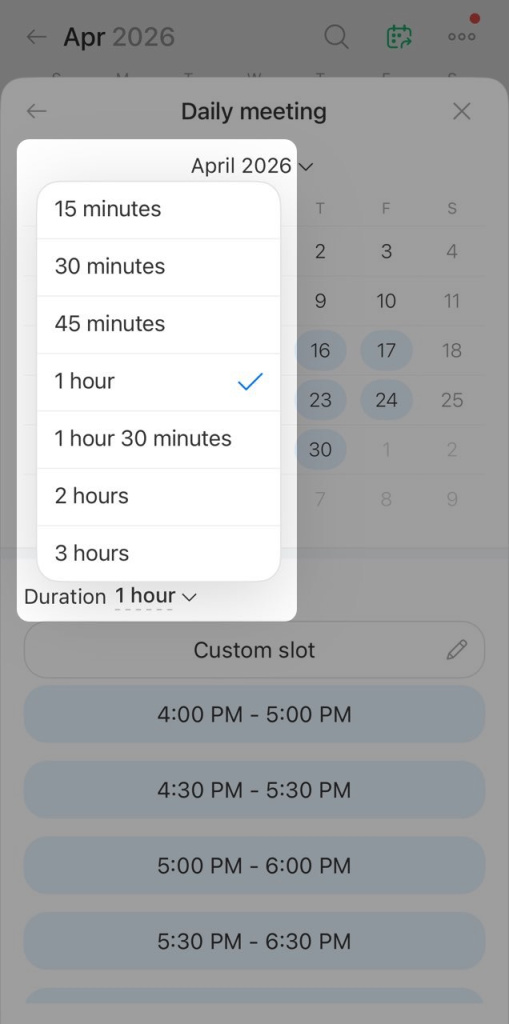
3. Set the duration — tap the current value next to Duration and choose an option from the list.
4. Select a time.
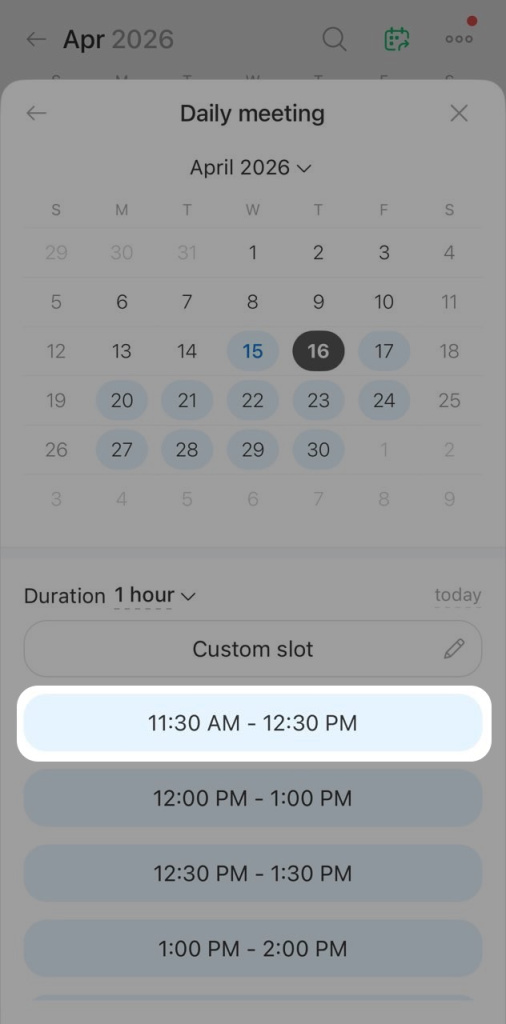
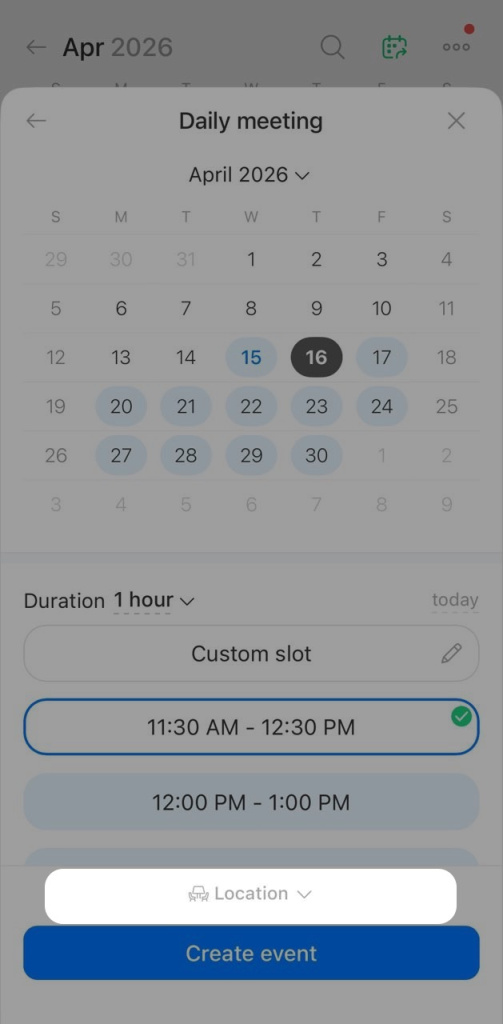
5. Tap Location.
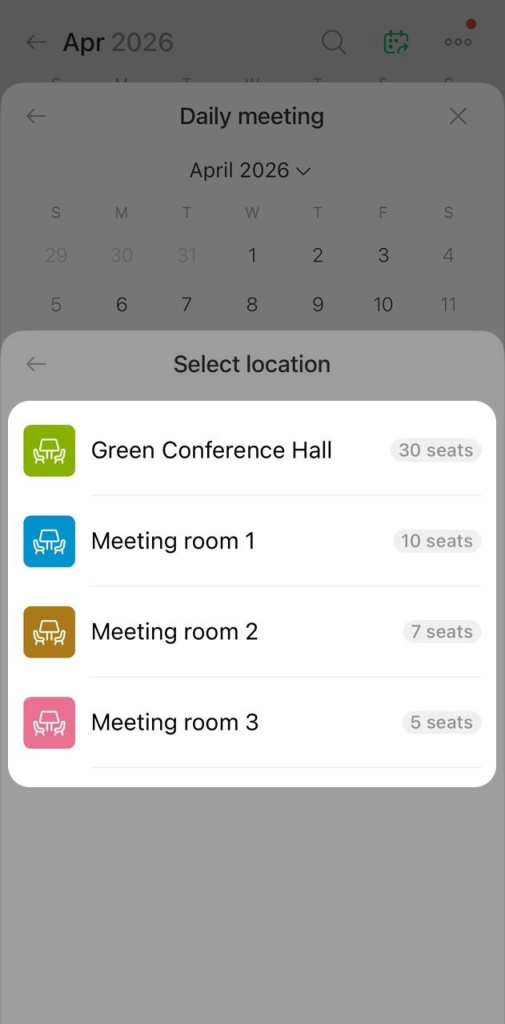
6. Choose a meeting room from the list of available rooms.
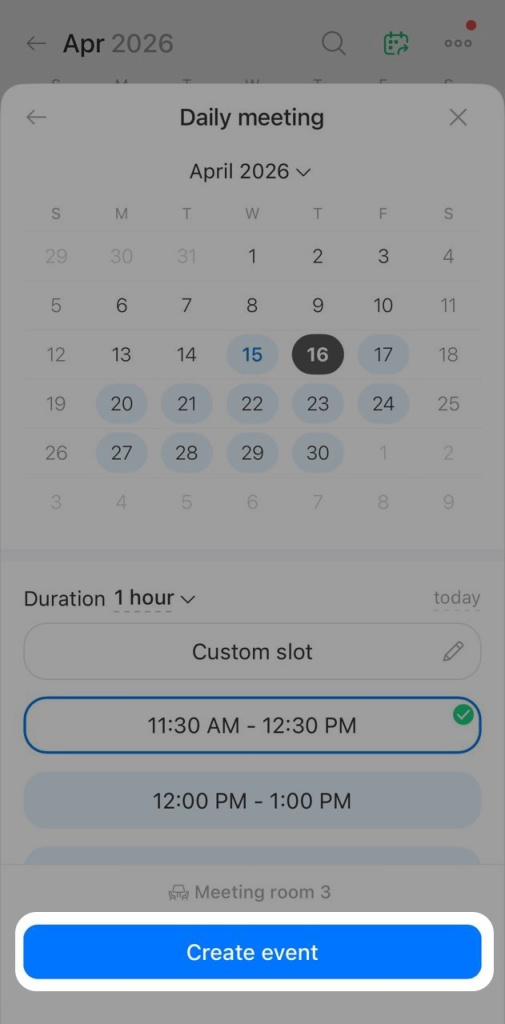
7. Tap Create event. The event will appear in the calendar with the meeting room listed.
Edit an event
If the meeting time changes or you need to update the attendee list, you can edit the event.
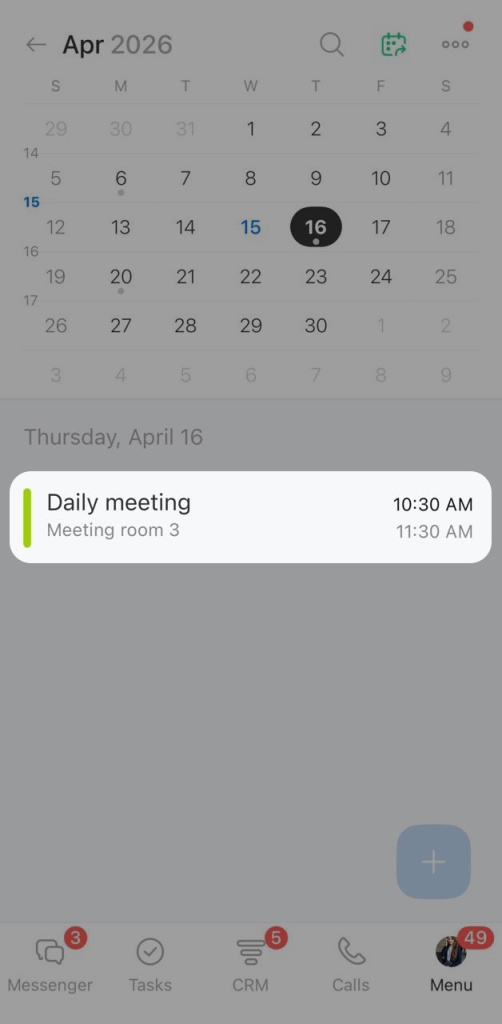
1. Tap the event in the calendar.
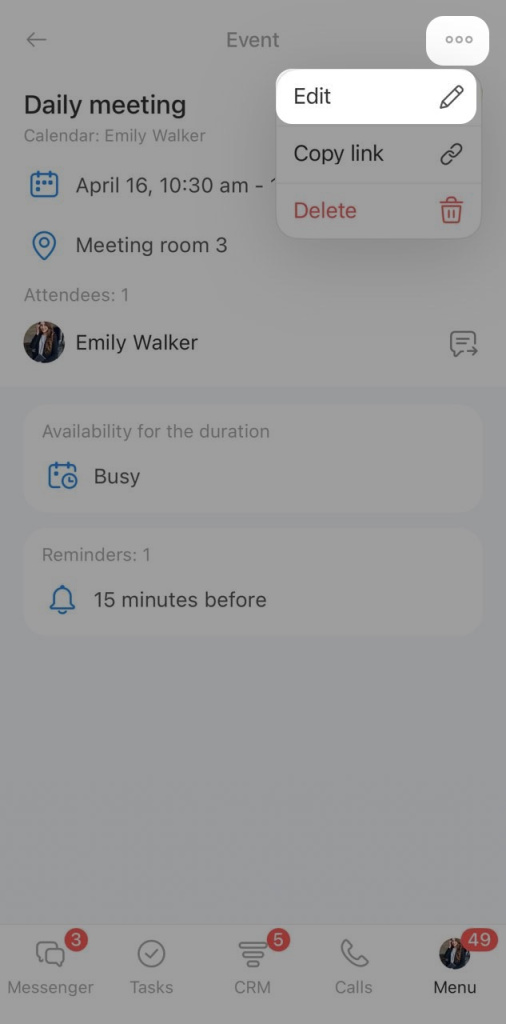
2. Tap Three dots (...) in the top-right corner of the event card and select Edit. You can also copy an event link here to share it.
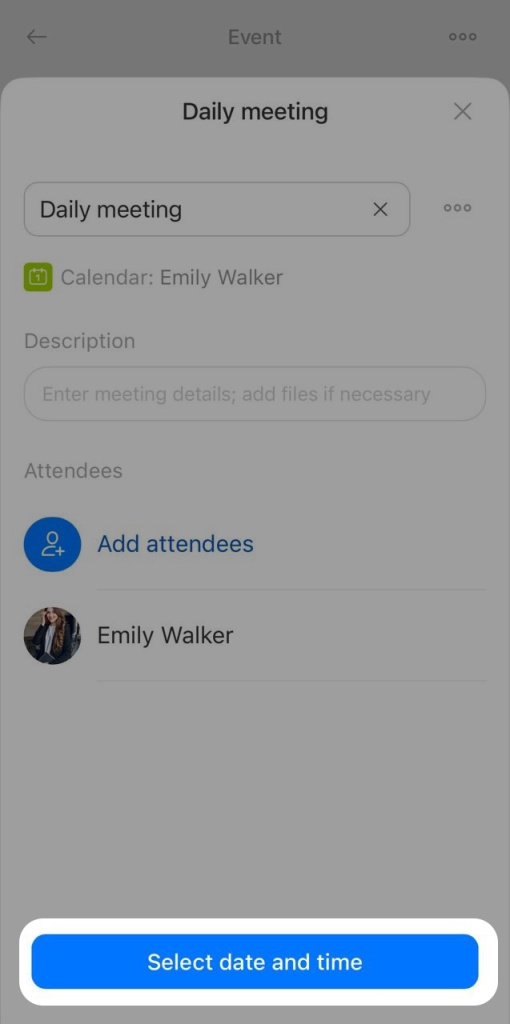
3. Make your changes and tap Select date and time.
4. Tap Save event.