Bitrix24 chats help you stay connected with colleagues and clients. Share files, create tasks, and schedule meetings right in a chat. In the mobile app, you can keep working and stay on top of messages and calls wherever you are.
In this article:
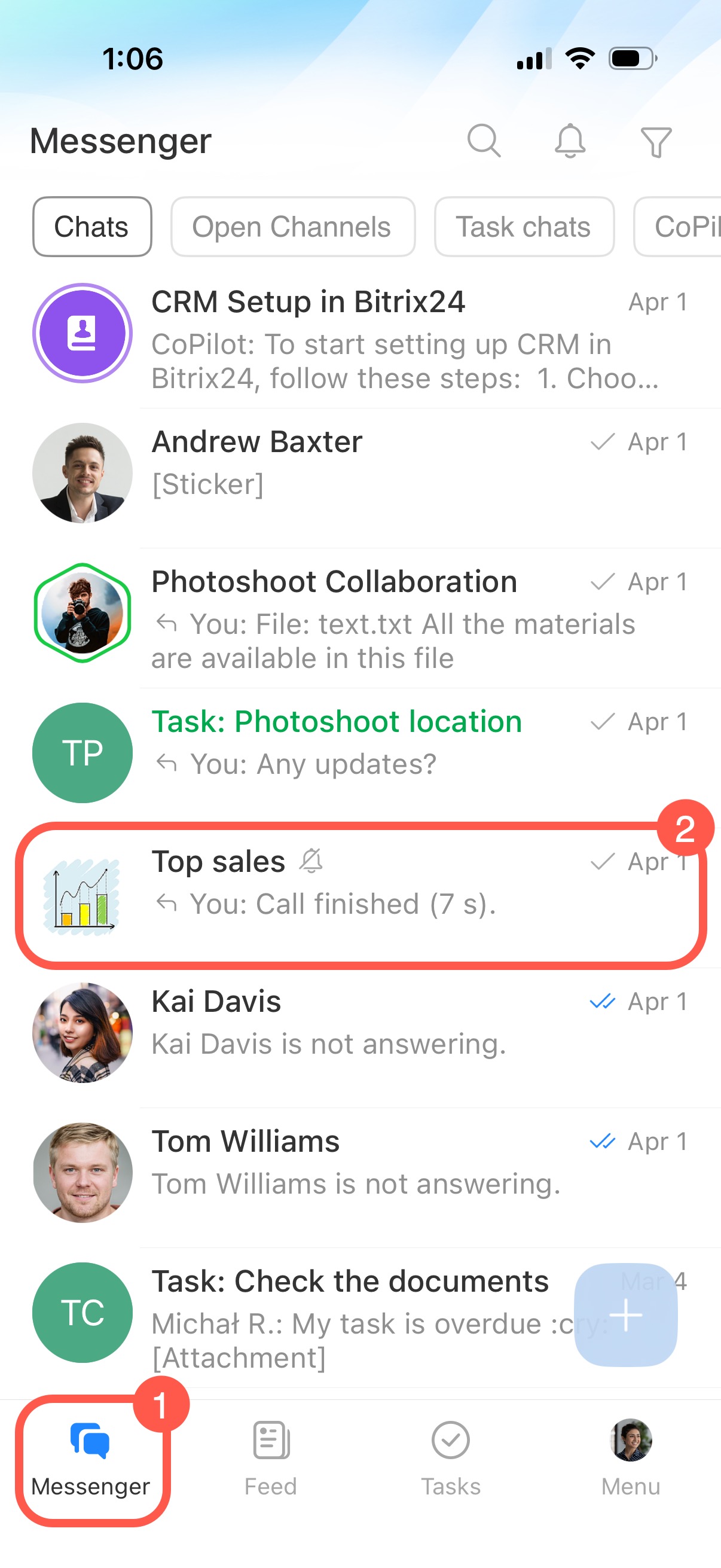
Go to Messenger and open the chat you need.
Create and send a message
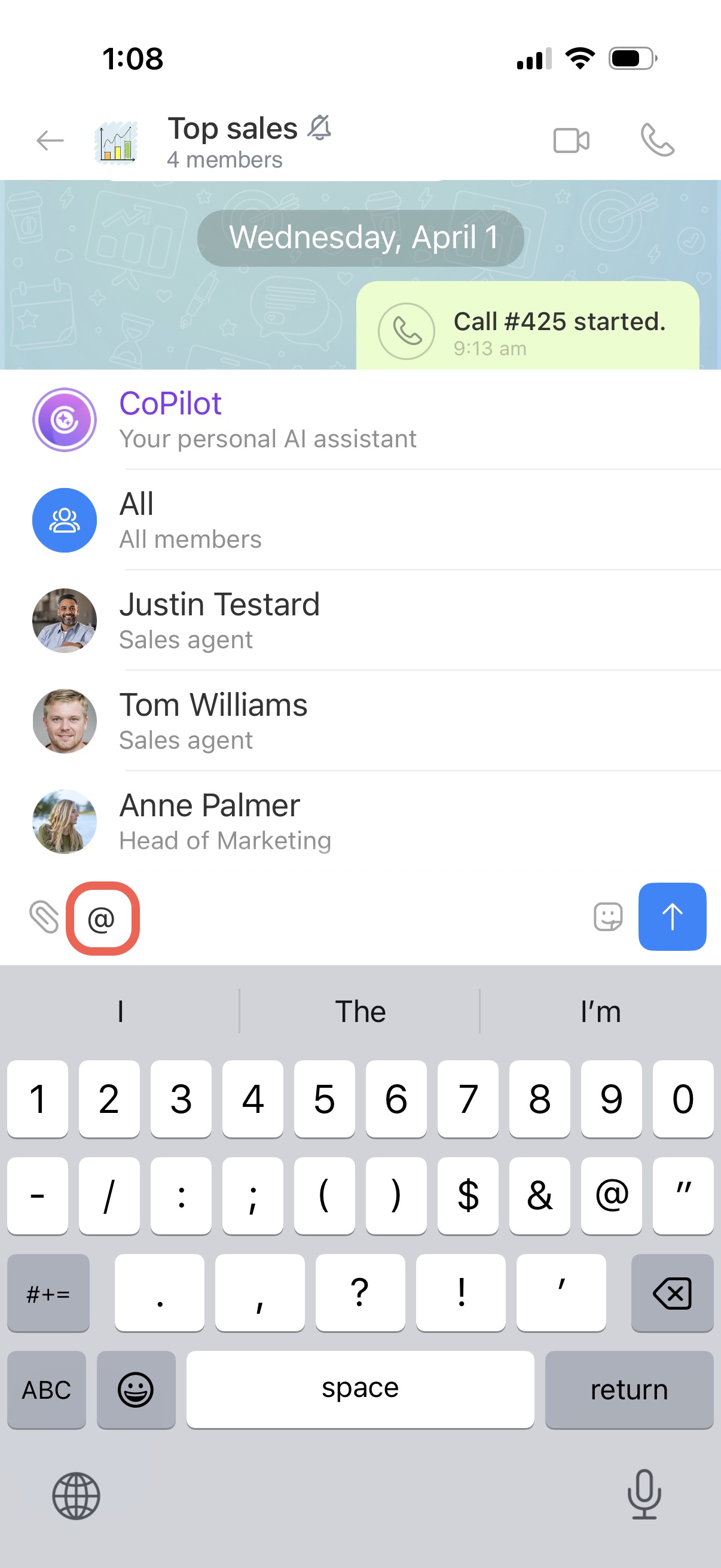
Mention a colleague, a chat, CoPilot, or everyone. Tap + or @, start typing, and select an option from the list.
- Employee or chat: Adds a link to a group or direct chat. If your colleague is in the chat, they receive a notification.
- All: Sends a notification to everyone in the chat. Use this for announcements or reminders.
- CoPilot: Helps you catch up on the conversation. It can summarize the discussion, highlight key points, and show main takeaways.
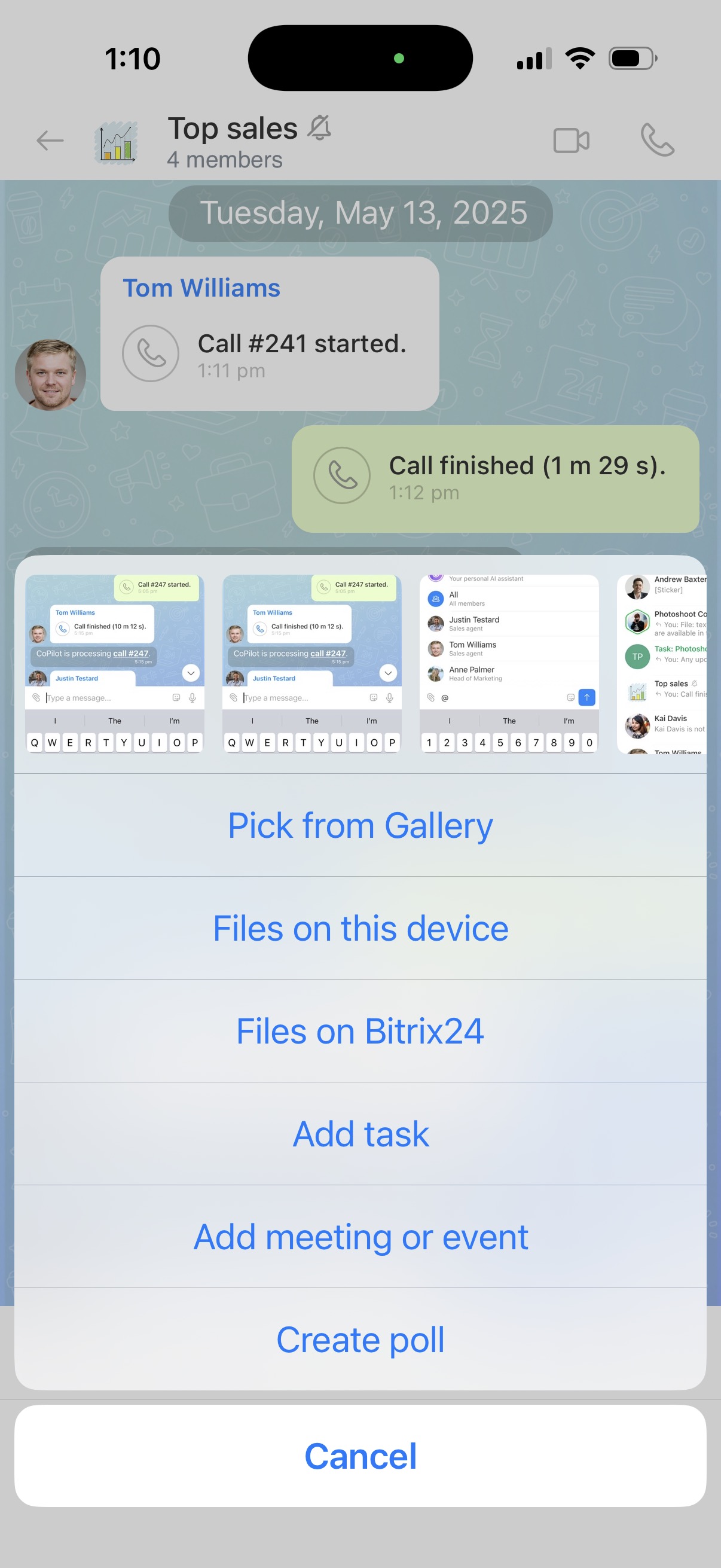
Add an attachment. Tap the paperclip icon to:
- Upload a file from your device or Bitrix24 Drive. Files are added in the order you select them.
- Create a task or schedule a meeting in the calendar. A message with a link to the item appears in the chat.
- Add a poll.
Record a voice message. Press and hold the microphone icon. Swipe up to continue recording without holding the button, or swipe left to cancel. You can listen to the recording before sending it.
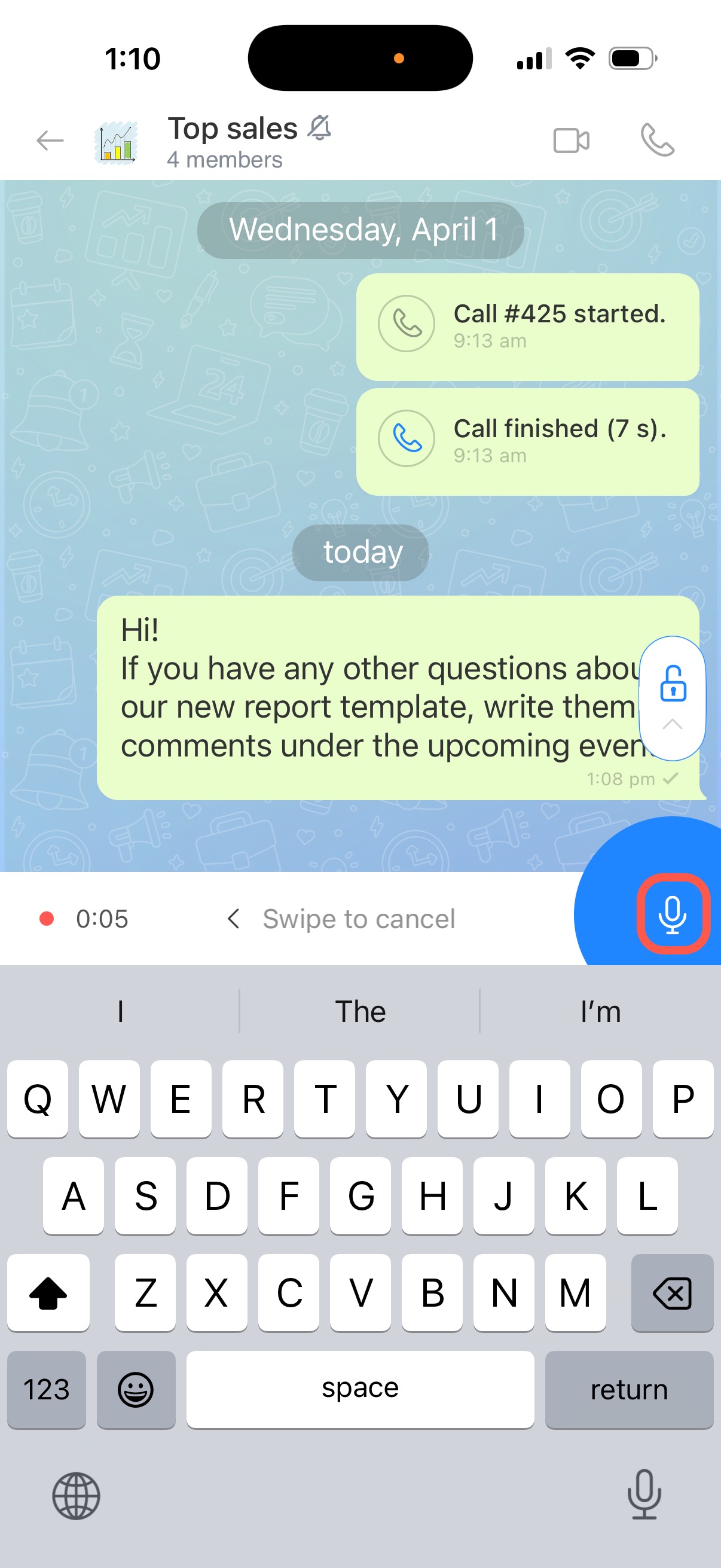
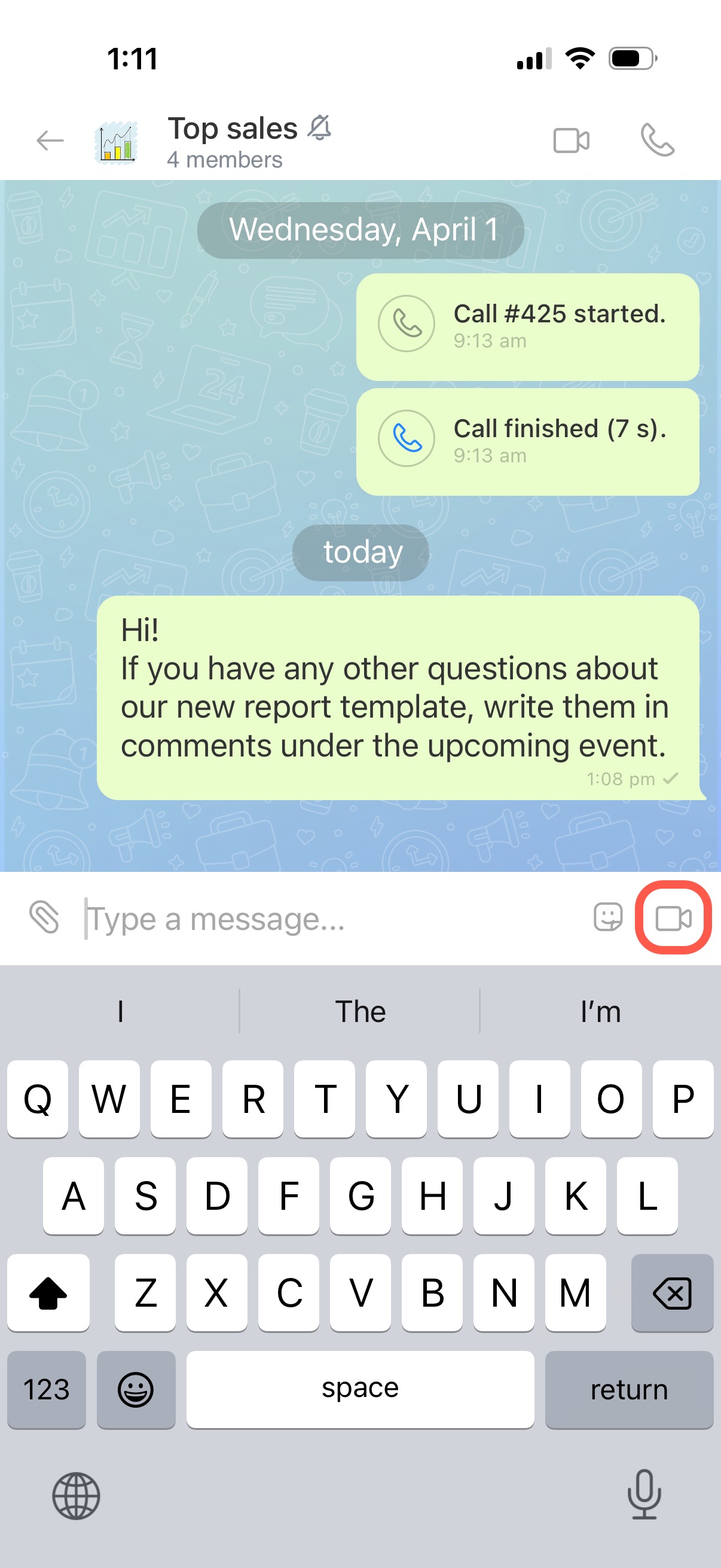
Record a video message. Tap the microphone icon, then press and hold the camera icon to record. The maximum length is one minute. Release to send, or swipe left to cancel.
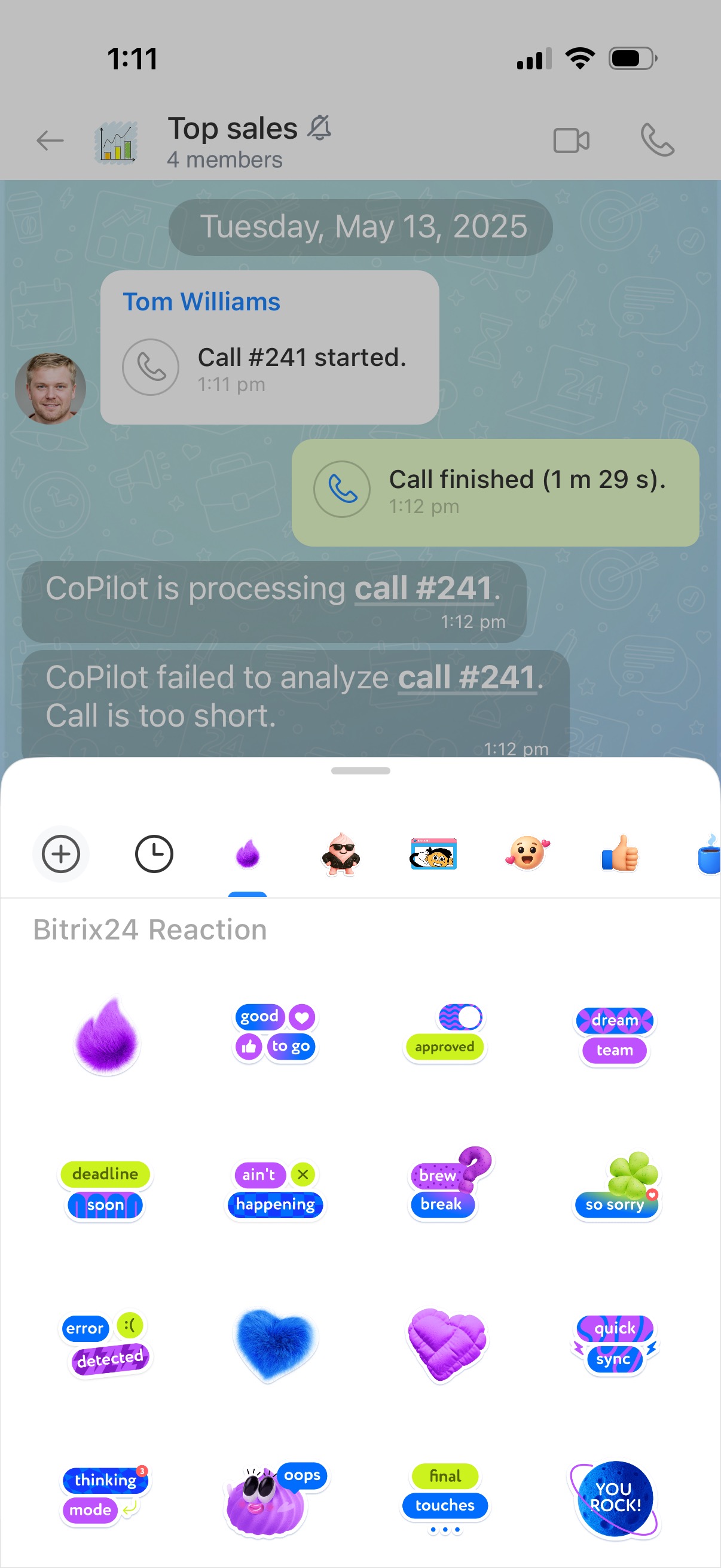
Send a sticker. Tap the sticker icon and choose a sticker from the list.
Save a draft. Unsent text stays in the chat, so you can finish and send it later.
Read a conversation
Message status. It appears in the bottom-right corner:
- One check mark — delivered
- Two check marks — read
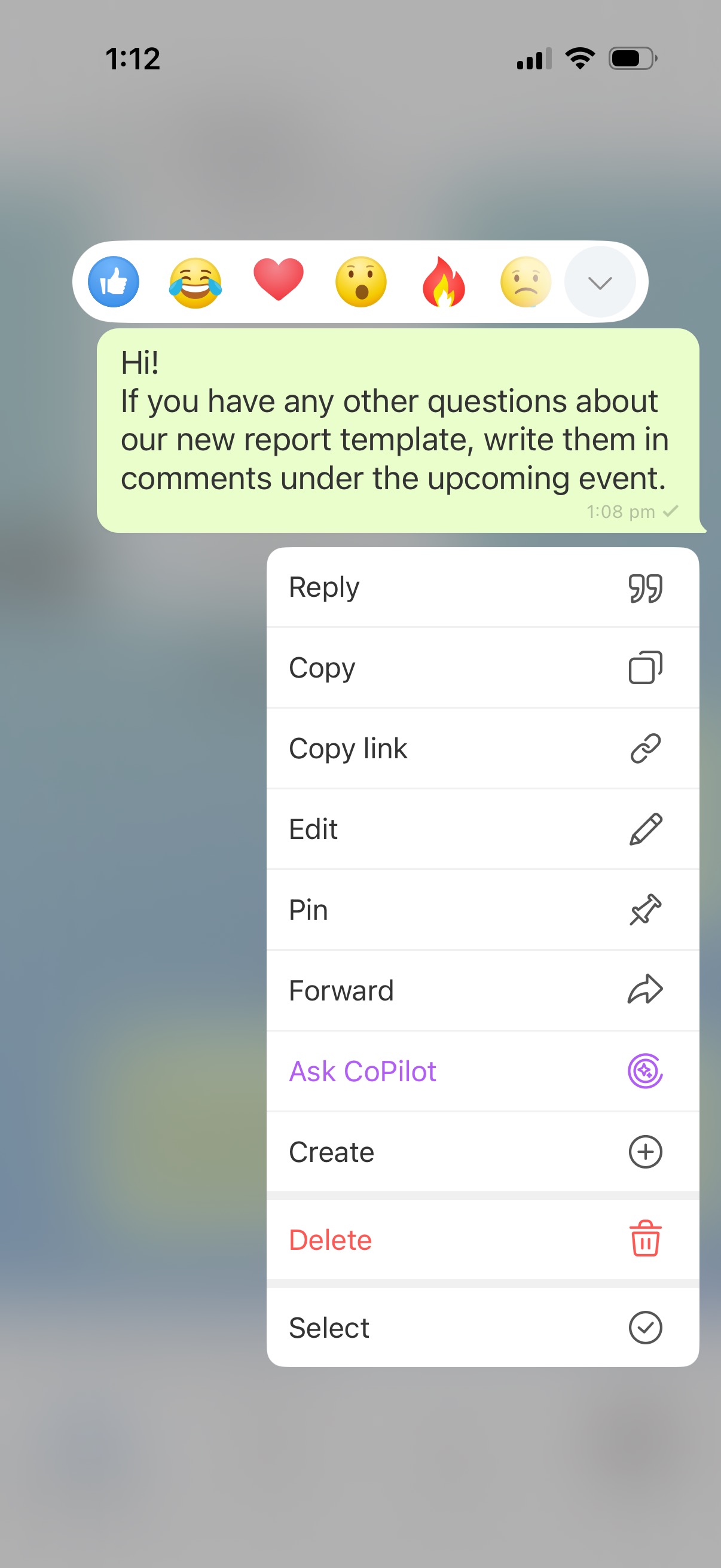
Reactions. Press and hold a message, then choose an emoji. Double-tap a message to add a like.
Message actions. Press and hold a message to open the menu:
- Reply: Quotes the message in your reply.
- Copy, edit, or forward the message.
- Copy link: Share the message with colleagues. Users can open it if they are in the chat or if the chat is public.
- Pin: Shows the message at the top of the chat for everyone. You can pin up to 20 messages.
- Ask CoPilot: Quotes the message in a reply and mentions CoPilot.
- Create a task or meeting.
- Download: Saves files from the message to your device.
- Save to Bitrix24: Adds files to the Saved files folder in your personal Drive.
- Open the sender's profile.
- Delete: If no one has read the message, the chat does not show a deletion notice.
- Select: Delete or forward up to 20 messages at once.
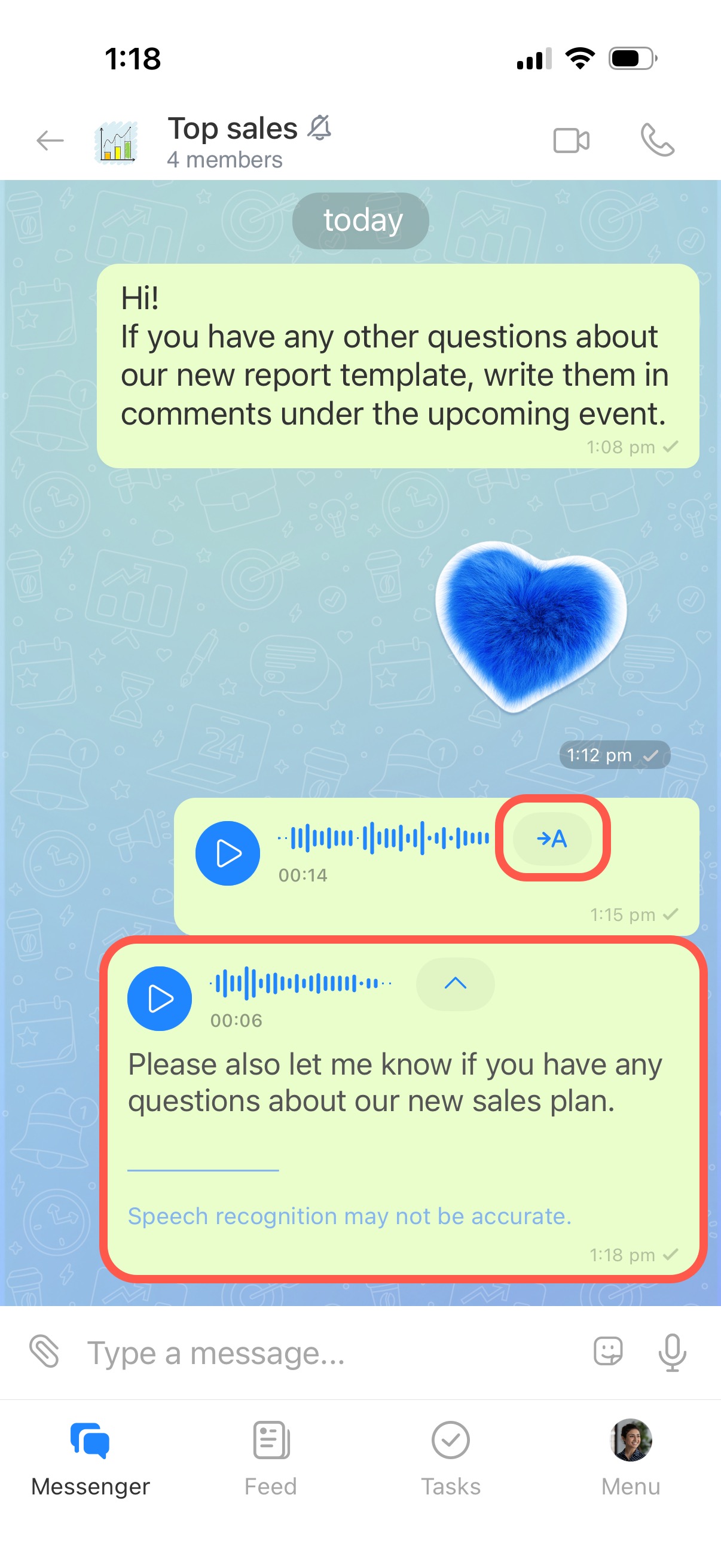
Transcribe voice and video messages. Tap the transcription icon (→ A) to convert the message to text.
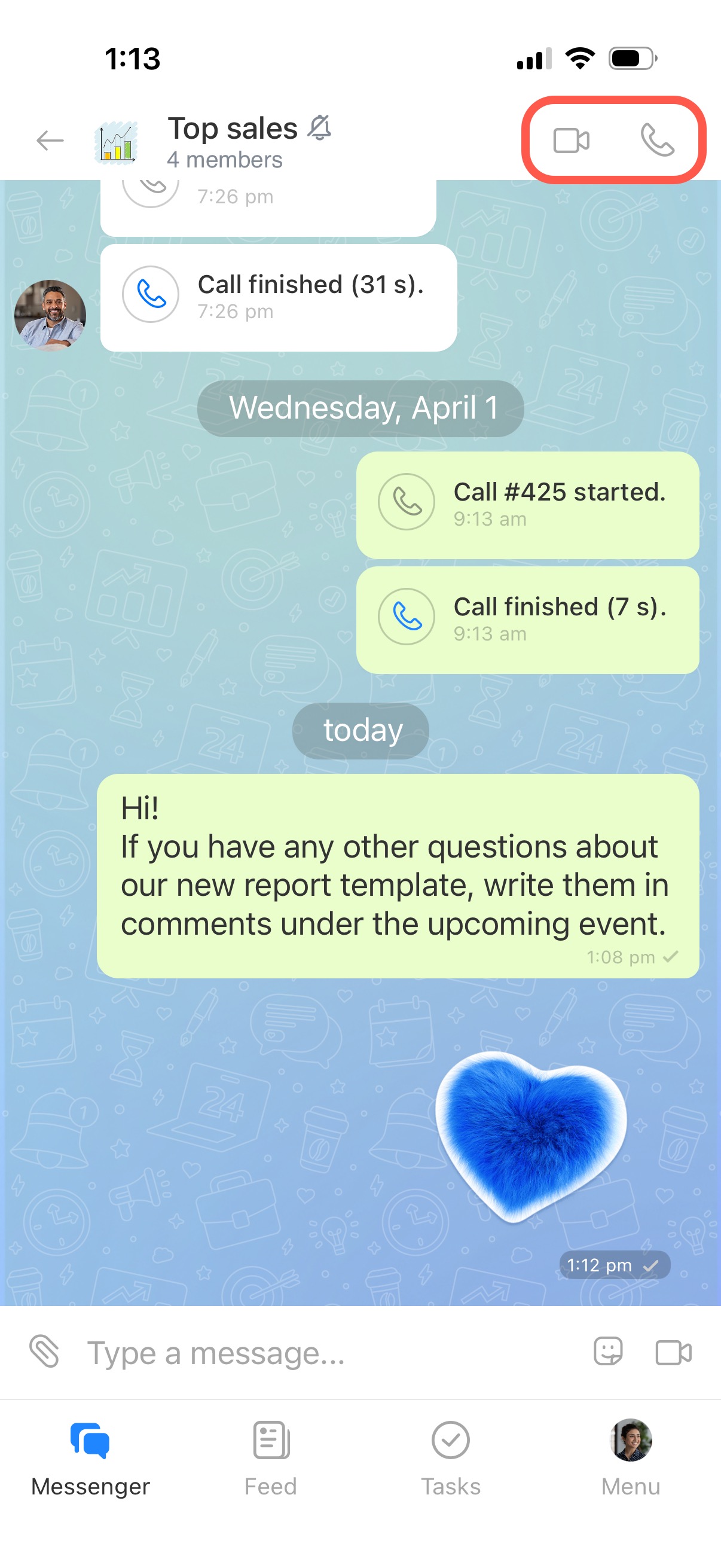
Start an audio or video call
Tap the audio or video call icon. Chat members receive a notification and can join the call.
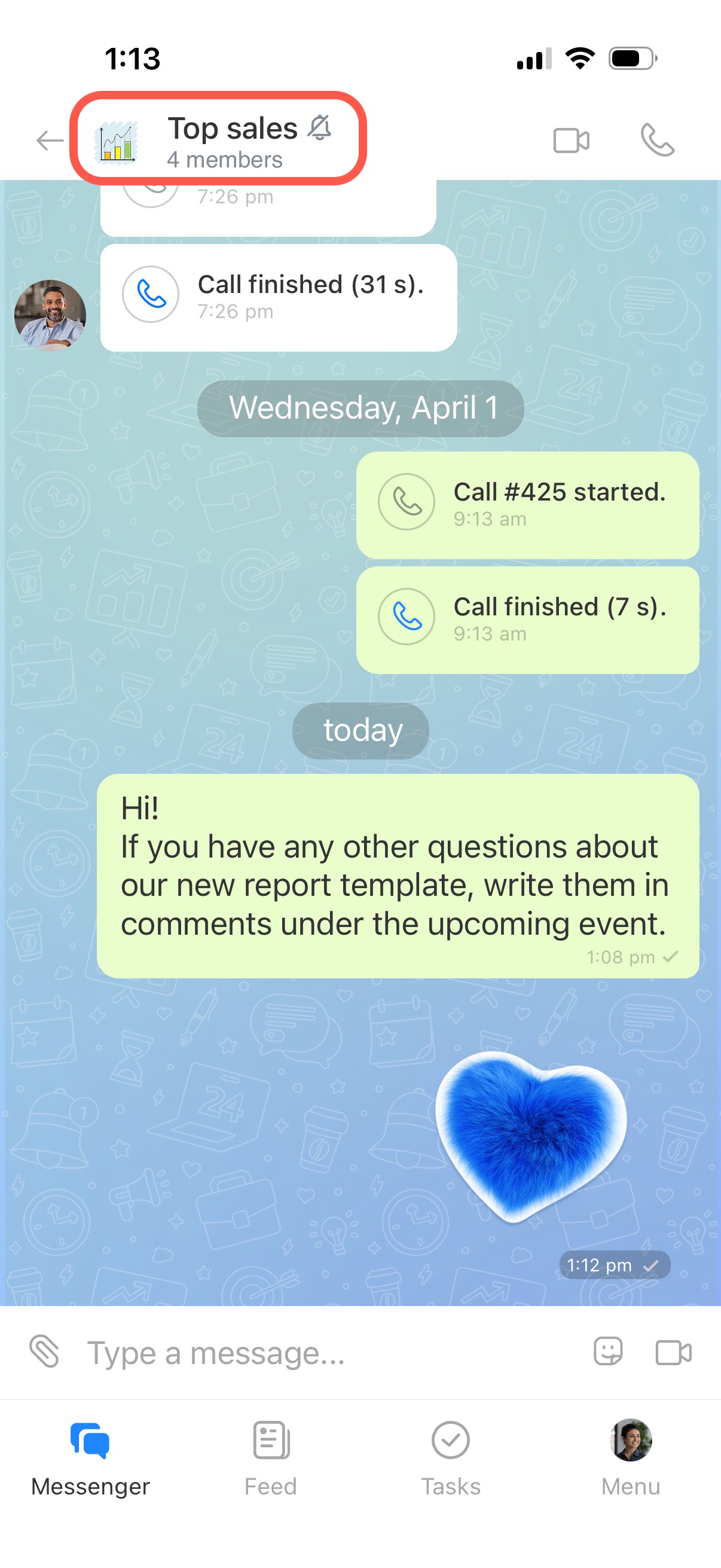
Open the sidebar and manage a chat
The sidebar is where you manage chat settings. Tap the chat name in the header to open it.
Basic options. In the sidebar, you can:
- View the chat type and description.
- Start a voice or video call.
- Search by keyword and jump to a message.
- Mute or unmute the chat.
- Set messages to auto-delete after one hour, one day, one week, or one month. The chat shows a notification when this setting changes.
- Browse media, files, links, and voice messages, and jump to them in the chat.
- Add chat members.
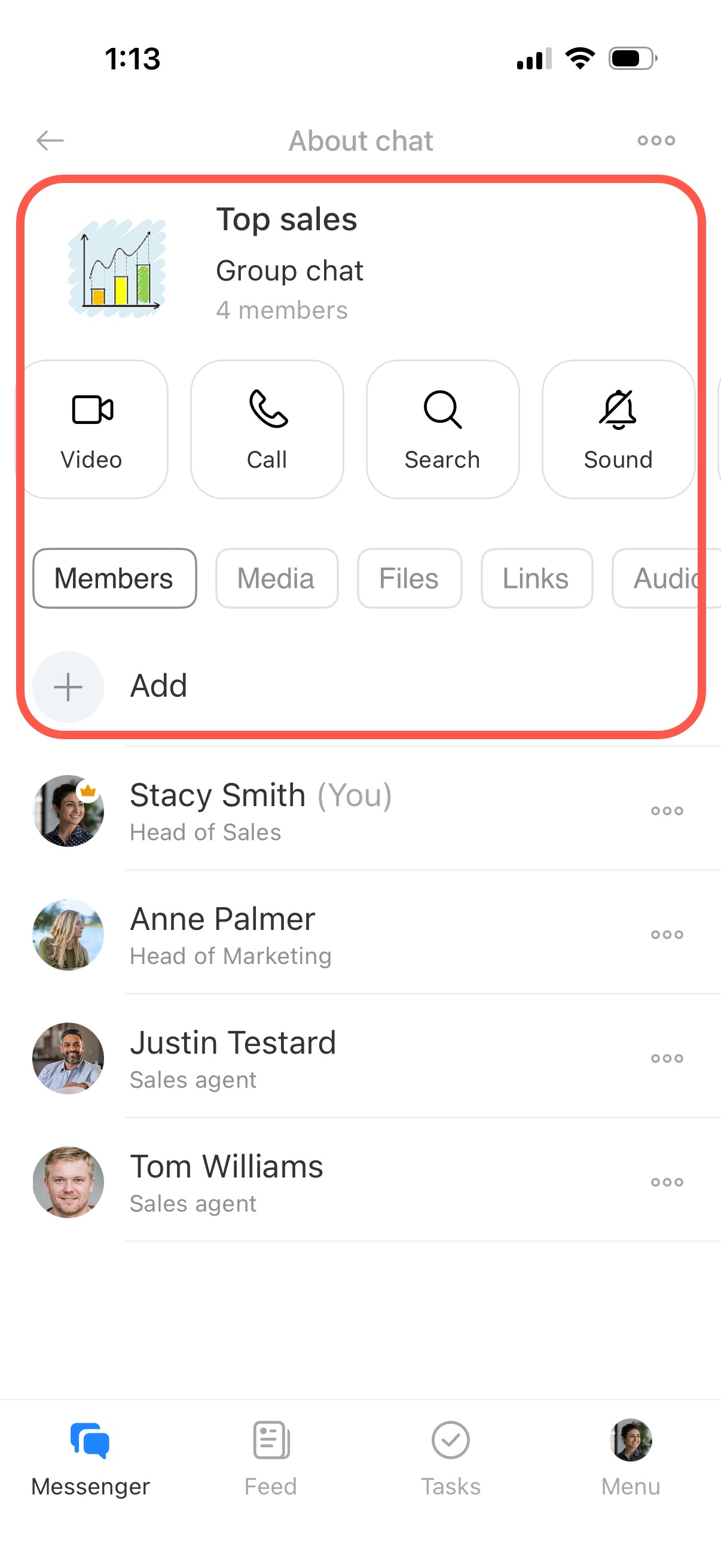
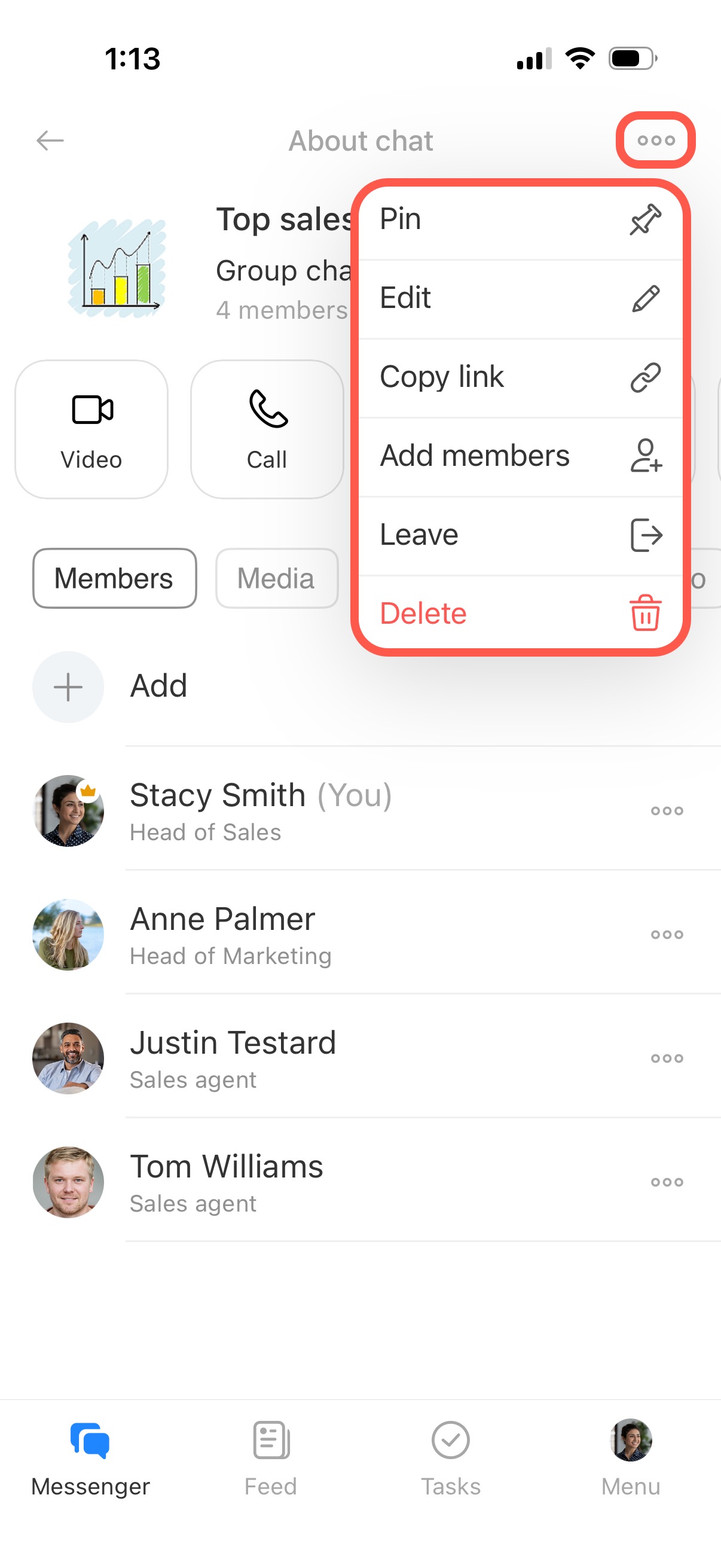
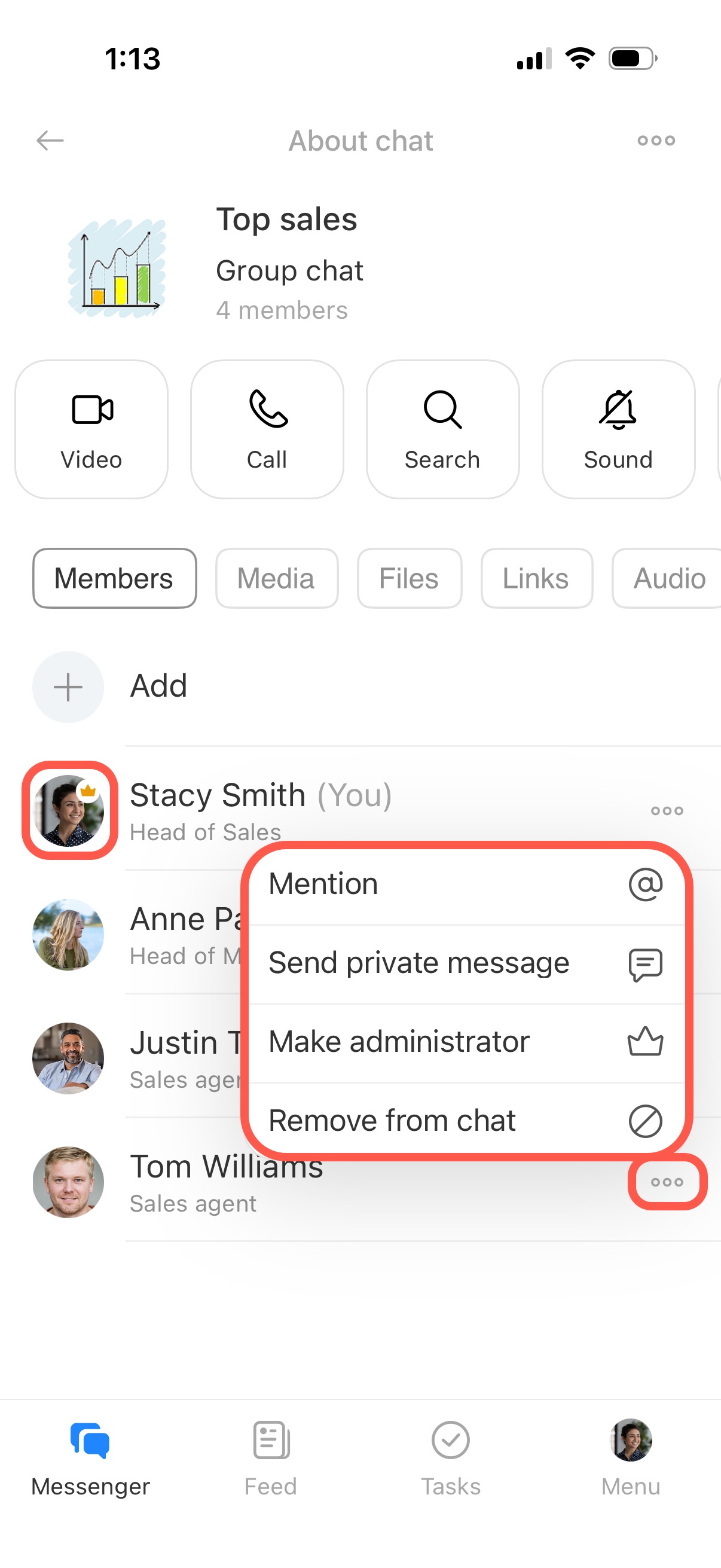
Members. Tap a member's name to open their profile. Tap Three dots (...) next to a name to mention the person, open a direct chat, assign administrator rights, or remove the person from the chat. In group chats, creators and administrators have a special icon.
Chat menu. Tap Three dots (...) and choose an action:
- Pin: Keeps the chat at the top of the chat list.
- Edit: Participants can change the chat name and image if permissions allow. The owner can also change the chat type, description, and access permissions.
- Copy link: Share the chat with other employees.
- Add members: Invite one or more employees.
- Leave: To rejoin a private chat, you need an invitation. To rejoin a public chat, find it by name and join it.
- Delete: Only the owner can delete the chat.
- View profile or View calendar: Available only in one-on-one chats.