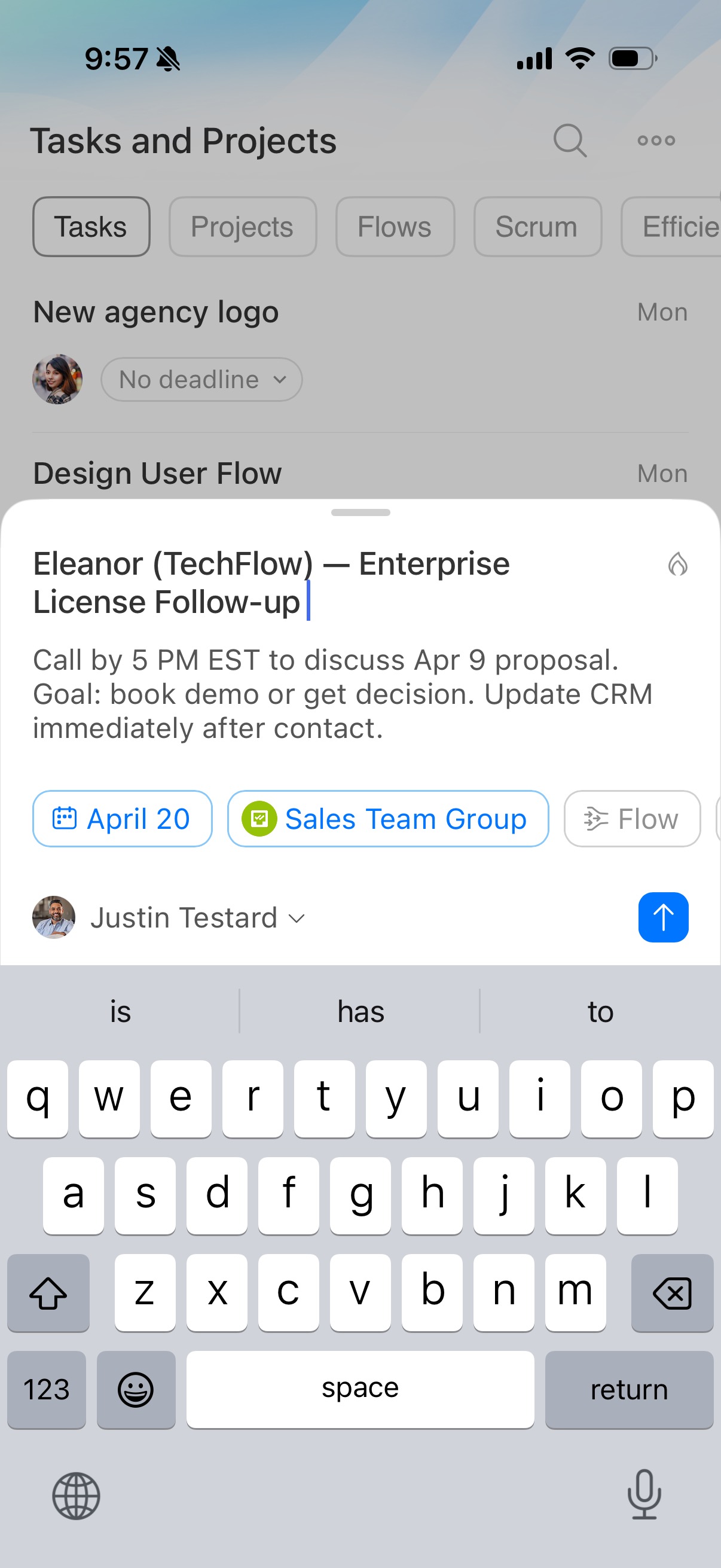
You can create tasks directly in the Bitrix24 mobile app as you work. For example, create a task during a chat with coworkers. This helps you capture action items right away, keep decisions in one place, and make sure nothing is missed.
In this article:
Create a task in the Tasks section
In the bottom menu, open Tasks and tap Plus (+).
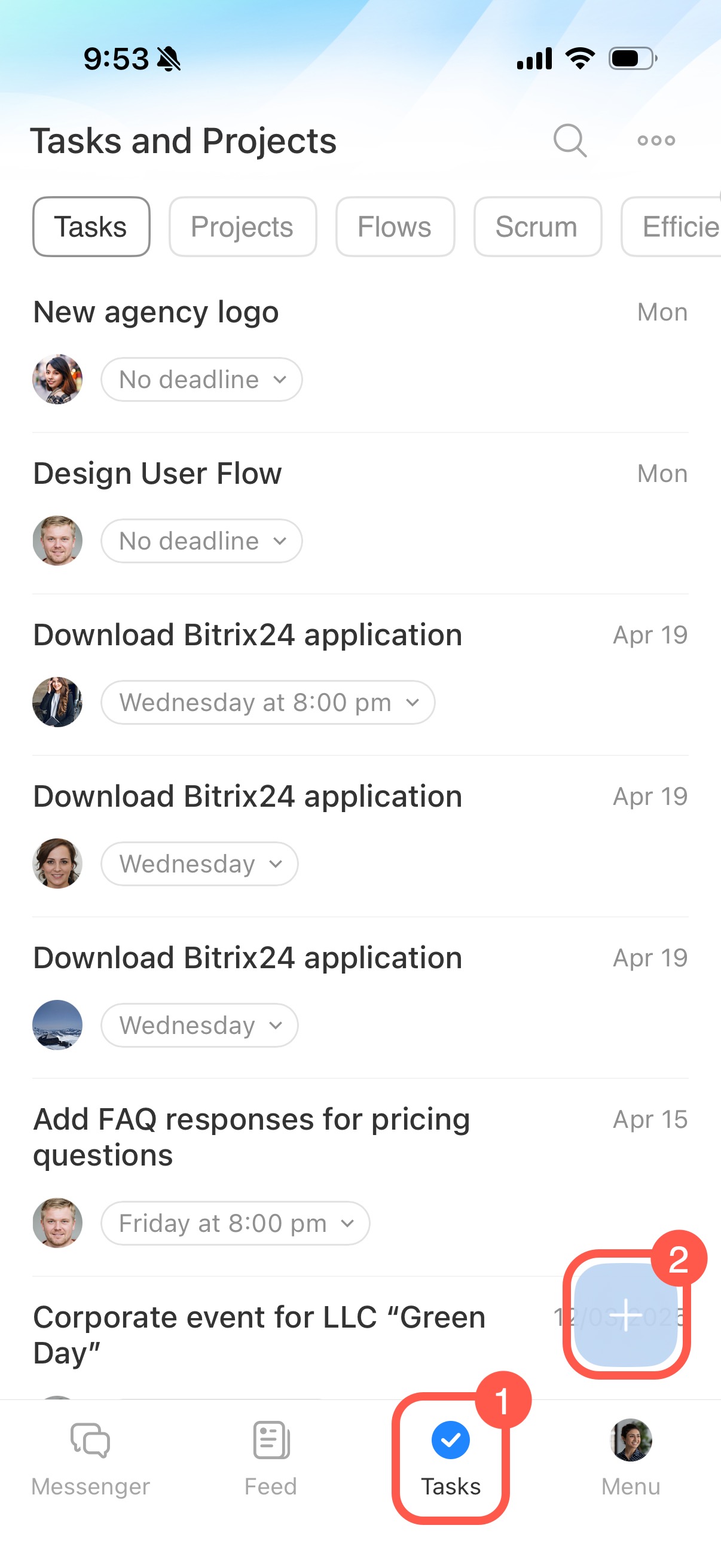
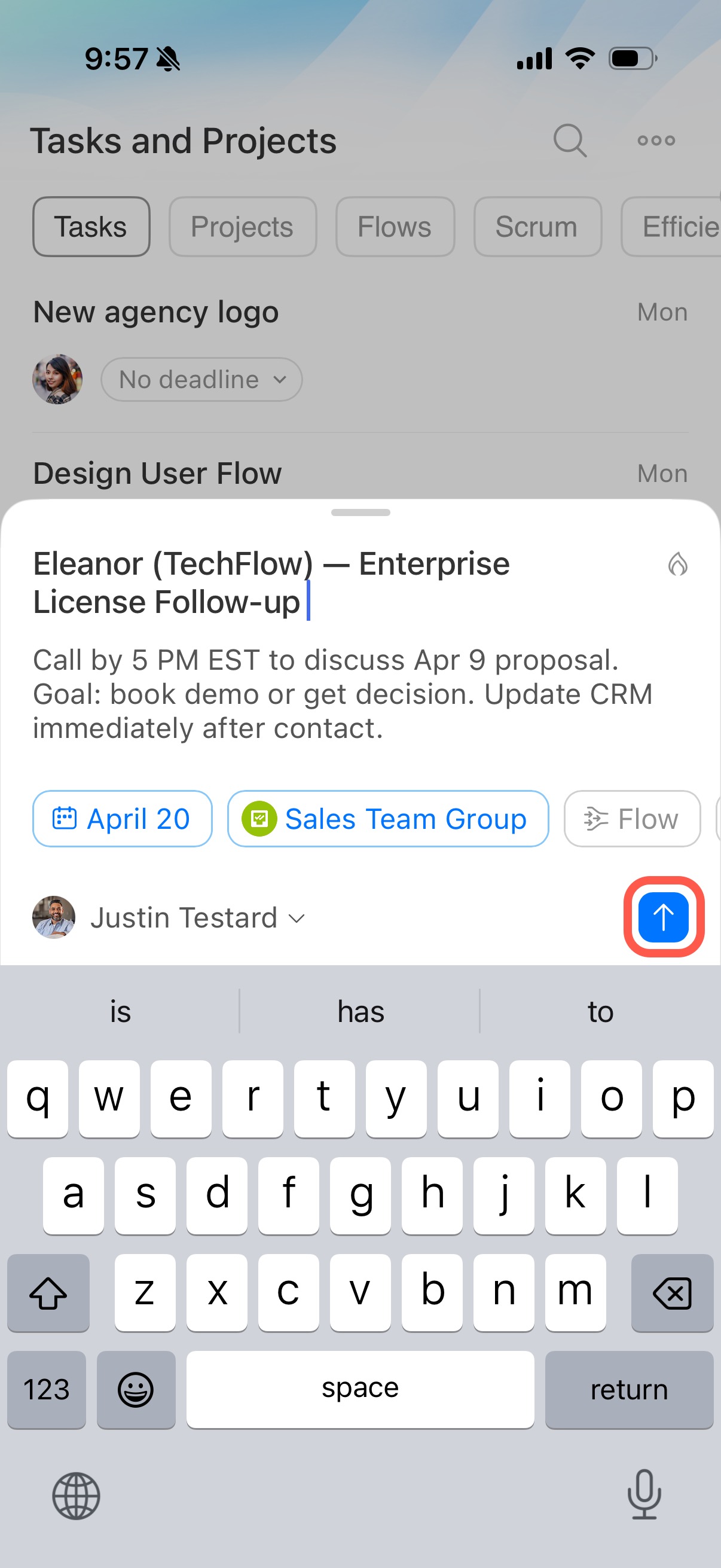
Enter the task name, deadline, and other details. Then tap Send (↑).
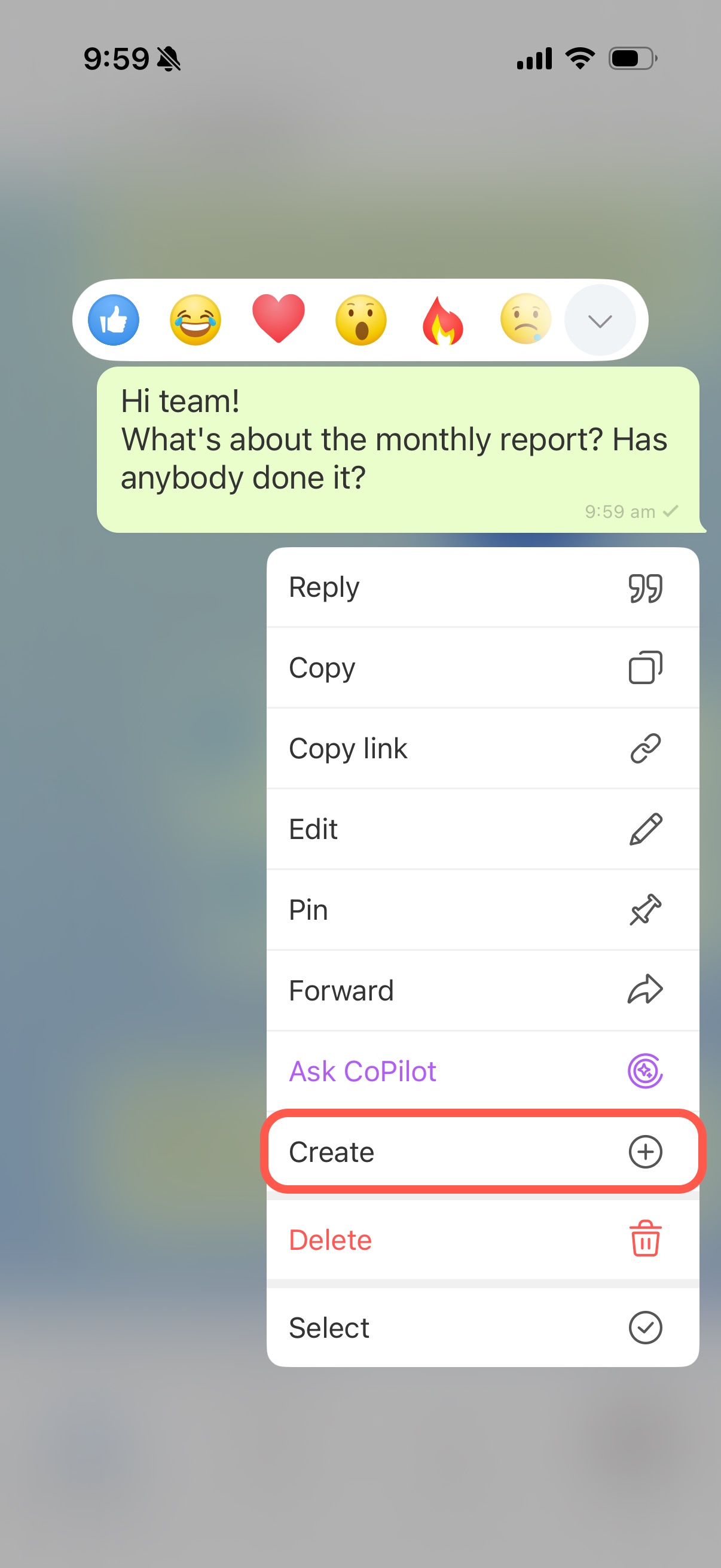
Create a task from a chat message
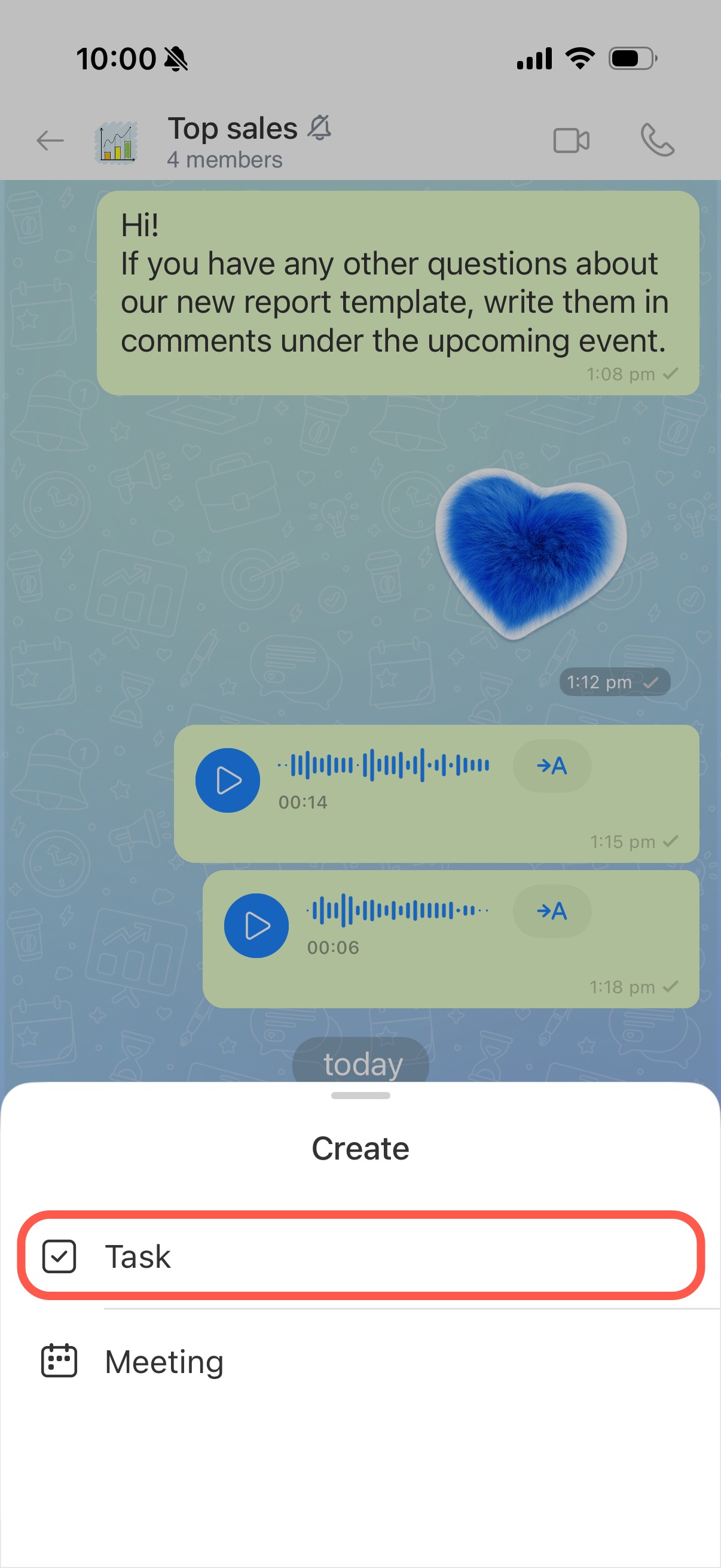
Open the chat in Messenger and find the message you want to convert into a task. Tap and hold the message, then tap Create.
Select Task.
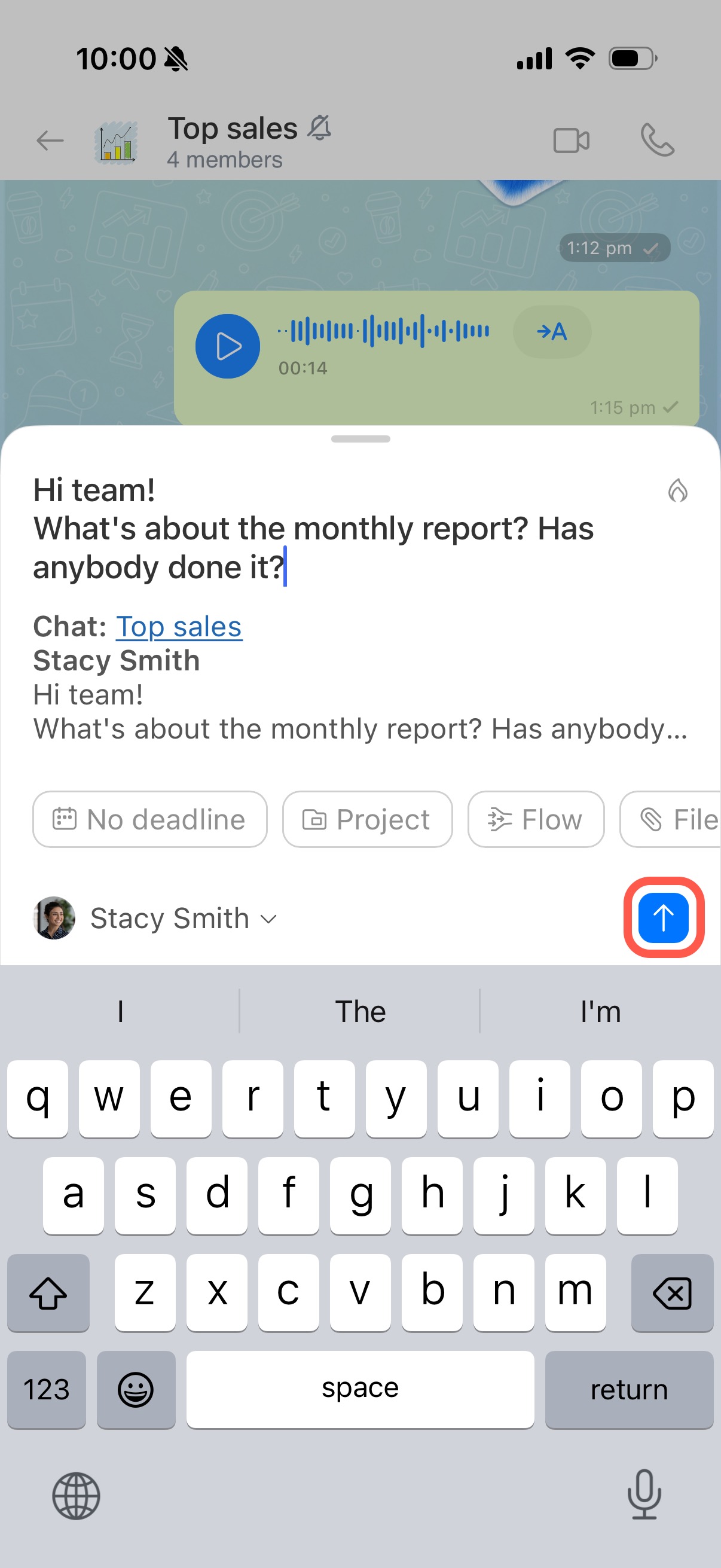
The message text is automatically used as the task name, but you can edit it. By default, you are both the creator and the assignee.
In a direct chat, the other participant is added as an observer. In a group chat, all chat members are added as observers.
Fill in the required fields and tap Send (↑).
Create a task from a Feed post
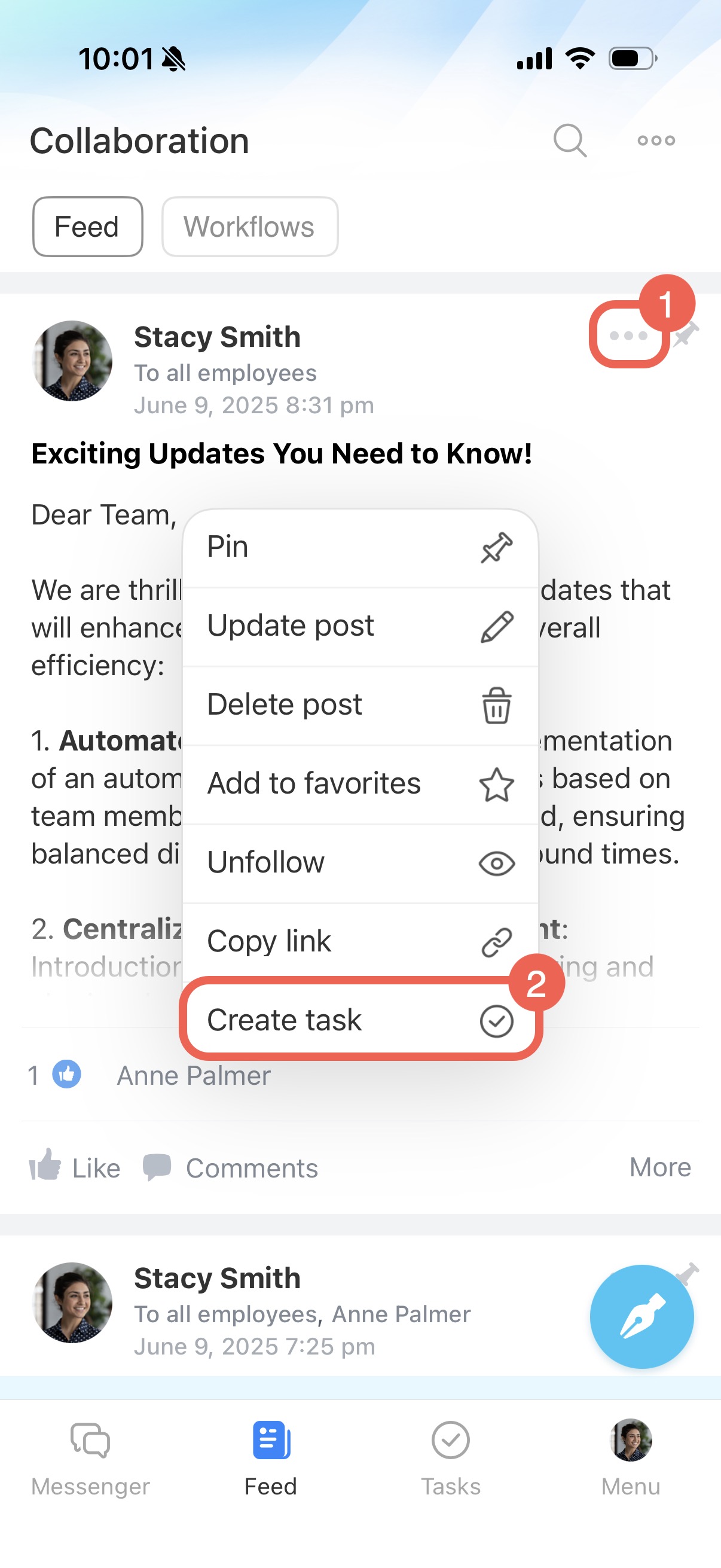
Find the post in the Feed and tap Three dots (...) > Create task.
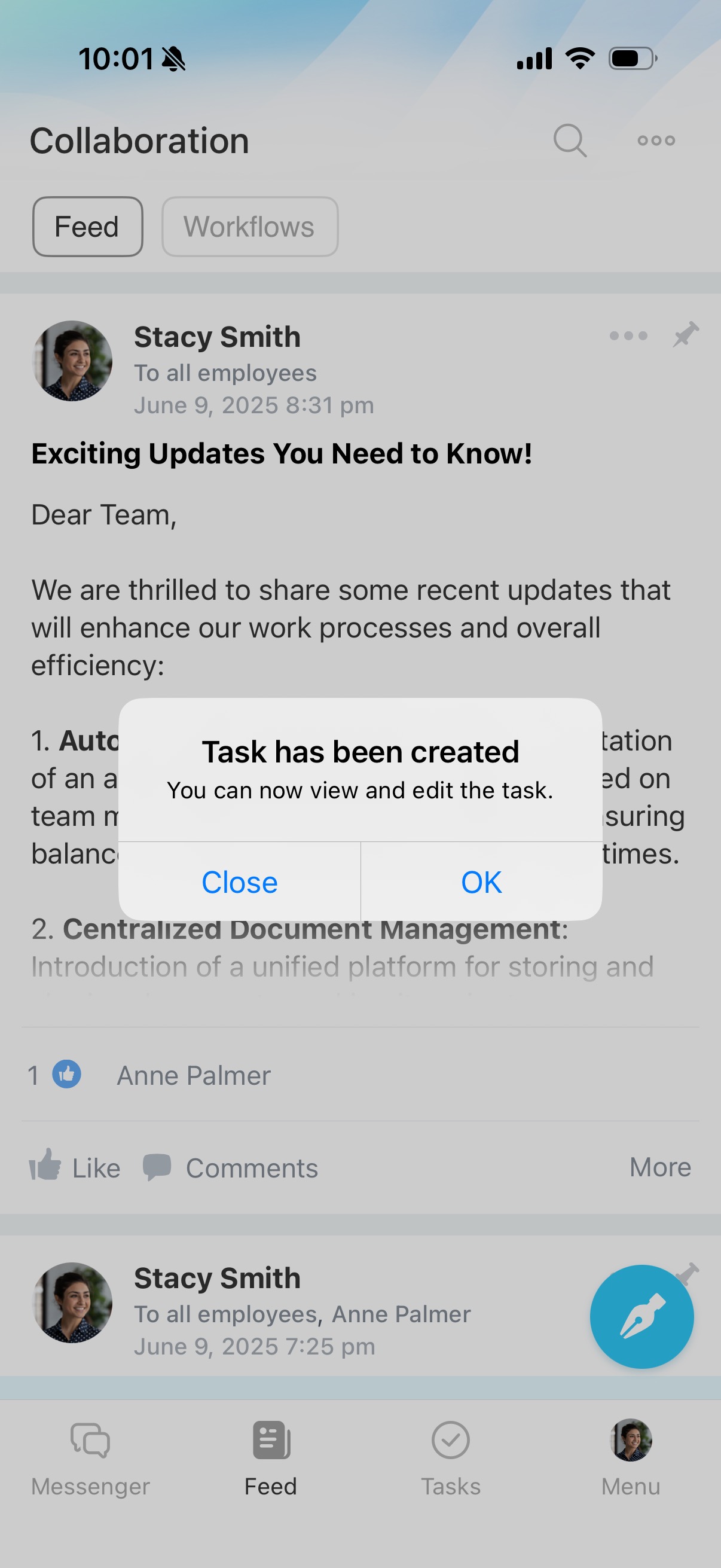
You will see a notification confirming the task was created. Tap OK to open and edit the task.
Fill in task details
To keep the task clear and ensure it is completed on time, describe what needs to be done and the expected result. When creating a task in the mobile app, you can:
- Add a task name and description
- Set a deadline
- Attach files
- Add extra options, such as checklists and projects
- Choose an assignee, participants, and observers