
In Bitrix24, you can share folders with coworkers and external users, such as clients, contractors, and partners, by using internal and public links. One link gives users access to all the files they need. If the folder content changes, they can open the same link again to see the updated files.
Internal links
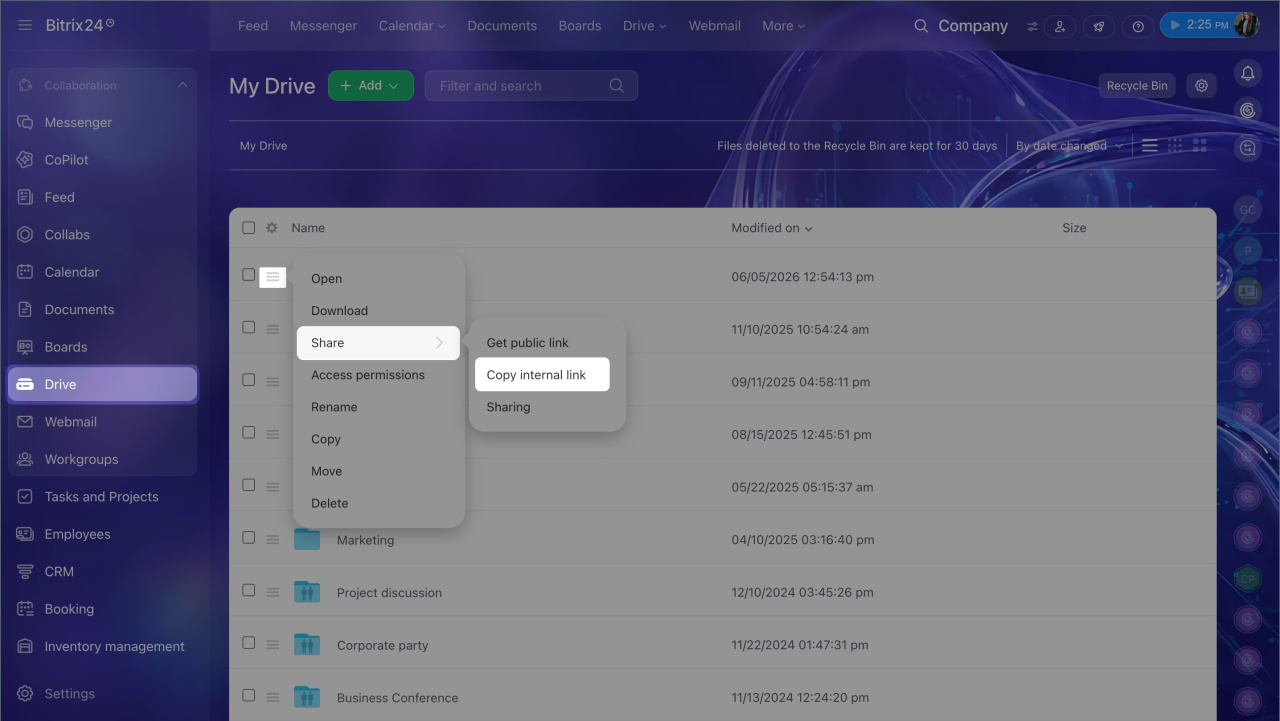
Use an internal link to share a folder with coworkers. Copy the link and send it in a chat message or add it to a task description.
1. Open Drive.
2. Click Menu (☰) next to the folder you want to share.
3. Click Share.
4. Click Copy internal link.
The menu item changes to Link copied to clipboard. Send the link to your coworker. Only employees with access permissions can open the folder.
Configure access permissions for your personal Drive
Public links
If you need to share a file with a client or a specialist who does not have access to your Bitrix24, use a public link. You can send it by SMS, messenger, or email. The folder opens in a browser, and the recipient can download individual files or the whole folder as an archive. Folders shared through public links are available to both external users and employees.
Bitrix24 plans and pricing
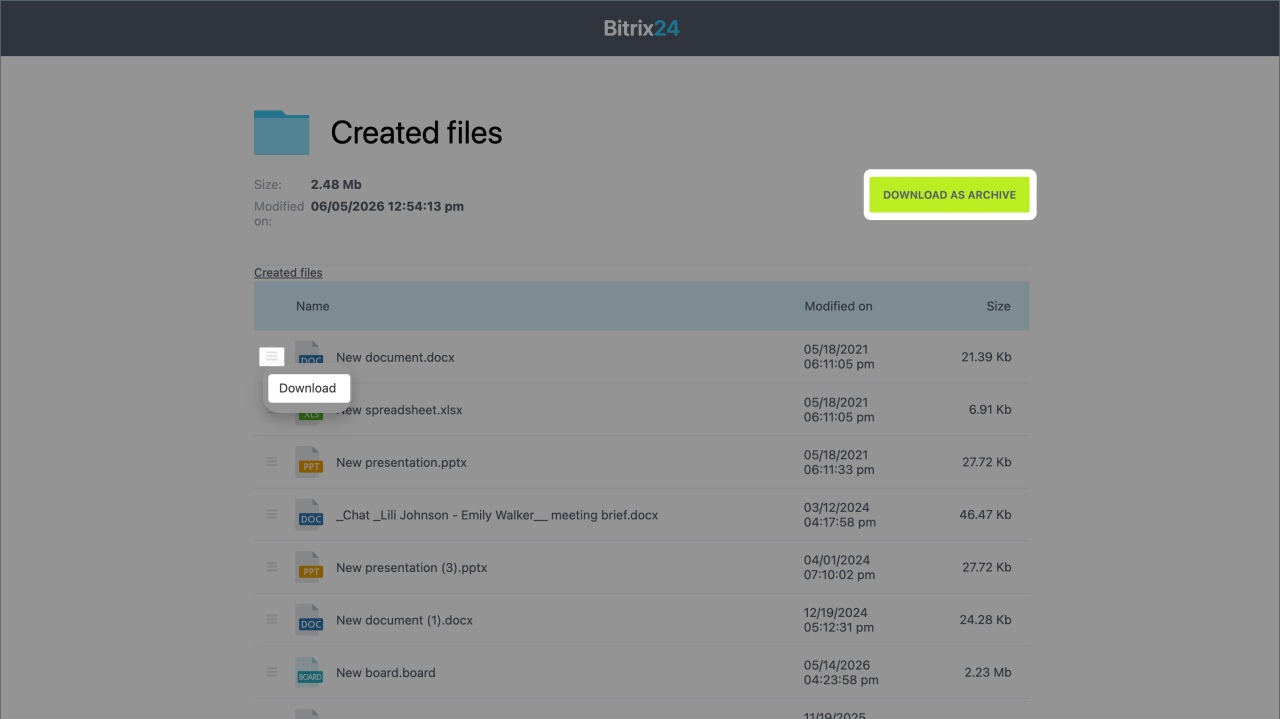
Open and copy the public link. Then send it by SMS, chat, or email.
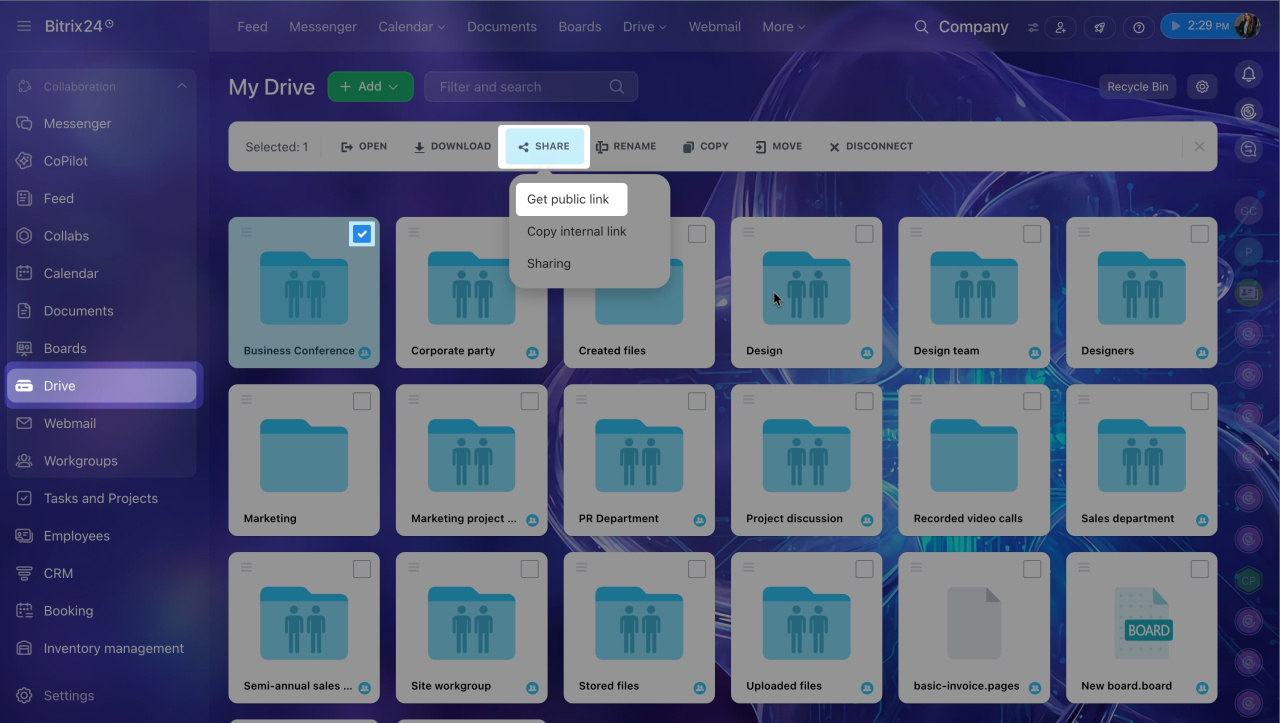
1. Open Drive and click the file you want to share.
2. In the top menu, click Share > Get public link.
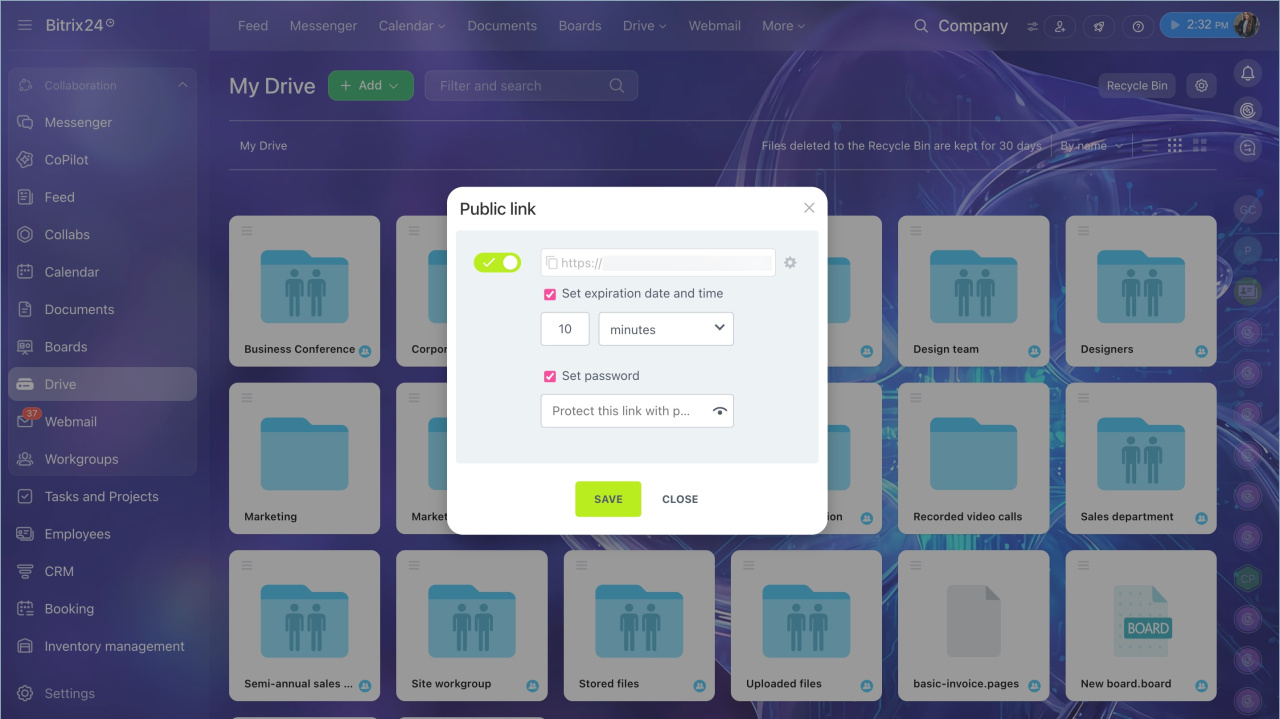
3. Turn on the public link. The file opens in view mode with no password and no expiration date.
4. Click Settings (⚙️) to set an expiration date, add a password, or allow editing.
5. Save your changes.
When you finish working with the file, you can revoke access. If you turn the link on again later, Bitrix24 creates an updated link. You will need to send the new link to users.
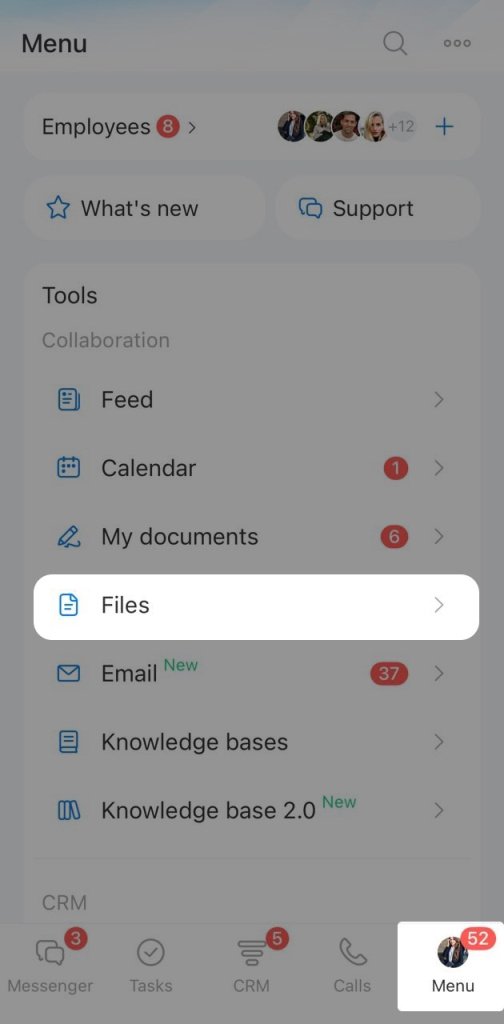
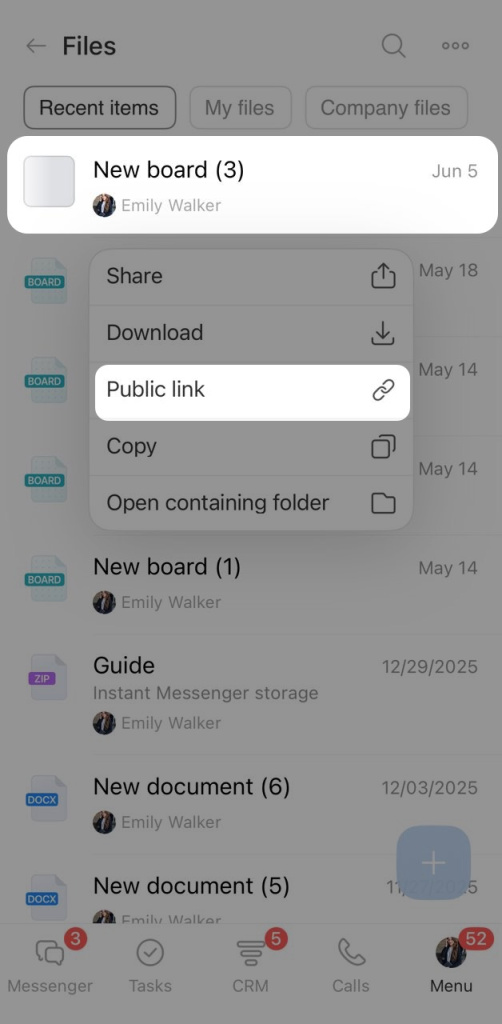
1. Long-press the file or folder and select Public link from the menu.
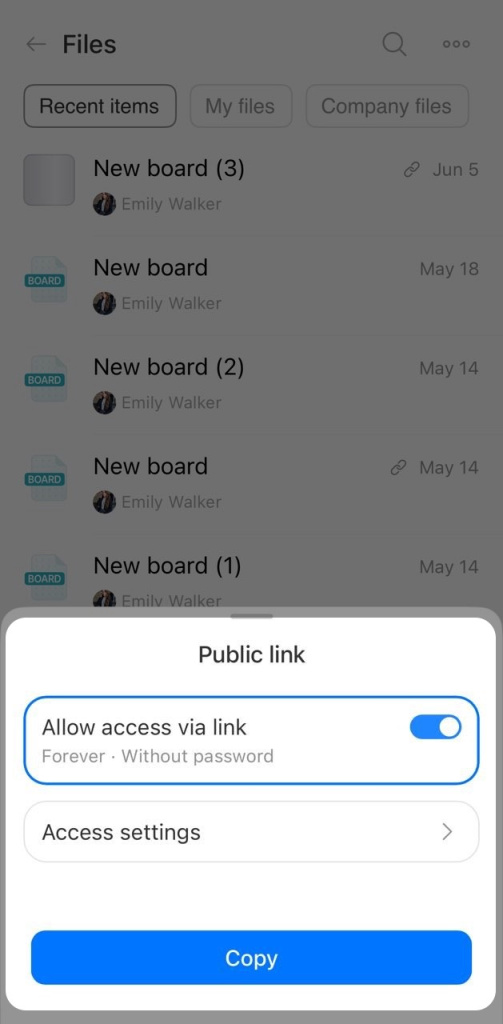
2. Turn on access by link. The file opens in view mode with no password and no expiration date. Copy the link to share it.
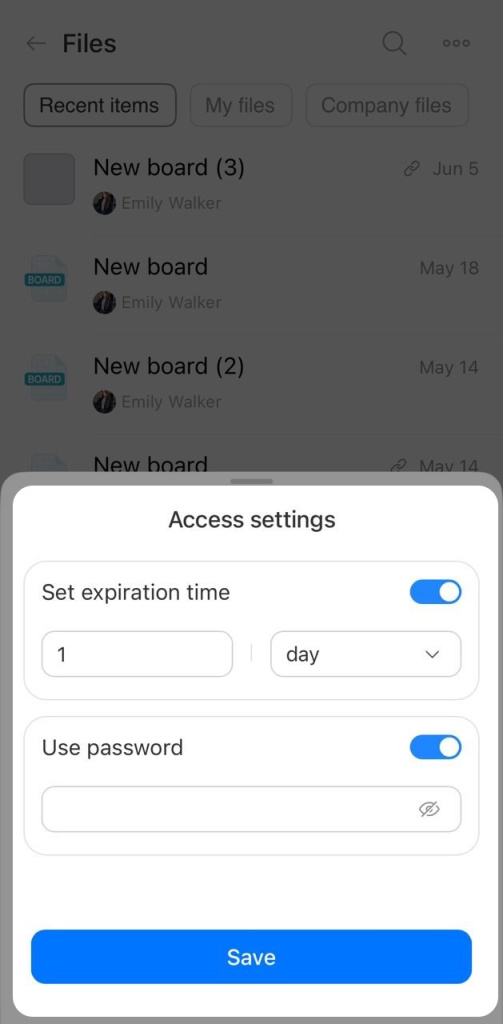
3. Tap Access settings to set an expiration date, add a password, or allow editing.
4. Save your changes.
When you finish working with the file, you can revoke access. If you turn the link on again later, Bitrix24 creates an updated link. You will need to send the new link to users.
In brief
- In Bitrix24, you can share folders by link. Internal links work for coworkers. Public links work for external users such as clients, contractors, and partners.
- The ability to send public links is not available on all plans and also depends on Drive settings. Check whether this feature is available on your plan.
- You can set an expiration date for a public link and protect it with a password.