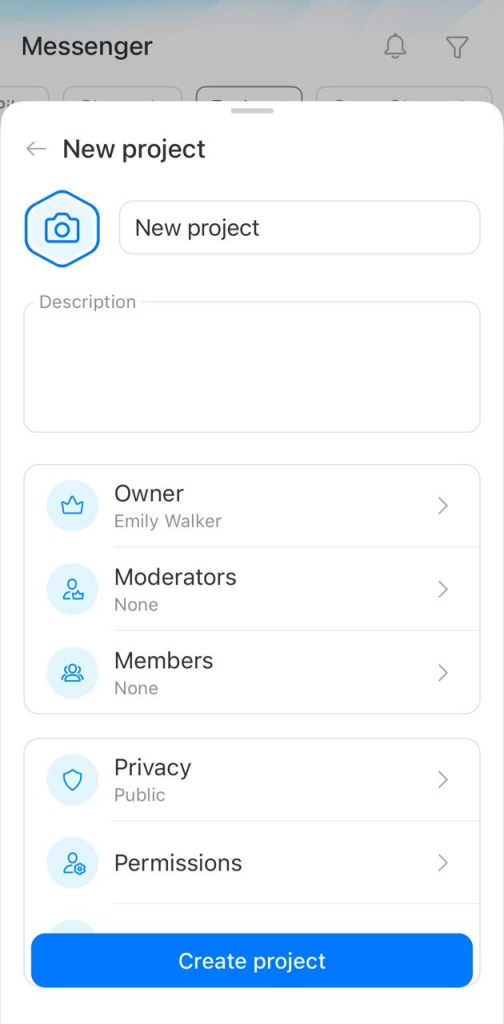
Projects in Bitrix24 give your team one shared workspace for a common goal, like launching a product or planning an event. Tasks, messages, and files stay in one place.
In this article:
You can create a project from three sections in Bitrix24.
From Menu. Open Menu and tap Projects in the Tasks section.
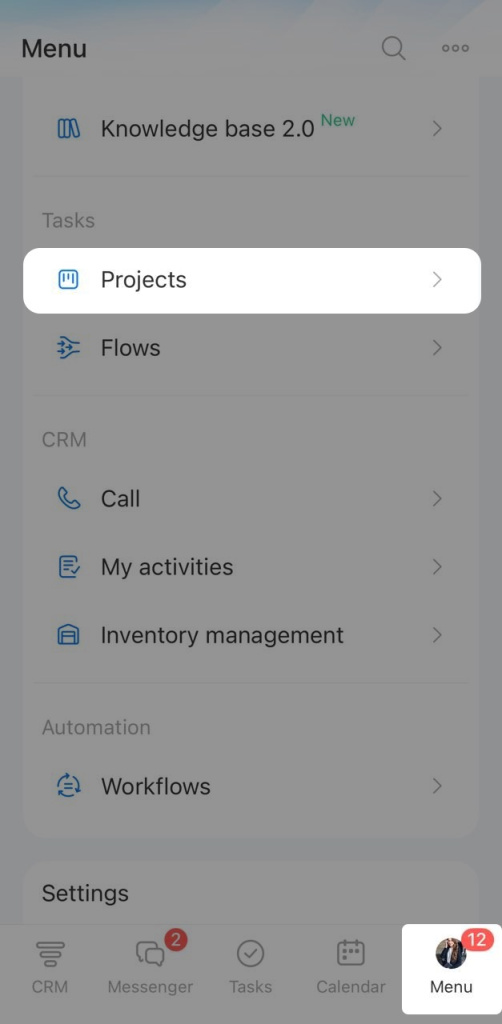
Tap Plus (+).
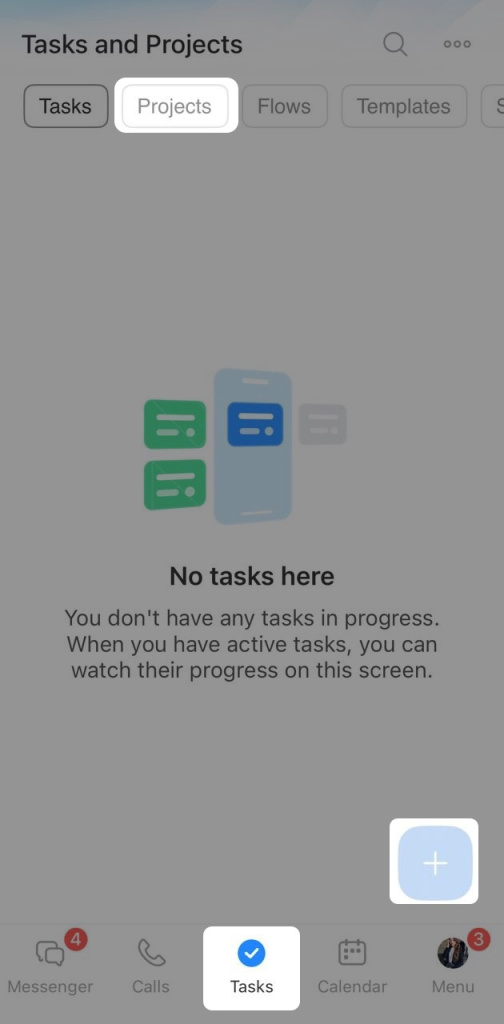
From Tasks. Open Tasks in the bottom navigation bar, go to the Projects tab, and tap Plus (+).
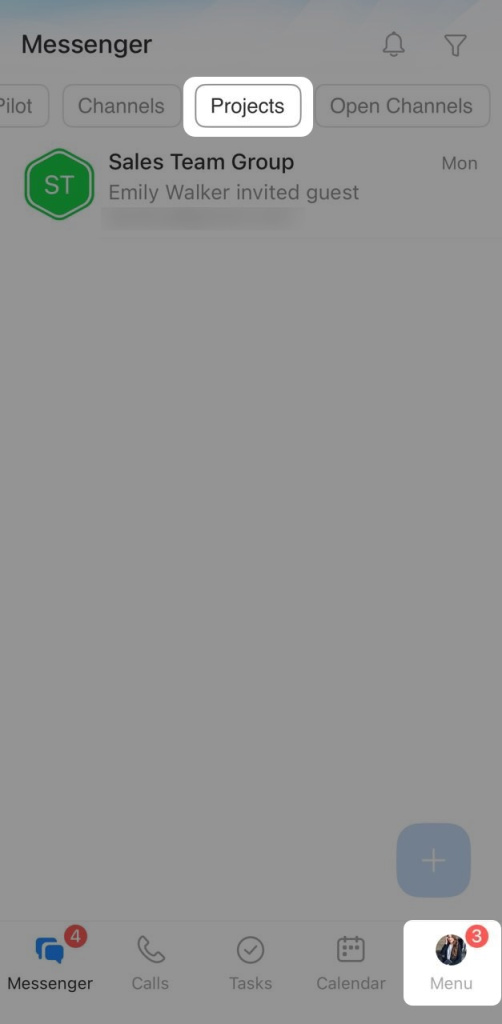
From Messenger. Open Messenger in the bottom navigation bar, go to the Projects tab, and tap Plus (+).
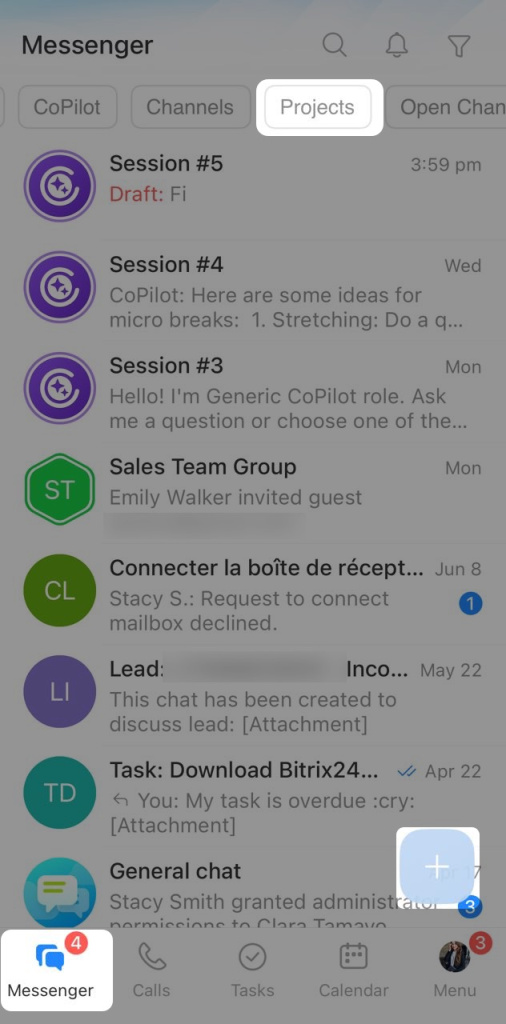
Enter basic information
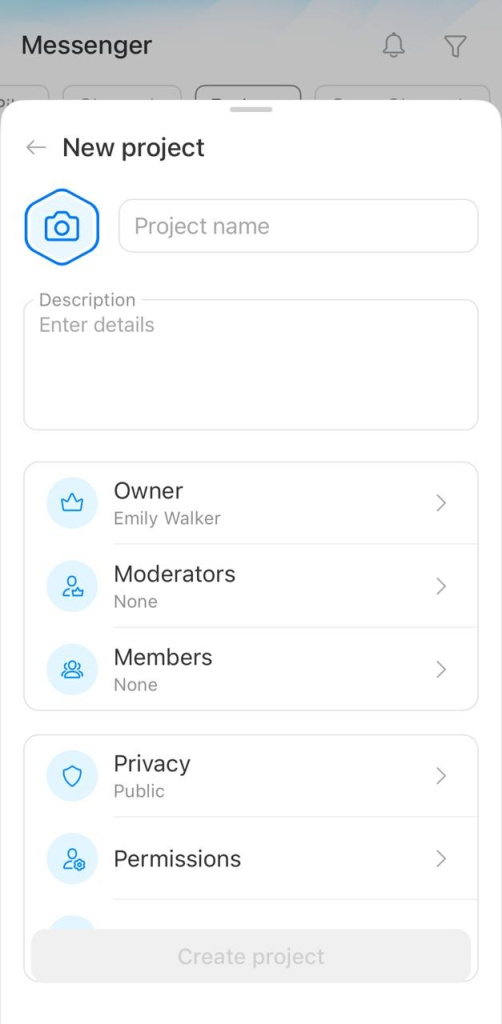
Name. This is the project name shown in the project list.
Avatar. Tap the camera icon in the top corner to upload an image. An avatar helps team members find the project faster.
Description. Add a short description of the project goal or context. This helps new members understand the project right away.

Add project members
In this section, add members and assign roles.
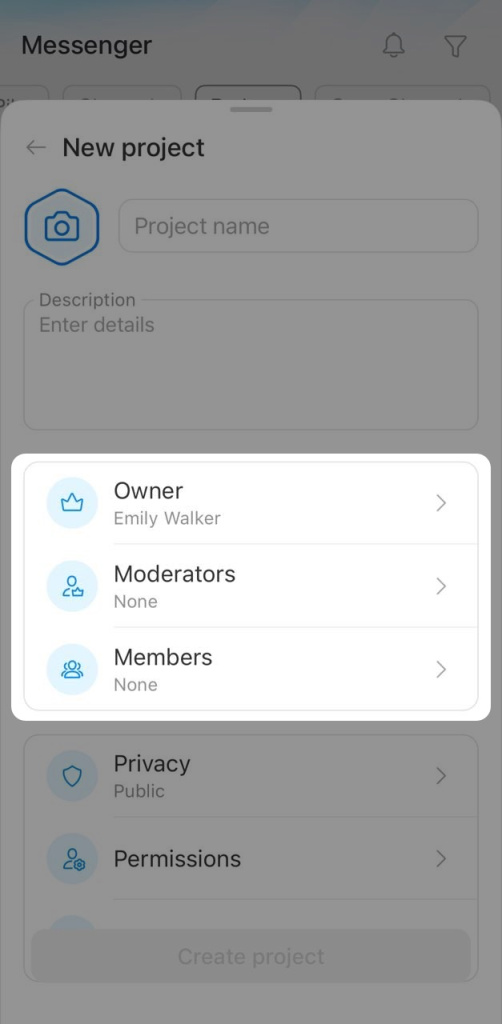
By default, the project creator becomes the owner. You can change the owner if someone else manages the project. The owner has full access, can edit the project, and can assign moderators.
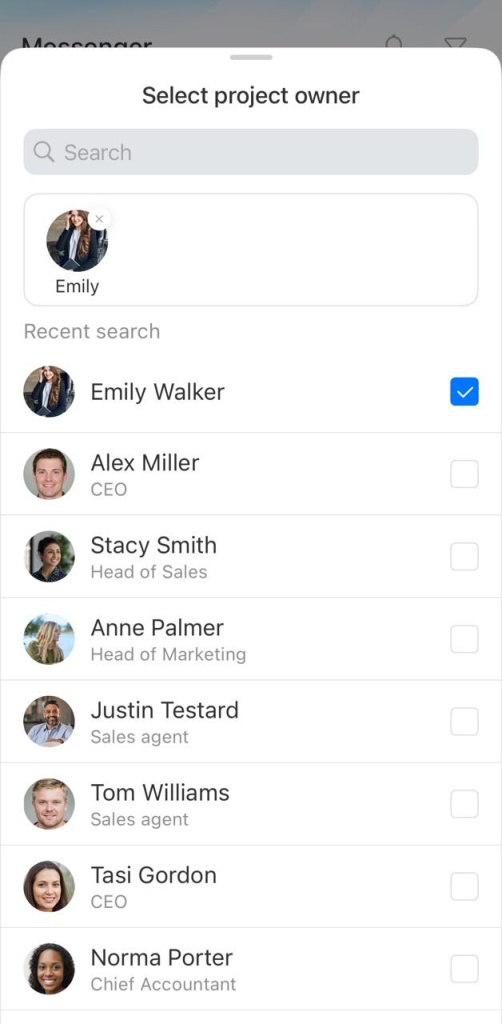
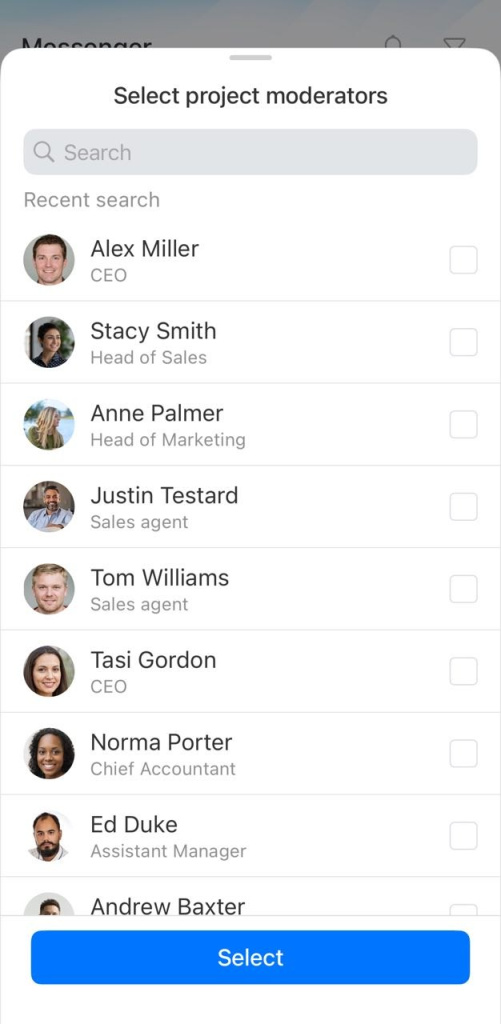
Moderators. Choose employees who help manage the project. The owner can give them extra permissions, such as inviting members or creating tasks. Tap Select.
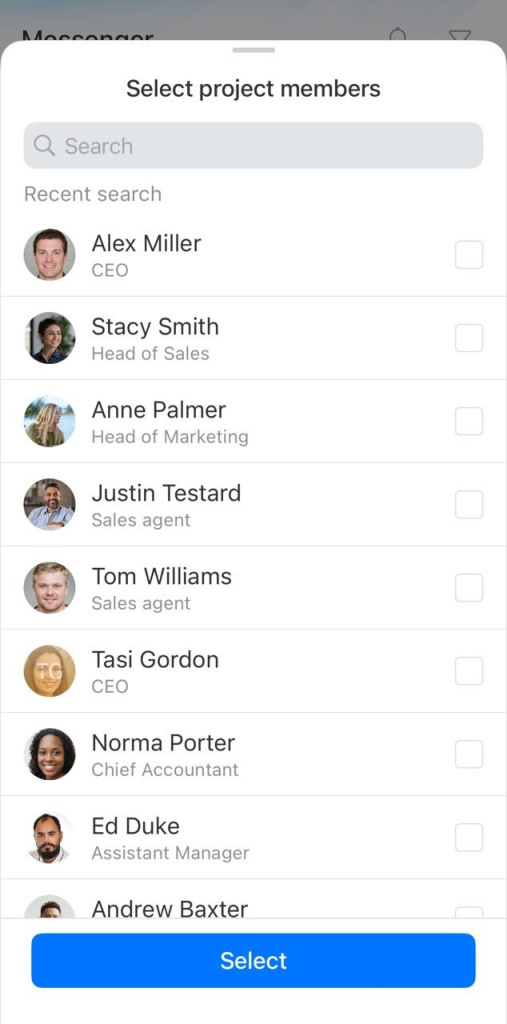
Members. Choose colleagues from the list or search by name. Tap Select.
Configure access
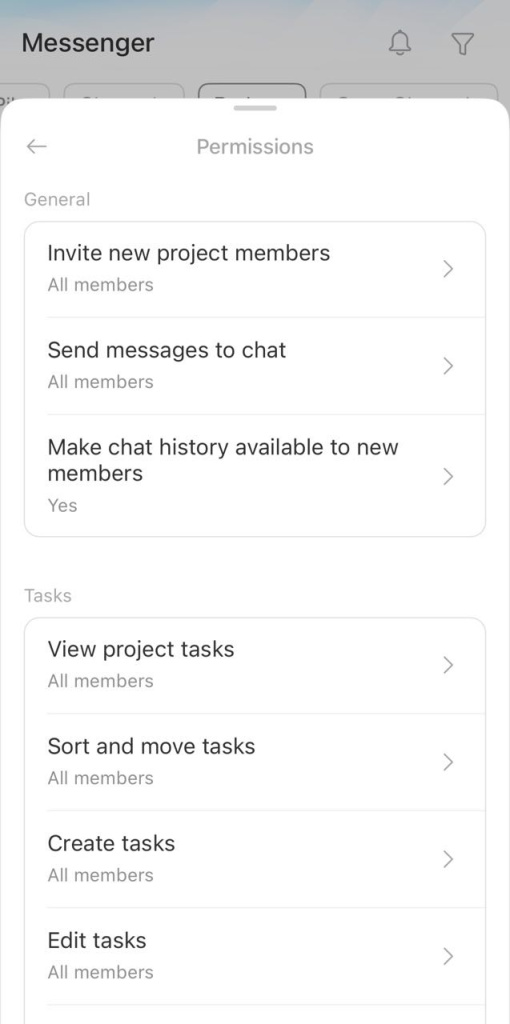
For each project, you can choose who can access it: all employees or invited members only. You can also choose what members can do in the project.
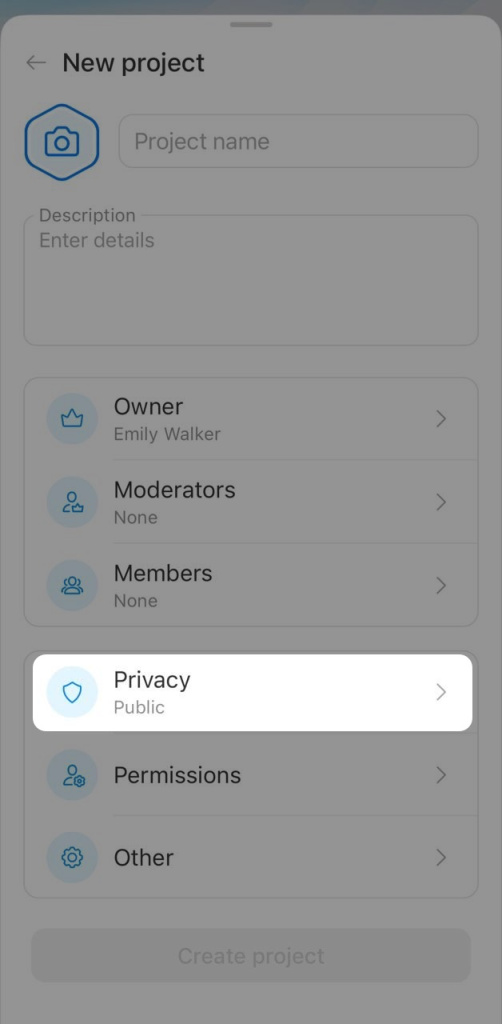
Project type — this setting controls who can view the project:
- Public — everyone can see the project and its content, and anyone can join.
- Private — only invited users can access the project.

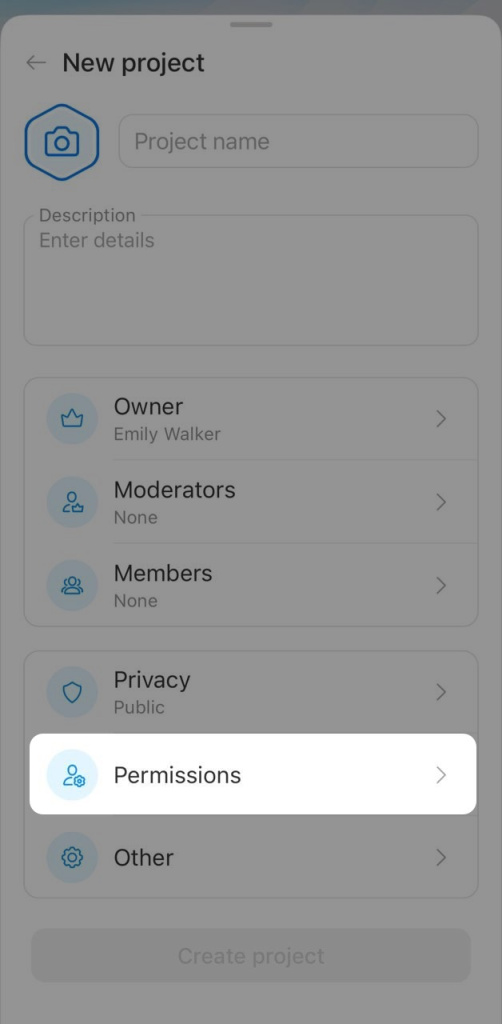
Access permissions allow you to control whether members can:
- Invite new members
- Send messages in the chat
- View chat history
- View, create, edit, sort, and delete project tasks.
By default, all members can perform all actions.
Specify additional settings
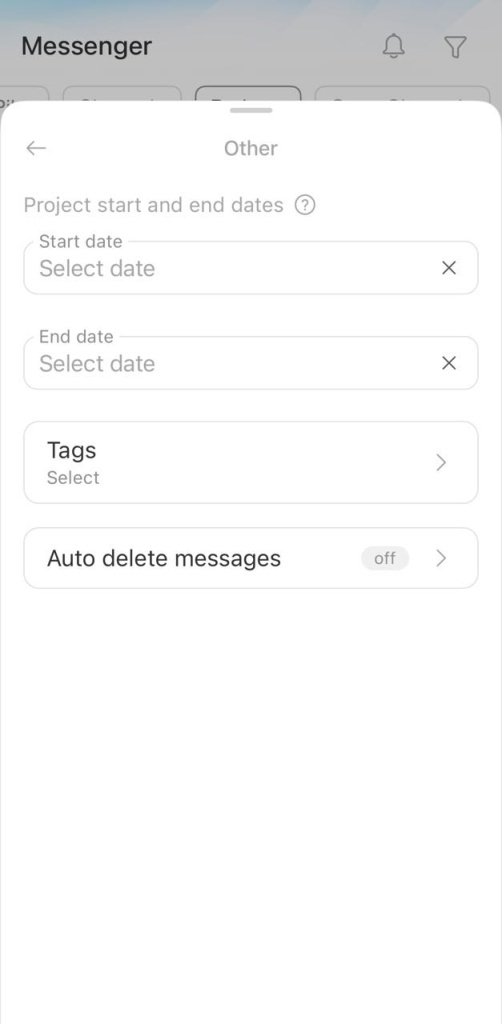
In the Additional section, you can set up:
- Project start and end dates — enter these if the project has a fixed timeline.
- Tags — use tags to group projects by topic and find them faster.
- Auto-delete messages — turn this on to delete chat messages automatically after a set time. This helps with temporary discussions or confidential information.
Auto delete messages option in Bitrix24 chats
When you finish setting up the project, tap Create project.