In the Bitrix24 mobile app, you can create a subdepartment right from your phone. This is useful for HR teams and managers who work outside the office.
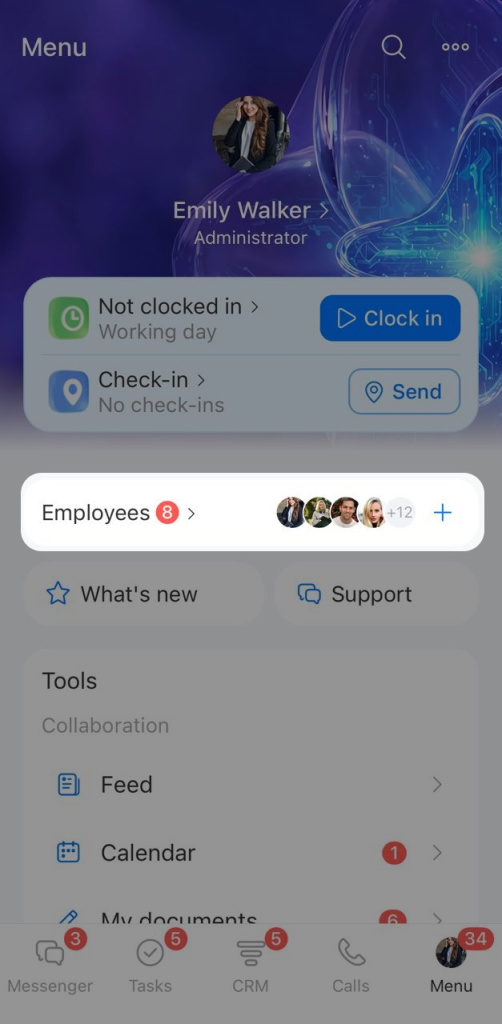
Open Menu > Employees. You will see a list of company employees.
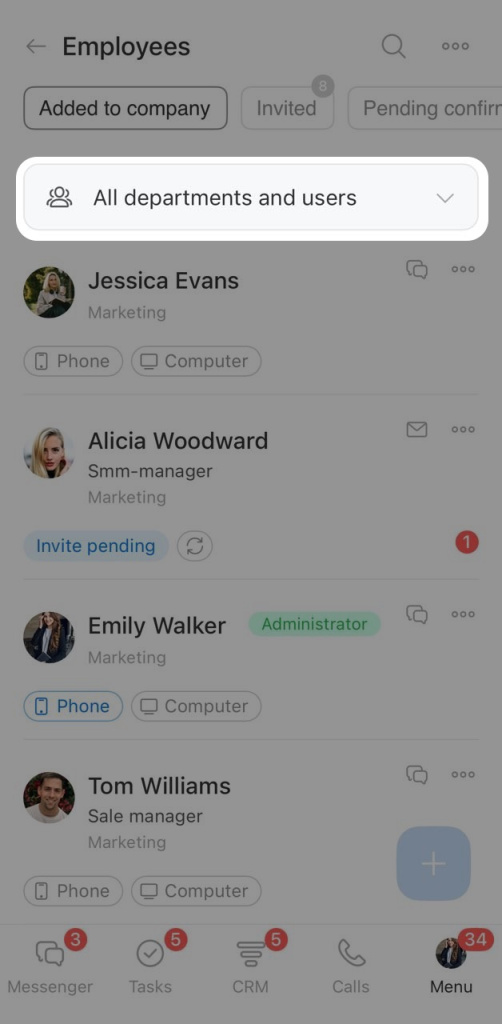
Tap All departments and users.
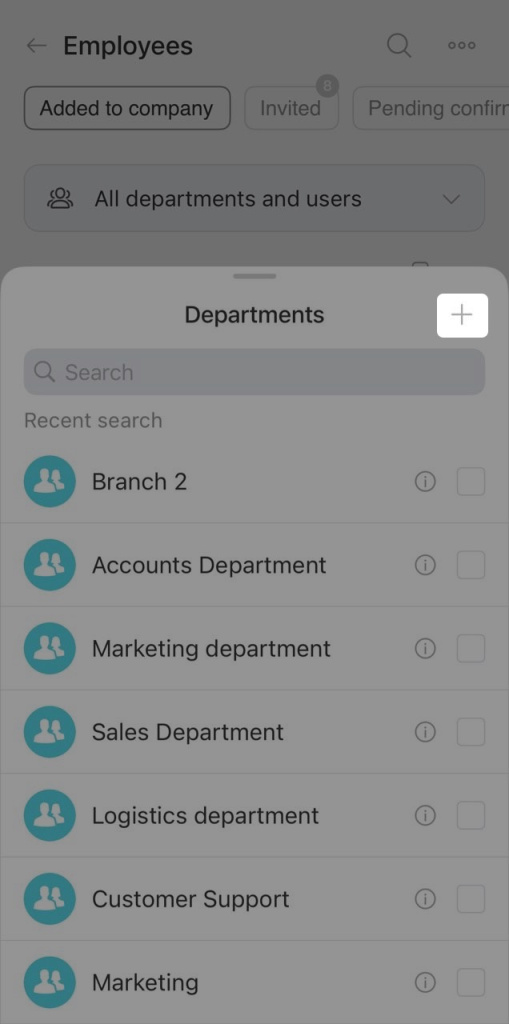
A list of existing departments opens. Tap Plus (+) in the top-right corner to create a new one.
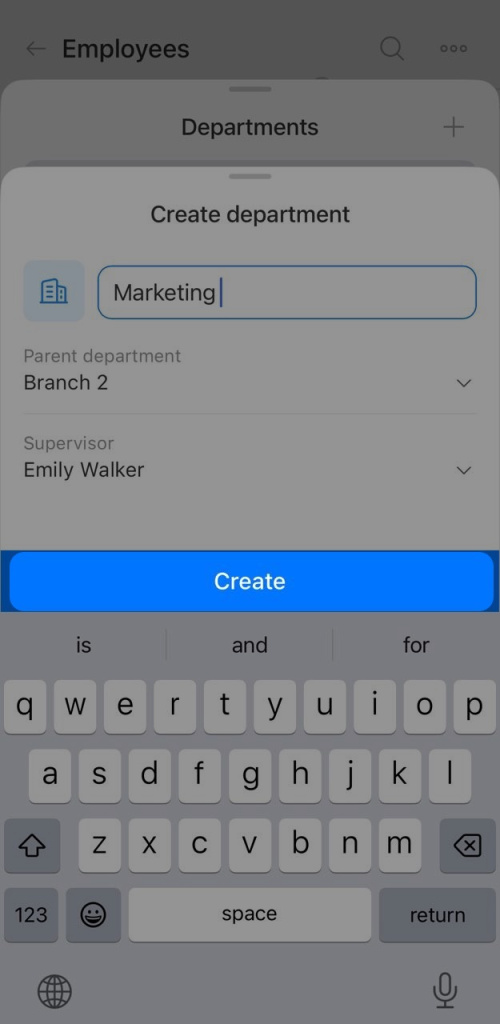
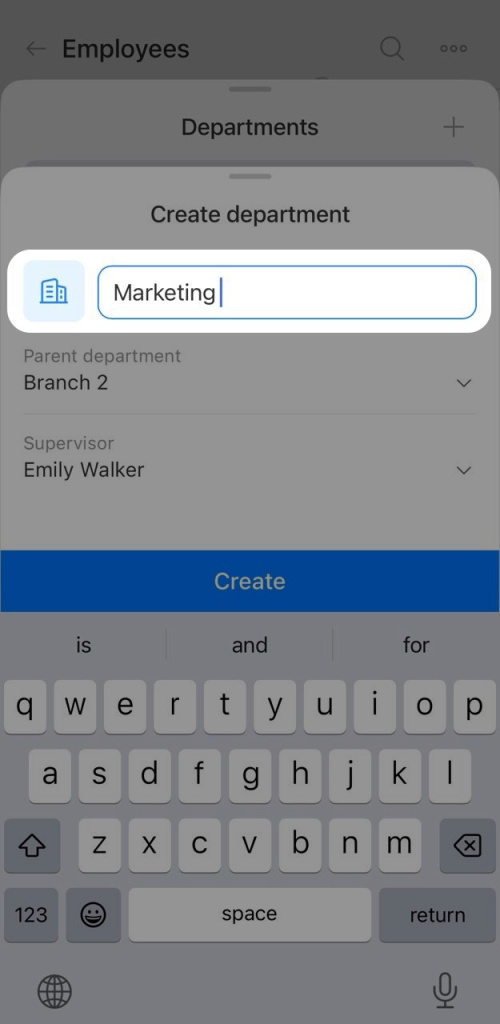
The department creation form will open. Fill in these fields.
Name. Enter a name for the new department.
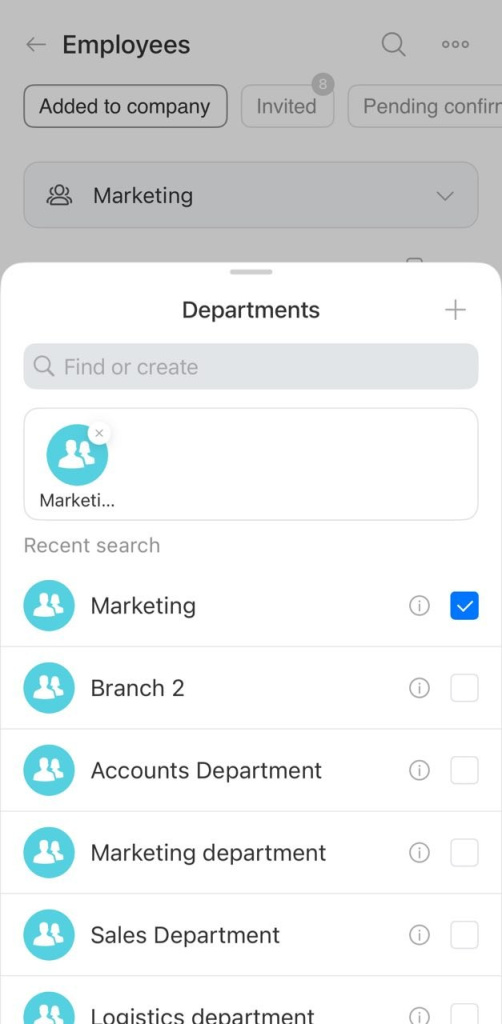
Parent department. Tap the field and select the department this new one will belong to.
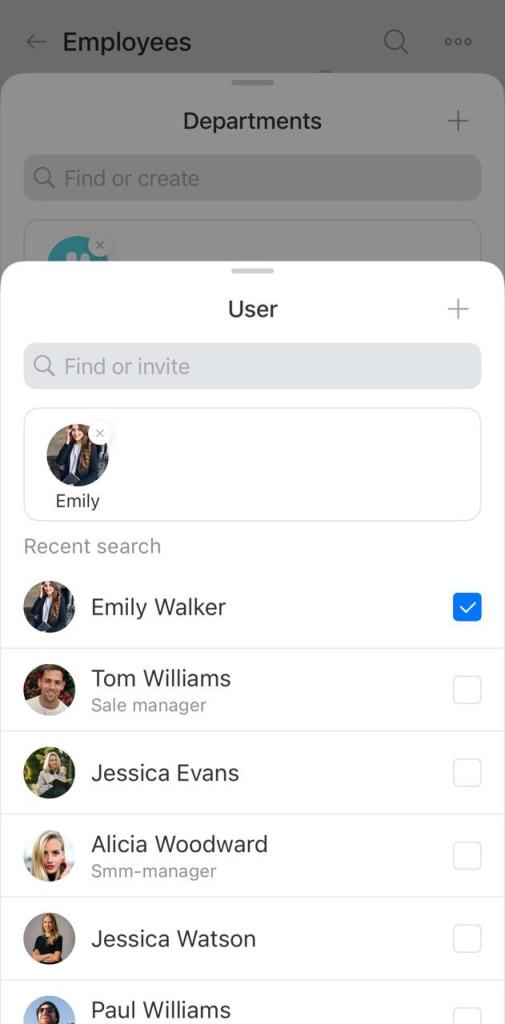
Supervisor. Tap the field and select the employee who will manage the department. You can use search. To invite a new employee, tap Plus (+).
How to invite an employee to Bitrix24
Tap Create. The new department will appear in the company structure.