Bitrix24 Drive lets you store company documents and personal files in one place. You can upload files, edit documents online, and share them with coworkers.
Add a folder or file to Drive
In the Bitrix24 mobile app, you can create folders and upload files from your device to Drive.
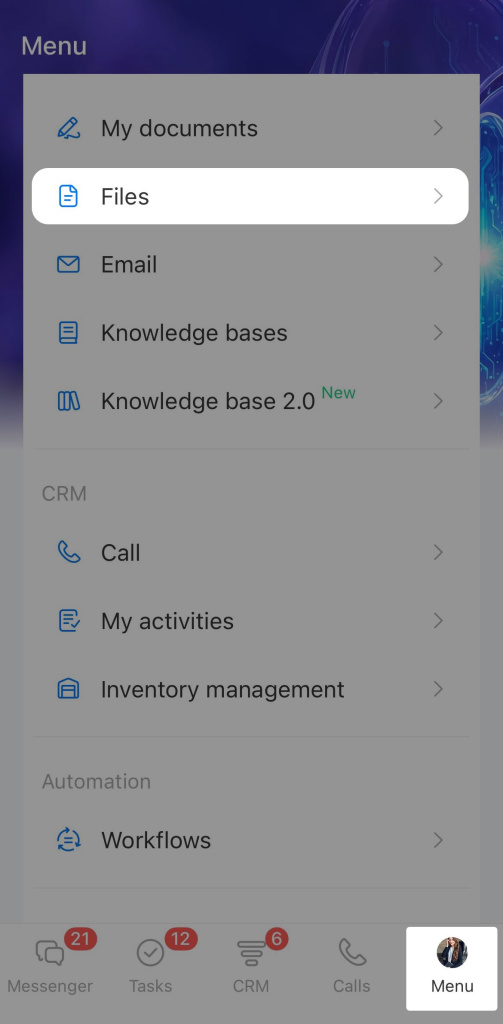
1. Tap Menu in the bottom-right corner and select Files.
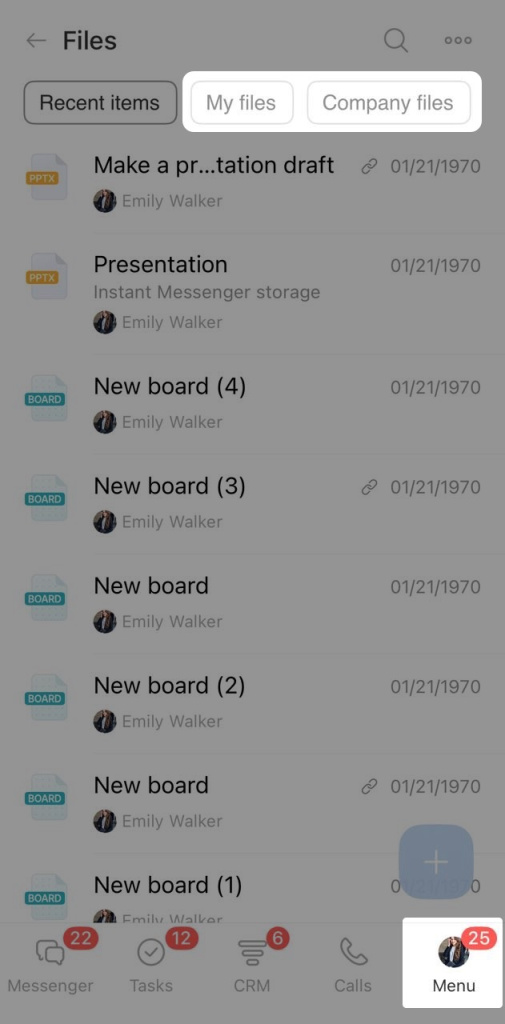
2. Open the My Files tab to upload a file to your personal drive, or Company Files to upload it to the Company Drive. To add a file, tap Plus (+) in the bottom-right corner.
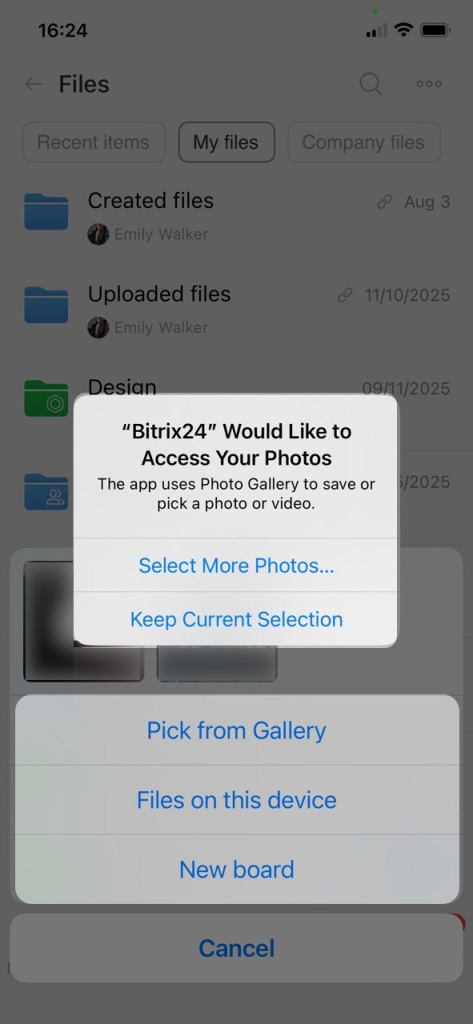
3. Take a photo or video, or select a file saved on your device, then tap Done.
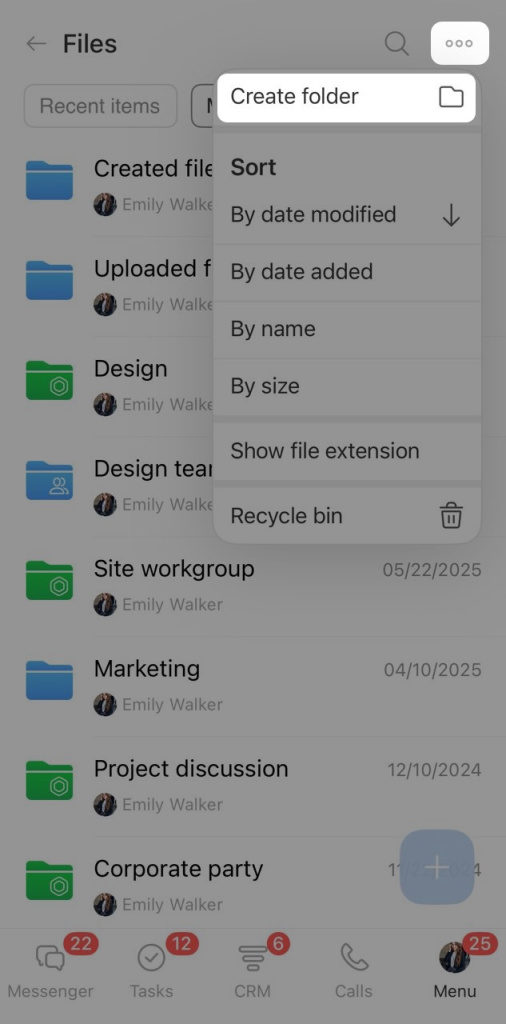
4. To create a folder, tap Three dots (...) > Create folder in the top-right corner.
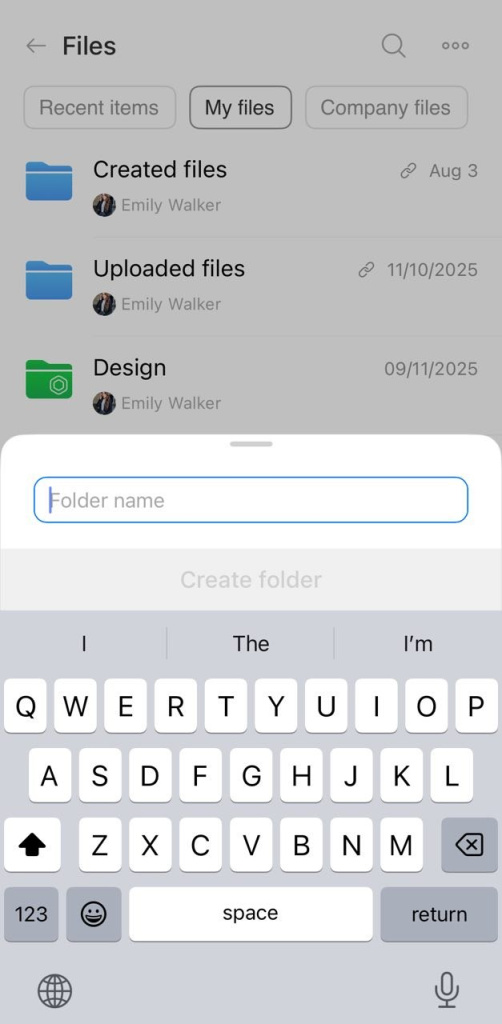
5. Enter a name and tap Create folder.
Manage folders and files in Drive
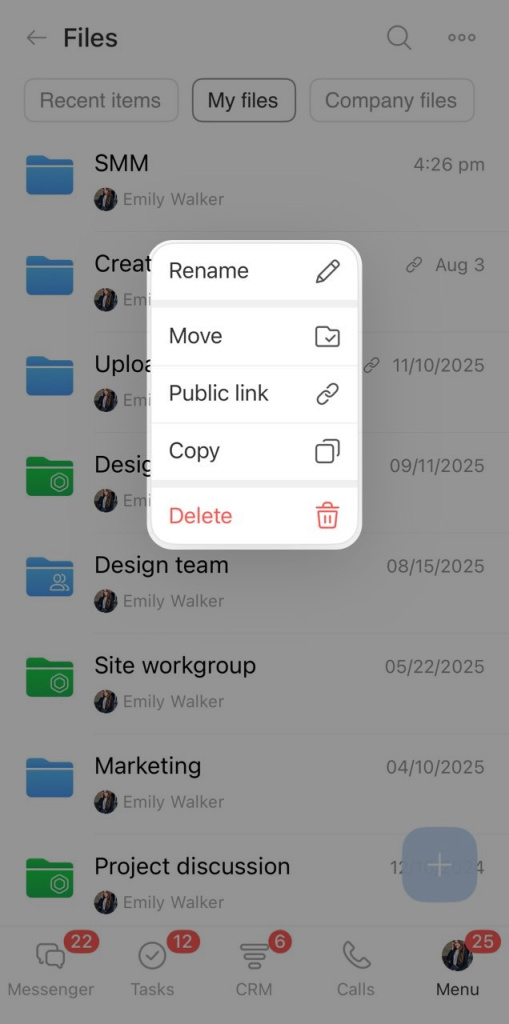
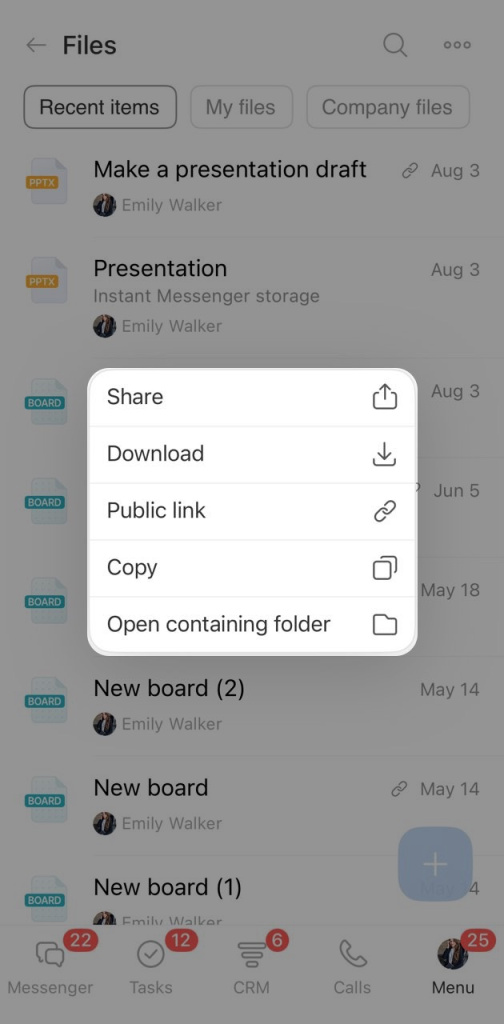
Press and hold a file to open the action menu. Select an action:
- Rename
- Move. Lets you move the file to another folder on the current drive.
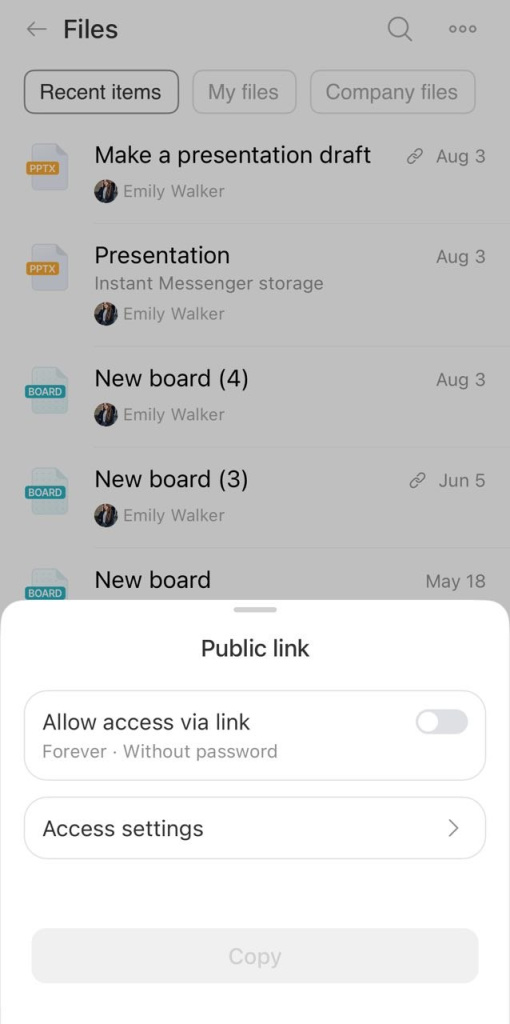
- Public link. Lets you open access to the file, configure it, and copy the link to send in a message, text, or email. This option is useful for sending files to people who don't have access to your Bitrix24, such as a client or contractor.
- Copy. Creates a copy of the file.
- Delete. Moves the file to the Recycle Bin.
Find and sort folders and files
To find a file, tap the search icon in the top-right corner.
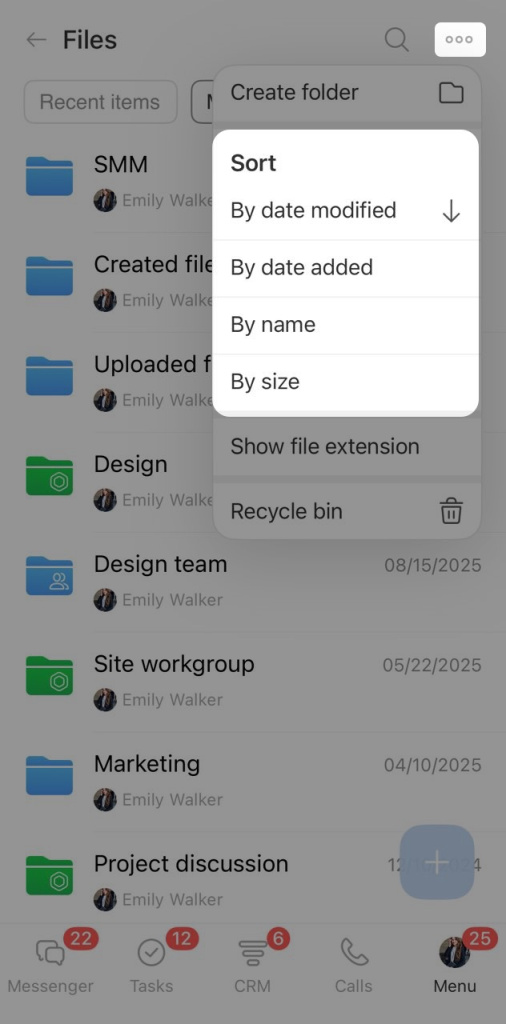
To change the sort order or display settings, tap Three dots (...) in the top-right corner. Choose which criterion to sort files by:
- Update date
- Date added
- Name
- Size
The arrow next to the criterion shows the current sort order. For example, if you choose sorting by date added, an upward arrow means files are sorted from oldest to newest, while a downward arrow means from newest to oldest.
Turn on Show file format so that the list displays file extensions, such as doc or mp4.
Share a folder or file
Attach a file to a message, task, feed post, and so on. You can do this directly from the relevant section. This is useful if you need to send a file to coworkers to continue working on it.
If you attach a file to a chat, task, or other item, access to it automatically opens for all participants of that item — even if it was closed on Drive.
If you don't want to open the file to everyone, send a link — the file access will remain unchanged.
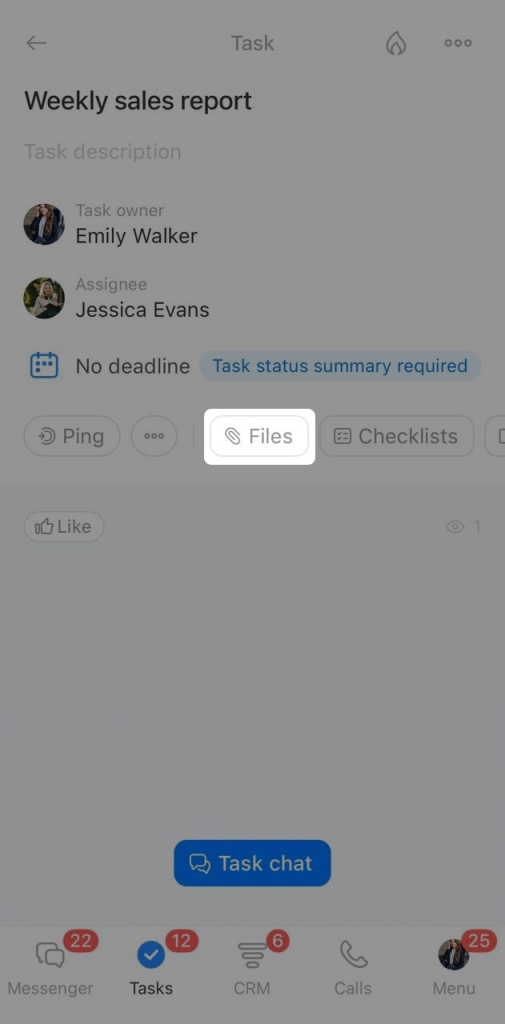
Send a file. You can send a file to a third-party service without downloading it first. This is useful if you need to quickly share a document with a client or print it.
Press and hold a file to open the action menu. Select Share.
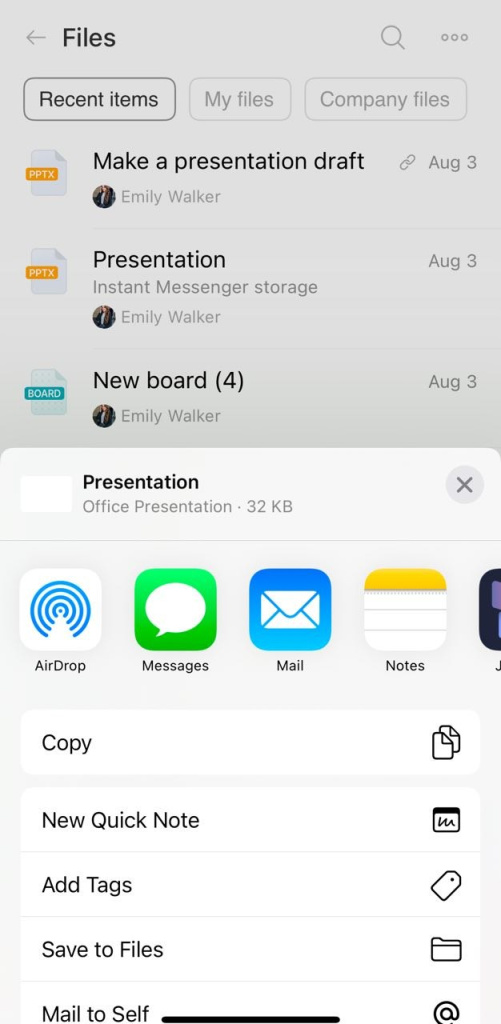
Specify where and to whom you want to send the file.
Send a public link. You can configure link access, copy it, and send it in a message, text, or email to an external user, such as a client or contractor.
Press and hold a file to open the action menu. Select Public link.
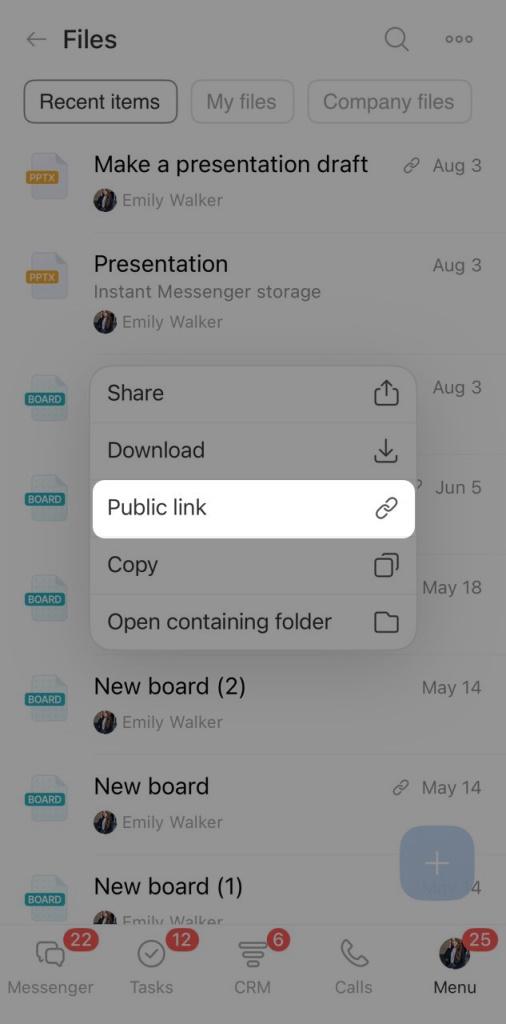
Turn on link access, configure the settings, and tap Copy.