
Alaio Vibecode is a platform for building apps, chatbots, and AI agents for your Bitrix24. Use it when Bitrix24 does not offer a ready-made solution for a specific need, such as a custom dashboard, a nonstandard integration, or automation for a specialized task. You do not need programming skills—describe the task in your own words.
In this article:
Install the module
Only an On-premise Bitrix24 administrator can install the module.
You can install the module on only one Bitrix24 installation. If you use the same license key for multiple Bitrix24 installations, such as a production and development environment, you can connect Alaio Vibecode to only one installation.
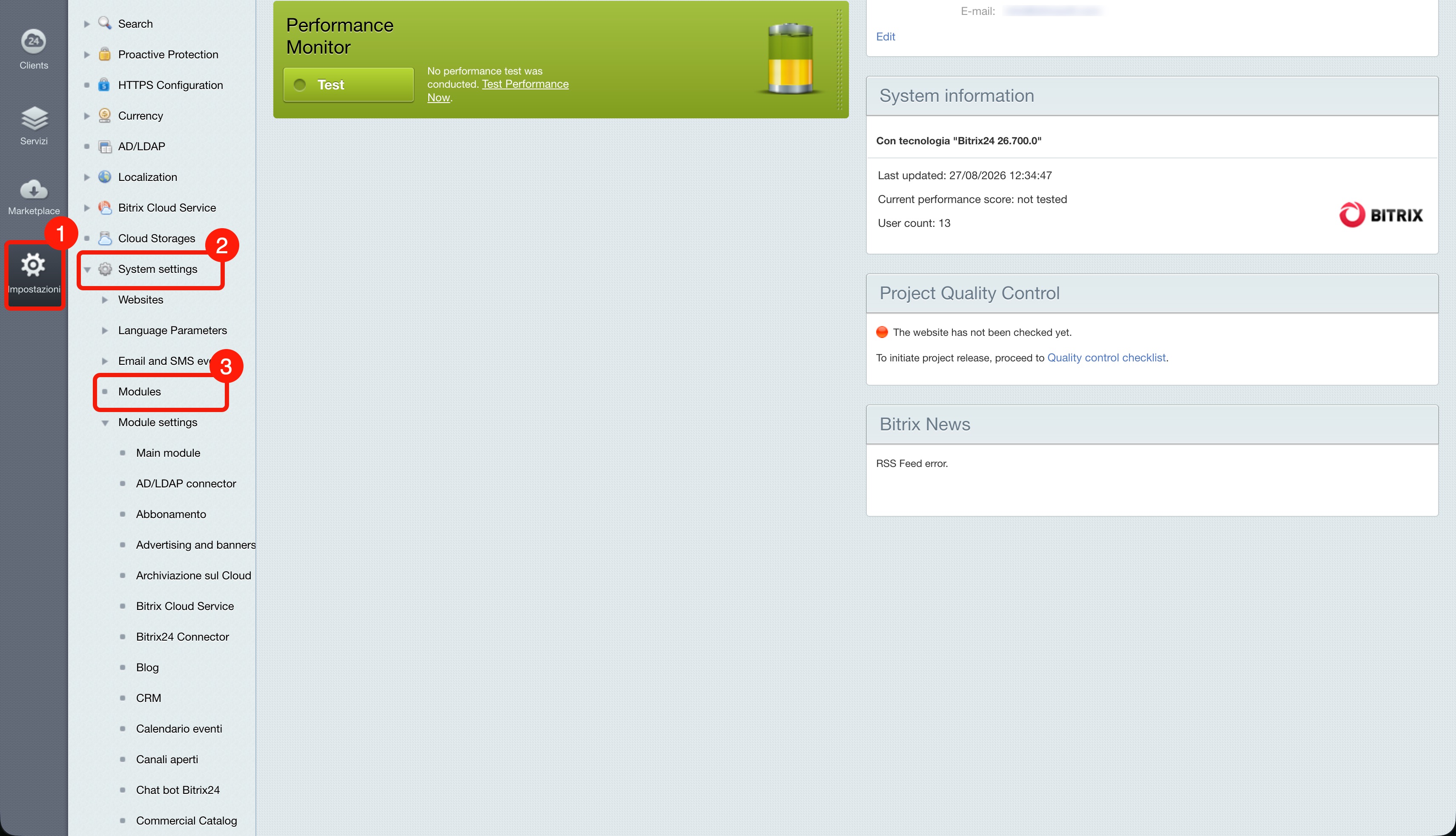
1. In the admin panel, open Settings > Product Settings > Modules.
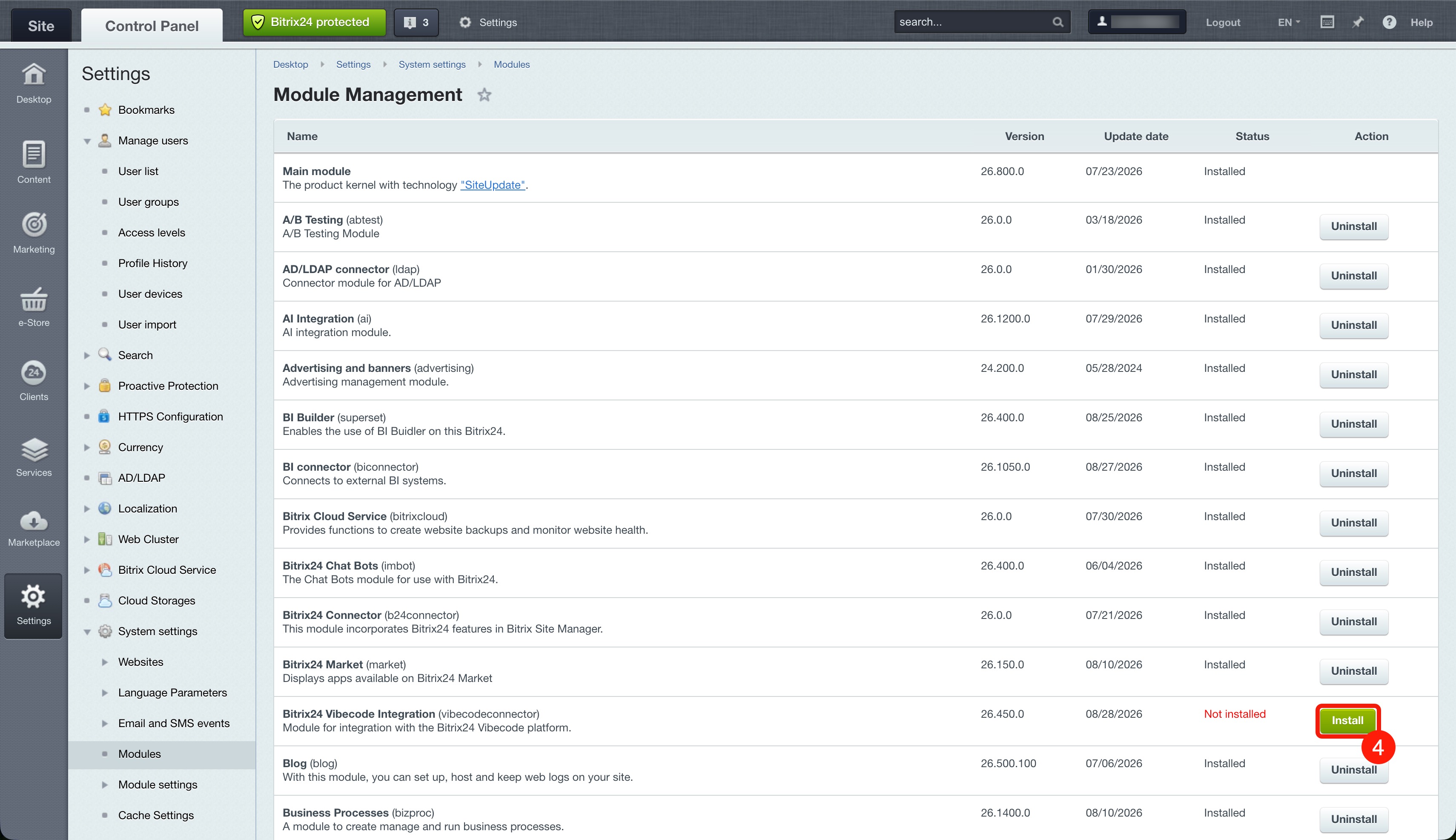
2. Find the Integration with Alaio Vibecode module and click Install.
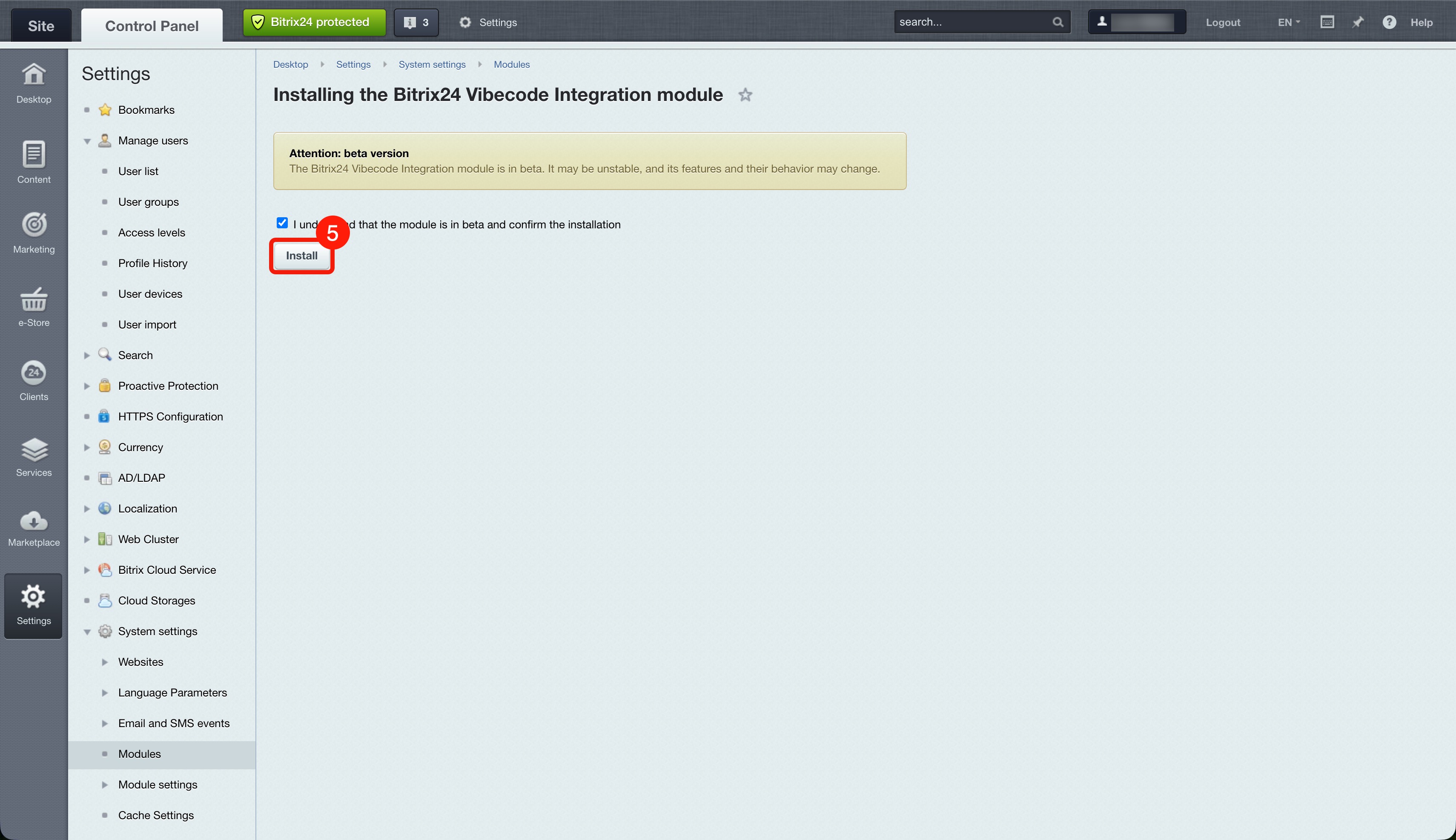
3. A warning indicates that the module is in beta. Make sure the confirmation checkbox is selected, then click Install.
Set up the module
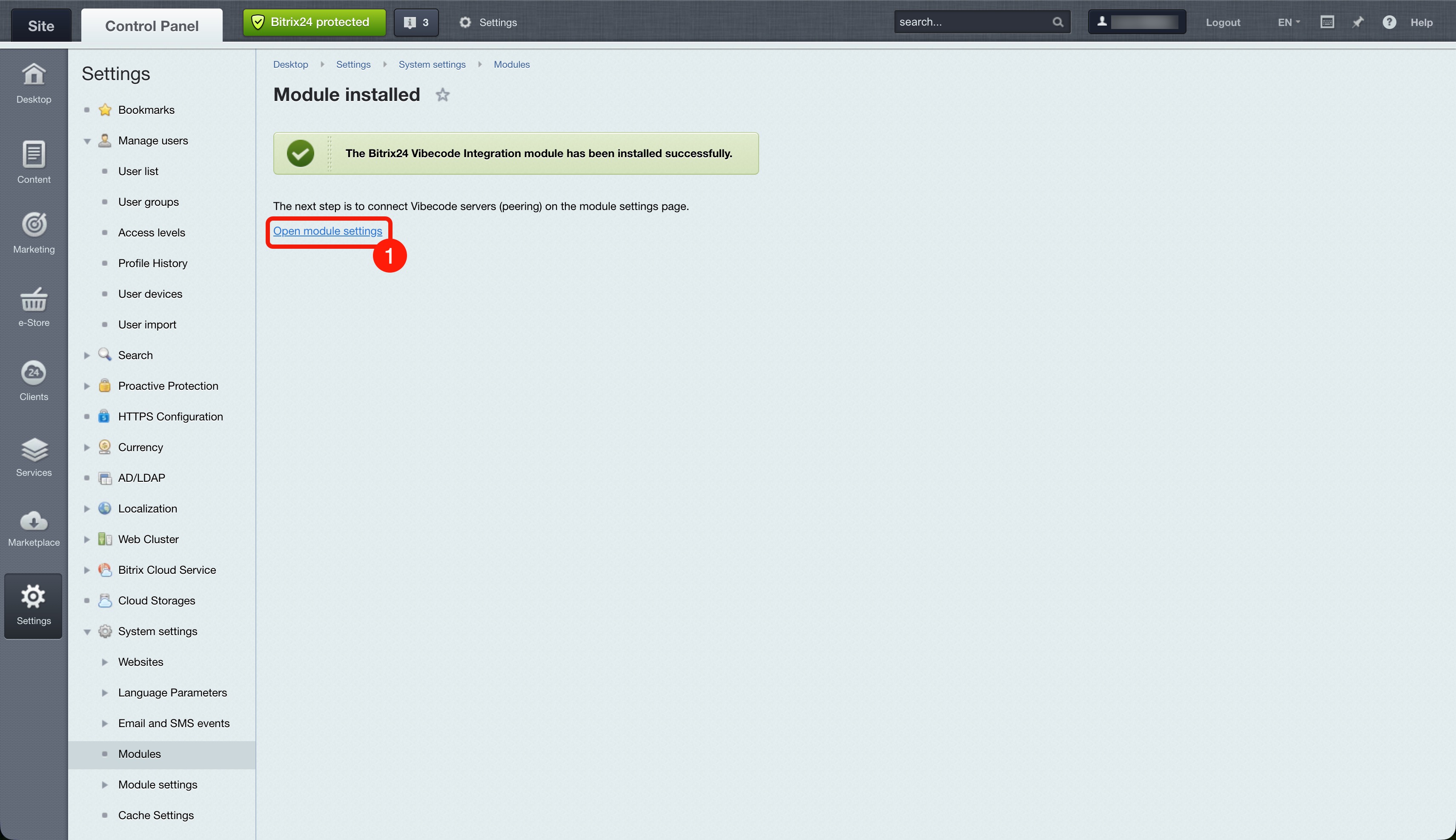
1. After installation, click Open module settings.
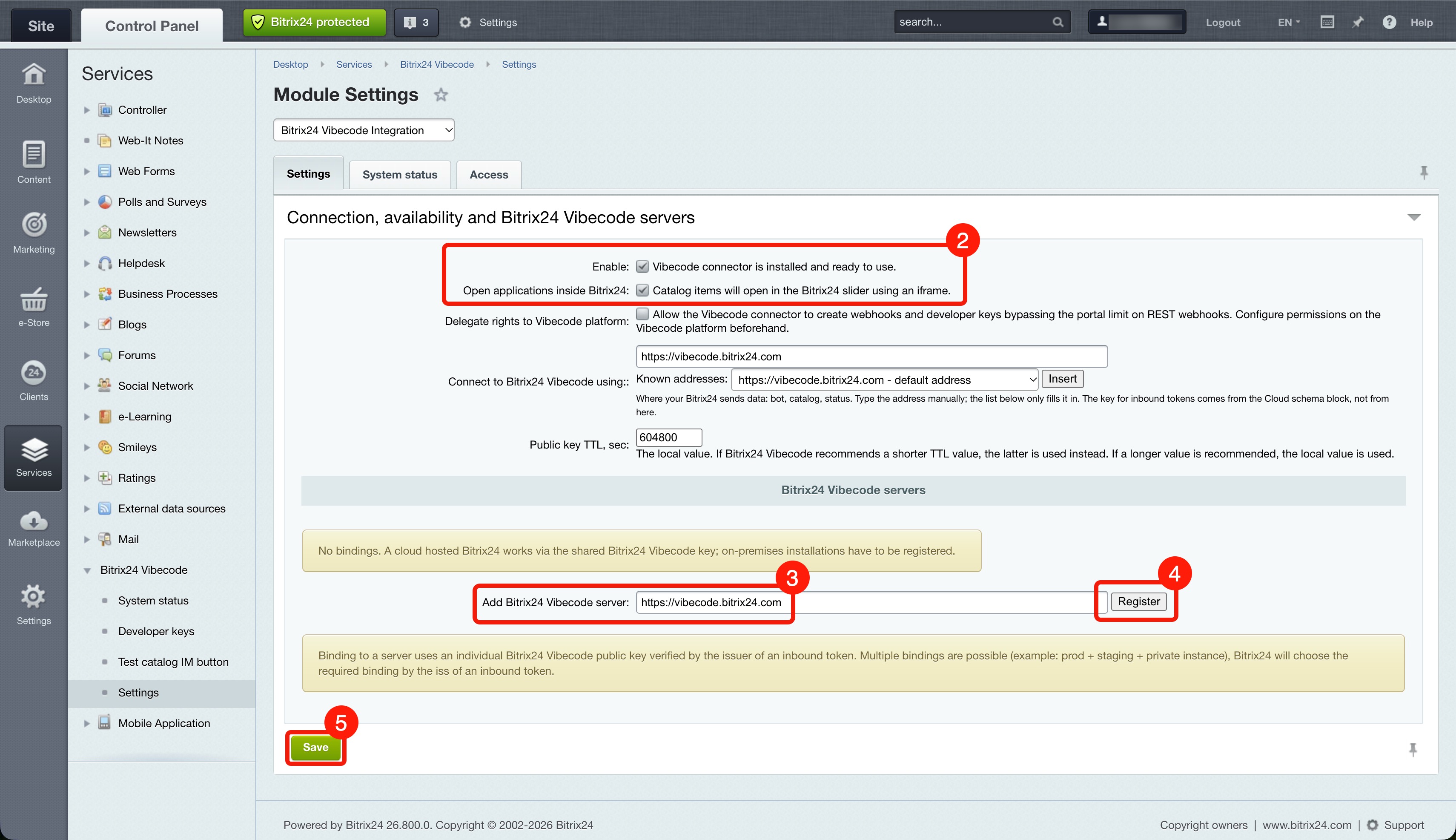
2. Make sure the Visibility on account and Open apps inside Bitrix24 options are selected.
3. In the Add Alaio Vibecode server field, enter https://vibecode.bitrix24.com.
4. Click Register.
5. Click Save.
Log in to Alaio Vibecode
To use Alaio Vibecode in your On-premise Bitrix24, each employee should connect their own Bitrix24 Network account.
Bitrix24 Network profile
If you do not have a Bitrix24 Network account.
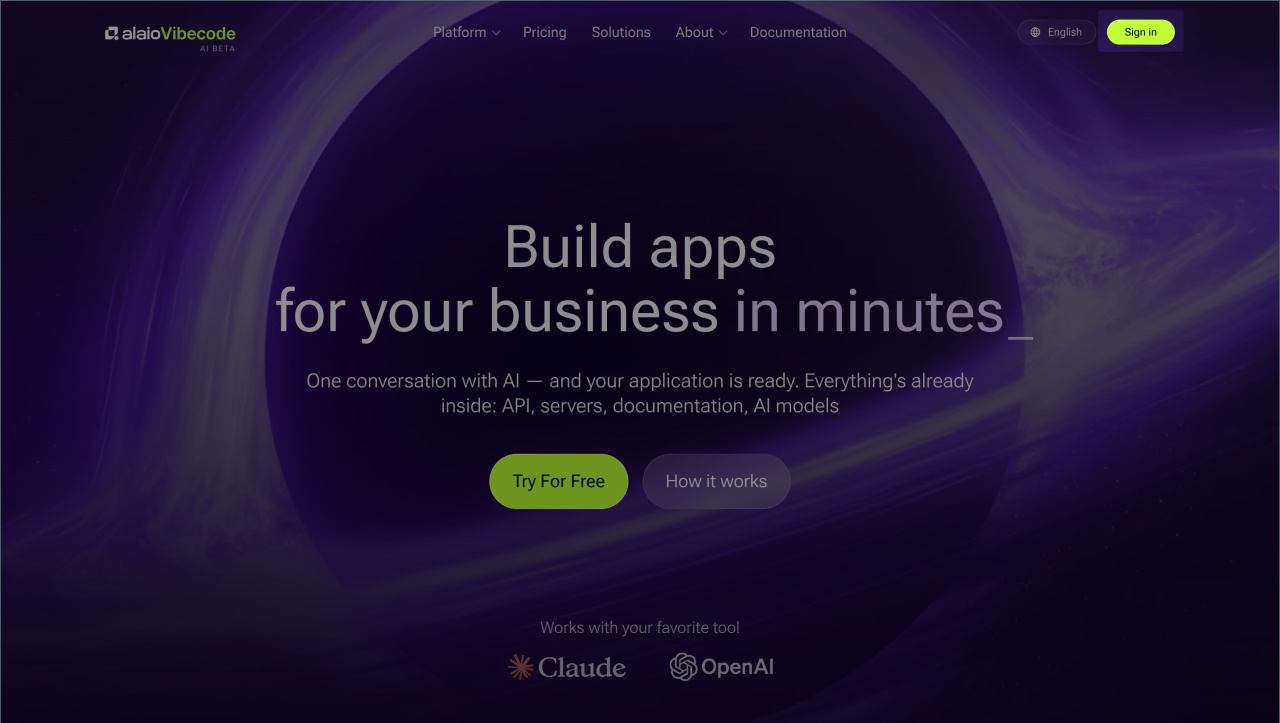
1. Open Alaio Vibecode and click Sign in.
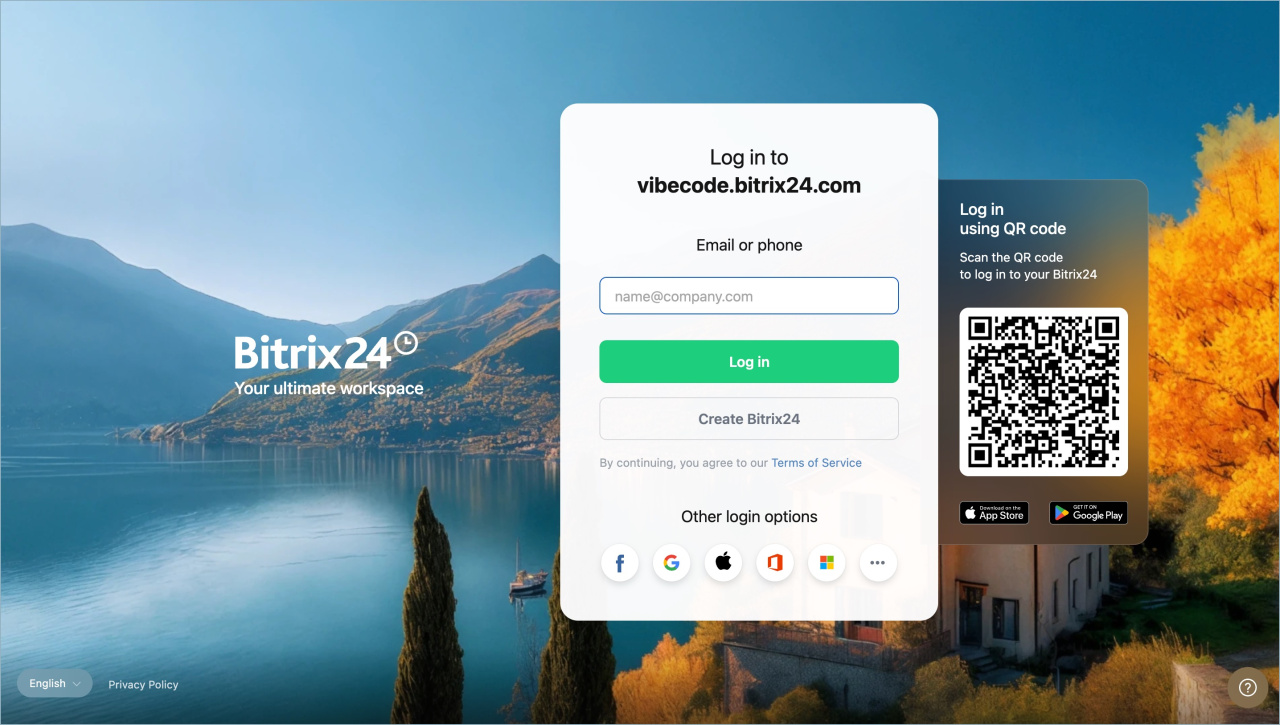
2. On the authentication page, enter your email address and click Log in.
3. You will receive a confirmation code at the specified email address. Enter it on the Confirm your email page.
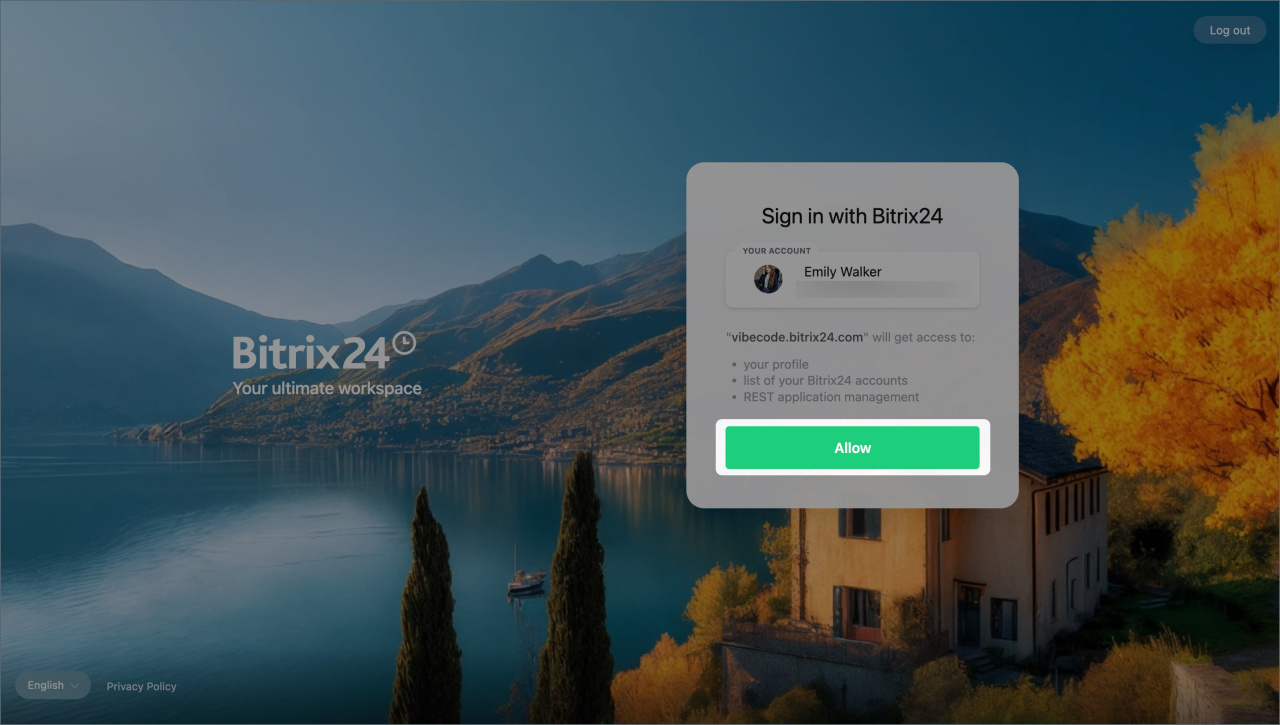
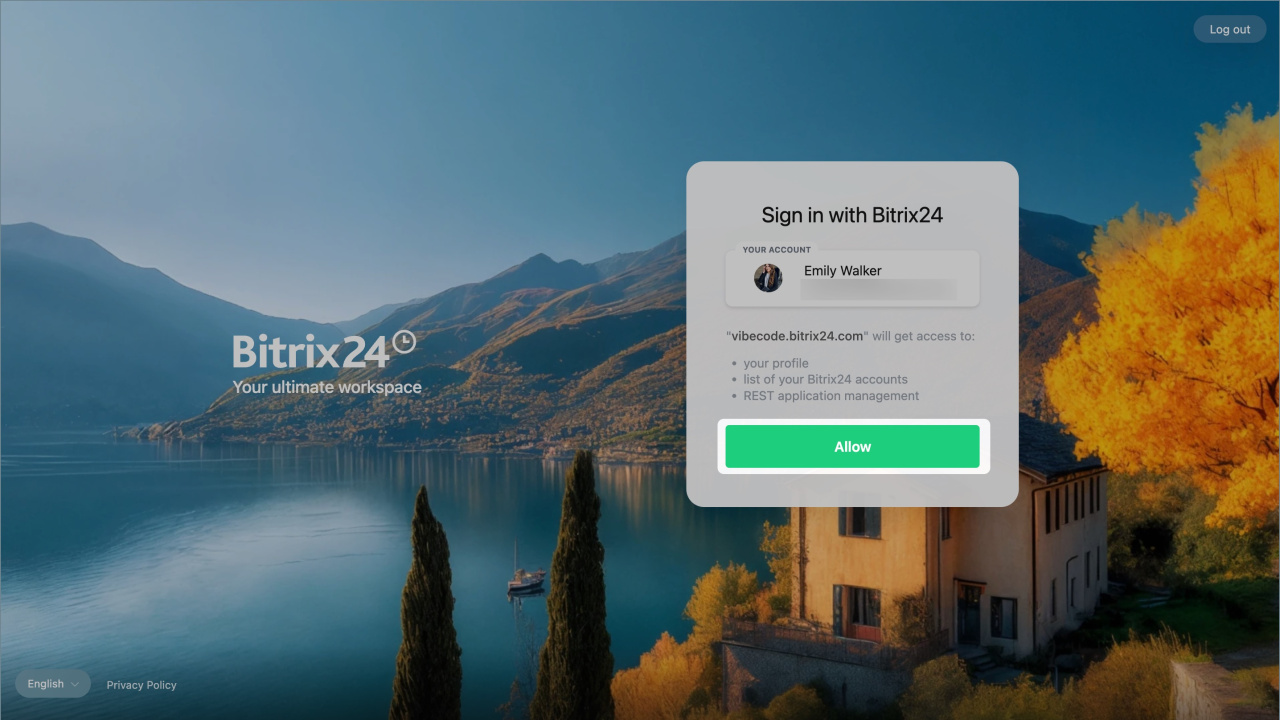
4. Allow vibecode.bitrix24.com to access your Bitrix24 profile information and project list. Click Allow.
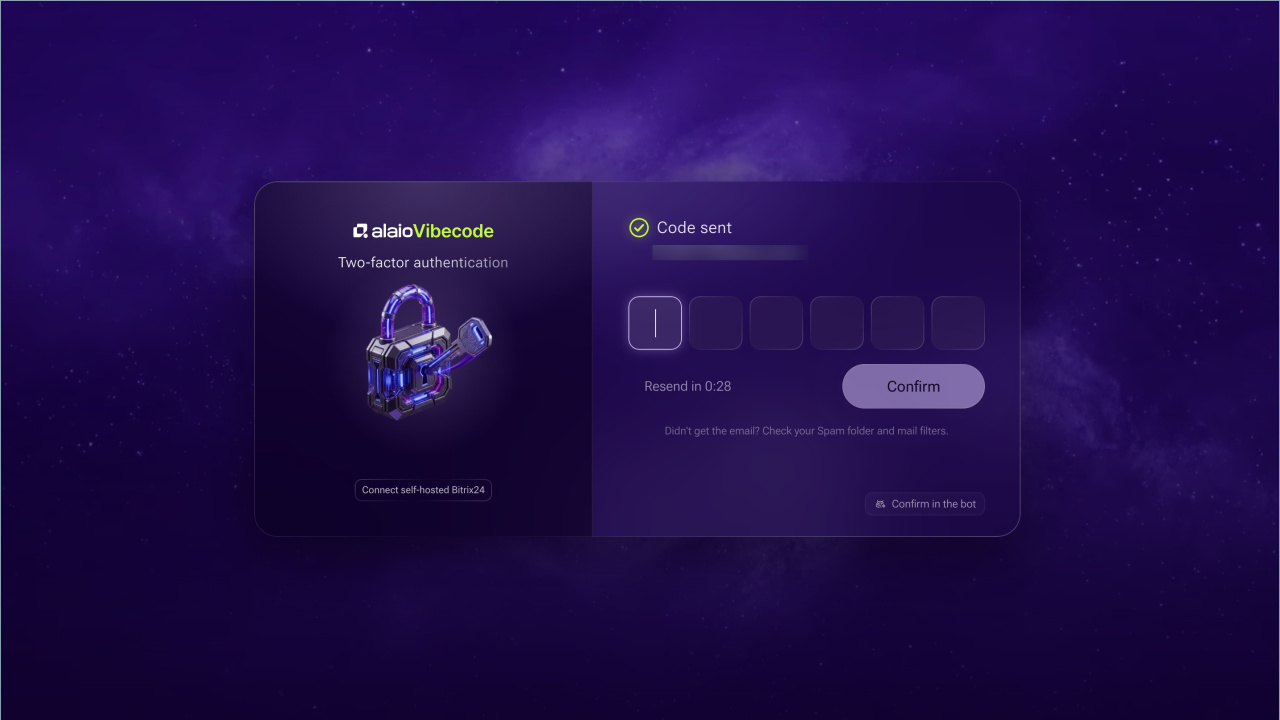
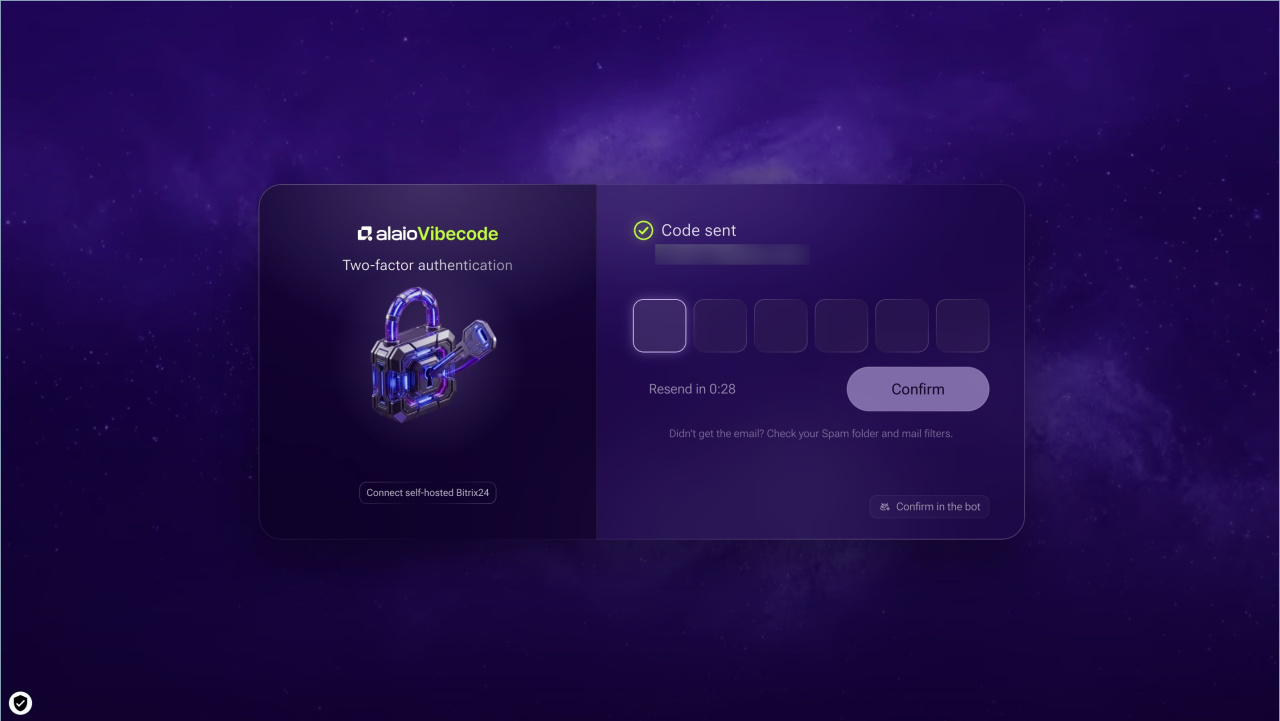
5. Complete two-factor authentication: enter the code sent to your email address, then click Confirm.
6. Review the license agreement and click Continue.
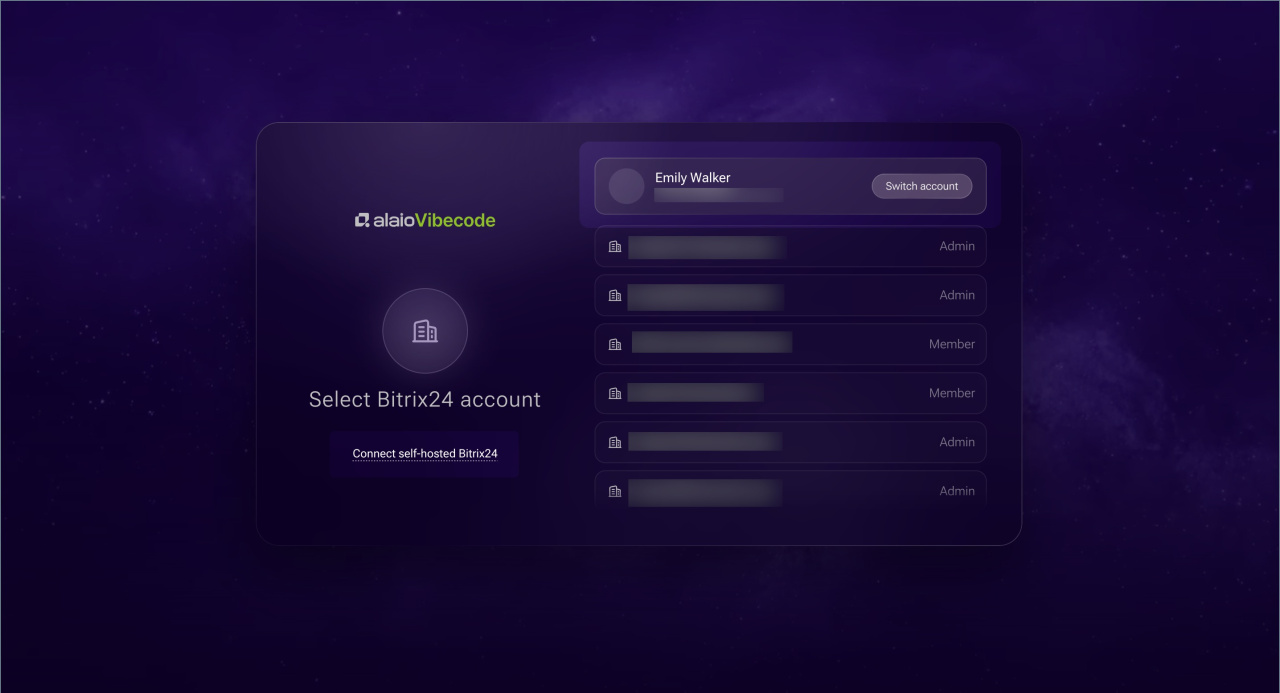
7. On the Connect Bitrix24 page, click Connect On-premise Bitrix24.
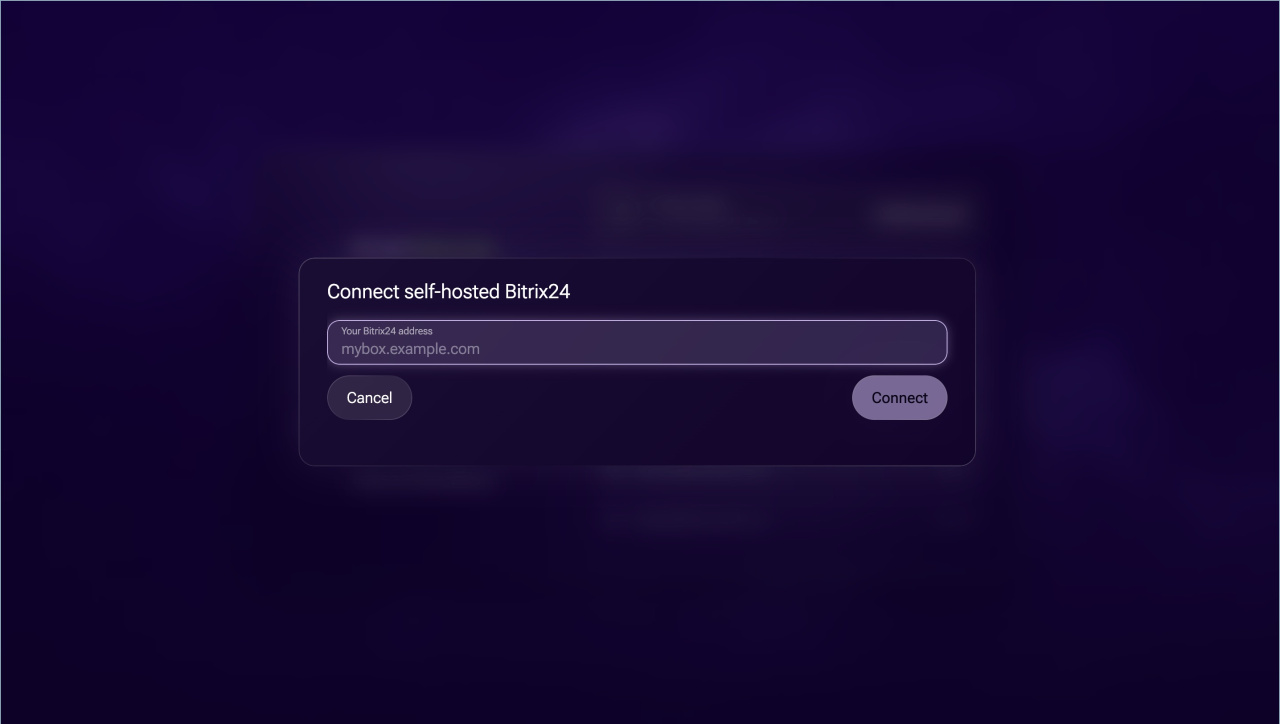
8. Enter your On-premise Bitrix24 address and click Connect.
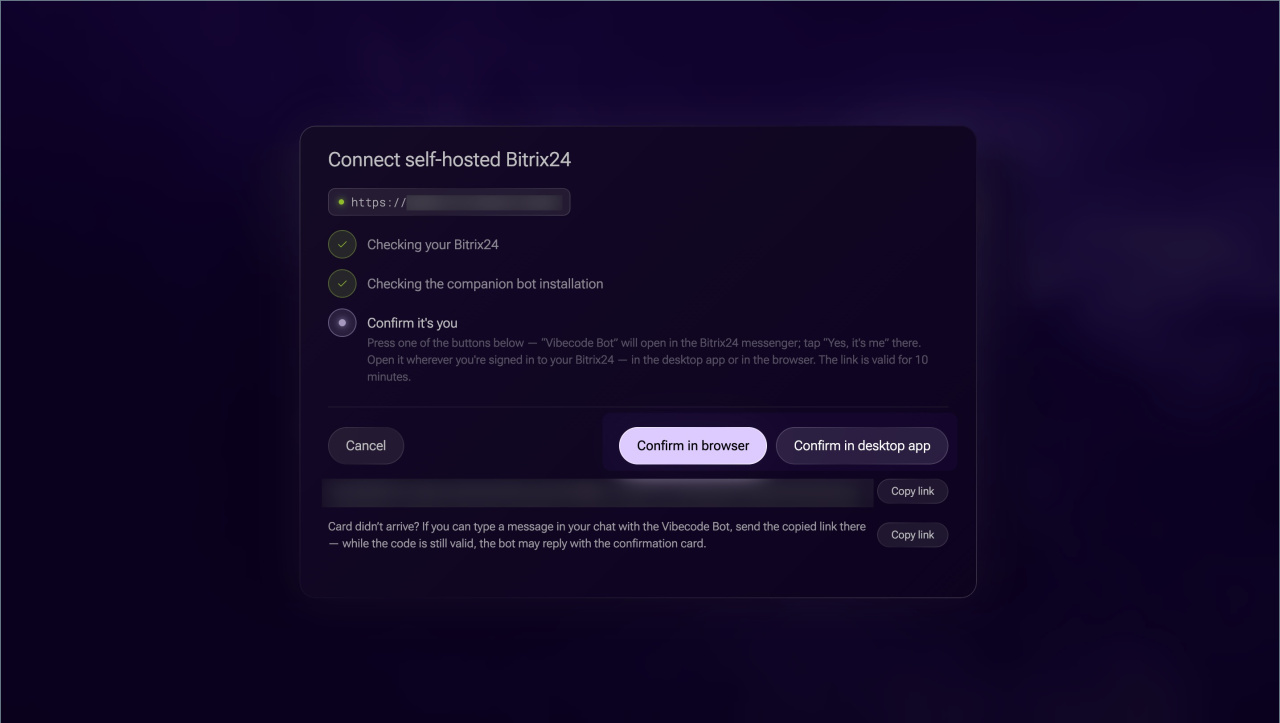
9. Choose a login confirmation method: Confirm in browser or Confirm in desktop app.
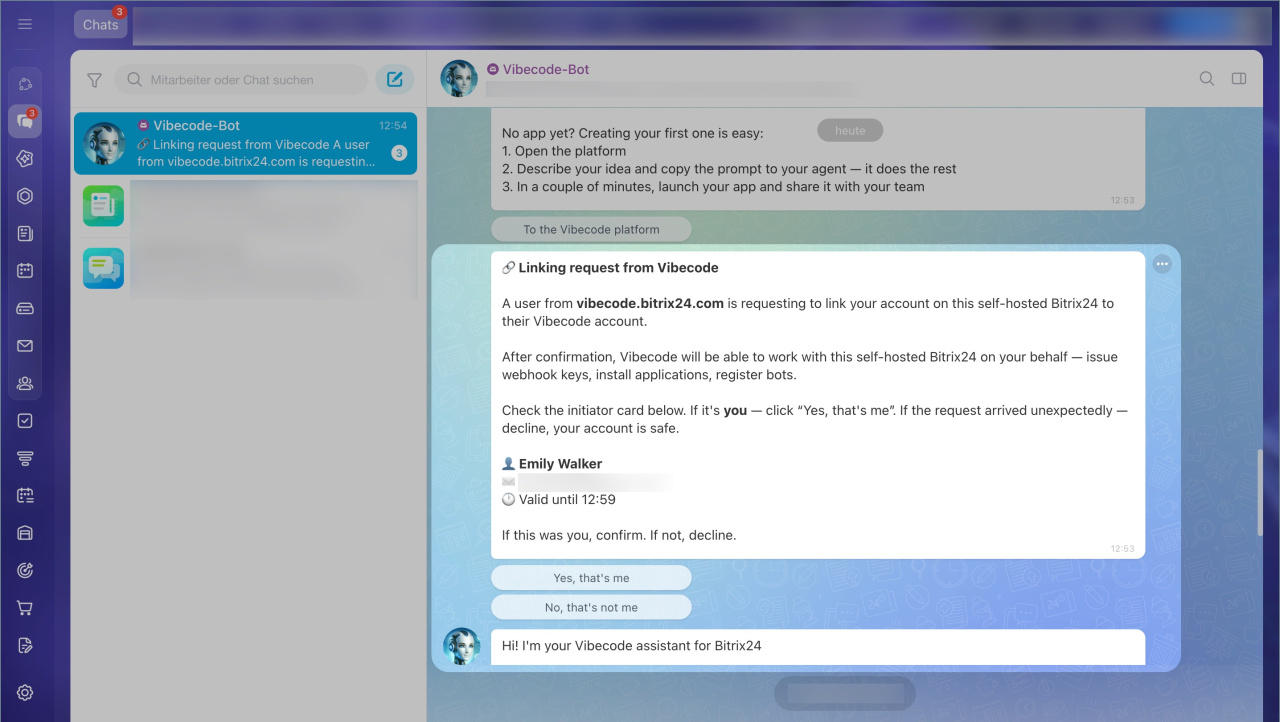
10. In your On-premise Bitrix24, open the chat with the Alaio Vibecode bot. Review the connection request details and click Yes, this is me.
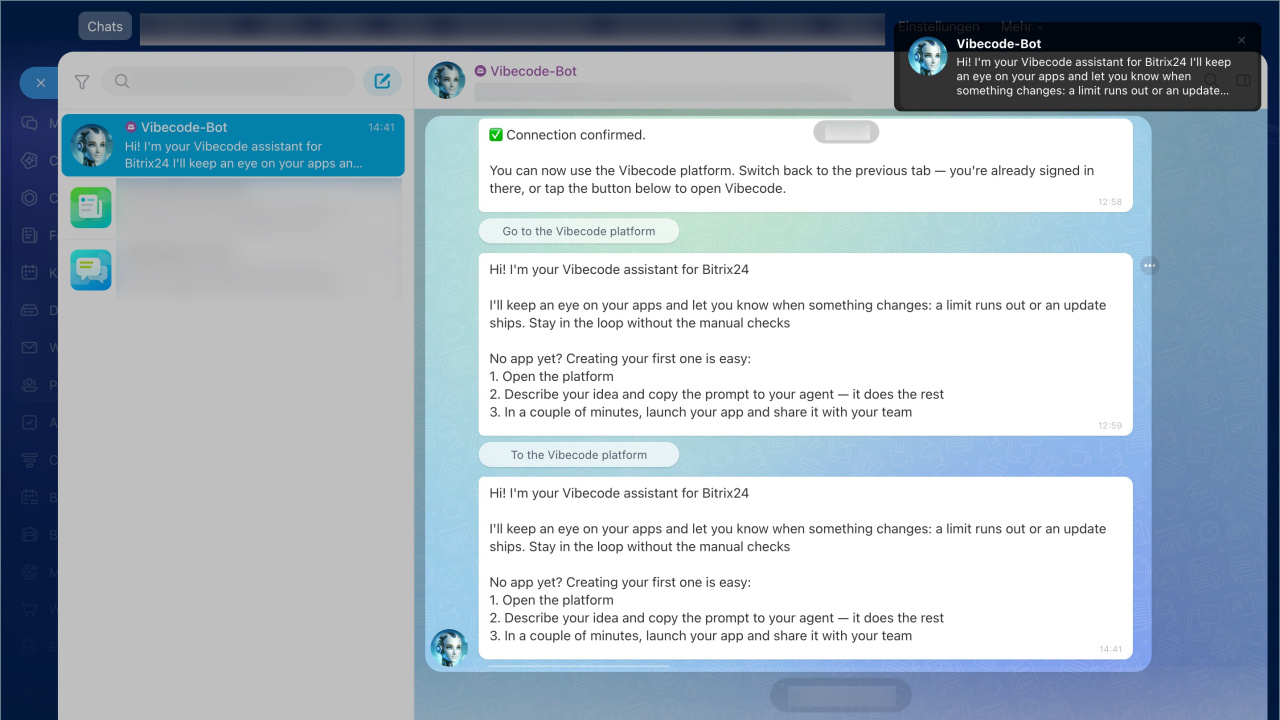
11. Return to Alaio Vibecode. After the connection is complete, the platform dashboard opens.
If you already have a Bitrix24 Network account.
1. Open Alaio Vibecode and click Log in.
2. Sign in with your Bitrix24 Network account.
3. On the account selection page, click Connect On-premise Bitrix24.
4. Enter your On-premise Bitrix24 address.
5. Click Connect.
6. Alaio Vibecode verifies your On-premise Bitrix24 address and adds the Alaio Vibecode bot. Choose a login confirmation method: click Confirm in browser or Confirm in desktop app.
7. In Bitrix24, open the chat with the Alaio Vibecode bot. Review the request details and click Yes, this is me.
8. Return to the Alaio Vibecode tab. Your account is connected, and the Alaio Vibecode platform dashboard opens.
In brief
- Alaio Vibecode is available in On-premise Bitrix24. To connect it, an administrator installs the Integration with Alaio Vibecode module in the admin panel.
- When registering the module, enter the server address https://vibecode.bitrix24.com.
- You can install the module on only one Bitrix24 installation per license key.
- Employees connect their own account and confirm the connection through the bot in Bitrix24.