Connect your email to the Bitrix24 mobile app and manage messages just as you do on a computer. Read and send emails, forward them to coworkers, create tasks, link emails to your CRM, and more. This is essential when working remotely and needing to respond quickly to clients, coworkers, or partners.
Bitrix24 plans and pricing
In this article: how to connect a mailbox and add additional ones.
Connect a mailbox
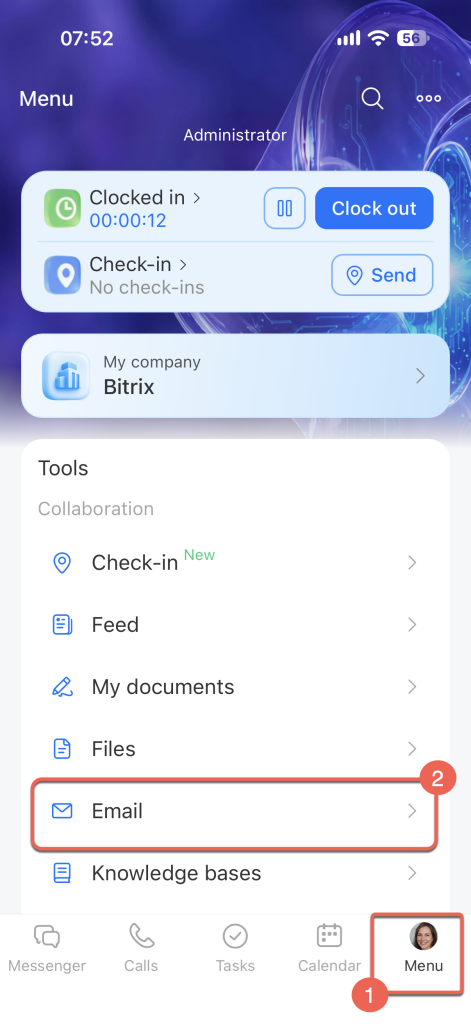
1–2. Go to Menu > Email.
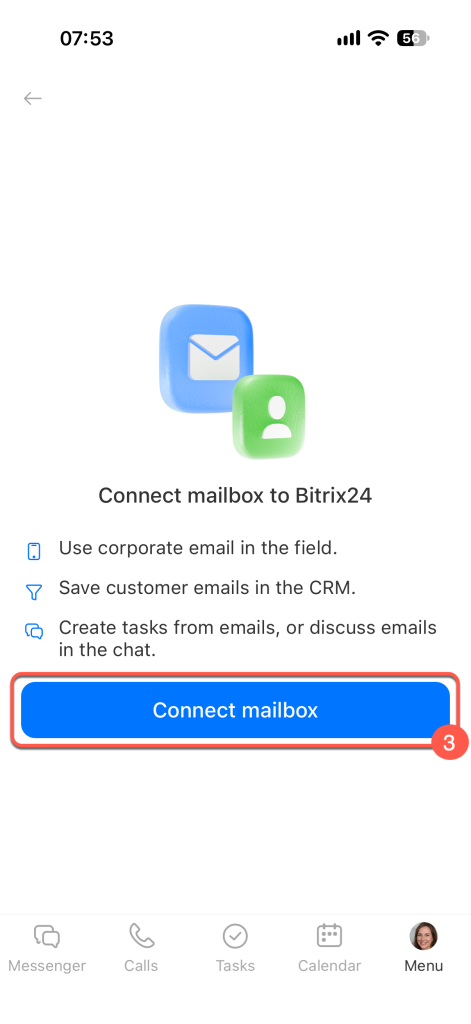
3. Tap Connect mailbox.
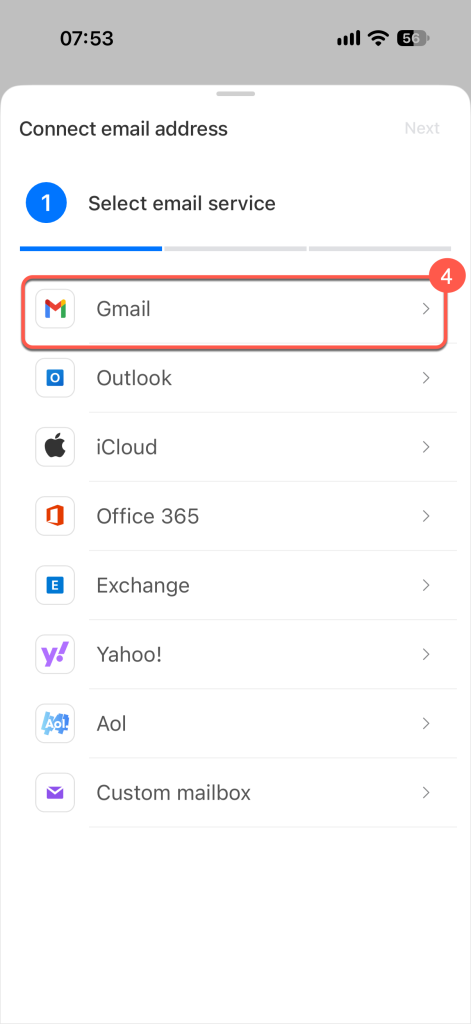
4. Select the email service you want to connect (e.g., Gmail or Outlook).
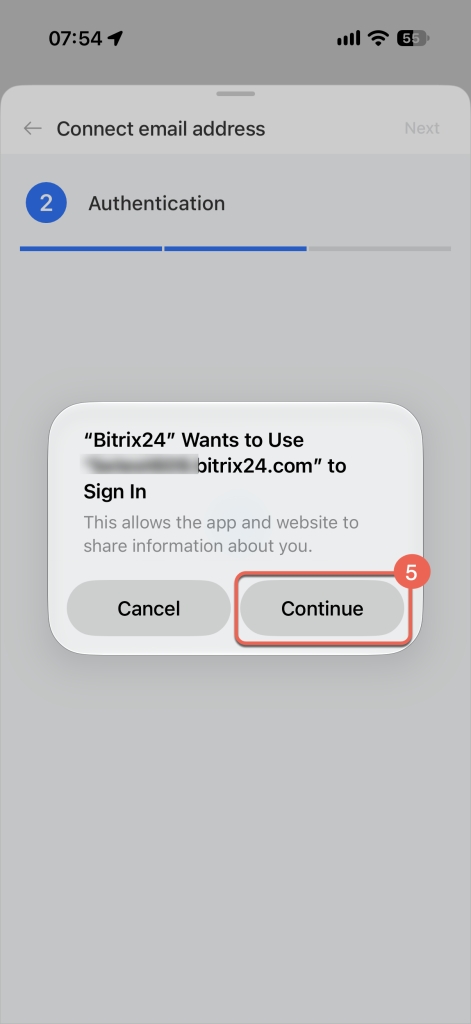
5. Tap Continue to open the sign-in window for the selected service.
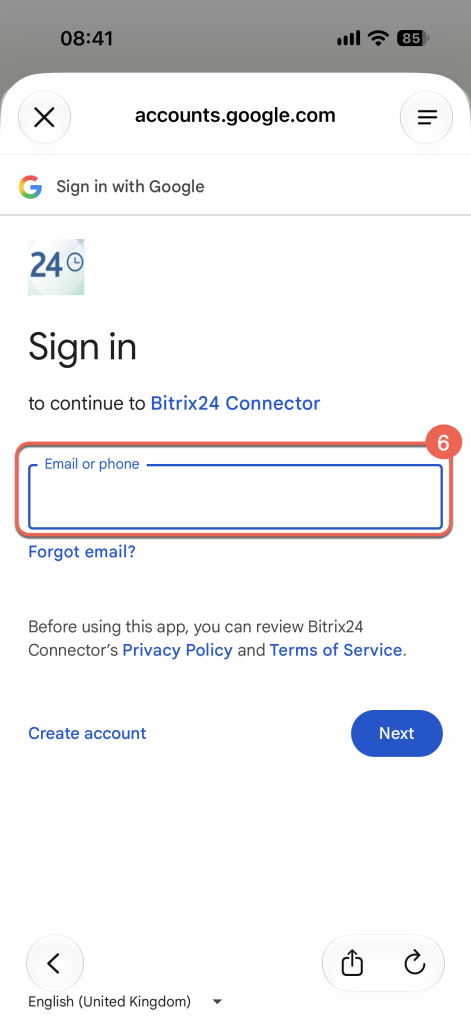
6. Sign in to your email account.
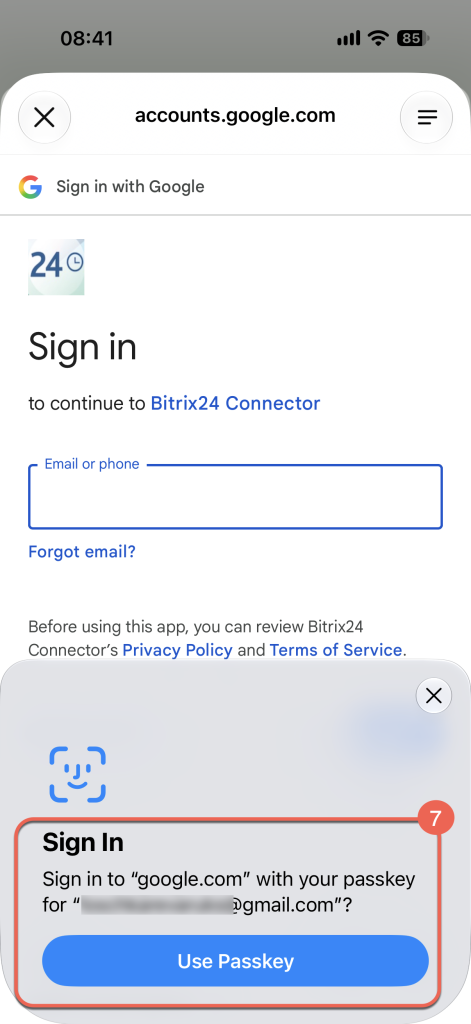
7. Confirm the sign-in using a text message, push notification, or another method provided by your email service.
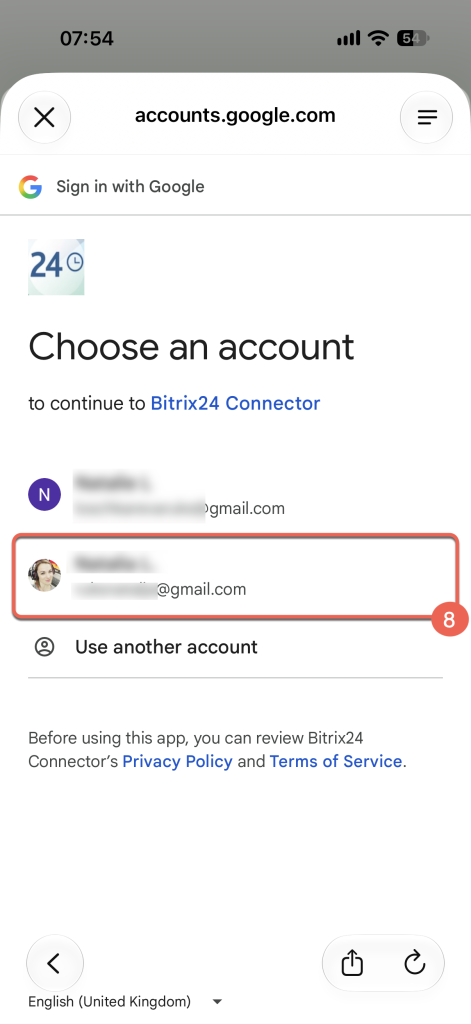
8. If you have multiple accounts, select the one you wish to use.
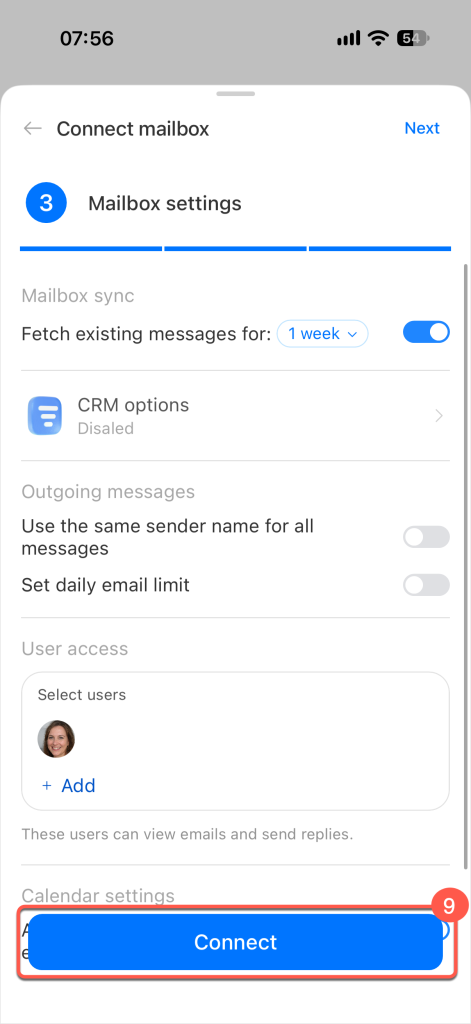
9. Complete the email setup and tap Connect.
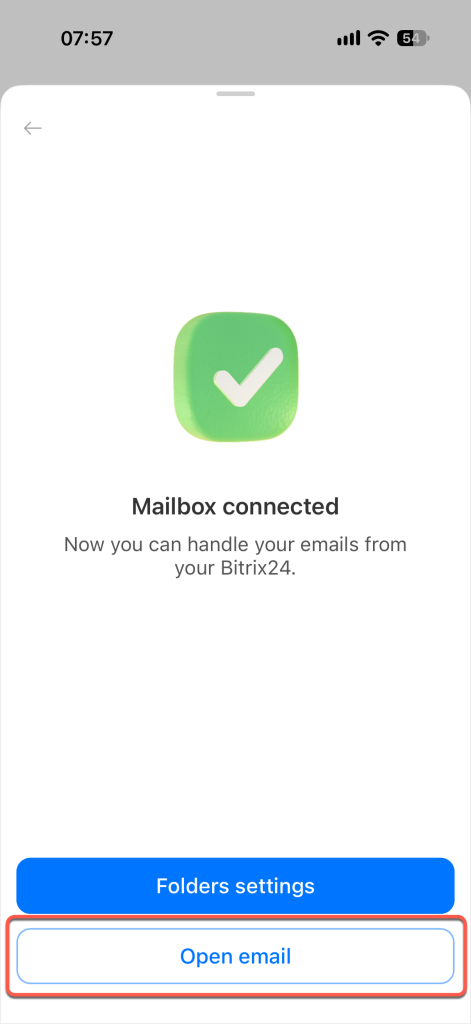
10. Your email is now connected. Tap Open email.
Connect another mailbox
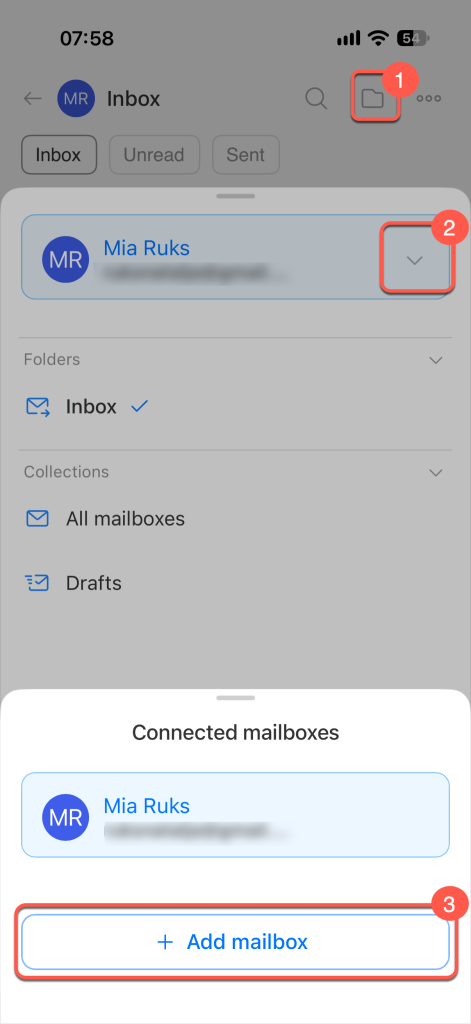
You can keep all your communications organized by connecting different mailboxes—for example, a work account for client correspondence and a personal one for internal tasks. Tap the folder icon  and select Add mailbox.