
If notifications don’t arrive, you might miss a task, a message, or a deal. Most often, the cause lies in the app or phone settings.
In this article:
What to do if notifications don’t arrive
Problem. Notifications from the Bitrix24 mobile app don’t arrive.
Causes.
- Notifications are disabled in the app.
- Smart mode is enabled in the notification settings. In this case, notifications don’t arrive on your phone if Bitrix24 is open on your computer.
- Notifications are disabled in your phone settings.
Solutions.
1. Check the push notification settings in the app. Go to Menu (≡) > Notifications > Push notifications.
- Make sure the Push notifications option is enabled.
- Disable Smart mode if you want to receive notifications on your phone even when Bitrix24 is open on your computer.
Set up notifications in the Bitrix24 Mobile app
2. Check the push notification settings on your device.
- On iPhone, go to Settings > Bitrix24 > Notifications. Make sure the Allow Notifications toggle is enabled.
- On Android, open your phone settings and go to the notification settings for the Bitrix24 app. Make sure the Allow Notifications toggle is enabled.
Why don’t notifications about deals arrive in CRM?
Problem. Notifications about deals don’t arrive in CRM.
Cause. In the Bitrix24 mobile app, notifications are configured separately for different events. For example, in CRM you can enable notifications about new emails, mentions, CRM form submissions, and other events. By default, only activity reminders are enabled, so other notifications might not arrive.
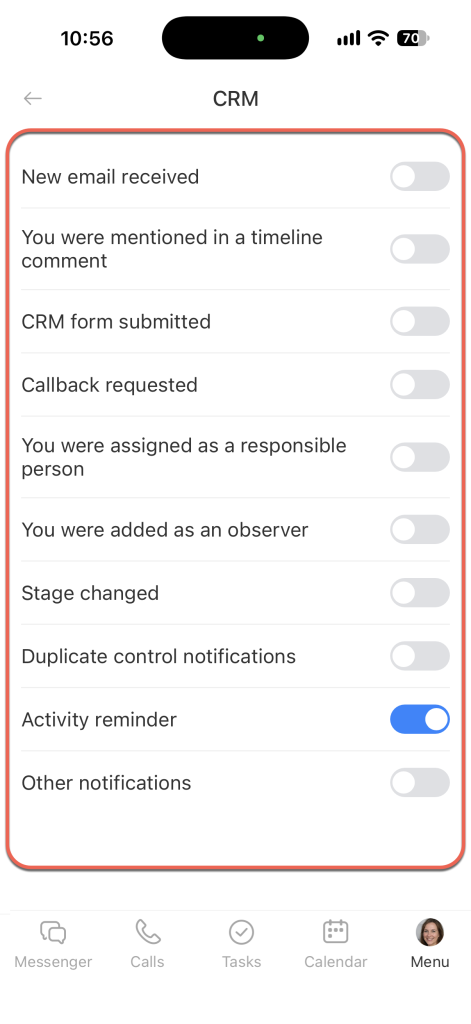
Solution. Go to Menu (≡) > Notifications > Push notifications > CRM. Choose which CRM events you want to receive notifications about.