In the Bitrix24 mobile app, you can choose which events trigger push notifications — for example, new tasks, messages, or CRM changes. This helps you avoid distracting alerts and stay focused on the events that matter.
In this article:
Enable notifications
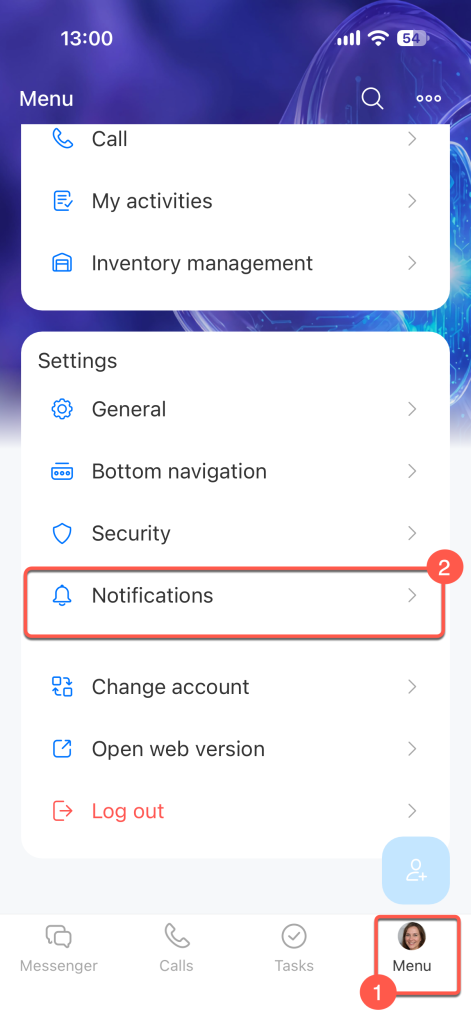
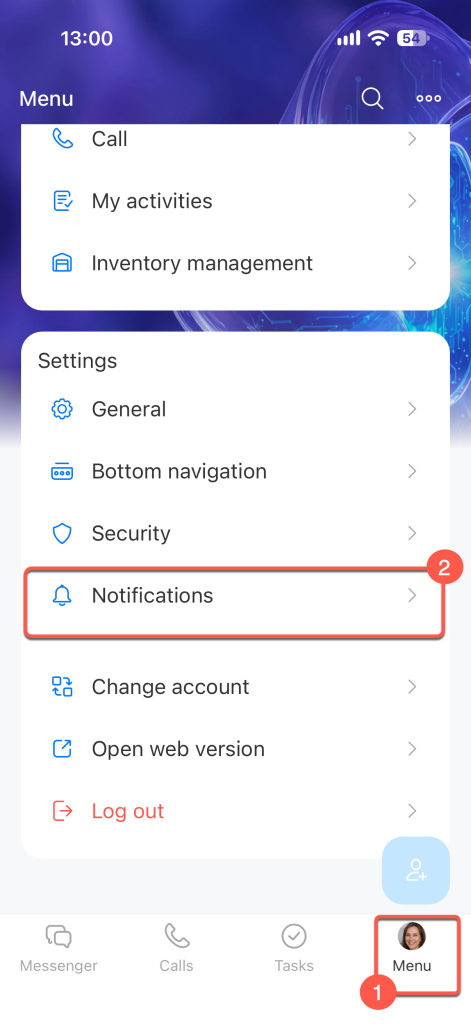
Open the Menu tab in the bottom-right corner. In the Settings block, tap Notifications.
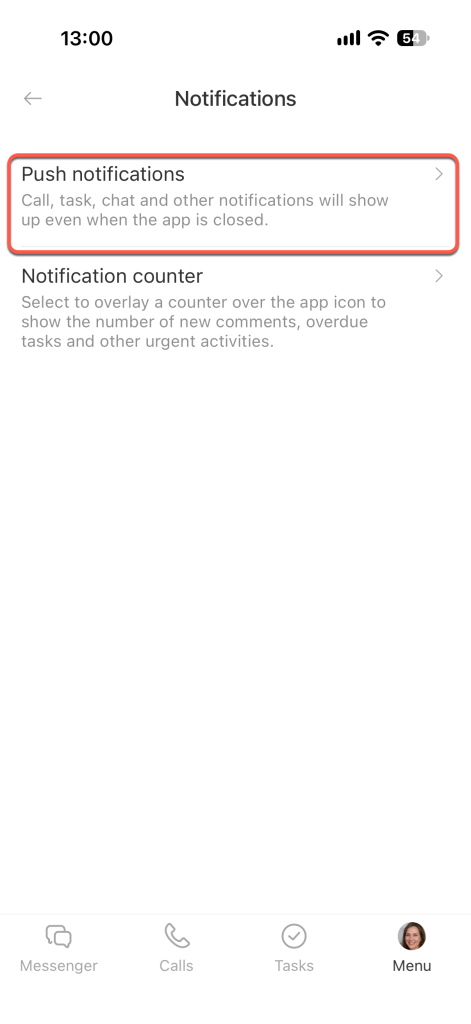
Select Push notifications.
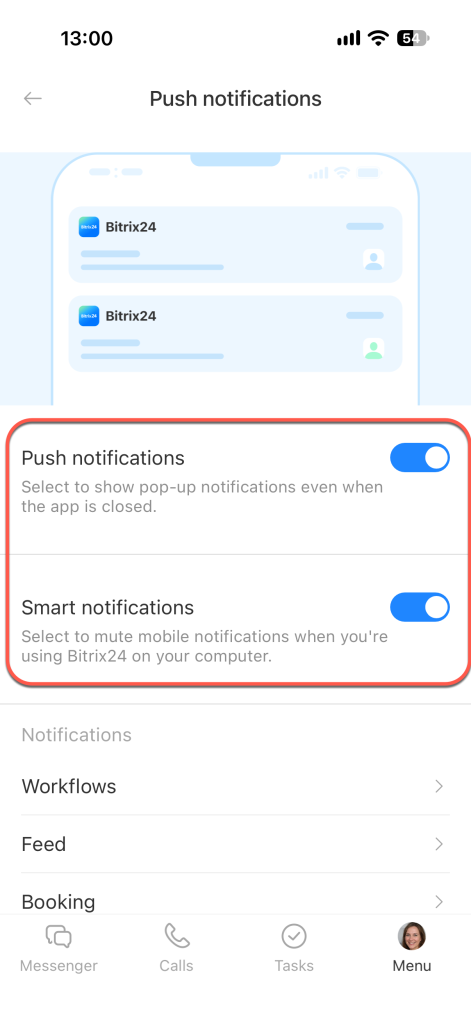
Turn on the options you need:
- Push notifications — Notifications arrive even when the app is closed. For example, a message from a colleague or a task notification appears on the screen immediately.
- Smart notifications — Notifications won't reach your phone if Bitrix24 is open on your computer.
Set up notifications by section
The Push notifications page lists sections such as CRM, Tasks, Chats, and others. In each section, choose which events trigger notifications. Tap a section and turn on the items you need.
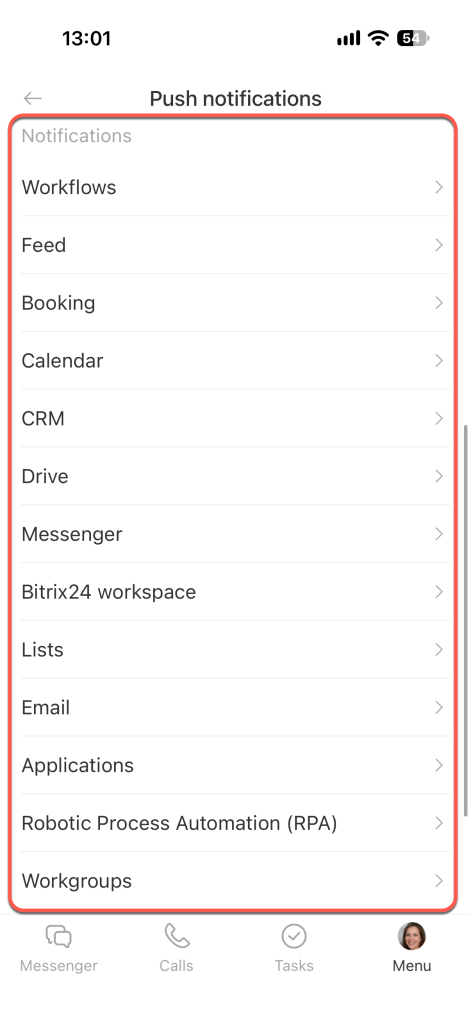
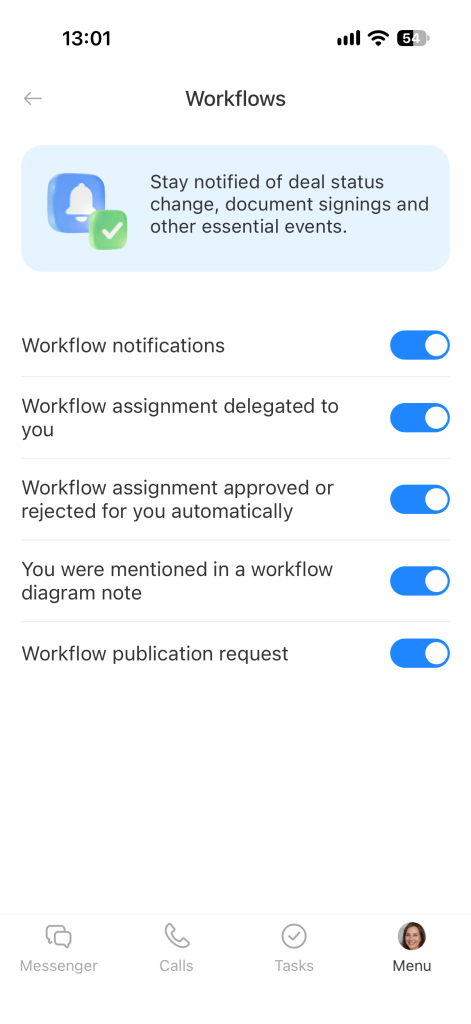
Workflows. Turn this on if you participate in workflows, such as document approval or event planning.
- Workflow notifications — A deal stage change, a signed document, or other changes within a process.
- Workflow assignment delegated to you — A notification that you need to complete an action in a workflow.
- Workflow assignment approved or rejected for you automatically — A notification that an assignment was approved or rejected automatically on your behalf.
- You were mentioned in a workflow diagram note — A notification that someone mentioned you in a note on the workflow diagram.
- Workflow publication request — A notification that a workflow is waiting for your approval before it is published.
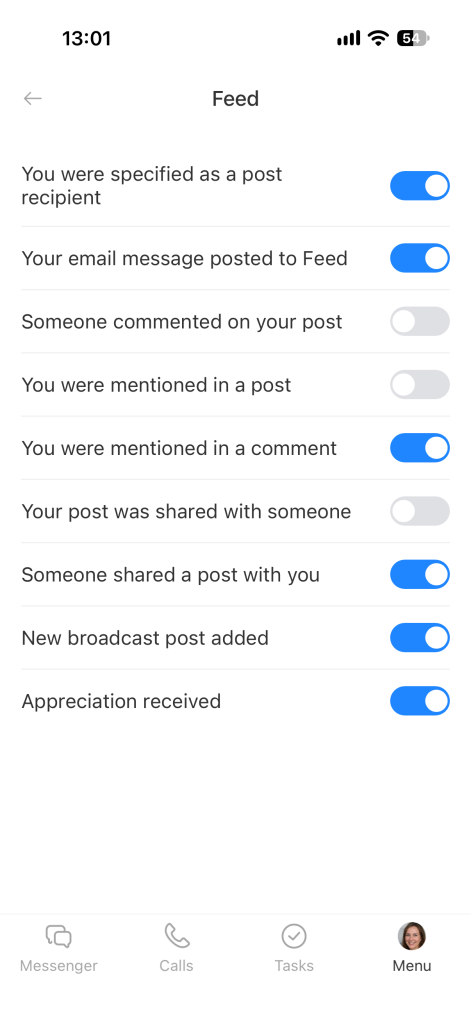
Blogs. Choose which feed events trigger notifications:
- You were specified as a post recipient
- Your email message posted to Feed
- Someone commented on your post
- You were mentioned in a post
- You were mentioned in a comment
- Your post was shared with someone
- Recipients were added to a post
- Someone shared a post with you
- New broadcast post added
- Appreciation received
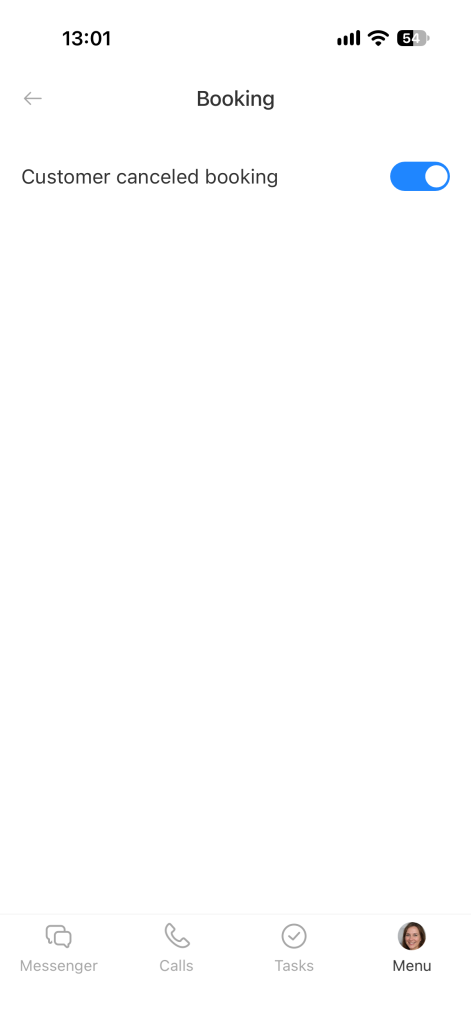
Booking. Turn on the Customer canceled booking option to learn about cancellations immediately and book another client if needed.
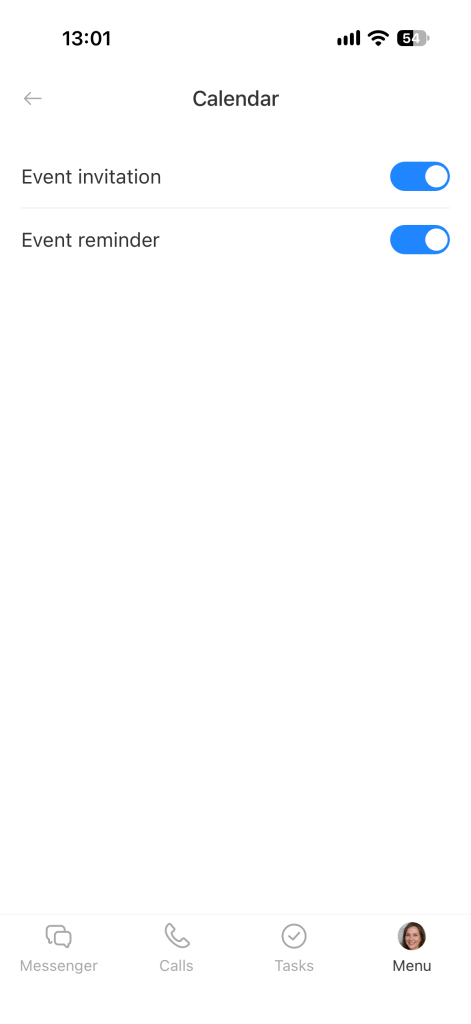
Calendar. You can receive notifications about invitations and reminders before an event starts.
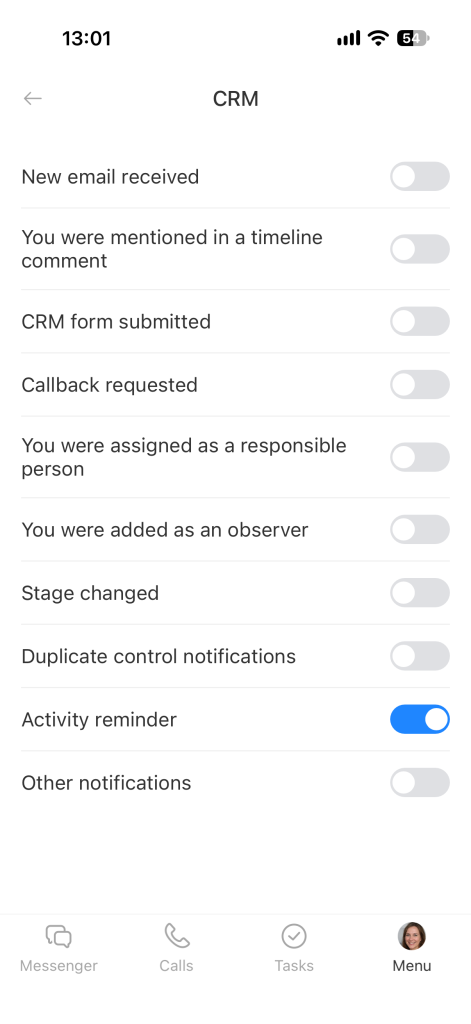
CRM. Choose which events trigger notifications:
- New email received
- You were mentioned in a timeline comment
- CRM form submitted
- Callback requested
- You were assigned as responsible person
- You were added as an observer
- Stage changed
- Duplicate control notifications
- Activity reminder
- Other notifications
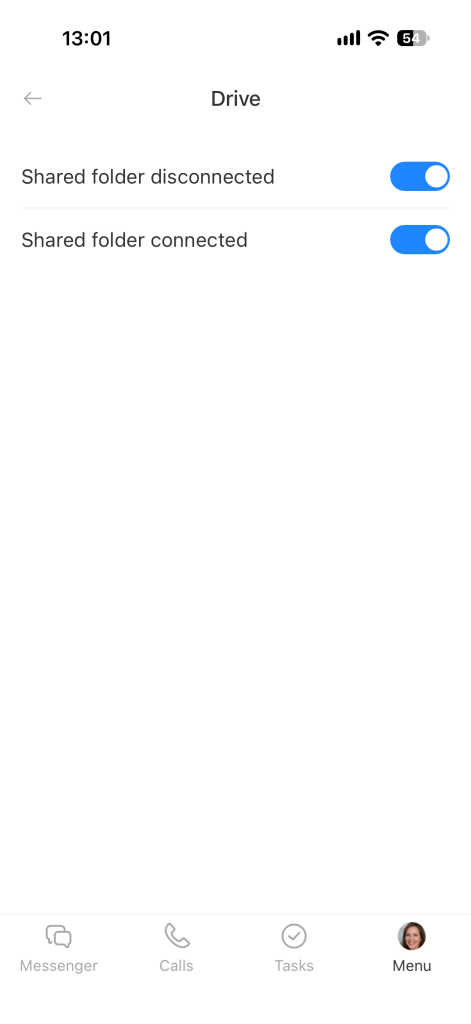
Drive. You can receive notifications when someone grants or revokes your access to a shared folder.
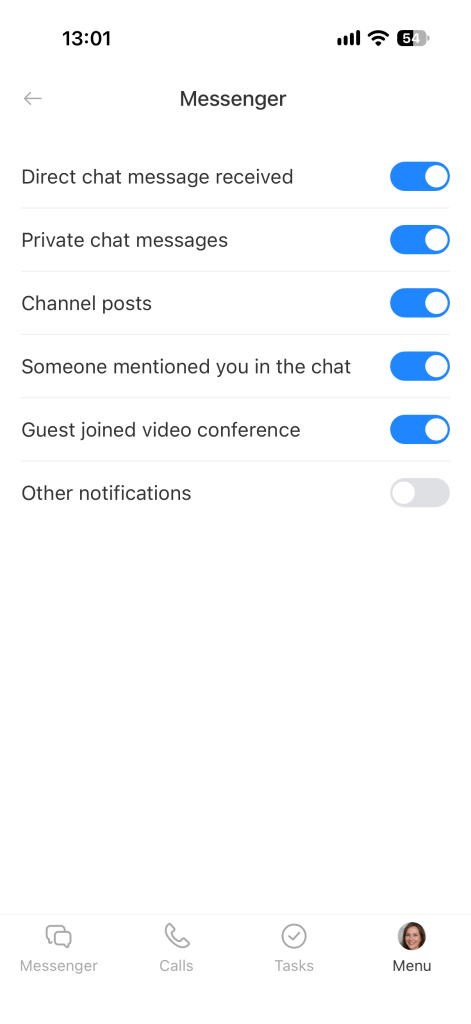
Messenger. Choose which chat notifications you want to receive:
- Direct chat message received
- Private chat messages
- Channel posts
- Someone mentioned you in the chat
- Guest joined video conference
- Other notifications
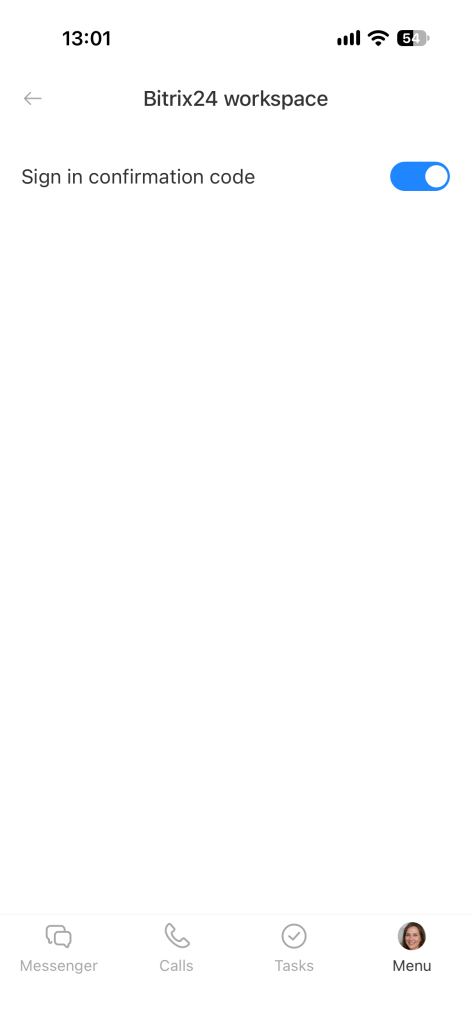
Bitrix24 workspace. Turn on the Sign in confirmation code option to receive notifications with the two-factor authentication code for signing in to Bitrix24.
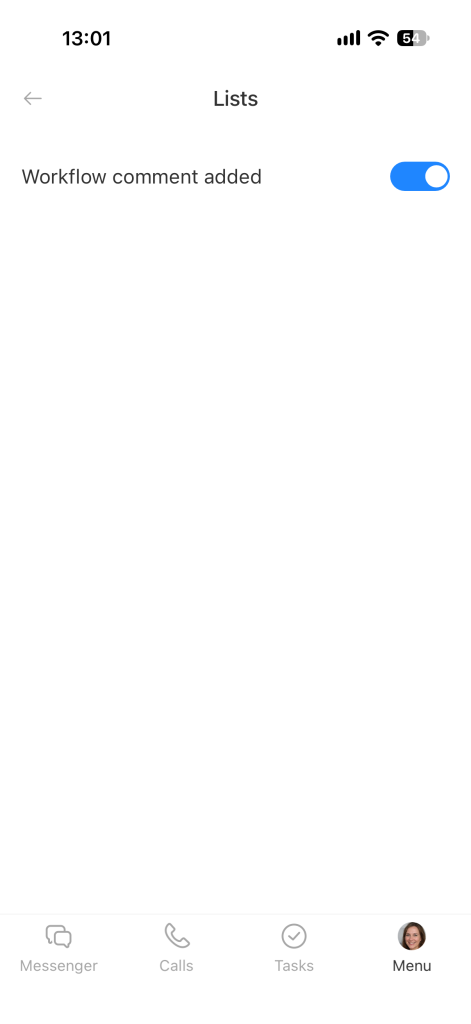
Lists. Turn on the Workflow comment added option to receive notifications about comments on workflow assignments or stages.
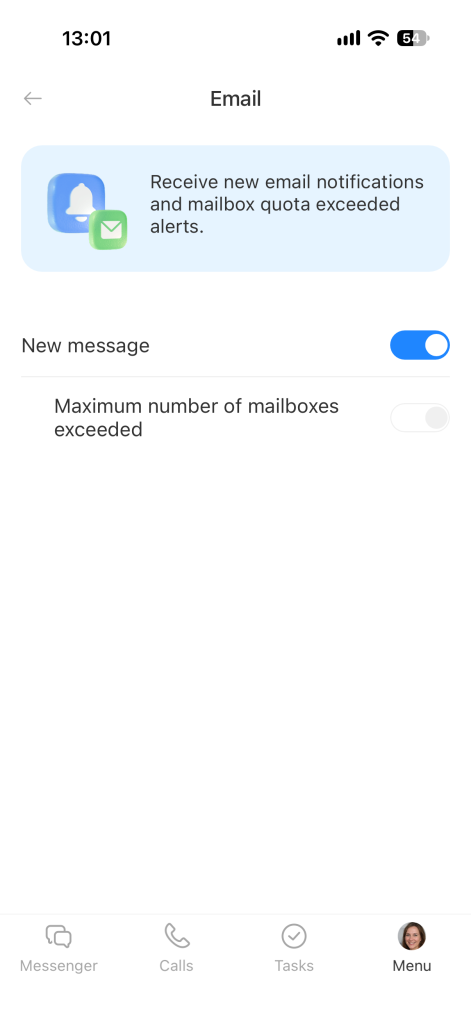
Email. One notification is available: Maximum number of mailboxes exceeded.
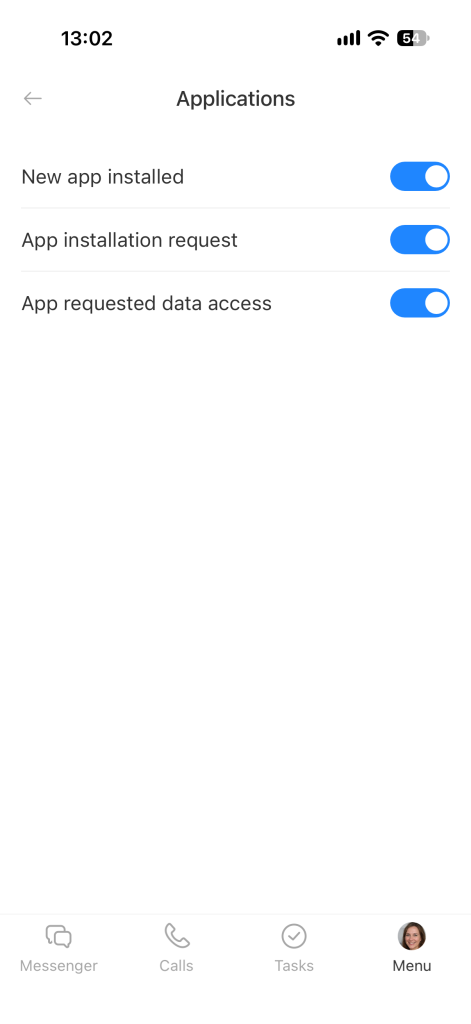
Applications. Choose which notifications about apps from Bitrix24 Market you'll receive:
- New app installed
- App installation request
- App requested data access
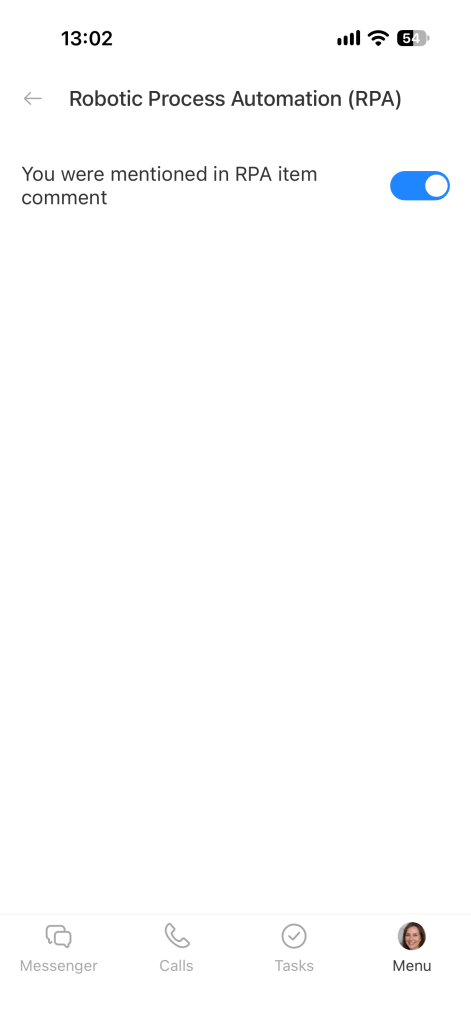
Robotic Process Automation (RPA). The You were mentioned in RPA item comment option is useful if you participate in workflows, such as document approval.
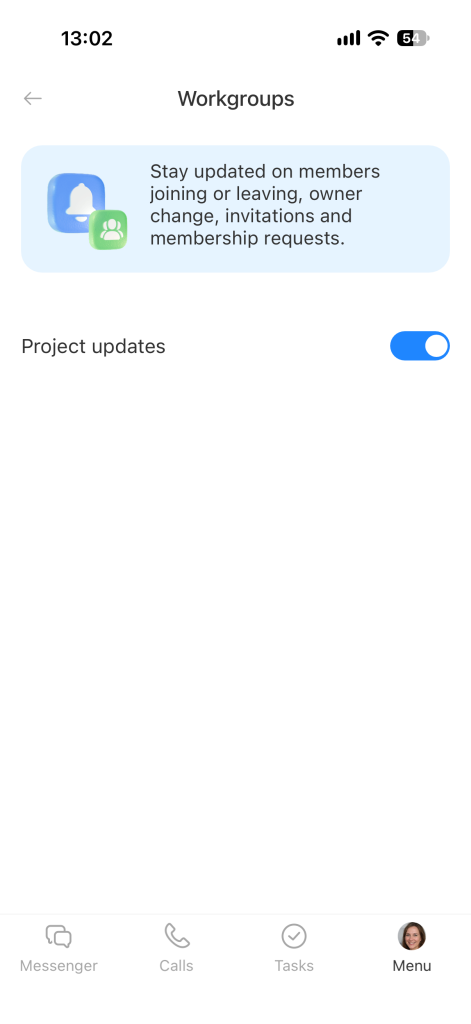
Workgroups. Turn on the Project updates option to learn about changes in project membership, ownership changes, invitations, and join requests.
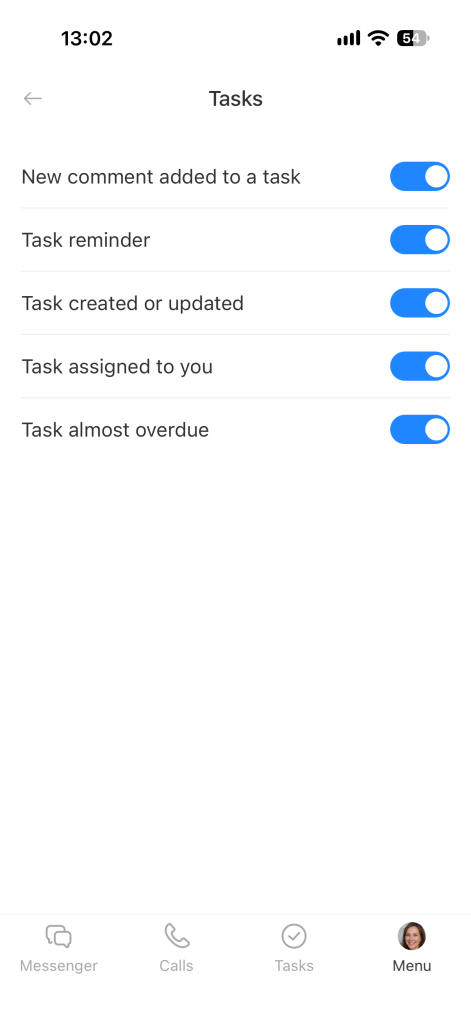
Tasks. Choose which task notifications to receive:
- New comment added to a task
- Task reminder
- Task created or updated
- Task assigned to you
- Task almost overdue
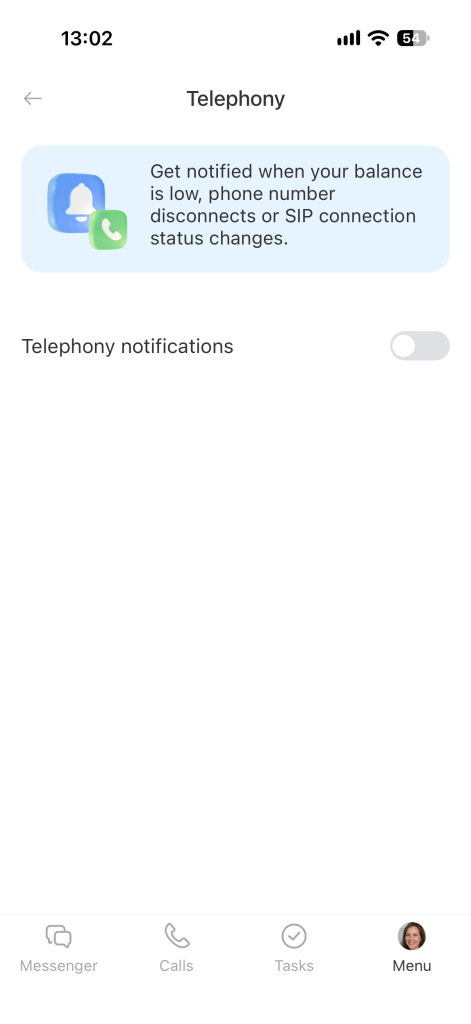
Telephony. Turn on the Telephony notifications option to receive notifications about a low balance, a disconnected number, and changes in SIP connection status.
Set up the notification counter
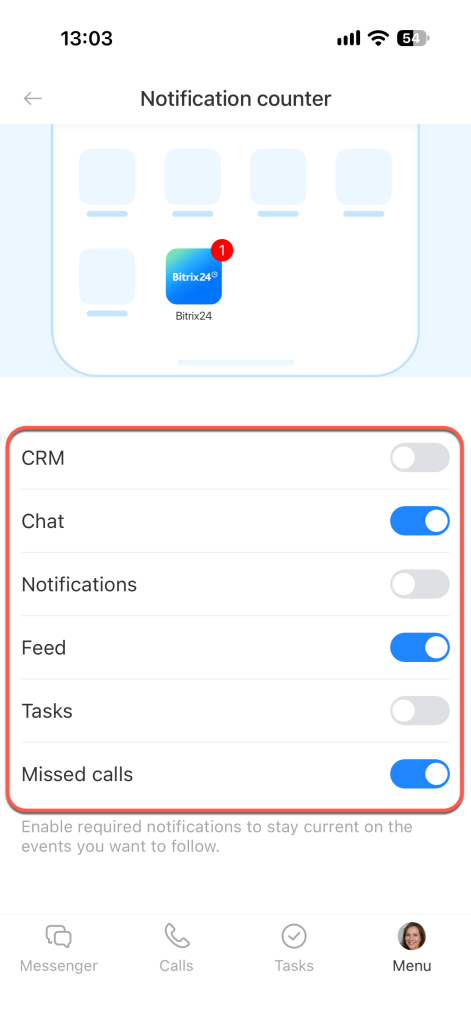
The counter is the number displayed on the Bitrix24 app icon. It shows how many unread notifications you have — for example, new comments, overdue tasks, and other items that need your attention. You can choose which events count toward this number.
Open the Menu tab in the bottom-right corner. In the Settings block, tap Notifications.
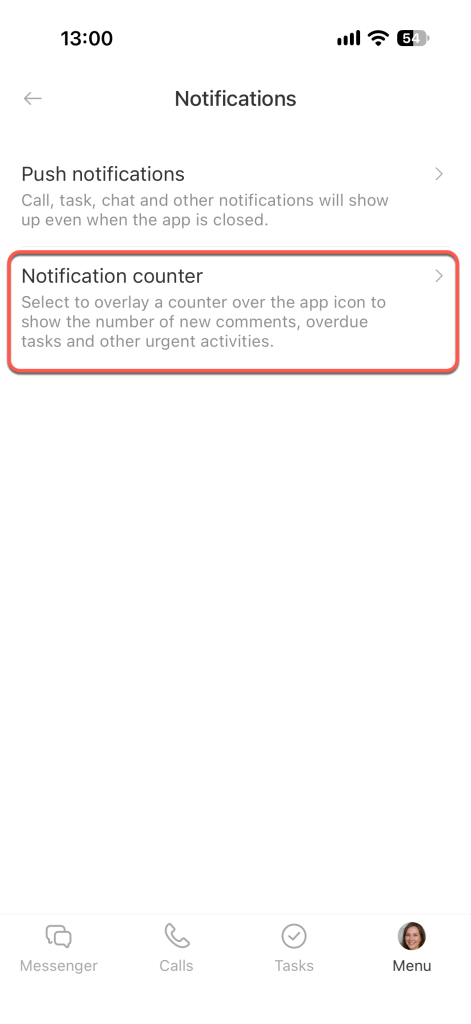
Select Notification counter.
Select the sections you need: CRM, Chat, Notifications, Feed, or Tasks. For example, turn on the counter for chats and the feed if you don't want to miss messages from colleagues or new discussions.