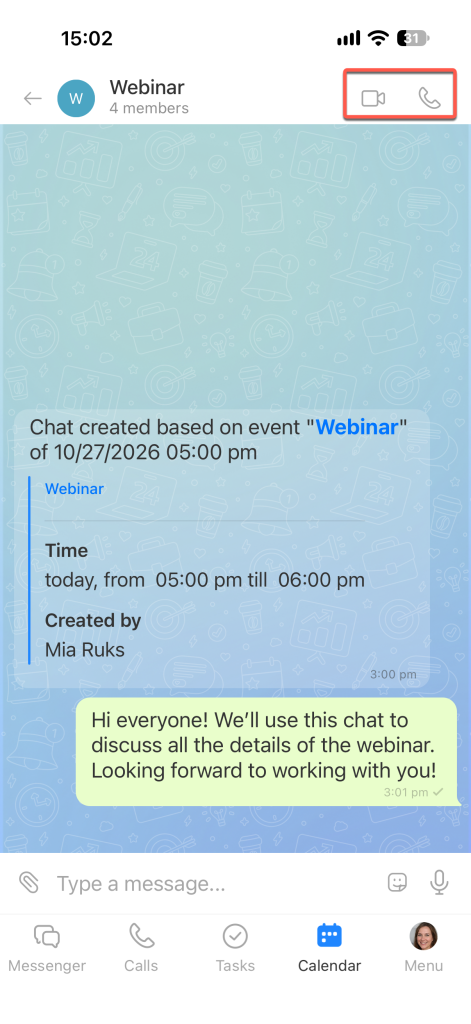
In the event form, you can create a chat with all meeting participants. Use the chat to:
- Discuss details before the meeting.
- Share materials.
- Start calls directly from the chat.
For example, the host created a chat for a planning meeting. Attendees shared reports in advance, and when the meeting began, the team started a call directly from the chat.
In this article:
Create an event chat
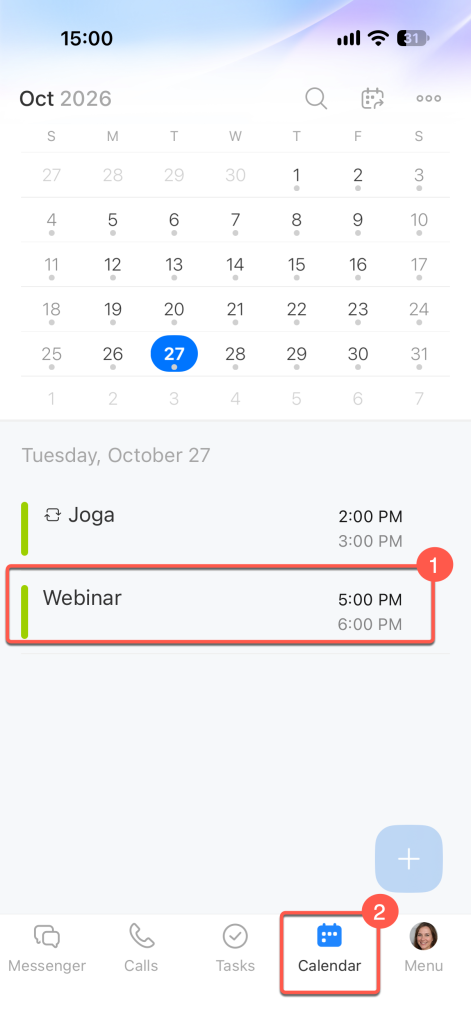
1–2. Go to Calendar and open the event.
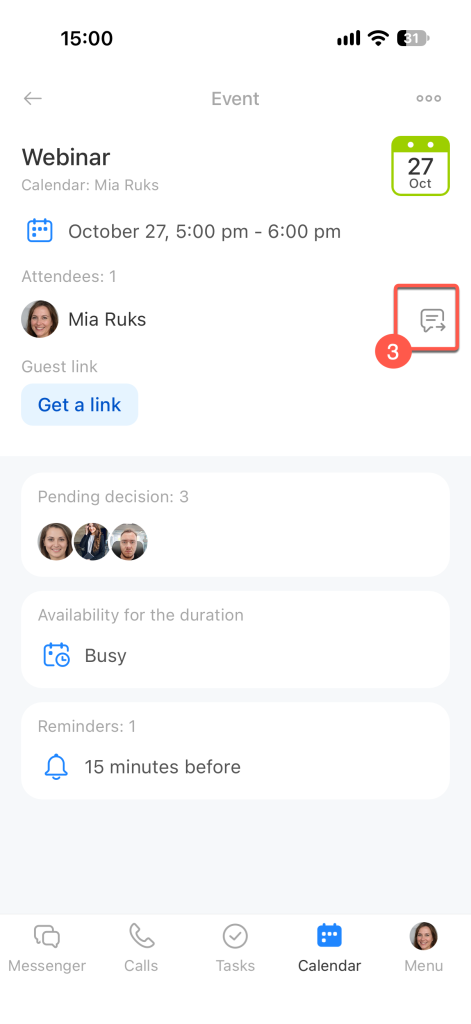
3. Tap the chat icon on the right.
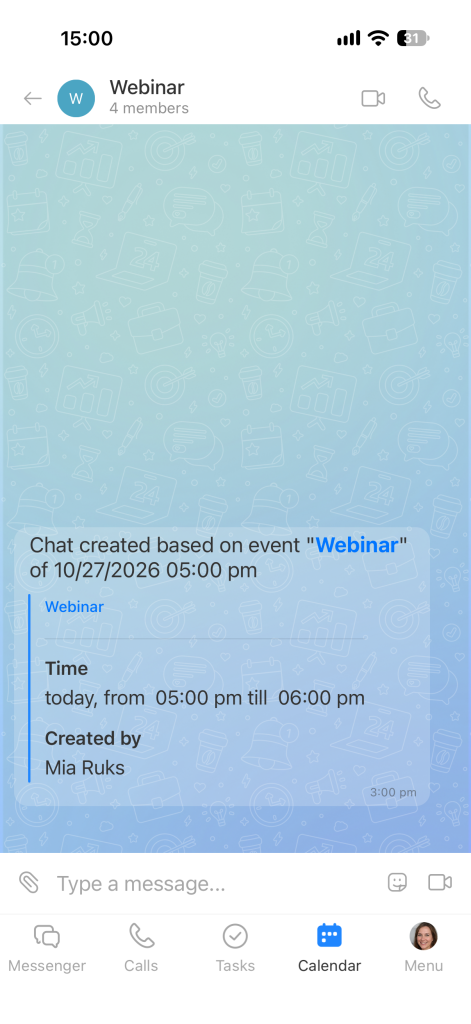
This opens a chat linked to the event. It includes all meeting participants.
Use the event chat
The event chat has all the features of a regular group chat.
Use chats in the Bitrix24 mobile app
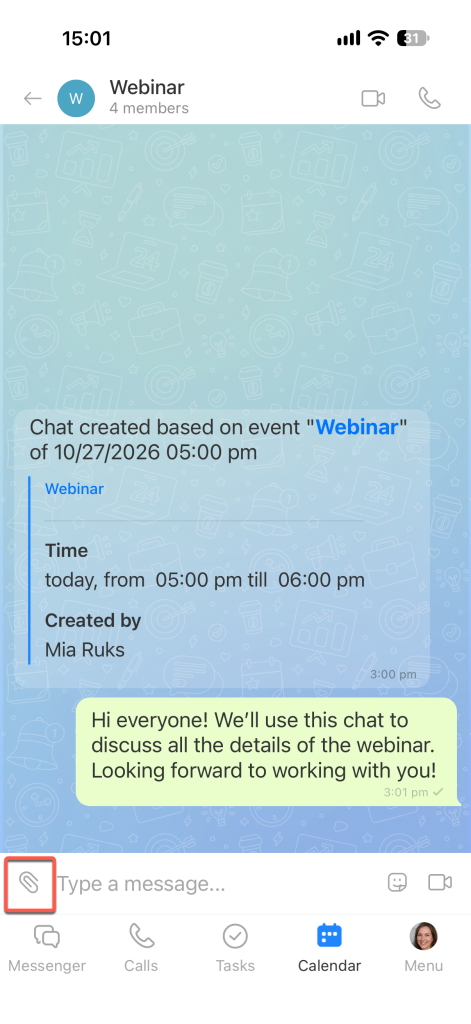
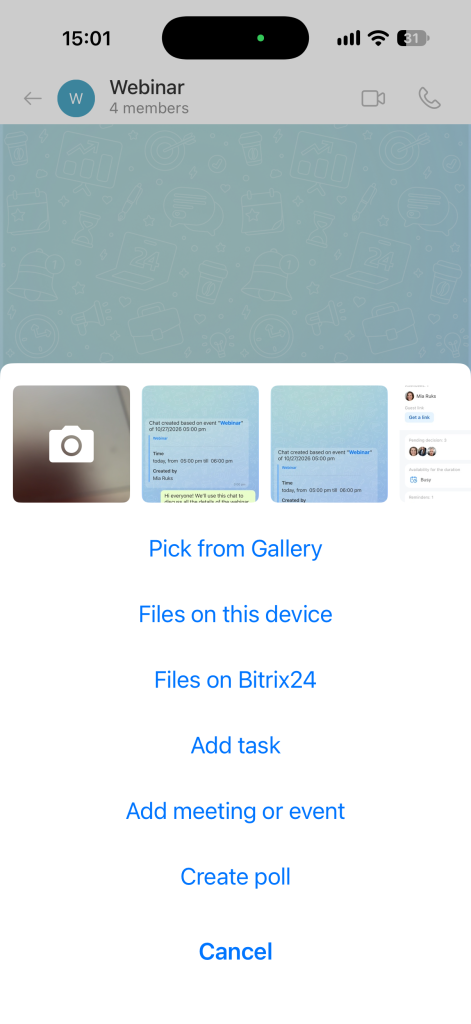
Attach a file, create a task, or schedule a meeting. In the event chat, tap the paperclip icon.
Choose the action you need:
- Pick from Gallery — Attach a photo or video.
- Files on this device — Attach a file from your device.
- File on Bitrix24 — Attach a file from Bitrix24.
- Add task — Create a task.
- Add meeting or event — Schedule a meeting.
- Create poll — Launch a poll.
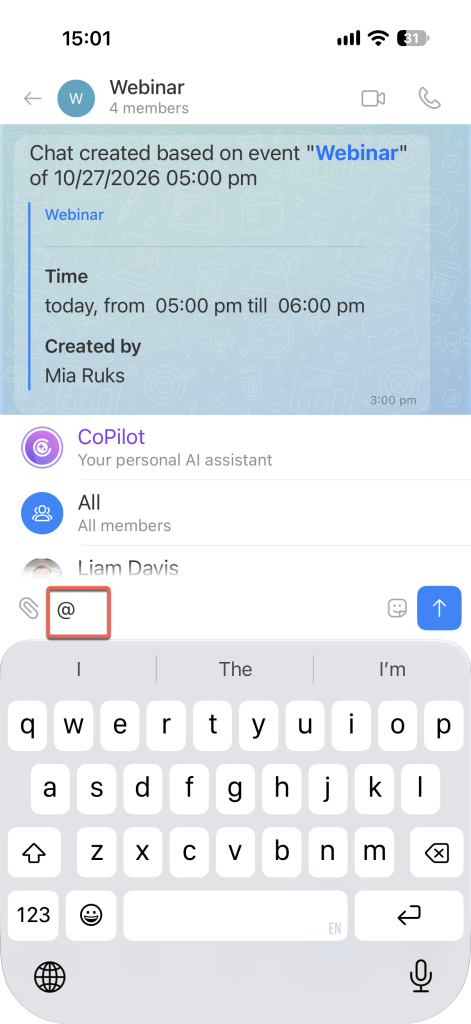
Mention a participant. Type @ or +, then start typing the name. The participant will receive a notification and won't miss the message.
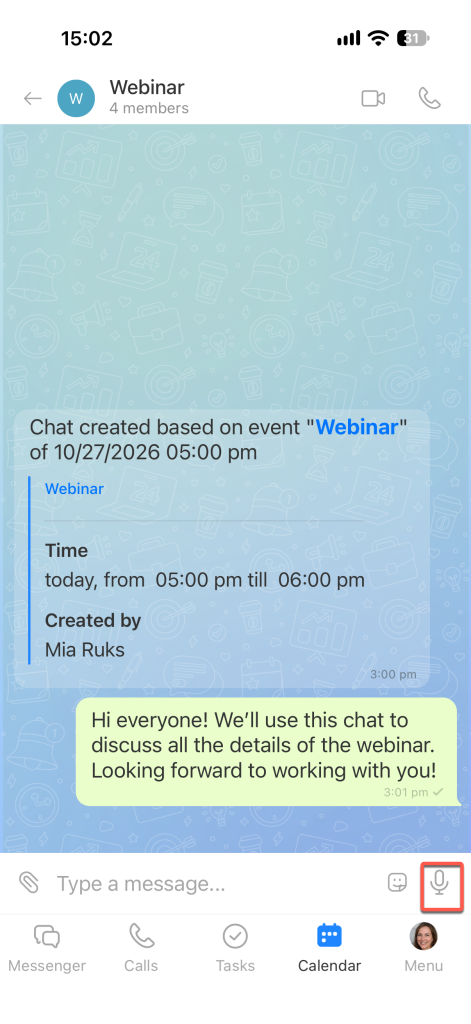
Record a voice message. Press and hold the microphone icon. You can listen to the recording before sending it.
Start a call. Tap the audio or video call icon in the top-right corner. Participants will receive a notification and can join.