You can add multiple accounts to the Bitrix24 mobile app and quickly switch between them.
For example, you might manage projects for different companies or use separate accounts for testing and everyday work.
Add a new Bitrix24 account
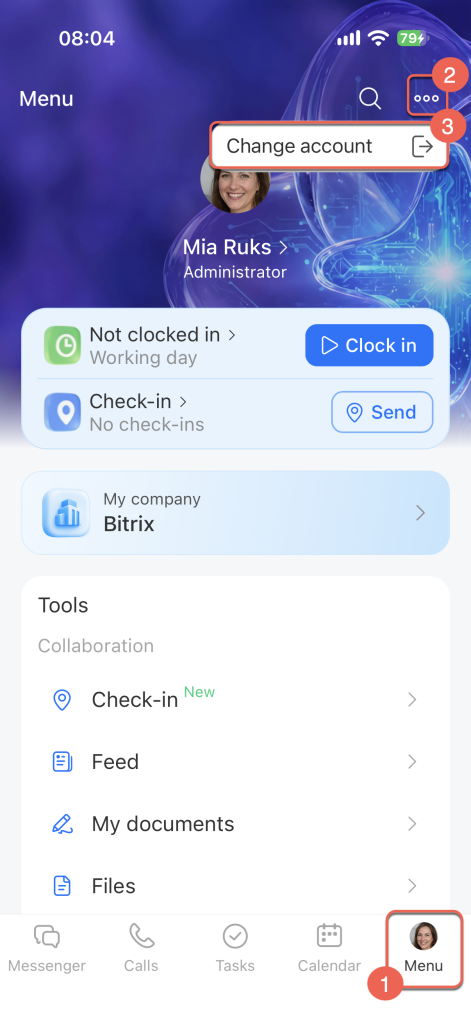
1. Open the Bitrix24 mobile app and tap Menu in the bottom-right corner.
2–3. Tap Three dots (...) > Change account.
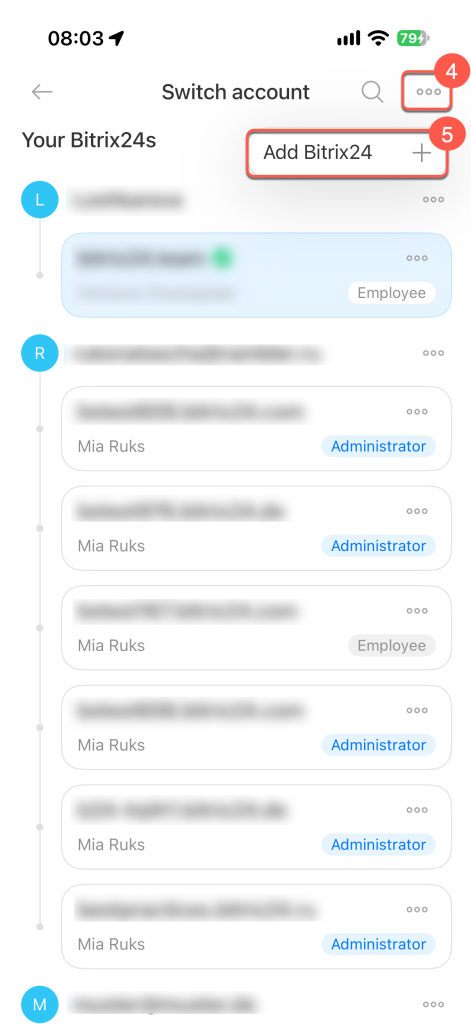
4–5. Tap Three dots (...) > Add Bitrix24.
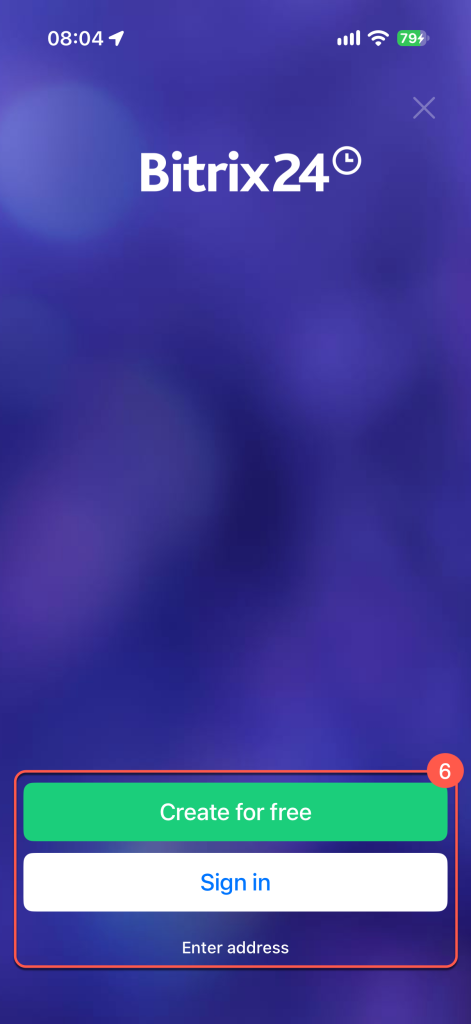
6. Choose how to add a Bitrix24 account:
- Create for free — Register a new Bitrix24 account.
Create a Bitrix24 account in the mobile app - Log in — Add an existing Bitrix24 account.
Sign in to Bitrix24 - Enter address — Sign in using your Bitrix24 address.
Log in with your Bitrix24 address
Switch between Bitrix24 accounts
1. Open the Bitrix24 app and tap Menu in the bottom-right corner.
2–3. Tap Three dots (...) > Change account.
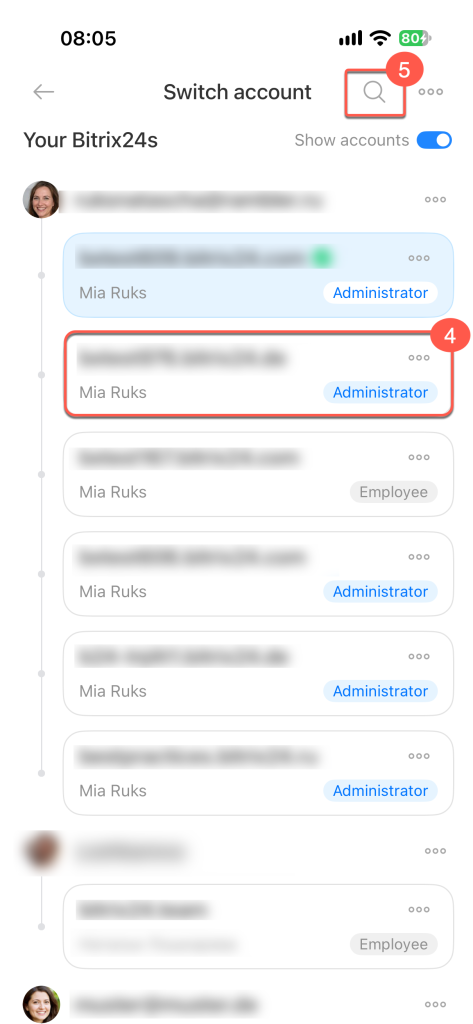
4. Tap the account you need in the list.
5. If you have many accounts, tap the magnifying glass icon in the top-right corner to search.
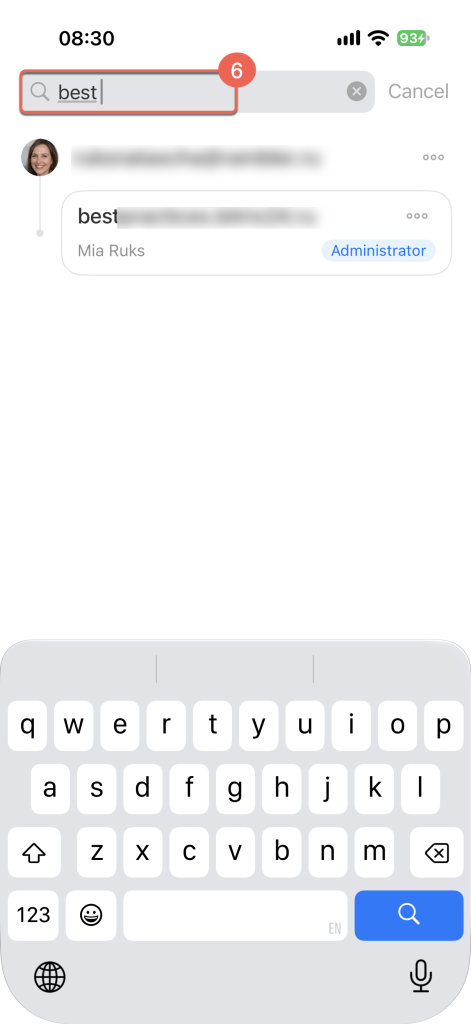
6. Enter the Bitrix24 address in the search field. The app will find the account you need in the list.
Log out of a Bitrix24 account
1. Open the Bitrix24 app and tap Menu in the bottom-right corner.
2–3. Tap Three dots (...) > Change account.
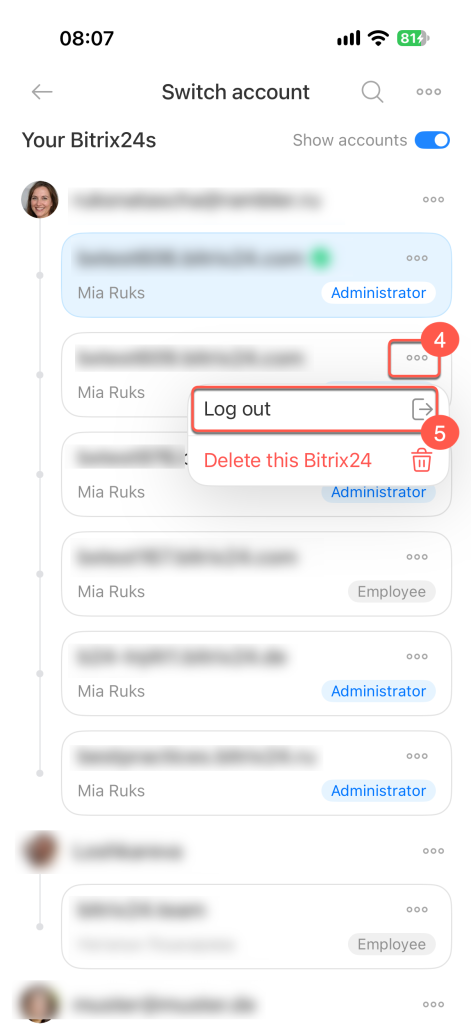
4–5. Tap Three dots (...) > Log out next to the account you want to log out of. You'll need to log in again the next time you want to use this account.