In your daily work, you may need to share important information with all employees and confirm that everyone has read it. For example, after a company updates salaries, employees may need to visit the accounting department to sign new contracts. For situations like this, the Feed includes an announcement feature that shows who has read the announcement and who hasn't.
In this article:
Create an announcement
Open Menu > Feed.
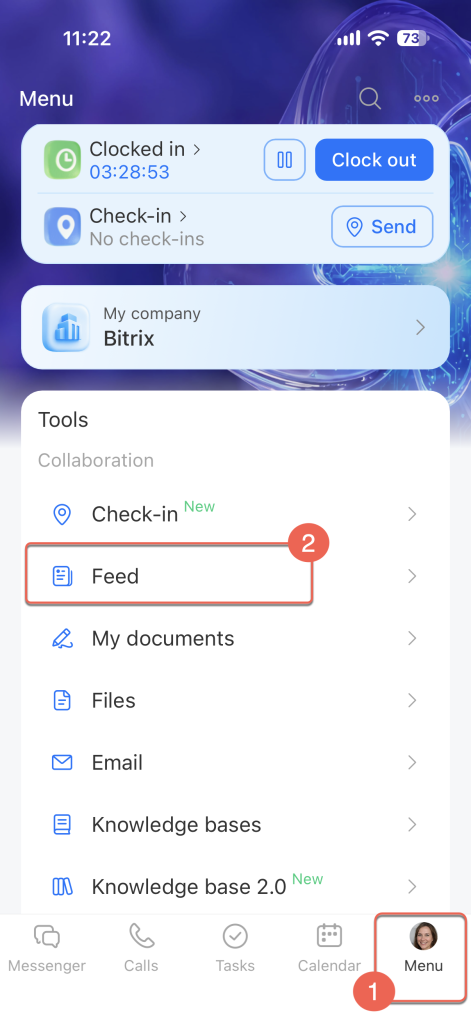
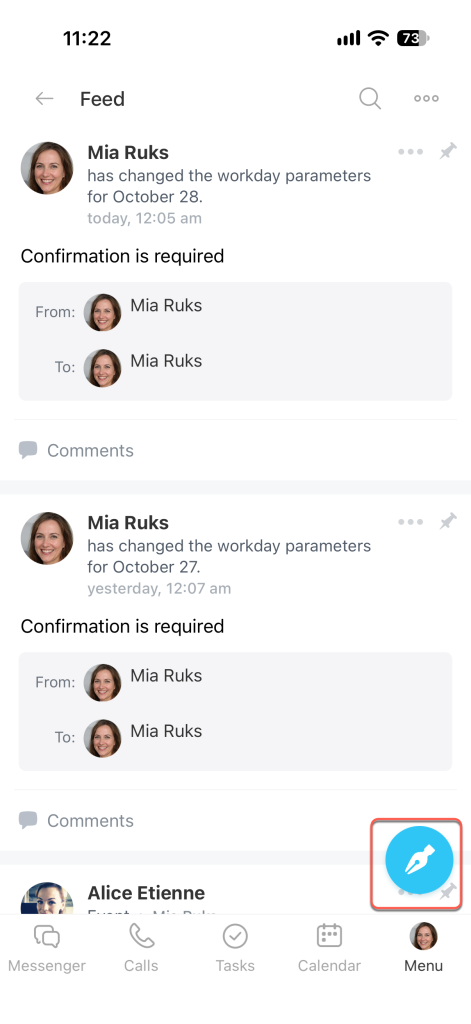
Tap the pencil icon in the bottom-right corner.
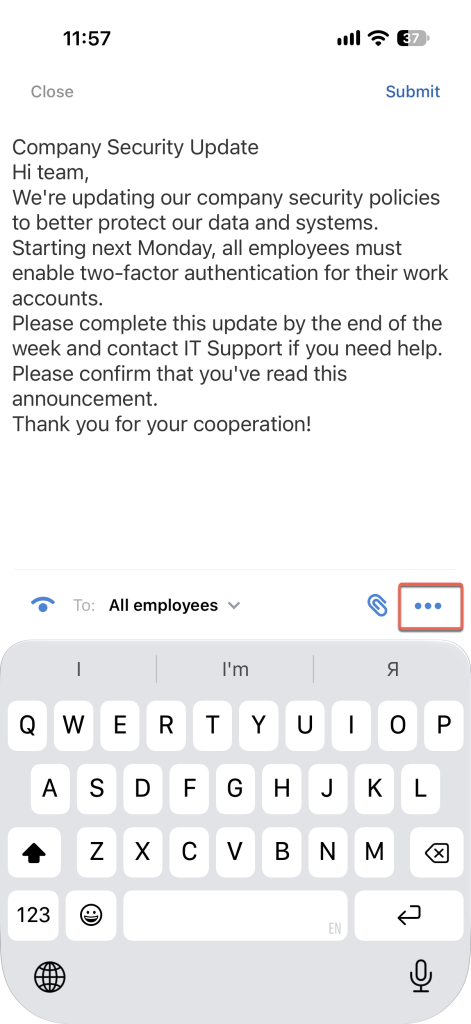
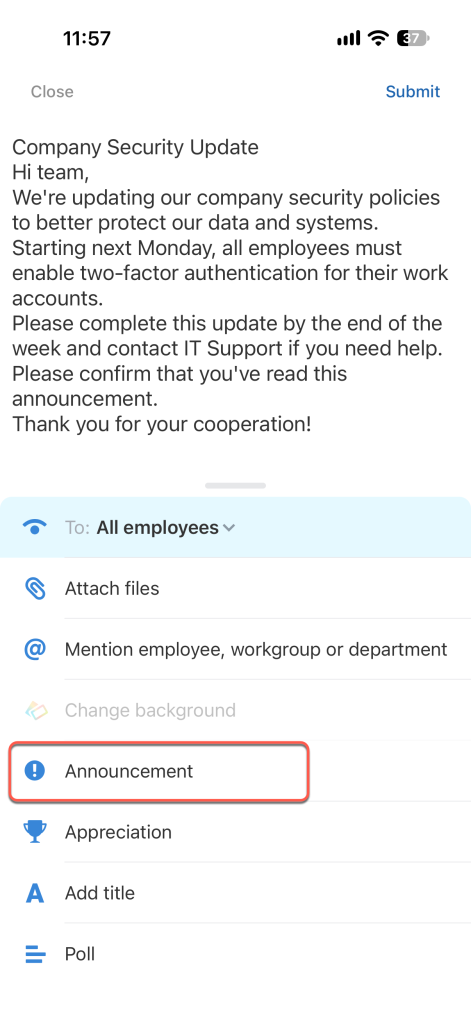
Enter the message text. In the bottom panel, tap Three dots (...).
Select Announcement.
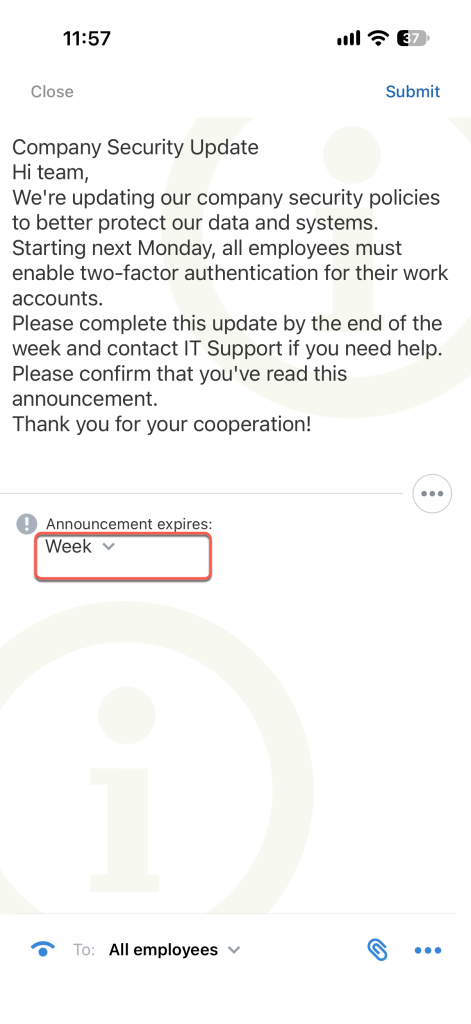
Set the expiration date. By default, the post remains marked as an announcement for one week. If you want to change this period, tap Week.
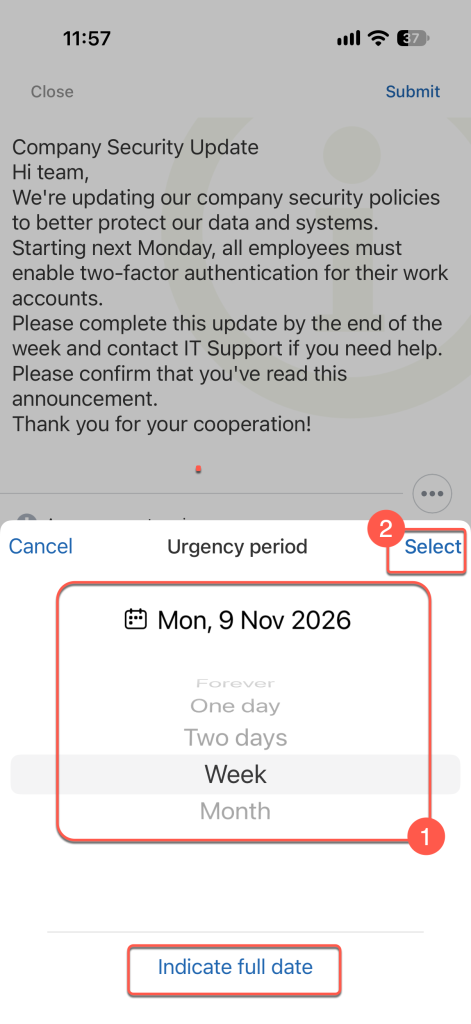
Select a period:
- Always
- One day
- Two days
- Week
- Month
Then tap Select.
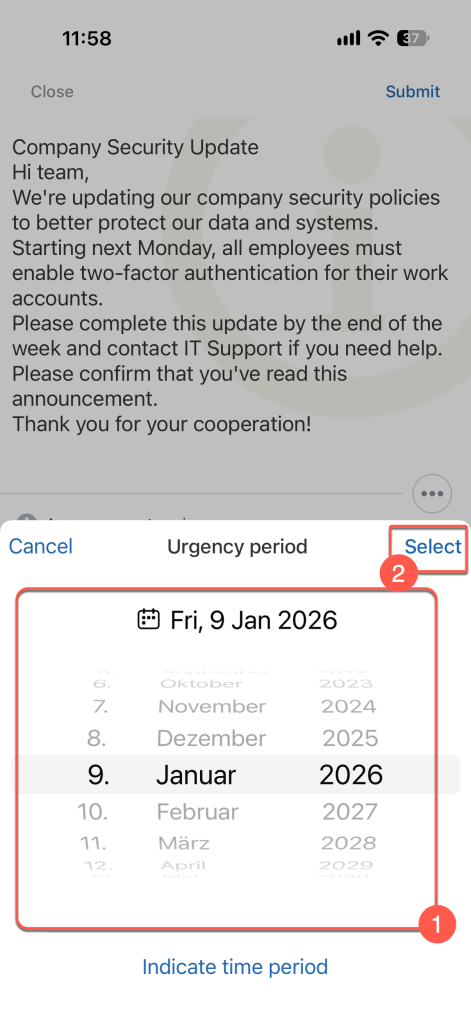
If none of these options works for you, tap Indicate full date, select the date you want, and tap Select.
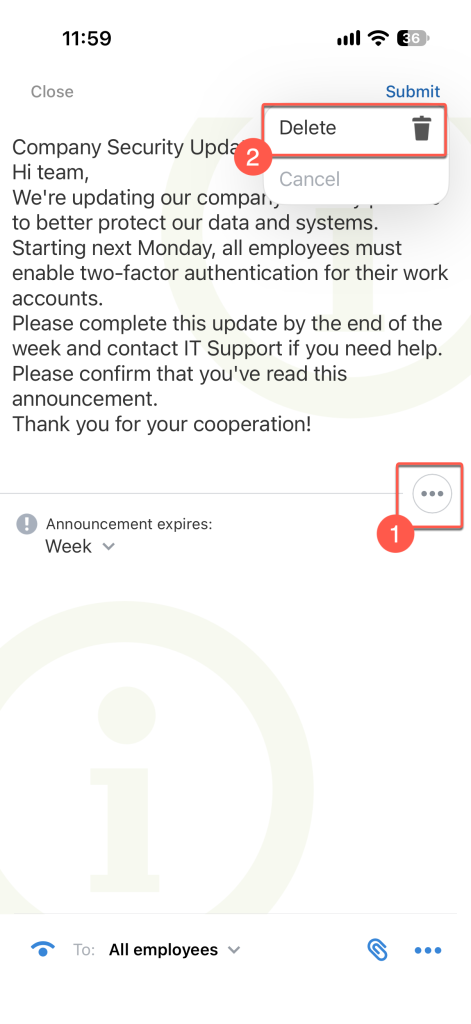
If you turned the post into an announcement by mistake, tap Three dots (...) > Delete.
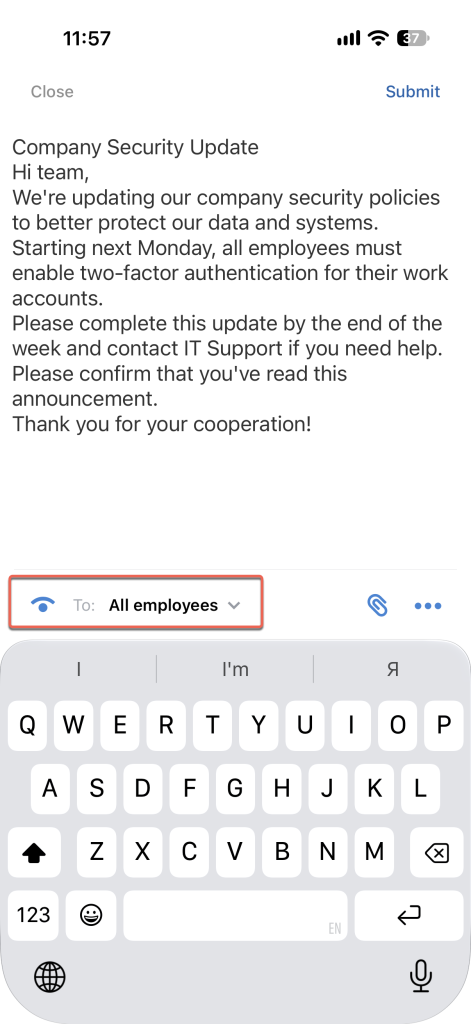
Select who will see the announcement. Tap the To field below the post text.
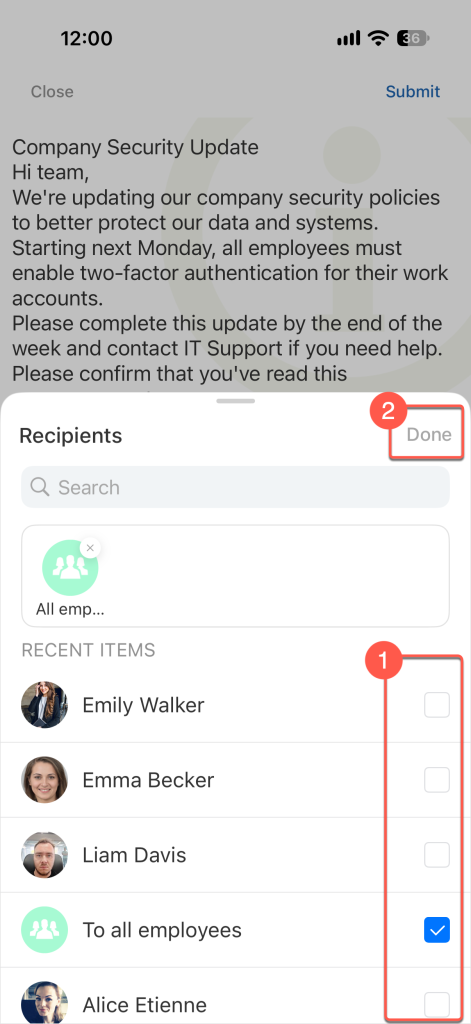
Select the recipients and tap Done.
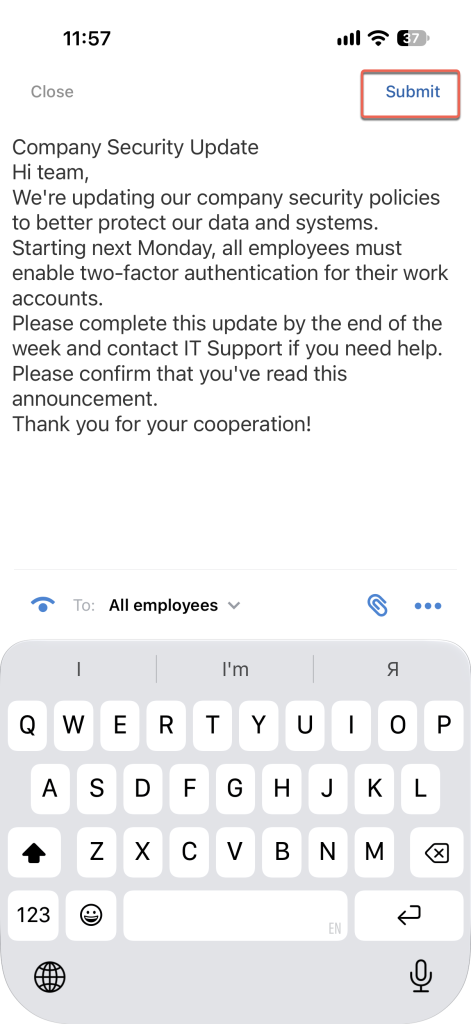
Tap Submit. The announcement appears in the Feed.
Read an announcement and confirm you've read it
An announcement in the Feed is highlighted and marked with the i icon, so you can distinguish it from other posts.
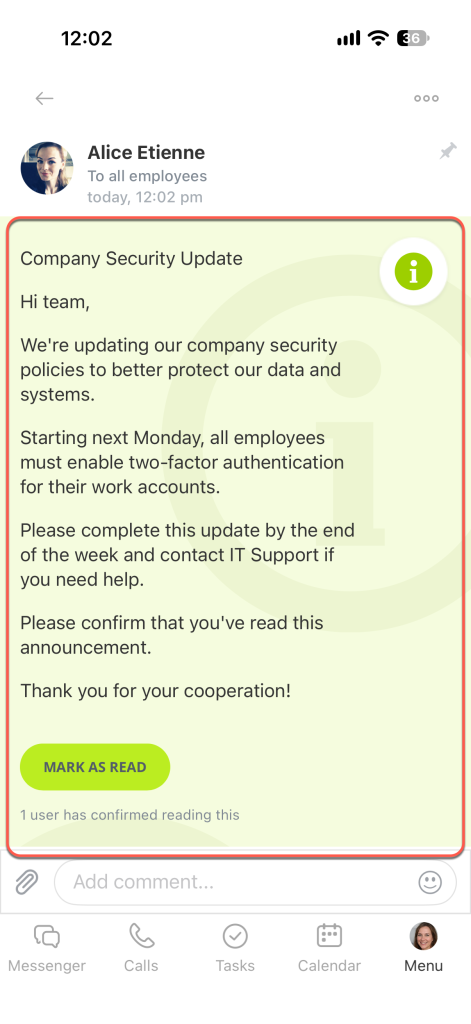
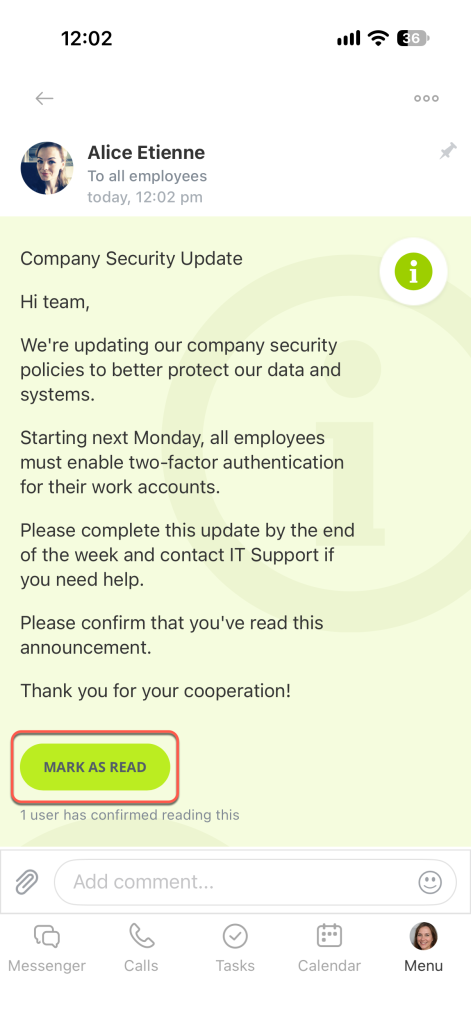
Tap the announcement to open it in full. The Mark as read button appears below it. Tap the button to confirm that you've read the announcement. The I have read this message label then appears below it.
See who has read an announcement
In the Feed, you can see which employees have read an announcement and confirmed it. Below the announcement, you'll see the N users have confirmed reading this label.
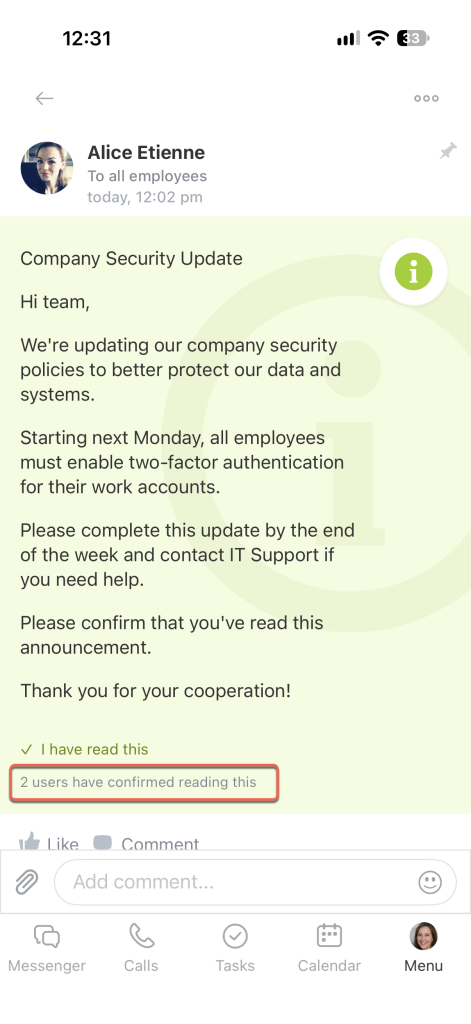
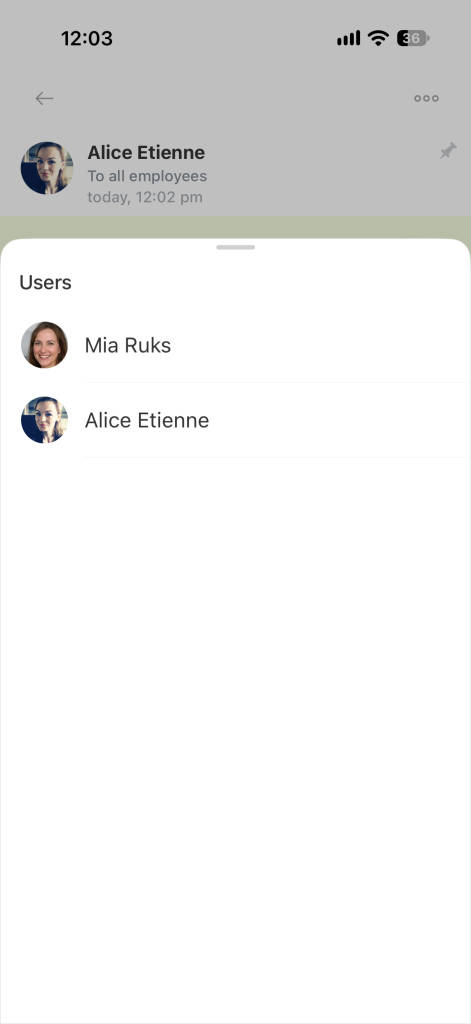
Tap the label to open the list of employees who confirmed that they read the announcement.