In the Bitrix24 mobile app, you can sign HR documents on your phone. You sign documents using your Bitrix24 login and password. This option is available to all e-Signature for HR users.
Sign a document
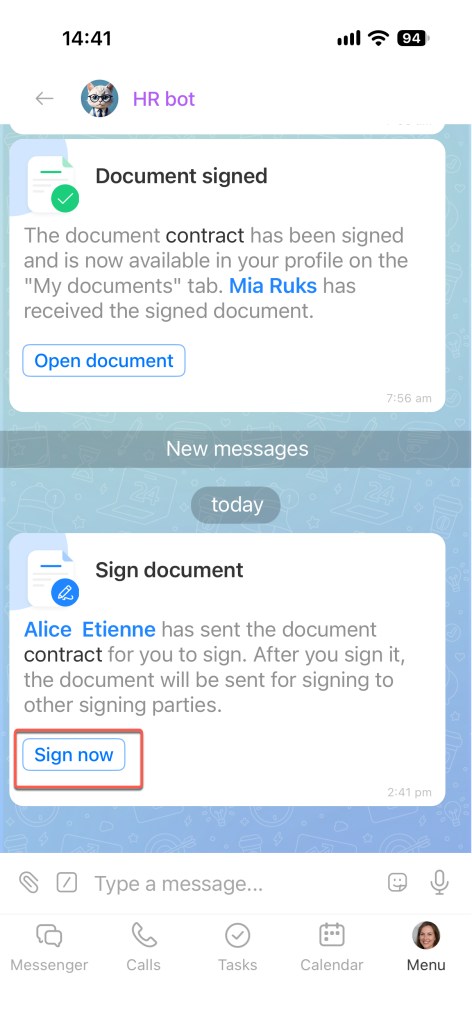
The HR bot sends you a message in a Bitrix24 chat asking you to sign a document. Tap Sign now.
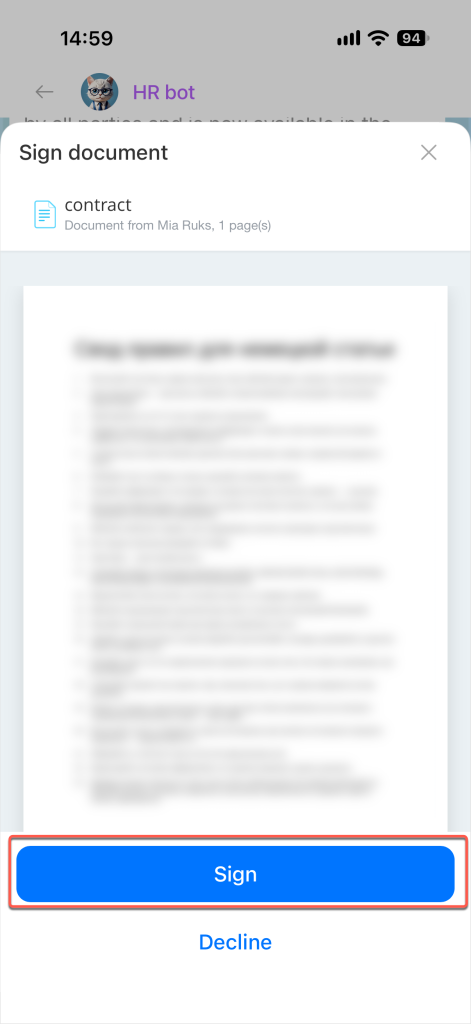
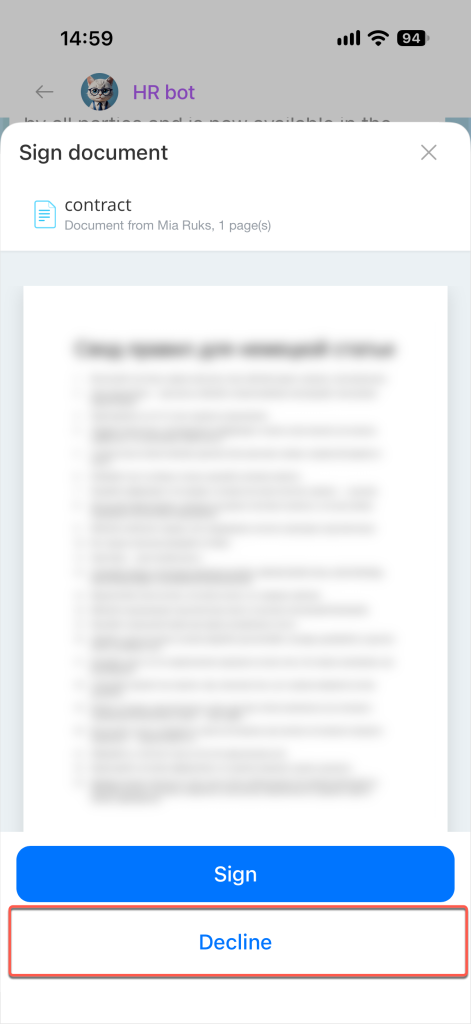
Review the document and tap Sign.
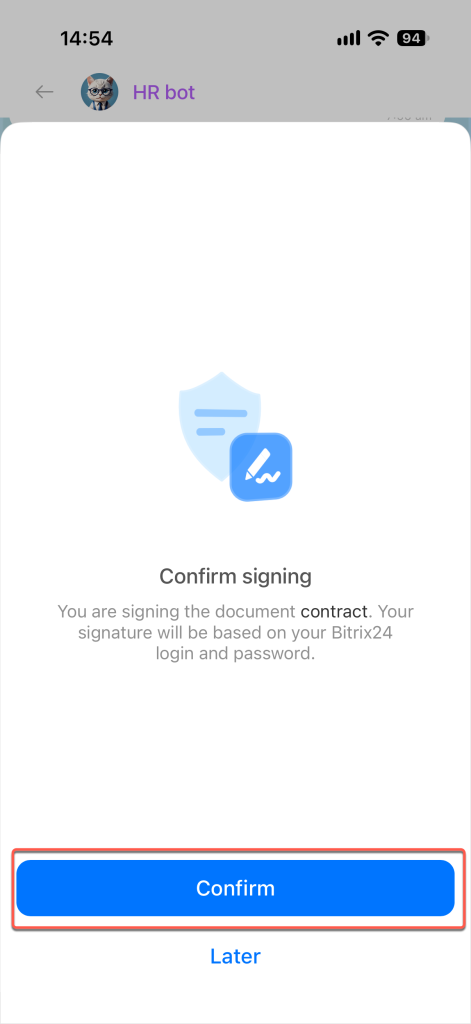
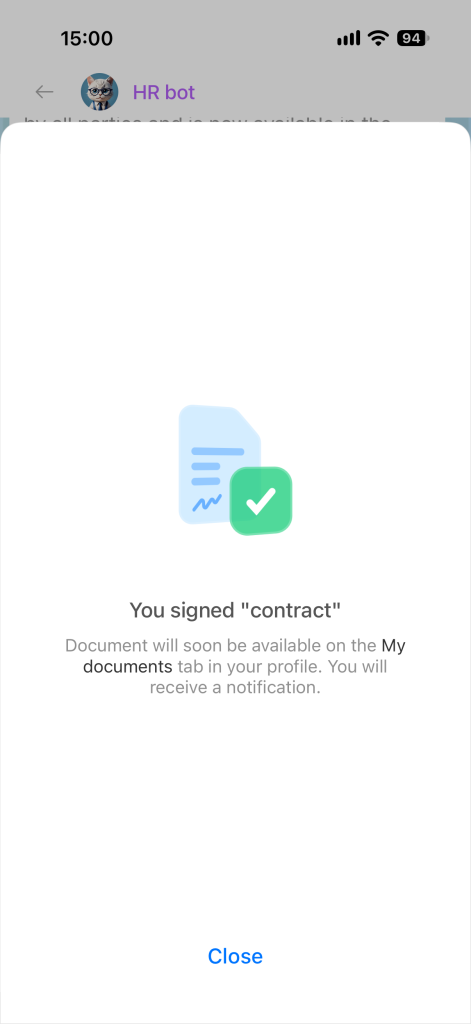
In the window that opens, confirm that you want to sign the document. Tap Confirm.
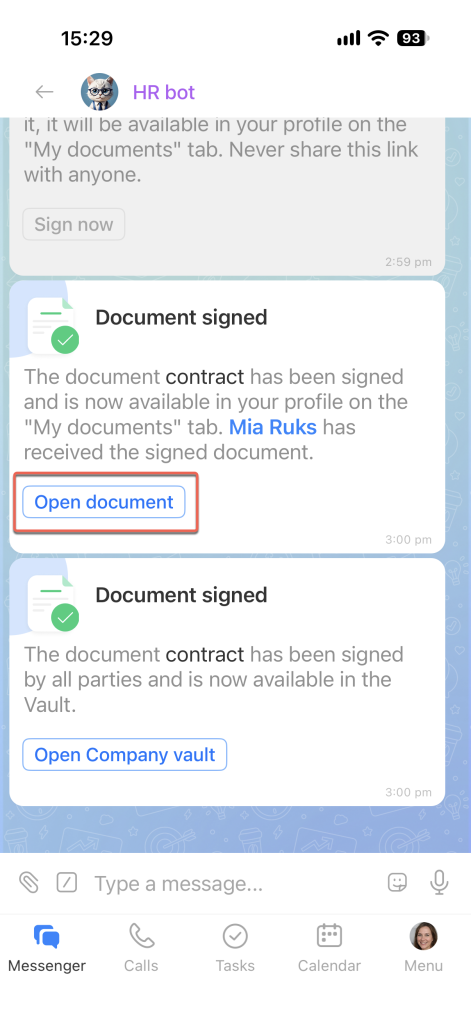
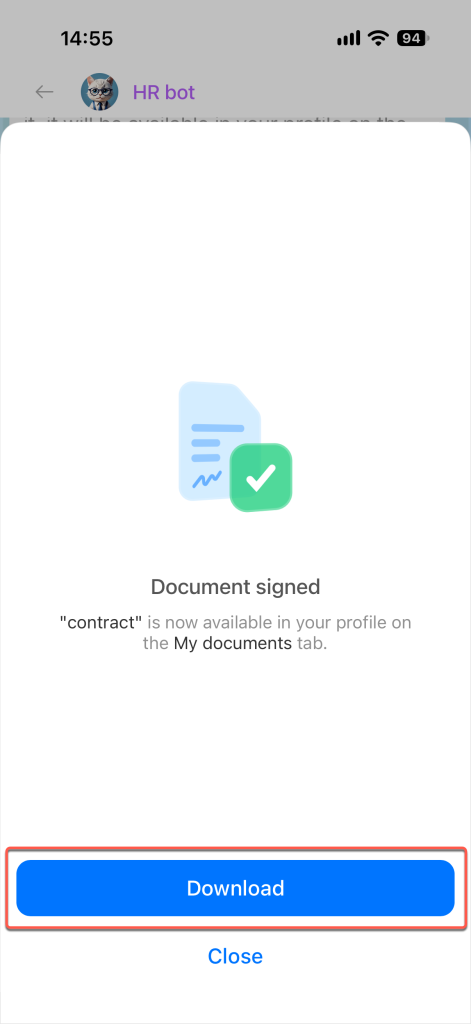
The document is now signed. The HR bot sends a confirmation message in the chat. To download the document, tap Open document.
Tap Download. The document is saved to your device.
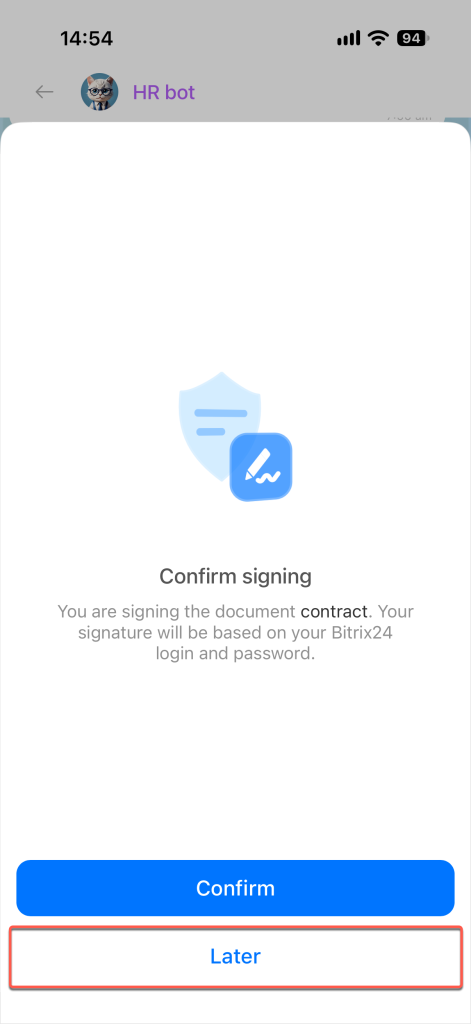
If you don't have time to review the entire document, you can sign it later. Tap Later.
If you don't want to sign the document, tap Decline. For example, you may need to reschedule your work.
Find a signed document
Return to a signed document if, for example, you forgot to download it immediately.
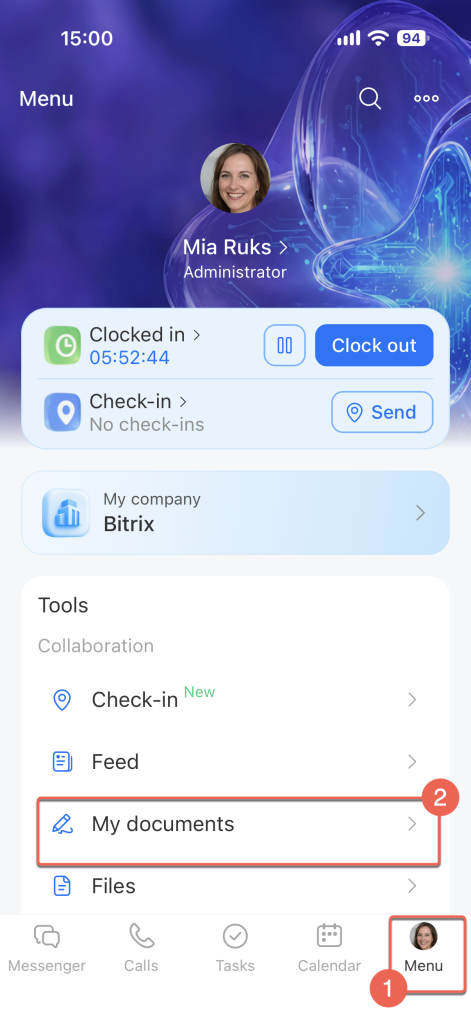
Tap Menu (≡) and open My Documents.
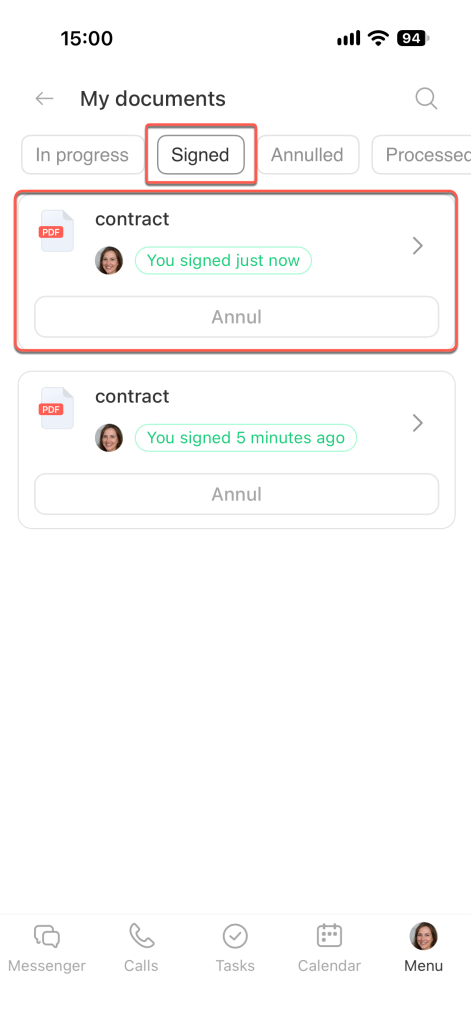
Go to the Signed section and select the document you need.
My Documents in the mobile app