
When a workflow starts, participants receive assignments. For example, they may need to approve a purchase, review a document, or approve a vacation request. You can complete these assignments in the Bitrix24 mobile app.
In this article:
Go to Menu > Workflows.
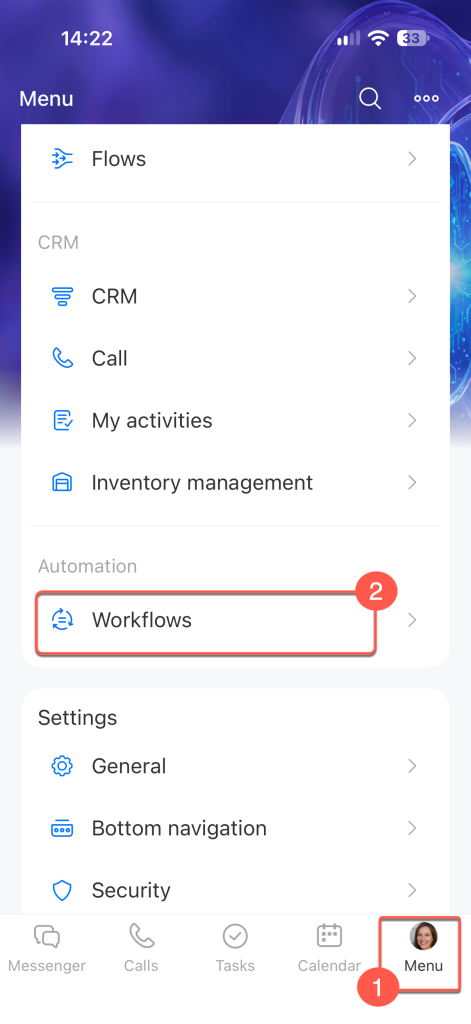
This section shows all workflows you're involved in: workflows you've started and those where you have pending assignments. When you receive new assignments, a counter shows how many assignments you need to complete.
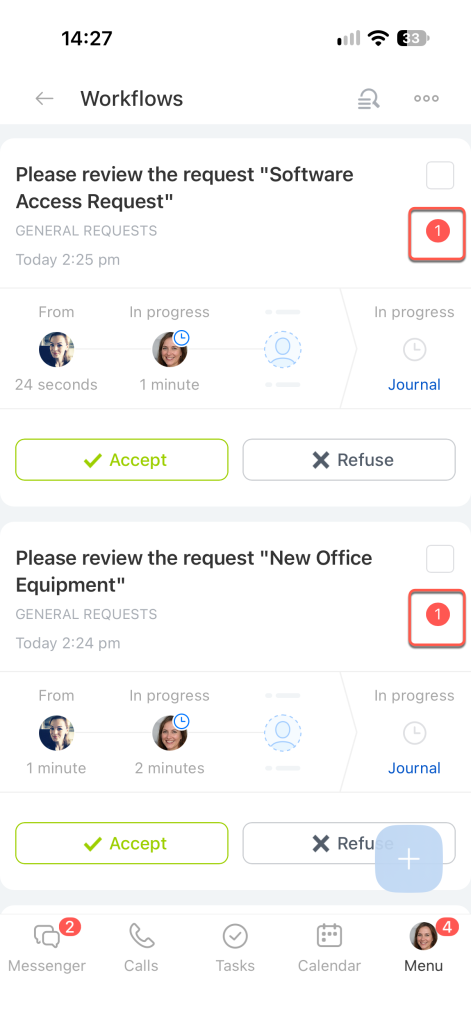
Complete one assignment
At the bottom of the workflow, select the action you want to take or tap Details to view information about the workflow.
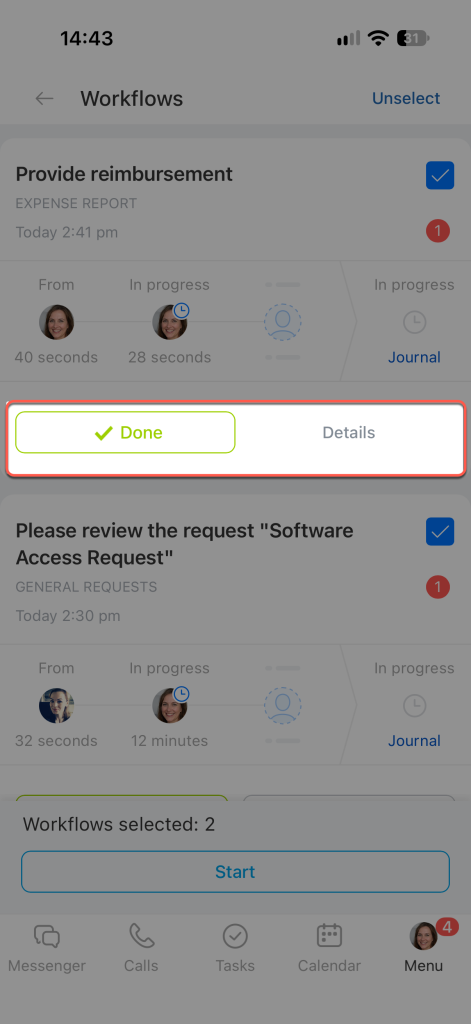
Complete multiple assignments
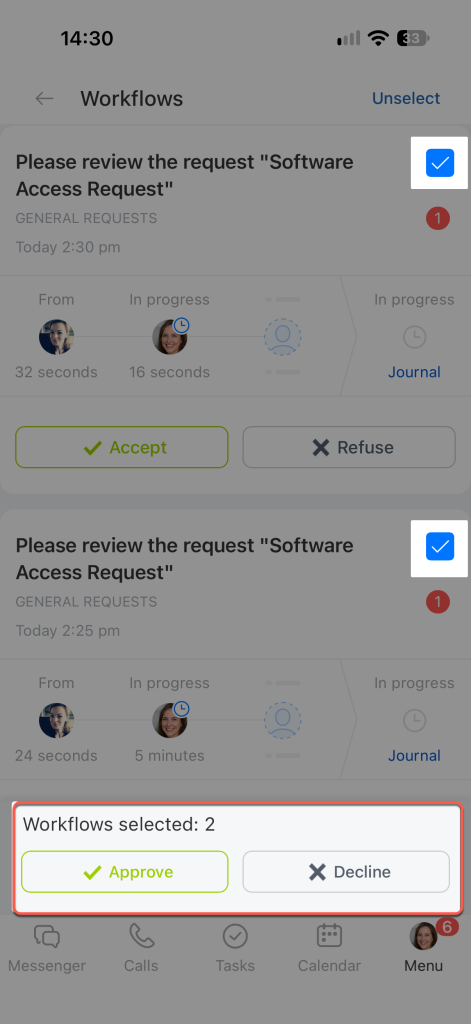
To complete assignments from multiple workflows, select them from the list and perform the same action on all of them at once.
Assignments of the same type. You can select only assignments of the same type, such as approval or review assignments. The action applies to all selected workflows at once.
Assignments of different types. For example, approve vacation leave and an invoice payment. Tap Start. The workflows open one by one.
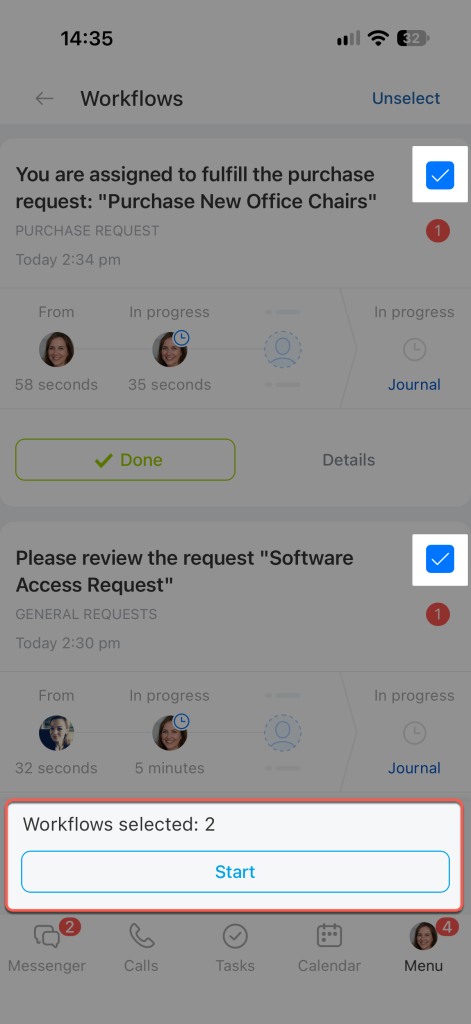
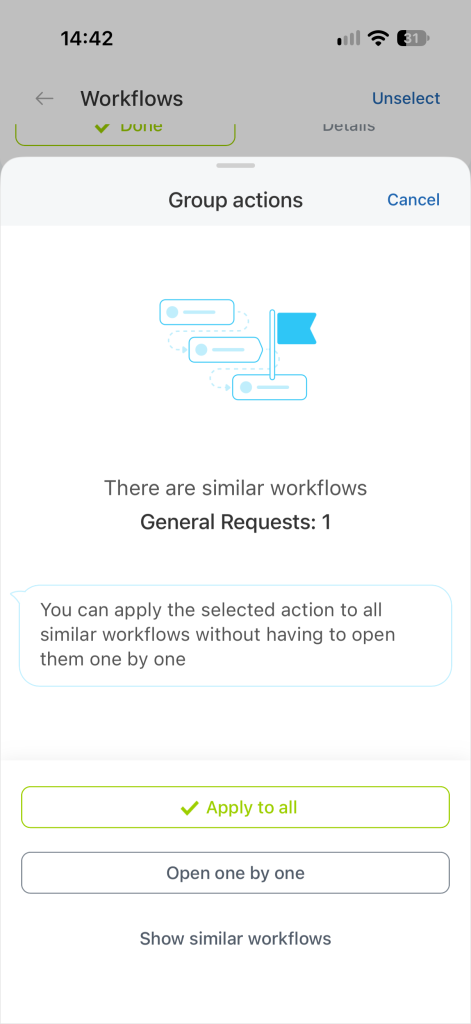
After you complete the first assignment, Bitrix24 prompts you to complete similar assignments in other workflows, if there are any. For example, after you approve an invoice, Bitrix24 shows how many other invoices are waiting for your approval. Choose one of the options:
- Apply to all — apply the same action to all similar assignments at once.
- Open one by one — open each assignment separately to make a decision.
- Show similar workflows — view similar assignments together so you can complete them at once.
Once you complete all assignments, they automatically disappear from the list.