
Action on click determines what happens when a visitor clicks a button, image, icon, or text. This lets visitors open relevant information, submit a request, or contact your company. For example, a Learn more button can open a promotional page, while a phone icon can open a calling app.
Set up access permissions for sites and online stores
If you created a site with the CoPilot Agent, configure click actions in the AI-assisted site editor.
Create and configure an AI site with CoPilot
In this article:
Select an element
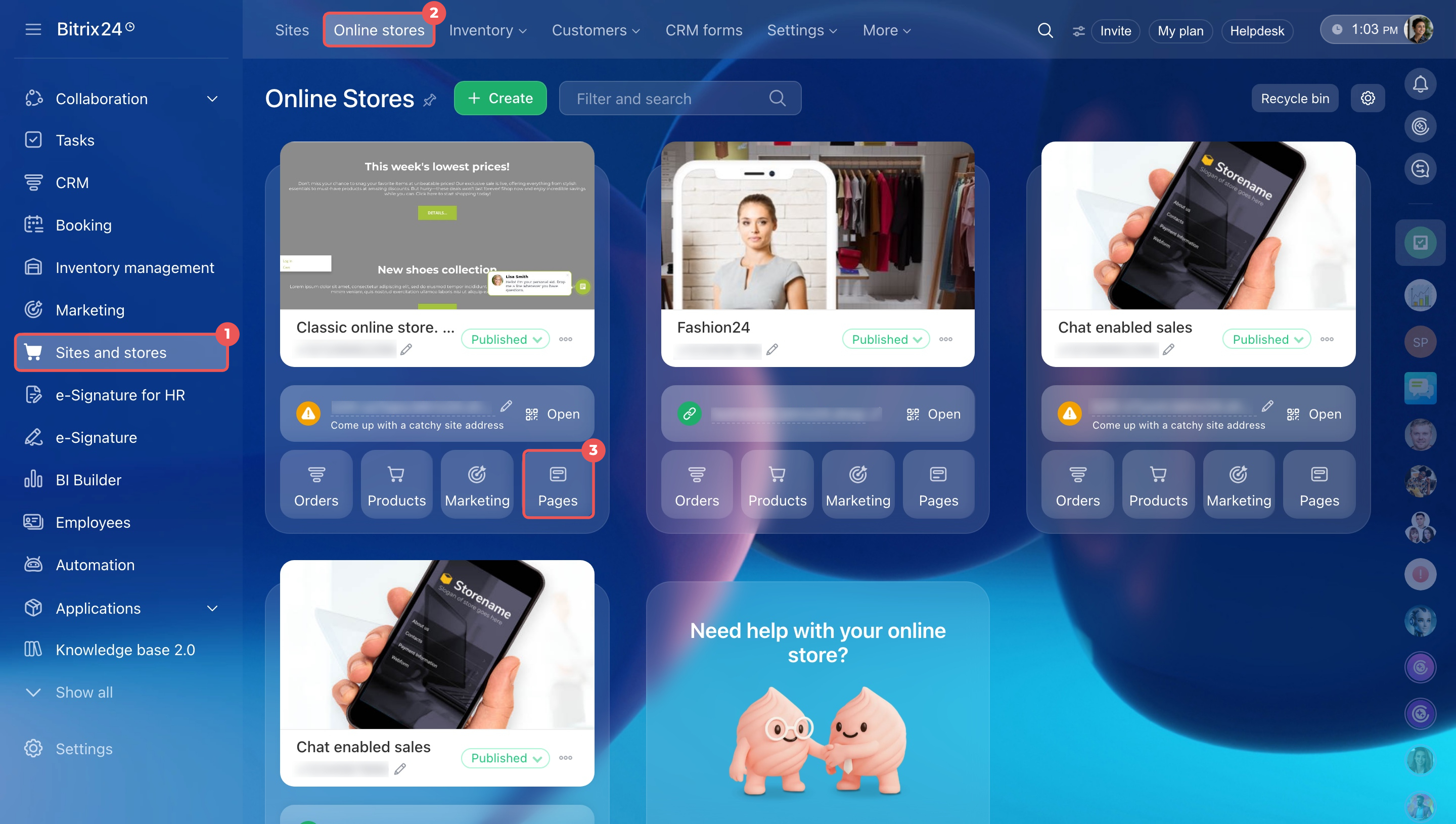
- Open the Sites and stores section.
- Select Sites or Online stores.
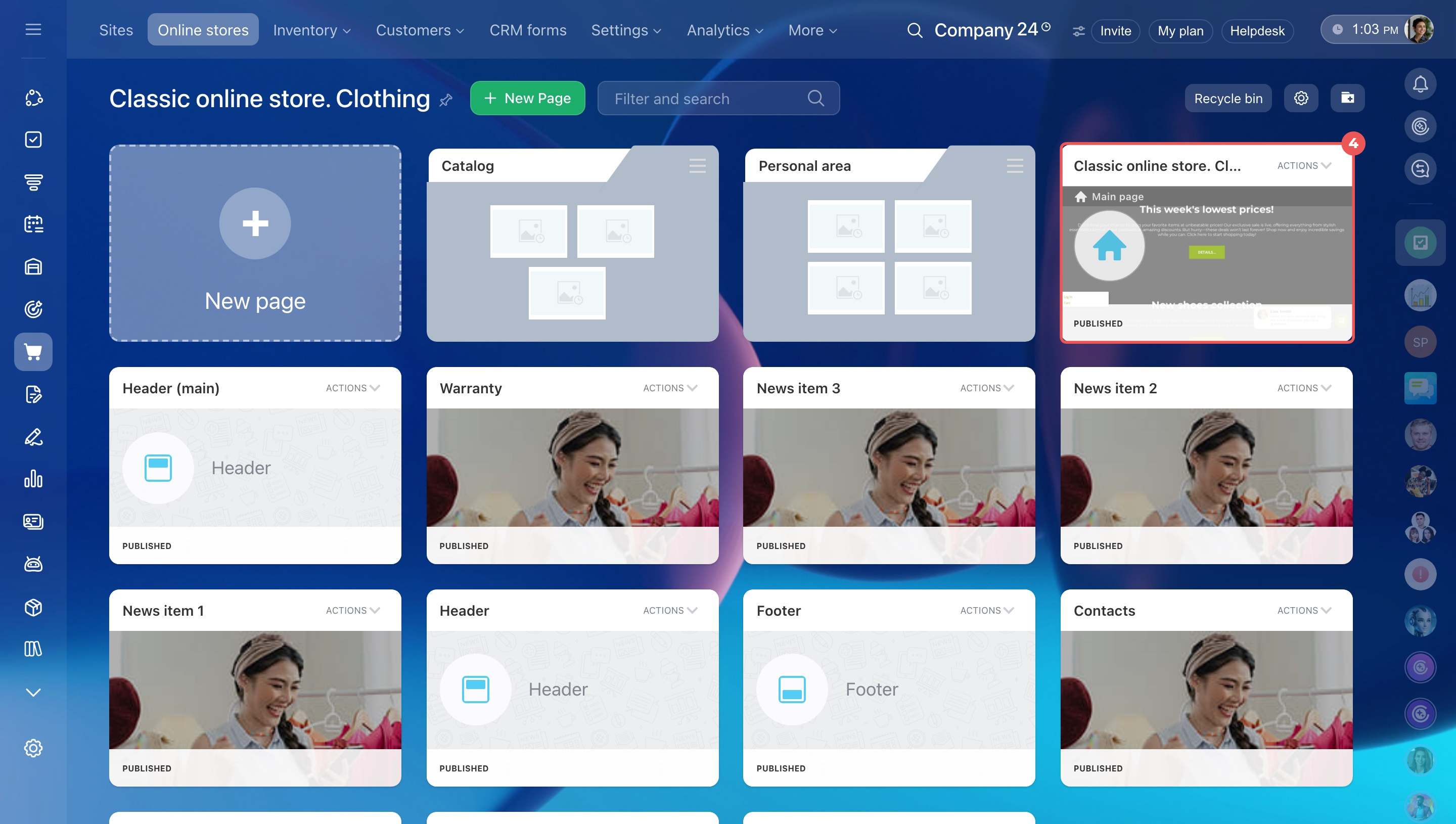
- Find your site or store and click Pages.
- Select the page you want to edit. It opens in the site builder.
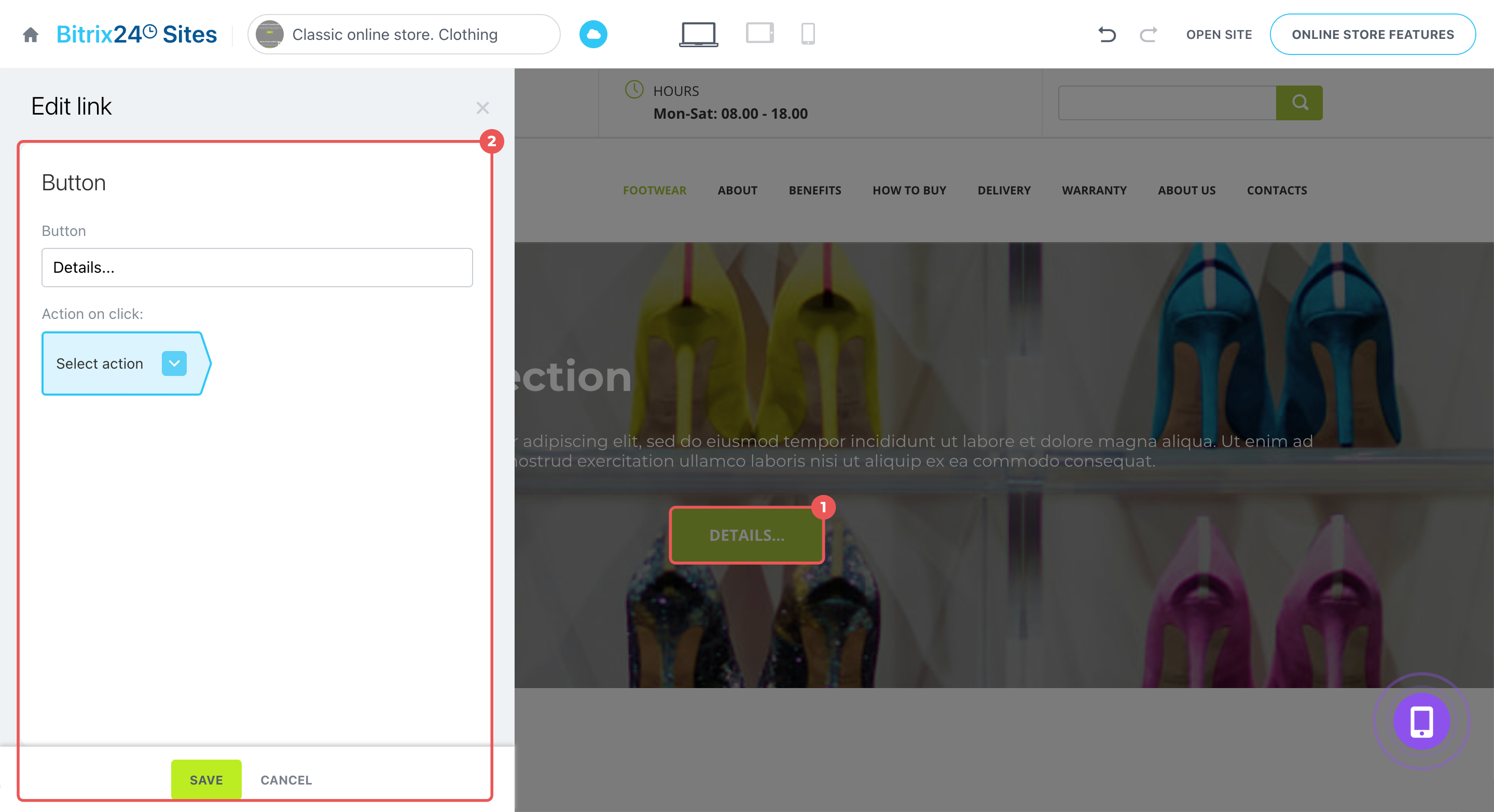
To set up an action for a button, image, or icon: Click the element, and the settings panel opens on the left.
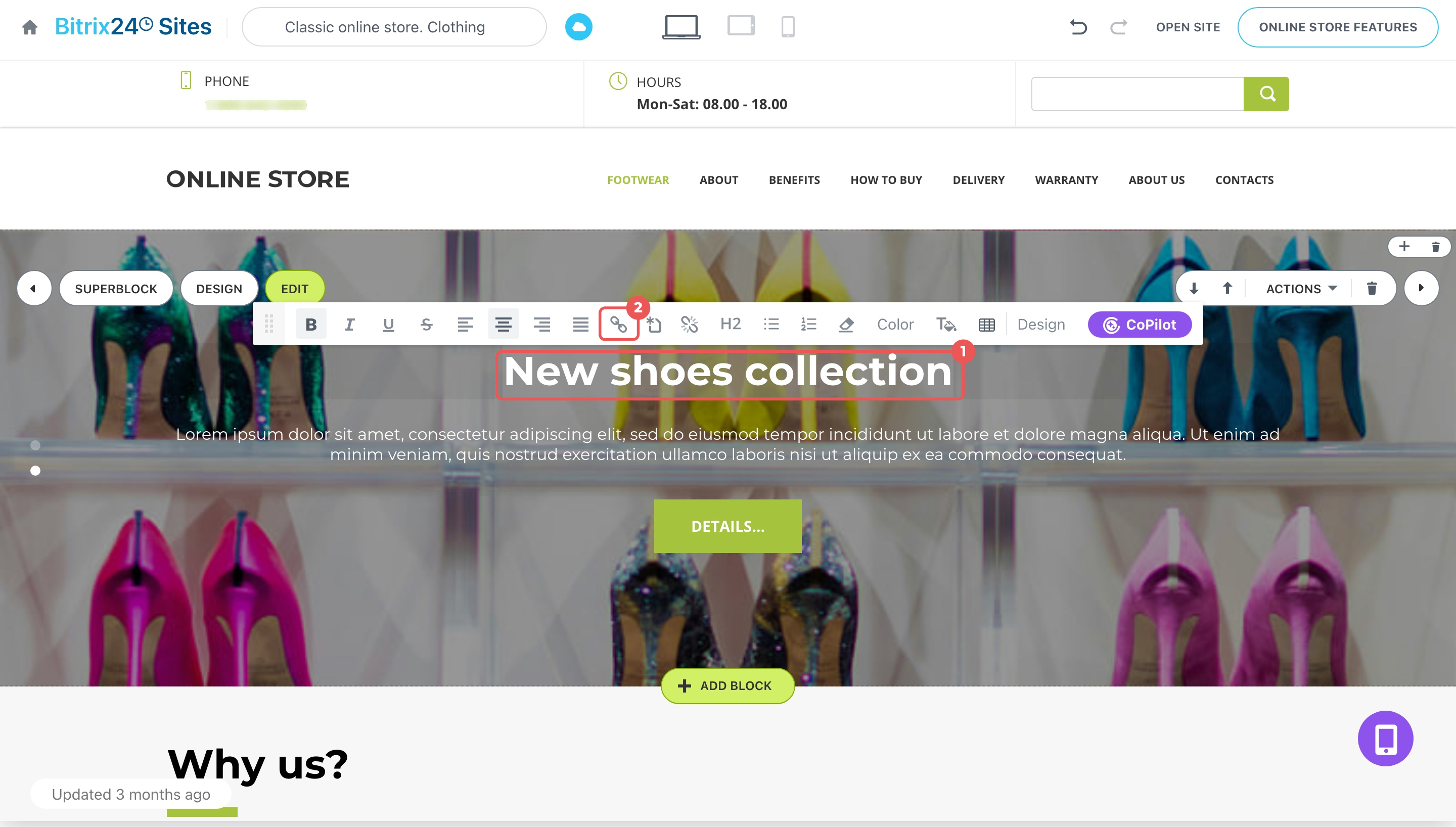
To set up an action for text: Select a word or phrase, then click Create link in the editor above the text. The settings panel opens on the left.
Set up an action on click
In the settings panel, find the Action on click field. Click Select action to open the list of actions.
- Open page — Opens the selected page from a site or online store created in your Bitrix24 account.
- Open block — Scrolls to the selected block on the page. For example, a Delivery terms button can take visitors to the pricing section.
- Open CRM form — Displays the selected form, which visitors can use to submit a request or contact details.
- Open product page — Opens the selected product or catalog section in the current tab. This action is available only in an online store.
- Call — Opens a calling app and fills in the specified number. On a smartphone, visitors only need to confirm the call. On a computer, this action works if a calling app is installed.
- Send SMS — Opens a messaging app and fills in the recipient's number. Visitors then type and send their message.
- Send email message — Opens an email app and fills in the recipient's address. Visitors then write and send the email.
- Call via Skype — Prompts visitors to open Skype and reach the specified contact.
- Open external link — Opens the specified web address, such as a partner's site, a map, or a social network profile.
- Don't show link — Removes a previously configured action.
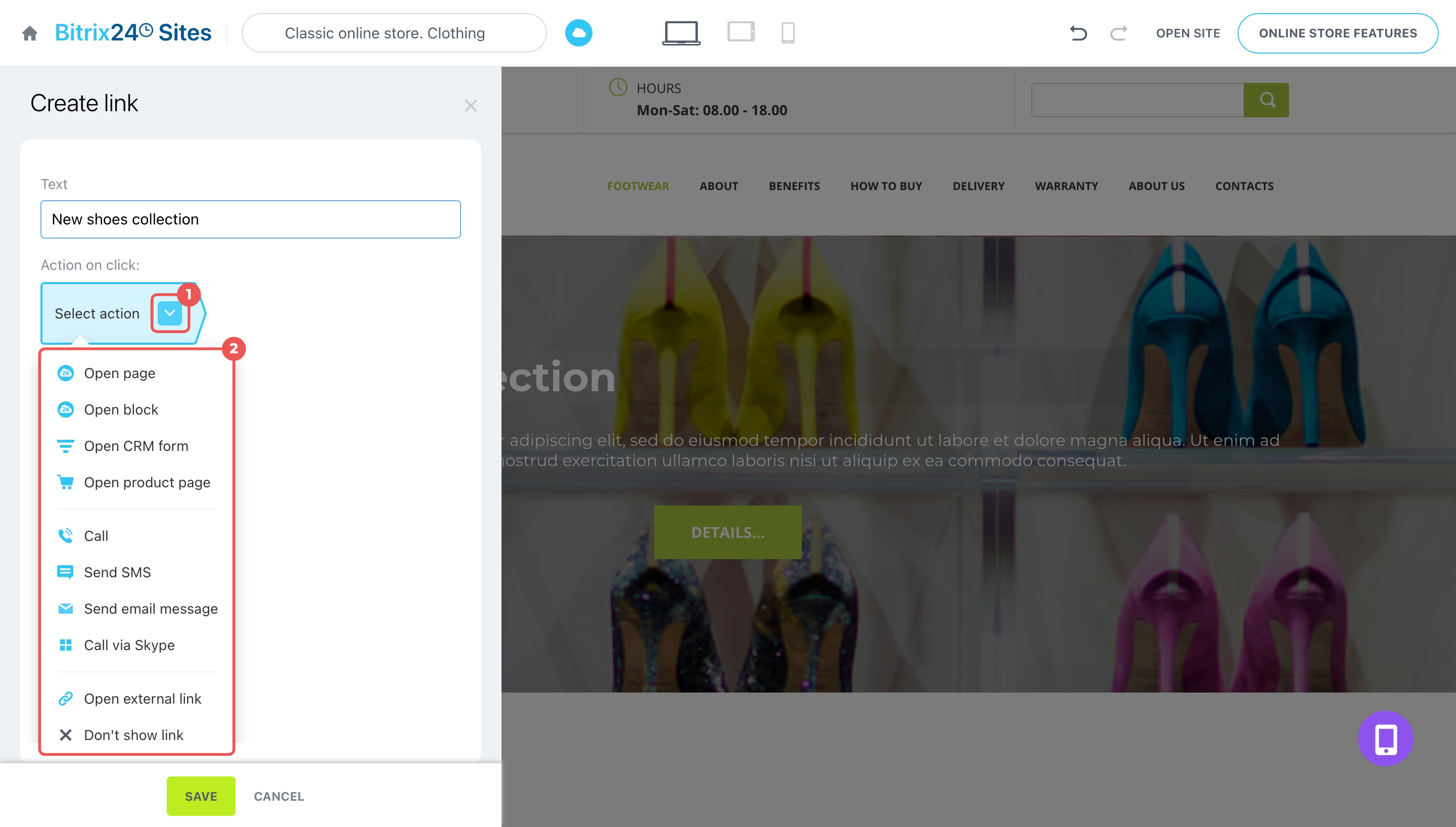
After you select an action, an additional field appears next to it. For example, if you select Open page, choose a site and page. If you select Call, enter a phone number.
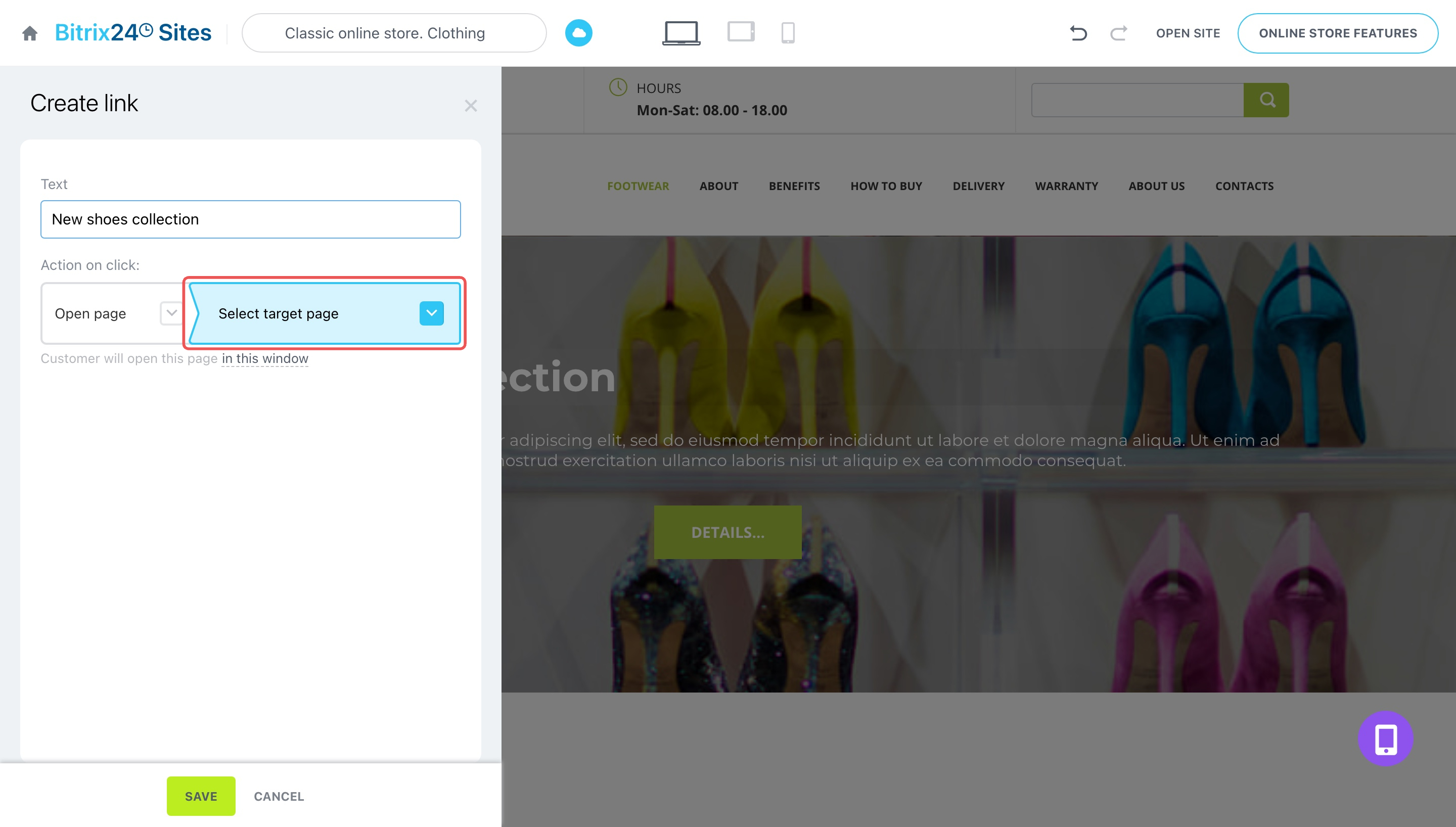
For the Open page, Open block, and Open external link actions, choose how the content opens:
- In this window — The selected page replaces the current one.
- In new window — The link opens in a new browser tab or window.
- In pop-up window — The content appears over the current page.
For example, you can open pages on your site in the same window and external links in a new one.
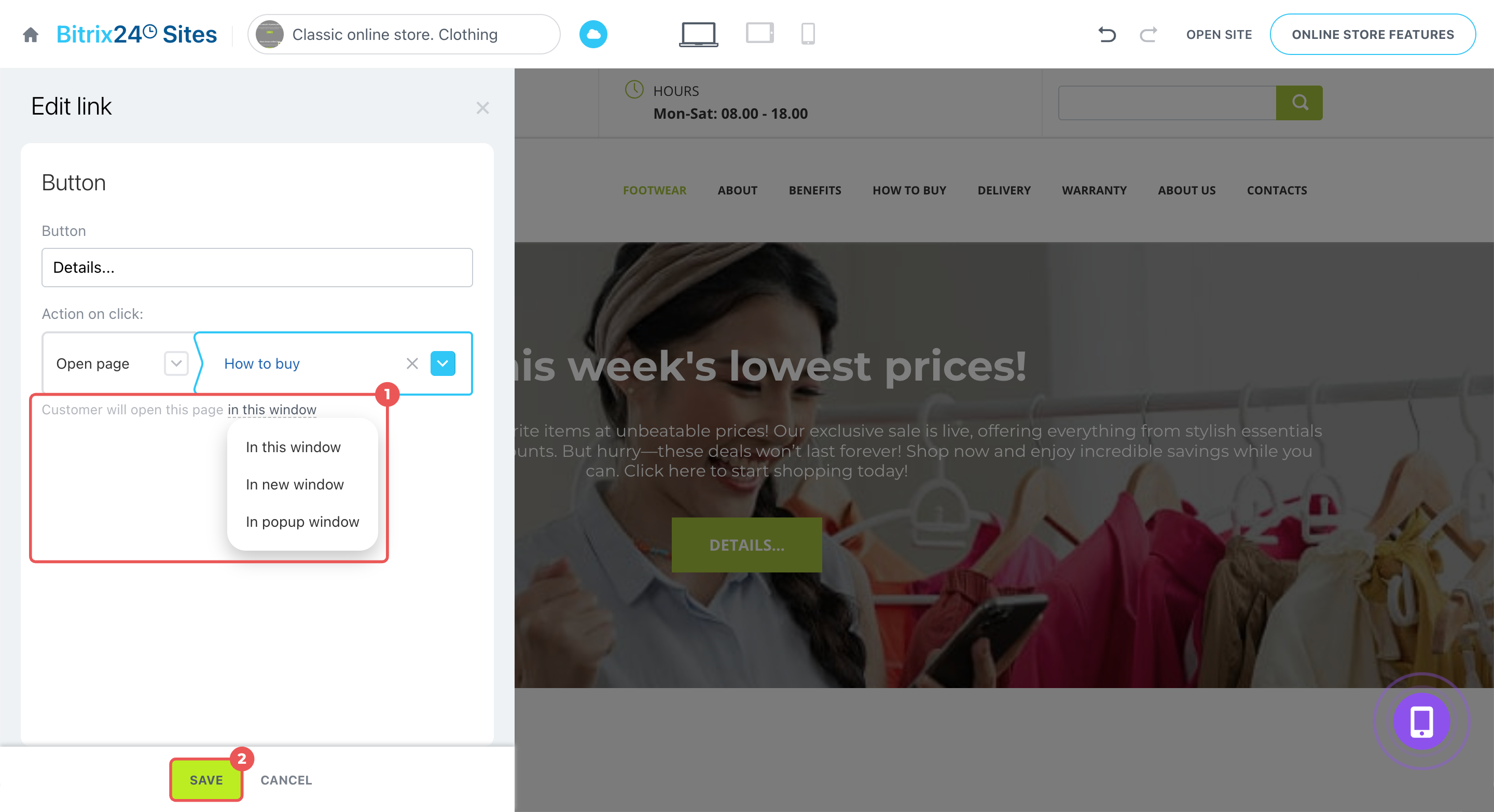
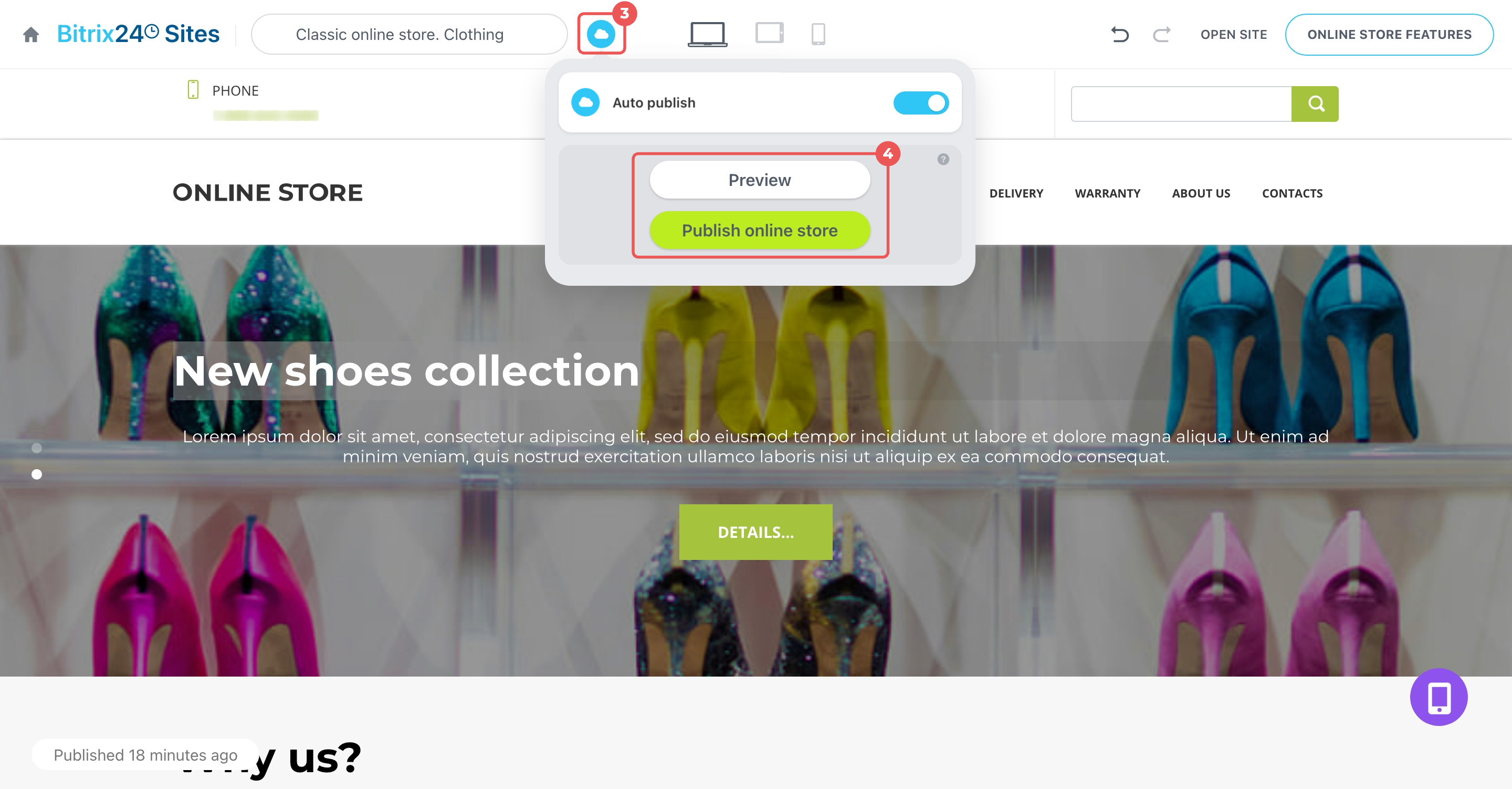
After you set up the action, click Save. By default, changes to sites and online stores are published automatically. If the changes don't appear on the page, click the cloud icon on the top panel of the site builder and select Publish site or Publish online store.
Check that the element works: click the cloud icon on the top panel of the site builder and select Preview.
In brief
- Action on click determines what happens when a visitor clicks a button, image, icon, or text.
- An element can open a page, a specific block, a CRM form, or a calling app.
- Account administrators and employees with permission to edit content on all sites can change an element's action.
- Open the page in the editor, select the element, and specify the option you need in the Action on click field.
- Save your changes and check the result in preview mode.