
In Bitrix24, you can create sites and online stores to attract customers and sell products. You can start with a template, customize pages in the visual builder, or use CoPilot to generate a ready-made site.
Access permissions control who can work with sites and online stores. For example, an administrator can manage all settings, while a content manager can create and edit pages.
Bitrix24 plans and pricing
Sites and online stores share the same access permissions. Changes you make in the Sites section also apply to the Online stores section. You can open the settings from either section.
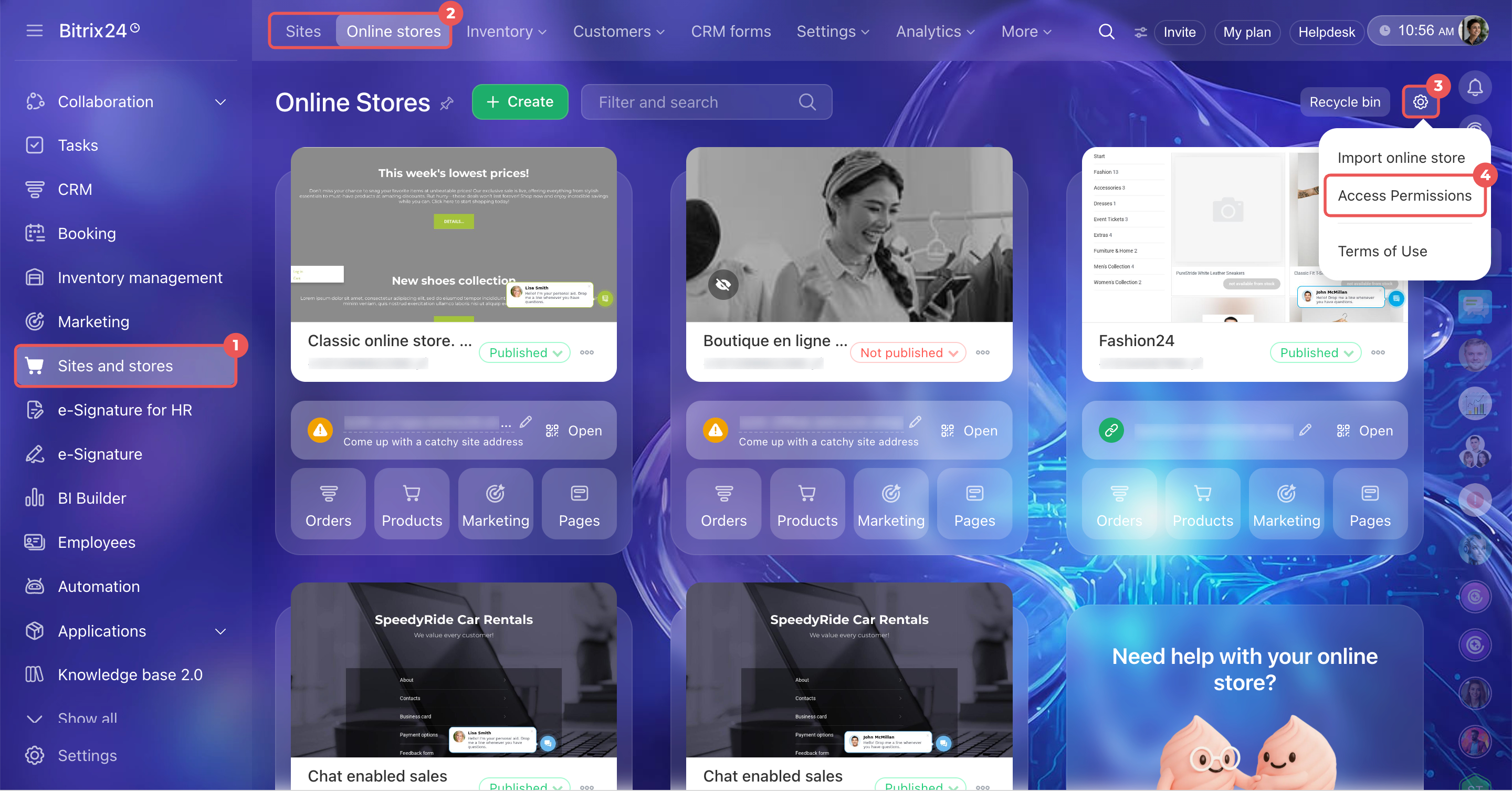
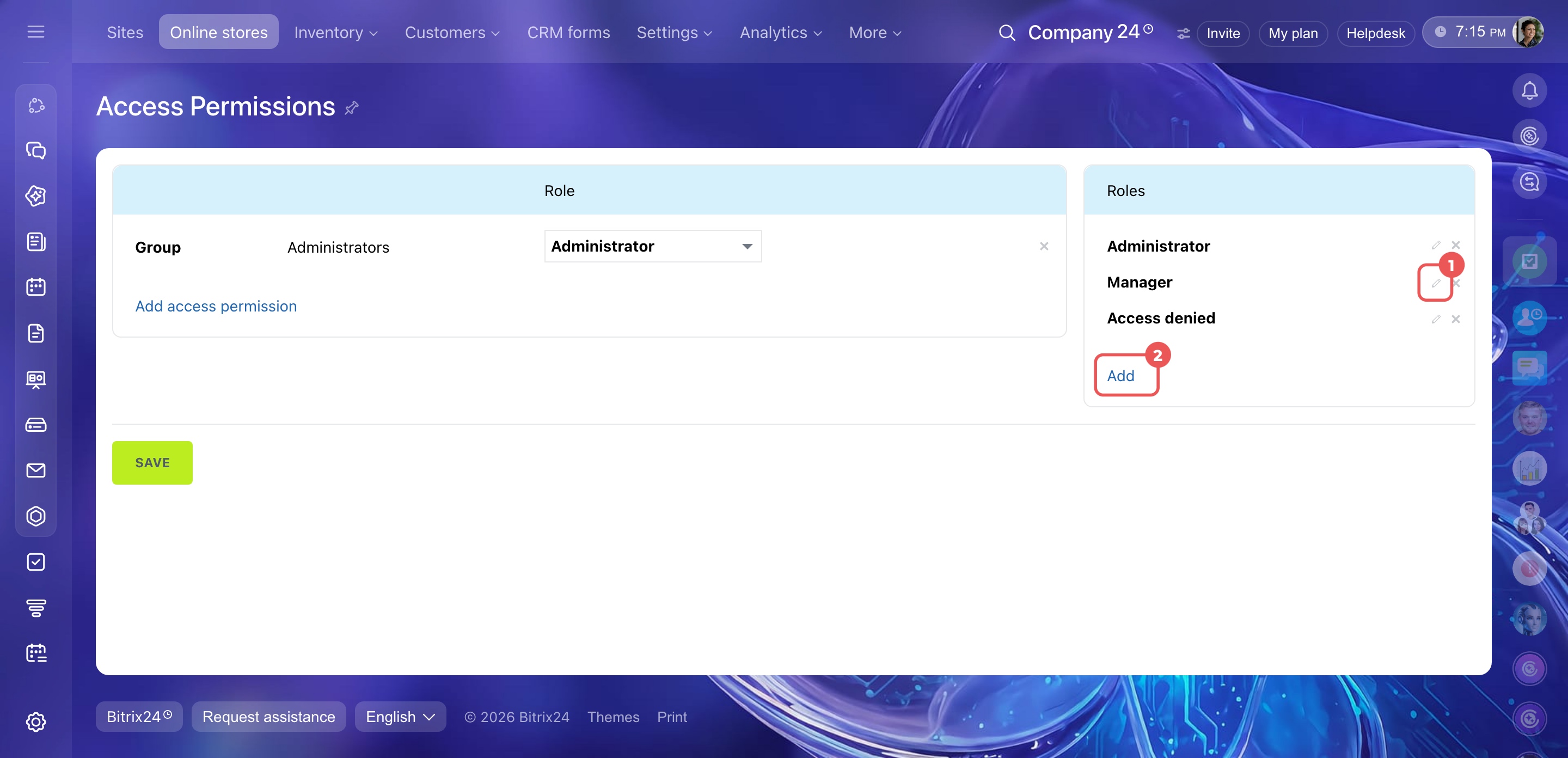
Go to Sites and stores in the left menu and open the Sites or Online stores tab. Click Settings (⚙️) in the top-right corner and select Access Permissions.
Choose roles
A role defines what an employee can do with sites and online stores. Bitrix24 has two default roles:
- Administrator: Has full access, including permission to manage roles and employee access.
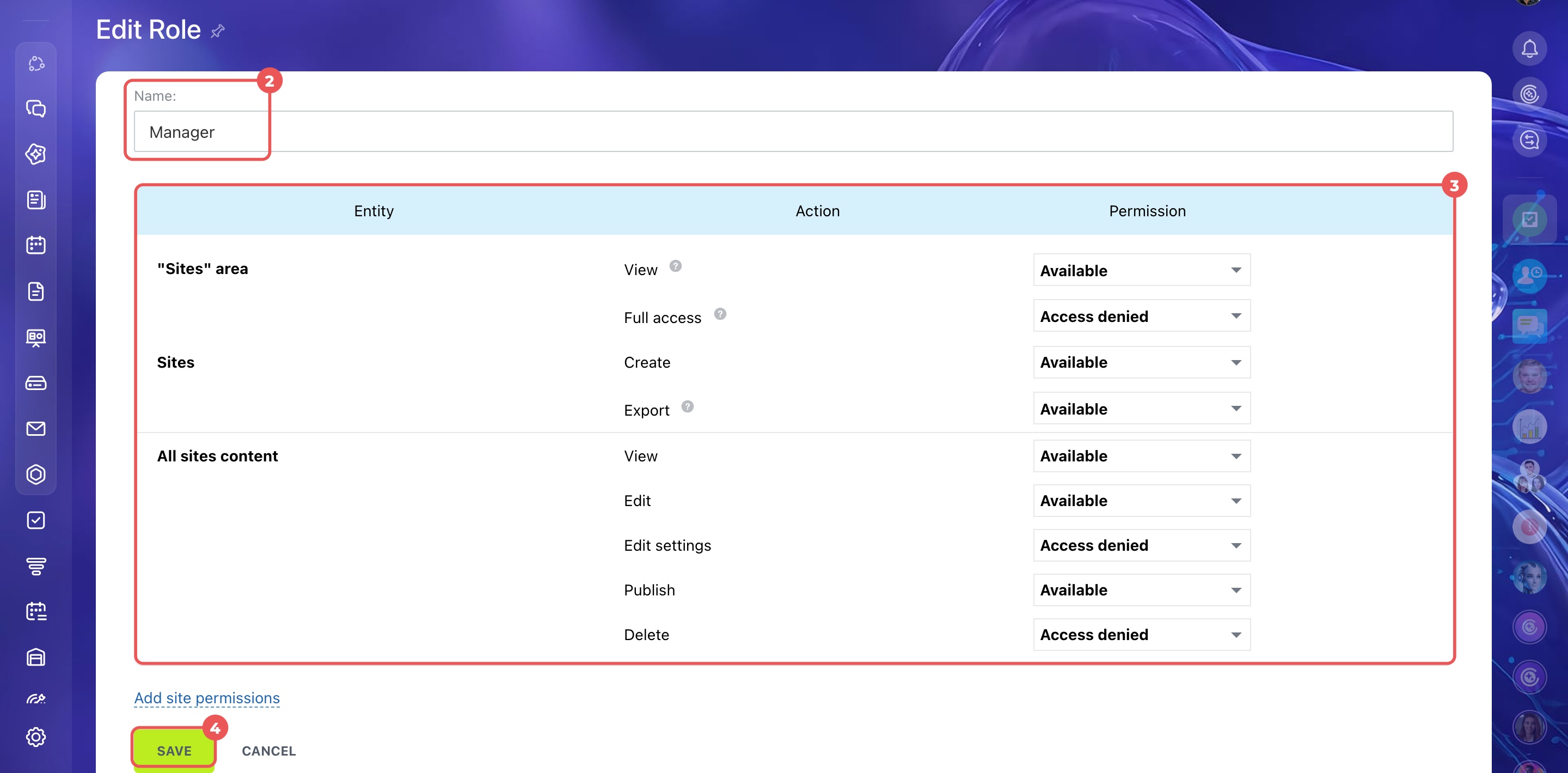
- Manager: Can view, create, and export sites, as well as view, edit, and publish content.
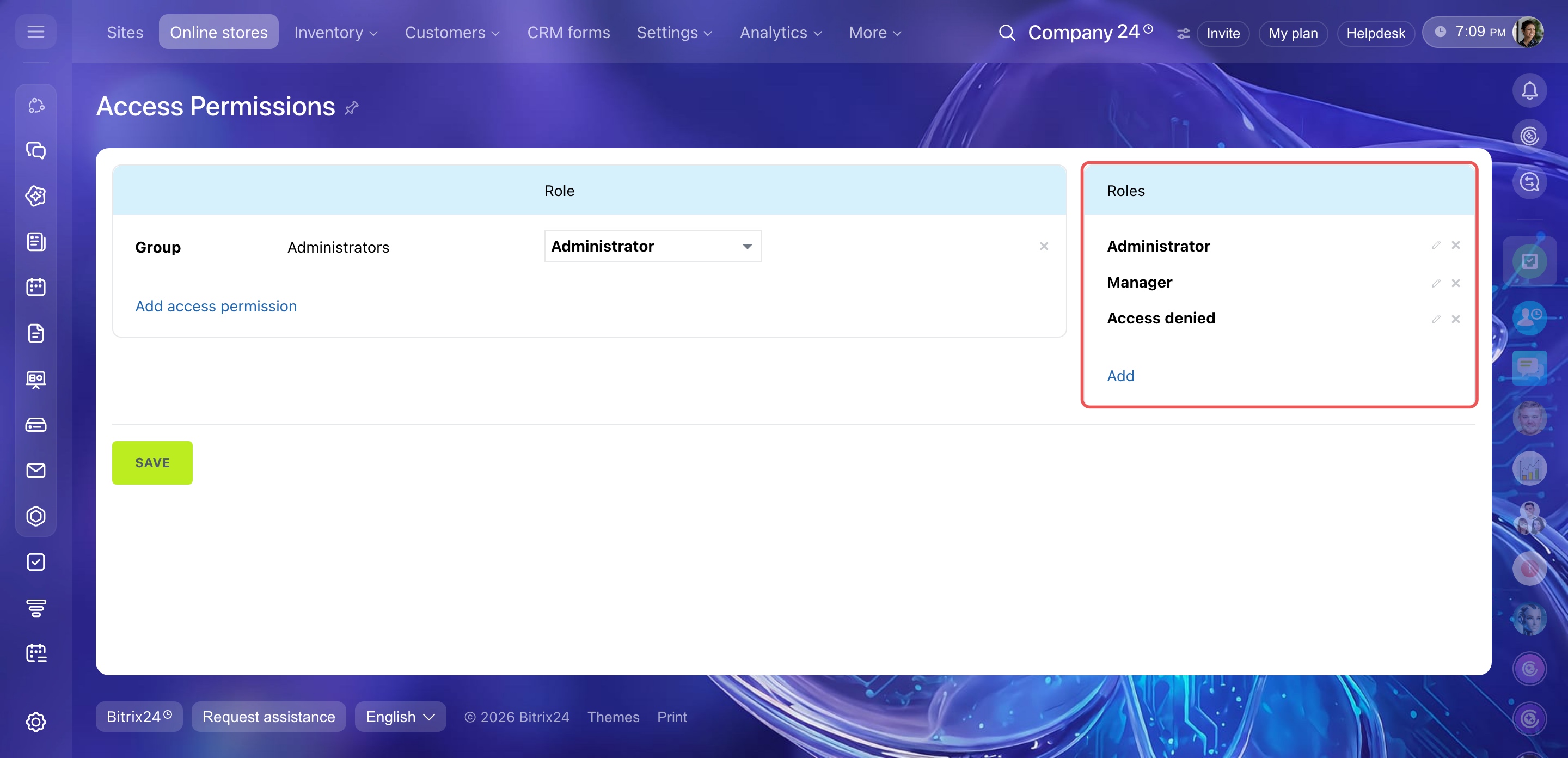
If the default roles don't meet your needs, you can create new roles, edit existing ones, or delete roles you no longer need.
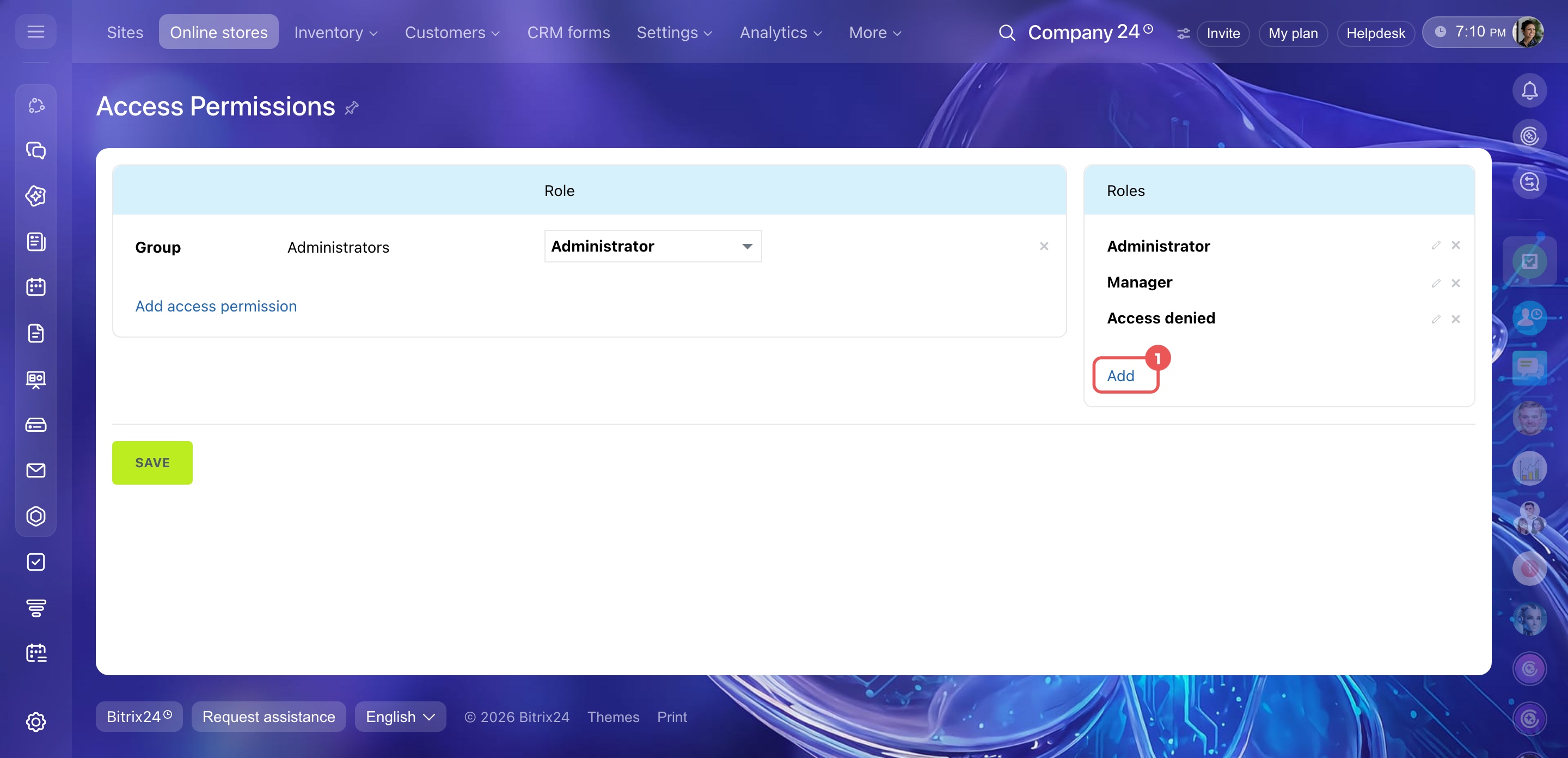
Create a role. Click Add in the role list on the right. Enter a name, such as Content manager. Choose the permissions and save your changes.
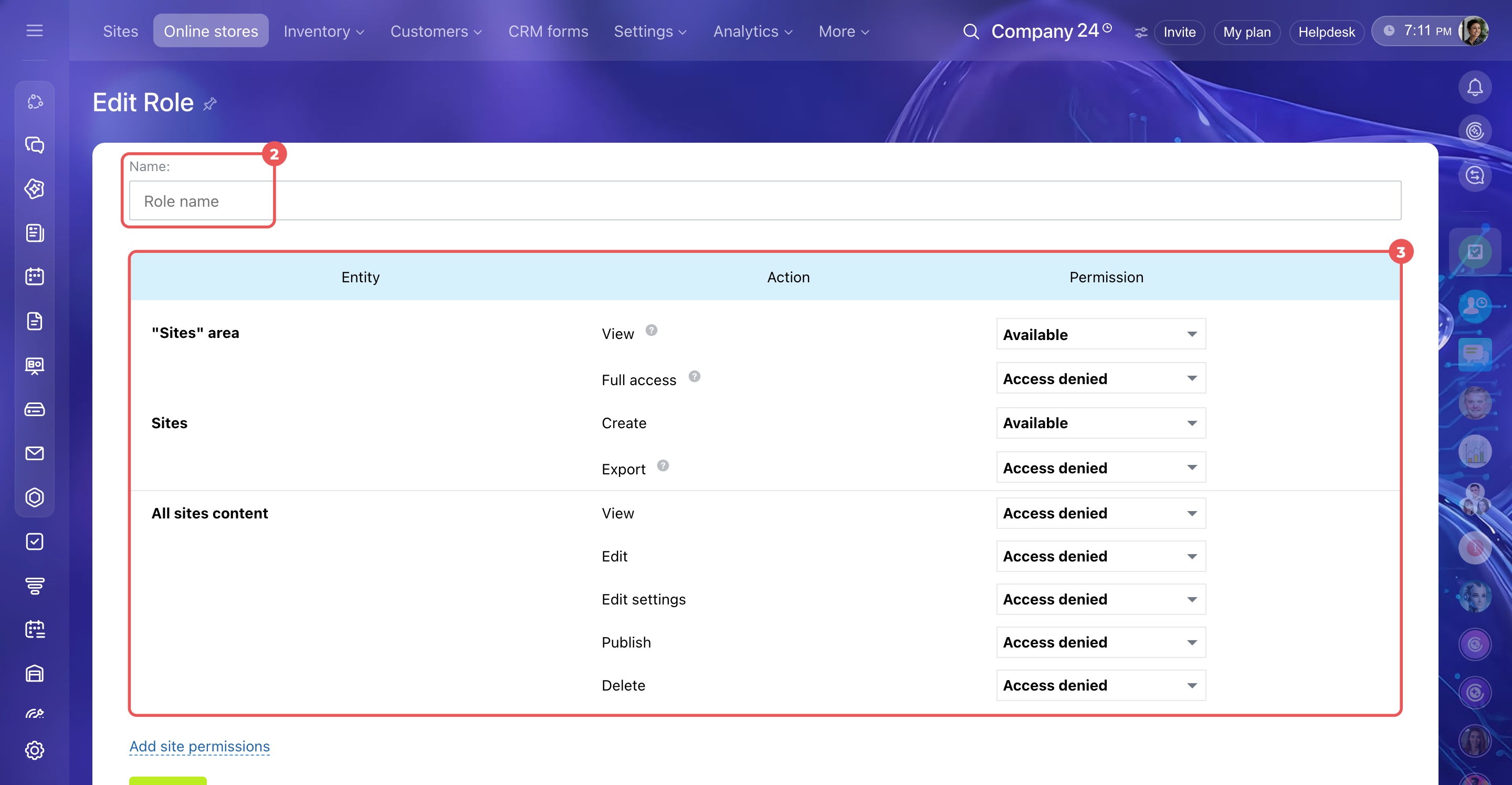
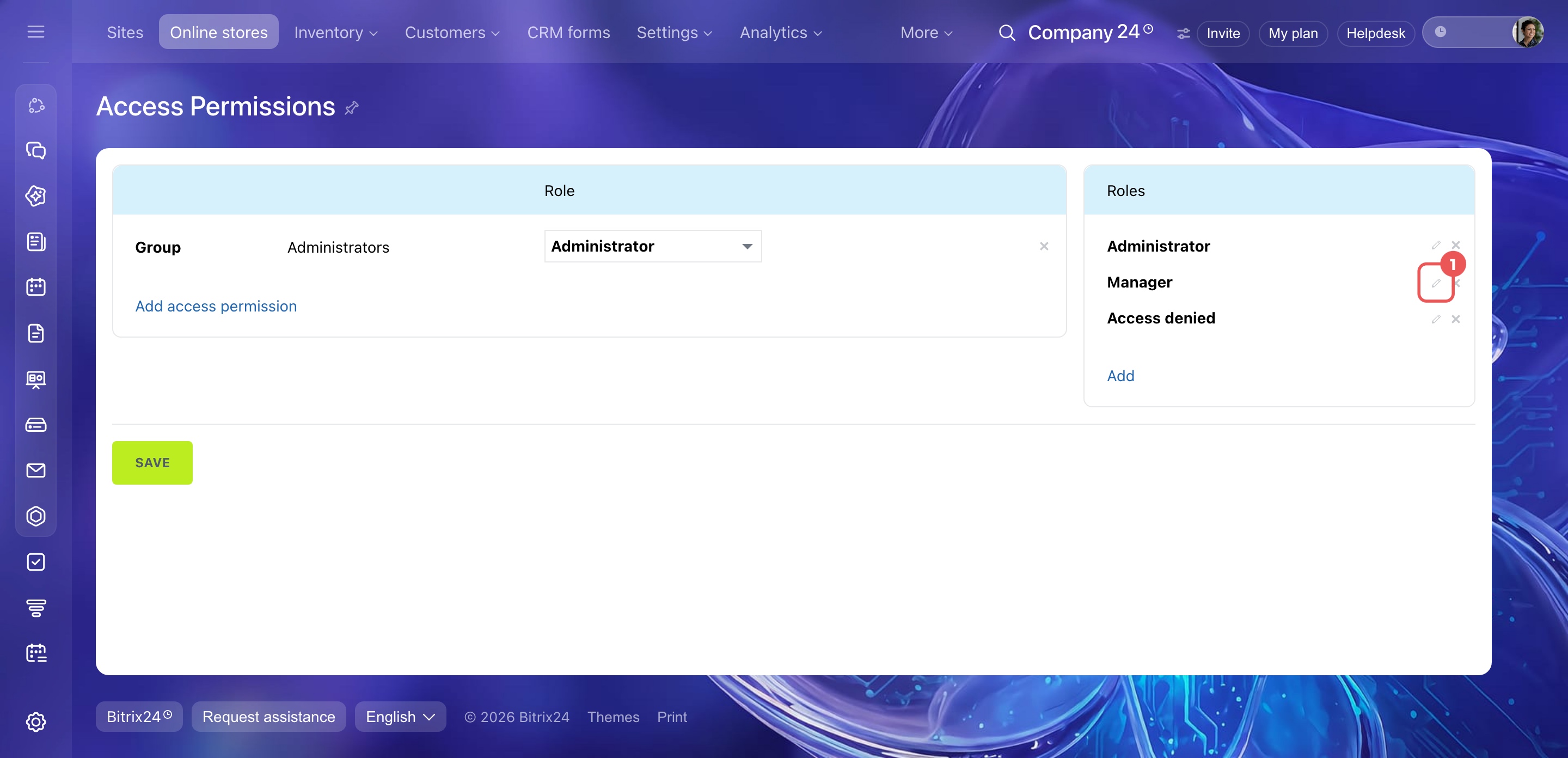
Edit a role. Click the pencil icon next to the role. Change its name or permissions. For example, rename Manager to Content manager and allow employees with this role to change content settings across all sites. Save your changes.
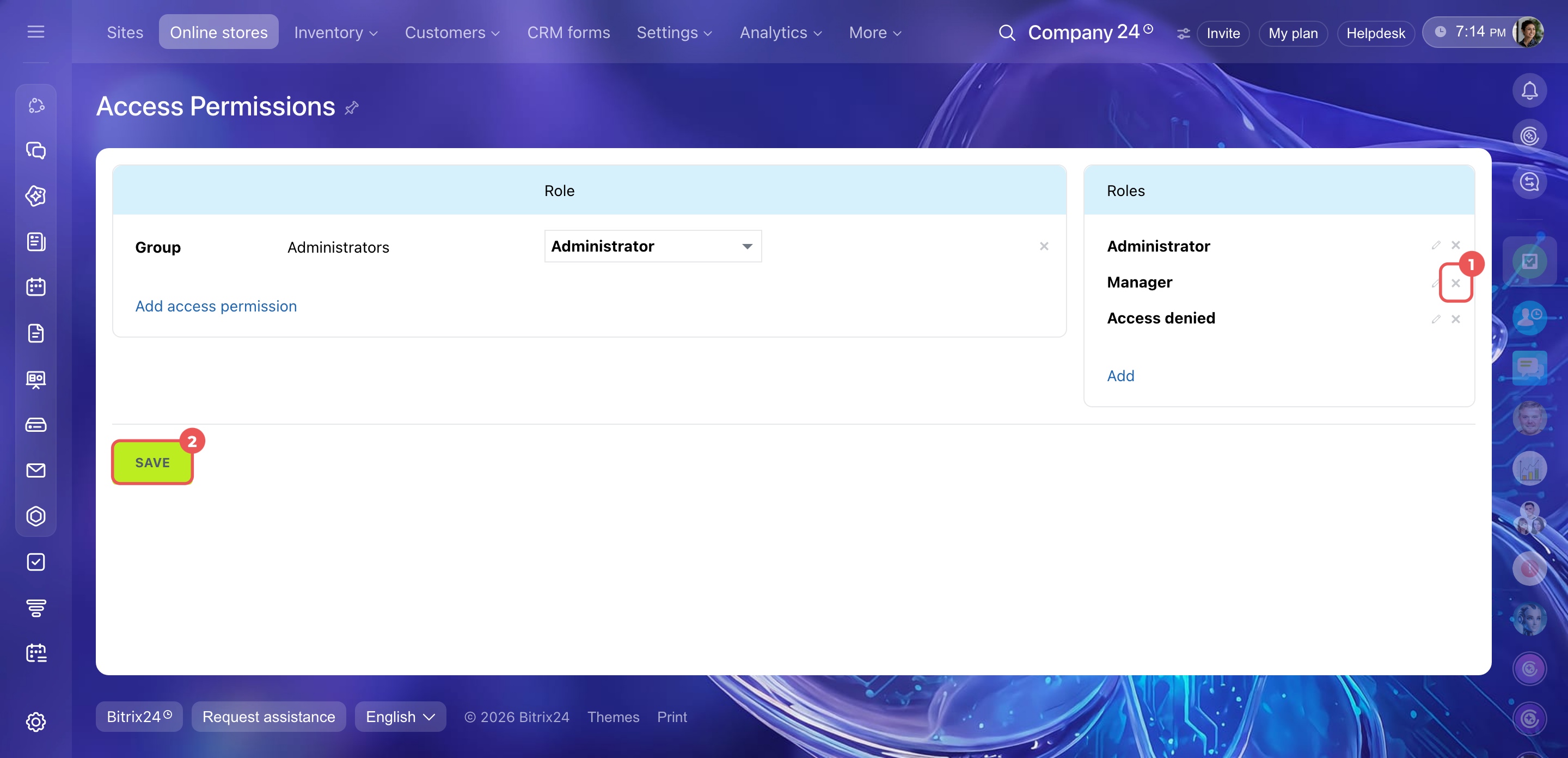
Delete a role. Click the X icon next to the role and save your changes.
Configure permissions
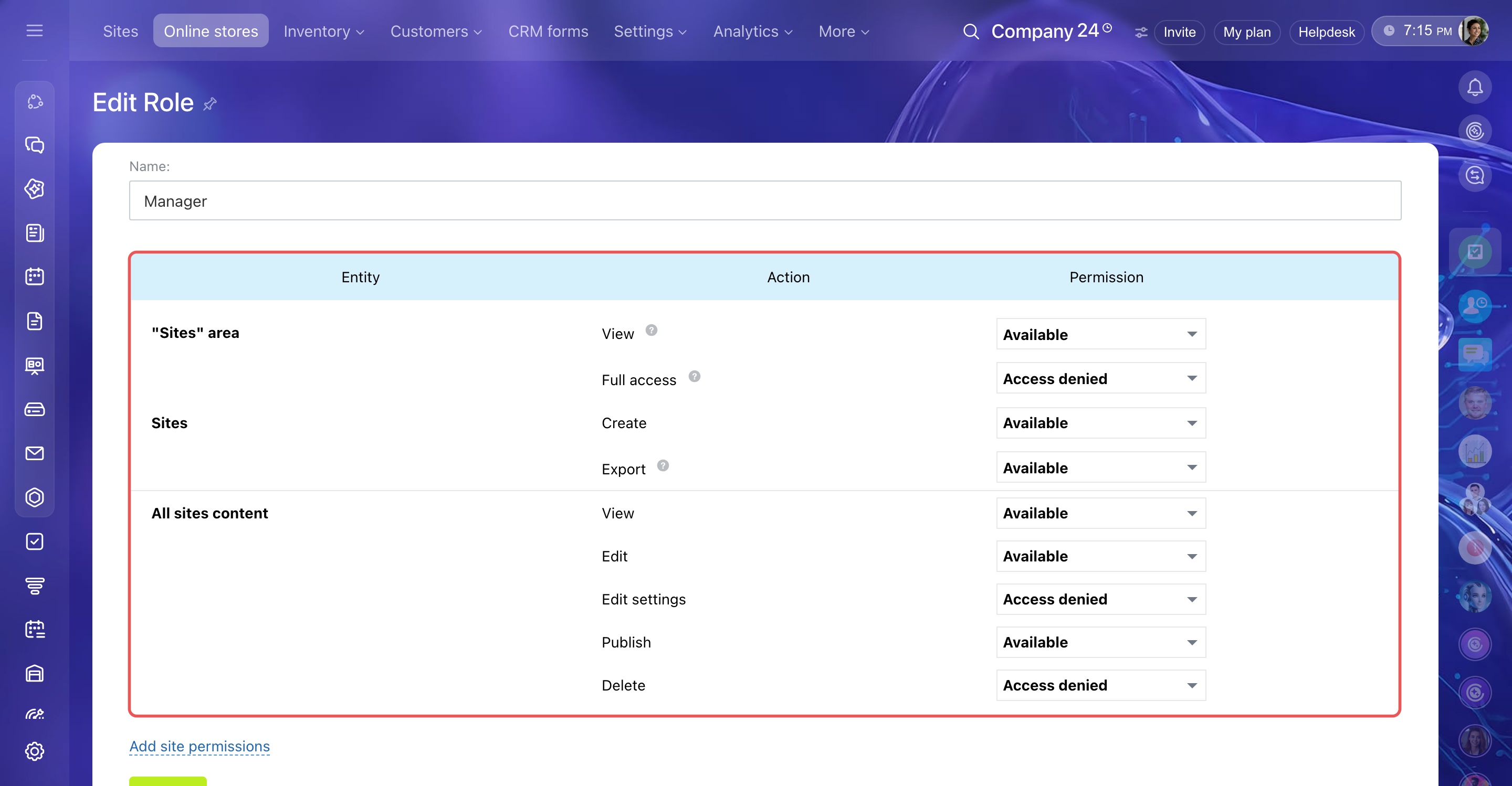
You can set permissions for each role in three areas:
- In the Sites and stores section
- Content across all sites and stores
- Individual sites or stores
Permissions for the Sites and stores section
- View: The employee can see the section.
- Full access: The employee has all permissions, including role management.
- Create: The employee can create sites and pages. To use this permission, also grant permission to edit content across all sites.
- Export: The employee can export sites.
Permissions for content across all sites
- View: The employee can view sites and pages.
- Edit: The employee can modify site pages in the visual builder. For example, add and edit blocks.
- Edit settings: The employee can change settings for sites, folders, and pages. For example, edit page addresses and add meta tags.
- Publish: The employee can publish changes to site pages.
- Delete: The employee can delete sites, folders, and pages.
Inventory access permissions
Permissions for individual sites or stores
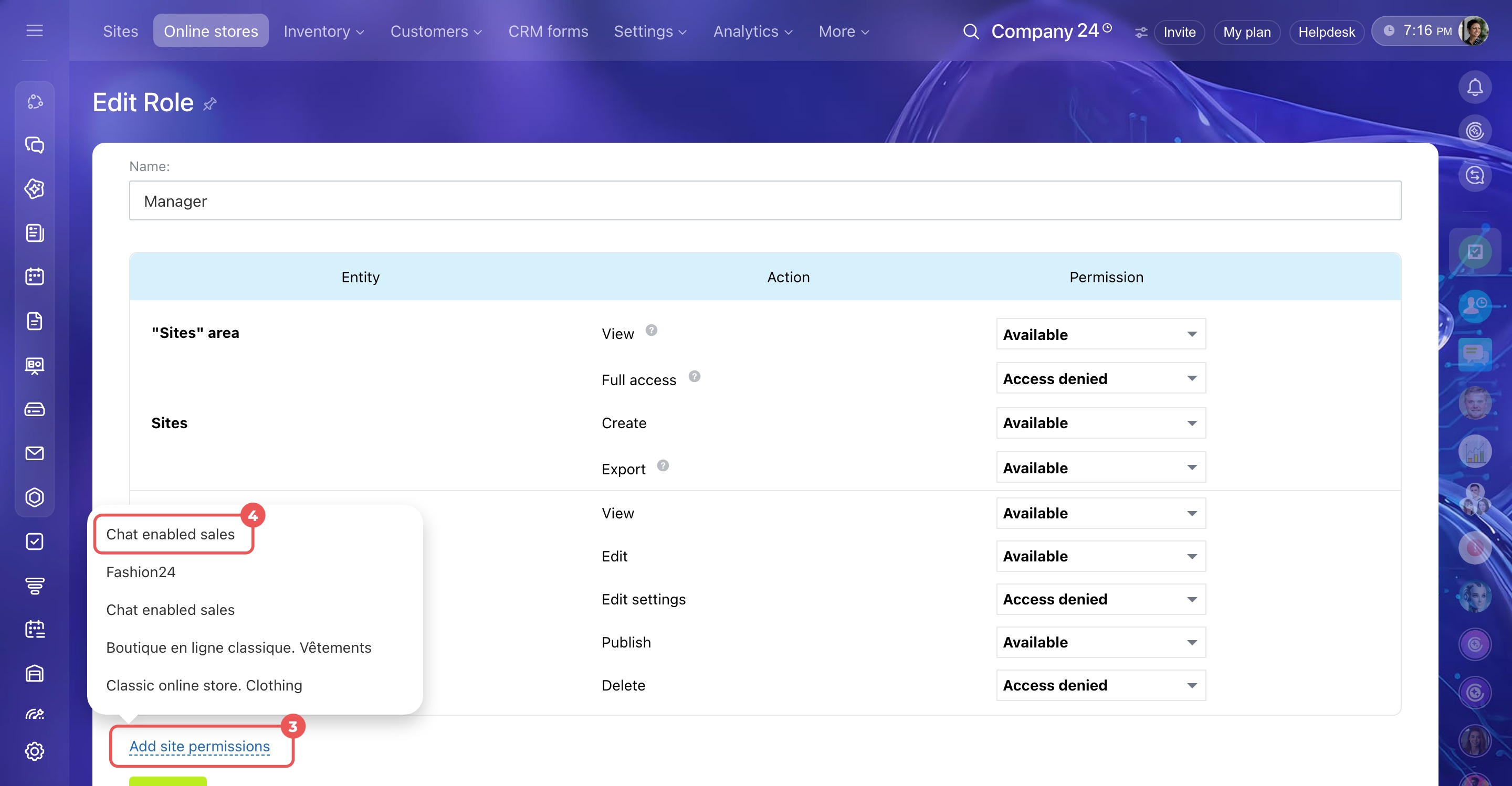
You can grant access to a specific site or store without giving employees access to all sites. The available permissions are the same as those for content across all sites.
To set permissions for a specific site or store:
- Edit an existing role or create a new one.
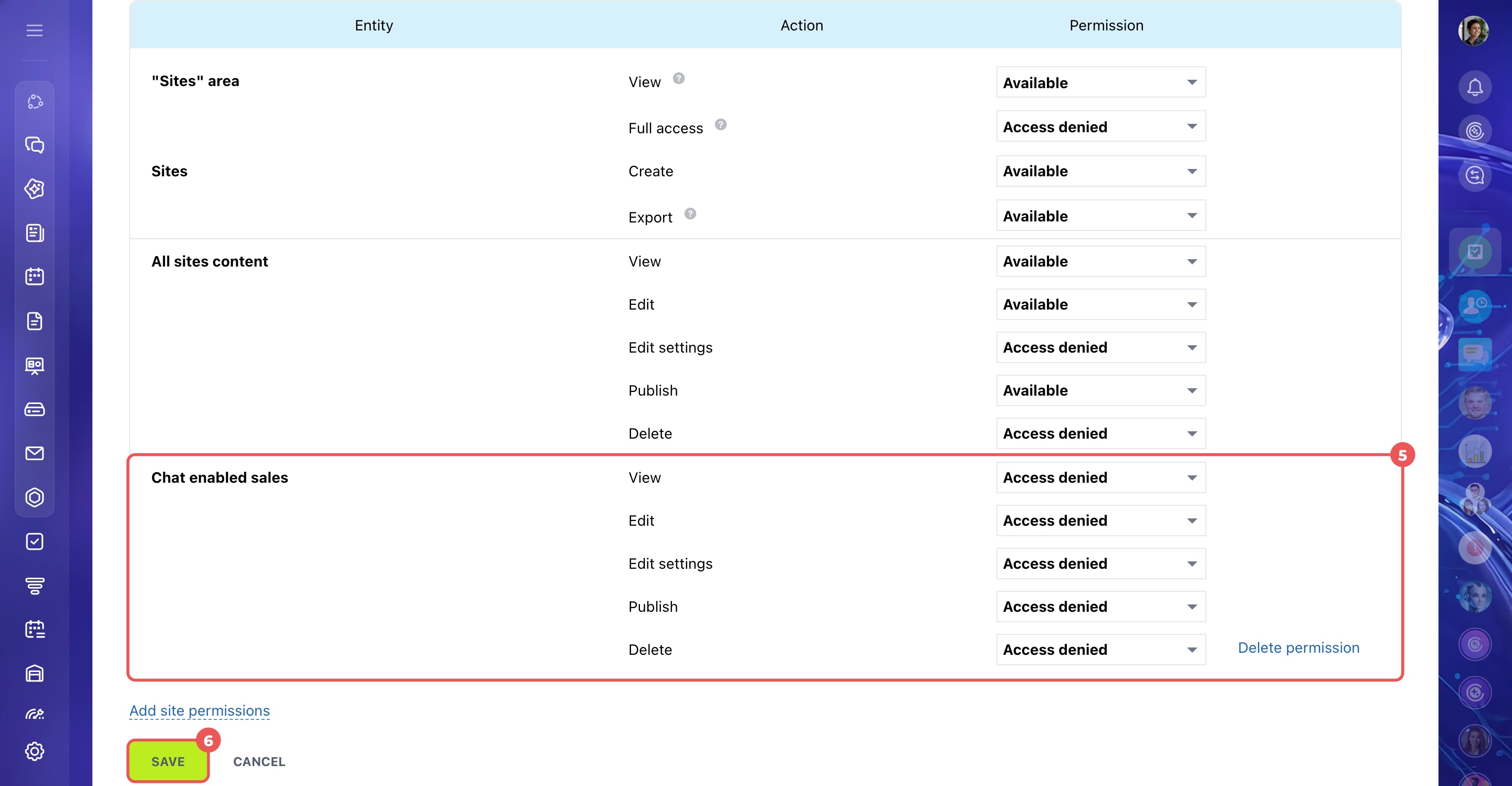
- Click Add site permissions and select a site or store from the list. A new block appears where you can set its permissions.
- Choose the permissions and save your changes.
For example, your company might have a main website and a separate landing page for an event. You can allow an employee to view and edit the landing page without granting access to the main website.
Assign roles to employees
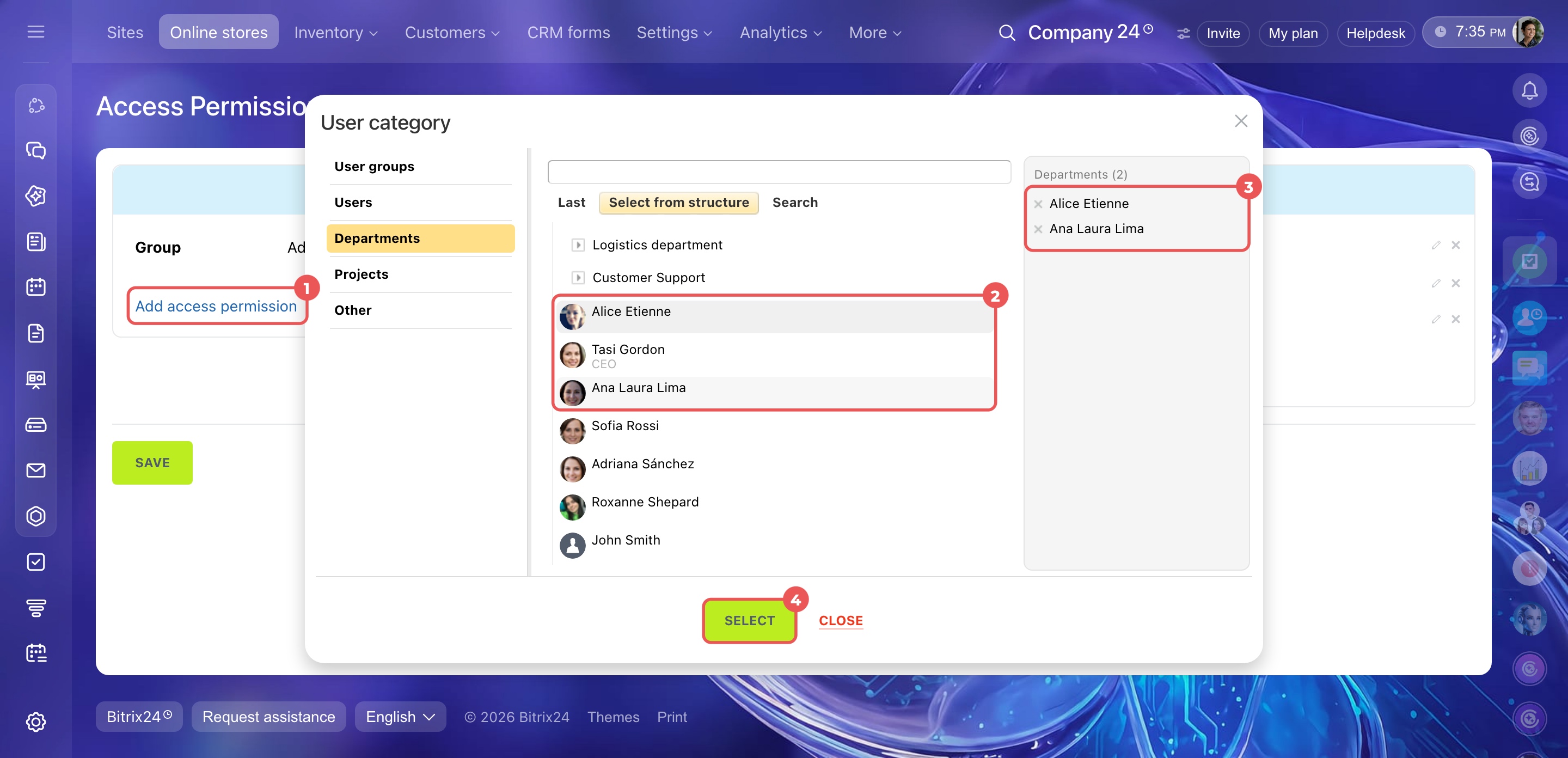
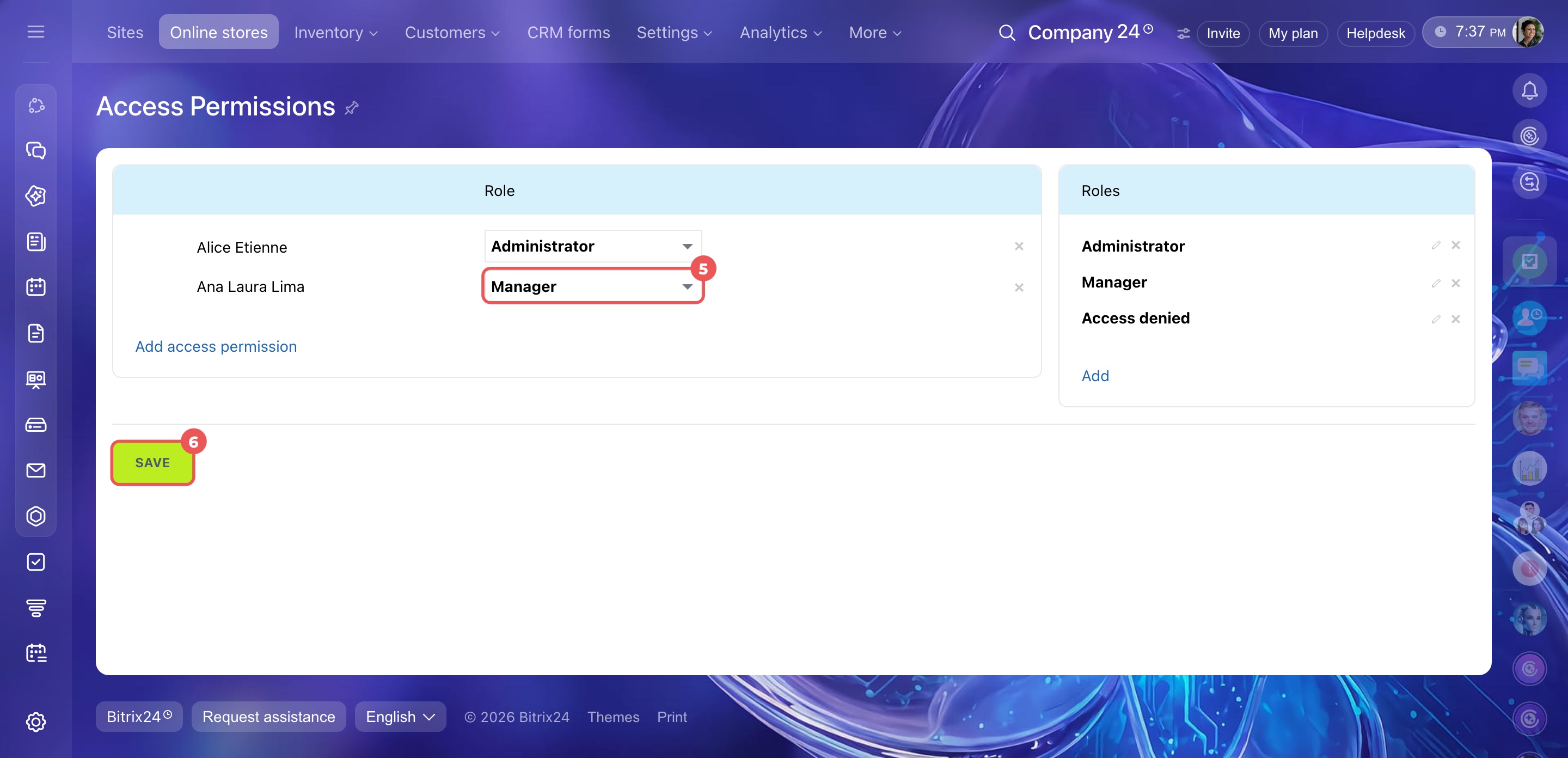
Once you've configured the roles, assign them to employees, departments, or workgroups.
- Click Add access permission and select an employee, department, or workgroup. Your selection appears in the list on the right. Click Select to continue.
- Click the arrow next to the employee, subdepartment, or workgroup and choose a role. Save your changes.
For example, if an employee creates pages and adds products, assign the Content manager role. This role can include permissions to access the section, view site content, and create and edit sites.
In brief
- Access permissions control what employees can do with sites and online stores.
- To configure access permissions, go to Sites and stores > Sites or Online stores. Click Settings (⚙️) in the top-right corner and select Access Permissions.
- Sites and online stores share the same access permissions. Changes in one section also apply to the other.
- Permissions are managed through roles. You can assign roles to employees, departments, or workgroups.
- Bitrix24 has two default roles: Administrator and Manager.
- You can create, edit, or delete roles to match your team's needs.
- You can set permissions for the entire Sites and stores section, content across all sites and stores, or individual sites and stores.