
Bitrix24 Messenger brings together personal chats, public and private chats, client chats, channels, CoPilot, and video calls.
Text formatting helps make messages clear and easy to read. For example, you can highlight important text or add a link.
You can format messages in three ways:
- Use BB codes
- Use keyboard shortcuts
- Use the built-in menu in the mobile app
Keyboard shortcuts also help you quickly perform actions in chats and during calls.
In this article:
Use BBCode
BBCode is a simple markup language. It uses tags in square brackets to format text.
Basic examples
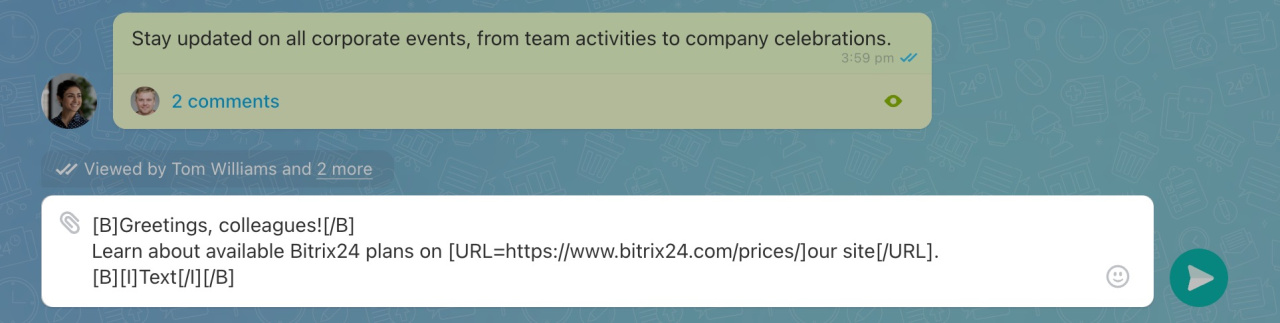
Make text bold
Use [B][/B]. Place your text between the tags.
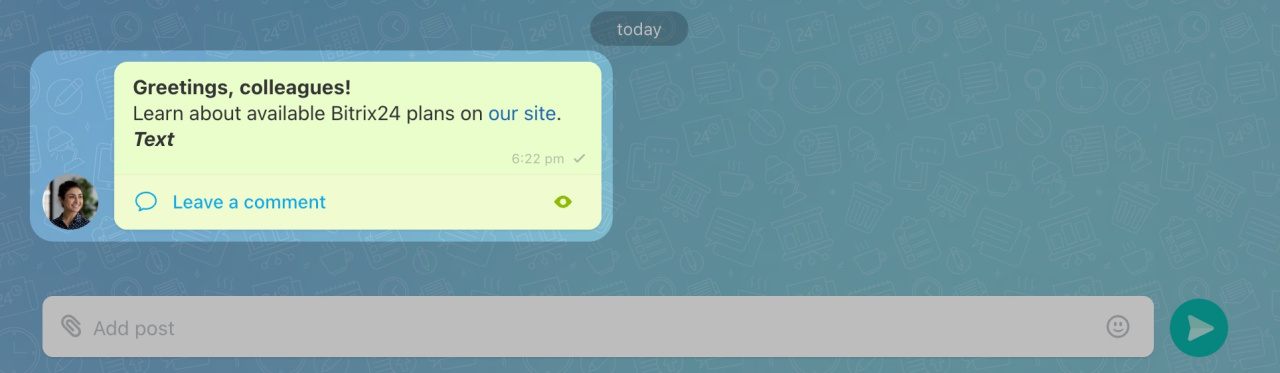
Example: [B]Greetings, colleagues![/B] → Greetings, colleagues!
Add a link to text
Use [URL=][/URL]. Add the link after = and place the clickable text between the tags.
Example:
[URL=https://www.bitrix24.com/prices/]our site[/URL] → our site (with link)
Combine styles
You can combine tags.
Example: [B][I]Text[/I][/B] → Text
Supported BBCode tags
| Description | Tag | Result |
|---|---|---|
| Bold |
[B]Text[/B]
|
Text |
| Italic |
[I]Text[/I]
|
Text |
| Underline |
[U]Text[/U]
|
Text |
| Strikethrough |
[S]Text[/S]
|
|
| Link |
[URL=link]Text[/URL]
|
Clickable text |
| Quote |
>>Text
|
Quoted text |
| Combined styles |
[B][I][U][S]Text[/S][/U][/I][/B]
|
Multiple styles |
| Emoji |
:D, ;-)
|
Emoji |
| User mention |
[USER=111]Name[/USER]
|
Mentioned user |
| Icon |
[ICON=url title=Text]
|
Image icon |
| Text color |
[COLOR=#ff0000]Text[/COLOR]
|
Colored text |
| Font size |
[SIZE=16]Text[/SIZE]
|
Larger text |
You can try other BBCode variations found online. Some may work in Bitrix24 chats.
Format messages
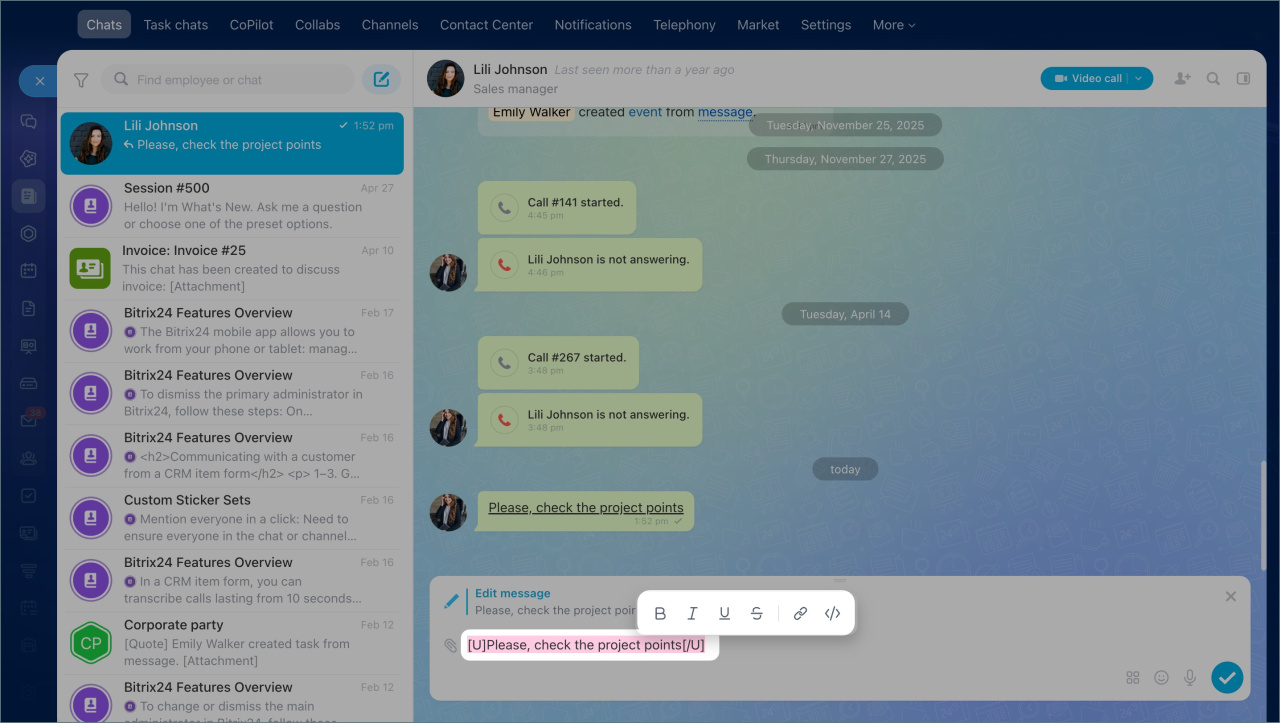
Use the built-in formatting menu in the message field to make text bold or italic, add links, and more.
- Enter your text in the message field. Select the text you want to format and click it.
- In the menu that appears, choose one of these options:
- Bold
- Italic
- Underline
- Strikethrough — adds a line through the text
- Link — turns the text into a clickable link
- Code — formats the text as a code snippet.
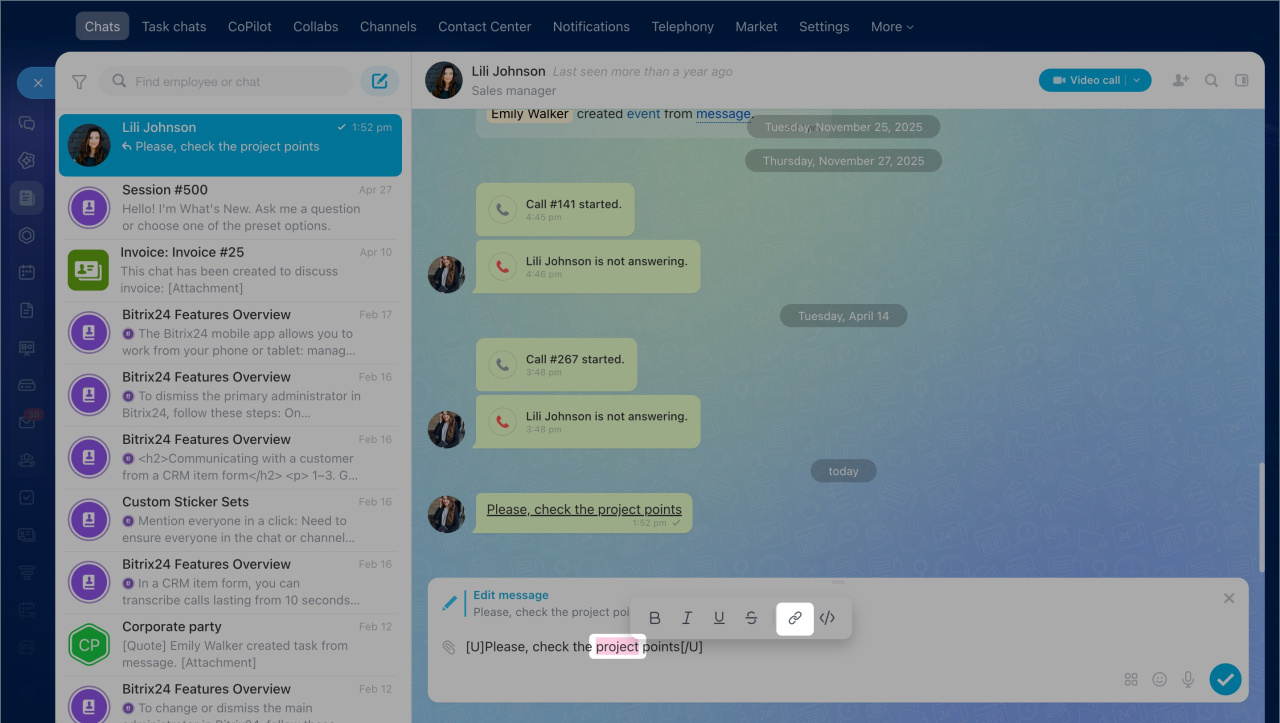
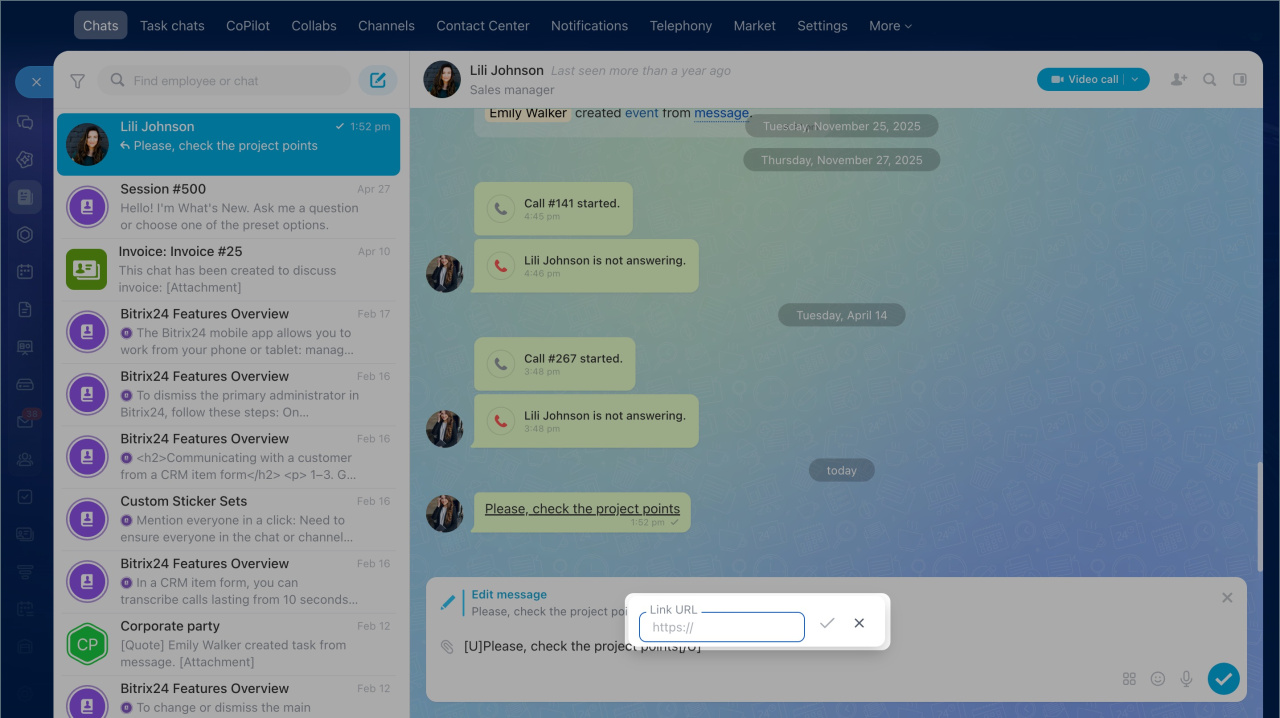
To add a link:
- Select the text you want to turn into a link and click it.
- Click the chain icon.
- Enter the link address and confirm the change.
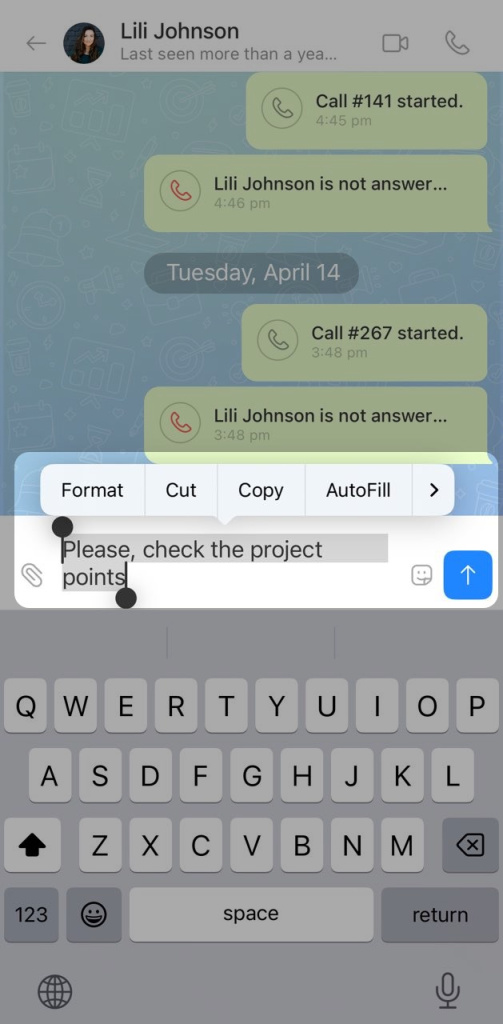
Use the built-in menu in the Bitrix24 mobile app to format text, add links, and more.
1. Enter your text in the message field. Select the text you want to format and tap it.
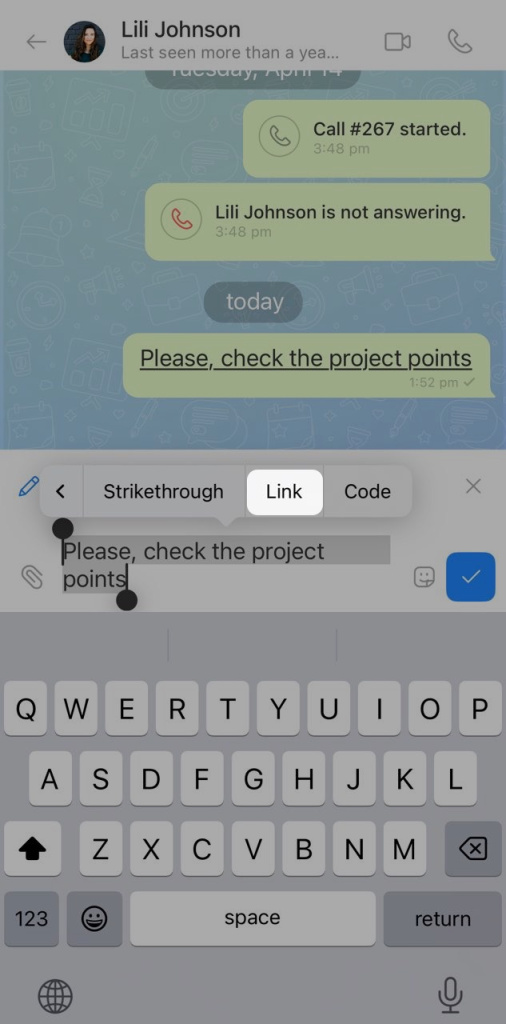
2. In the menu that appears, tap Format.
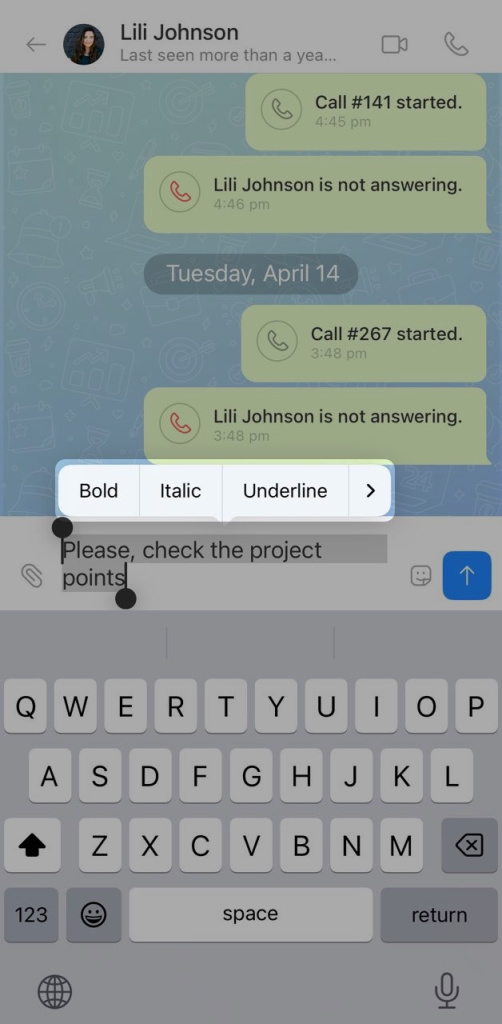
3. Choose one of these options:
- Bold
- Italic
- Underline
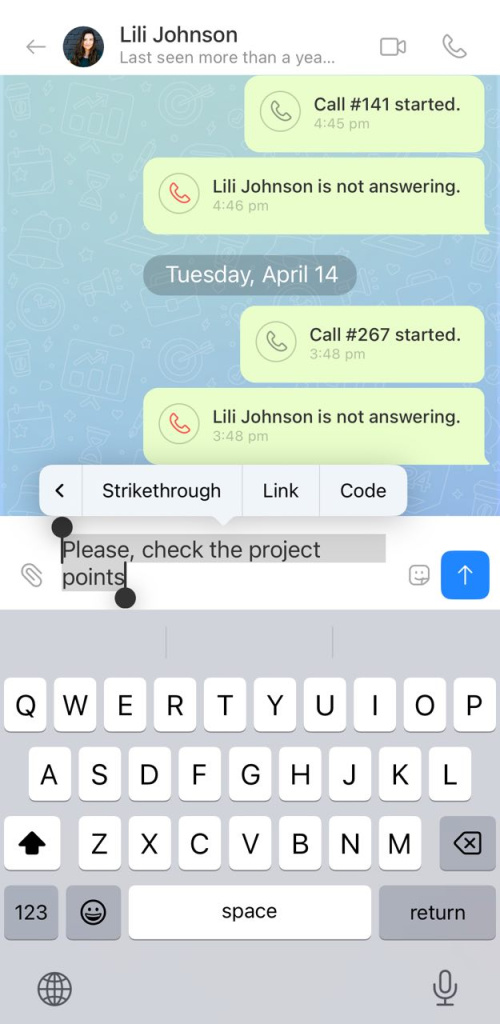
- Strikethrough — adds a line through the text
- Link — turns the text into a clickable link
- Code — formats the text as a code snippet
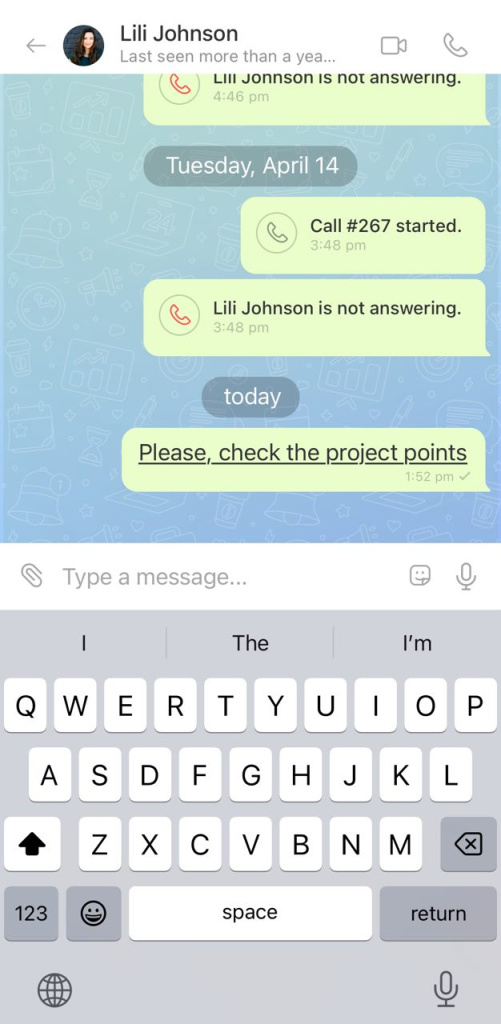
To add a link:
1. Select the text you want to turn into a link.
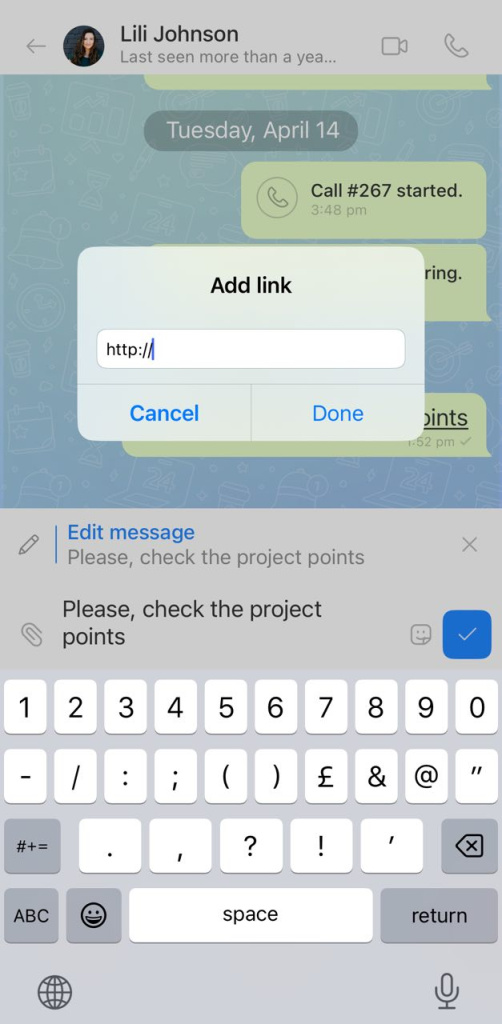
2. Tap Format > Link.
3. In the window that opens, enter the link address and tap Done.
Use hotkeys
Hotkeys are keyboard shortcuts that help you perform actions faster without using a mouse.
In the web version of Bitrix24, hotkeys work only in chats and channels.
In the Bitrix24 Messenger app, they work in chats, calls, and channels.
You cannot create custom hotkeys.
View available hotkeys
Go to Settings (⚙️) > Messenger settings > Hotkeys.
Chat and text formatting shortcuts
| Action | Windows | macOS |
|---|---|---|
| Edit last message | ↑ | ↑ |
| Select all text | Ctrl + A | Cmd + A |
| Bold text | Ctrl + B | Cmd + B |
| Italic text | Ctrl + I | Cmd + I |
| Underline text | Ctrl + U | Cmd + U |
| Strikethrough | Ctrl + S | Cmd + S |
Video call shortcuts
| Action | Windows | macOS |
|---|---|---|
| Turn microphone on/off | Ctrl + Shift + A | Cmd + Shift + A |
| Push-to-talk | Hold Space | Hold Space |
| Start/stop screen sharing | Ctrl + Shift + S | Cmd + Shift + S |
| Turn camera on/off | Ctrl + Shift + V | Cmd + Shift + V |
| Start/stop recording | Ctrl + Shift + R | Cmd + Shift + R |
| Raise/lower hand | Ctrl + Shift + H | Cmd + Shift + H |
| Collapse/expand call | Ctrl + Shift + C | Cmd + Shift + C |
| Switch view mode | Ctrl + Shift + W | Cmd + Shift + W |
| Mute/unmute participants | Ctrl + Shift + M | Cmd + Shift + M |
| Open/close participants list | Ctrl + Shift + U | Cmd + Shift + U |
Using BBCodes and hotkeys in Bitrix24 Messenger simplifies and speeds up your work. BBCodes let you format text, making messages more readable and structured. Hotkeys enable you to act quickly without needing to use the mouse or navigate menus.
In brief
- You can format a message in three ways: with BB codes, keyboard shortcuts, or the built-in menu in the mobile app. Keyboard shortcuts also help you act faster in chats and during calls.
- BB code is a markup language for message formatting. It uses tags in square brackets. For example, to make text bold, use the BB code . Put the text between the [B] and [/B] tags.
- In the mobile app, to make part of a message bold or italic, add a link, or apply other formatting, select the text and tap it.
- Keyboard shortcuts are key combinations that let you perform actions without using a mouse or menu. For example, you can cut, copy, paste, mute or unmute your microphone, and more.
- In Bitrix24 in a browser, keyboard shortcuts are available only in chats and channels. In the Bitrix24 desktop app, they are available in chats, calls, and channels. Custom keyboard shortcuts are not supported yet.