
The company structure consists of departments. You can create new departments or edit existing ones. There are main roles in the department form: a supervisor, a deputy supervisor, and employees. This will help you quickly assign employees to these roles.
Users with appropriate access permissions can create and edit departments and add employees to them.
Access permissions to the company structure
Create a department
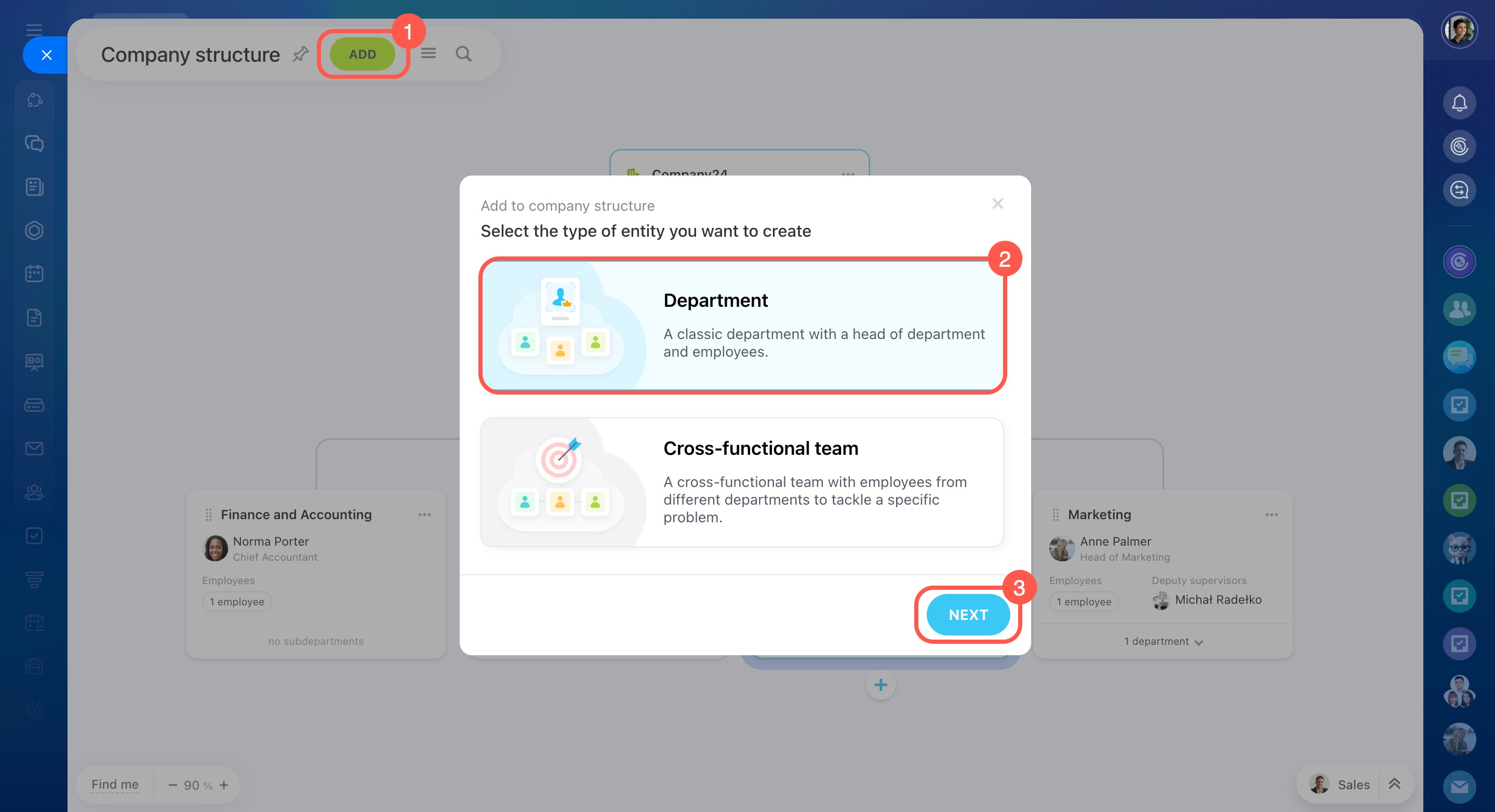
- Go to Employees.
- Open the Company structure tab.
- Click Add.
- Select Department.
- Click Next.
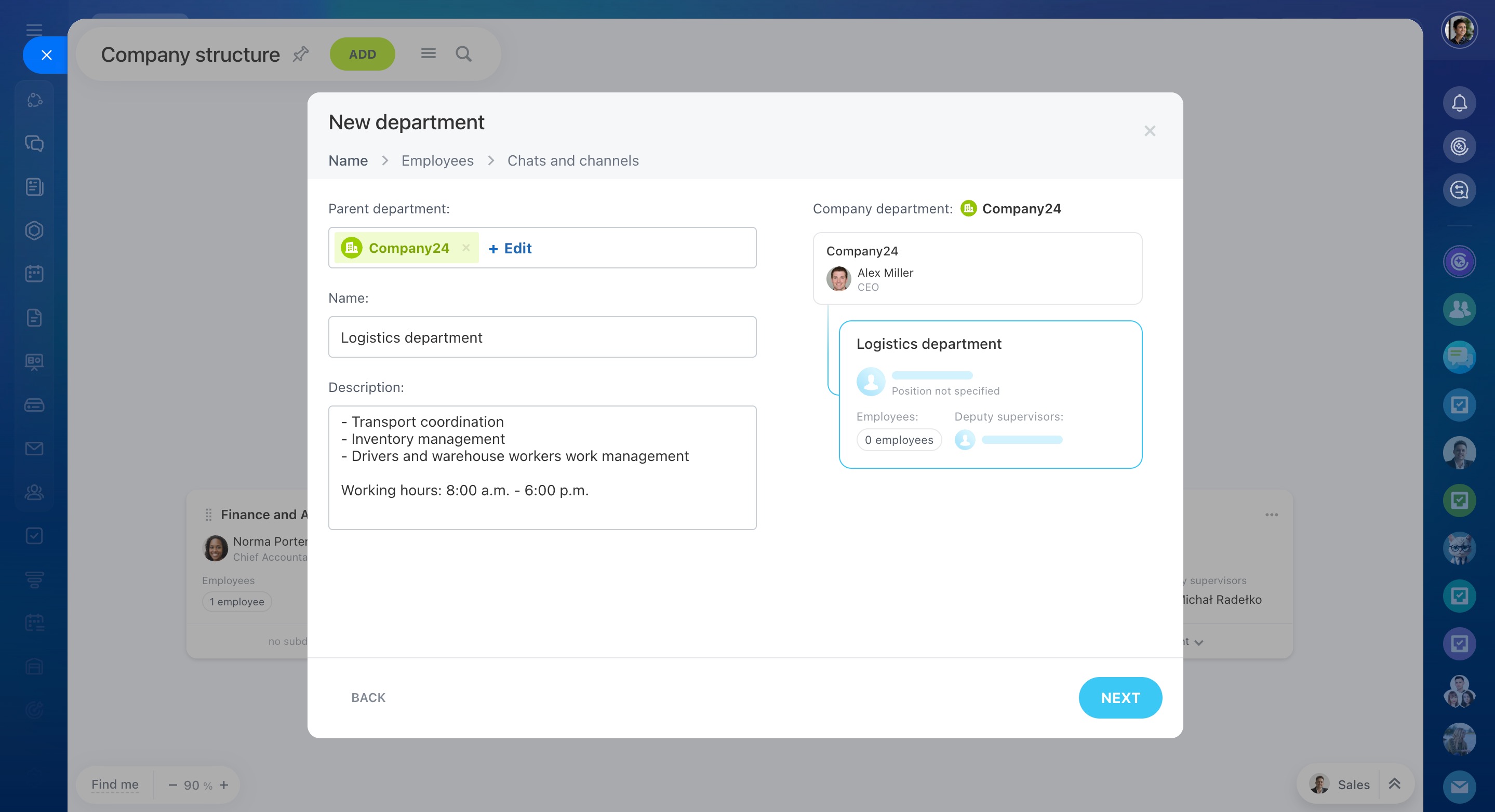
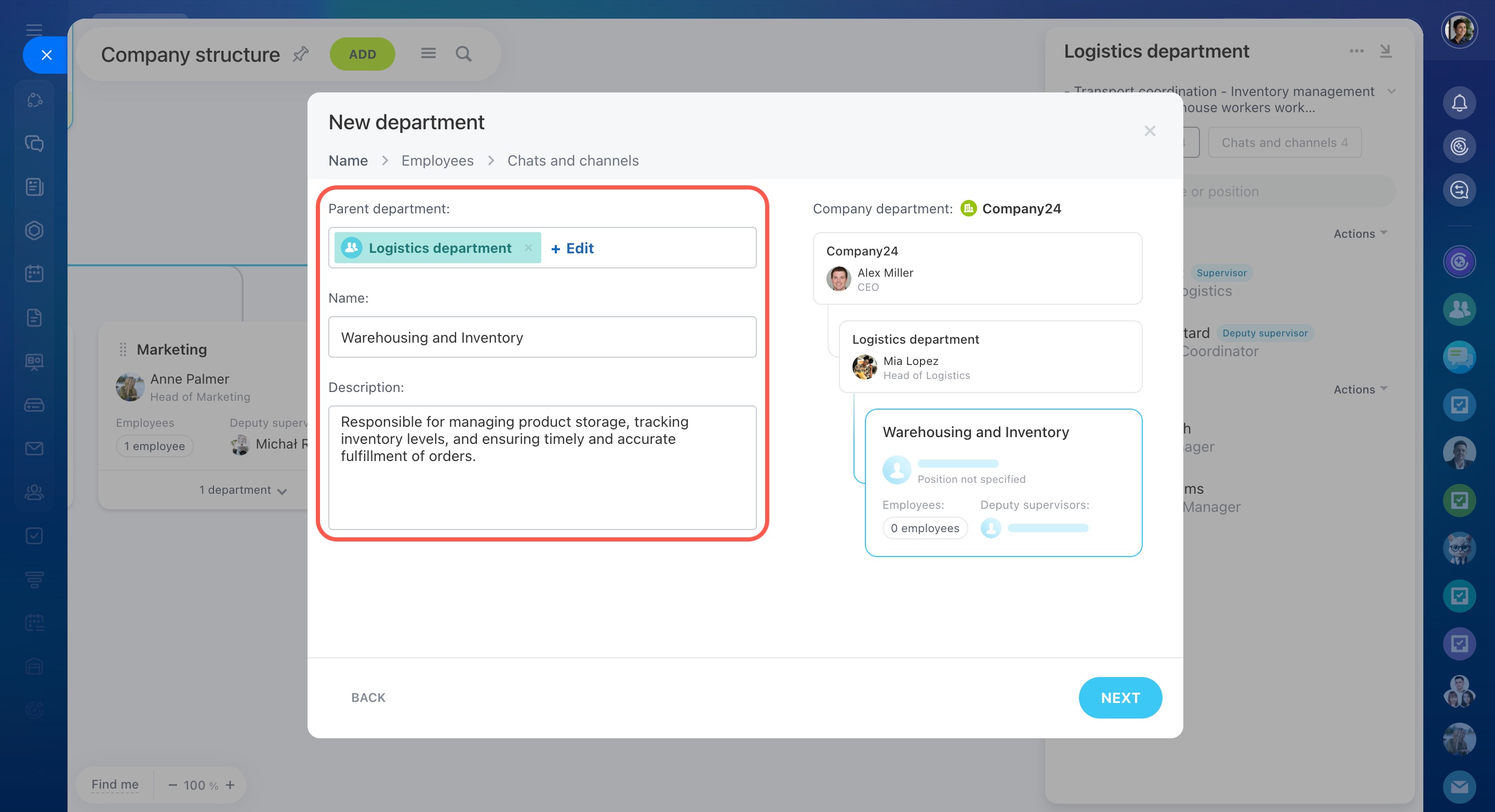
Enter department details:
- Parent department — Select where this department belongs.
- Name — This appears in the company structure.
- Description — Add details such as responsibilities, tasks, or working hours.
When you have filled in the department information, click Next.
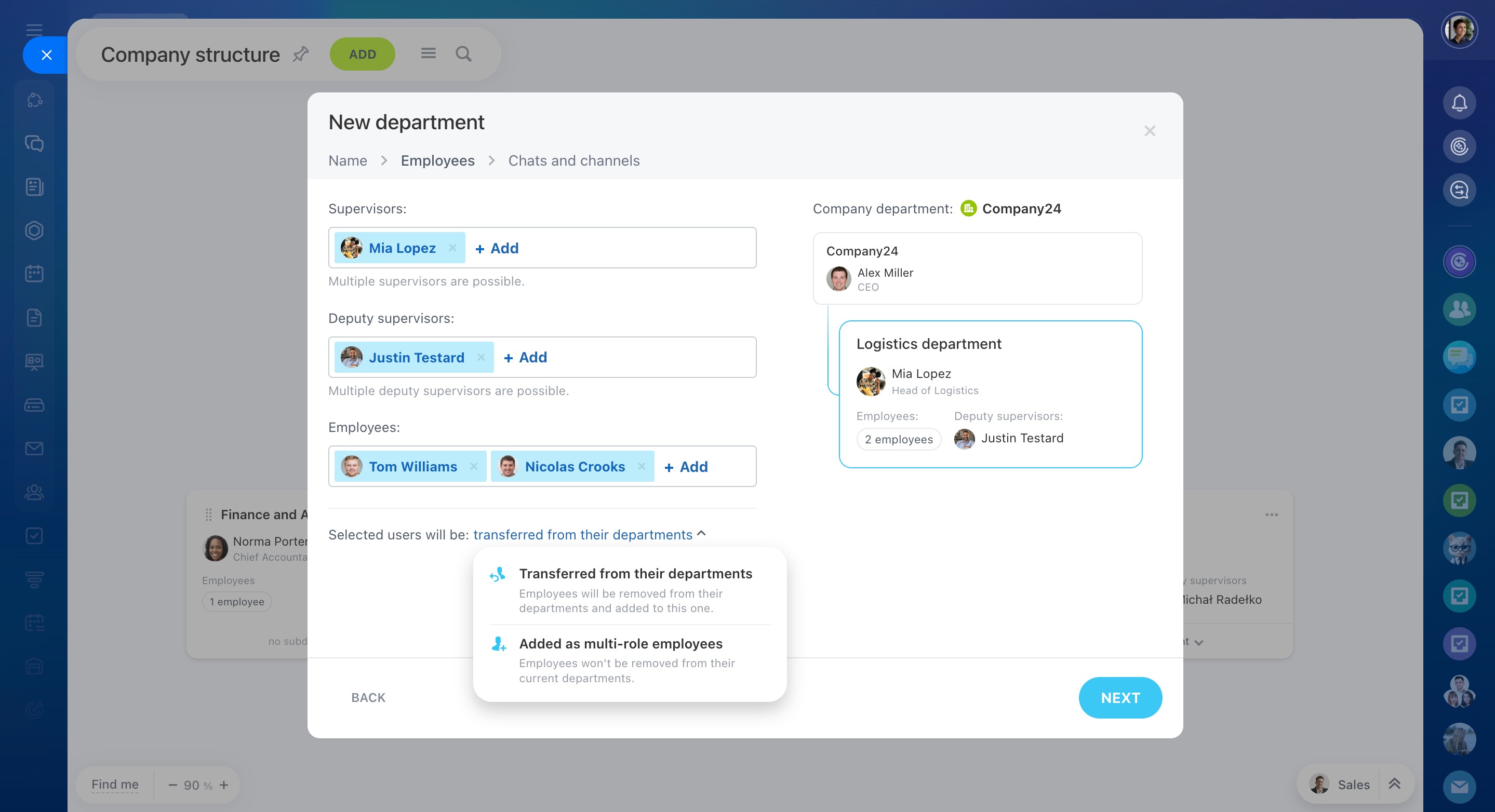
Set up roles:
- Supervisors — You can assign more than one.
- Deputy supervisors — You can assign more than one.
- Employees — Add team members.
Choose how to assign employees:
- Transfer from their departments — Moves employees to the new department and removes them from others.
- Add as multi-role employees — Keeps employees in their current departments as well.
You can preview the structure on the right side.
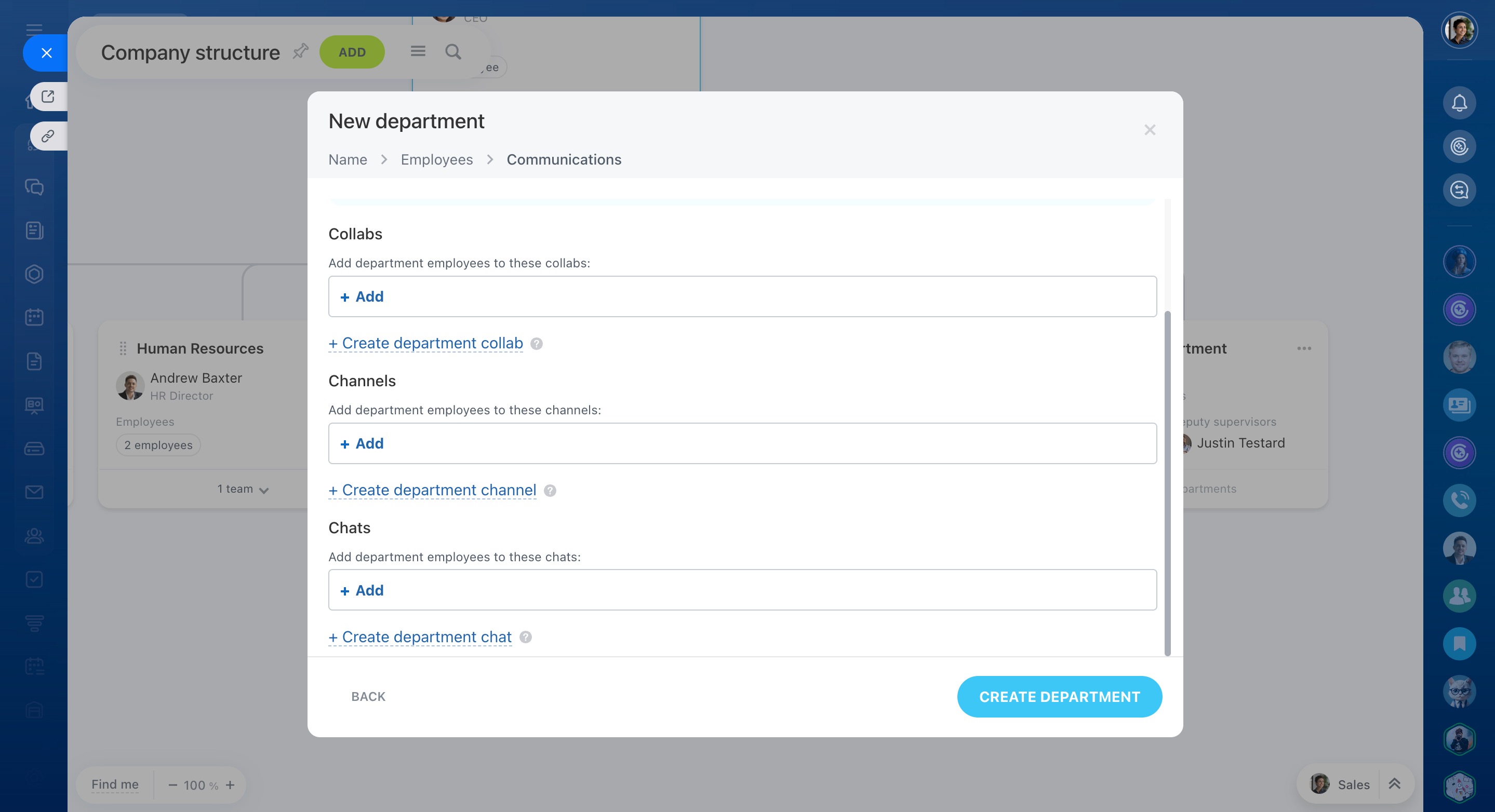
When you create a department, you can also add its members to chats, channels, and projects.
Once you have added employees to the department, click Next. Check the department information and click Create Department.
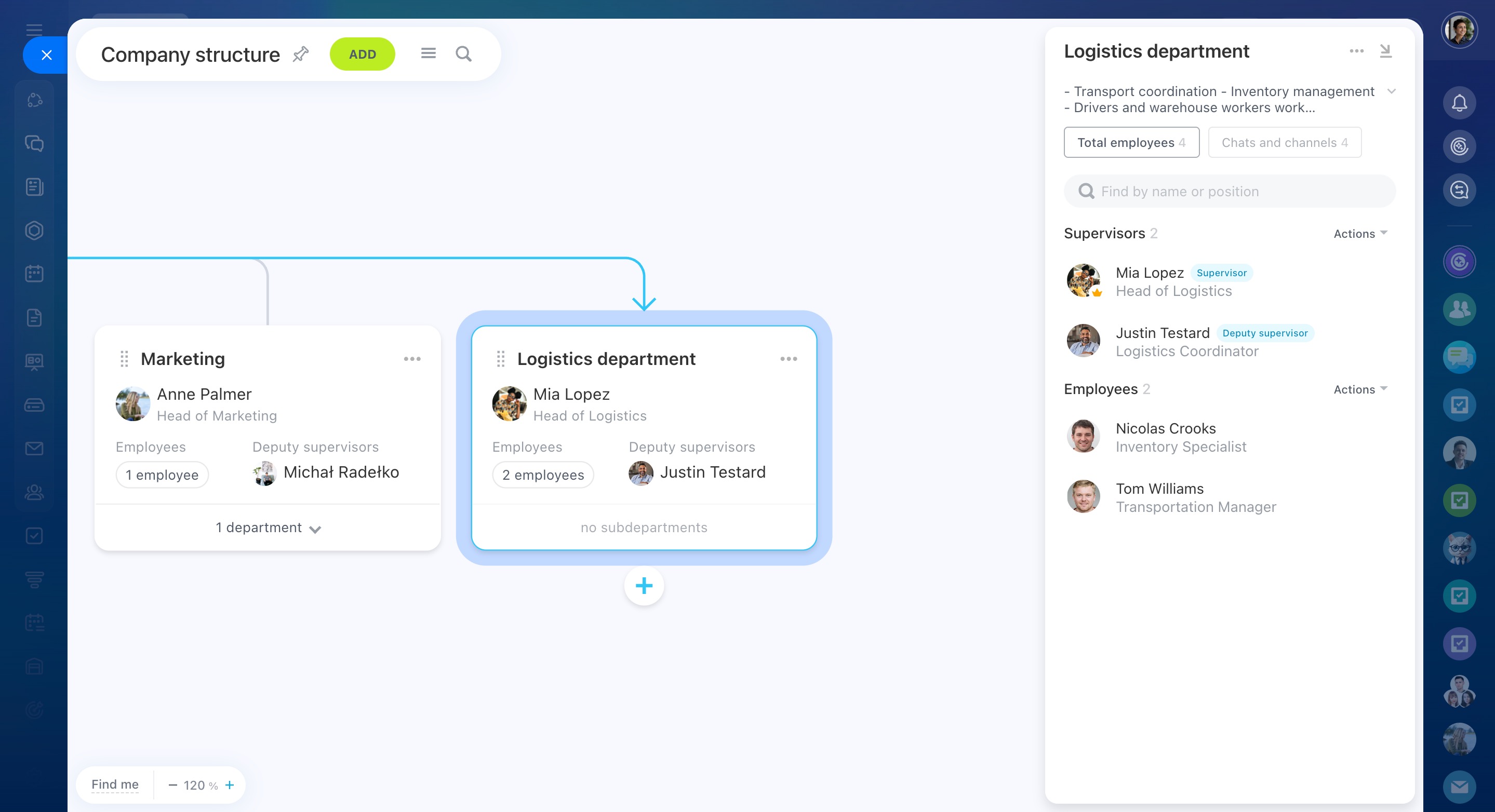
Add a subdepartment
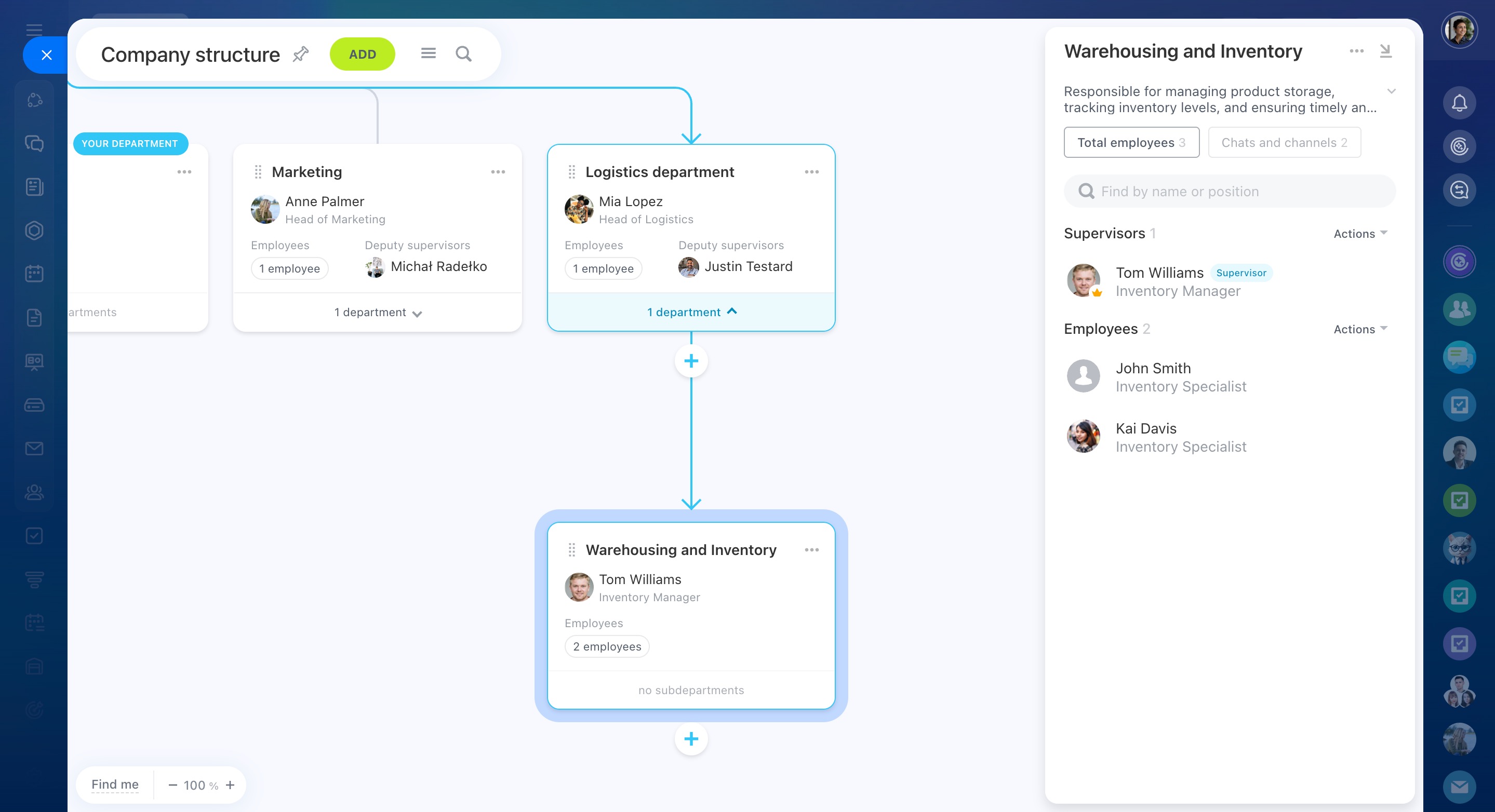
You can create departments inside other departments.
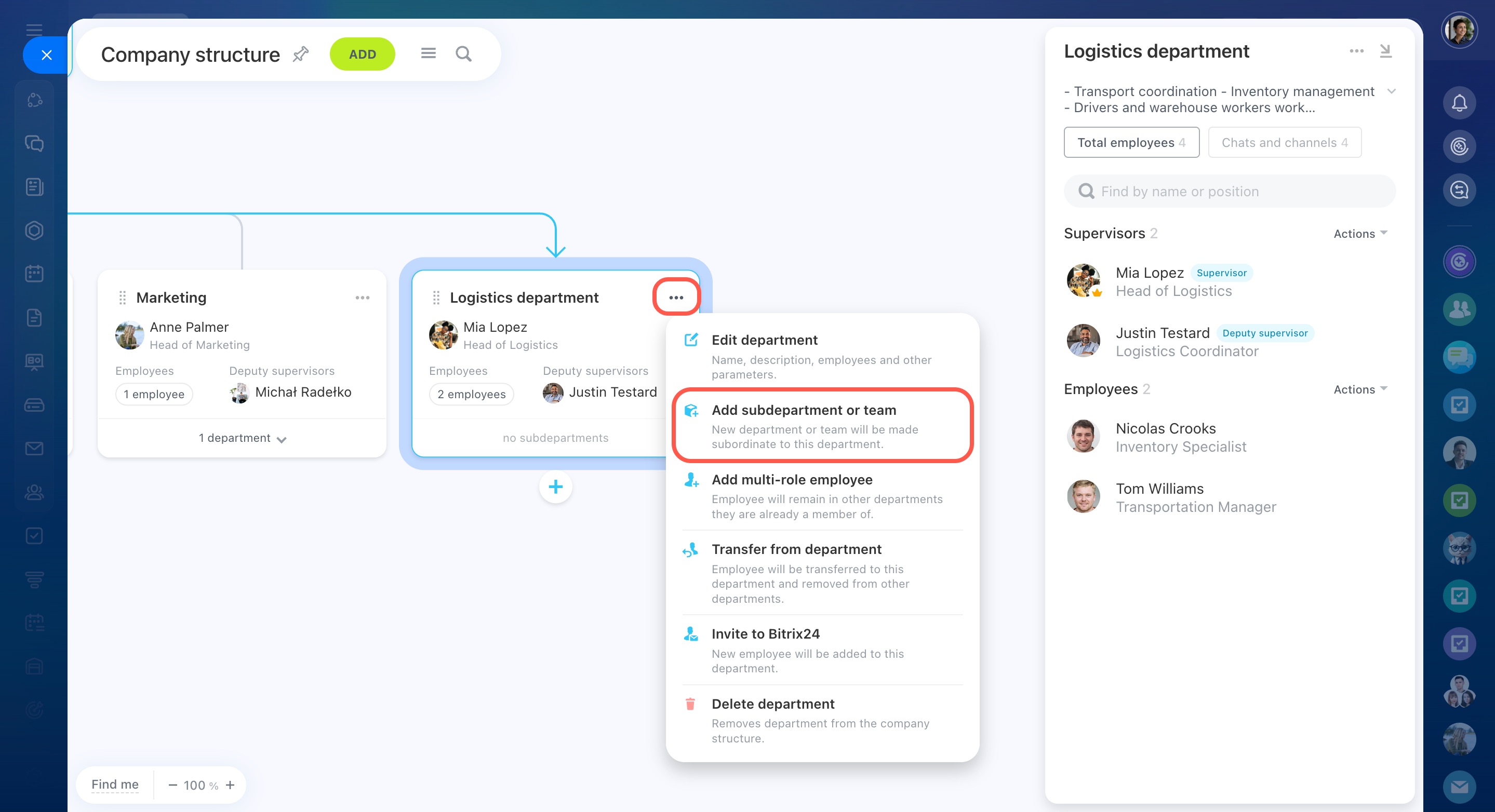
- Open the three-dot menu (...).
- Click Add subdepartment or team.
- Select Department.
- Enter details and assign roles and employees.
Edit and delete a department
If the company structure changes, you can edit or delete departments.
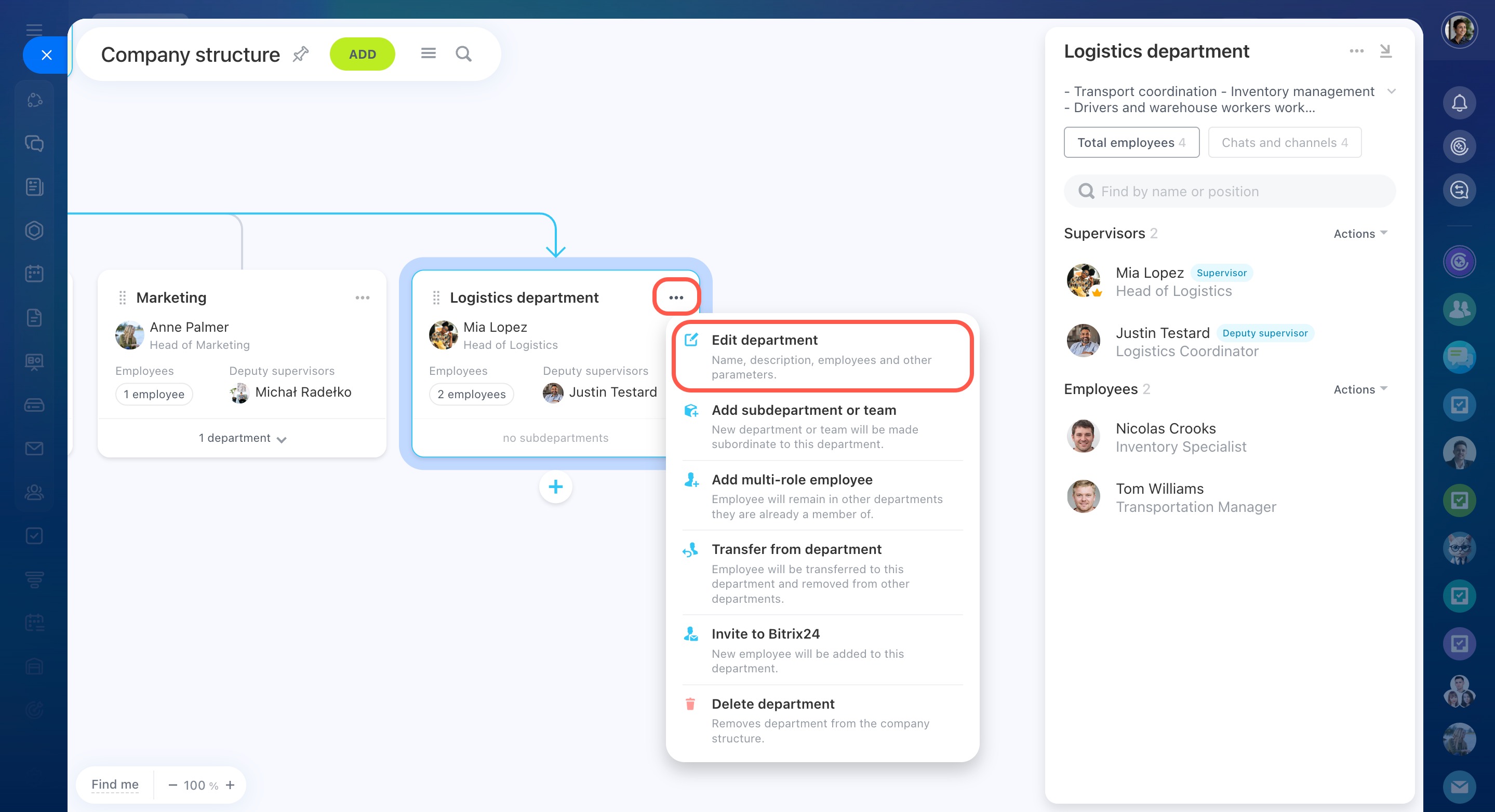
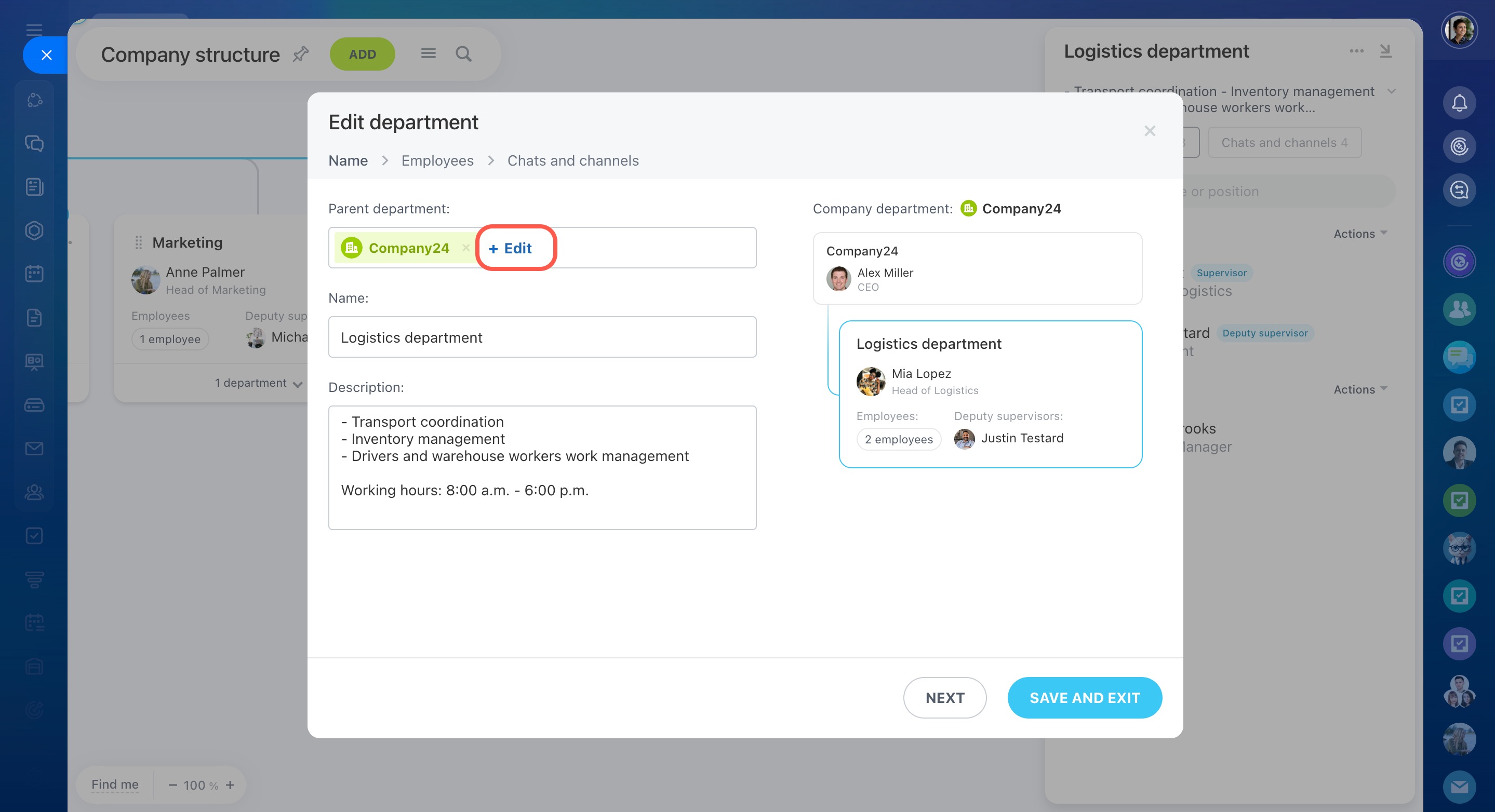
Edit departments. You can change the name and description of a department, select a new supervisor or a deputy, or transfer employees from another department.
- Click the three-dot menu (...).
- Select Edit department.
- Click Edit.
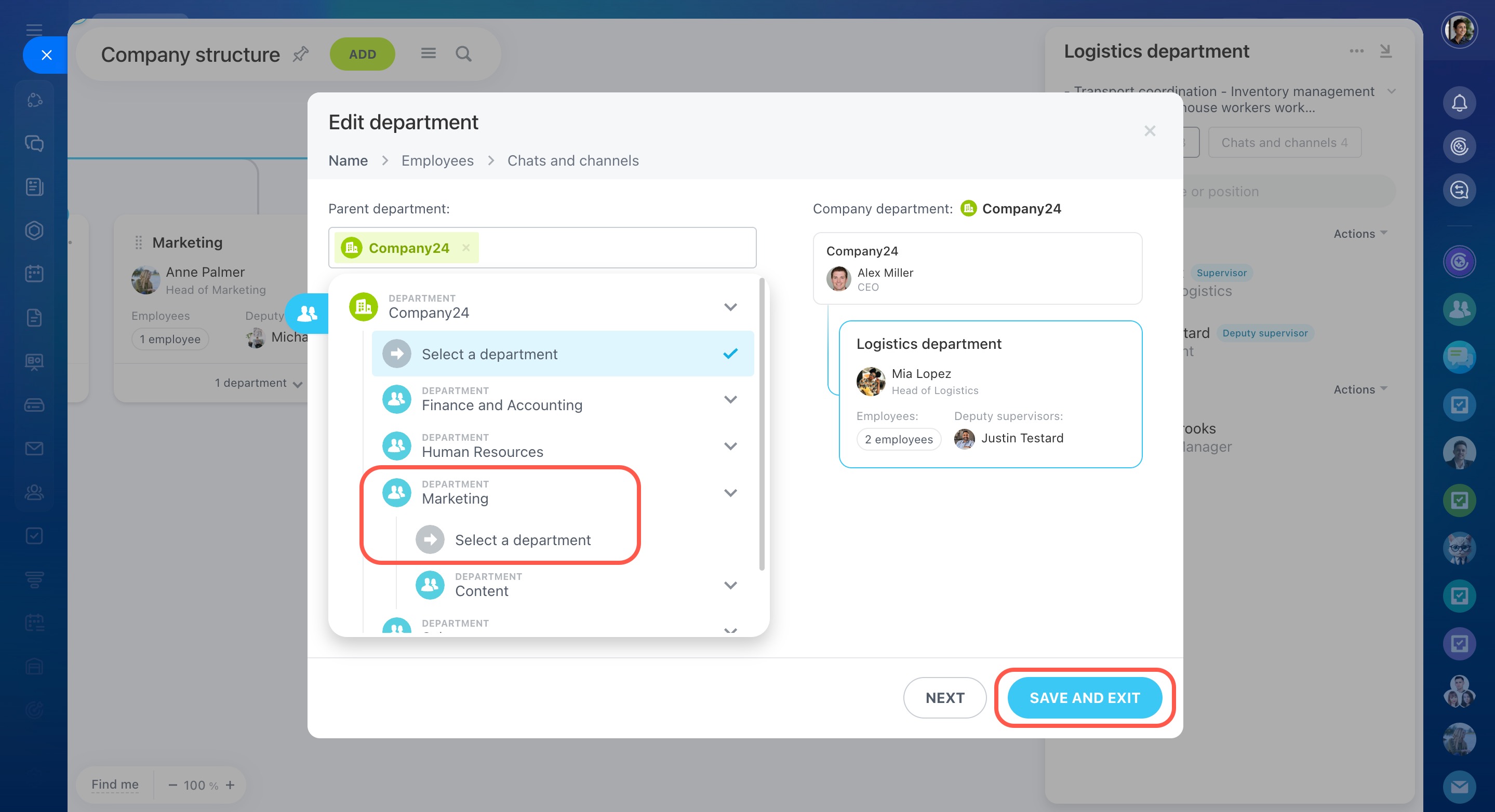
- Choose a new department.
- Click Save and exit.
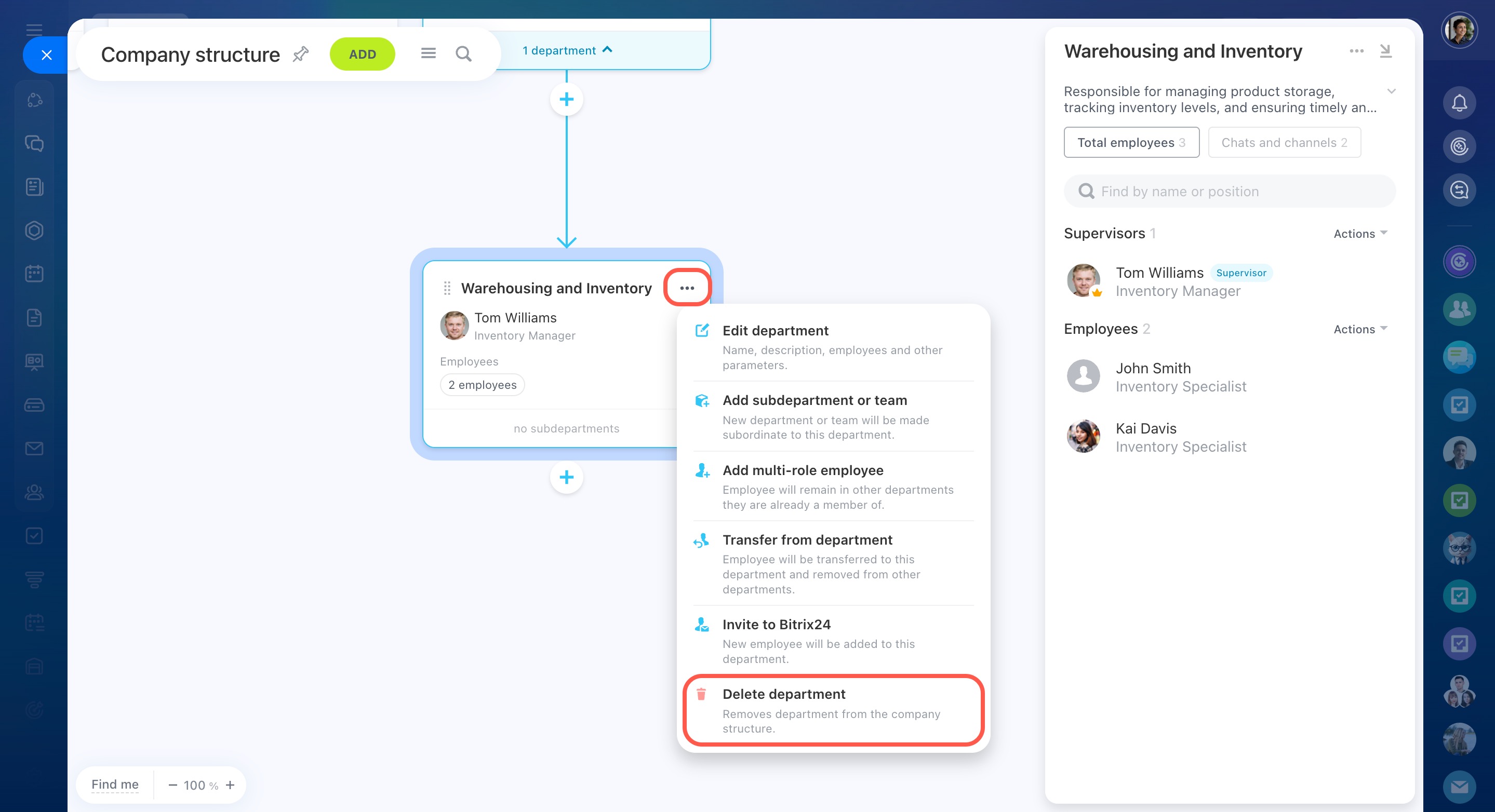
Delete departments. Click the three-dot menu (...) and select Delete department.
In brief
- The company structure is made up of departments.
- Each department includes a supervisor, deputy supervisor, and employees.
- Users with permissions can create and manage departments.
- To create a department, add details and assign roles.
- You can update or delete departments at any time.