
Employees in different departments often follow different work schedules. Set up schedules to track and manage employee work time more effectively.
Go to the Employees section > Time and reports tab > Work schedules.
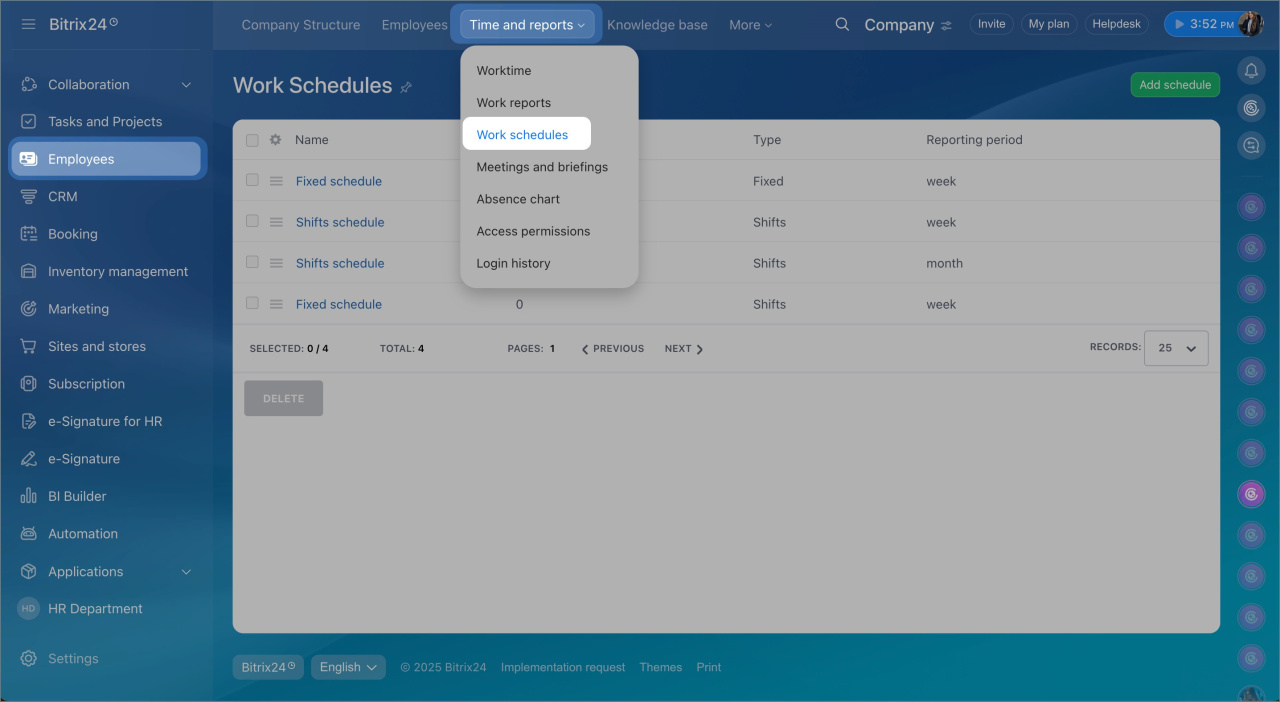
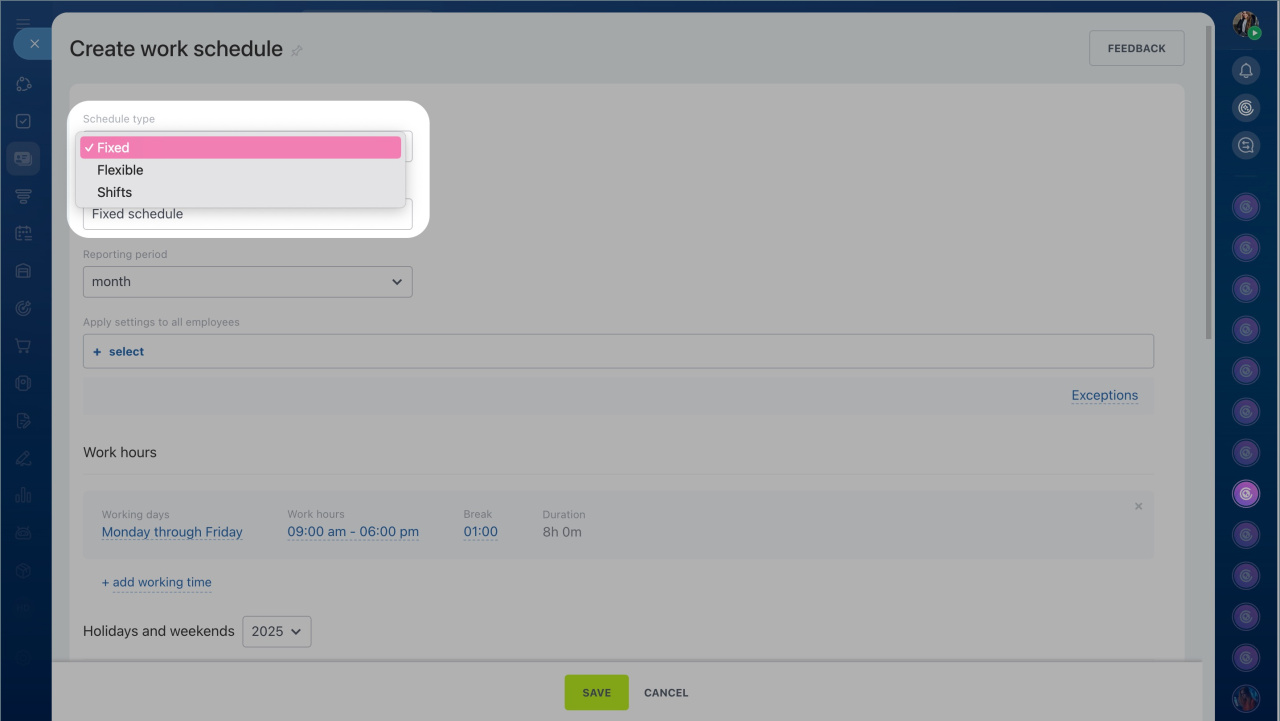
Bitrix24 supports three schedule types:
- Fixed
- Flexible
- Shifts
Fixed schedule
Use a fixed schedule to strictly control working hours and track violations. This option works well if pay depends on actual hours worked.
To set it up:
- Select Fixed as the schedule type.
- Enter a schedule name or keep the default.
- Choose a reporting period: week, two weeks, month, or quarter.
- Select employees or departments. To exclude specific employees, add them to exceptions.
- Set working days, hours, and break duration. The total time is calculated automatically.
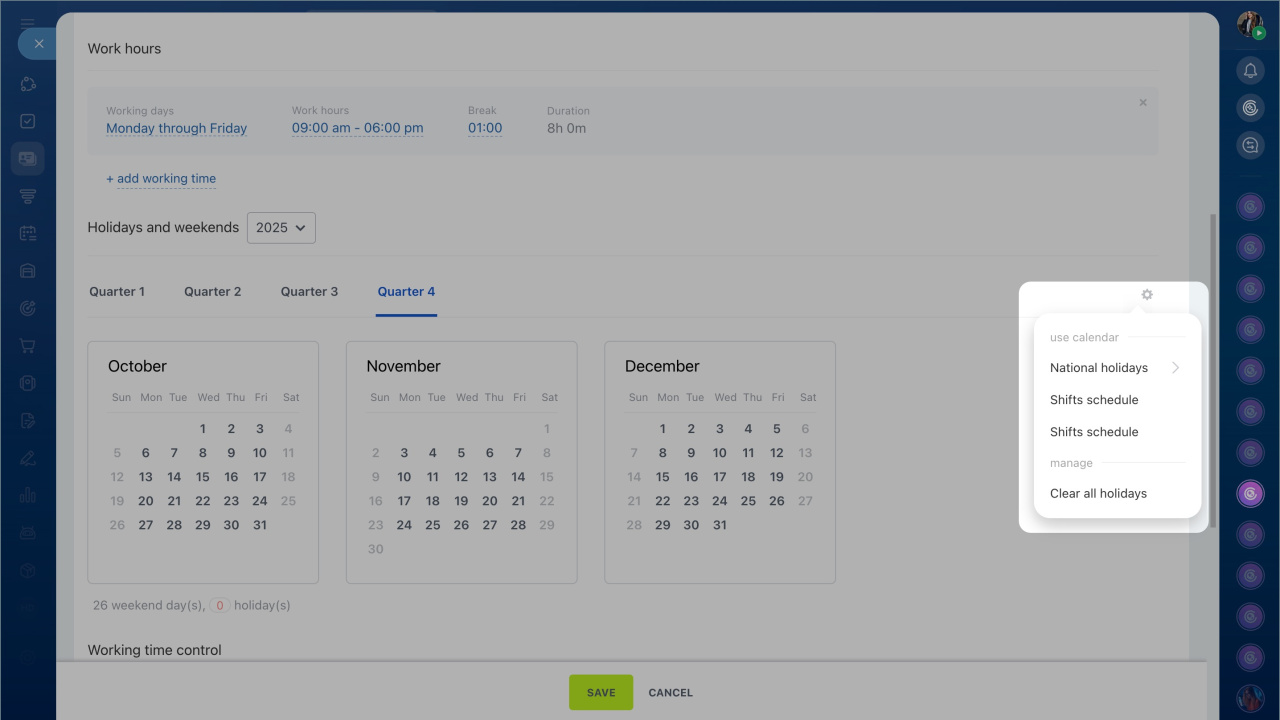
- Define weekends and holidays. Use the gear icon to select a country or add custom days off.
- Configure additional work time rules if needed.
Working time control and restrictions
Flexible schedule
A flexible schedule lets employees clock in and out at any time. A workday can exceed 24 hours.
To set it up:
- Select Flexible as the schedule type.
- Enter a schedule name or keep the default.
- Choose a reporting period.
- Select employees. Add exceptions if needed.
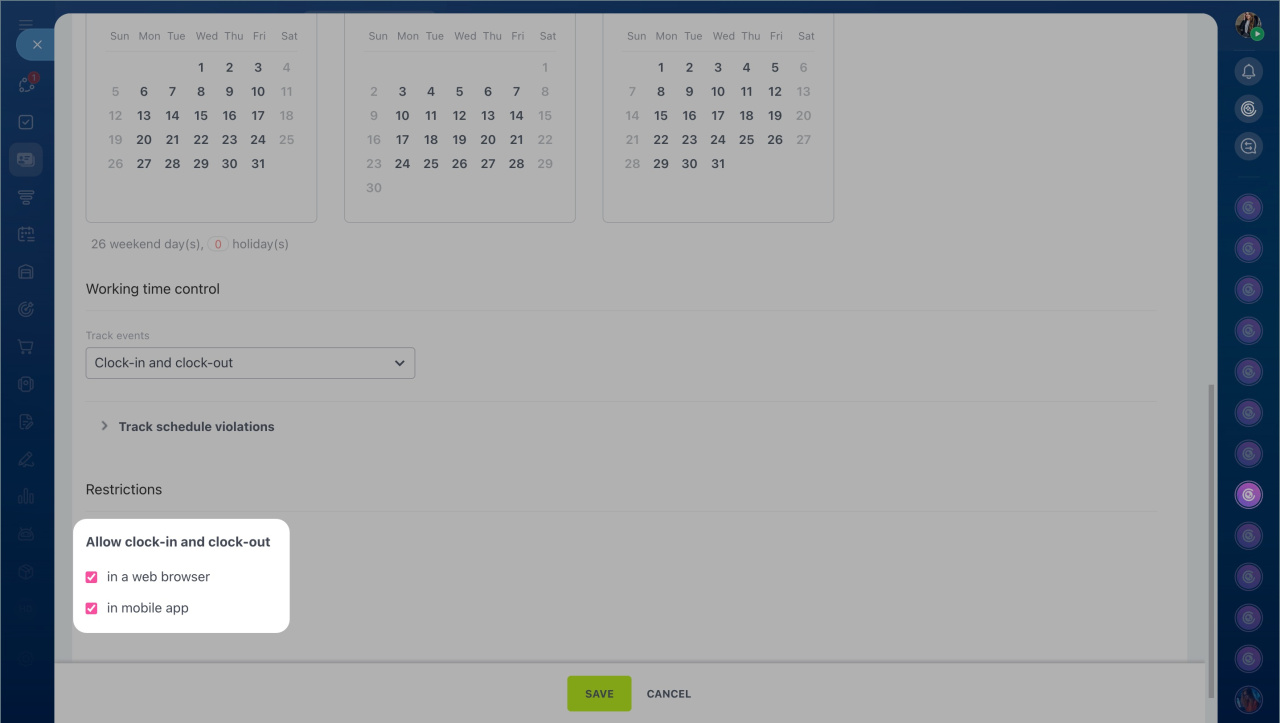
- Choose which devices employees can use to clock in and out in the Allow clock-in and clock-out section.
Shifts schedule
Use a shifts schedule to assign employees to rotating shifts. Each shift defines when the workday starts and ends.
To set it up:
- Select Shifts as the schedule type.
- Enter a schedule name or keep the default.
- Choose a reporting period.
- Select employees or departments. Add exceptions if needed.
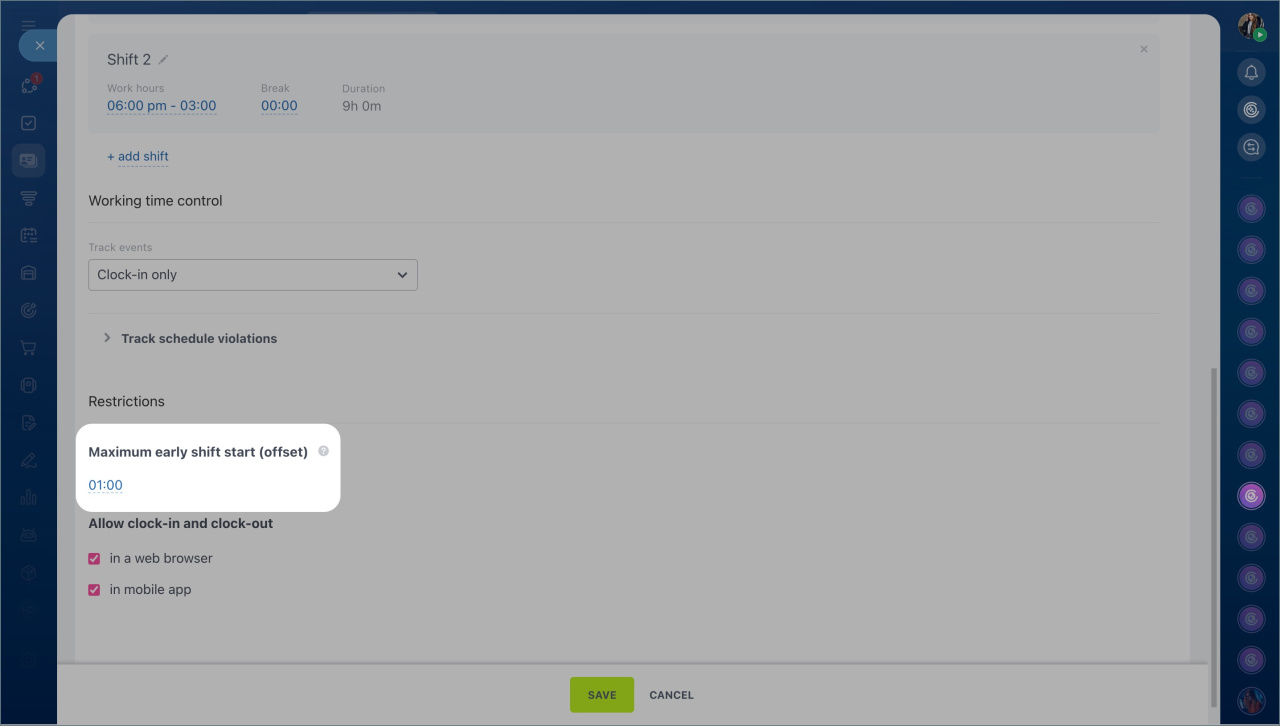
- Set the Maximum early shift start (offset).
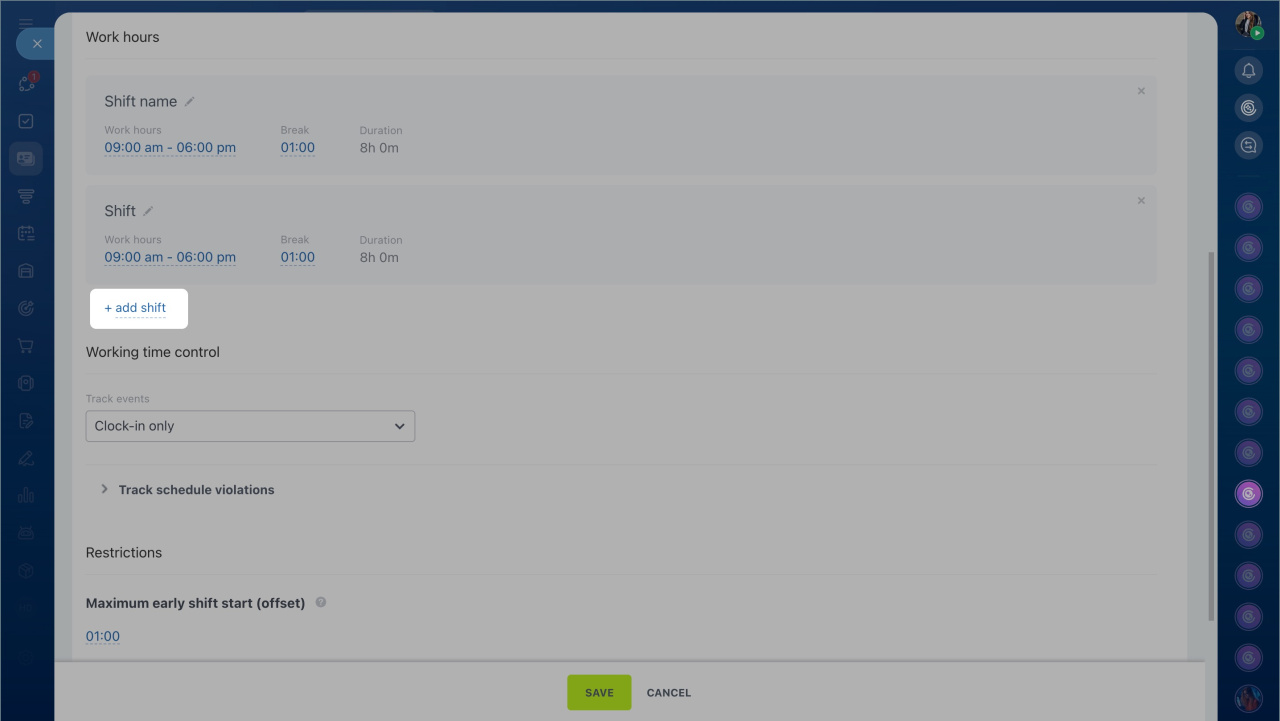
- In Work hours, click Add shift and define working hours and breaks.
- Save the schedule and assign shifts.
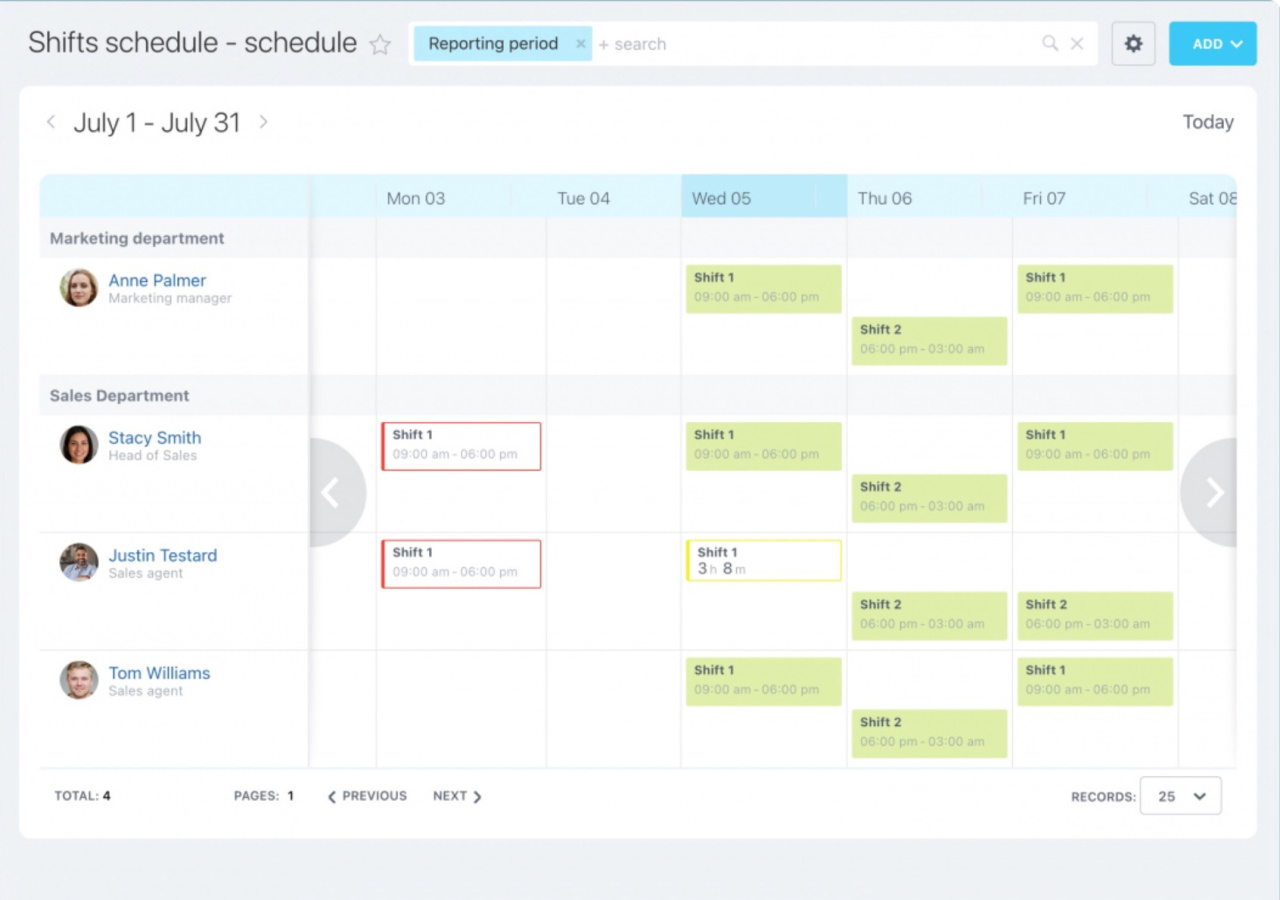
Shift colors
Green marks upcoming shifts.
Red means the employee missed the shift.
Yellow means the employee clocked in before the shift started. A supervisor must approve the change. Otherwise, this time is not counted.
In brief:
- Create work schedules to manage employee time.
- Go to the Employees section > Time and reports tab > Work schedules.
- Choose from fixed, flexible, or shift-based schedules depending on your needs.