
You can work with documents in Bitrix24 in several ways.
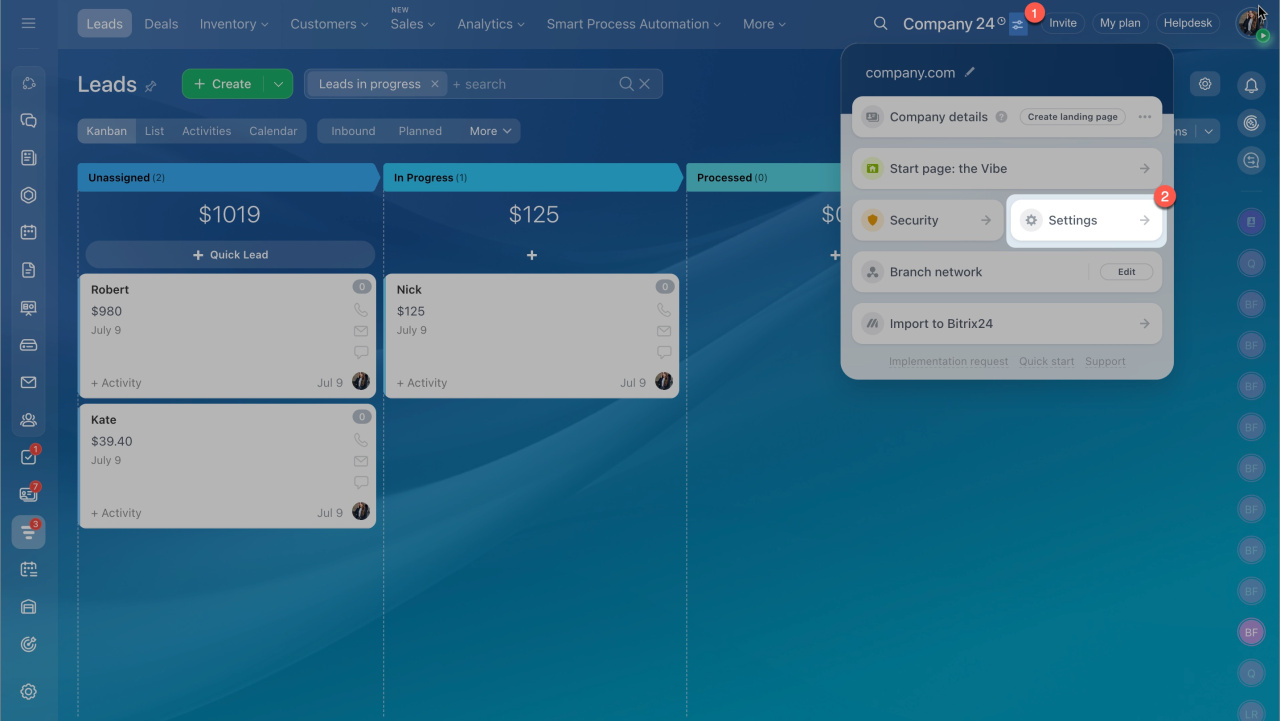
- Go to Account Settings.
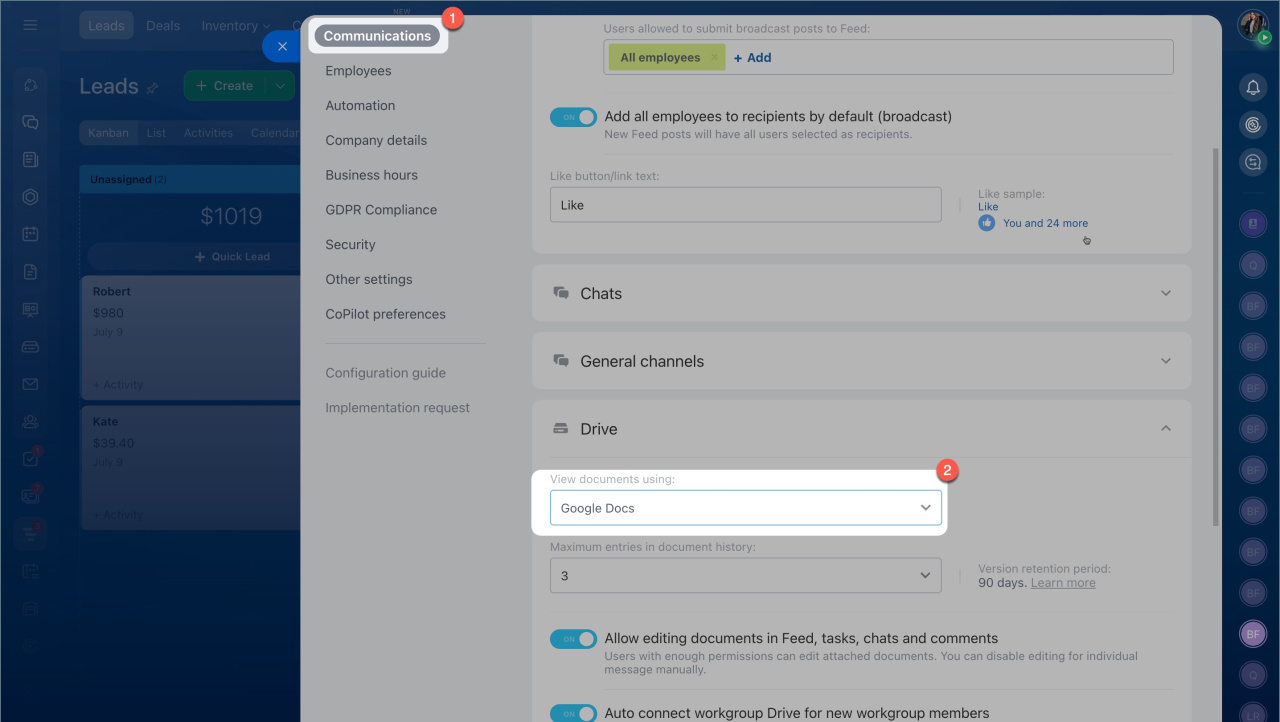
- Open Communications.
- Expand the Drive section.
- Choose a service to view your documents:
- Office 365
- Google Docs
- Google Viewer
After you select a service, Bitrix24 uses it to open all files and enable collaboration.
Open files in desktop apps or in the cloud
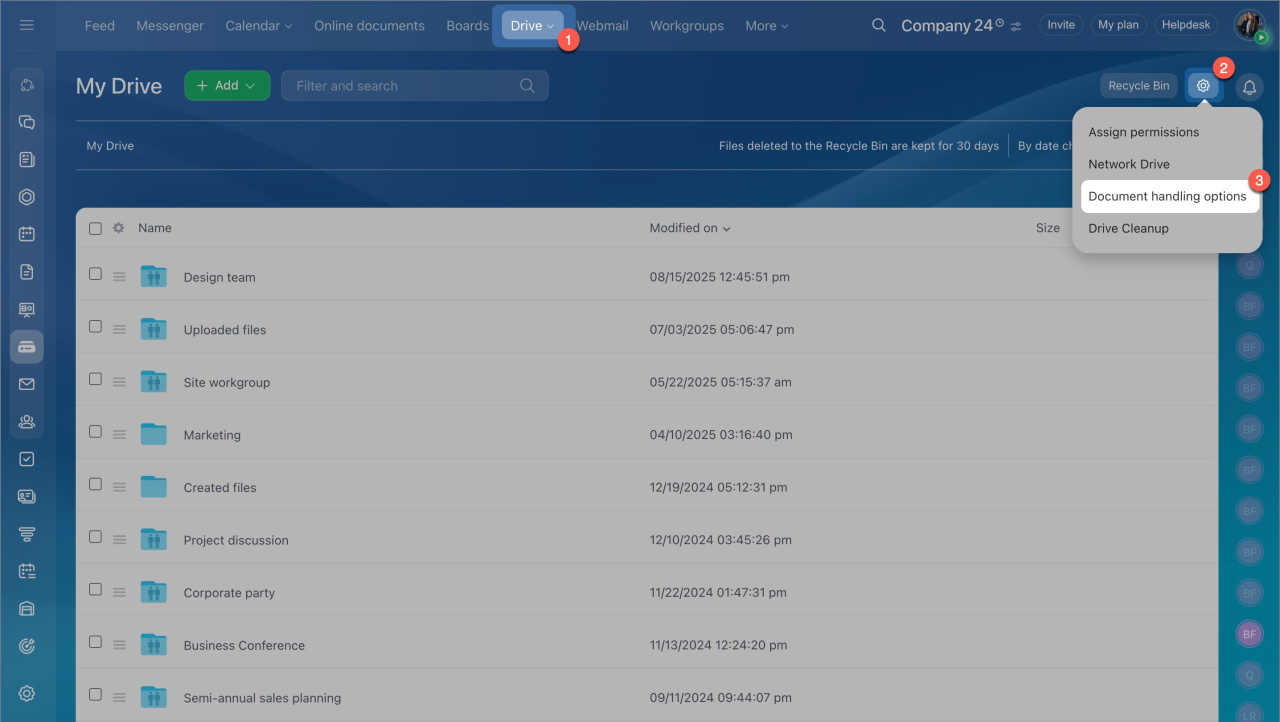
- Go to the Drive section.
- Click the settings icon.
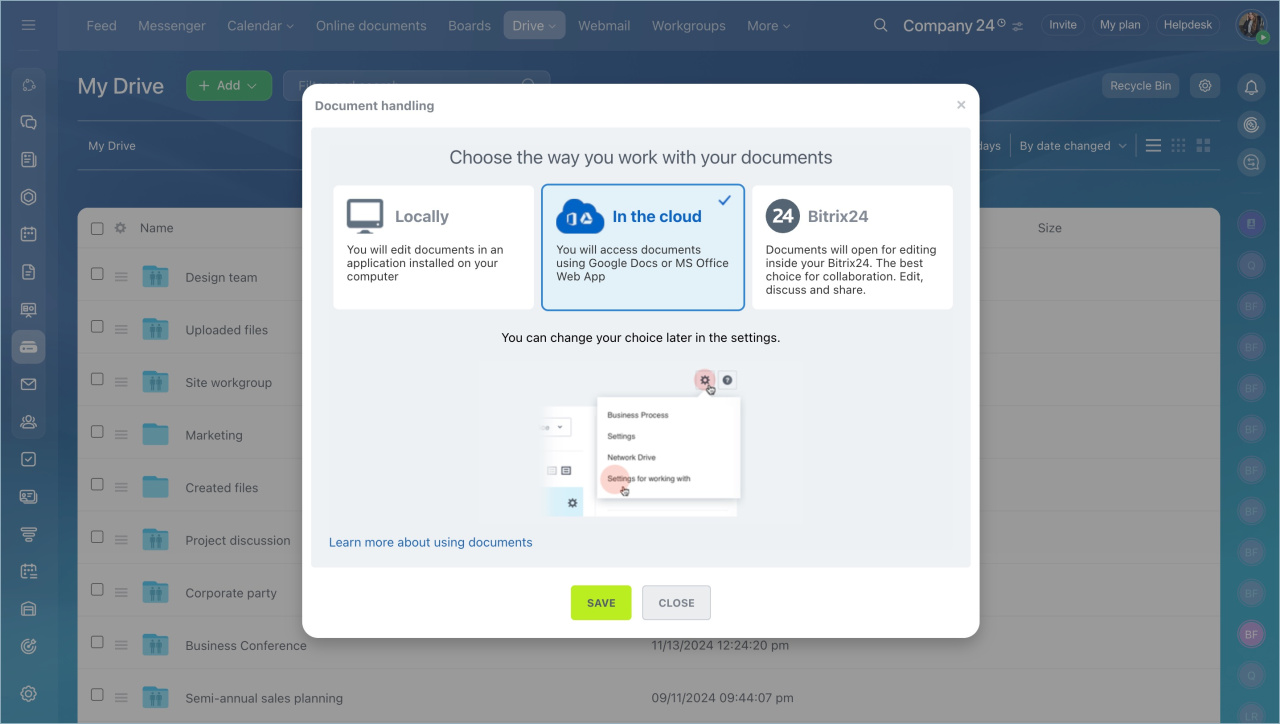
- Select Document handling options.
- Choose how you want to work with your documents.
To use the best option for editing and accessing documents from your computer, install Bitrix24 Messenger and synchronize Bitrix24 Drive with your computer.
Click a file in Bitrix24 to open it in an app installed on your computer. Files opened this way are not saved to your computer.
To save a file:
- Click Download or Save to Bitrix24 Drive.
- If Bitrix24 Drive sync is enabled, the file is automatically saved to the Bitrix24 folder on your computer.
Edit documents online or locally
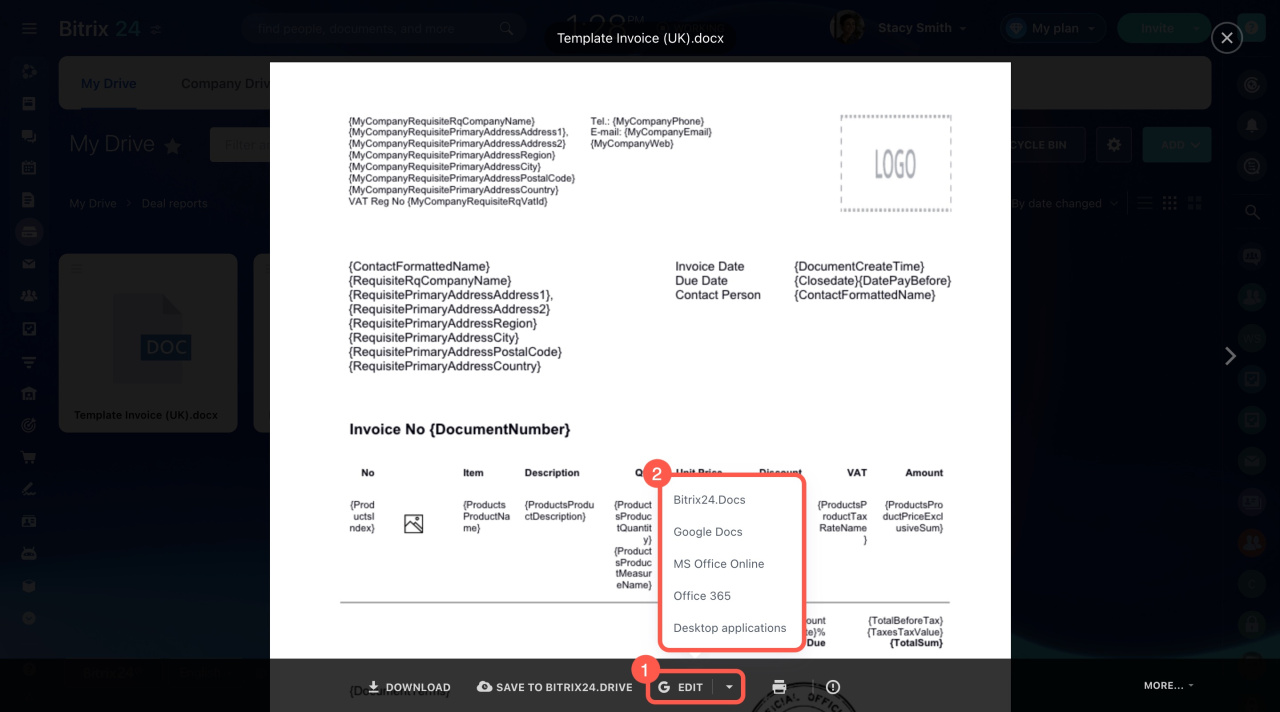
You can edit documents using Google Docs, Office 365, MS Office Online, or local apps. When you open a file preview, use the options in the bottom panel to choose how to edit it.
Sign in to the selected online editor once. The system remembers your account.
In brief
- Go to Account Settings > Communications > Drive.
- Select a service to view your documents. Bitrix24 uses it to open files and enable collaboration.
- Click a file to open it in a desktop app. Files opened this way are not saved to your computer.