Two-factor authentication adds an extra layer of security to your Bitrix24 account. When you log in, you enter your password and verify your identity using one additional method: the Bitrix24 mobile app, SMS, or a recovery code.
This article answers common questions about two-factor authentication.
- How to add a phone number if you skipped that step during setup
- Why some employees do not see the two-factor authentication banner
- Why you cannot close the two-factor authentication banner
- What to do if you do not receive a push notification when logging in to Bitrix24
- What to do if you cannot confirm login in the mobile app
- What the "Check your login parameters" banner means
- What the device confirmation banner means
- Why a CAPTCHA appears during login
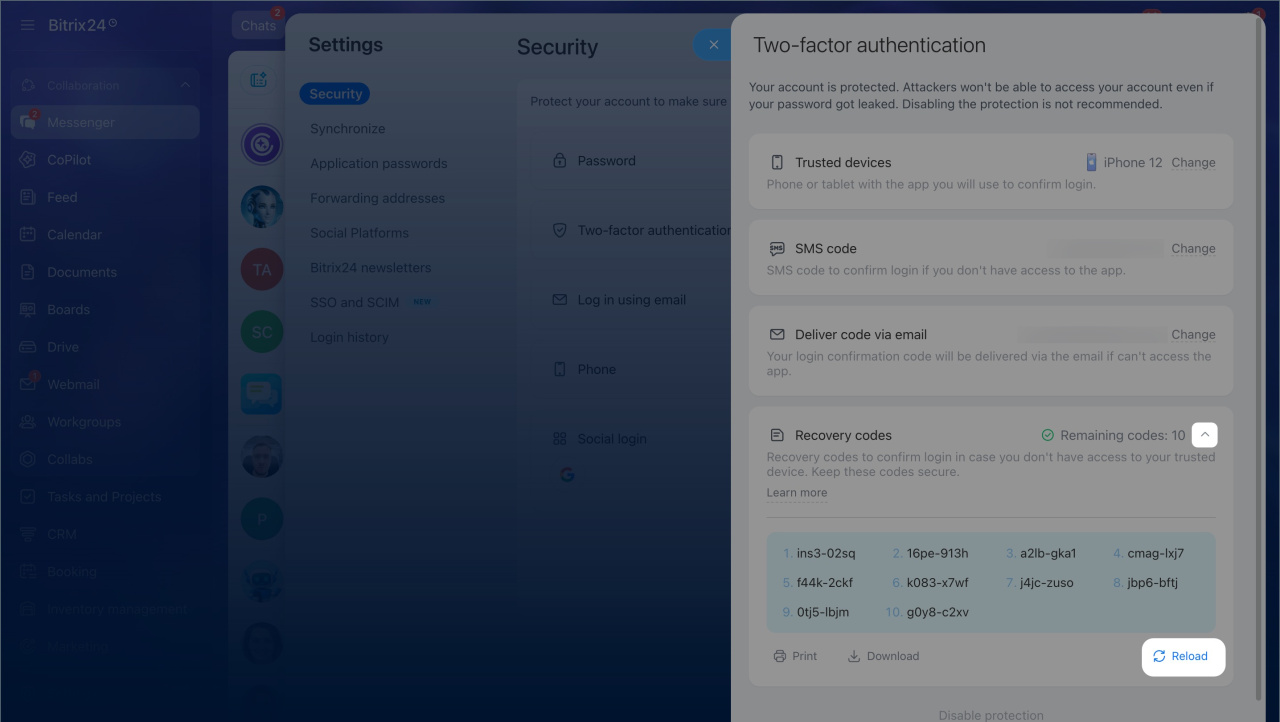
- What to do if you run out of recovery codes
How to add a phone number if you skipped that step during setup
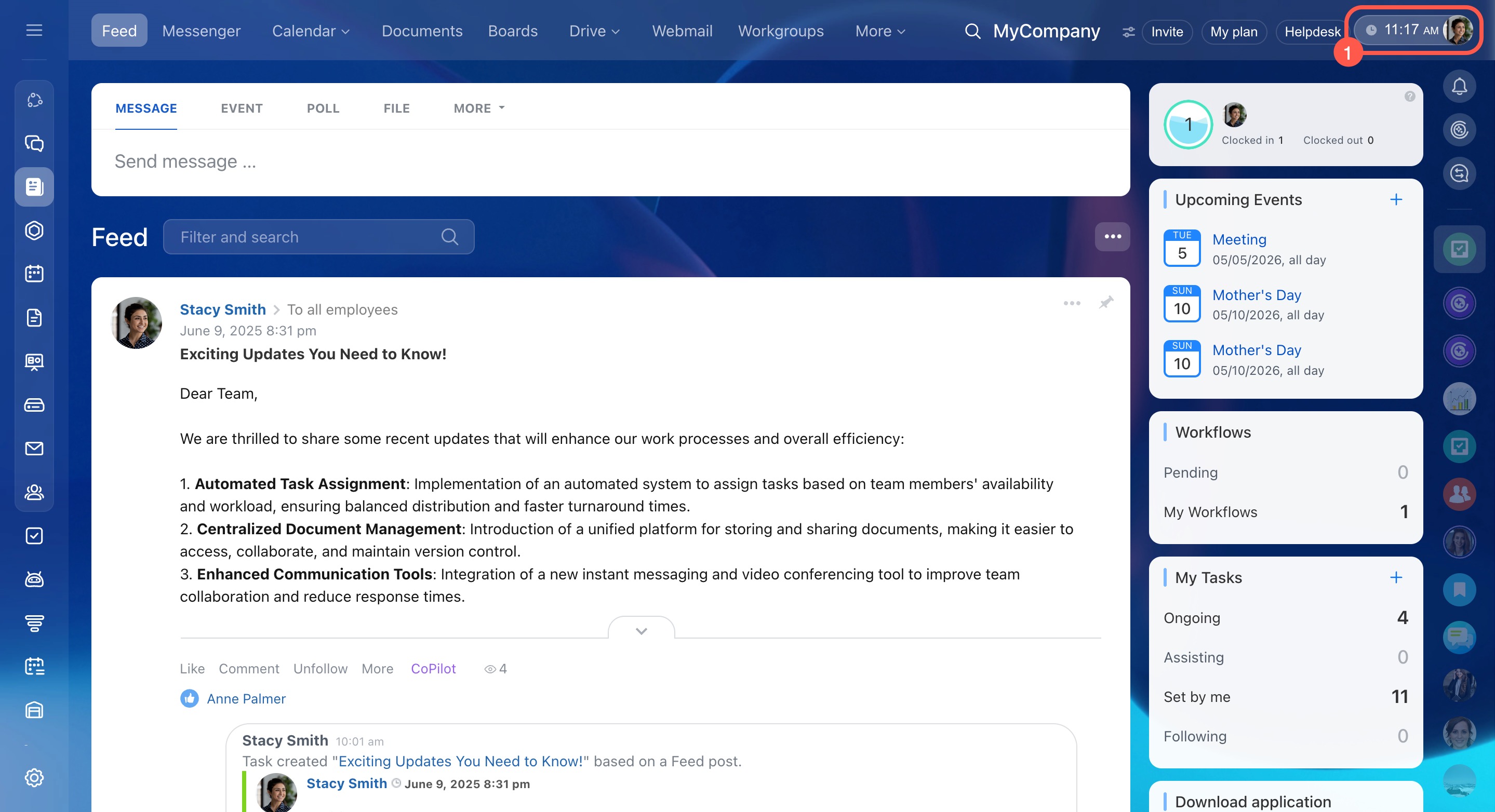
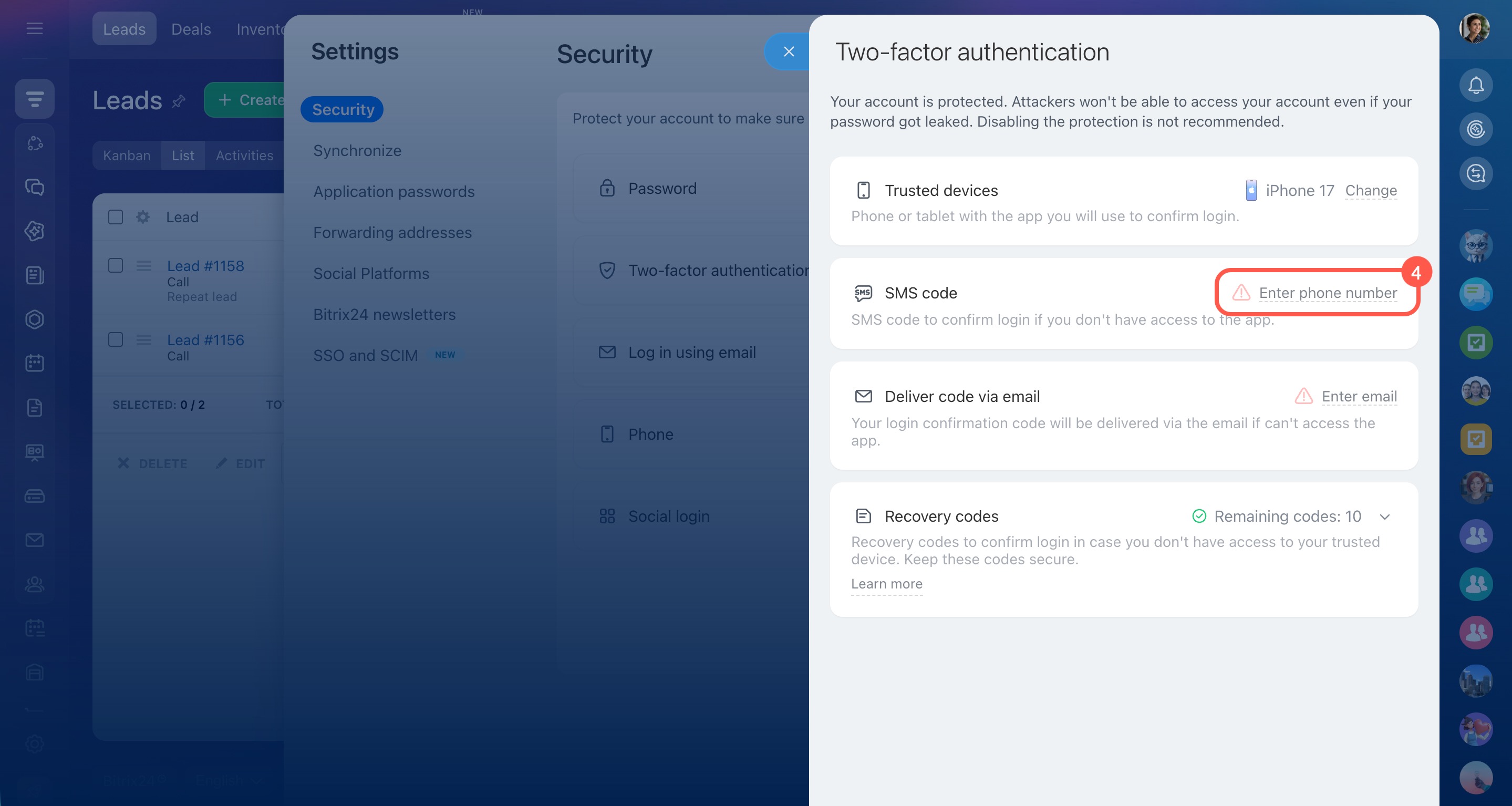
- Open the employee widget. Click your photo in the top-right corner.
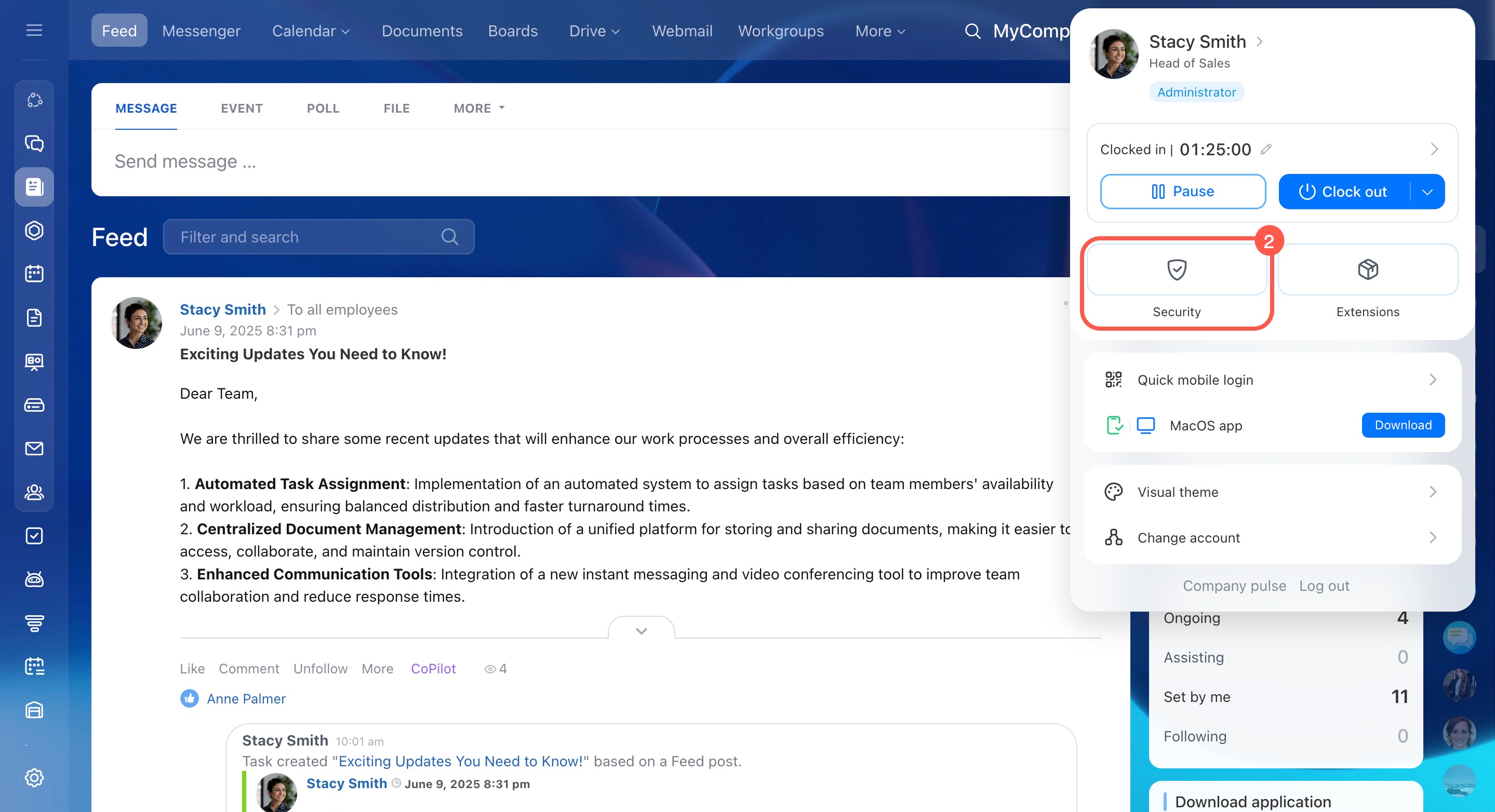
- Select Security.
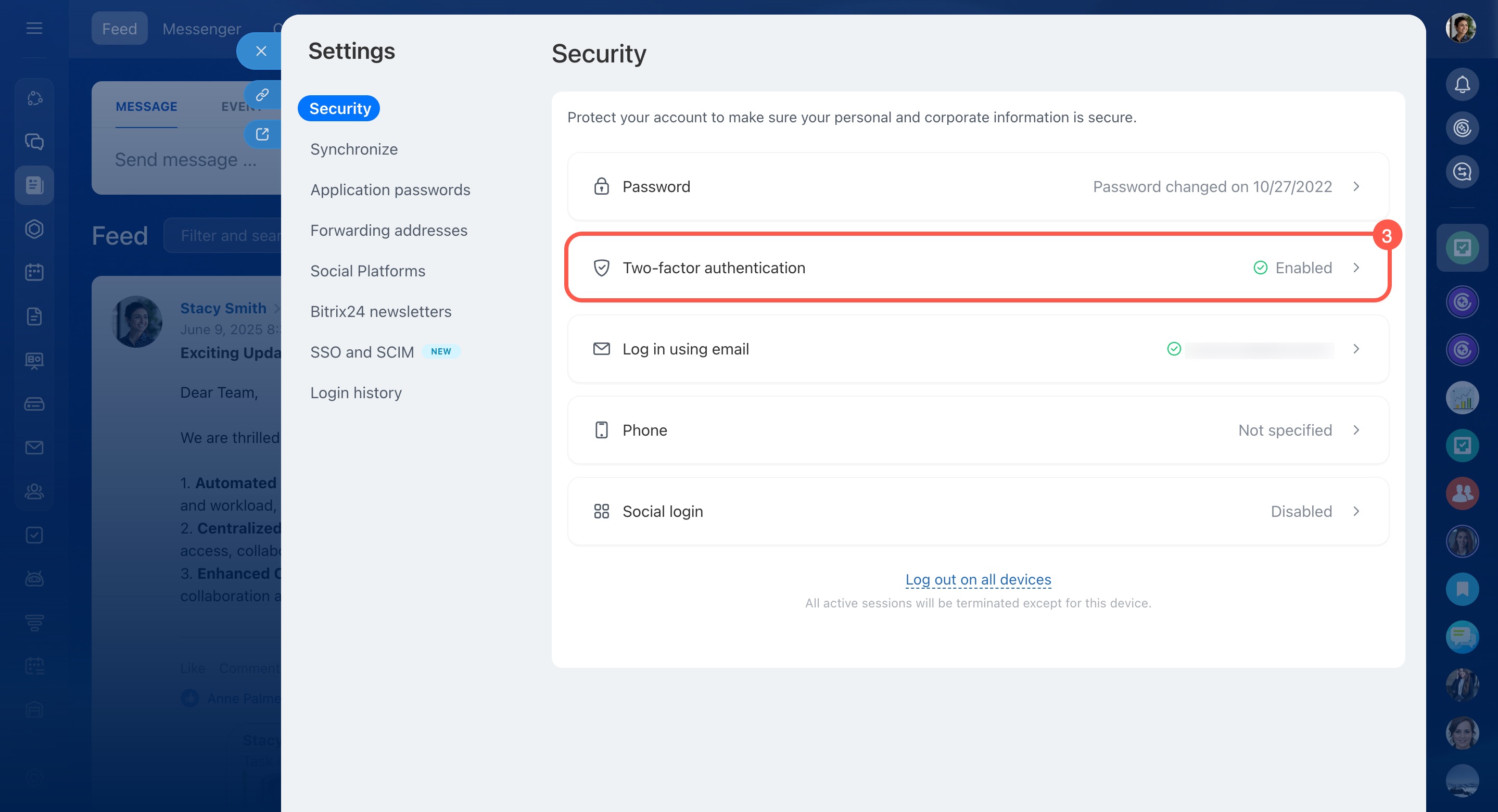
- Open the Two-factor authentication section.
- In the SMS code block, click Enter phone number.
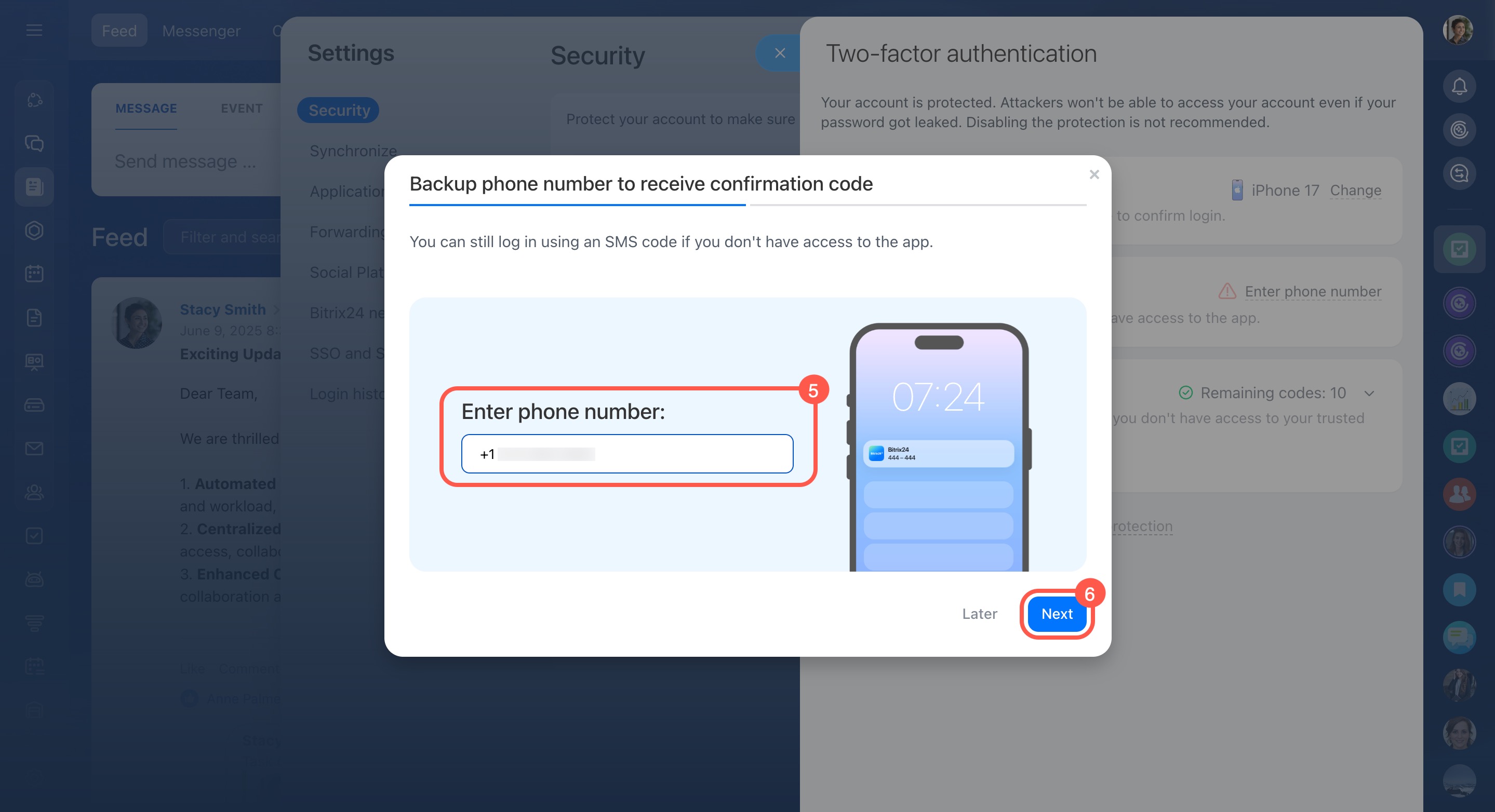
- Enter your phone number.
- Click Next.
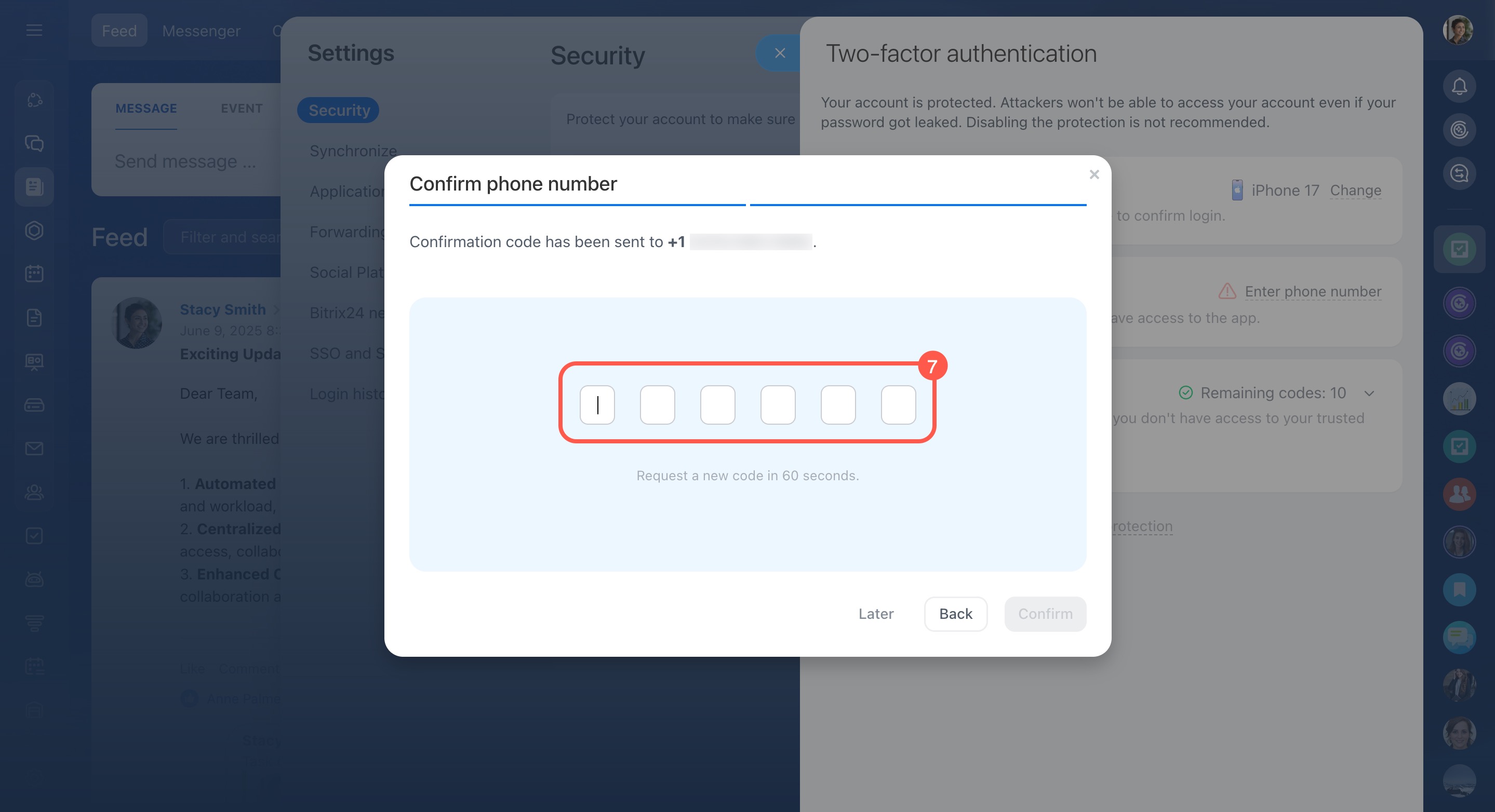
- Enter the code from the SMS sent to your phone. If the code is correct, Bitrix24 links the number automatically.
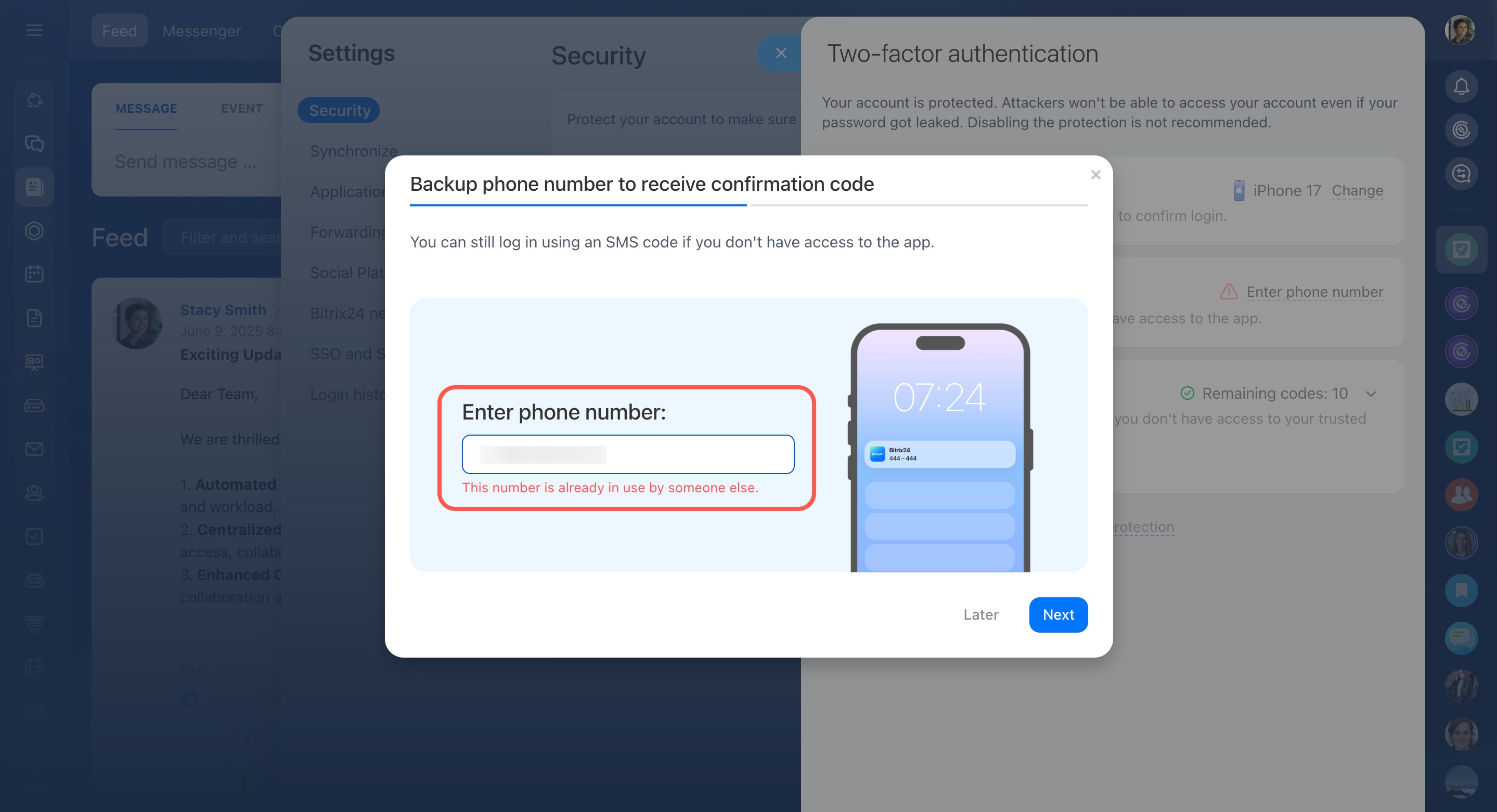
If the phone number is already in use, for example if it was assigned to a former employee, ask your Bitrix24 administrator to remove it. Then try again.
Why some employees do not see the two-factor authentication banner
The banner does not appear if:
- You are not in a workgroup where the administrator enabled required two-factor authentication.
- You already set up two-factor authentication.
- The banner has already appeared today. It will show again the next day.
Why you cannot close the two-factor authentication banner
You cannot close the banner when the setup deadline set by the administrator has passed.
To remove the banner, you need to enable two-factor authentication. If you cannot do that right now, contact your Bitrix24 administrator. They can extend the deadline or temporarily turn off two-factor authentication.
What to do if you do not receive a push notification when logging in to Bitrix24
A push notification may not arrive because of your device settings or the Bitrix24 app settings. Check the following:
- The Bitrix24 app is installed and updated to the latest version.
- Push notifications are enabled for the app in your device settings.
- Your device is connected to the Internet.
- You did not log out of Bitrix24 on all devices. If you did, reconnect the trusted device.
If none of these steps help, use another login method: SMS, a verification code, or a recovery code.
On the login page, click Other login methods.
Log in to Bitrix24 without the mobile app
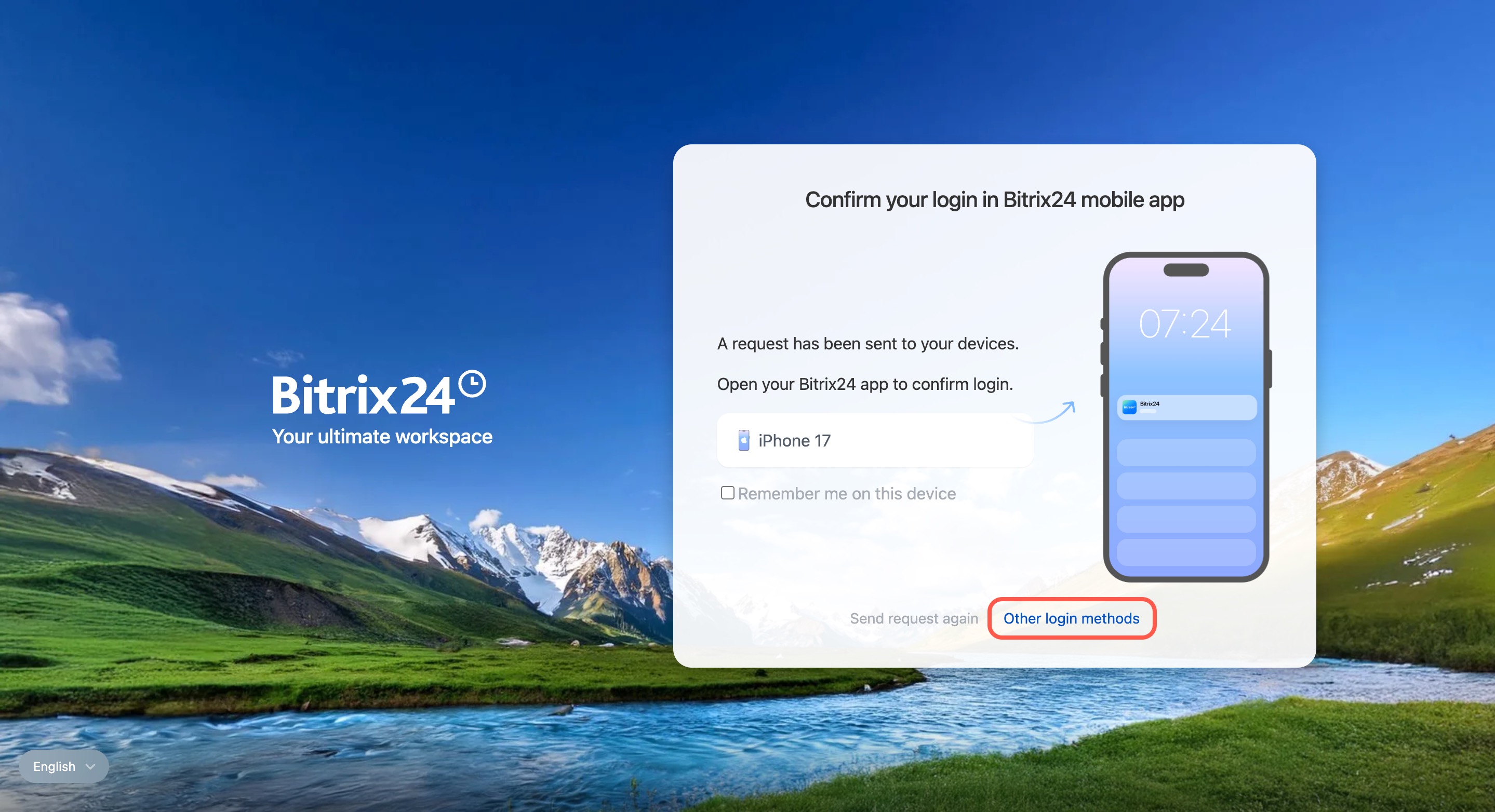
What to do if you cannot confirm login in the mobile app
If you cannot open the mobile app or lost your device, click Other login methods and choose one of these options:
- SMS. Use this option if you still have access to the phone number linked to your Bitrix24 account.
Confirm login to Bitrix24 using SMS - Recovery code. These codes are created when you set up two-factor authentication. If you saved them, enter one of them.
Confirm login to Bitrix24 using a recovery code - Ask your administrator to temporarily disable two-factor authentication.
Temporarily disable two-factor authentication
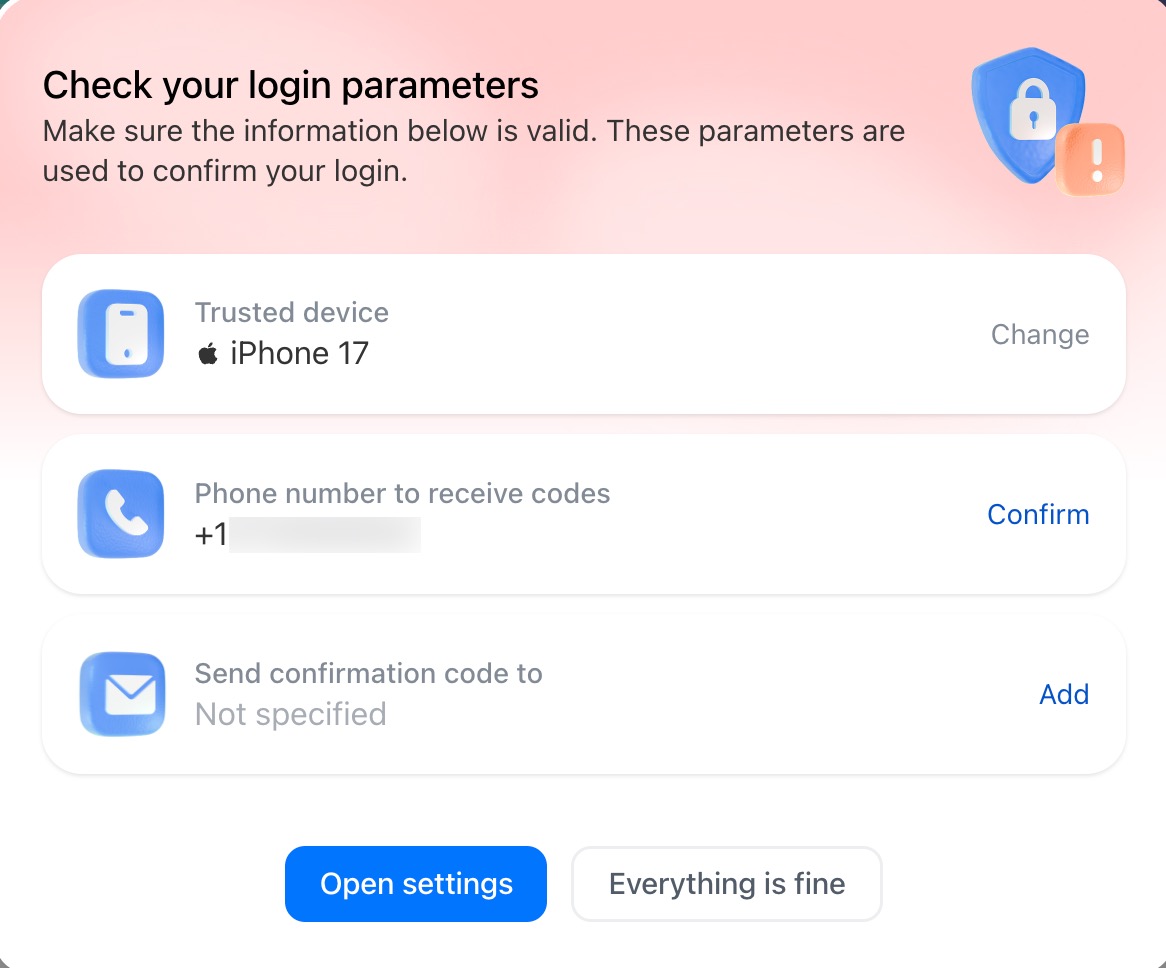
What the "Check your login parameters" banner means
This banner appears every 180 days. It asks you to confirm that your trusted device details and linked phone number are still correct.
- If the information is correct, click Everything is fine.
- If your phone number changed, click Change or Open settings.
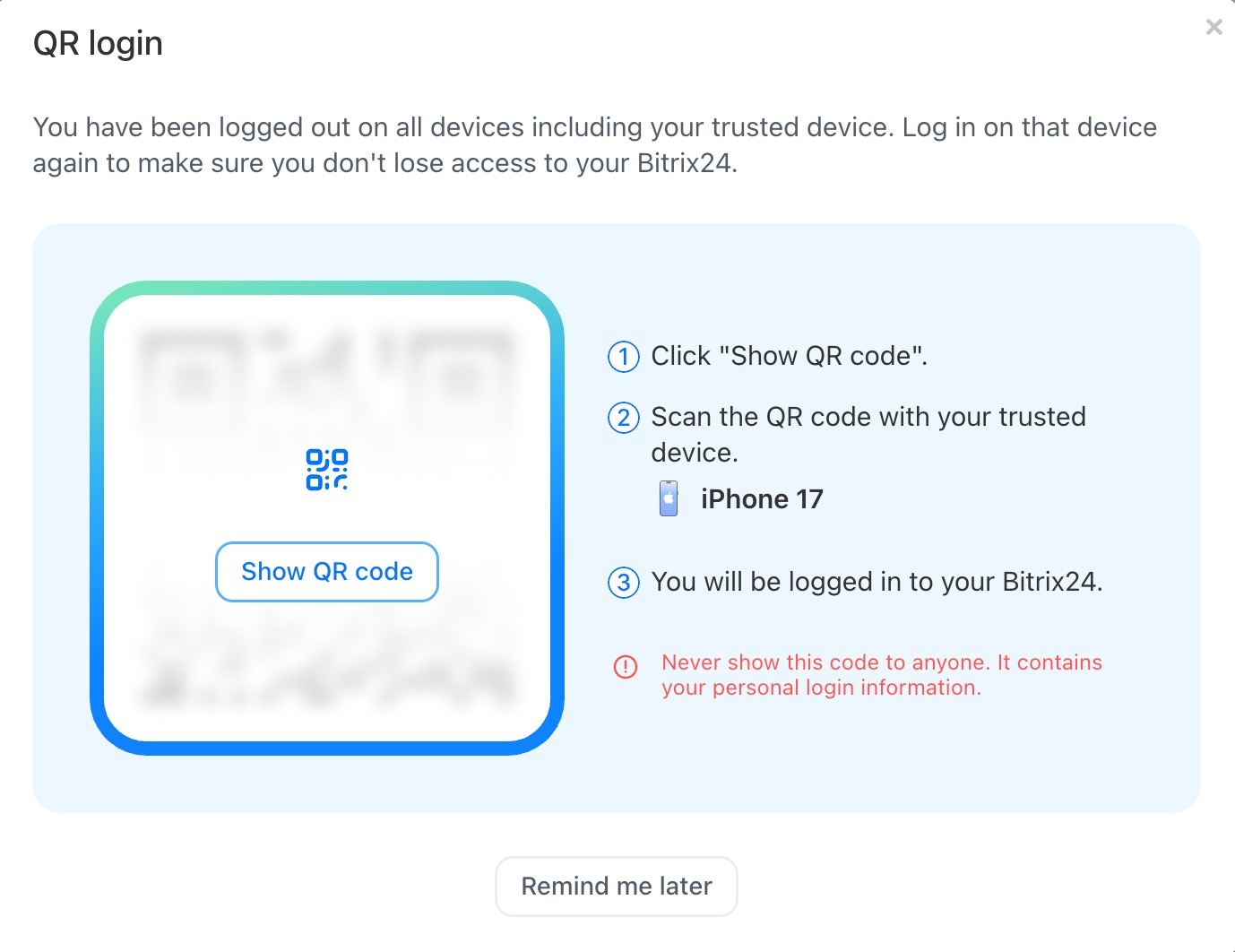
What the device confirmation banner means
A banner with a QR code appears if you logged out of all devices before or changed your password. This disconnects the trusted device.
Click Show QR code and scan it in the Bitrix24 mobile app. If you cannot do that now, click Remind me later. The banner will appear again the next day.
How to update the recovery codes
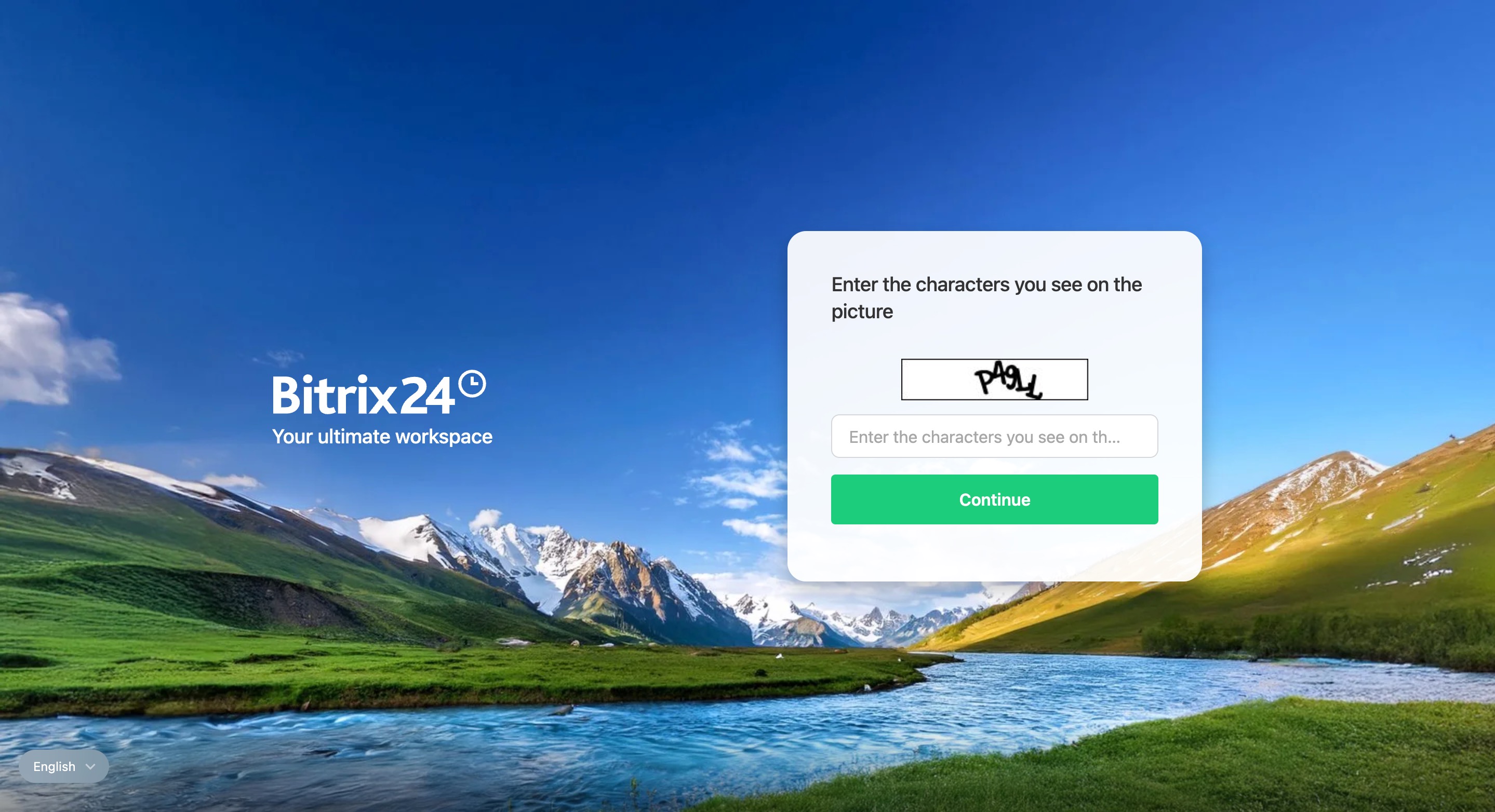
Why a CAPTCHA appears during login
A CAPTCHA appears if you enter the wrong recovery code three times in a row when logging in to Bitrix24.
Bitrix24 counts failed login attempts across all devices, including browsers and the desktop app. As a result, a CAPTCHA may appear even if an incorrect recovery code was entered on another device.
If you cannot log in using a recovery code, try another method: SMS or a verification code.
Log in to Bitrix24 without the mobile app
What to do if you run out of recovery codes
Log in to Bitrix24 using any available method: a push notification, SMS, or a verification code.
- Open the employee widget. Click your photo in the top-right corner.
- Click Security.
- Select Two-factor authentication.
- Click the arrow in the Recovery codes block.
- Click Reload. All old codes, including unused ones, no longer work. Print or save the new codes.