The Feed is where your company shares updates, news, and team communication. As activity grows, more posts appear. That can make it harder to find what you need and keep up with important updates.
Use search and filters to find posts faster. You can also manage individual posts. For example, you can pin a post, save it to Favorites, or share it with coworkers.
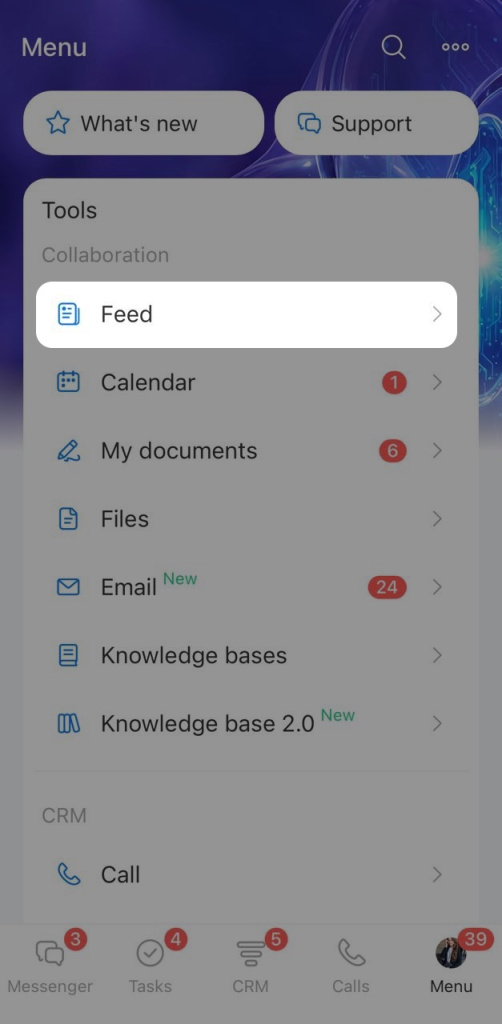
To open the Feed, tap Menu in the bottom navigation bar. Then, under Collaboration, tap Feed.
Find posts in the Feed
If your Feed has a lot of posts, it can be hard to find important information. Instead of scrolling through everything, use:
- Filters to show only the types of posts you need
- Search to find a specific post by keyword.
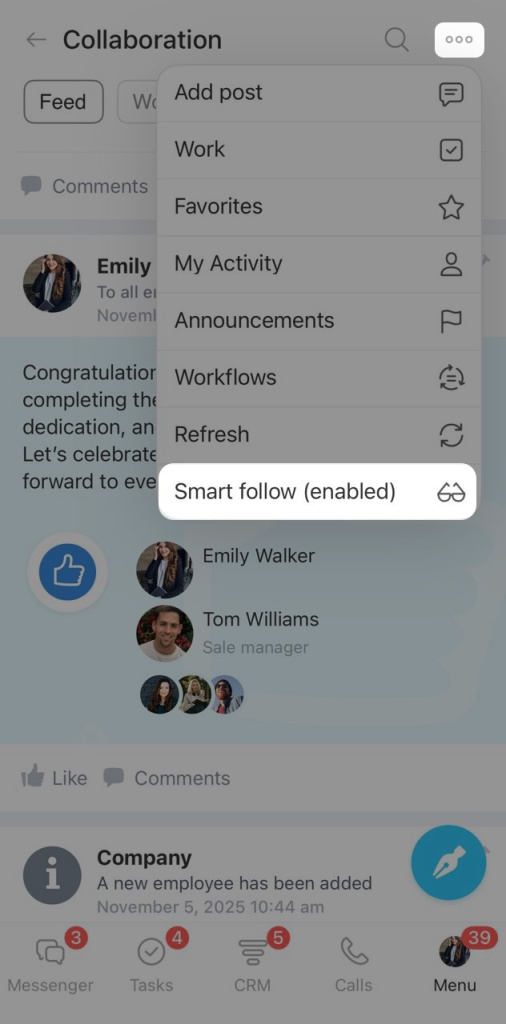
Filters. To open the filter list, tap dots in the top-right corner.
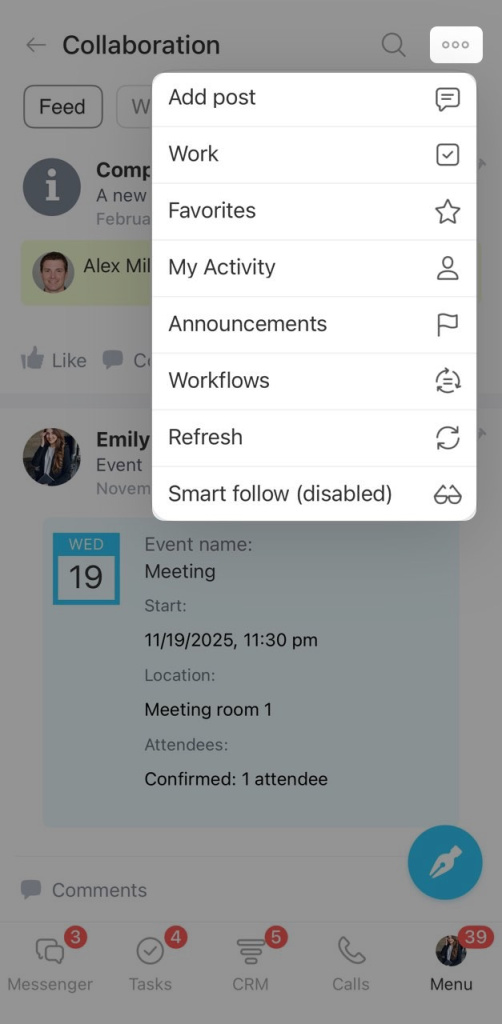
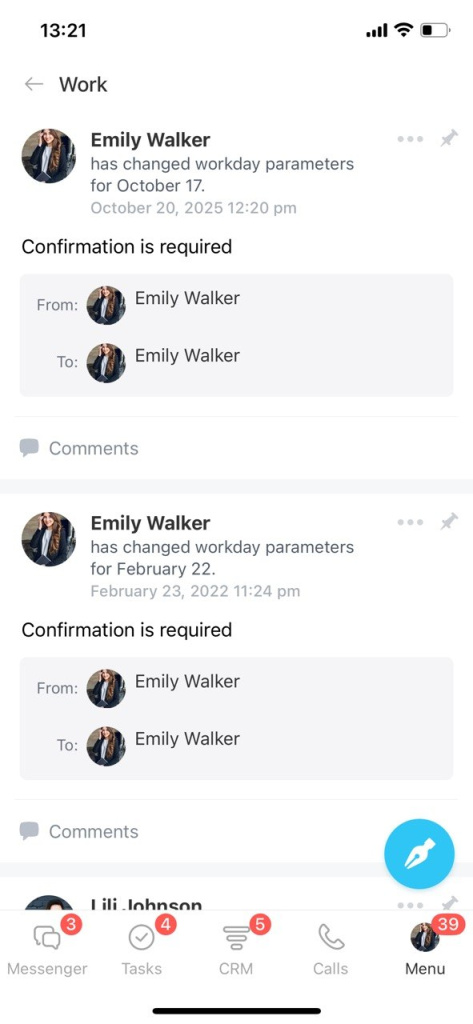
Work —reports and workday confirmation requests. It helps when you need to quickly find a report, approve a workday change, or check whether your manager has approved it.
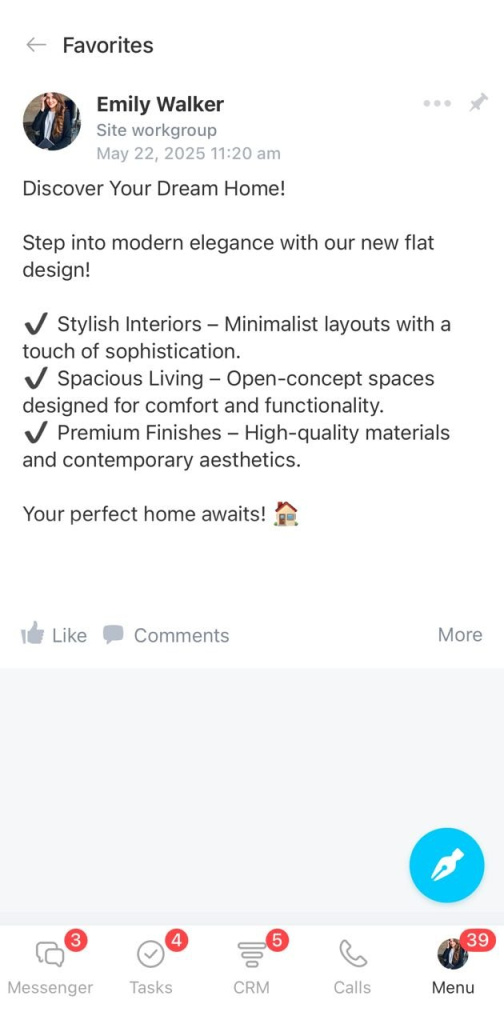
Favorites — posts you saved to Favorites. Use it to return to instructions, important decisions, and other key posts.
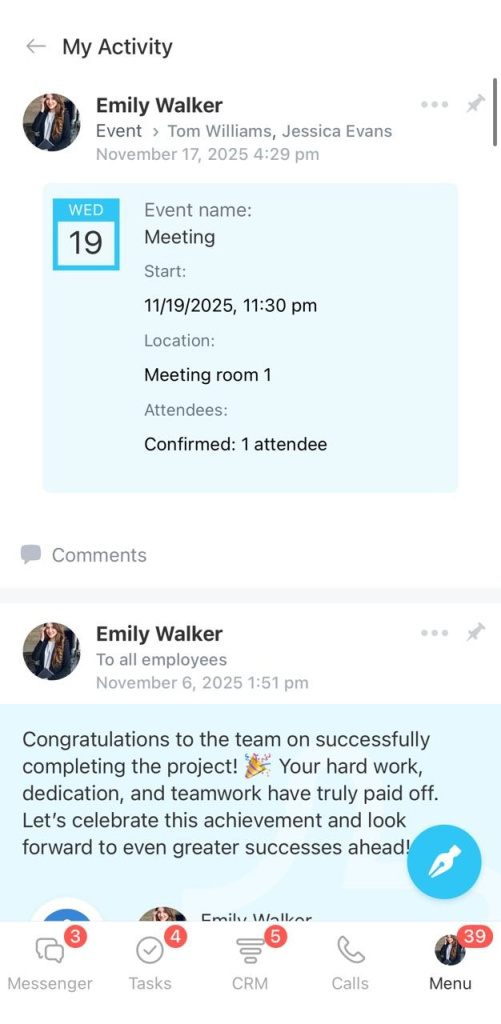
My activity — only the posts you created.
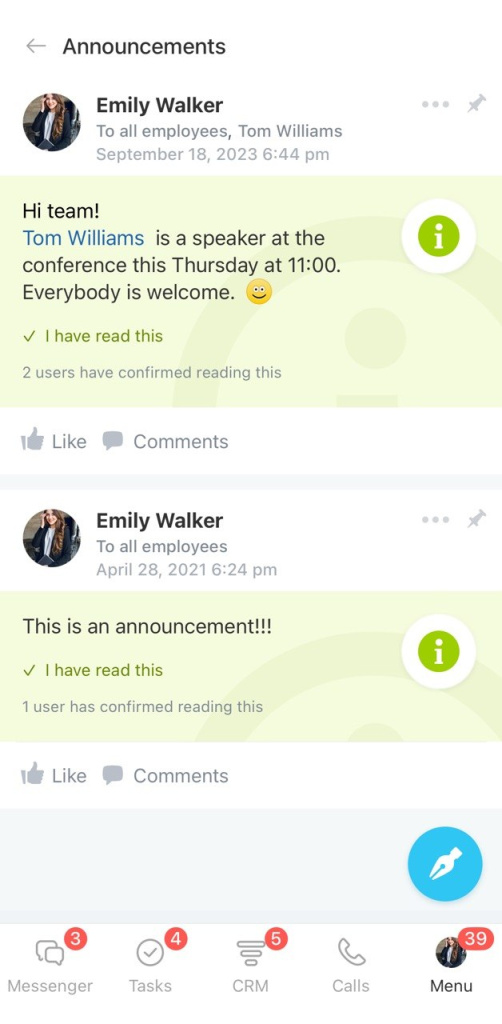
Announcements — posts marked as important. It helps you quickly find key announcements, even if they are buried in the Feed.
Announcements in the Feed: send and track read status
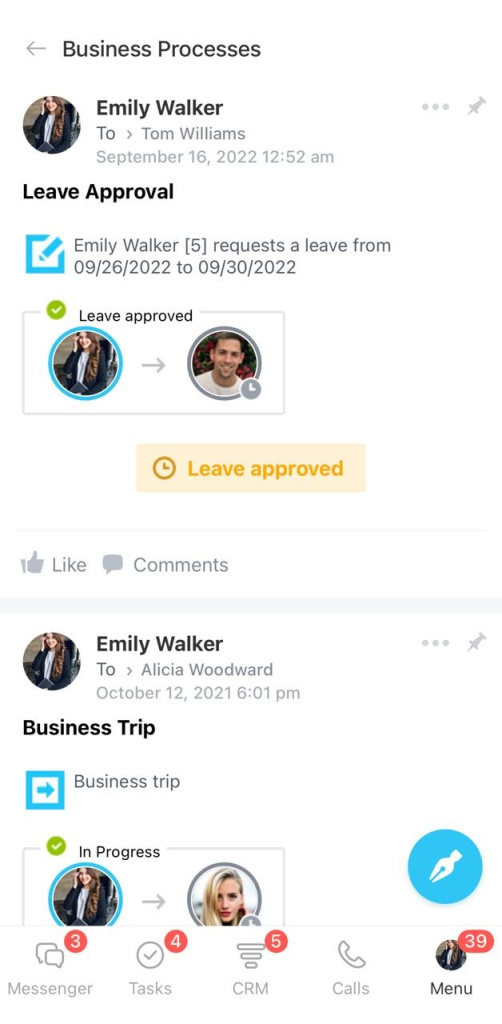
Workflows — vacation requests, business trips, and other items. Use it to track the status of your requests and approve requests sent to you.
Smart Follow — helps you focus on the posts that matter to you. When it is on, posts move to the top only if you wrote the post, the post was sent to you, or someone mentioned you in the post or in a comment. Other posts stay in the Feed, but they do not move up.
To turn off this mode and return to the regular Feed, tap More (...) > Smart Follow (enabled) again.
Search. To find a specific post, tap the search icon in the top-right corner.
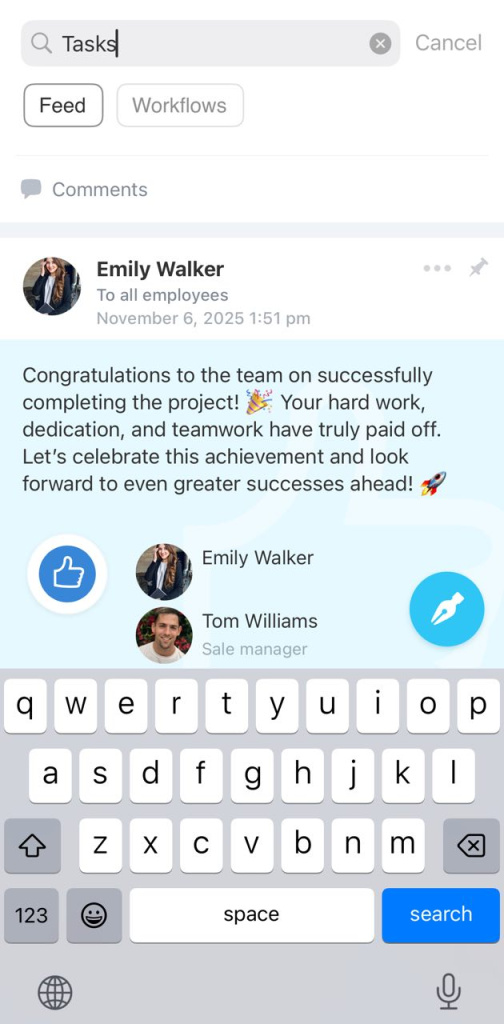
Search looks through post content. Enter a keyword and tap Search. The Feed will show only posts that contain that word.
To close search and return to the full Feed, tap Cancel.
Work with posts in the Feed
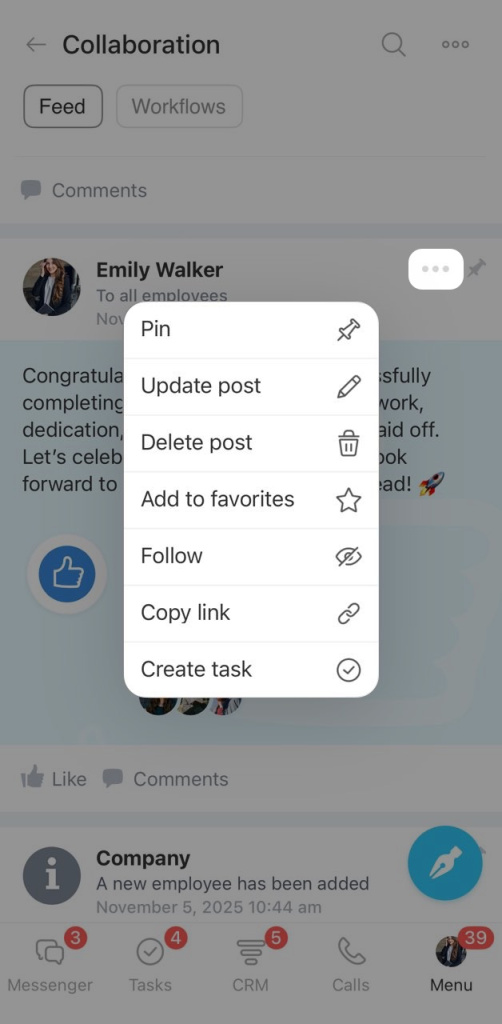
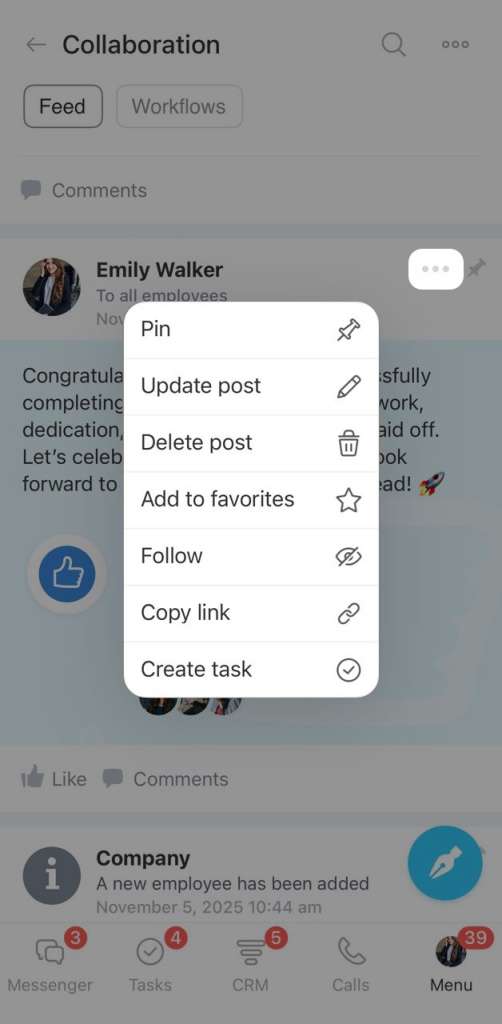
Tap More (...) next to any post to open the action menu.
- Pin — Pin the post to the top of the Feed.
- Update post— Edit the post. Any employee can edit their own posts. A Bitrix24 administrator can edit other users' posts.
- Delete post — Delete the post.
- Add to favorites — Save the post to the Favorites section.
- Follow — Get notifications about new comments on the post. To stop getting notifications, tap More (...) again and select Unfollow.
- Copy link — Copy a link to the post and send it to coworkers in chat.
- Create task — Create a task from the post. This is useful when the post includes work that needs to be done, so you do not need to switch to Tasks and enter the details again.