
An announcement is a special type of Feed post that helps you share information with employees and track who has confirmed reading it. For example, if your company updates a work policy, you may need all employees to read the new rules and confirm they've read them.
Check whether this feature is available on your plan.
Pricing
Write a post
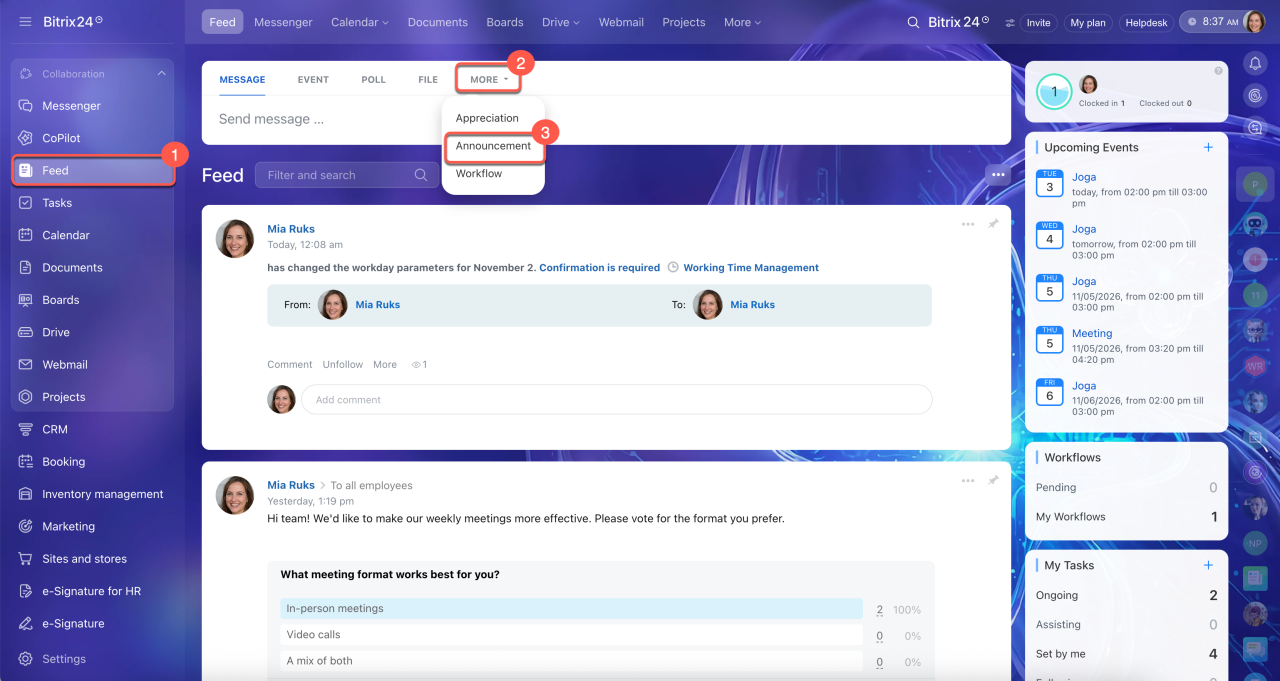
1–3. Go to the Feed section and click More > Announcement.
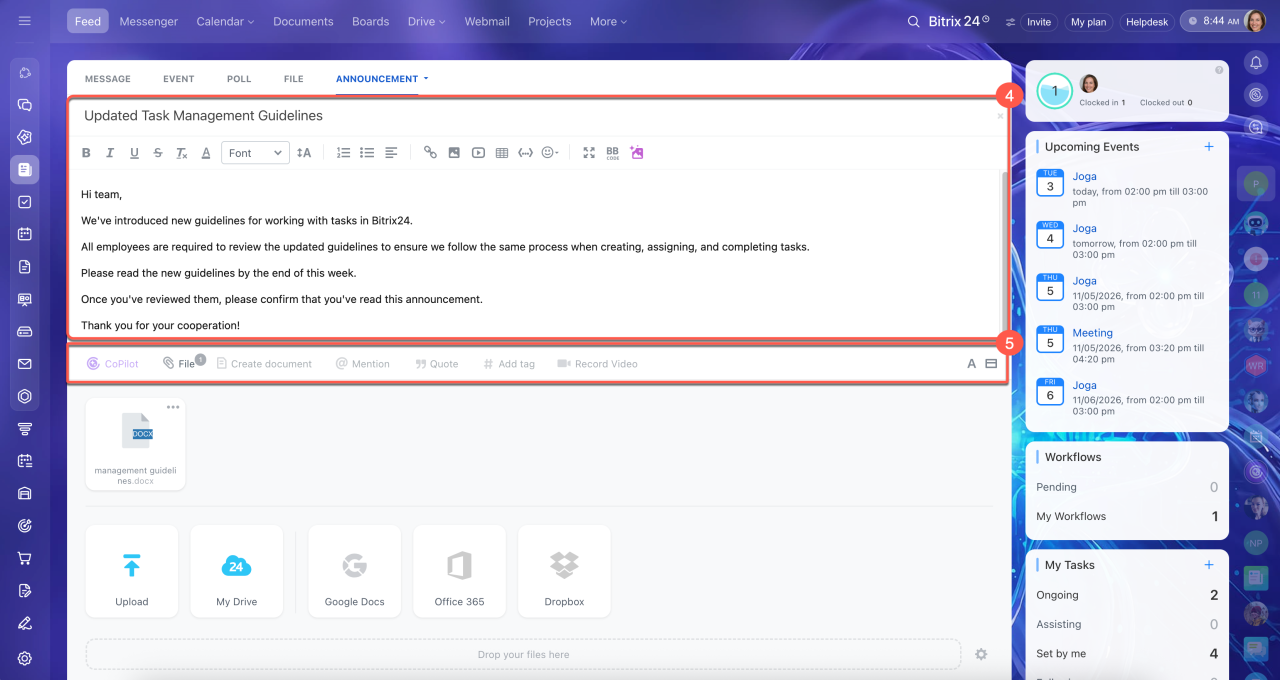
4. Enter a title and write your message so employees can quickly understand what the announcement is about.
5. If needed, attach additional materials, add a tag, or mention an employee.
Add messages to Feed
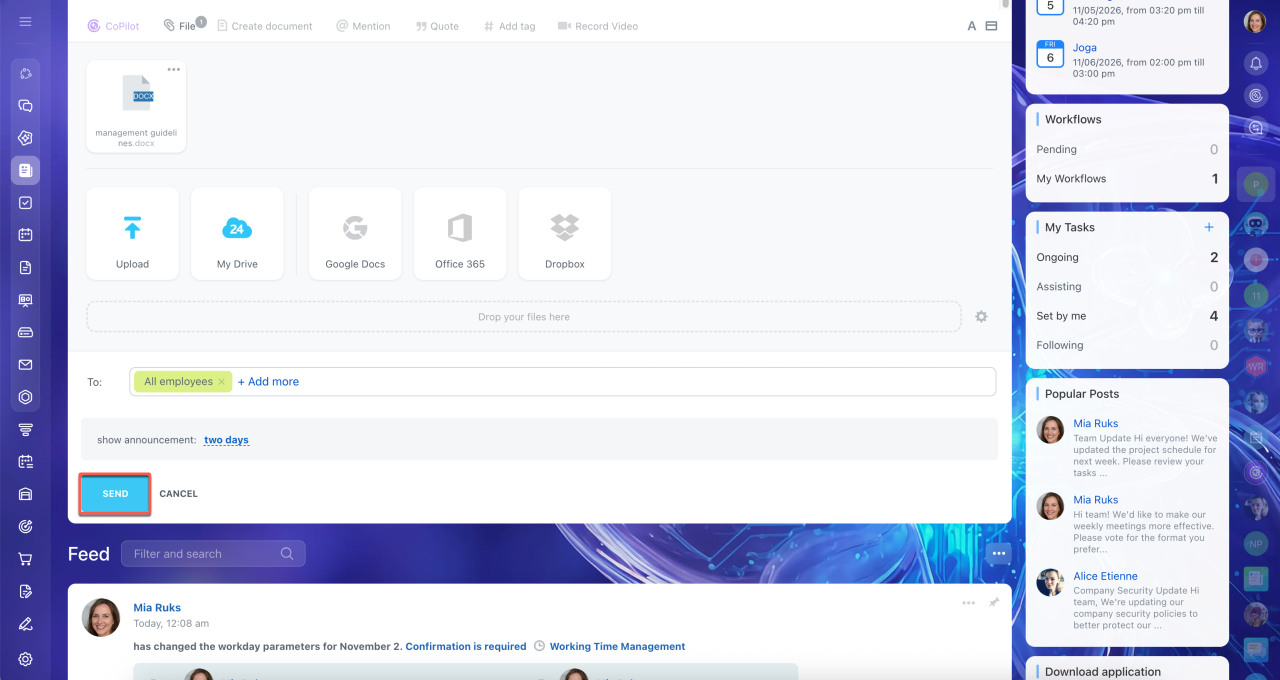
Choose recipients
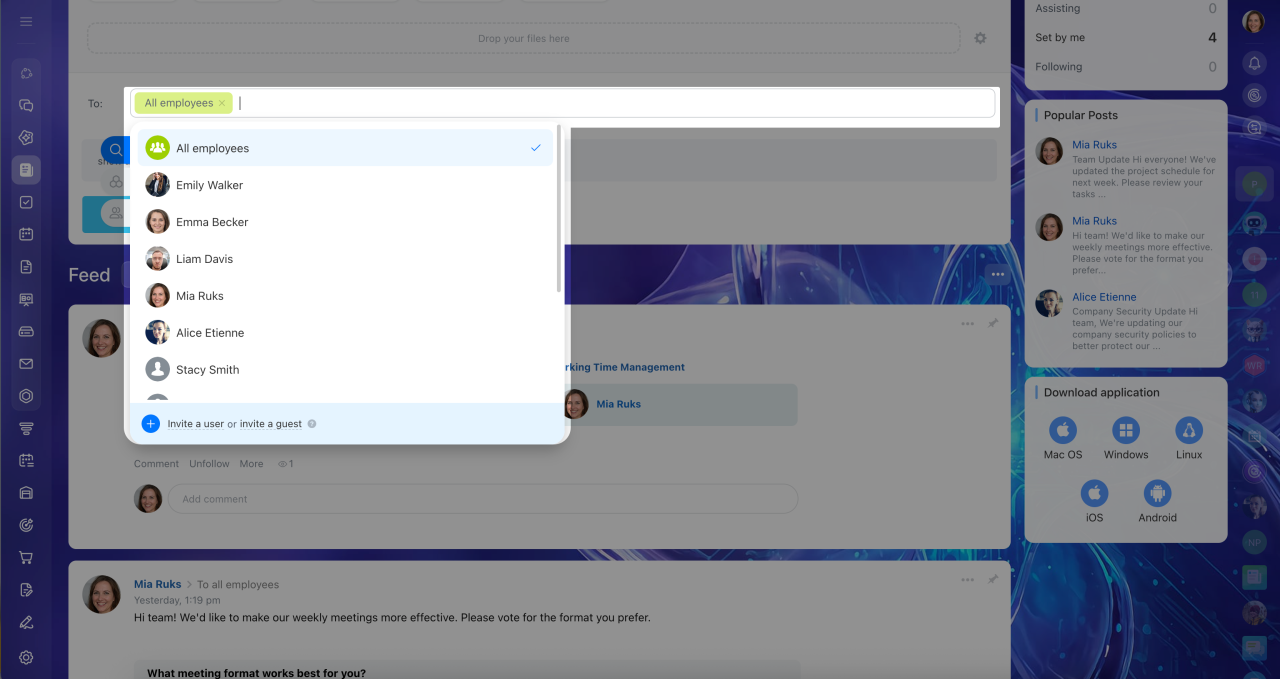
You can send an announcement to a department, a project, or specific employees. Click the To field and select the recipients.
Set the active period
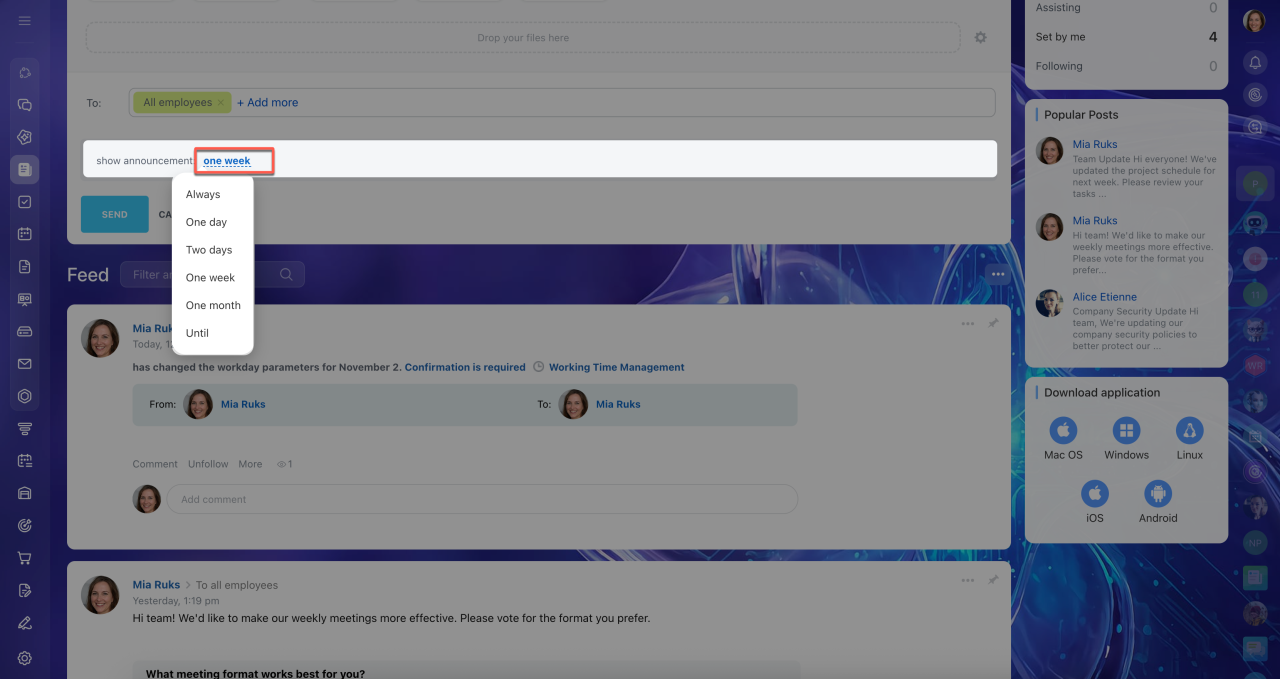
Choose how long the announcement will remain in the Feed. Click the period field and choose an option.
- One day, two days, a week, or a month — The announcement automatically disappears from the Feed after the selected period.
- Until a specific date — Select a date in the calendar. The announcement remains active until that date.
- Always — The announcement remains in the Feed indefinitely. This is useful when new employees need to see it after joining Bitrix24.
When you're done, click Send.
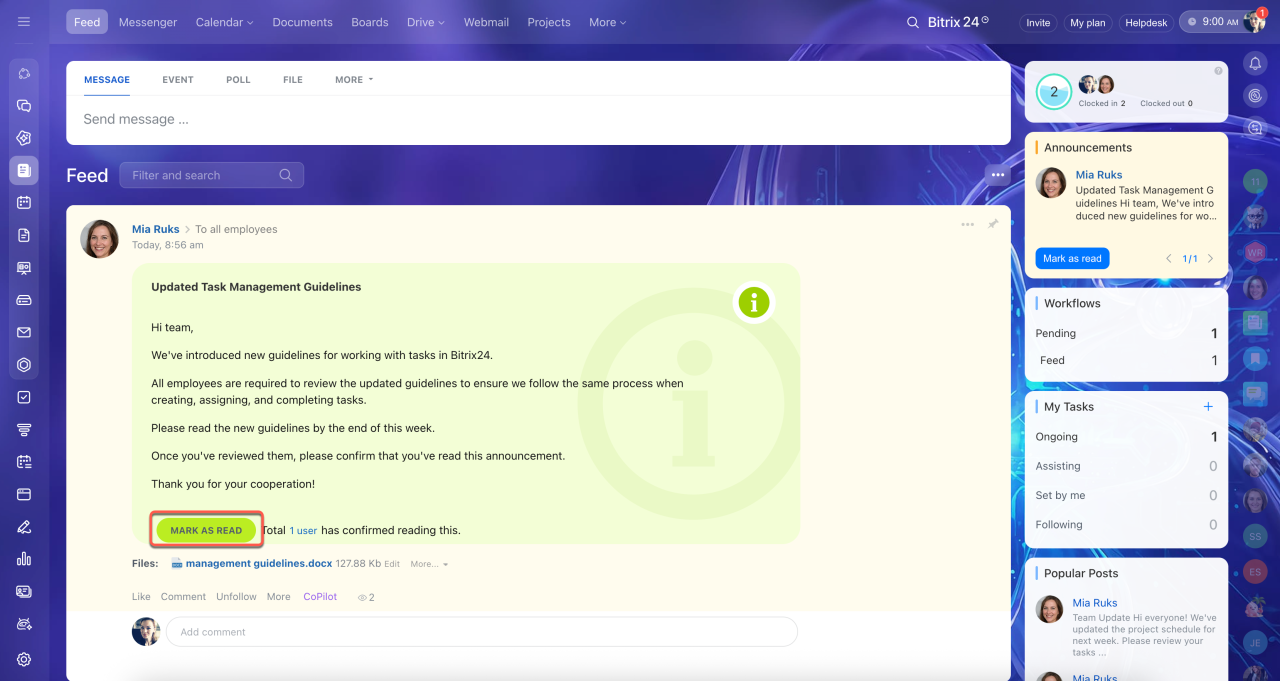
Once published, the announcement appears in the Feed with a green background and in the right-hand menu. New employees can see it after joining Bitrix24.
To confirm they've read the announcement, employees click Mark as read.
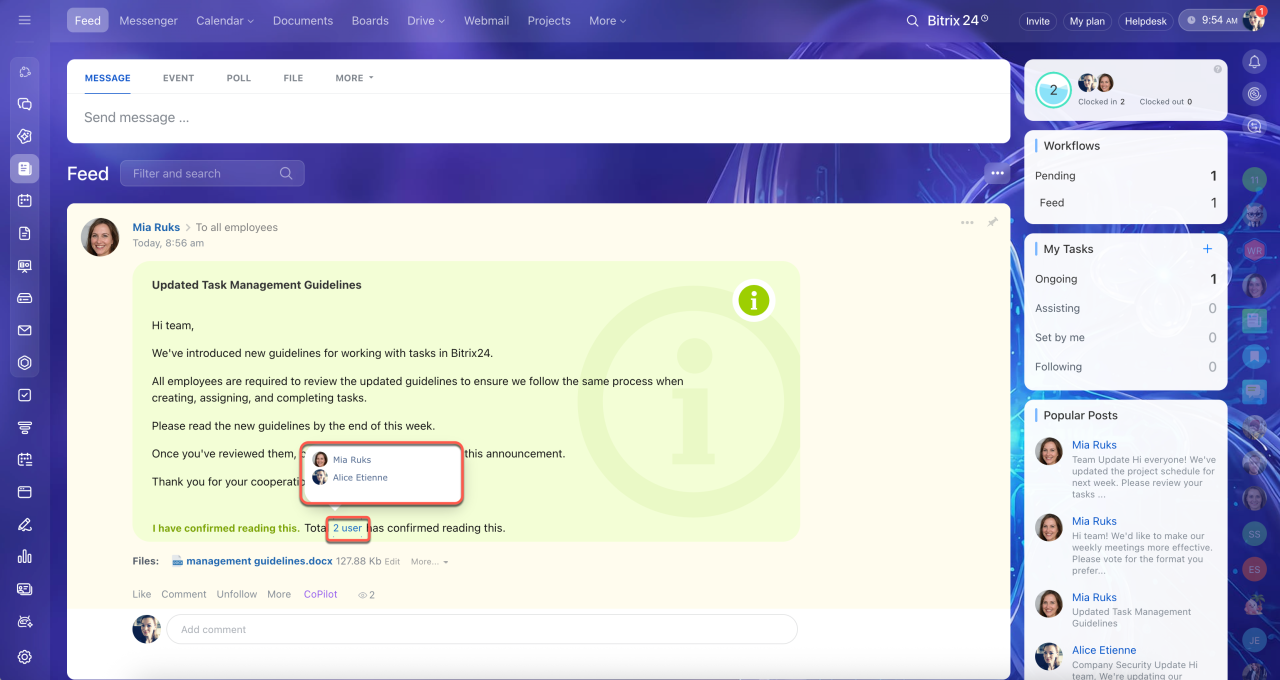
To see who has confirmed reading the announcement, click Users at the bottom of the post. This opens a list of employees who marked it as read.
In brief
- An announcement helps you share information with employees and see who has confirmed reading it.
- Create an announcement from Feed > More > Announcement.
- Select recipients: a department, a project, or specific employees.
- Set how long the announcement remains active: for a fixed period, until a specific date, or indefinitely.
- Announcements appear in the Feed with a green background.
- Click Users at the bottom of the post to see who has confirmed reading it.