
A personalized CRM form automatically fills in some fields. When a customer opens the form using a personal link, their name, surname, and other details are pulled from the CRM. This saves time and improves the customer experience. Use these forms to collect feedback, handle repeat orders, or run surveys.
In this article:
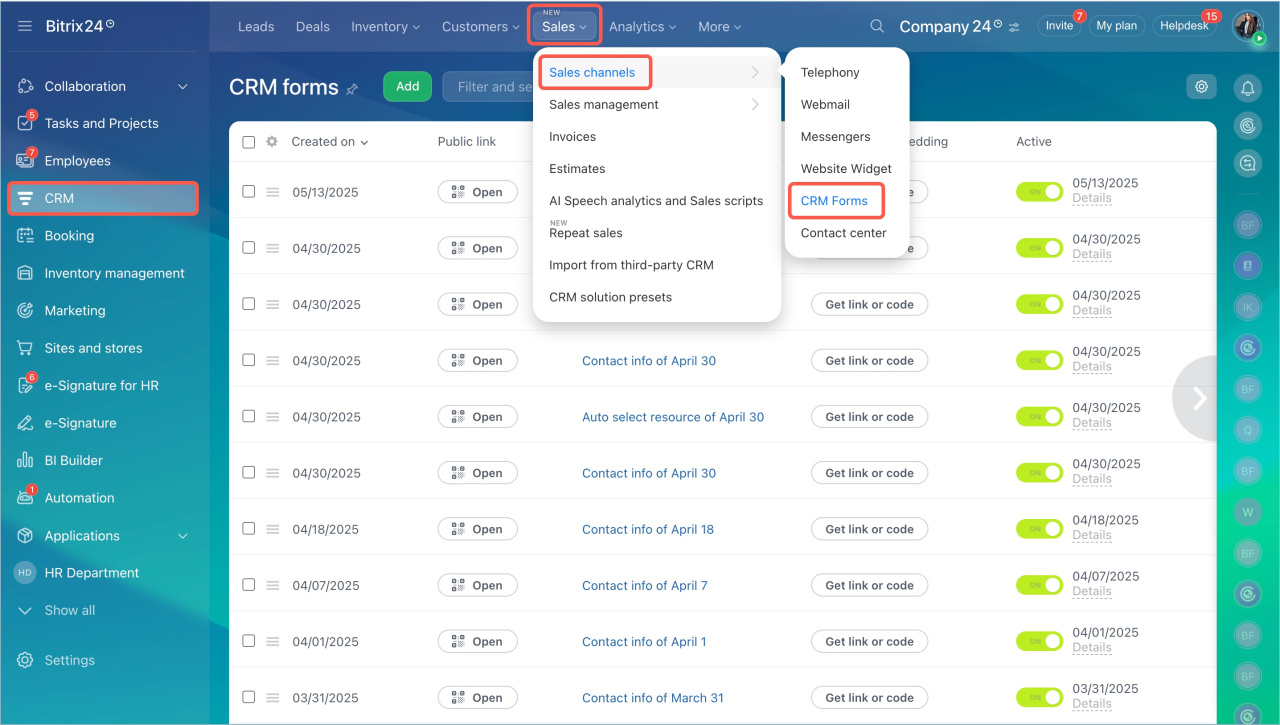
- Go to CRM > Sales > Sales Channels > CRM forms.
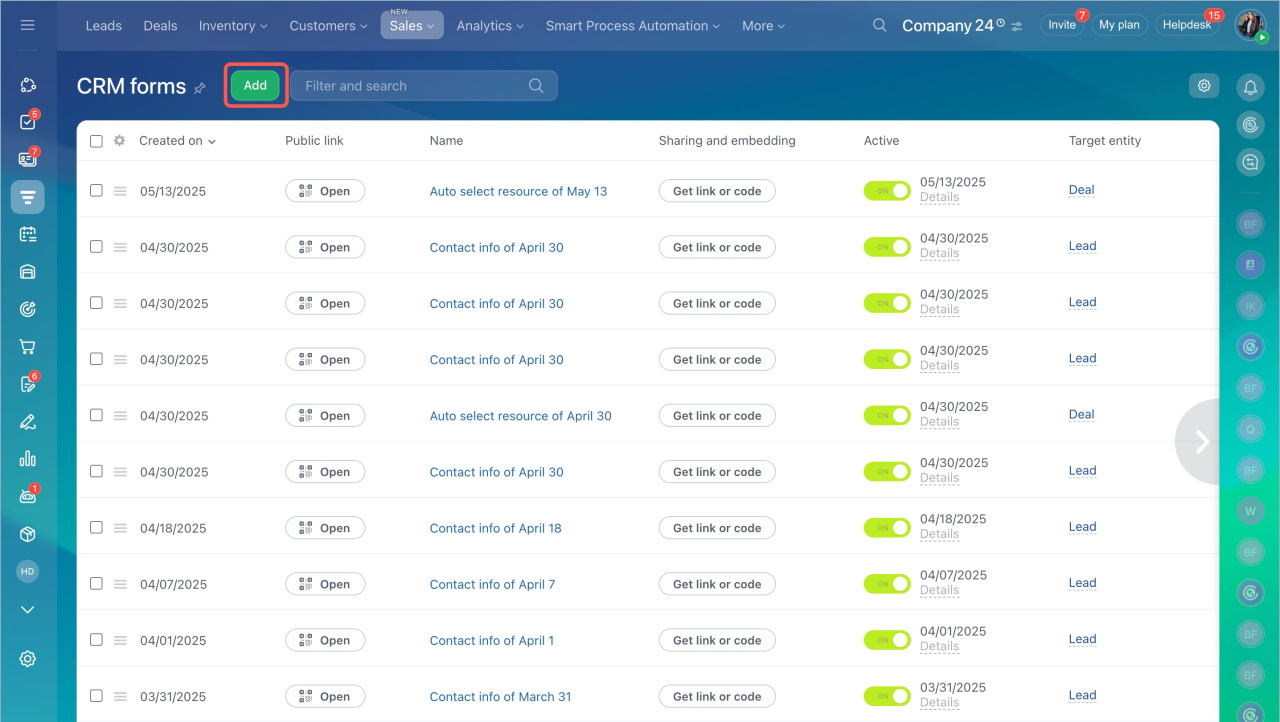
- Open an existing form or create a new one.
Add customer data to a CRM form
Use personalization tags to insert customer data into the form title and subtitle:
- Surname
- First name
- Middle name
- Company name
Personalization helps build trust and increases the chances that the customer will complete the form.
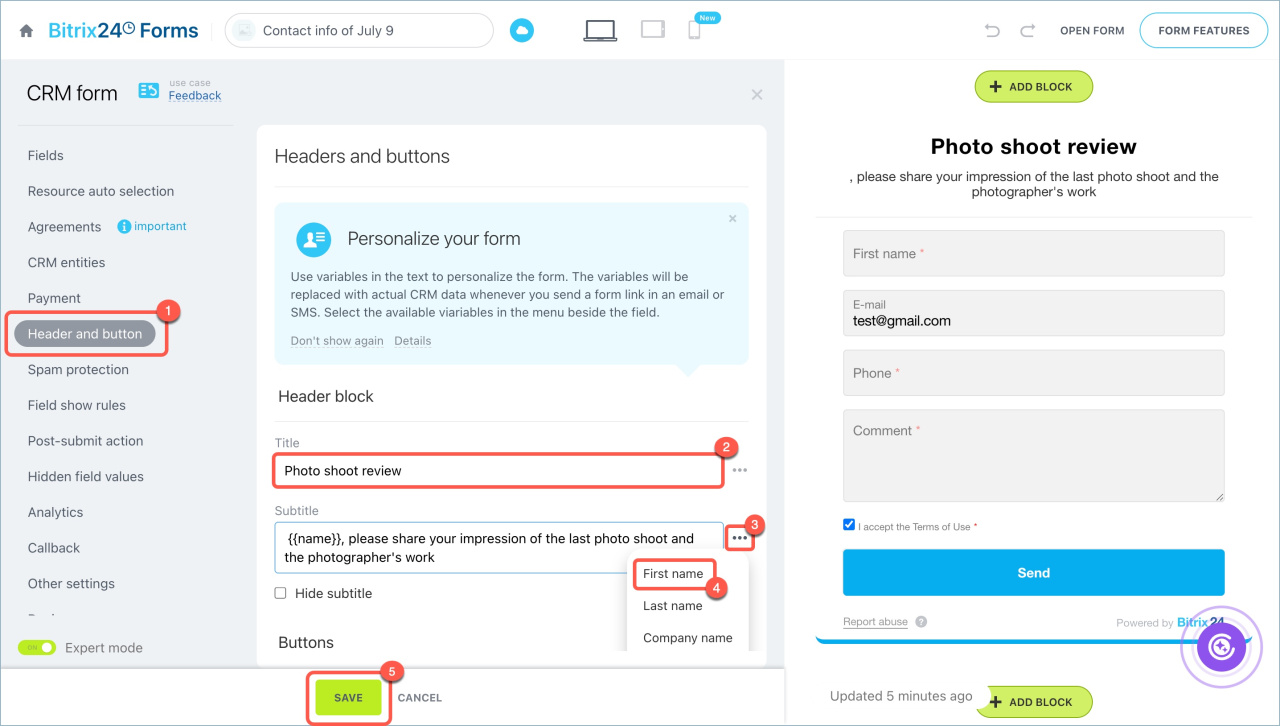
- Open the Headers and buttons tab.
- Fill in the Title and Subtitle. For example, add the form name to the title and request feedback in the subtitle.
- Click Three dots (...) next to the field where you want to insert data, then select one or more tags, such as First name and Surname.
- Save your changes.
Send a personalized CRM form to the customer
Create an automation rule that sends a personal form link to the customer by email, SMS, or chat.
Set up the automation rule
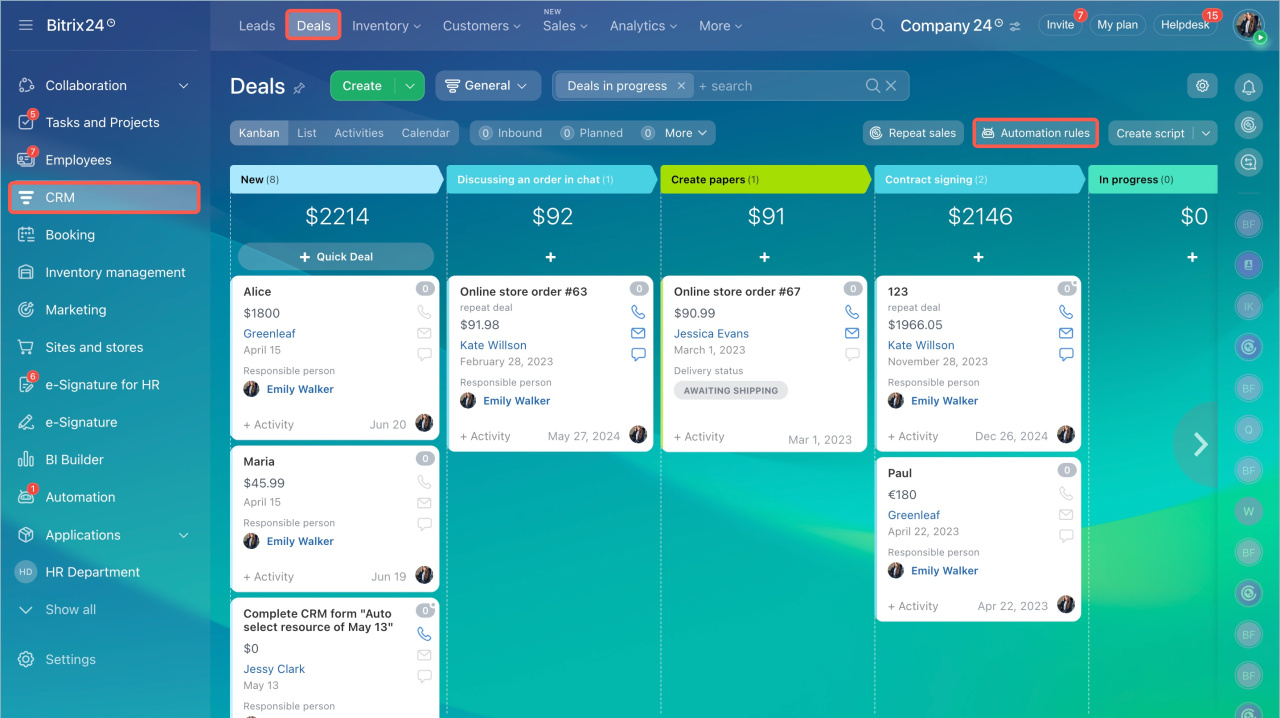
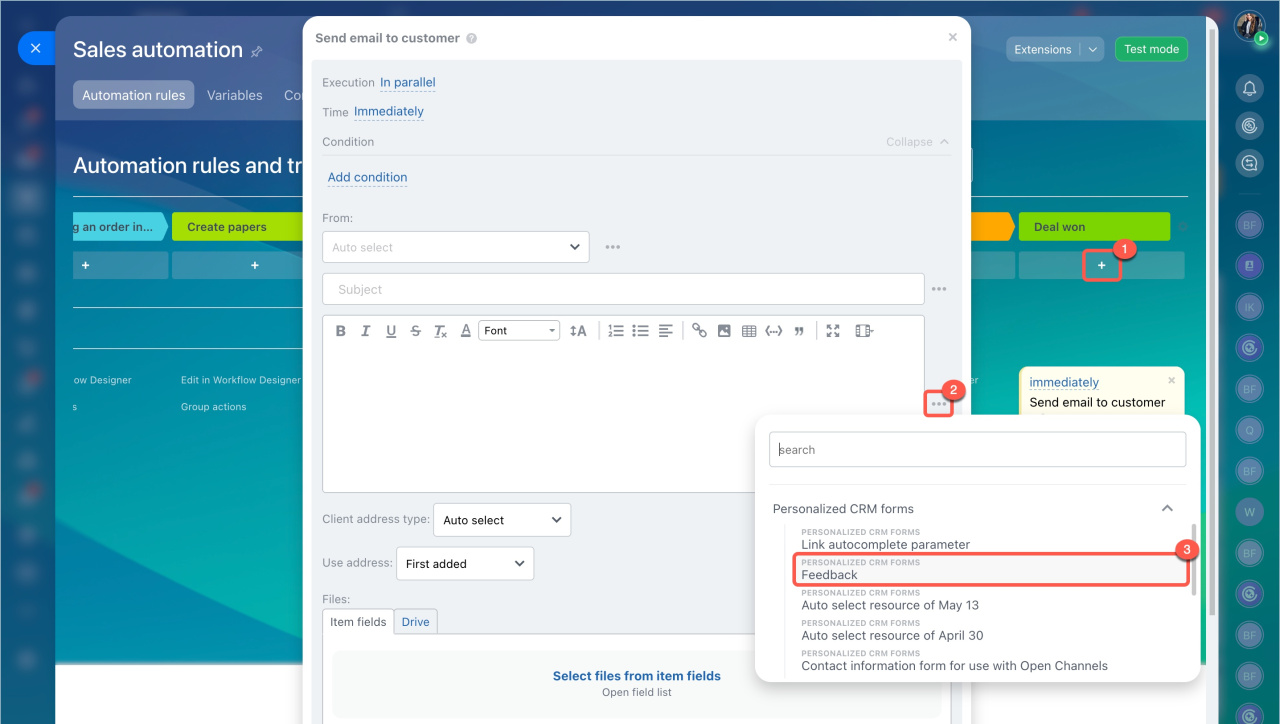
- Go to CRM > Deals and click Automation rules.
- Add a rule at the required stage.
- Click Three dots (...) next to the message field.
- Open the Personalized CRM forms list and select a form.
- Save the rule settings.
- Save changes in the Sales automation tab.
- Save the rule again.
Automation rules: Customer communication
Send the CRM form link
- Make sure all required contact fields are filled in.
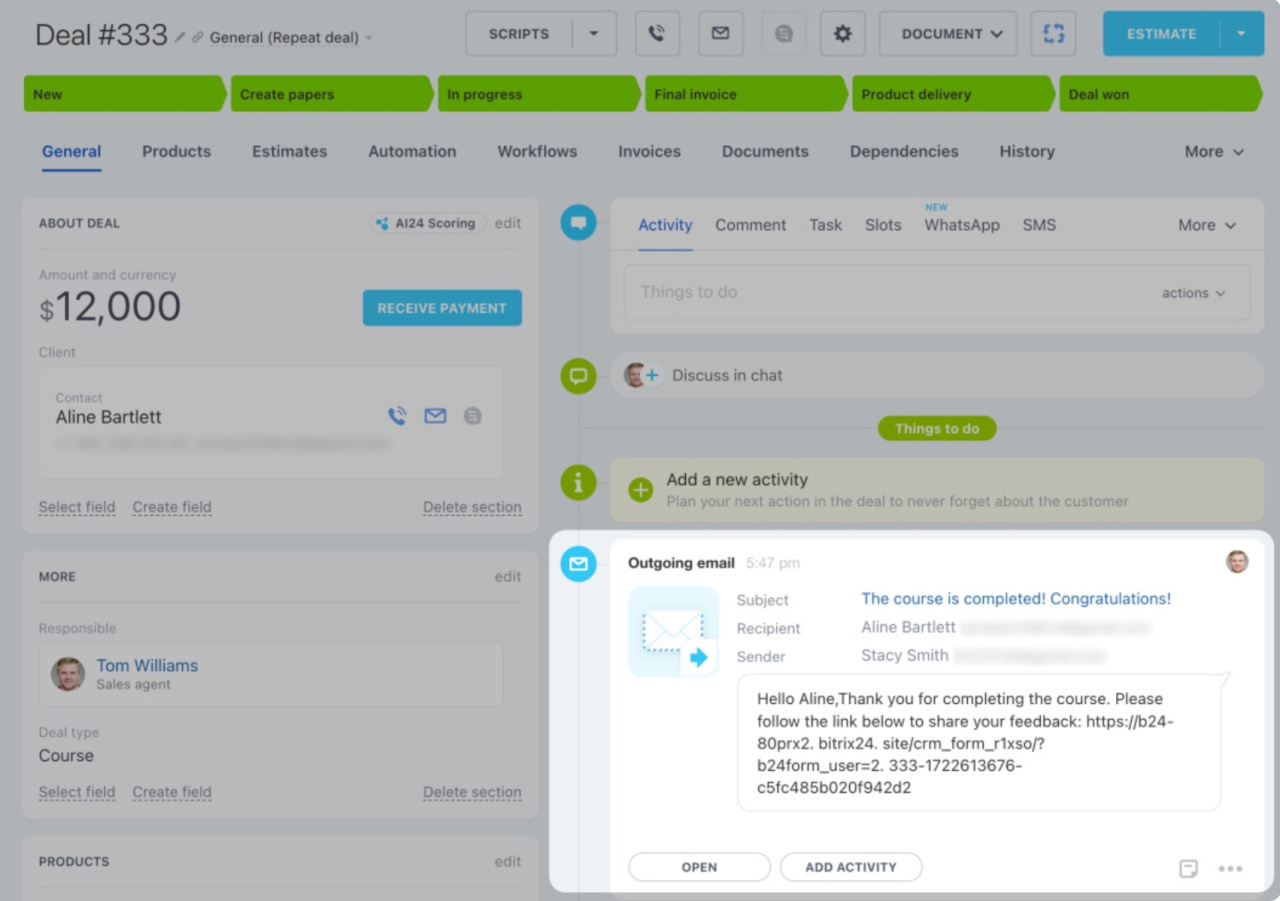
- Move the deal to the stage with the automation rule. An outgoing email will appear in the deal timeline.
- Click Open to view the message.
- Copy the personalized form link. It includes a unique parameter added by the automation rule. This parameter fills in fields like Surname, First name, Middle name, and Company name from the CRM.
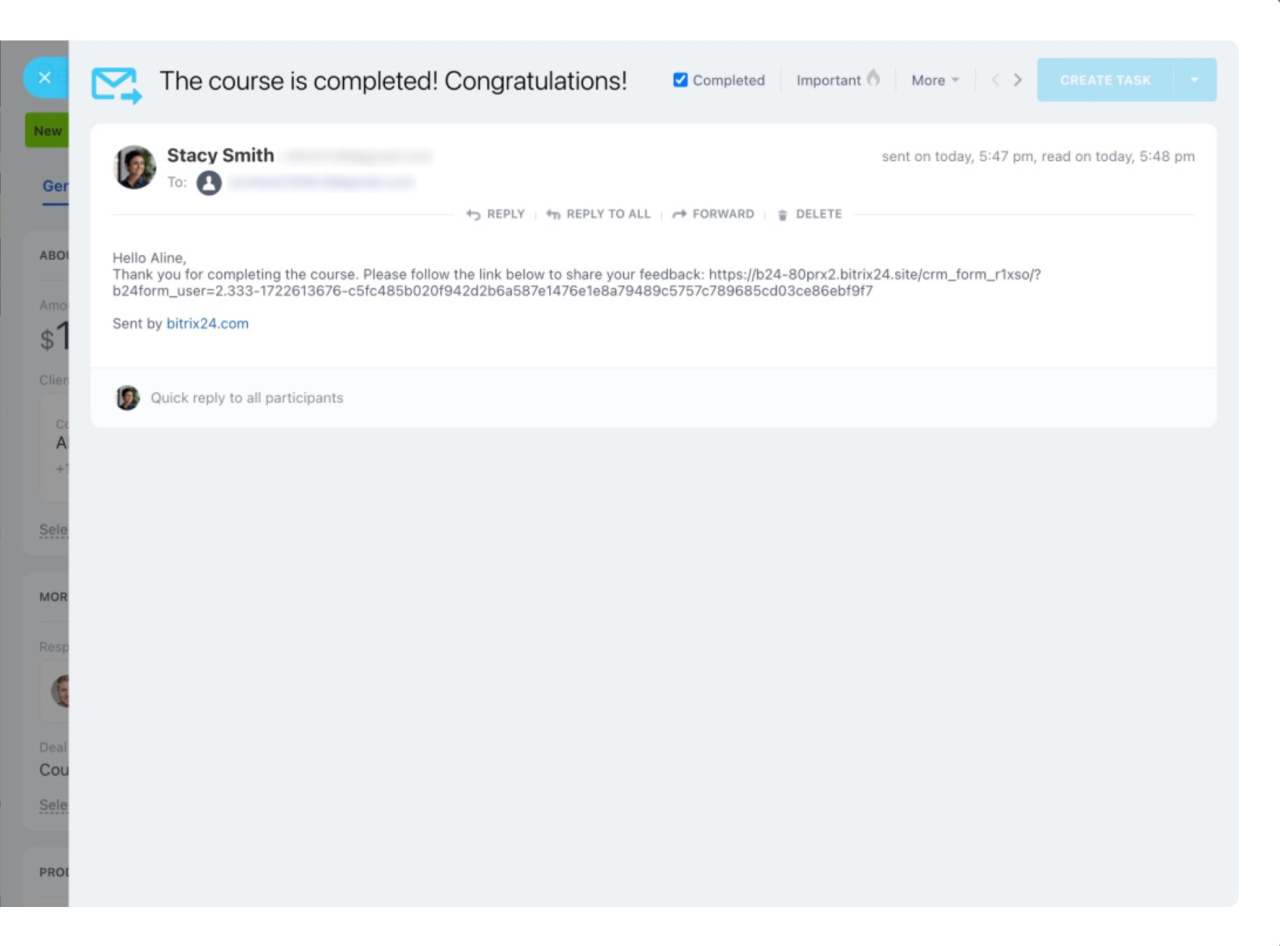
The personalized link is valid for 14 days. If the customer does not complete the form, send a new link.
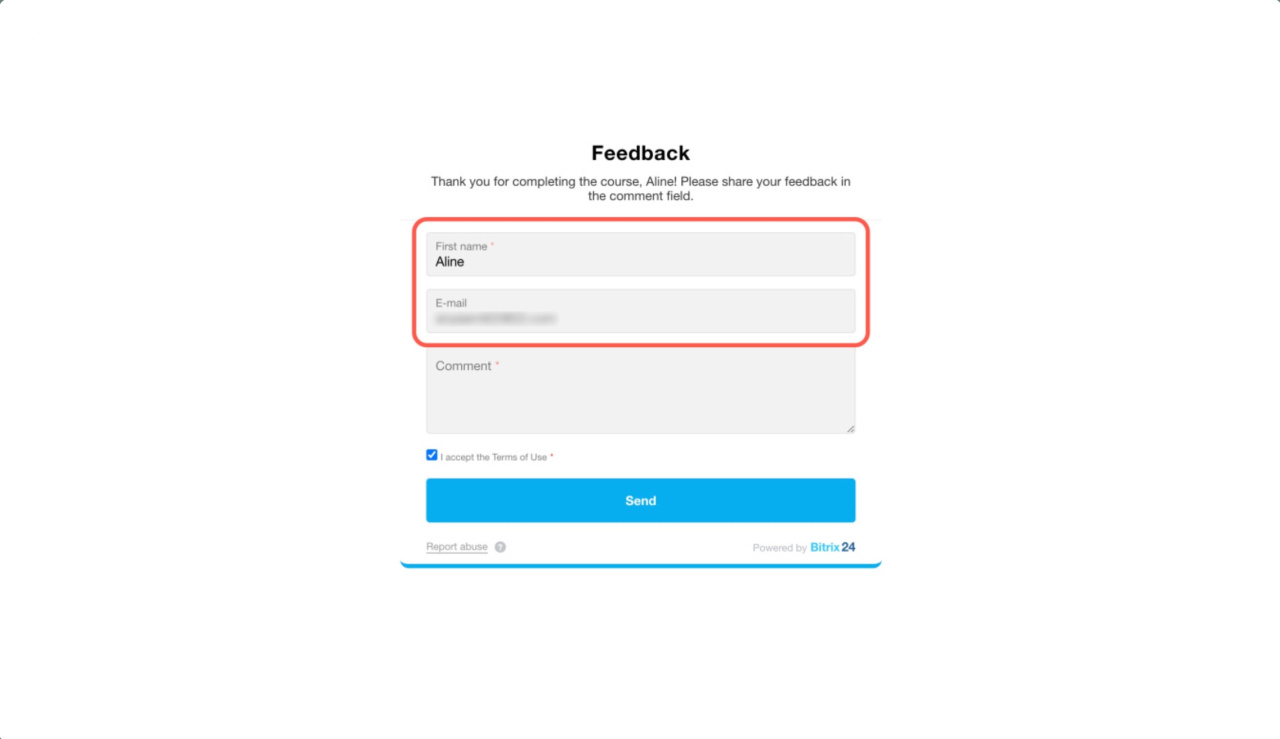
After the customer submits the form, the data is automatically saved in the deal.
In brief
- A personalized CRM form fills in some fields automatically. When customers open it using a personal link, their data is pulled from the CRM.
- These forms only work for customers whose data already exists in the CRM.
- Use personalization tags to add customer data to the form title and subtitle.
- Create an automation rule to send a personal link by email, SMS, or chat. Click Three dots (...) and select a form from Personalized CRM forms.
- Before moving the deal to the automation stage, make sure required contact fields are заполнены.
- When customers open the form, they see their data in the title and subtitle, and some fields are already filled in.
- When customers submit the form, the data is saved in the CRM.